> ## Documentation Index
> Fetch the complete documentation index at: https://help.kajabi.com/llms.txt
> Use this file to discover all available pages before exploring further.
# Community Settings - Gamification
> Configure rewards, titles, badges, points, and a Leaderboard to boost member engagement in your Community.
**Community Gamification** lets you build a flexible rewards system with levels, badges, and incentives that keep your Community members engaged. You can customize point values, assign titles, manage a Leaderboard, and even offer real-life prizes — all from your Community Settings.
Members earn points by completing specific actions and receive titles based on parameters you define. Use Gamification to recognize active participants, encourage repeat engagement, and create a sense of progression within your Community.
To access Community Gamification settings:
1. Open your Community and click the **ellipsis icon** next to the cover image.
2. Then, select **Community Settings**.
3. In the left sidebar, select **Customization**.
4. Then navigate to the **Gamification** section.
## Titles and badges
**Titles** serve as community recognition and can be customized based on member activity. Some example titles might be:
* **Rising Contributor** (500 points)
* **Top Contributor** (1,000 points)
* **All-Star Contributor** (2,000 points)
You can also assign custom titles such as VIP, Founder, Newbies, Top Member, Senior Manager, or level-based titles like "Apprentice" or "Expert."
Each title has:
* **Conditions** — Members must meet engagement milestones to unlock them
* **Rewards** — Each title comes with at least a digital badge associated with it
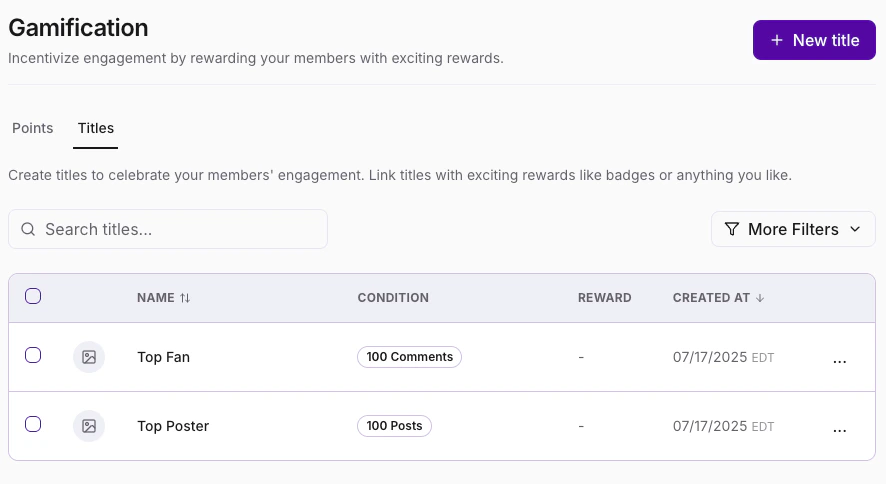 **Note:** If a title does not have a condition set, no one will qualify for it.
### Earn badges
Badges are digital rewards tied to titles and specific achievements. Members can earn badges by completing activities such as:
* Making posts or comments
* Completing courses, lessons, or quizzes
* Attending live events or meetups
* Participating in challenges
### Grant badges manually
As an admin, you can grant a badge to a member manually — giving you the flexibility to celebrate members for reasons beyond automated achievements.
1. Click into a member's profile within your Community. Scroll to the **Titles** section and click **Grant Badge**:
**Note:** If a title does not have a condition set, no one will qualify for it.
### Earn badges
Badges are digital rewards tied to titles and specific achievements. Members can earn badges by completing activities such as:
* Making posts or comments
* Completing courses, lessons, or quizzes
* Attending live events or meetups
* Participating in challenges
### Grant badges manually
As an admin, you can grant a badge to a member manually — giving you the flexibility to celebrate members for reasons beyond automated achievements.
1. Click into a member's profile within your Community. Scroll to the **Titles** section and click **Grant Badge**:
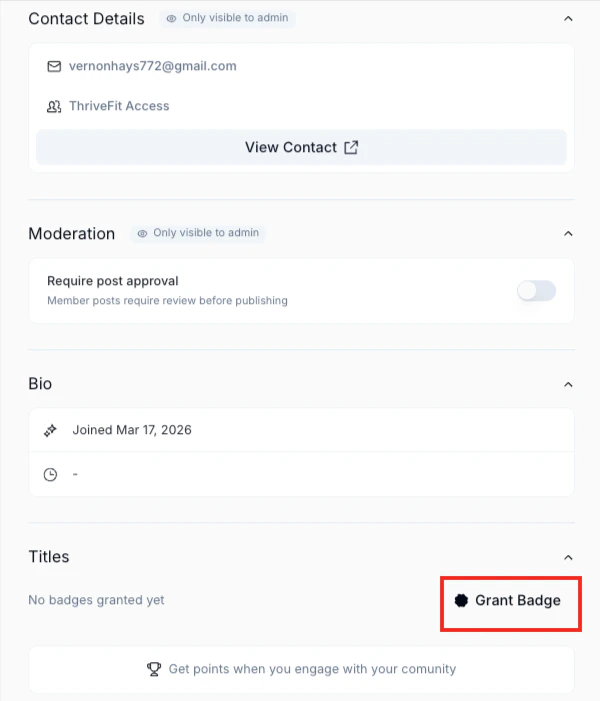 2. Select the badge you want to give to the member and click **Grant**.
### Where members see titles and badges
* **Profile page** — Displays earned titles, total points, and unlocked badges
* **Feed (posts, comments, replies)** — Shows the most recently earned title next to a member's name
* **Chat messages** — Displays the latest badge for easy recognition
* **Email** — Members receive an email when they earn a title or badge
* **Notifications** — Members receive an in-app notification when they earn a title or badge
## Points system
The points system tracks engagement and participation. By default, Community members earn points for various actions, but you can fully customize the point values based on your preferences.
2. Select the badge you want to give to the member and click **Grant**.
### Where members see titles and badges
* **Profile page** — Displays earned titles, total points, and unlocked badges
* **Feed (posts, comments, replies)** — Shows the most recently earned title next to a member's name
* **Chat messages** — Displays the latest badge for easy recognition
* **Email** — Members receive an email when they earn a title or badge
* **Notifications** — Members receive an in-app notification when they earn a title or badge
## Points system
The points system tracks engagement and participation. By default, Community members earn points for various actions, but you can fully customize the point values based on your preferences.
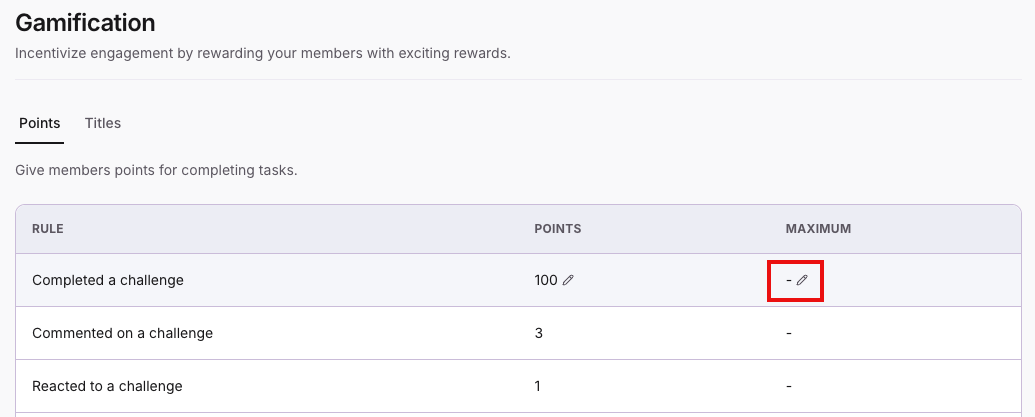 The default Leaderboard tracks points using the following system:
| **Action** | **Points earned** |
| ---------------------------------------- | ----------------- |
| Completing a Challenge | 100 |
| Commenting on a post | 3 |
| Reacting to another user's post | 1 |
| Receiving a reaction on a post | 1 |
| Sending a direct message | 1 |
| Receiving a reaction on a direct message | 1 |
| Voting in a poll | 1 |
The default Leaderboard tracks points using the following system:
| **Action** | **Points earned** |
| ---------------------------------------- | ----------------- |
| Completing a Challenge | 100 |
| Commenting on a post | 3 |
| Reacting to another user's post | 1 |
| Receiving a reaction on a post | 1 |
| Sending a direct message | 1 |
| Receiving a reaction on a direct message | 1 |
| Voting in a poll | 1 |
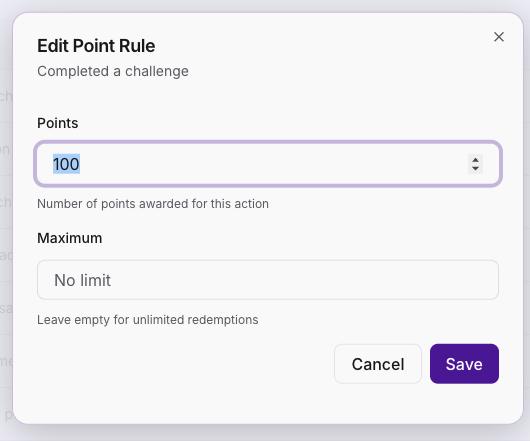 You can toggle the points system on or off and customize the name of points (e.g., "Karma" instead of "Points").
Warning: Deleting Community content such as posts, comments, poll responses, etc can reduce a member's point total. The points awarded for that action are subtracted from the member's weekly, monthly, and all-time totals.
### Add real-life prizes as custom fields
You can offer real-life (IRL) prizes to reward engagement, such as:
* **Promo codes** (e.g., discounts for products or services)
* **Physical merchandise** (e.g., community swag, books)
* **Exclusive content** (e.g., special access to premium content)
## Leaderboard
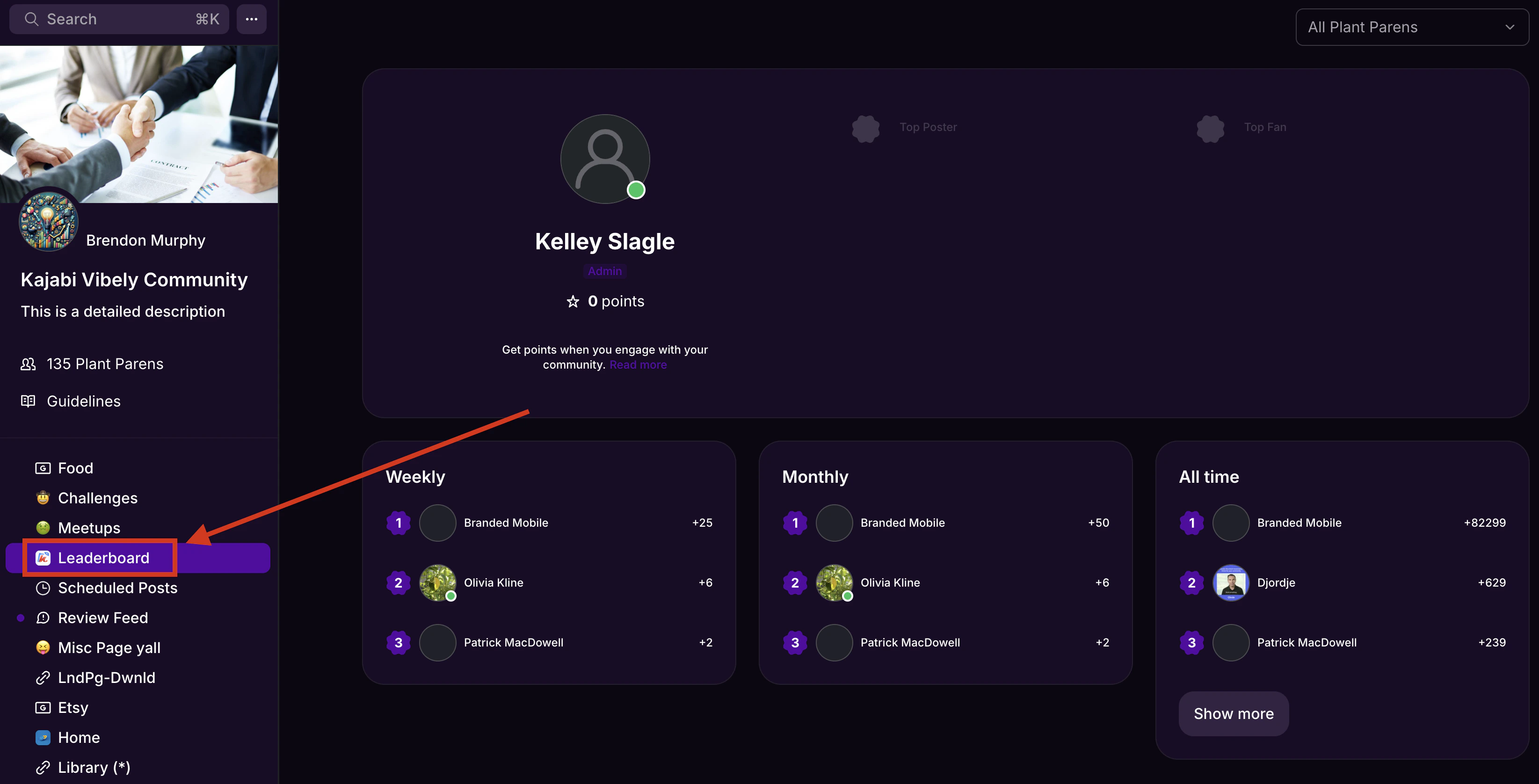
The **Leaderboard** ranks members based on their accumulated points and is available on mobile and web. It gives you a quick snapshot of who is most actively participating in your Community — use it to recognize top contributors, encourage engagement, and keep members motivated.
The Leaderboard can display:
* **7-day, 30-day, or all-time rankings**
* Titles and earned badges
* Sorting based on activity level
**Note:** The 7-day Leaderboard resets at 8am UTC every Monday. The 30-day Leaderboard resets at 8am UTC on the first of every month.
### View the Leaderboard
To view your Community Leaderboard on the web app:
1. Click the **Leaderboard** tab in the left sidebar.
2. View your Community's **Weekly**, **Monthly**, and **All-time** Leaderboards.
You can toggle the points system on or off and customize the name of points (e.g., "Karma" instead of "Points").
Warning: Deleting Community content such as posts, comments, poll responses, etc can reduce a member's point total. The points awarded for that action are subtracted from the member's weekly, monthly, and all-time totals.
### Add real-life prizes as custom fields
You can offer real-life (IRL) prizes to reward engagement, such as:
* **Promo codes** (e.g., discounts for products or services)
* **Physical merchandise** (e.g., community swag, books)
* **Exclusive content** (e.g., special access to premium content)
## Leaderboard
The **Leaderboard** ranks members based on their accumulated points and is available on mobile and web. It gives you a quick snapshot of who is most actively participating in your Community — use it to recognize top contributors, encourage engagement, and keep members motivated.
The Leaderboard can display:
* **7-day, 30-day, or all-time rankings**
* Titles and earned badges
* Sorting based on activity level
**Note:** The 7-day Leaderboard resets at 8am UTC every Monday. The 30-day Leaderboard resets at 8am UTC on the first of every month.
### View the Leaderboard
To view your Community Leaderboard on the web app:
1. Click the **Leaderboard** tab in the left sidebar.
2. View your Community's **Weekly**, **Monthly**, and **All-time** Leaderboards.
 ### Customize the Leaderboard
You can:
* Toggle the Leaderboard on or off
* Show ranking-based earned titles and badges
* Customize the Leaderboard name (e.g., "Employee of the Month")
### Disable the Leaderboard
To remove the Leaderboard from your Community:
1. Click the **ellipsis icon** next to the cover photo, then select **Community Settings**.
2. In the left sidebar, select **Customization**.
3. Under the **Gamification** section, select visibility settings for both **Global leaderboard** and **Challenge leaderboard**:
* Visible to members
* Visible to founder, admins, and moderators
* Disabled
4. Click **Save**.
## FAQs
### What actions earn points toward the Leaderboard?
Members earn points for actions such as completing a Challenge (100 points), commenting on a post (3 points), reacting to a post (1 point), sending a direct message (1 point), and voting in a poll (1 point). You can customize these values in your Gamification settings.
### Can I rename the points system?
Yes. You can customize the name of points to match your brand — for example, "Karma" or "Stars" instead of "Points."
### What happens if I disable the Leaderboard?
Disabling the Leaderboard hides it from members, but their accumulated points and badges remain intact. You can re-enable it at any time.
### Can I manually award badges to members?
Yes. Navigate to the member's profile, scroll to the **Titles** section, click **Grant Badge**, select the badge, and click **Grant**.
### Why does my member have negative points on the Leaderboard?
A negative balance usually means content that previously earned the member points has been deleted. When a post, comment, reaction, challenge completion, event RSVP, poll response, or group goal achievement is removed, the corresponding points are subtracted from the member's weekly, monthly, and all-time totals. Member balances are not capped at zero, so if the deductions exceed what the member currently has in that timeframe, the total drops below zero.
Example: If a member deletes a post that earned them 20 points, their total drops by 20 points. If the weekly or monthly leaderboard has already reset since they earned those points, that 20-point deduction comes of their newer (smaller) total. If their new total is less than 20, then they will end up with a negative point balance.
### What happens to member points if I change a point value?
Changing a point value does not retroactively adjust the points members have already earned — existing balances stay the same. From the moment you save the change, new earnings, and any deductions triggered later by deleted content, reflect the updated value. To avoid unexpected swings in member totals, settle on point values during initial setup and adjust them sparingly afterward.
Example: A member has liked a post and that earned them 10 points. The Community Owner then changes that value of that action to 20 points. If the same member goes and unlikes a post after the value has changed, they will lose 20 points total. This would lead to negative 10 points ( 10 - 20 = -10 points).
### Customize the Leaderboard
You can:
* Toggle the Leaderboard on or off
* Show ranking-based earned titles and badges
* Customize the Leaderboard name (e.g., "Employee of the Month")
### Disable the Leaderboard
To remove the Leaderboard from your Community:
1. Click the **ellipsis icon** next to the cover photo, then select **Community Settings**.
2. In the left sidebar, select **Customization**.
3. Under the **Gamification** section, select visibility settings for both **Global leaderboard** and **Challenge leaderboard**:
* Visible to members
* Visible to founder, admins, and moderators
* Disabled
4. Click **Save**.
## FAQs
### What actions earn points toward the Leaderboard?
Members earn points for actions such as completing a Challenge (100 points), commenting on a post (3 points), reacting to a post (1 point), sending a direct message (1 point), and voting in a poll (1 point). You can customize these values in your Gamification settings.
### Can I rename the points system?
Yes. You can customize the name of points to match your brand — for example, "Karma" or "Stars" instead of "Points."
### What happens if I disable the Leaderboard?
Disabling the Leaderboard hides it from members, but their accumulated points and badges remain intact. You can re-enable it at any time.
### Can I manually award badges to members?
Yes. Navigate to the member's profile, scroll to the **Titles** section, click **Grant Badge**, select the badge, and click **Grant**.
### Why does my member have negative points on the Leaderboard?
A negative balance usually means content that previously earned the member points has been deleted. When a post, comment, reaction, challenge completion, event RSVP, poll response, or group goal achievement is removed, the corresponding points are subtracted from the member's weekly, monthly, and all-time totals. Member balances are not capped at zero, so if the deductions exceed what the member currently has in that timeframe, the total drops below zero.
Example: If a member deletes a post that earned them 20 points, their total drops by 20 points. If the weekly or monthly leaderboard has already reset since they earned those points, that 20-point deduction comes of their newer (smaller) total. If their new total is less than 20, then they will end up with a negative point balance.
### What happens to member points if I change a point value?
Changing a point value does not retroactively adjust the points members have already earned — existing balances stay the same. From the moment you save the change, new earnings, and any deductions triggered later by deleted content, reflect the updated value. To avoid unexpected swings in member totals, settle on point values during initial setup and adjust them sparingly afterward.
Example: A member has liked a post and that earned them 10 points. The Community Owner then changes that value of that action to 20 points. If the same member goes and unlikes a post after the value has changed, they will lose 20 points total. This would lead to negative 10 points ( 10 - 20 = -10 points).