> ## Documentation Index
> Fetch the complete documentation index at: https://help.kajabi.com/llms.txt
> Use this file to discover all available pages before exploring further.
# Community Settings - Notifications
> Configure push, in-app, and email notifications for Community features.
**Community notifications** keep you and your members informed about activity across your Community from Channel messages and Challenge updates to Meetup reminders and Live Room alerts. You control how notifications are delivered (push, in-app, or email), and your members can further personalize their preferences from their own profile settings.
This page covers the types of notifications available, how to configure them at both the individual and Community level, and how to customize your Community email branding.
## Understanding Community notifications
Community notifications are delivered in three ways:
* **Emails** — Sent to the member's email address
* **In-app notifications** — Appear in the notification center within the Community
* **Mobile push notifications** — Sent to members using the mobile app
Notifications are managed at two levels:
* **Community level** — You set defaults for all members in **Community Settings**
* **Individual level** — Each member adjusts their own preferences in their profile settings
**Note:** When a member joins your Community, all notifications are enabled by default. Members can then customize their preferences at any time. If you disable a notification type at the Community level, members will see that setting grayed out and cannot reactivate it.
## Notification types by Community feature
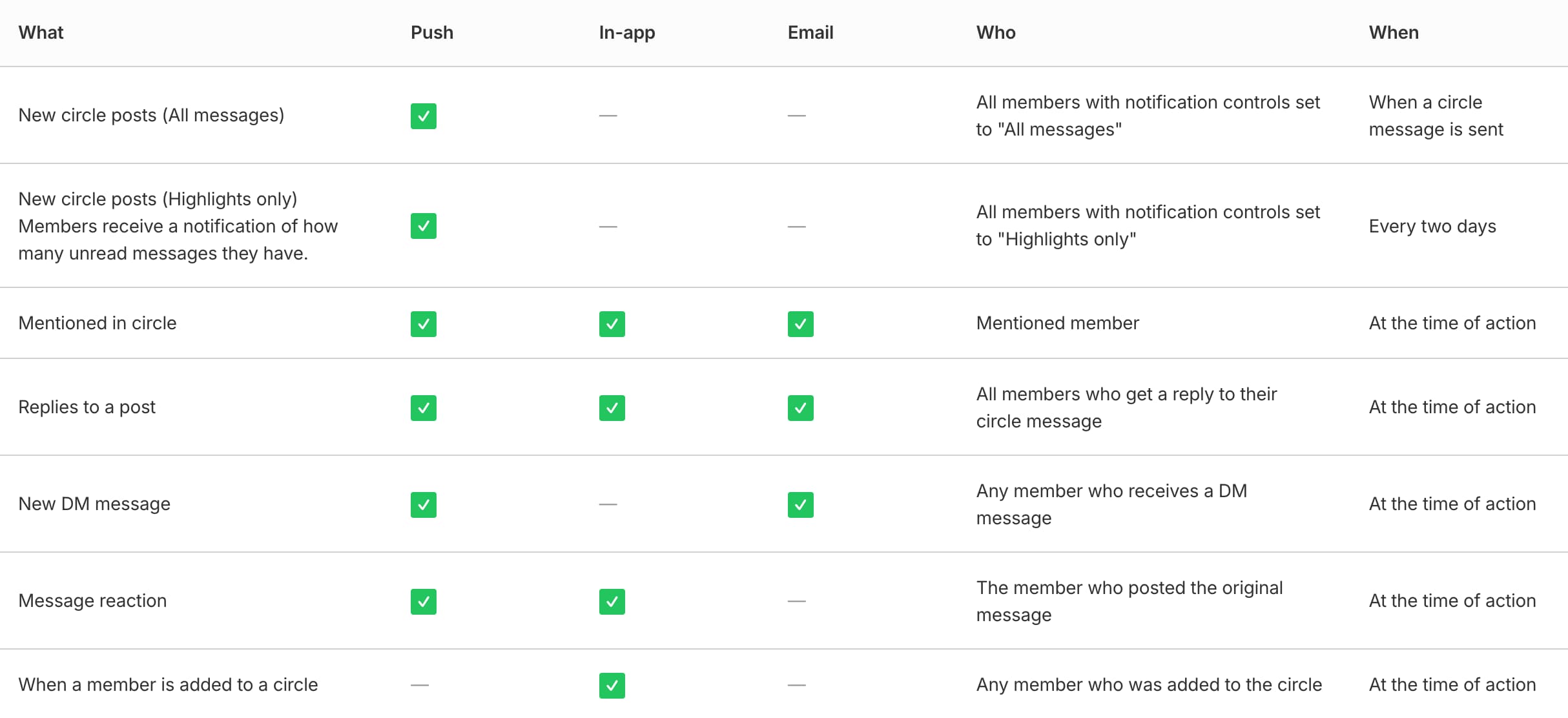
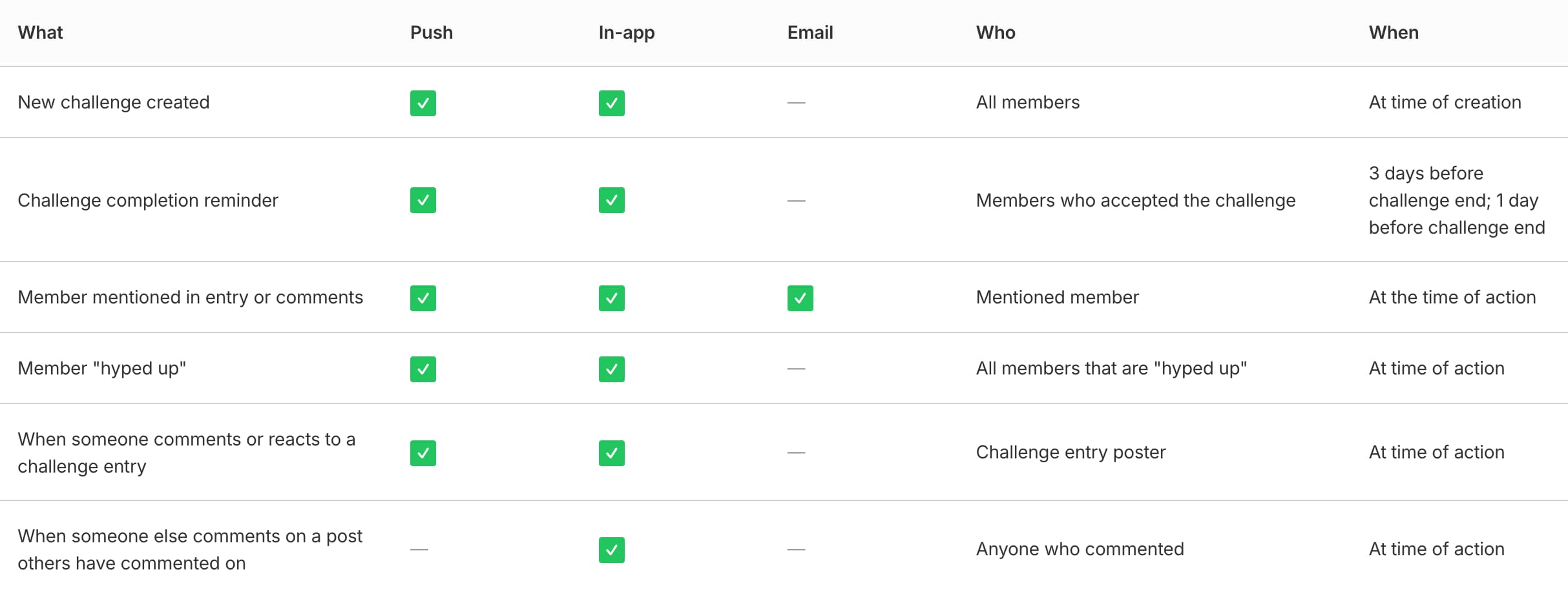
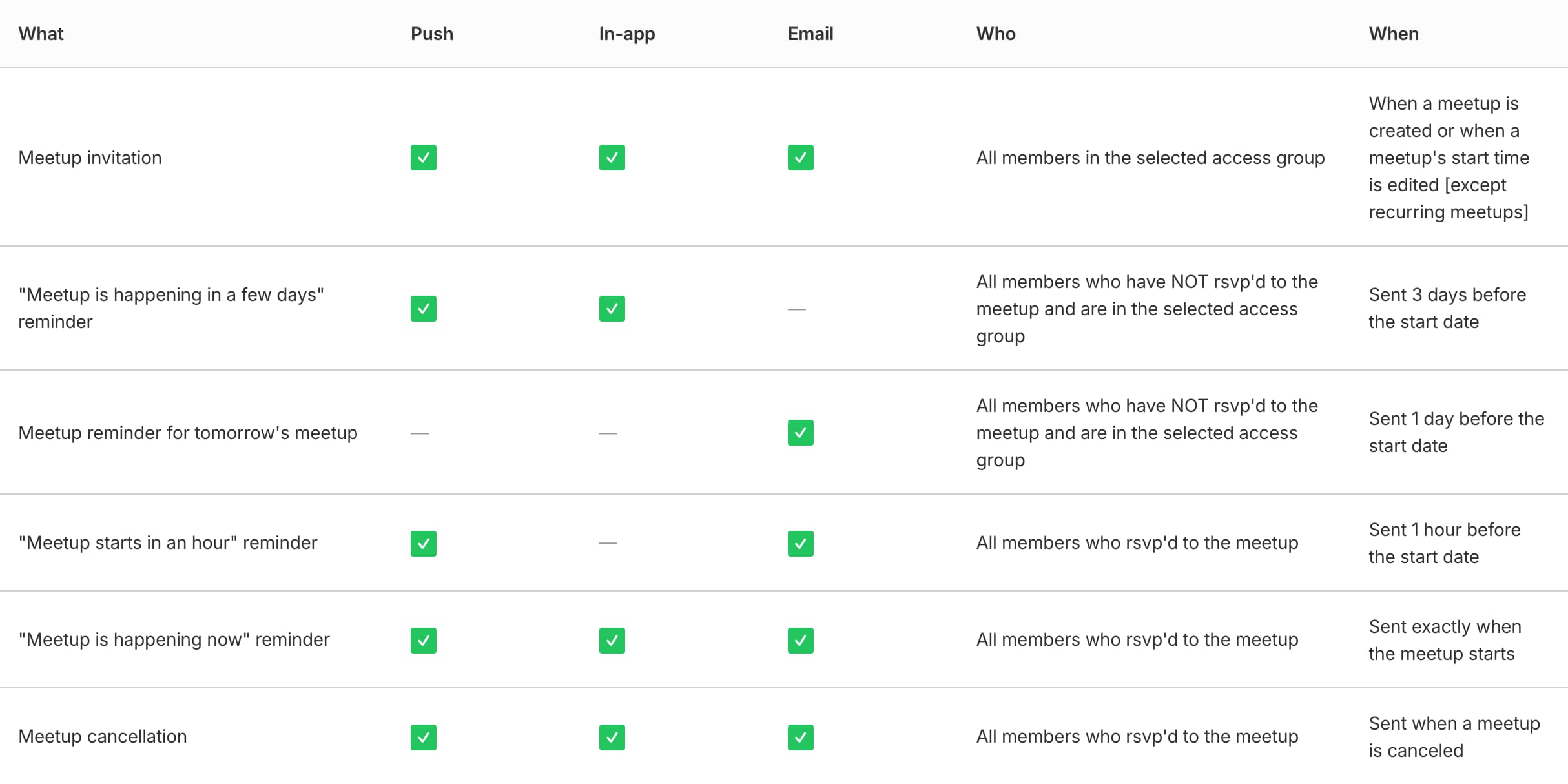
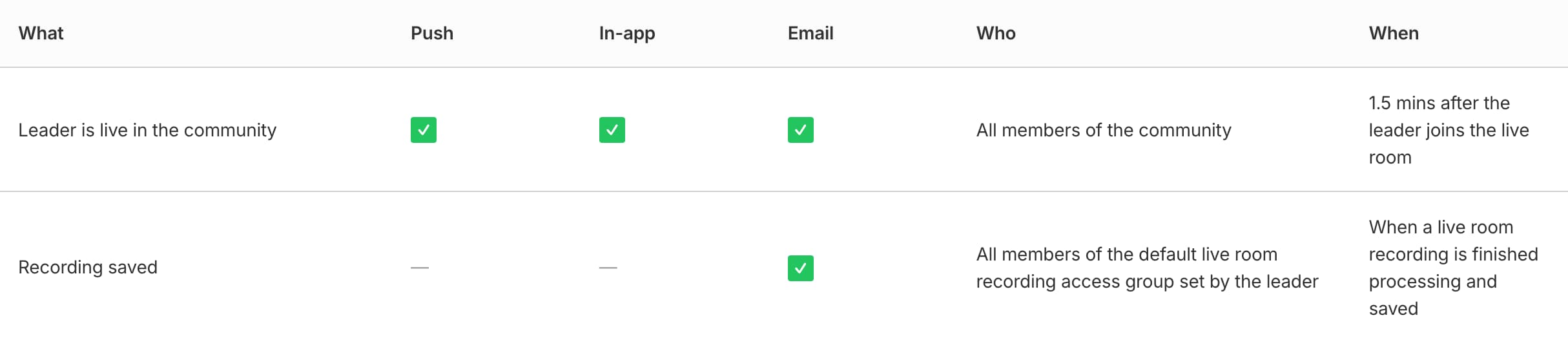
The following charts show which notification types are available for each Community feature. You and your Moderators, Administrators, and Community members can customize and receive these notifications.
### Channels & DMs
 ### Challenges
 ### Meetups
 ### Live Rooms
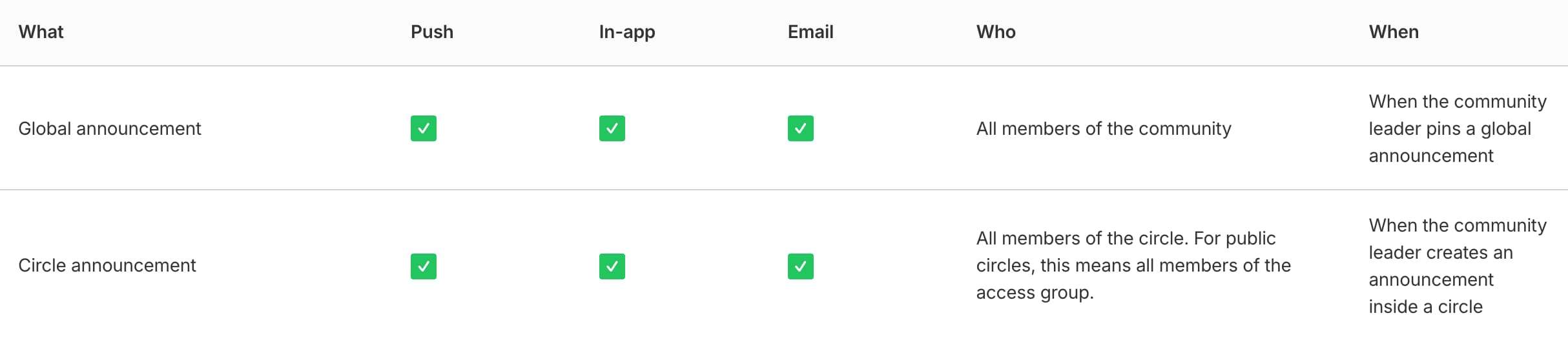
 ### Announcements
 ### Weekly Digest
 ### Leaderboard
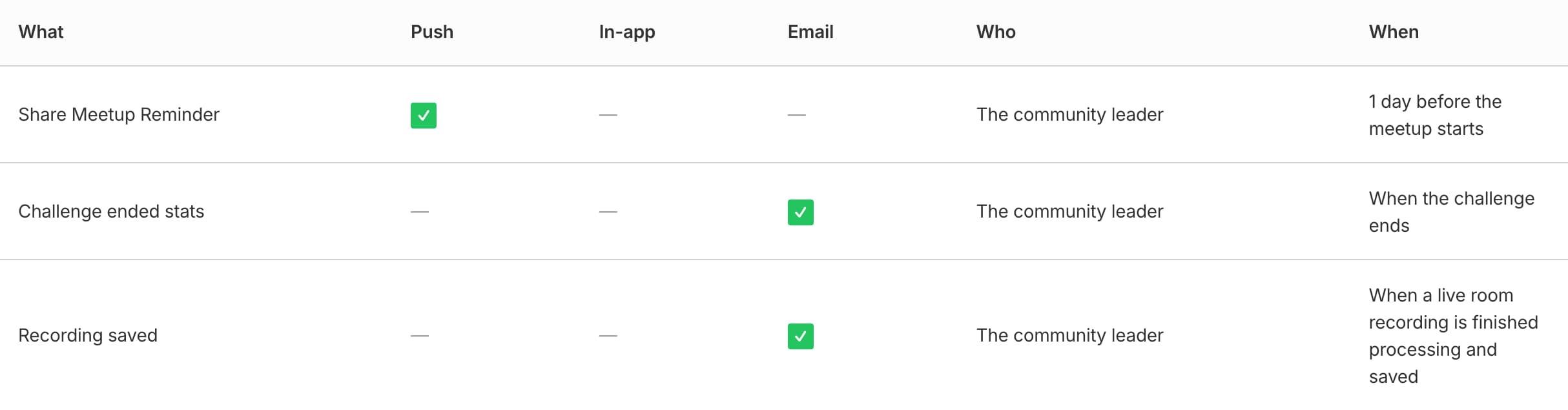
 ### Community owner email notifications
As a Community leader, you receive the following email notifications:
### Community owner email notifications
As a Community leader, you receive the following email notifications:
 ## Customize push, in-app, and email notifications
### To adjust your notifications using the Community web app:
1. Open your Community and locate your **profile icon** at the top right of the page.
2. Select **Notification settings**:
## Customize push, in-app, and email notifications
### To adjust your notifications using the Community web app:
1. Open your Community and locate your **profile icon** at the top right of the page.
2. Select **Notification settings**: 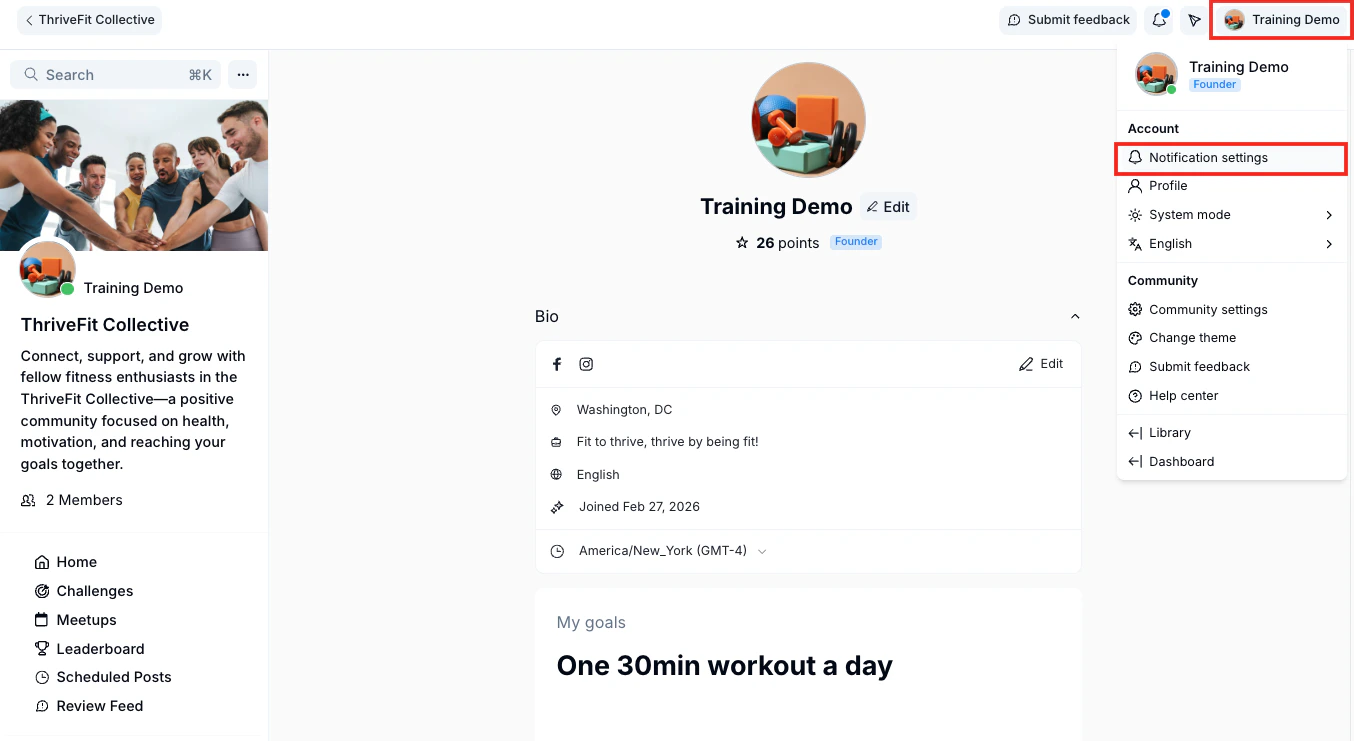 3. Click the toggles next to **Push**, **In-app**, and/or **Email** to adjust notification settings as desired for each Community feature:
 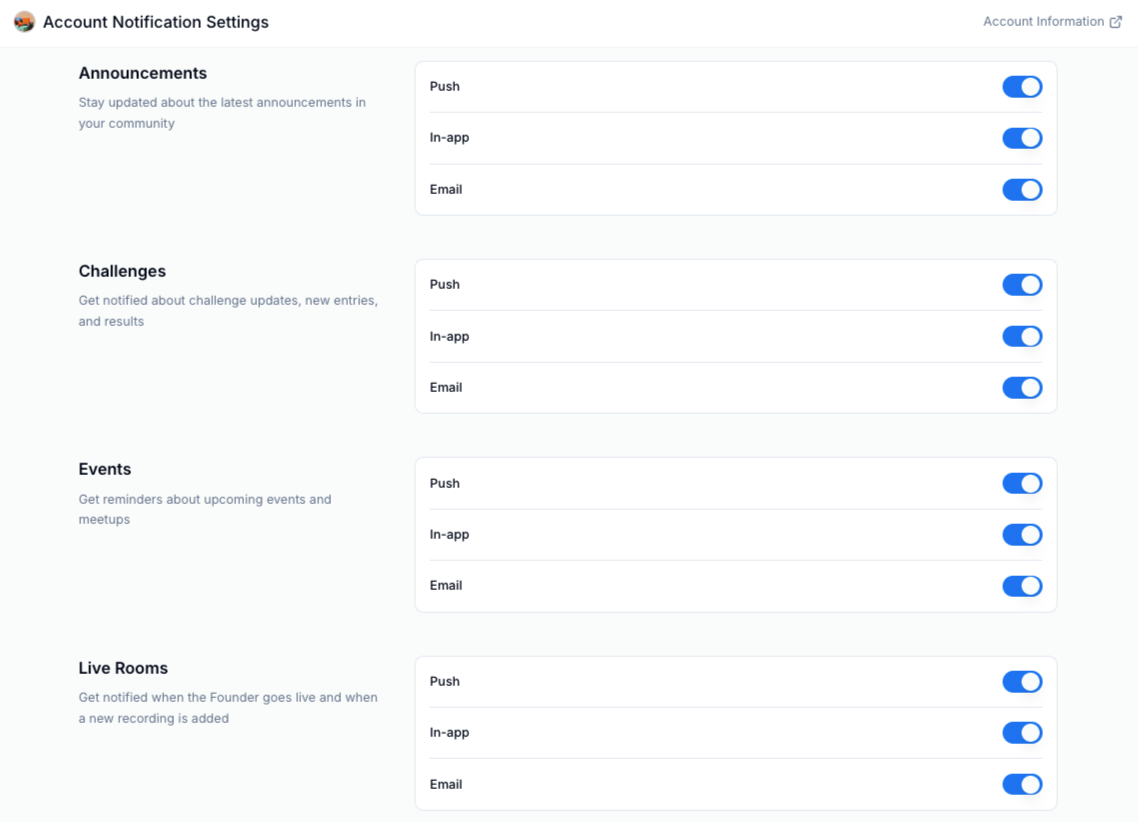 4. Click **Save** to apply your changes.
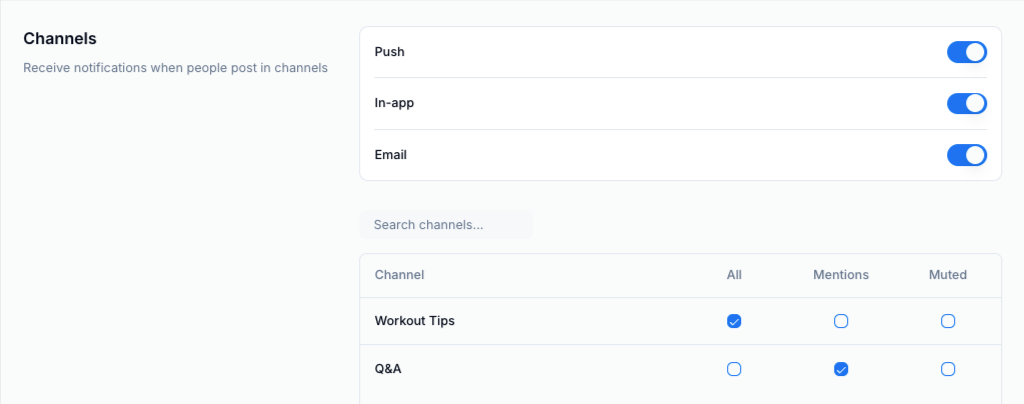
### Channel notification type & frequency
You can change how often and what type of notifications you see for each Channel by selecting the radio buttons next to each Channel name:
* **All** — Get notified every day about all messages in a Channel, including announcements, mentions, meetups, and polls
* **Mentions** — Receive a notification every time your profile name is mentioned in a channel
* **Muted** — Opt out of all notifications for a specific Channel
4. Click **Save** to apply your changes.
### Channel notification type & frequency
You can change how often and what type of notifications you see for each Channel by selecting the radio buttons next to each Channel name:
* **All** — Get notified every day about all messages in a Channel, including announcements, mentions, meetups, and polls
* **Mentions** — Receive a notification every time your profile name is mentioned in a channel
* **Muted** — Opt out of all notifications for a specific Channel
 ## Community email notifications
Manage which email notifications your members receive at the Community level. These settings apply to all members and override any individual preferences.
### To enable or disable email notification types:
1. Click the **more actions (...)** icon next to the Community **cover photo**, then select **Community Settings**.
2. Select **Email Notifications**.
3. On the **Email Controls** tab, click each **toggle** on or off as desired to enable or disable notification emails for **Channels**, **Challenges**, **Meetups**, **Live Rooms**, **Announcements**, and **Weekly Digest**.
## Community email notifications
Manage which email notifications your members receive at the Community level. These settings apply to all members and override any individual preferences.
### To enable or disable email notification types:
1. Click the **more actions (...)** icon next to the Community **cover photo**, then select **Community Settings**.
2. Select **Email Notifications**.
3. On the **Email Controls** tab, click each **toggle** on or off as desired to enable or disable notification emails for **Channels**, **Challenges**, **Meetups**, **Live Rooms**, **Announcements**, and **Weekly Digest**.
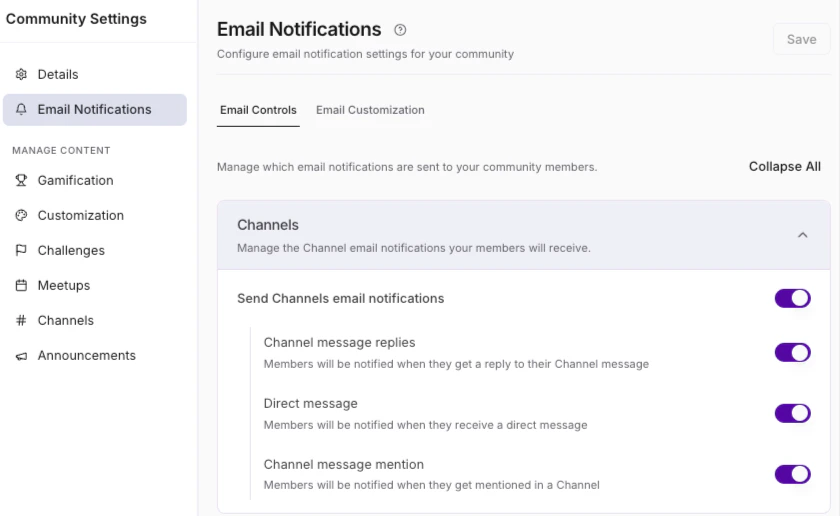 When you toggle on email notifications for a Community feature, additional settings appear, giving you more granular control over which notification types to enable or disable within that feature.
### Granular email notification settings
Use the checkbox next to each email notification setting to turn it on or off, then click **Save** to apply your changes.
#### Channels
* **Channel message replies**: Members are notified when they get a reply to their Channel message
* **Direct message**: Members are notified when they receive a direct message
* **Channel message mention**: Members are notified when they get mentioned in a Channel
#### Challenges
* **Challenge ends (admins)**: Admins are notified when a Challenge has ended
* **Comment**: Members are notified for Challenge comments
* **Comment mentions**: Members are notified when they are mentioned in a Challenge
* **Entry mentions**: Members are notified when they get mentioned in a Challenge
* **Hype ups**: Members are notified when they get a Hype up in a Challenge
#### Meetups
* **1 day before**: Members are notified 1 day before a Meetup is scheduled to begin
* **1 hour before**: Members are notified 1 hour before a Meetup is scheduled to begin
* **When it starts**: Members are notified the moment a Meetup starts
* **Meetup created**: Members are notified when a Meetup is created
* **Meetup rescheduled**: Members are notified when a Meetup is rescheduled
* **Meetup cancelled**: Members are notified when a Meetup is cancelled
**Note:** The content of Meetup reminder emails cannot be customized. You can control when reminders are sent (1 day before, 1 hour before, or when the Meetup starts) but not the wording of the email itself. If you need to communicate specific messaging to members before a Meetup, consider sending a separate Email Broadcast or posting an Announcement in your Community.
#### Live Rooms
* **When it starts (admins)**: Admins are notified the moment a Live Room starts
* **Recording is available (admins)**: Admins are notified when a Live Room recording is available
* **Recording is available (members)**: Members are notified when a Live Room recording is available
#### Announcements
* **New global announcement**: Members are notified when there is a global announcement
* **New channel announcement**: Members are notified when there is a Channel announcement
#### Weekly Digest
Enable or disable the following content in your Weekly Digest emails:
* **Announcements**: Includes current announcements
* **Challenges to complete**: Includes challenges to complete
* **Community stats**: Includes community stats
* **Popular conversations**: Includes popular conversations
* **Upcoming meetups**: Includes upcoming meetups
**Note:** If the Weekly Digest is enabled, a personalized weekly digest email is sent to your members starting at 9 AM Pacific Time on Thursdays. It takes a few hours to reach all members.
When you toggle on email notifications for a Community feature, additional settings appear, giving you more granular control over which notification types to enable or disable within that feature.
### Granular email notification settings
Use the checkbox next to each email notification setting to turn it on or off, then click **Save** to apply your changes.
#### Channels
* **Channel message replies**: Members are notified when they get a reply to their Channel message
* **Direct message**: Members are notified when they receive a direct message
* **Channel message mention**: Members are notified when they get mentioned in a Channel
#### Challenges
* **Challenge ends (admins)**: Admins are notified when a Challenge has ended
* **Comment**: Members are notified for Challenge comments
* **Comment mentions**: Members are notified when they are mentioned in a Challenge
* **Entry mentions**: Members are notified when they get mentioned in a Challenge
* **Hype ups**: Members are notified when they get a Hype up in a Challenge
#### Meetups
* **1 day before**: Members are notified 1 day before a Meetup is scheduled to begin
* **1 hour before**: Members are notified 1 hour before a Meetup is scheduled to begin
* **When it starts**: Members are notified the moment a Meetup starts
* **Meetup created**: Members are notified when a Meetup is created
* **Meetup rescheduled**: Members are notified when a Meetup is rescheduled
* **Meetup cancelled**: Members are notified when a Meetup is cancelled
**Note:** The content of Meetup reminder emails cannot be customized. You can control when reminders are sent (1 day before, 1 hour before, or when the Meetup starts) but not the wording of the email itself. If you need to communicate specific messaging to members before a Meetup, consider sending a separate Email Broadcast or posting an Announcement in your Community.
#### Live Rooms
* **When it starts (admins)**: Admins are notified the moment a Live Room starts
* **Recording is available (admins)**: Admins are notified when a Live Room recording is available
* **Recording is available (members)**: Members are notified when a Live Room recording is available
#### Announcements
* **New global announcement**: Members are notified when there is a global announcement
* **New channel announcement**: Members are notified when there is a Channel announcement
#### Weekly Digest
Enable or disable the following content in your Weekly Digest emails:
* **Announcements**: Includes current announcements
* **Challenges to complete**: Includes challenges to complete
* **Community stats**: Includes community stats
* **Popular conversations**: Includes popular conversations
* **Upcoming meetups**: Includes upcoming meetups
**Note:** If the Weekly Digest is enabled, a personalized weekly digest email is sent to your members starting at 9 AM Pacific Time on Thursdays. It takes a few hours to reach all members.
Members only receive content from Access Groups they belong to, and they can unsubscribe at any time.
## Community email customization
You can brand your Community email notifications to match your business identity.
### Update branding
To update your Community email branding:
1. Click the **more actions (...)** icon next to the Community **cover photo**, then select **Community Settings**.
2. Select **Email Notifications**.
3. Click the **Email Customization** tab.
4. Update your **Logo**, **Accent color**, and **Font color** as desired.
5. Click **Save** to apply your changes.
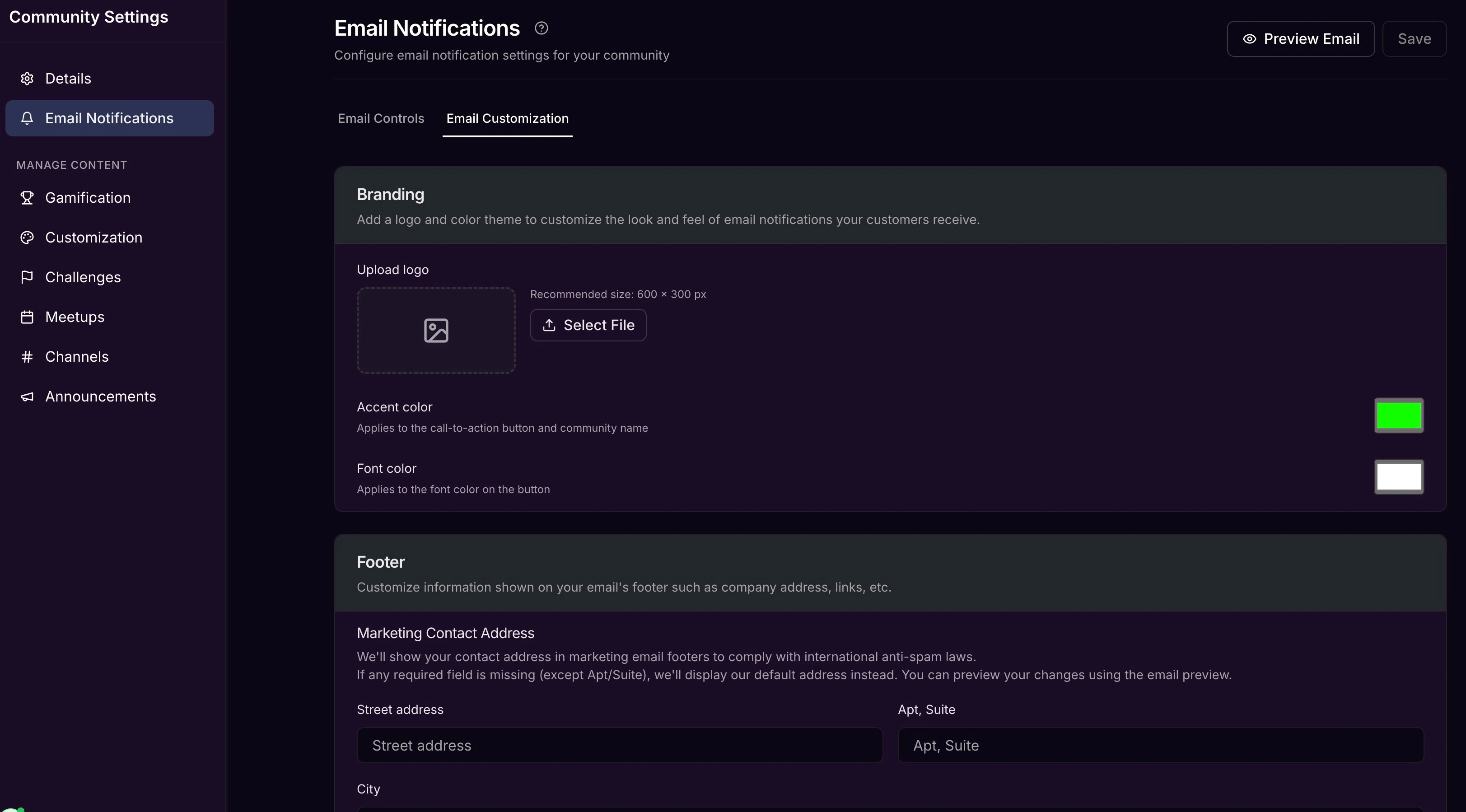 Customize the look and feel of your email notifications by adding a **Logo**, **Accent color**, and **Font color**.
### Update Footer information
Update the information shown in your email's **Footer**, including your company **Street address**, **Copyright** notation, and any **Display hyperlinks** you would like to include (such as a help center link, support contact information, privacy policy, and terms and conditions).
**Note:** If you don't update your marketing contact address in your Community **Email Notifications** settings, the default address will be Kajabi's company address: Kajabi, LLC, 17100 Laguna Canyon Rd. #100, Irvine, CA, 92618, USA. The Marketing Contact Address located in your Marketing Settings has no impact on the Community Email Notifications.
## FAQs
### Can members override Community-level notification settings?
No. If you disable a notification type at the Community level, members cannot re-enable it. The setting appears grayed out in their **My Account Settings**.
### What happens when a member first joins?
All notifications are enabled by default. Members can customize their preferences in their profile settings after joining.
### How does the Weekly Digest work?
A personalized digest is sent starting at 9 AM Pacific Time on Thursdays. Members only receive content from Access Groups they belong to, and they can unsubscribe at any time.
Customize the look and feel of your email notifications by adding a **Logo**, **Accent color**, and **Font color**.
### Update Footer information
Update the information shown in your email's **Footer**, including your company **Street address**, **Copyright** notation, and any **Display hyperlinks** you would like to include (such as a help center link, support contact information, privacy policy, and terms and conditions).
**Note:** If you don't update your marketing contact address in your Community **Email Notifications** settings, the default address will be Kajabi's company address: Kajabi, LLC, 17100 Laguna Canyon Rd. #100, Irvine, CA, 92618, USA. The Marketing Contact Address located in your Marketing Settings has no impact on the Community Email Notifications.
## FAQs
### Can members override Community-level notification settings?
No. If you disable a notification type at the Community level, members cannot re-enable it. The setting appears grayed out in their **My Account Settings**.
### What happens when a member first joins?
All notifications are enabled by default. Members can customize their preferences in their profile settings after joining.
### How does the Weekly Digest work?
A personalized digest is sent starting at 9 AM Pacific Time on Thursdays. Members only receive content from Access Groups they belong to, and they can unsubscribe at any time.