> ## Documentation Index
> Fetch the complete documentation index at: https://help.kajabi.com/llms.txt
> Use this file to discover all available pages before exploring further.
# Create a Community Challenge
> Inspire your members to take action together with Challenges in your Community.
**Challenges** are activities, assignments, or check-ins that a Community can participate in together. Use them to drive engagement, accountability, and growth.
A Challenge can be **one-time** (e.g., Night Photography Challenge, Social Media Detox Day Challenge)*,* or a **recurring** one that occurs daily, weekly, or even monthly (e.g., 14-Day Networking Challenge)*.*
One-time and recurring Challenges are grouped together in a **Challenge Series.**
## Enable or disable Challenges
First, you must enable Challenges for the Community:
1. From the Dashboard, open the **Products** tab.
2. Select **Community**.
3. Click the **Go to Community** button.
4. Click the **more options icon (…)** in the top left next to the Community cover photo, then select **Community Settings**:
.png?fit=max&auto=format&n=6fDfpe6v6BEIO35a&q=85&s=30c83b0f74a6b54b373b7bf49ba3f4c1 "Screenshot 2026 06 16 At 6 36 09 PM (3)") 5. Select **Customization** in the side navigation.
6. Under **Features**, locate the **Challenges** section.
7. Toggle on **Enable Challenges globally**. Modify the **Feature alias** singular and plural if desired (e.g., Quest, Quests):
5. Select **Customization** in the side navigation.
6. Under **Features**, locate the **Challenges** section.
7. Toggle on **Enable Challenges globally**. Modify the **Feature alias** singular and plural if desired (e.g., Quest, Quests): 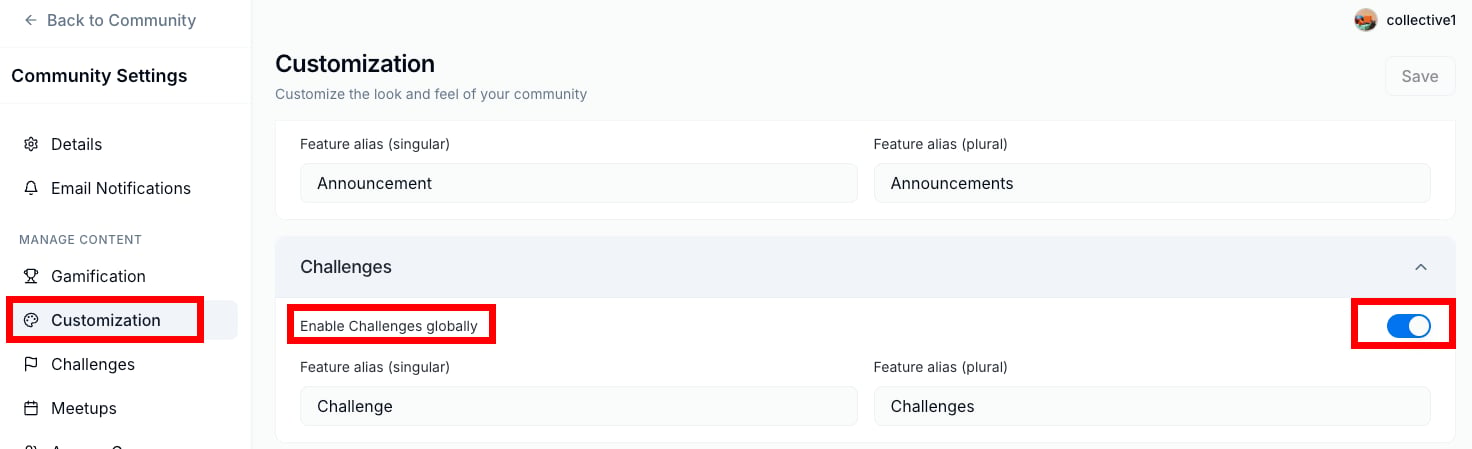 8. Then, click **Save** at the top of the page.
## Create a Challenge Series and Challenge using a web browser
1. From the Dashboard, open the **Products** tab.
2. Select **Community**.
3. Click the **Go to Community** button.
4. Click the **more options icon (…)** in the top left next to the Community cover photo, then select **Community Settings**.
5. Select **Challenges** in the side navigation.
6. Select the **Challenge Series** tab, and click **+New Series**:
8. Then, click **Save** at the top of the page.
## Create a Challenge Series and Challenge using a web browser
1. From the Dashboard, open the **Products** tab.
2. Select **Community**.
3. Click the **Go to Community** button.
4. Click the **more options icon (…)** in the top left next to the Community cover photo, then select **Community Settings**.
5. Select **Challenges** in the side navigation.
6. Select the **Challenge Series** tab, and click **+New Series**: 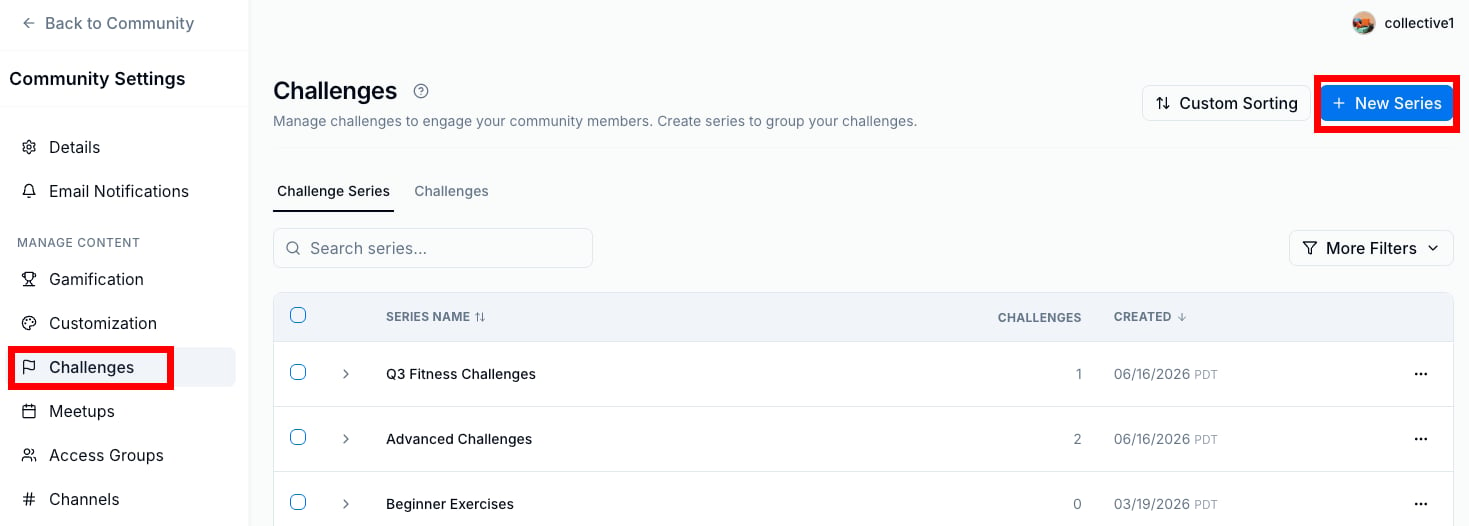 7. Enter a **Title** and **Description** for the series and click **Create Series**.
8. Click the +New Challenge button at the carrot under the **Series Name** (Title), and click +**Create Challenge**:
7. Enter a **Title** and **Description** for the series and click **Create Series**.
8. Click the +New Challenge button at the carrot under the **Series Name** (Title), and click +**Create Challenge**:  9. You'll see a four-part Challenge creation process described at the top of the page. The first part of Challenge creation is **Schedule**.\
\
Select **one-time** or **recurring**. For one-time, click the **Starting from** date to select a day and time, and then a **timeframe** for members to complete the Challenge (e.g, 14 days).\
\
For recurring, select the **Starting from** date, then select the timeframe divided into a **time period** of Days, Weeks, or Months, and then the **time period amount**.
10. For a one-time Challenge, select the **Challenge Series** it is part of. Recurring challenges are part of their own series.
11. Toggle on **Visible to all members** if you want your members to view the Challenge details before its start date:
9. You'll see a four-part Challenge creation process described at the top of the page. The first part of Challenge creation is **Schedule**.\
\
Select **one-time** or **recurring**. For one-time, click the **Starting from** date to select a day and time, and then a **timeframe** for members to complete the Challenge (e.g, 14 days).\
\
For recurring, select the **Starting from** date, then select the timeframe divided into a **time period** of Days, Weeks, or Months, and then the **time period amount**.
10. For a one-time Challenge, select the **Challenge Series** it is part of. Recurring challenges are part of their own series.
11. Toggle on **Visible to all members** if you want your members to view the Challenge details before its start date: 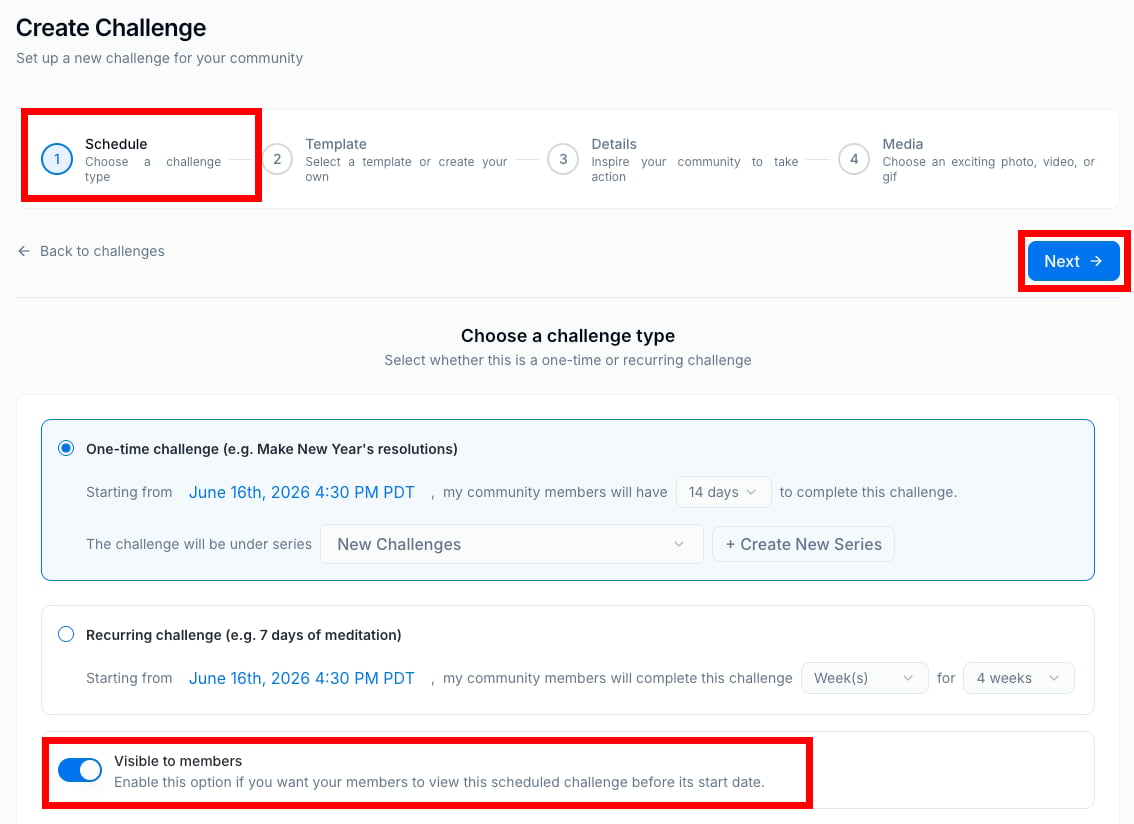 12. Click **Next**.
13. Select a **Template** to build the Challenge, or create your own.\
\
Search for a Challenge **template** in the **search bar** and/or select a **template block** (e.g., Move Your Body). Or, click **+Create custom challenge**.
14. Modify the **Title** and **Description** as desired.
15. Then, select an **Access Group** that is allowed to view and participate in the Challenge\*\*.\*\*
**Note:** Members cannot join Challenges until the scheduled start date.
16. Optionally, enter a **Prize** that the winner of the challenge gets (e.g., 25% off Course coupon).
17. Choose and upload an exciting photo, video, or GIF to represent the Challenge, or click **Pick random photo**. You are able to view a preview of what the full Challenge advertisement will look like below.
18. Click **Save**.
**Note:** The image upload limit for a challenge is 40 MB. The video upload limit is 1 GB. The recommended size: 1280x720px.
## Create a Challenge using the mobile app
1. Open the Kajabi App, then click the **Community** panel.
2. Select your **profile icon** in the top left.
3. Click the **hamburger/collapsed menu** **icon** in the left of the app.
4. Select **Challenges** under the **Access Group** you'd like to add a Challenge to.
5. Click the **gear icon.**
6. Use the same steps as described above to finish creating the Challenge.
## Review and download Challenge entries
#### To review entries:
1. Click the **x new entries** button near the top of the Challenges page within the Community:
12. Click **Next**.
13. Select a **Template** to build the Challenge, or create your own.\
\
Search for a Challenge **template** in the **search bar** and/or select a **template block** (e.g., Move Your Body). Or, click **+Create custom challenge**.
14. Modify the **Title** and **Description** as desired.
15. Then, select an **Access Group** that is allowed to view and participate in the Challenge\*\*.\*\*
**Note:** Members cannot join Challenges until the scheduled start date.
16. Optionally, enter a **Prize** that the winner of the challenge gets (e.g., 25% off Course coupon).
17. Choose and upload an exciting photo, video, or GIF to represent the Challenge, or click **Pick random photo**. You are able to view a preview of what the full Challenge advertisement will look like below.
18. Click **Save**.
**Note:** The image upload limit for a challenge is 40 MB. The video upload limit is 1 GB. The recommended size: 1280x720px.
## Create a Challenge using the mobile app
1. Open the Kajabi App, then click the **Community** panel.
2. Select your **profile icon** in the top left.
3. Click the **hamburger/collapsed menu** **icon** in the left of the app.
4. Select **Challenges** under the **Access Group** you'd like to add a Challenge to.
5. Click the **gear icon.**
6. Use the same steps as described above to finish creating the Challenge.
## Review and download Challenge entries
#### To review entries:
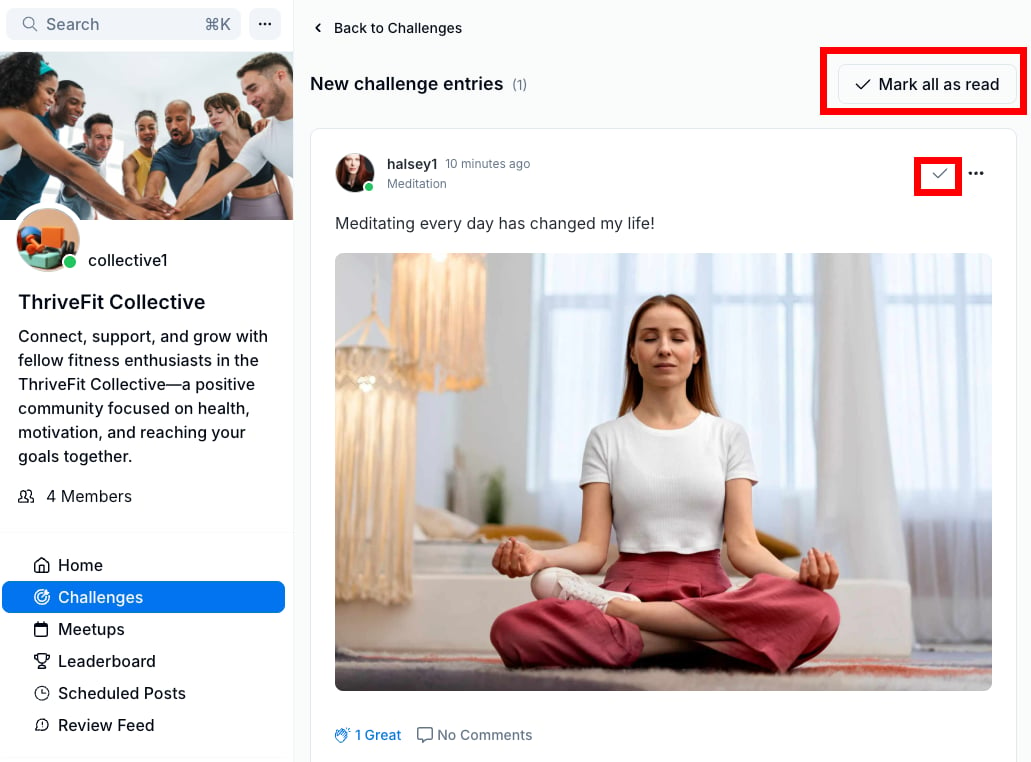
1. Click the **x new entries** button near the top of the Challenges page within the Community: 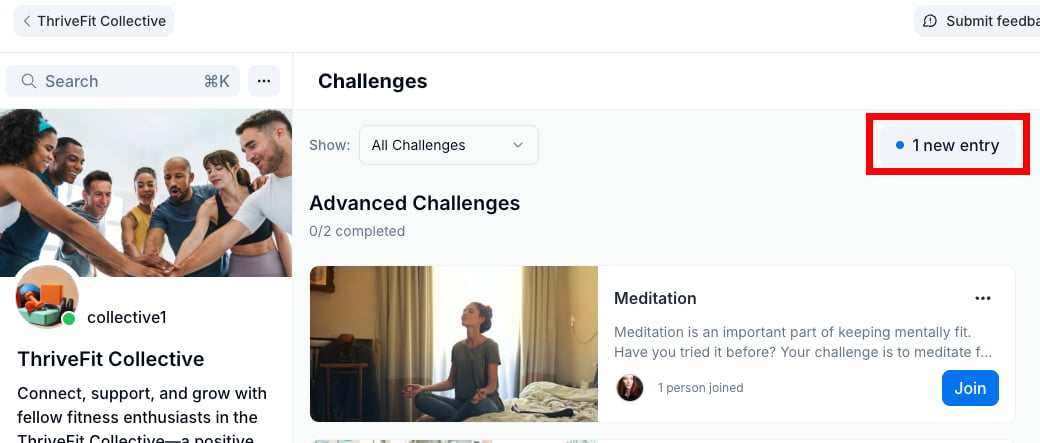 2. Click the **checkmark** on a Challenge entry to mark it as read, or click the **Mark all as read** button. Read entries will automatically be hidden from the Challenges page:
  #### To download all completed entries:
1. From the Community, click the **more options icon (...)** next to the cover photo.
2. Select **Community Settings**, then **Challenges**.
3. Open the **Challenges** tab.
4. Click the **more options icon (...)** next to a Challenge, then select **Download Entries** to download a CSV or ZIP file of all entries.
## Create an evergreen Challenge
Build an evergreen Challenge that is always available to Community members.
1. From the Community, click **Challenges** in the left navigation.
2. Click the **more options icon (...)** on the Challenge and select **Edit**:
#### To download all completed entries:
1. From the Community, click the **more options icon (...)** next to the cover photo.
2. Select **Community Settings**, then **Challenges**.
3. Open the **Challenges** tab.
4. Click the **more options icon (...)** next to a Challenge, then select **Download Entries** to download a CSV or ZIP file of all entries.
## Create an evergreen Challenge
Build an evergreen Challenge that is always available to Community members.
1. From the Community, click **Challenges** in the left navigation.
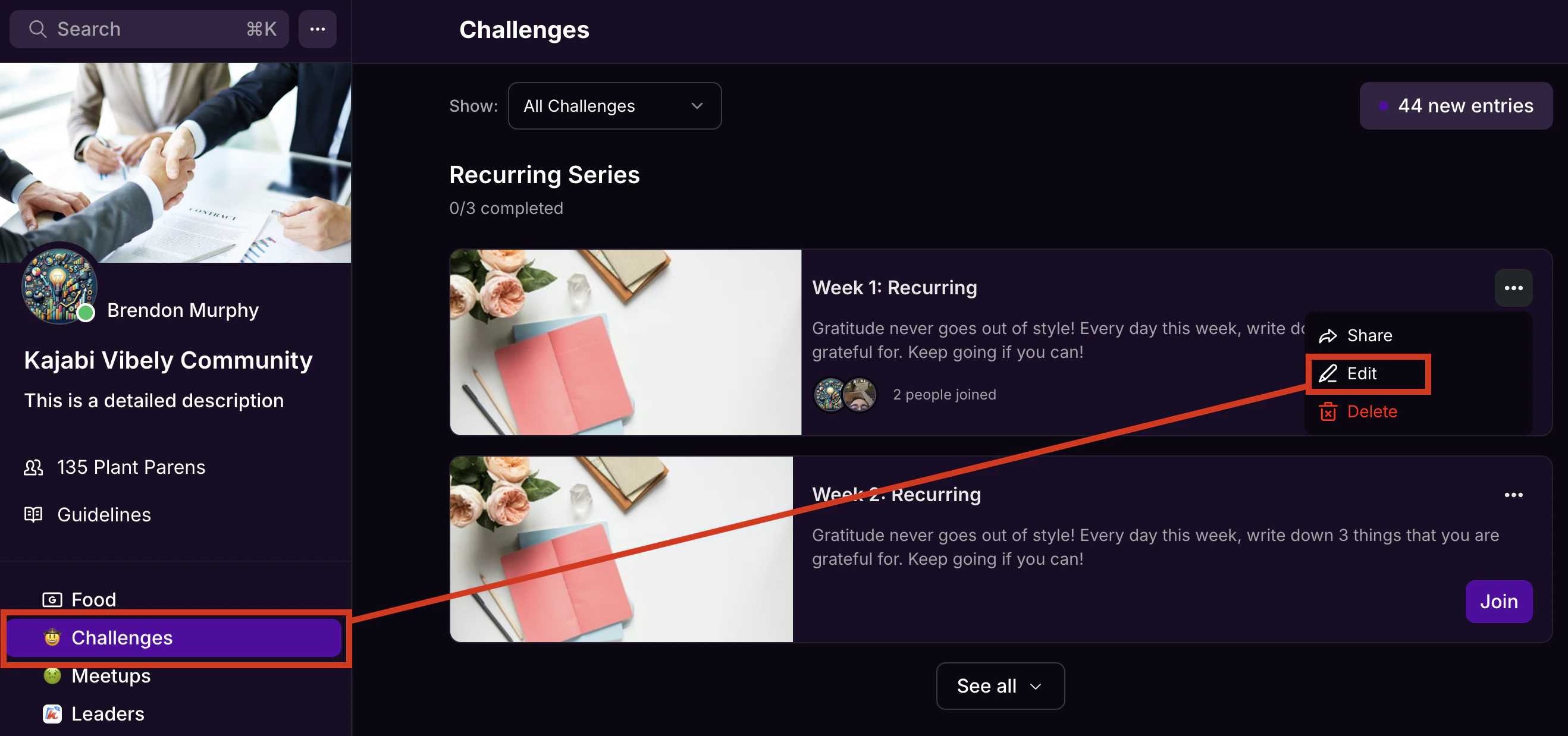
2. Click the **more options icon (...)** on the Challenge and select **Edit**:
 3. For the **Start Date**, choose a date in the past, and for the **End Date** choose 1 day.
4. Click **Save**. Once that time period has passed, the Challenge becomes evergreen and Community members will be able to complete it at any time.
## Maximize Challenge success
**Series (collection of Challenges) -** Examples: 7 Days of Walking, Frozen to Fearless, Glow Up Series.
1. **Try X days of a Y structure**, as numbers create urgency and structure the challenge within a time constraint.
2. **Imply outcomes.** People participate in Challenges for personal growth, not just fun. The best Challenges hint at outcomes members would like to achieve.Choose an exciting photo, video, or GIF. Overlay text to describe the Challenge, like a YouTube video thumbnail
**Single Challenges -** Examples: Day 1-Walking Weekly Check-In, Fav Lip Shade Challenge.
1. **Choose an exciting photo, video, or gif.** Overlay text to describe the challenge, like a YouTube video thumbnail.
2. **Outline why this challenge is important.** Why is it good for members to participate? How will it benefit them?
3. **Strong call-to-action.** Easy-to-understand instructions reduce mental overhead.
4. **Lead by example.** You lead, and they follow. Members will enjoy seeing you complete the Challenge.
5. **Share widely.** IG/FB stories, IG/FB posts, and YouTube videos are great ways to engage. |
### Create challenges that engage the Community
* Give Community members some quick advice on how to best start the Challenge, and be simple and brief when describing it.
* Give the Challenge specific numbers or measurements ("List 5 goals", "Read ten pages", "Walk 30 minutes", etc.).
* Ask the Community to upload photos, drop emojis, leave comments, or provide some other proof that the Challenge has been completed.
* Encourage interaction and support between members.
* Attach guides, like worksheets or YouTube videos.
* Offer prizes.
* Don't make the Challenge too difficult. Typically, engaging Challenges shouldn't take more than 5-10 minutes to be accomplished in one sitting.
* Provide a short video or photo along with the text of the Challenge.
* Recommend that Challenges are paired with things members already do, like writing in their journals.
* For multi-day Challenges, gradually increase intensity (i.e., Read for 5 minutes on Day 1, 10 minutes on Day 2, and 15 minutes on Day 3).
3. For the **Start Date**, choose a date in the past, and for the **End Date** choose 1 day.
4. Click **Save**. Once that time period has passed, the Challenge becomes evergreen and Community members will be able to complete it at any time.
## Maximize Challenge success
**Series (collection of Challenges) -** Examples: 7 Days of Walking, Frozen to Fearless, Glow Up Series.
1. **Try X days of a Y structure**, as numbers create urgency and structure the challenge within a time constraint.
2. **Imply outcomes.** People participate in Challenges for personal growth, not just fun. The best Challenges hint at outcomes members would like to achieve.Choose an exciting photo, video, or GIF. Overlay text to describe the Challenge, like a YouTube video thumbnail
**Single Challenges -** Examples: Day 1-Walking Weekly Check-In, Fav Lip Shade Challenge.
1. **Choose an exciting photo, video, or gif.** Overlay text to describe the challenge, like a YouTube video thumbnail.
2. **Outline why this challenge is important.** Why is it good for members to participate? How will it benefit them?
3. **Strong call-to-action.** Easy-to-understand instructions reduce mental overhead.
4. **Lead by example.** You lead, and they follow. Members will enjoy seeing you complete the Challenge.
5. **Share widely.** IG/FB stories, IG/FB posts, and YouTube videos are great ways to engage. |
### Create challenges that engage the Community
* Give Community members some quick advice on how to best start the Challenge, and be simple and brief when describing it.
* Give the Challenge specific numbers or measurements ("List 5 goals", "Read ten pages", "Walk 30 minutes", etc.).
* Ask the Community to upload photos, drop emojis, leave comments, or provide some other proof that the Challenge has been completed.
* Encourage interaction and support between members.
* Attach guides, like worksheets or YouTube videos.
* Offer prizes.
* Don't make the Challenge too difficult. Typically, engaging Challenges shouldn't take more than 5-10 minutes to be accomplished in one sitting.
* Provide a short video or photo along with the text of the Challenge.
* Recommend that Challenges are paired with things members already do, like writing in their journals.
* For multi-day Challenges, gradually increase intensity (i.e., Read for 5 minutes on Day 1, 10 minutes on Day 2, and 15 minutes on Day 3).