> ## Documentation Index
> Fetch the complete documentation index at: https://help.kajabi.com/llms.txt
> Use this file to discover all available pages before exploring further.
# Create a Community Meetup
> Schedule and manage virtual Meetups to build trust and connection with your Community members.
**Meetups** help you build trust and meaningful connections with your Community members through scheduled virtual events.
## Create a Meetup
Meetups are shown in your local time zone. The time is adjusted to your time zone automatically.
* Open the **Products** tab from your Kajabi Dashboard.
* Select **Community** from the sidebar.
* Click **Go to Community**.
* Click the "**...**" icon in the upper-left corner and select **Community Settings**.
* Navigate to **Meetups** and select **Create Meetup.**
* Fill in the info needed for your meetup:
* **Image/Video:** Upload a video or image for your Meetup.
* **Title:** Add the name of your event.
* Enter the event link for the virtual meetup in the "**Location/ Meeting link**" or you can use a Live Room by clicking the "**Use Live Room**" tab.
* **Date:** Schedule the date and time of your meetup.
* **Description:** Fill in the info giving a description of what you will be doing.
* Select which Access Group you want to have access to the meetup.
* (Optional) Select a channel related to this event.
* You have the option to create a **Recurring Meetup**. Select how often you want to hold this meetup.
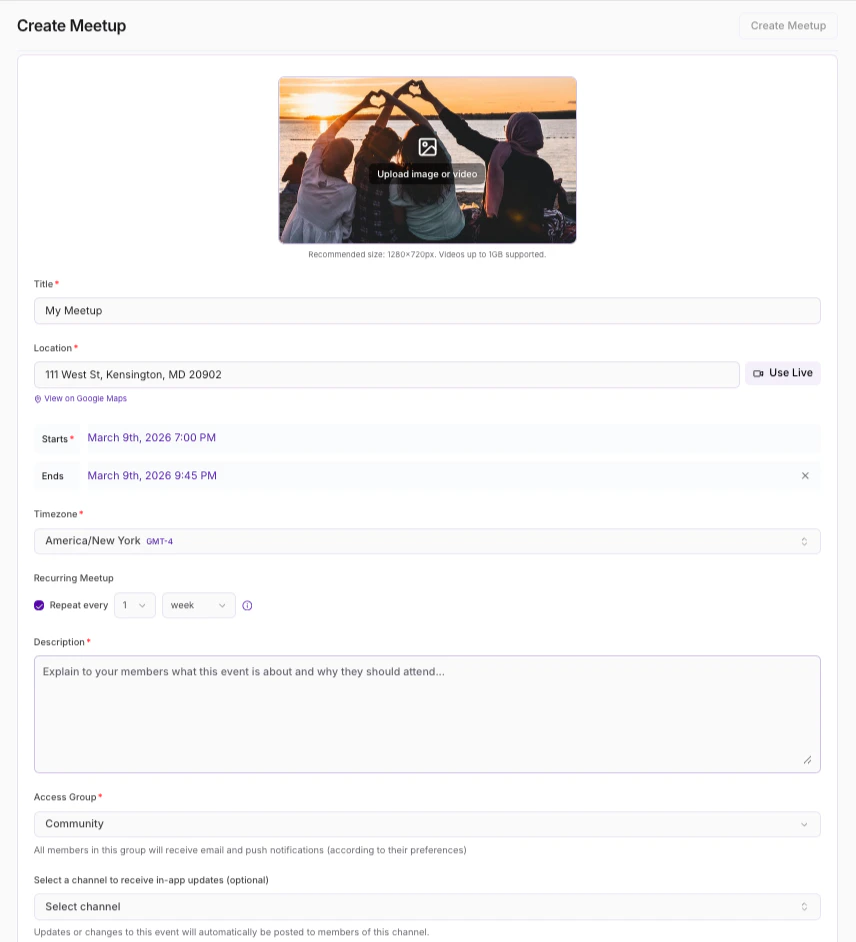 * Review the details and click \*\*Save \*\*to keep and apply your changes.
**Note:** If you want to upload an image or video file to your Meetup, there is a video upload limit of 1 GB and a photo upload limit of 40 MB.
## Enable or disable Meetups
Turn on or off your meetups in your Communities product:
* Open **Products** from your Kajabi Dashboard.
* Select **Community**.
* Click **Go to Community:**
* Review the details and click \*\*Save \*\*to keep and apply your changes.
**Note:** If you want to upload an image or video file to your Meetup, there is a video upload limit of 1 GB and a photo upload limit of 40 MB.
## Enable or disable Meetups
Turn on or off your meetups in your Communities product:
* Open **Products** from your Kajabi Dashboard.
* Select **Community**.
* Click **Go to Community:**
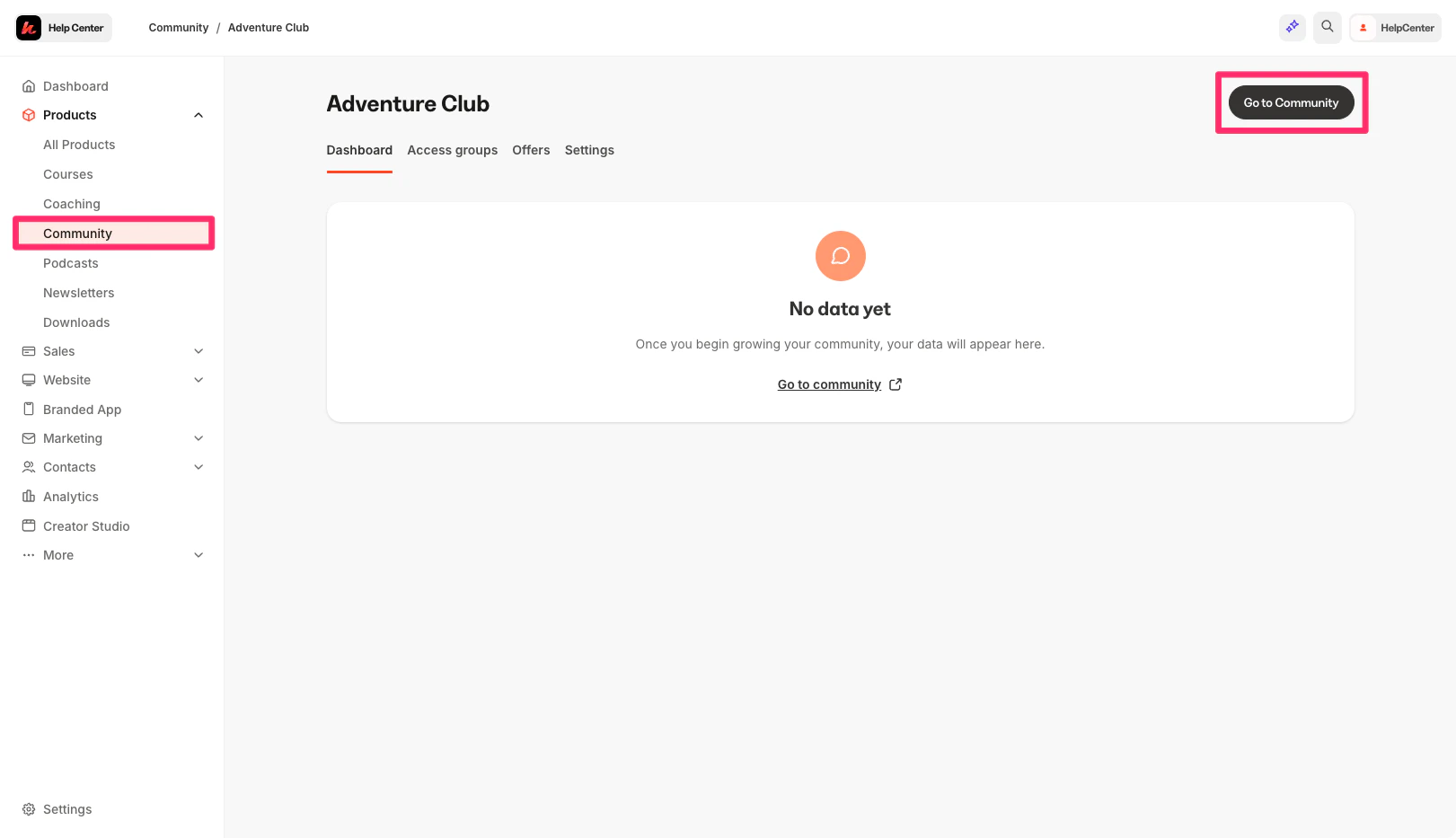 * Click the ellipsis icon on your cover photo, then select **Community Settings**.
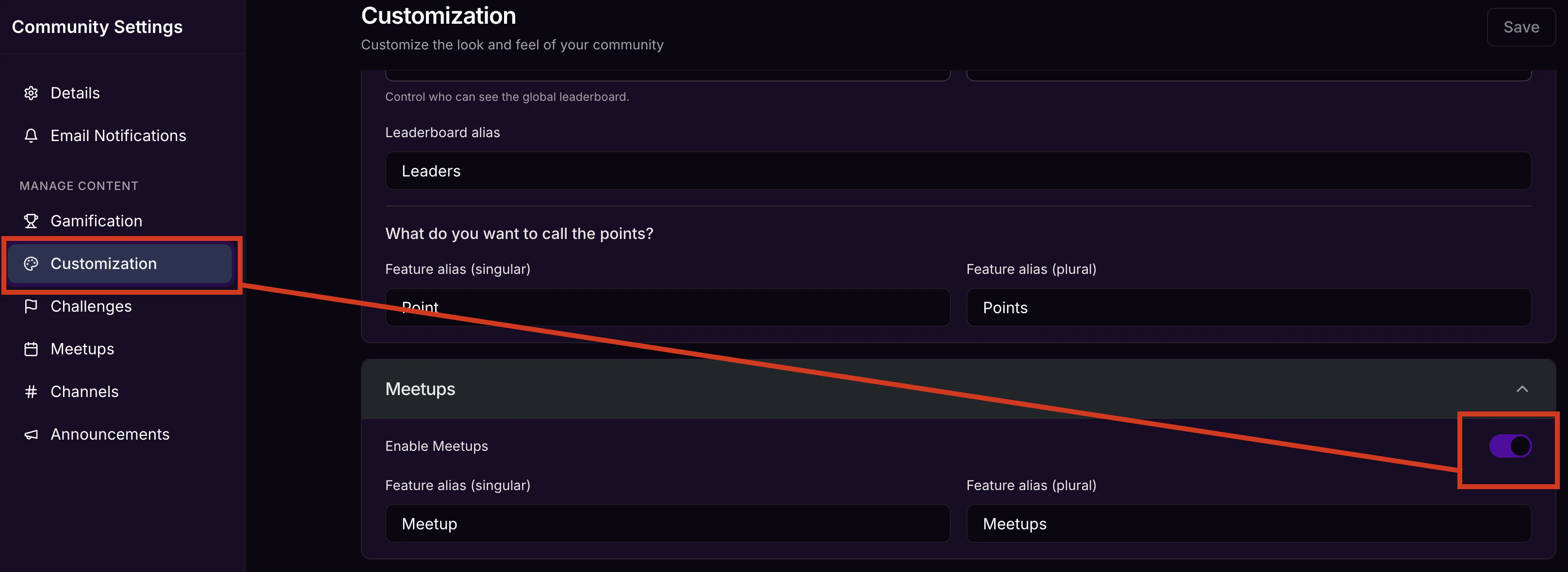
* Click **Customization**.
* Locate **Features**.
* Then, select **Customization**.
* Use the toggle for **Enable Meetups** to turn on or off your Meetups.
* Then, click **Save** to keep and apply your changes:
* Click the ellipsis icon on your cover photo, then select **Community Settings**.
* Click **Customization**.
* Locate **Features**.
* Then, select **Customization**.
* Use the toggle for **Enable Meetups** to turn on or off your Meetups.
* Then, click **Save** to keep and apply your changes:
 ## Calendar View
Finding and planning community events is easy with the community calendar.
## Calendar View
Finding and planning community events is easy with the community calendar.
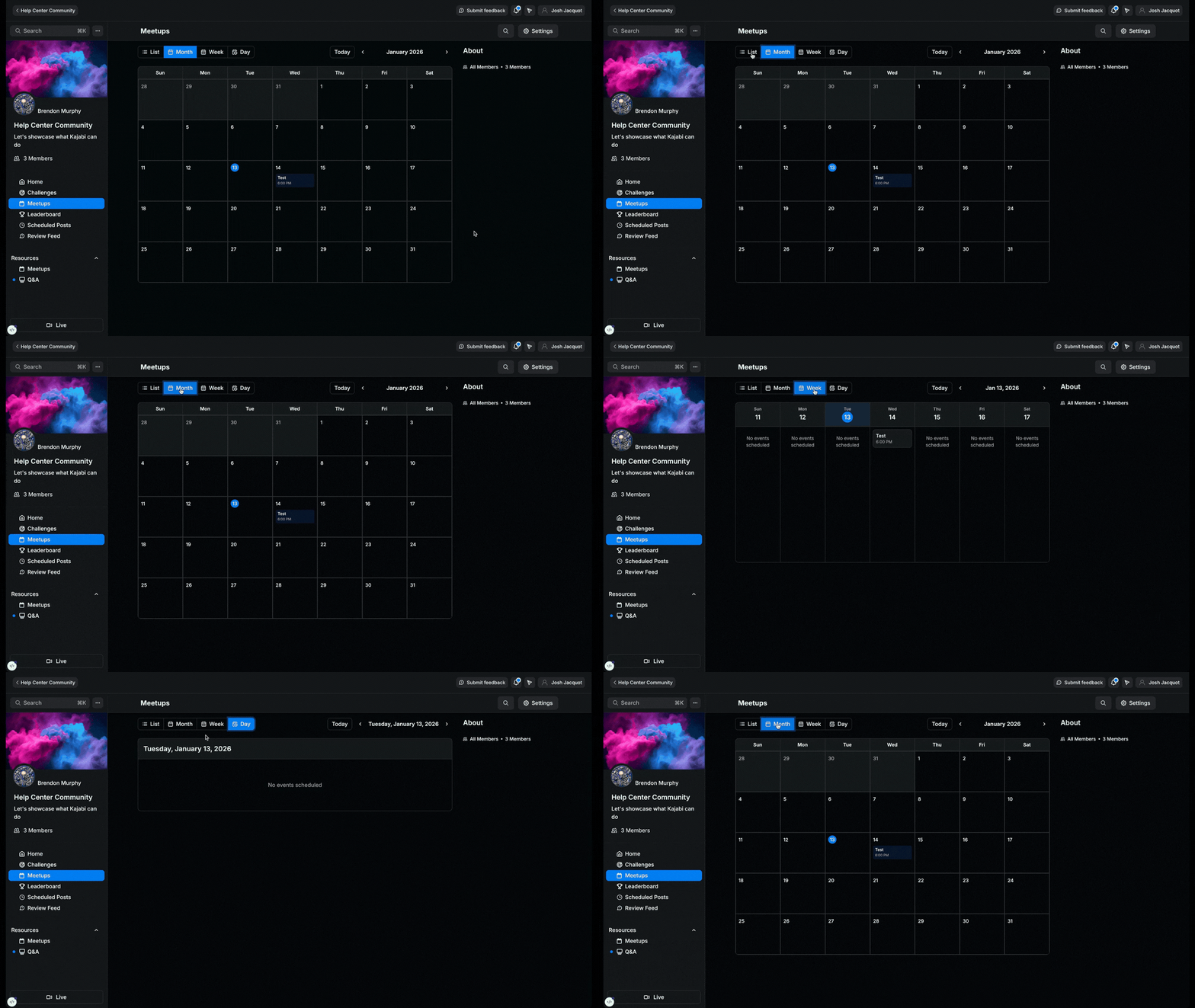 Switch between \*\*list \*\*view, **monthly** calendar, **weekly** schedule, or **daily** agenda to see your events in the format that works best for you.
The visual calendar makes it simple to spot when events are happening and avoid scheduling conflicts. Each access group will have its own dedicated meetup calendar page, allowing members to also easily see all upcoming group meetups in one place.
## Recurring Community Meetups
### **Set a recurring Meetup**
Schedule Meetups that repeat on a set pattern instead of creating each session by hand.
When you create or edit a Meetup, use the **Recurrence** dropdown to choose how often the session recurs.
Switch between \*\*list \*\*view, **monthly** calendar, **weekly** schedule, or **daily** agenda to see your events in the format that works best for you.
The visual calendar makes it simple to spot when events are happening and avoid scheduling conflicts. Each access group will have its own dedicated meetup calendar page, allowing members to also easily see all upcoming group meetups in one place.
## Recurring Community Meetups
### **Set a recurring Meetup**
Schedule Meetups that repeat on a set pattern instead of creating each session by hand.
When you create or edit a Meetup, use the **Recurrence** dropdown to choose how often the session recurs.
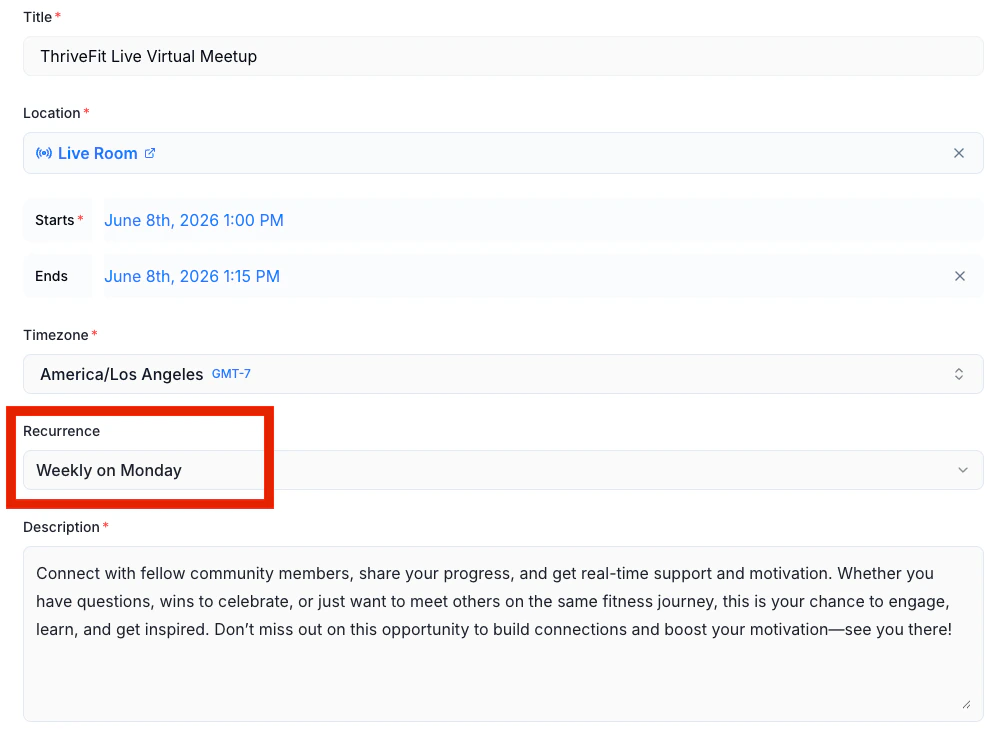 The available **Recurrence** options are:
* **Does not repeat** — A one-time Meetup
* **Daily** — Repeats every day at the same time
* **Weekly on a specific day** — Repeats on the same day of the week (for example, every Tuesday)
* **Monthly on a specific ordinal day** — Repeats on the same ordinal weekday each month (for example, every third Thursday)
* **Custom** — Build an advanced pattern with your own interval and end date
**Tip:** Recurring Meetups are ideal for weekly office hours, monthly Q\&As, accountability check-ins, or any session your members can rely on showing up at the same time.
### **Build a custom recurrence pattern**
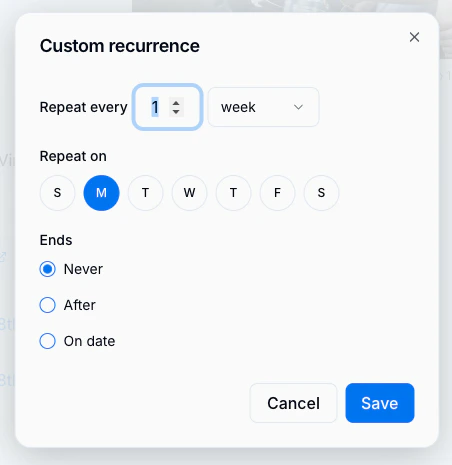
Use **Custom** when none of the standard options fit your schedule.
1. From the **Recurrence** dropdown, select **Custom**.
2. In the **Repeat every** field, enter the interval and choose **day**, **week**, or **month**.
3. If you selected **week**, choose one or more days of the week the Meetup should fall on.
4. Under **Ends**, choose how the series should end:
* **Never** — The Meetup repeats indefinitely
* **After** — The series ends after a set number of occurrences
* **On date** — The series ends on a specific date you select
5. Click **Save** to apply the pattern, then **Save** the Meetup.
The available **Recurrence** options are:
* **Does not repeat** — A one-time Meetup
* **Daily** — Repeats every day at the same time
* **Weekly on a specific day** — Repeats on the same day of the week (for example, every Tuesday)
* **Monthly on a specific ordinal day** — Repeats on the same ordinal weekday each month (for example, every third Thursday)
* **Custom** — Build an advanced pattern with your own interval and end date
**Tip:** Recurring Meetups are ideal for weekly office hours, monthly Q\&As, accountability check-ins, or any session your members can rely on showing up at the same time.
### **Build a custom recurrence pattern**
Use **Custom** when none of the standard options fit your schedule.
1. From the **Recurrence** dropdown, select **Custom**.
2. In the **Repeat every** field, enter the interval and choose **day**, **week**, or **month**.
3. If you selected **week**, choose one or more days of the week the Meetup should fall on.
4. Under **Ends**, choose how the series should end:
* **Never** — The Meetup repeats indefinitely
* **After** — The series ends after a set number of occurrences
* **On date** — The series ends on a specific date you select
5. Click **Save** to apply the pattern, then **Save** the Meetup.
 ### **Edit a recurring Meetup**
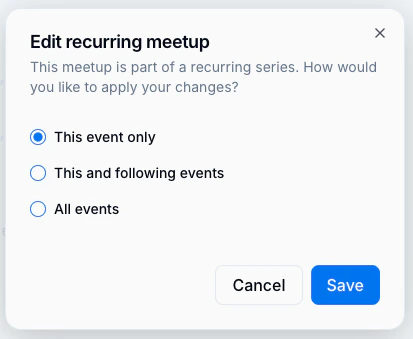
When you edit a Meetup that's part of a series, a confirmation dialog asks how broadly your changes should apply. Select one of the three options:
* **This event only** — Updates only the single occurrence you opened
* **This and following events** — Updates the current occurrence and every future occurrence in the series
* **All events** — Updates every occurrence in the series, including past ones
### **Edit a recurring Meetup**
When you edit a Meetup that's part of a series, a confirmation dialog asks how broadly your changes should apply. Select one of the three options:
* **This event only** — Updates only the single occurrence you opened
* **This and following events** — Updates the current occurrence and every future occurrence in the series
* **All events** — Updates every occurrence in the series, including past ones
 **Important:** Choosing **All events** overwrites changes you've made to individual occurrences. If you've customized a single session, edit it directly with the **This event only** option instead.
### **Cancel a recurring Meetup**
Canceling a recurring Meetup uses the same three-option dialog as editing. Choose whether to cancel **this event only**, **this and following events**, or **all events**.
**Warning:** Canceling a Meetup cannot be undone. Members who have RSVP'd will lose access to the session.
### **The member experience**
Members do not see the recurrence structure of a Meetup. Each occurrence appears individually in the Meetups list and on the Community calendar, and members RSVP to each session independently — exactly as they would for a one-time Meetup.
**Important:** Choosing **All events** overwrites changes you've made to individual occurrences. If you've customized a single session, edit it directly with the **This event only** option instead.
### **Cancel a recurring Meetup**
Canceling a recurring Meetup uses the same three-option dialog as editing. Choose whether to cancel **this event only**, **this and following events**, or **all events**.
**Warning:** Canceling a Meetup cannot be undone. Members who have RSVP'd will lose access to the session.
### **The member experience**
Members do not see the recurrence structure of a Meetup. Each occurrence appears individually in the Meetups list and on the Community calendar, and members RSVP to each session independently — exactly as they would for a one-time Meetup.