> ## Documentation Index
> Fetch the complete documentation index at: https://help.kajabi.com/llms.txt
> Use this file to discover all available pages before exploring further.
# Host Live Rooms and events in a Community
> Create genuine connections with your members using Live Rooms and events in your Community.
**Live Rooms** help you and your Community connect in real-time. Host meetings, Q\&A sessions, workshops, and more with your community members.
## What are Live Rooms?
**Live Rooms** are designed to help you and your Community connect in real-time.
The following tools are available in a Live Room:
* Record your session
* Screenshare
* Start breakout groups
* Ask people to turn on their videos/mics
* Spotlight the speaker or the shared screen
* Picture-in-Picture capabilities
* Meeting Timer
* Lock/Unlock live room
* Remove or kick out a person from the live room
* Chat in-line
* Send emojis
* Share files via chat
 ## Start a Live Room
### Open a Community Live Room
* Open the **Products** tab from your Dashboard.
* Select **Community** from the sidebar.
* Click **Go to Community**.
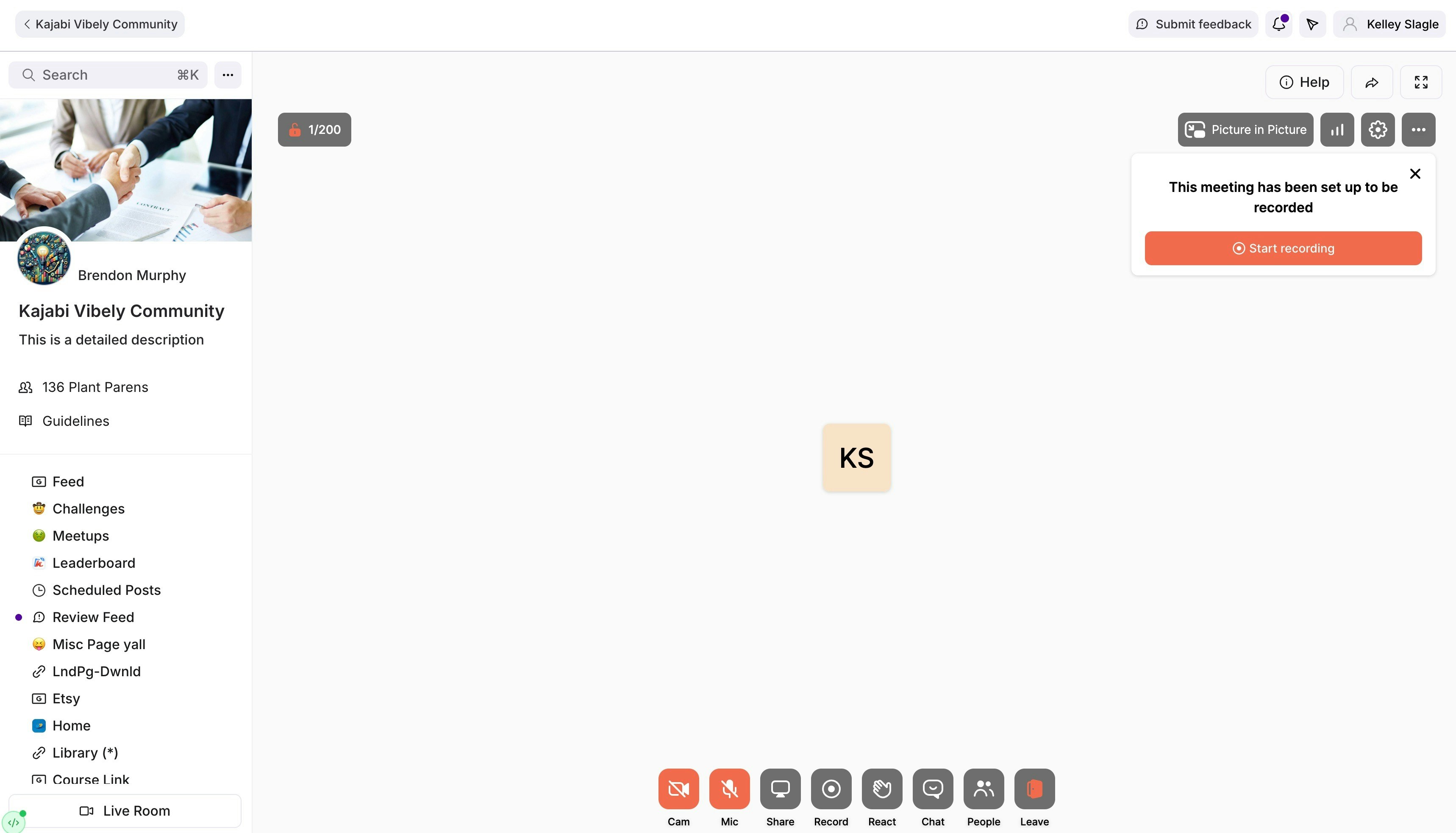
* In the left navigation bar of your Home page, locate the **Live Room** button in the lower-left corner.
* Click **Live Room** to start a live room.
* Optional: Notify your Community members that you are live, or click Don't Notify.
* Optional: Click **Start Recording** to begin your Live Room session, or exit out of the recording notification to ignore it.
## End a Live Room
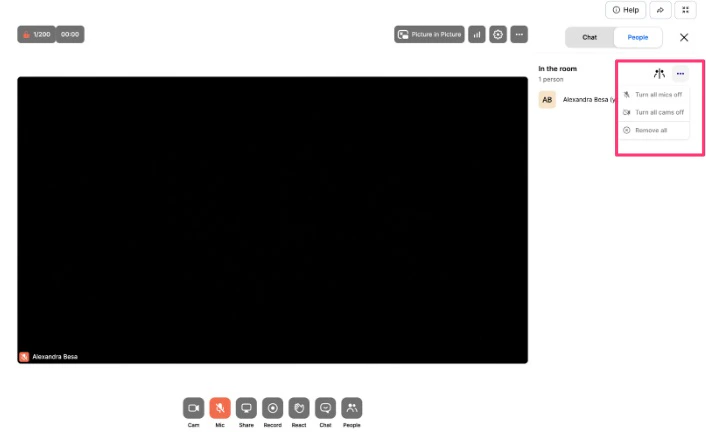
There is no "end" button for the Live Room. Everyone will simply click out of the room. If you would like to remove everyone from the Live Room when the meeting is over, you can navigate to "people", then click on the three dots … and select **Remove All** to remove everyone from the room:
## Start a Live Room
### Open a Community Live Room
* Open the **Products** tab from your Dashboard.
* Select **Community** from the sidebar.
* Click **Go to Community**.
* In the left navigation bar of your Home page, locate the **Live Room** button in the lower-left corner.
* Click **Live Room** to start a live room.
* Optional: Notify your Community members that you are live, or click Don't Notify.
* Optional: Click **Start Recording** to begin your Live Room session, or exit out of the recording notification to ignore it.
## End a Live Room
There is no "end" button for the Live Room. Everyone will simply click out of the room. If you would like to remove everyone from the Live Room when the meeting is over, you can navigate to "people", then click on the three dots … and select **Remove All** to remove everyone from the room:
 ## Disable a Live Room
Disable your Live Room to only allow your Community members to join when you start a Live Room.
To turn off your Live Room:
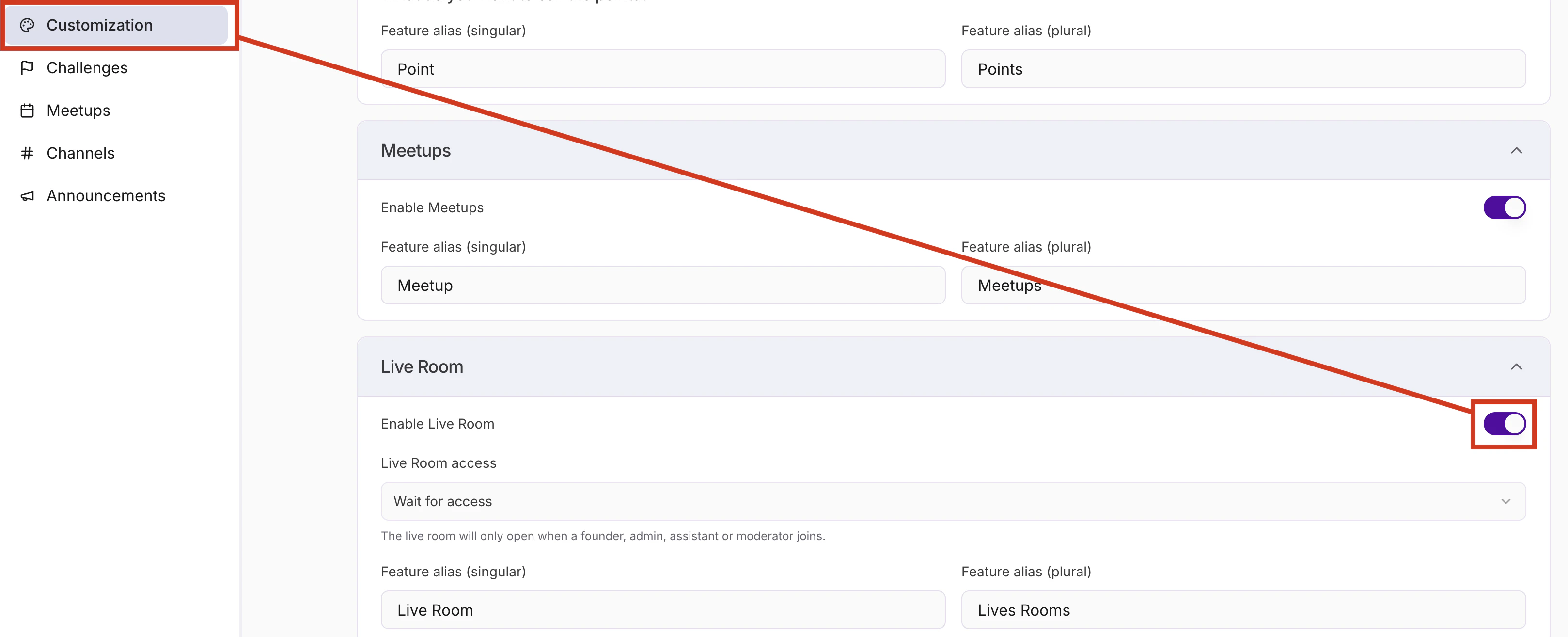
* Open your **Community Settings**.
* Select **Customization.**
* Navigate to **Features**.
* Under the **Live Room** section, toggle off **Live Room.**
## Disable a Live Room
Disable your Live Room to only allow your Community members to join when you start a Live Room.
To turn off your Live Room:
* Open your **Community Settings**.
* Select **Customization.**
* Navigate to **Features**.
* Under the **Live Room** section, toggle off **Live Room.**
 ## Meetup activity ideas
There are many ways to engage your member community with meetups.
The following are example activities to connect with your community during a meetup:
* Complete the current challenge together
* Q\&A session
* Mastermind sessions
* Guest speaker
* Feedback channel
## Create a Meetup
* Open the **Products** tab from your Dashboard.
* Select **Community** from the sidebar.
* Click **Go to Community**.
* Click the **ellipsis** icon beside the search bar in the left navigation window.
* Click **Community Settings.**
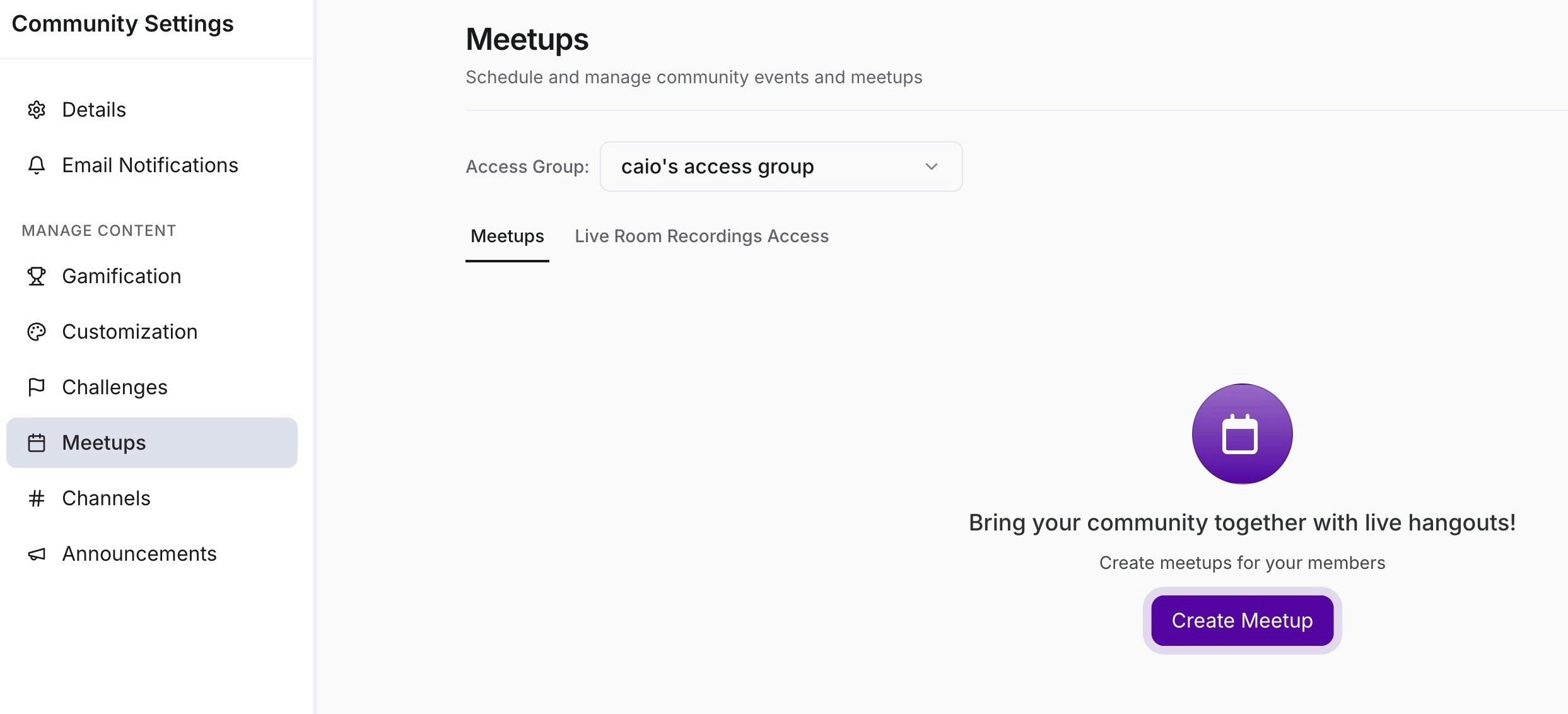
* Navigate to **Meetups**.
* Click **Create Meetup.**
## Meetup activity ideas
There are many ways to engage your member community with meetups.
The following are example activities to connect with your community during a meetup:
* Complete the current challenge together
* Q\&A session
* Mastermind sessions
* Guest speaker
* Feedback channel
## Create a Meetup
* Open the **Products** tab from your Dashboard.
* Select **Community** from the sidebar.
* Click **Go to Community**.
* Click the **ellipsis** icon beside the search bar in the left navigation window.
* Click **Community Settings.**
* Navigate to **Meetups**.
* Click **Create Meetup.**
 * Enter a **Title**.
* Enter the event **link** for the virtual Meetup in the **Location** field, or use a Live Room by clicking the **Use Live** button. You may also write the physical address if you are meeting in person.
* Set the date and time for the start and end of the event.
* Set the **Timezone**.
* **Optional**: Make it a recurring Meetup by checking **Repeat Every** and selecting the desired day(s).
* Add a **Description**.
* Assign the **Access Group**.
* Optional: Select a Channel to receive in-app updates.
* Then, click **Save** to keep and apply your changes.
### Keep a Live Room safe and private
When you create a Meetup, click the **Use Live Room** button to choose if you want to use your default Live Room for the Meetup or create a Private Room by clicking the **Create Private Room** button in the pop-up modal:
Your default Live Room will be accessible to all members of your Community, whereas a Private Room will only be accessible to the Access Group members who are invited to your Meetup.
You also have the ability to lock your room so you can moderate who can join:
* In the live room, click the gear icon to open **Settings** in the top-right corner of the live room.
* In the sidebar of the settings, click **Room**.
* Toggle on/off the Locked room button to lock or unlock your room:
* Enter a **Title**.
* Enter the event **link** for the virtual Meetup in the **Location** field, or use a Live Room by clicking the **Use Live** button. You may also write the physical address if you are meeting in person.
* Set the date and time for the start and end of the event.
* Set the **Timezone**.
* **Optional**: Make it a recurring Meetup by checking **Repeat Every** and selecting the desired day(s).
* Add a **Description**.
* Assign the **Access Group**.
* Optional: Select a Channel to receive in-app updates.
* Then, click **Save** to keep and apply your changes.
### Keep a Live Room safe and private
When you create a Meetup, click the **Use Live Room** button to choose if you want to use your default Live Room for the Meetup or create a Private Room by clicking the **Create Private Room** button in the pop-up modal:
Your default Live Room will be accessible to all members of your Community, whereas a Private Room will only be accessible to the Access Group members who are invited to your Meetup.
You also have the ability to lock your room so you can moderate who can join:
* In the live room, click the gear icon to open **Settings** in the top-right corner of the live room.
* In the sidebar of the settings, click **Room**.
* Toggle on/off the Locked room button to lock or unlock your room:
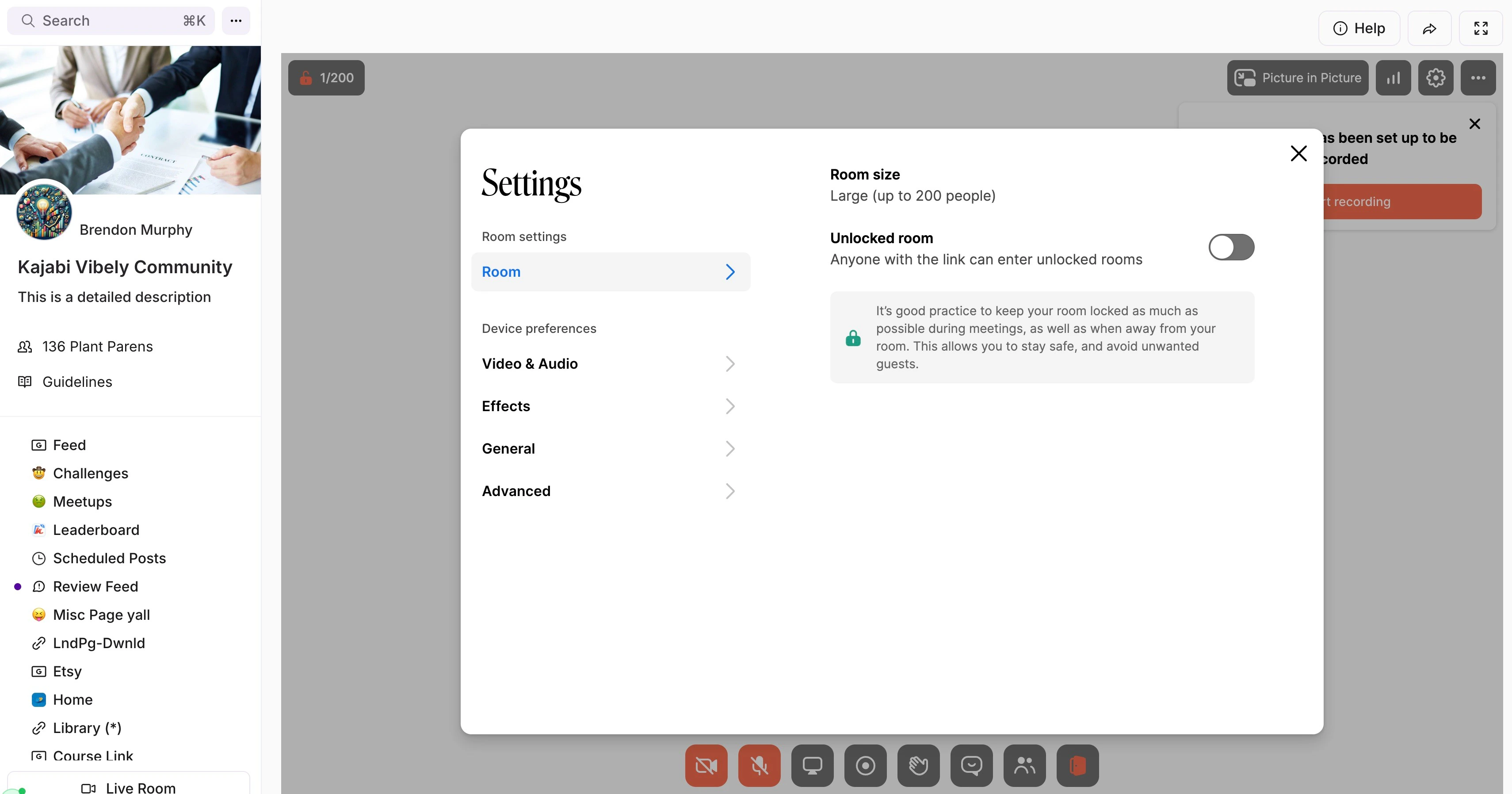 **Note:** It's good practice to keep this room locked as often as possible, both during a meeting and away from your room. This allows you to stay safe, and avoid unwanted guests.
### Screen sharing, breakout rooms, and recording
Yes, you can do all of those with the admin controls. Meetings in both the default Live Room and your Private Rooms can be recorded.
### Record a Live Room
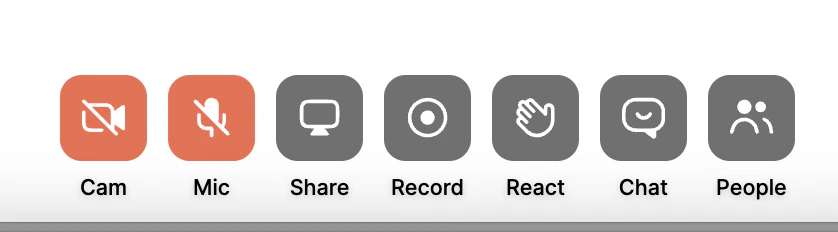
* Click the record button to begin recording.
* Once the meeting is over, click on the record button again to stop recording:
**Note:** It's good practice to keep this room locked as often as possible, both during a meeting and away from your room. This allows you to stay safe, and avoid unwanted guests.
### Screen sharing, breakout rooms, and recording
Yes, you can do all of those with the admin controls. Meetings in both the default Live Room and your Private Rooms can be recorded.
### Record a Live Room
* Click the record button to begin recording.
* Once the meeting is over, click on the record button again to stop recording:
 Shorter recordings will appear in your Meetups page in less than 5 minutes. Wait up to 30 minutes for longer recordings.
The recording is currently only supported on a desktop or laptop using the Chrome and Chromium browsers. It is not available on mobile devices and Safari.
### Find Live Room recordings
Your recordings can be viewed in the Meetups tab under Recordings.
### Edit and control access to a Live Room recording
Determine the Access Group that can view your Live Room recording:
* Open the **Products** tab from your Dashboard.
* Select **Community** from the sidebar.
* Click **Go to Community**.
* Open **Meetups** from the left navigation bar.
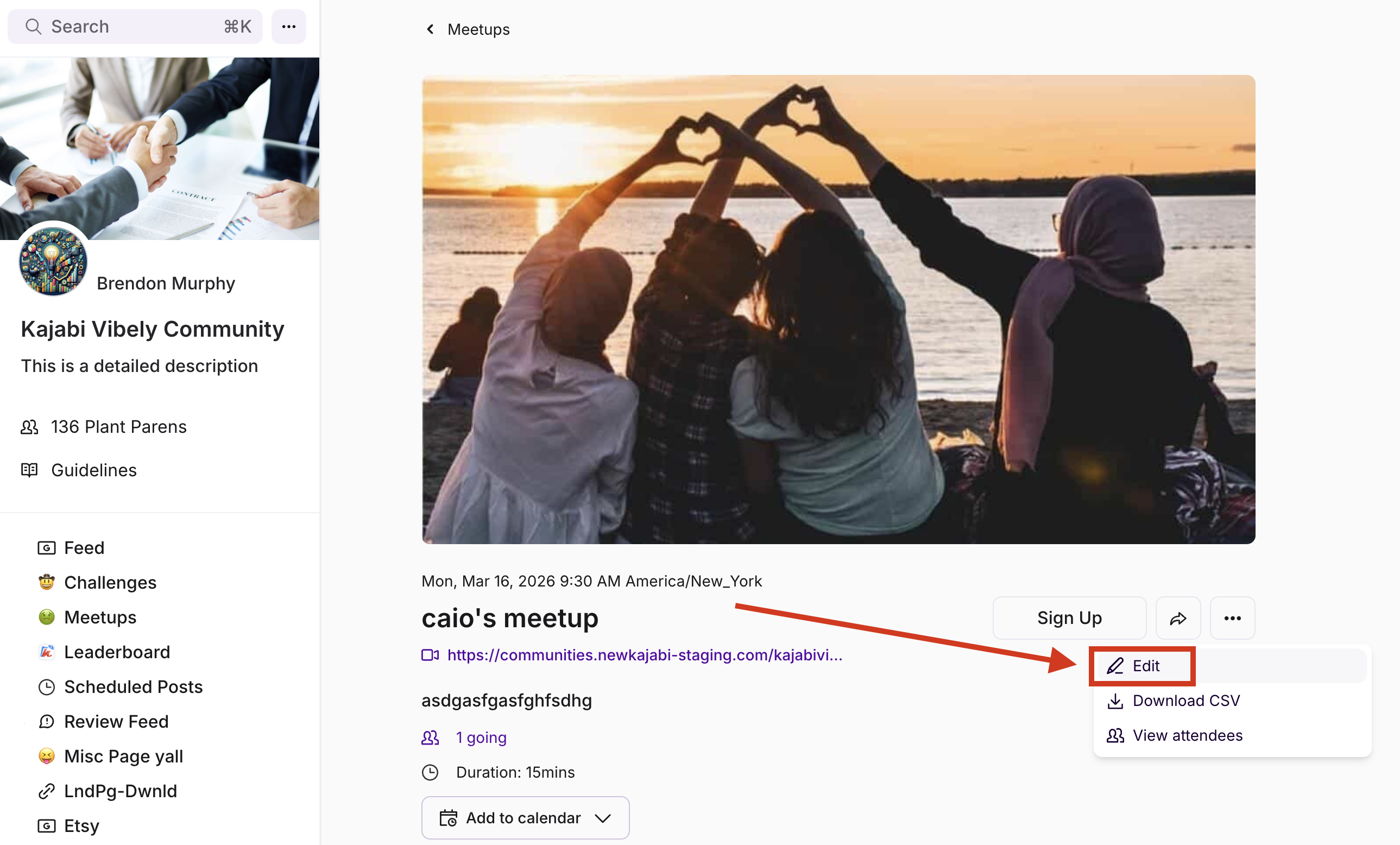
* Select the **ellipsis** icon next to your Live Room recording date and time indicator.
* **Select Edit** – Make the changes you want.
* You can edit the **Title**, **Access Group Description**, or **Delete the Recording and or Meetup**.
* Click **Save** to keep and apply your changes:
Shorter recordings will appear in your Meetups page in less than 5 minutes. Wait up to 30 minutes for longer recordings.
The recording is currently only supported on a desktop or laptop using the Chrome and Chromium browsers. It is not available on mobile devices and Safari.
### Find Live Room recordings
Your recordings can be viewed in the Meetups tab under Recordings.
### Edit and control access to a Live Room recording
Determine the Access Group that can view your Live Room recording:
* Open the **Products** tab from your Dashboard.
* Select **Community** from the sidebar.
* Click **Go to Community**.
* Open **Meetups** from the left navigation bar.
* Select the **ellipsis** icon next to your Live Room recording date and time indicator.
* **Select Edit** – Make the changes you want.
* You can edit the **Title**, **Access Group Description**, or **Delete the Recording and or Meetup**.
* Click **Save** to keep and apply your changes:
 ## Set a default Access Group
You can set a default Access Group, which means the members of that Access Group will automatically get access to your recordings. If you need to change the Access Group, you can do so after the recording is published.
We recommend setting the default Access Group as the most general group.
* Click the **ellipsis (⋯) icon** on your Community cover image, located beside the search bar.
* Select **Community Settings.**
* Click **Meetups.**
* Under **Live Room Recordings Access**, select a **Default Access Group**. If you do not select one, a default group will be automatically assigned.
* The page will save automatically.
## Live Room recording resolution
The resolution of the Live Room recordings is 720p.
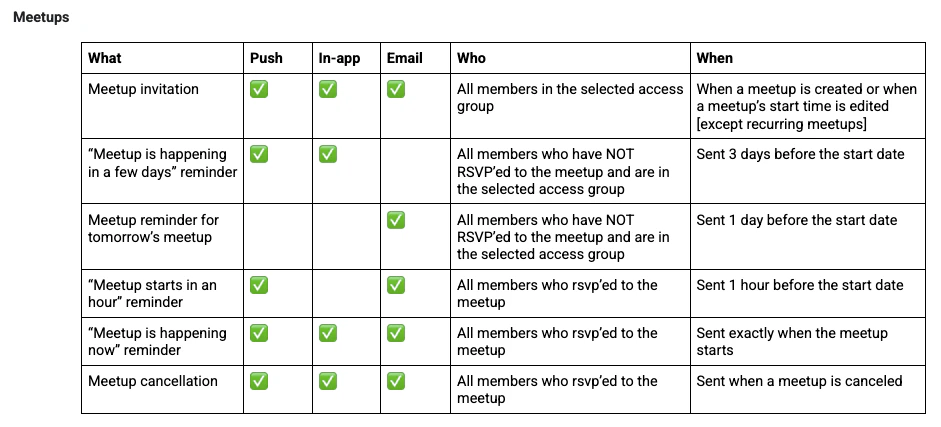
## Understanding Meetup Notifications
**Community notifications are sent out in three ways:**
* Emails
* In-app notifications (in your notification center)
* Mobile notifications (push notifications)
**Notifications are controlled two ways:**
* On an individual basis, in an individual's profile settings
* By you, the Hero, at the community level in community settings
## Set a default Access Group
You can set a default Access Group, which means the members of that Access Group will automatically get access to your recordings. If you need to change the Access Group, you can do so after the recording is published.
We recommend setting the default Access Group as the most general group.
* Click the **ellipsis (⋯) icon** on your Community cover image, located beside the search bar.
* Select **Community Settings.**
* Click **Meetups.**
* Under **Live Room Recordings Access**, select a **Default Access Group**. If you do not select one, a default group will be automatically assigned.
* The page will save automatically.
## Live Room recording resolution
The resolution of the Live Room recordings is 720p.
## Understanding Meetup Notifications
**Community notifications are sent out in three ways:**
* Emails
* In-app notifications (in your notification center)
* Mobile notifications (push notifications)
**Notifications are controlled two ways:**
* On an individual basis, in an individual's profile settings
* By you, the Hero, at the community level in community settings
 We recommend posting a countdown on your social platforms for more meetup visibility.
## FAQs
### Are there any limits to how many people can be in a Live Room?
You can host up to 200 concurrent people inside your Community Live Room.
Additionally, you can have up to 25 camera feeds on at the same time in a Live Room (24 participants and 1 local/self camera feed). Participants can still stay in the room and interact via audio and chat.
Screen sharing does not count toward the camera limit.
### What happens when someone else tries to turn their camera on after the limit is reached?
That participant will see a message indicating that the maximum number of cameras are active in this call. As soon as someone using video turns their camera off, another participant can turn theirs on.
We recommend posting a countdown on your social platforms for more meetup visibility.
## FAQs
### Are there any limits to how many people can be in a Live Room?
You can host up to 200 concurrent people inside your Community Live Room.
Additionally, you can have up to 25 camera feeds on at the same time in a Live Room (24 participants and 1 local/self camera feed). Participants can still stay in the room and interact via audio and chat.
Screen sharing does not count toward the camera limit.
### What happens when someone else tries to turn their camera on after the limit is reached?
That participant will see a message indicating that the maximum number of cameras are active in this call. As soon as someone using video turns their camera off, another participant can turn theirs on.