> ## Documentation Index
> Fetch the complete documentation index at: https://help.kajabi.com/llms.txt
> Use this file to discover all available pages before exploring further.
# Block or report a Community member
> Block or report someone who violates the Kajabi Vibe Check policy for acceptable conduct.
Kajabi has a strict [Vibe Check](../../products/community/how-does-the-kajabi-vibe-check-work) policy outlining unacceptable behavior in a Kajabi **Community**. You can block or report members who violate these standards to help keep your Community safe.
## Reporting vs. blocking
Kajabi has a strict [Vibe Check](../../products/community/how-does-the-kajabi-vibe-check-work) policy outlining unacceptable behavior in a Kajabi Community.
If you ever see any bullying, harassment, hate speech, spam, trolling, or other behavior that makes you or your Community members feel uncomfortable, don't hesitate to report and/or block the offending person.
Each member of your Community also has the ability to block or report another Community member.
### Report a Community member
If you believe a member of your Community has exhibited behavior the Kajabi team needs to know about, you can report them for that behavior.
When reporting a Community member to Kajabi for a [Vibe Check](../../products/community/how-does-the-kajabi-vibe-check-work) policy violation, please be sure to include a clear explanation of why. This will help ensure that appropriate action is taken by the Kajabi team if necessary.
### Block a Community member
A blocked Community member can no longer view or message the person who blocked them. Other members of the Community, however, will still be able to see and receive messages from that person.
## Block or report someone on the web app
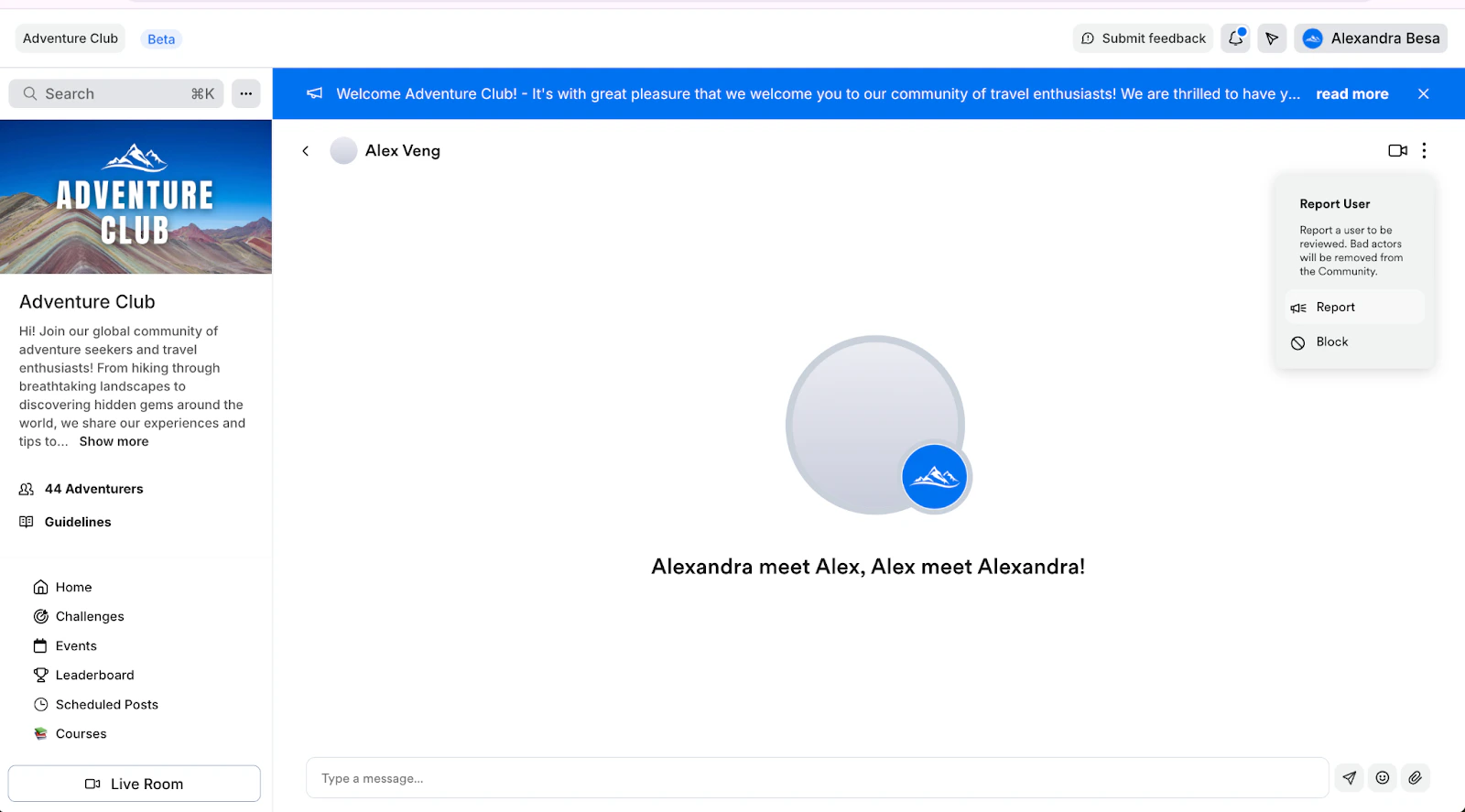
You can find the Report and Block buttons inside of direct messages. To block or report a Community member using the web app:
* Click the **Members** tab in the Community sidebar.
* Select the name of the member you wish to block or report to open their profile.
* Click the **paper plane icon** to open a direct message window.
* Then, click the vertical **ellipsis** in the upper right of the screen to open the reporting options.
* Select either **Report** or **Block** as desired: