> ## Documentation Index
> Fetch the complete documentation index at: https://help.kajabi.com/llms.txt
> Use this file to discover all available pages before exploring further.
# Add Offers in Kajabi Communities
> Connect offers directly within your Community to encourage members to purchase additional products or services.
An **Offer Block** allows you to promote existing offers from your Kajabi Dashboard directly within your Community. It's designed to help you cross-sell or upsell other products or services to your members. The offer appears as a banner in the **right-hand sidebar** of your Community, making it easy for members to discover and purchase without leaving the Community.
**Important:** This feature is being released in phases to ensure stability across all accounts. If you do not see this setting the feature has not been made available to your account yet. Check back at a later time to try the experience.
## Add an Offer
* Open the **Products** tab from your Kajabi Dashboard.
* Select **Community** from the sidebar.
* Click **Go to Community**.
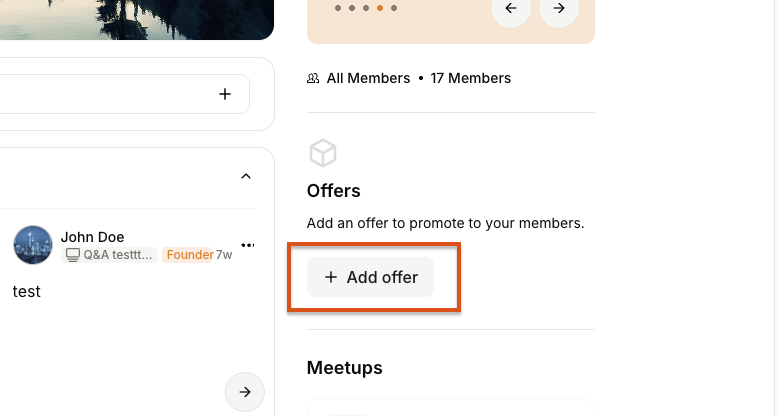
* Click the "**Add offer**" button located on the right-hand side bar:
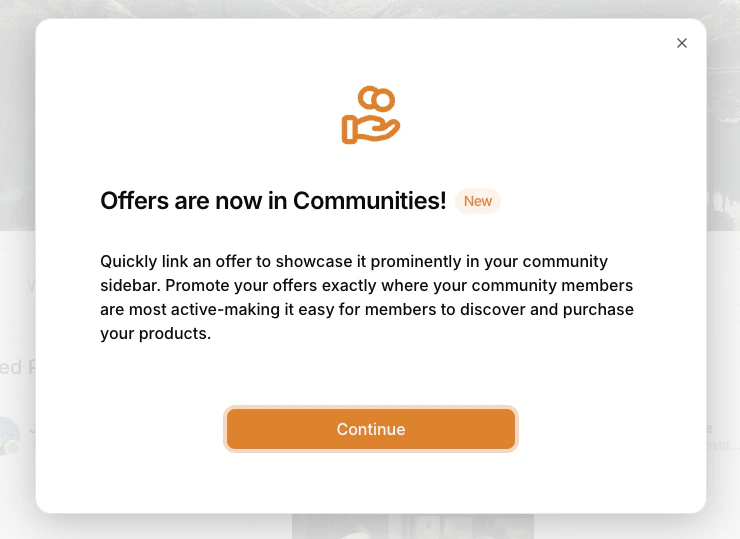
 * Click **Continue:**
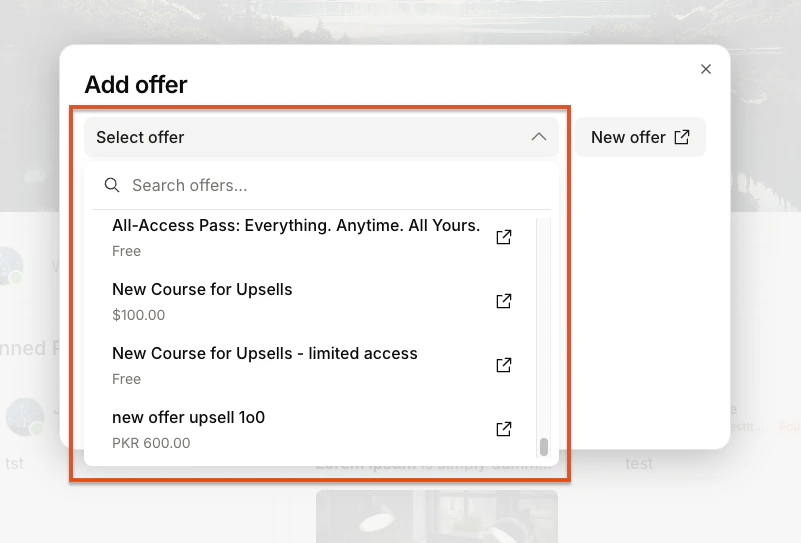
 * Use the dropdown menu to select or search for the offer you want to feature:
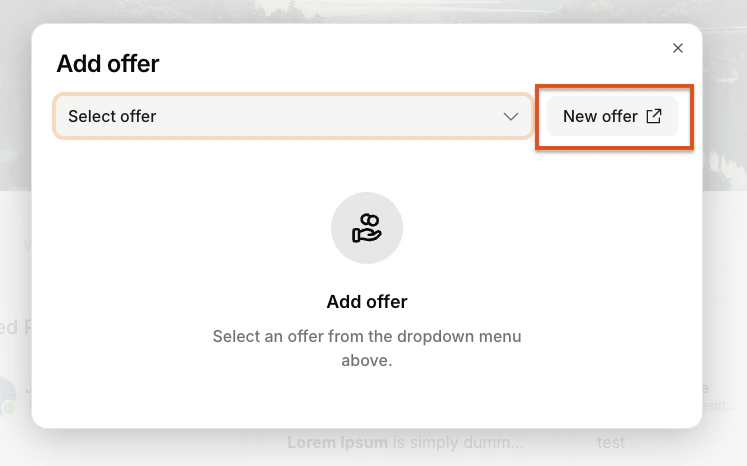
 * If you'd like to create an offer instead, click **New Offer:**
 * Once you select an offer, a preview will appear showing how it will look in your Offer Block:
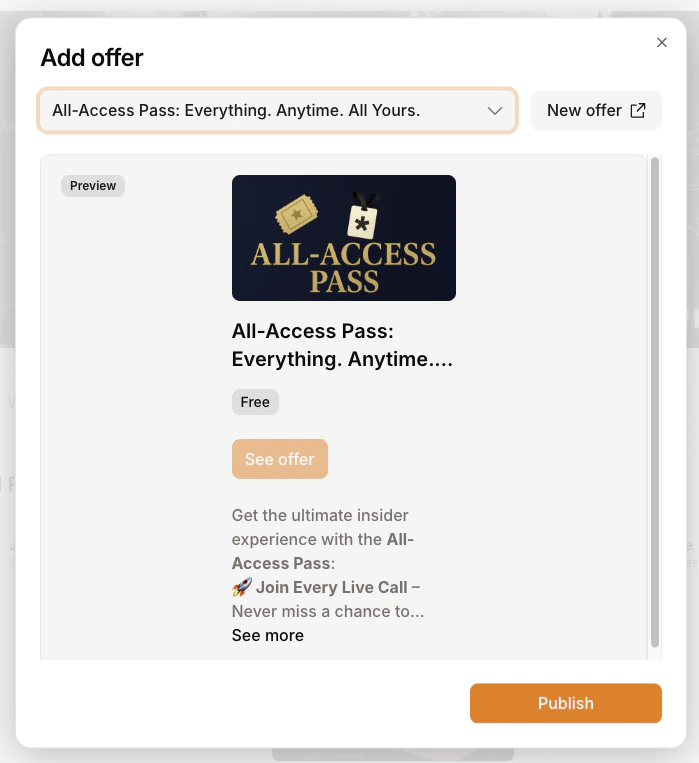 * Click **Publish** to save and display it in your Community:
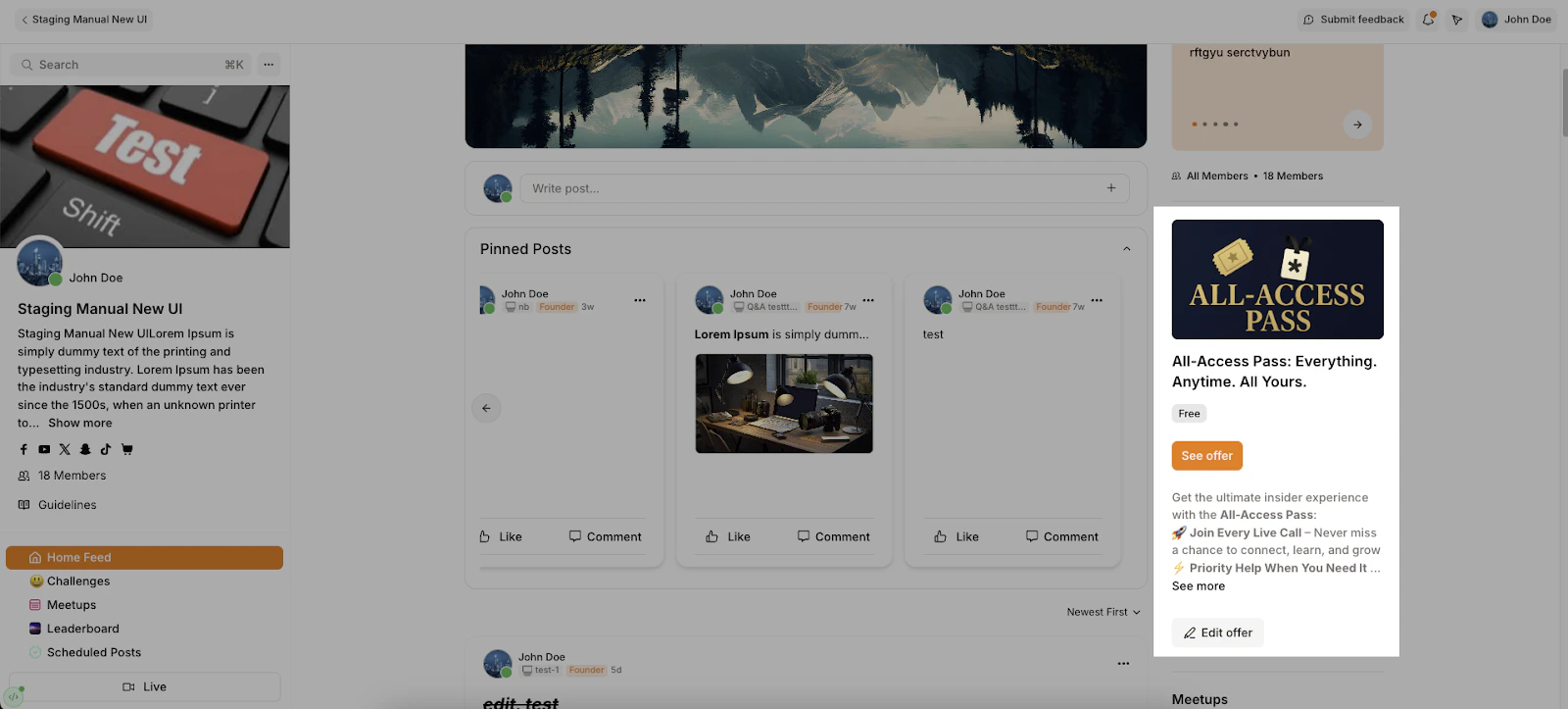 **Note:** Offer descriptions will be truncated after five lines.
## How the Offer appears to members
* Members will see the offer banner in the right-hand sidebar of the home feed.
* When your members click the offer button, it will open the offer checkout page in a popup
* For now, offer blocks are not dynamic. Your members will see the same offer even after they have purchased.
## Update the offer details in the Offer Block
The Offer Block in the Community pulls its content from the linked offer in your Kajabi Dashboard. To update these details, go to your Offers dashboard, select the offer you want to update, or [create one](../../sales/offers/create-an-offer).
**Note:** The offer block does not update automatically when changes are made to the offer. To reflect the updated details in the Community, open the Edit Offer modal inside the Community and click Update. This will refresh the data and apply the information to the banner.
## Remove an offer from the Offer Block
To remove an offer from your Offer Block:
* Go to the right-hand sidebar of the Home feed where the offer is currently added.
* Click the Edit Offer button.
* In the editor panel, click Unlink Offer.
* Click Update to save your changes.
## Can I choose different offers for different pages and show multiple offers?
Currently, Offer Blocks are only supported on the **Home (Global) Feed** and you can only display **one offer at a time**.
**Note:** Offer descriptions will be truncated after five lines.
## How the Offer appears to members
* Members will see the offer banner in the right-hand sidebar of the home feed.
* When your members click the offer button, it will open the offer checkout page in a popup
* For now, offer blocks are not dynamic. Your members will see the same offer even after they have purchased.
## Update the offer details in the Offer Block
The Offer Block in the Community pulls its content from the linked offer in your Kajabi Dashboard. To update these details, go to your Offers dashboard, select the offer you want to update, or [create one](../../sales/offers/create-an-offer).
**Note:** The offer block does not update automatically when changes are made to the offer. To reflect the updated details in the Community, open the Edit Offer modal inside the Community and click Update. This will refresh the data and apply the information to the banner.
## Remove an offer from the Offer Block
To remove an offer from your Offer Block:
* Go to the right-hand sidebar of the Home feed where the offer is currently added.
* Click the Edit Offer button.
* In the editor panel, click Unlink Offer.
* Click Update to save your changes.
## Can I choose different offers for different pages and show multiple offers?
Currently, Offer Blocks are only supported on the **Home (Global) Feed** and you can only display **one offer at a time**.