> ## Documentation Index
> Fetch the complete documentation index at: https://help.kajabi.com/llms.txt
> Use this file to discover all available pages before exploring further.
# Create a poll in a Kajabi Community
> Survey your Community members with polls in your Community Channels to gather feedback and drive engagement.
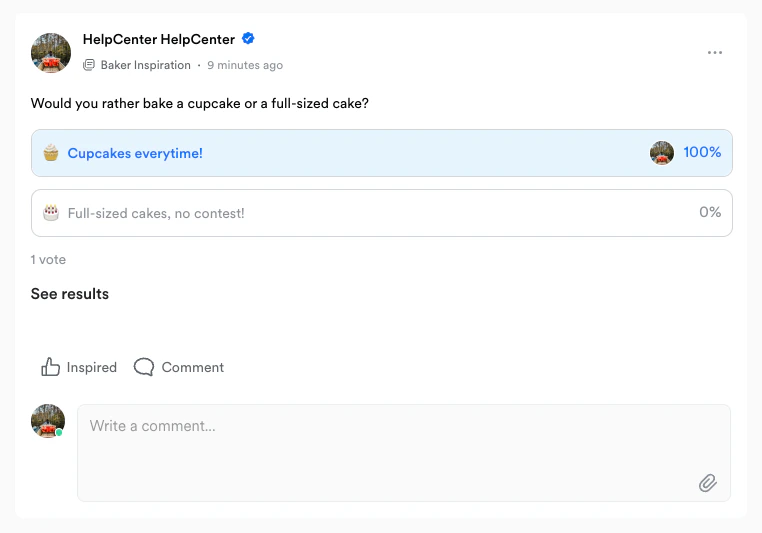
**Polls** in your Community Channels are a great way to gather feedback, engage your audience, and make data-driven decisions.
## Community poll
Survey your Community members with a poll in your Community Channels. [Learn more about Community Channels](../../products/community/creating-a-community-channel).
 ## Create a poll
To create a poll in your Community Channel Feed:
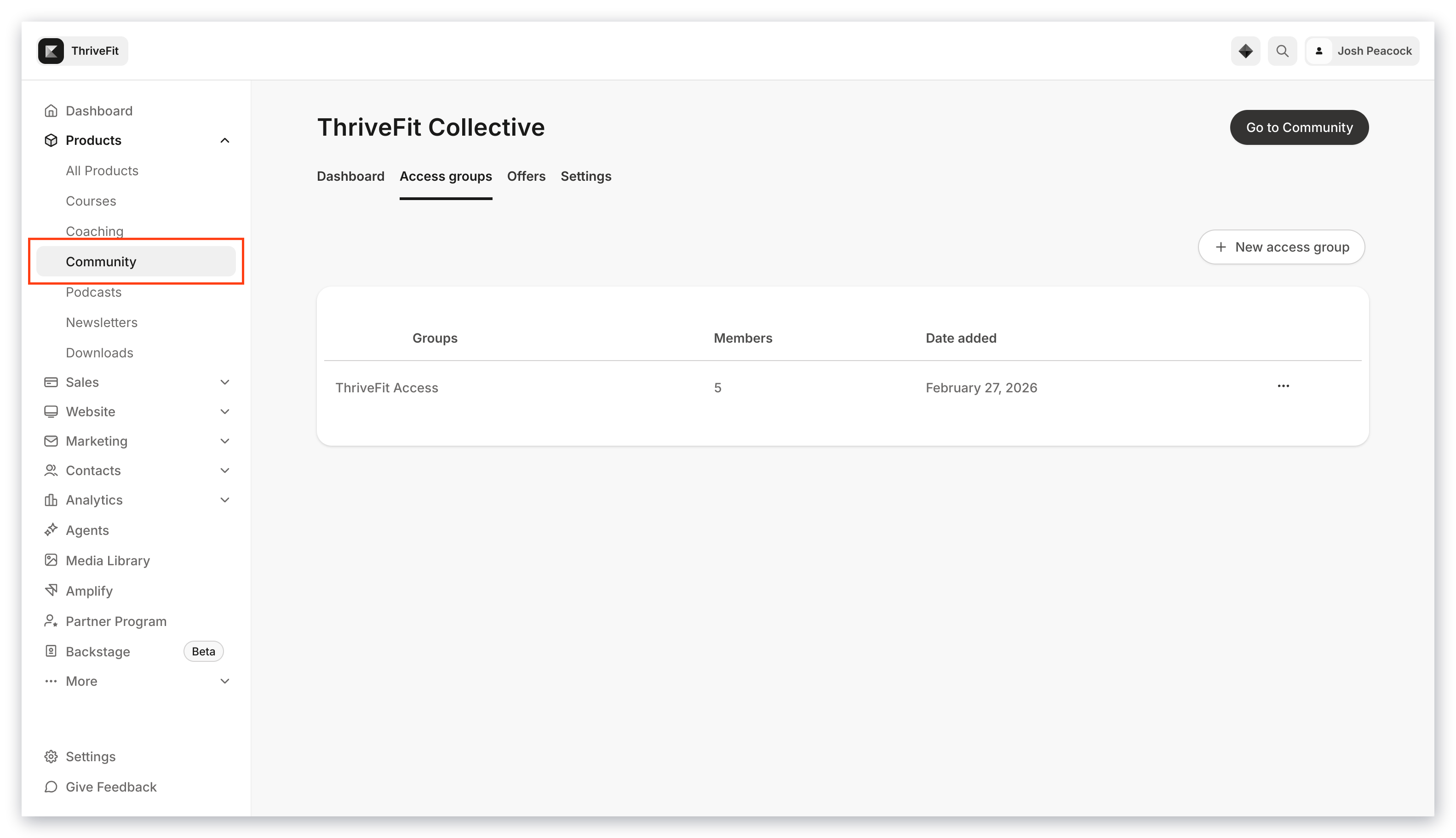
* Navigate to your **Products** tab from your Dashboard.
* Select **Community**:
## Create a poll
To create a poll in your Community Channel Feed:
* Navigate to your **Products** tab from your Dashboard.
* Select **Community**:
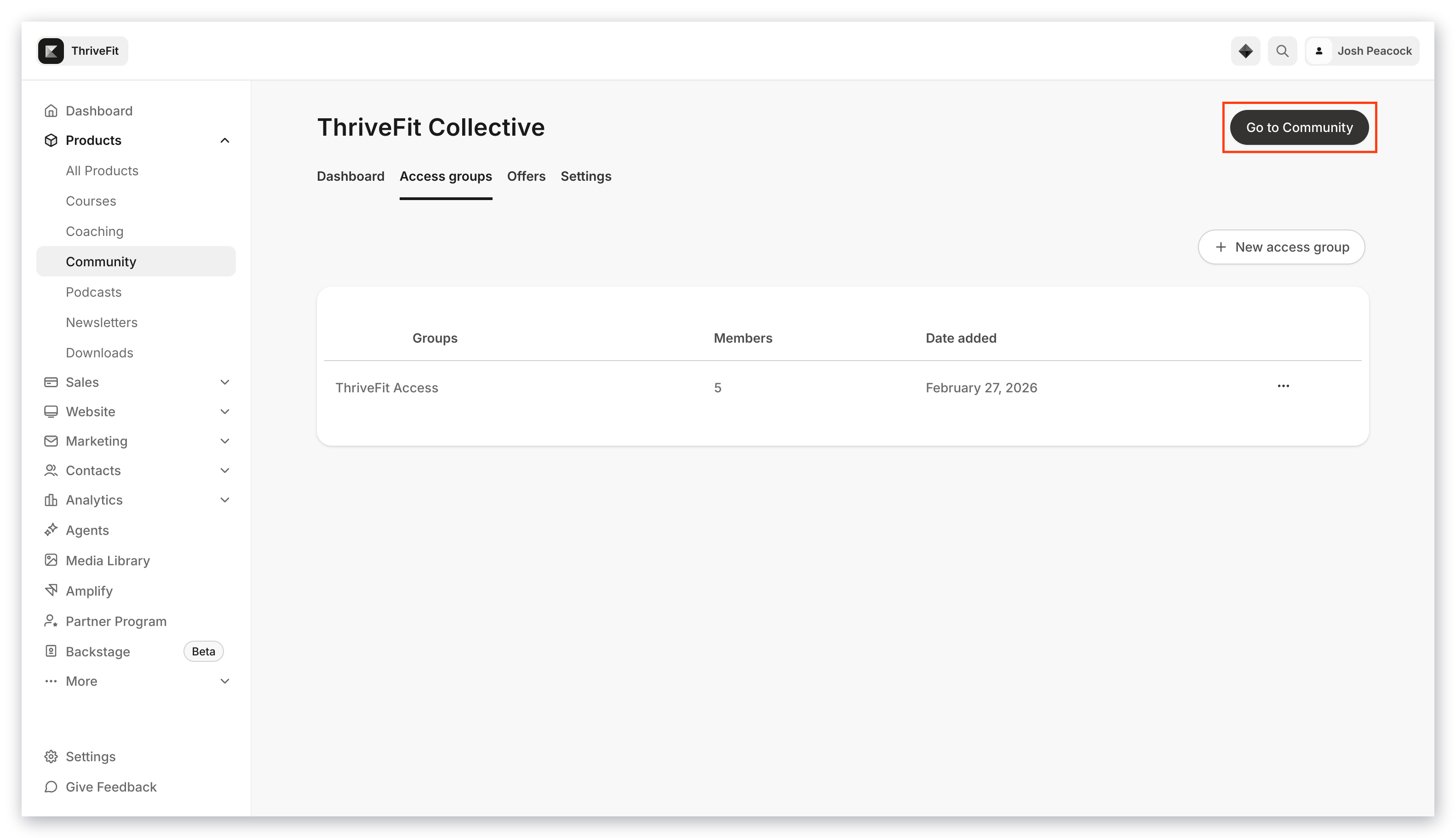
 * Then, click **Go to Community**:
 * Navigate to an existing Channel Feed or [create one](../../products/community/creating-a-community-channel).
* Then, click `+` in your Channel Feed or the polling icon from your Feed tab:
* Navigate to an existing Channel Feed or [create one](../../products/community/creating-a-community-channel).
* Then, click `+` in your Channel Feed or the polling icon from your Feed tab:
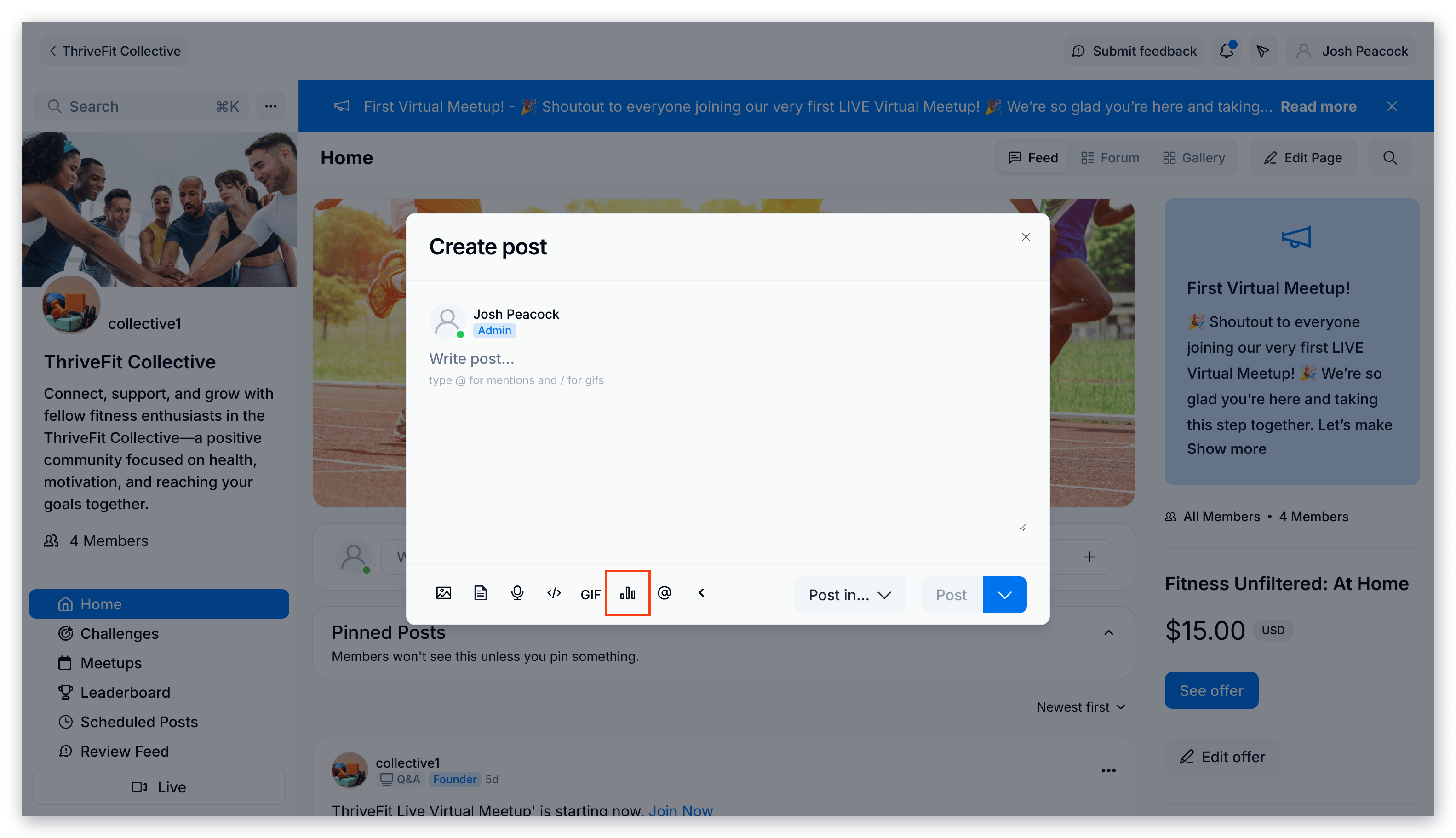 * Enter your prompt in the "Write your thoughts..." section and build out your answer options:
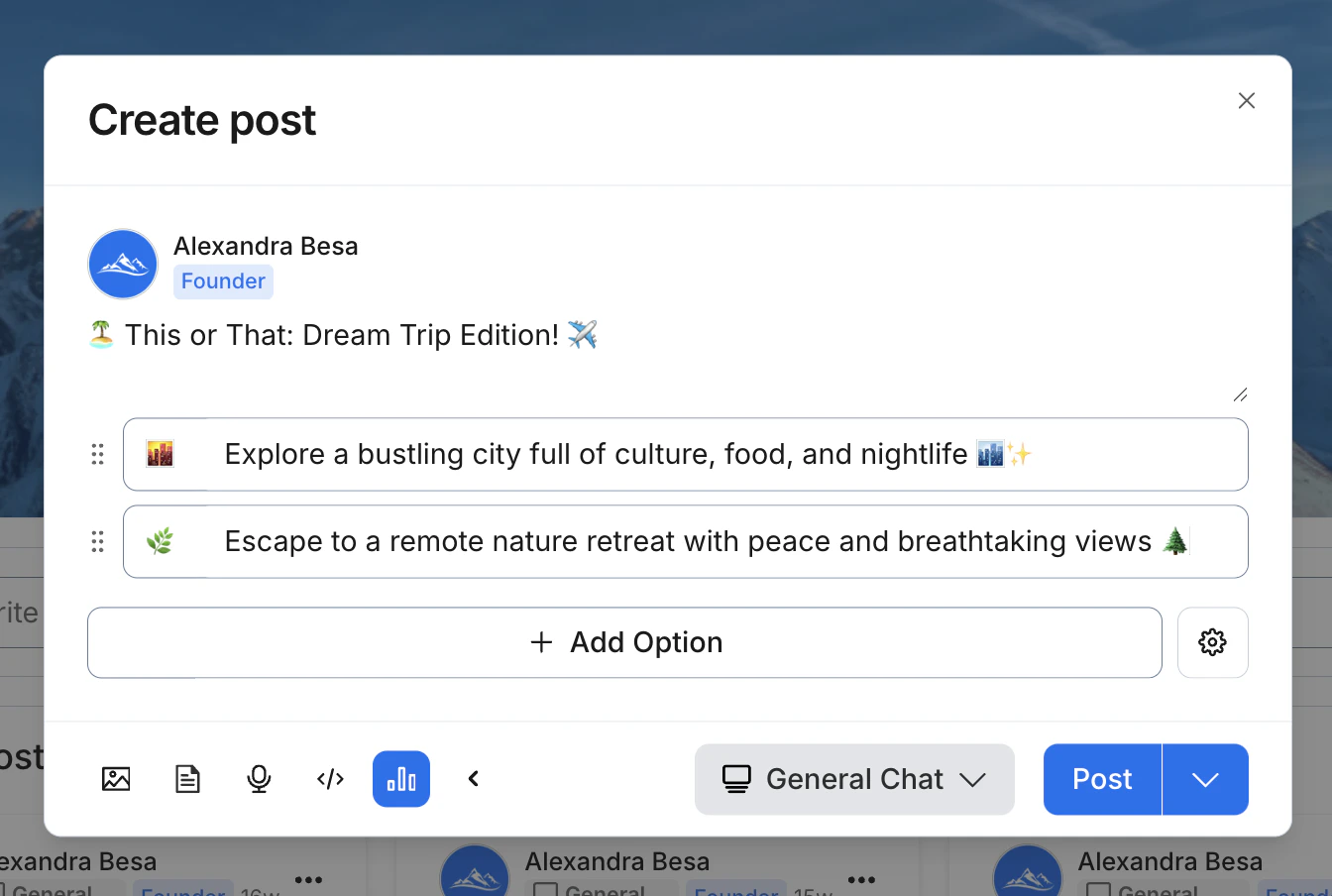 Add more answer options by clicking **+ Add option** and adding your emoji icon and text:
 Add up to 10 answer options per poll.
### Additional poll settings
As you create your poll, you can click the **gear** icon next to **+ Add option** to access additional poll settings:
Add up to 10 answer options per poll.
### Additional poll settings
As you create your poll, you can click the **gear** icon next to **+ Add option** to access additional poll settings:
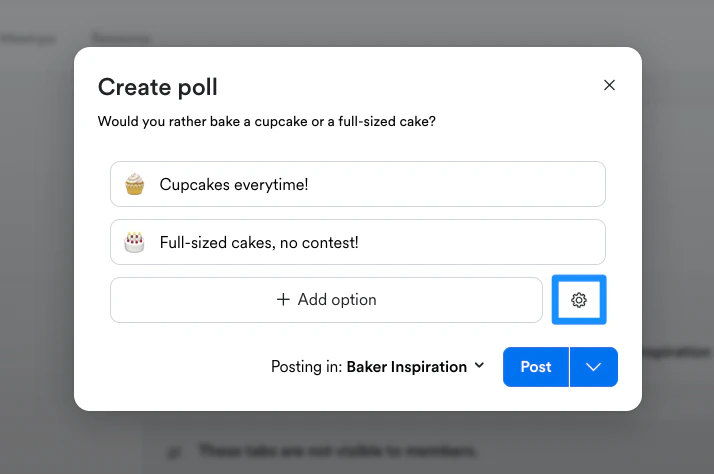 * **Allow multiple answers**: Allow the members in your Channel to select multiple answer options in your poll.
* **End date**: Set a time limit for answers to be submitted to the poll.
**Rearrange your answer options**
Reorganize your answer options by moving the options to your desired placement.
To rearrange your answer options:
* As you create your poll, hover your mouse next to the answer option you wish to move.
* When the dotted icon appears, click and hold the dotted icon:
* **Allow multiple answers**: Allow the members in your Channel to select multiple answer options in your poll.
* **End date**: Set a time limit for answers to be submitted to the poll.
**Rearrange your answer options**
Reorganize your answer options by moving the options to your desired placement.
To rearrange your answer options:
* As you create your poll, hover your mouse next to the answer option you wish to move.
* When the dotted icon appears, click and hold the dotted icon:
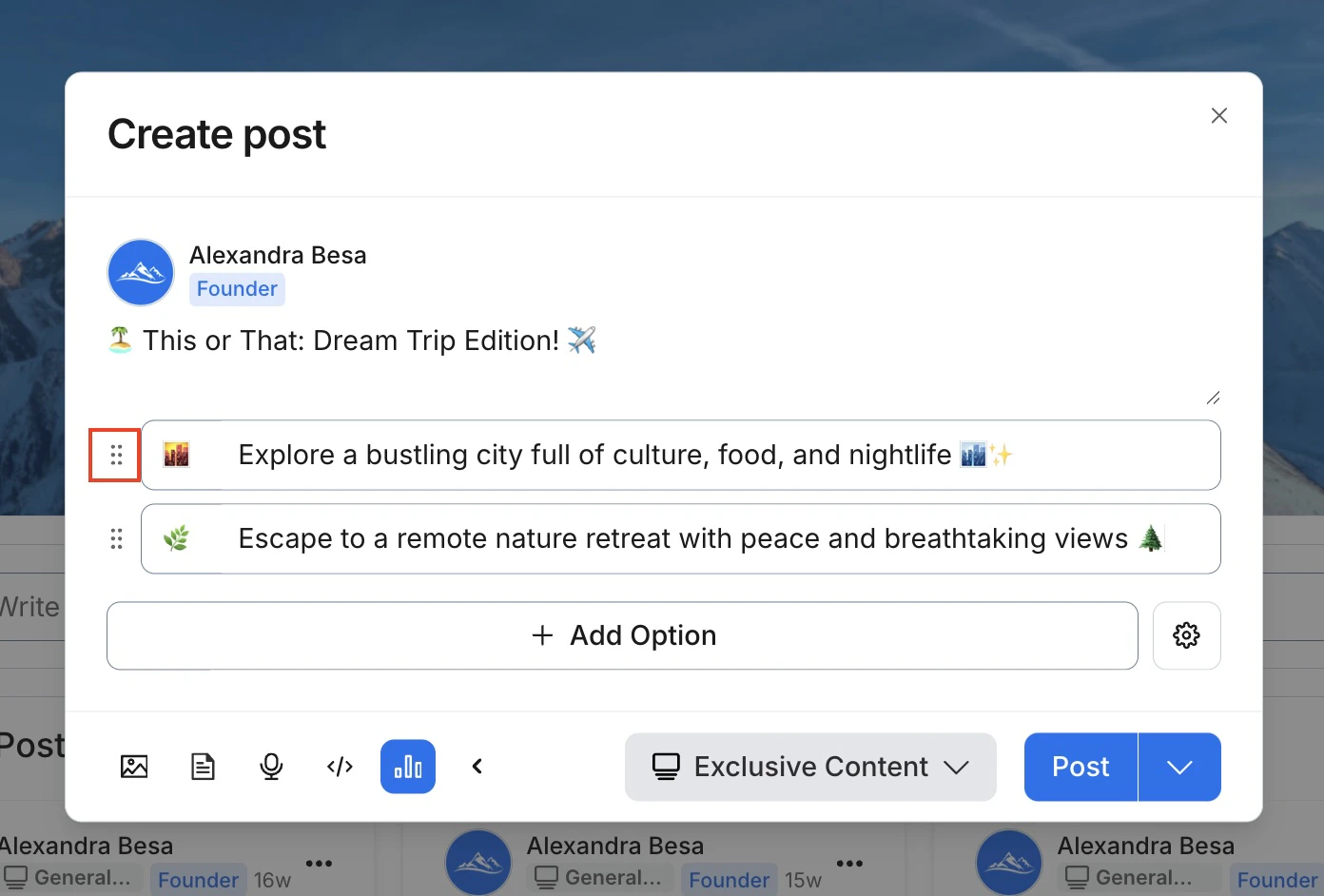 * As you hold the dotted icon, drag and drop the answer option to your desired location:
**Remove an answer option**
To delete an answer option as you build out your poll, you can simply change the text and emoji image of an existing answer or after creating additional options, you can click the trash icon by hovering inside the answer option you wish to permanently remove:
## Publish your poll
After you have set up your poll, be sure that everything is configured correctly before clicking **Post** as it will be publicly posted to your Community Feed.
**Note:** If a vote has been submitted to your posted poll, you will not be able to update your poll.
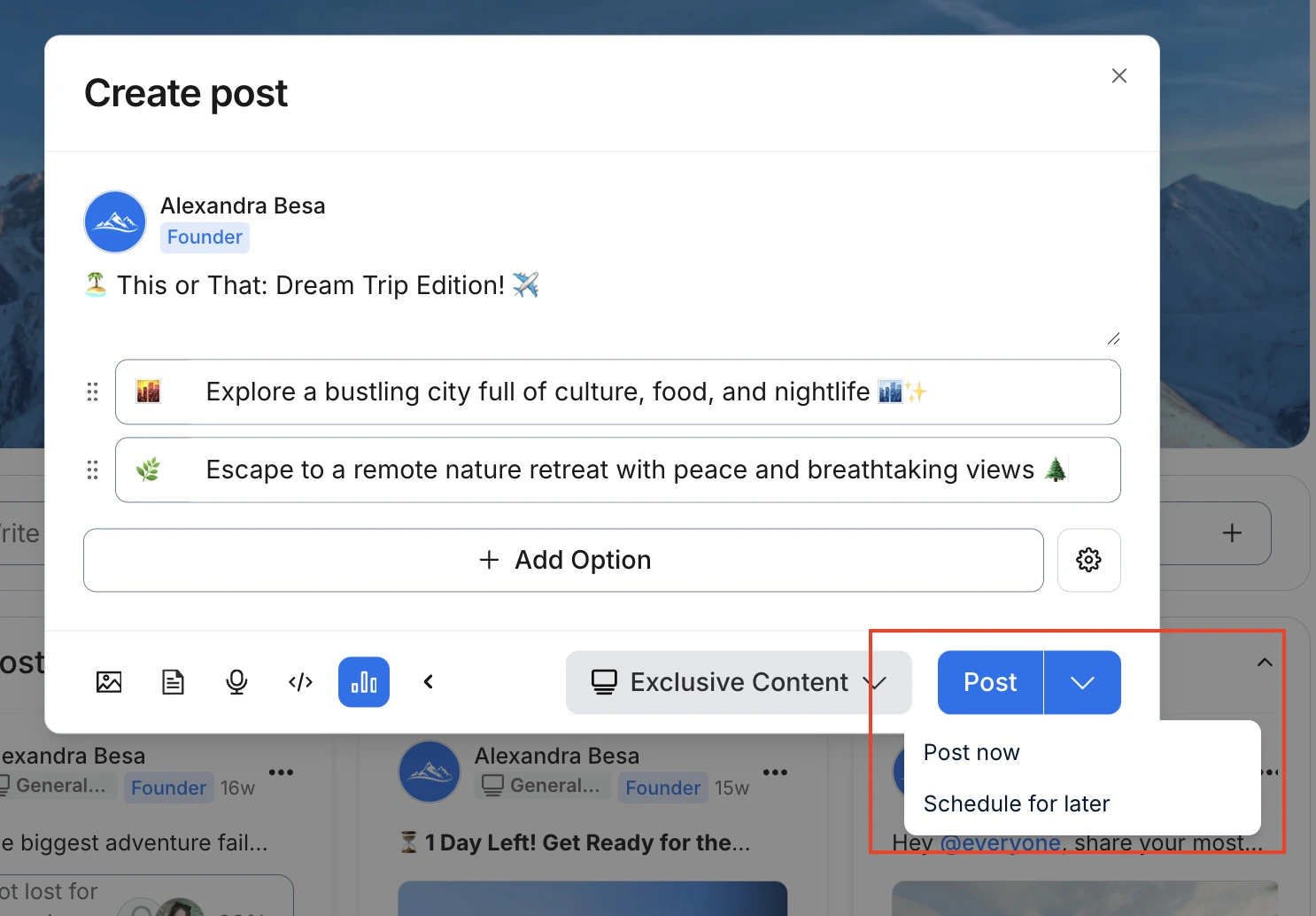
Clicking **Post** will publish your poll immediately to your Feed.
Click the dropdown icon next to the **Post** button to post your poll immediately (i.e., Post Now) or schedule for later:
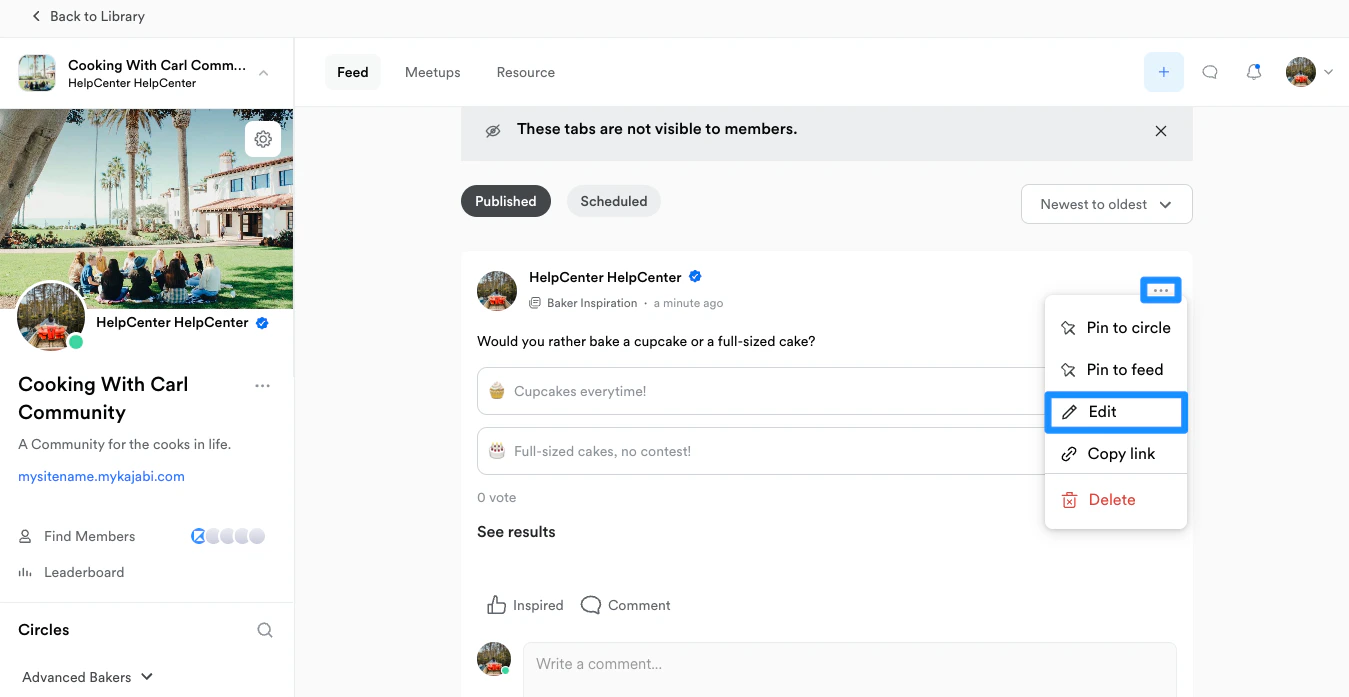
If you wish to edit your poll after you have posted, you can click the **More Actions** menu in the top-right corner of your posted poll and click **Edit**:
 **Note:** If a vote has been submitted to your posted poll, you will not be able to update your poll.
## Poll results
You and your administrators will always be able to see the answers submitted to the poll. Whereas, Community Members will only be able to see the answers after they have submitted their vote.
If you wish to see more details about who voted for what, click **See Results** after votes have been submitted to your poll.
**Note:** If a vote has been submitted to your posted poll, you will not be able to update your poll.
## Poll results
You and your administrators will always be able to see the answers submitted to the poll. Whereas, Community Members will only be able to see the answers after they have submitted their vote.
If you wish to see more details about who voted for what, click **See Results** after votes have been submitted to your poll.