> ## Documentation Index
> Fetch the complete documentation index at: https://help.kajabi.com/llms.txt
> Use this file to discover all available pages before exploring further.
# Create custom reactions for a Community
> Customize the emoji terminology your Community members can use to react to feed-style Channel posts, Channel post comments, and Challenge entries.
**Custom reactions** are labeled emojis you and your Community members can use to react to feed-style Channel posts, Channel post comments, and Challenge entries. Customize these to match your brand's voice and tone.
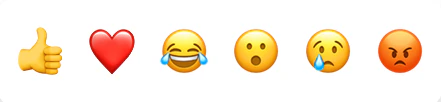
A variety of emojis are available to use to react to feed-style Channel posts and Channel post comments:
 And you can customize the specific wording you want to appear on their labels:
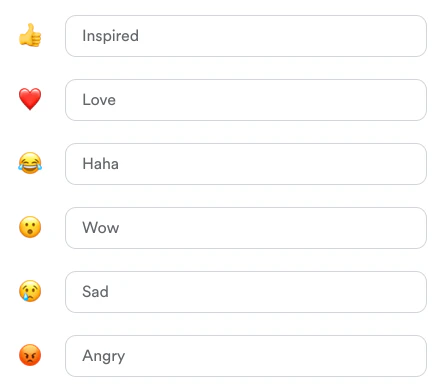 **Only the thumbs-up emoji can be used to react to Challenge entries**. However, the custom label you assign to this emoji will appear alongside it in all locations (Channel posts/comments and Challenge entries).
## Customize Community reactions
Update the label for each of your emojis as desired in the Customization tab of your Community settings.
**To customize your emoji labels:**
* Click the **settings ellipsis icon** on your Community cover image.
(Or, if you're using the mobile app, navigate to either the Feed or Challenges page, click your profile icon at the top right, then click the settings gear icon).
* Select **Customization** from the left navigation menu.
* Scroll down to **Customize reaction terminology**.
* Use the text input field next to each emoji to enter a label as desired.
* Check out how your updated emoji look by scrolling your cursor over each emoji in the **Preview** box just below.
* When you're done updating your label terminology, click **Save**:
**Only the thumbs-up emoji can be used to react to Challenge entries**. However, the custom label you assign to this emoji will appear alongside it in all locations (Channel posts/comments and Challenge entries).
## Customize Community reactions
Update the label for each of your emojis as desired in the Customization tab of your Community settings.
**To customize your emoji labels:**
* Click the **settings ellipsis icon** on your Community cover image.
(Or, if you're using the mobile app, navigate to either the Feed or Challenges page, click your profile icon at the top right, then click the settings gear icon).
* Select **Customization** from the left navigation menu.
* Scroll down to **Customize reaction terminology**.
* Use the text input field next to each emoji to enter a label as desired.
* Check out how your updated emoji look by scrolling your cursor over each emoji in the **Preview** box just below.
* When you're done updating your label terminology, click **Save**:
## Apply a reaction
Reactions can be applied to feed-style Channel posts, Challenge entries (thumbs-up emoji only), and comments members have left on a Channel post.
**To add a reaction to a Channel post or comment using the web app:**
* Navigate to the post or comment where you'd like to react.
* Place your cursor over the **Inspired (thumbs-up)** button.
A small popup will appear displaying your emoji choices.
* Scroll your cursor over each emoji to preview its label in a tooltip.
* Select the emoji you want to react with:
Change your mind or accidentally select the wrong reaction? No problem! Place your cursor back over the reaction button. The popup menu will reappear and you can choose a different emoji. Or simply click the reaction button to remove your reaction.