> ## Documentation Index
> Fetch the complete documentation index at: https://help.kajabi.com/llms.txt
> Use this file to discover all available pages before exploring further.
# Edit a Community profile
> Customize your Community profile to highlight your interests, social links, and personal information.
Your **Community Profile** is your personal space to share who you are with other members. Update it to showcase your favorite groups, goals, achievements, hobbies, and more.
## Edit a Profile
To edit your personal Profile using the Community web app:
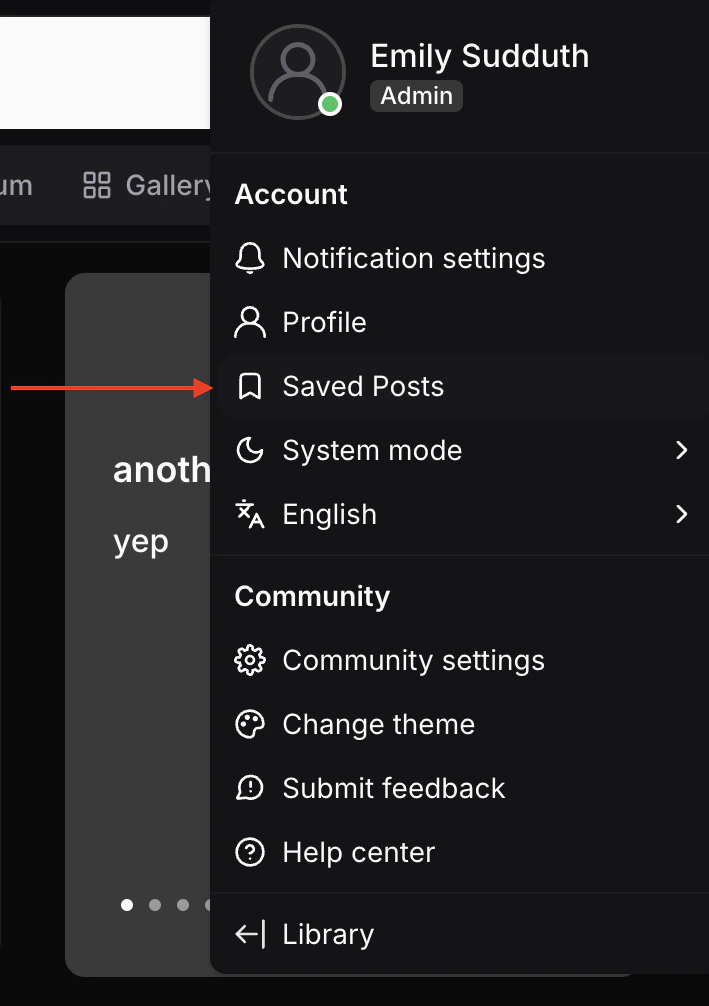
1. From the Community, click the dropdown arrow next to your profile icon at the top right of the page to open the options menu.
2. Under **Account** select **Profile**.
3. Update your photo, add social links, and share information about your personal interests as desired by clicking the **Edit pencil icon**.
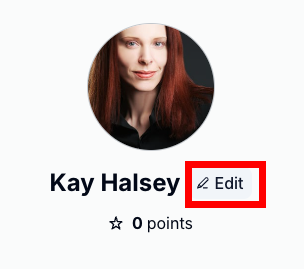 4. Update your photo, add social links, and share information about your personal interests as desired.
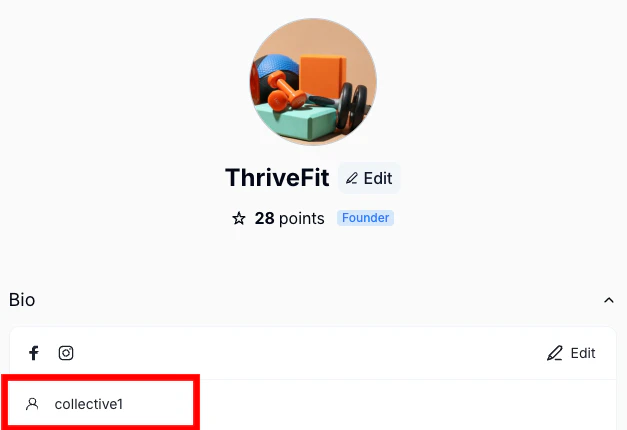
5. If enabled for the Community, you may also add a **custom** **username**. Look for the **people icon** in the **Bio**.\
\
A custom username replaces your real name everywhere it appears: Profile header, Posts, Comments, @mentions, and member lists.\
\
Usernames are "per community", meaning you can use a different username in each community you belong to, and your username must be unique within that community.\
\
@mention searches works with both real names and usernames, so other members can find and tag someone regardless of which name they're displaying. \\
4. Update your photo, add social links, and share information about your personal interests as desired.
5. If enabled for the Community, you may also add a **custom** **username**. Look for the **people icon** in the **Bio**.\
\
A custom username replaces your real name everywhere it appears: Profile header, Posts, Comments, @mentions, and member lists.\
\
Usernames are "per community", meaning you can use a different username in each community you belong to, and your username must be unique within that community.\
\
@mention searches works with both real names and usernames, so other members can find and tag someone regardless of which name they're displaying. \\
 6. Click **Save** to apply your changes.
7. To view your changes, click **Back to community**, then click your profile name in the sidebar or the options menu to open your profile page.
**Note:** You can also update your name in your Kajabi Account Details settings. [Learn more](../../products/community/customize-your-community-settings).
## Save a Community Post
Community members can save posts they want to come back to later.
1. To save a post, click the **three-dots (...)** on any post.
2. Select **Save Post**.
6. Click **Save** to apply your changes.
7. To view your changes, click **Back to community**, then click your profile name in the sidebar or the options menu to open your profile page.
**Note:** You can also update your name in your Kajabi Account Details settings. [Learn more](../../products/community/customize-your-community-settings).
## Save a Community Post
Community members can save posts they want to come back to later.
1. To save a post, click the **three-dots (...)** on any post.
2. Select **Save Post**.
-1.png?fit=max&auto=format&n=hrNXZ1LGAV1LiHPP&q=85&s=ddc026ba30cea8b58d3624413e490042 "Screenshot 2026 05 01 At 5 48 25 PM (3) 1") **Note:** Previously saved posts can be unsaved by clicking **Unsave Post** in the same menu.
### View Saved Posts
Saved posts are collected inside members' profile pages.
1. To view Saved Posts, click the member profile at the top-right of the Community.
2. Select **Saved Posts** in the menu.
**Note:** Previously saved posts can be unsaved by clicking **Unsave Post** in the same menu.
### View Saved Posts
Saved posts are collected inside members' profile pages.
1. To view Saved Posts, click the member profile at the top-right of the Community.
2. Select **Saved Posts** in the menu.