> ## Documentation Index
> Fetch the complete documentation index at: https://help.kajabi.com/llms.txt
> Use this file to discover all available pages before exploring further.
# Enable Google Sign-In for members
> Allow members to sign in using Google for an easier login experience while keeping everything secure.
With the **Member Social Login** feature, you can allow members to sign in using Google. This simplifies the login process for your community while maintaining security.
This guide walks you through setting up and customizing Google as a login option for your members.
## Enable Google Login
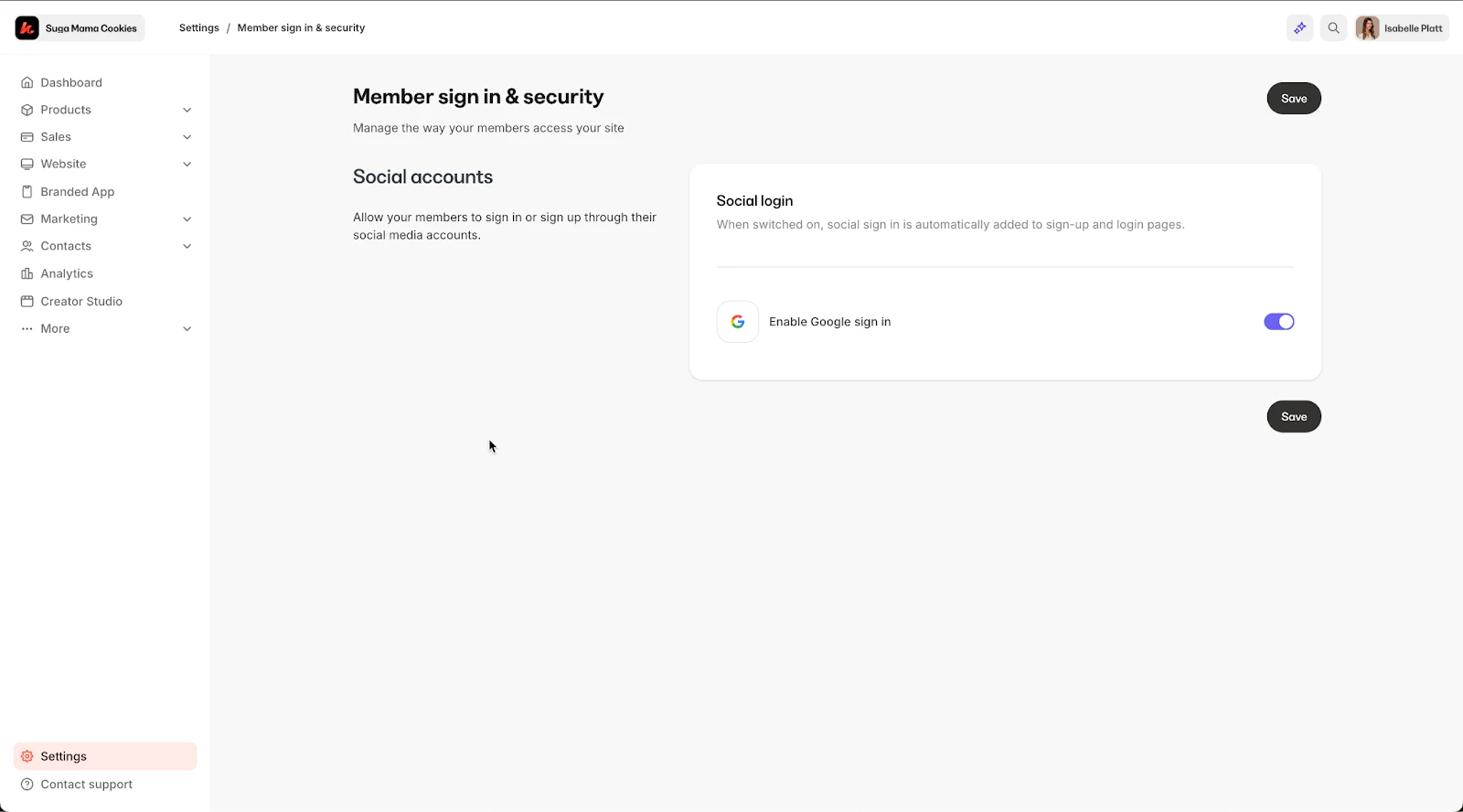
1. Go to **Settings** in the lower left of your Kajabi dashboard.
2. Click into the **Member sign in & security** tab.
3. Toggle on Enable Google sign in
4. Click **Save**.
 Once saved, the Google sign-in option will appear on your themed login page:
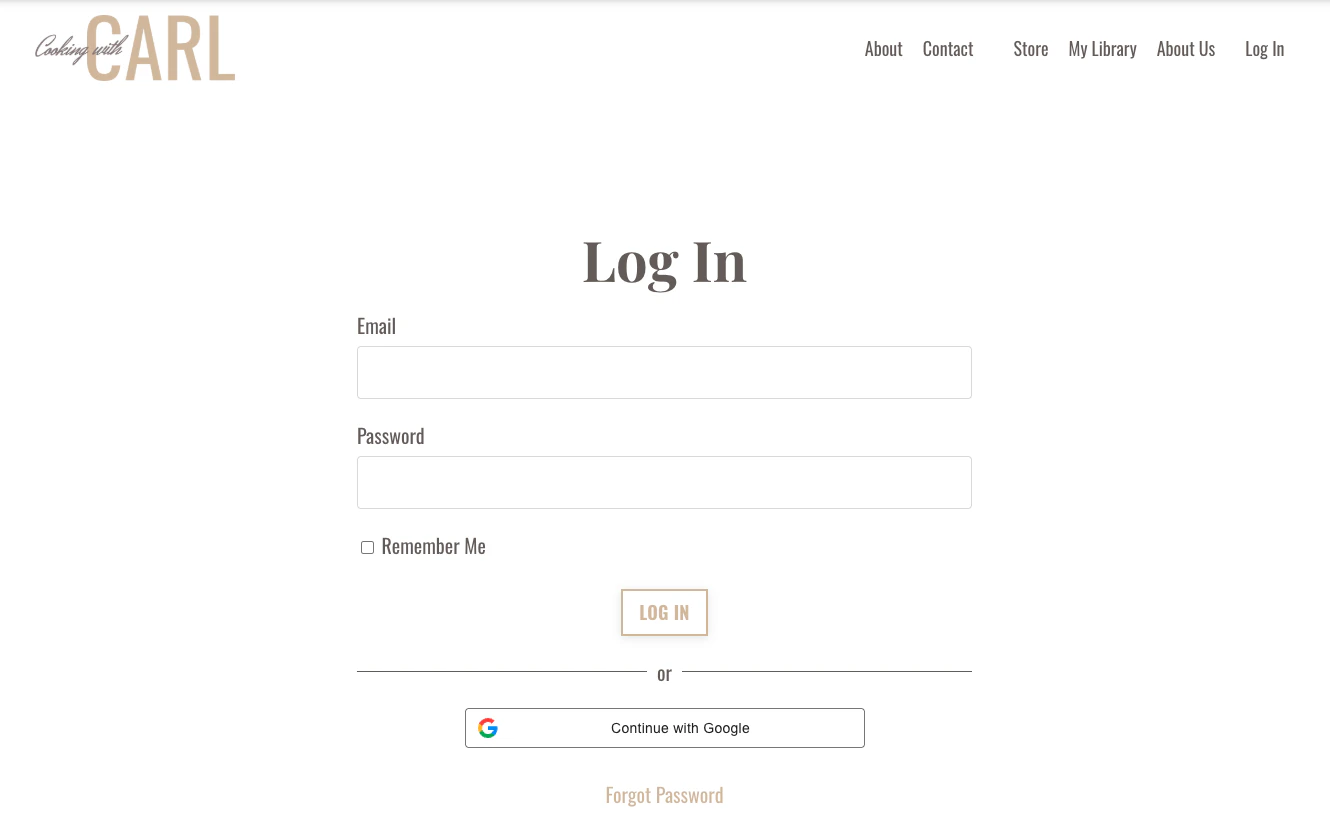 **Note:** If you're using an older version of the theme, you may need to update your website theme to see the Google button. [**Learn how to update your template**](../../website/pages/how-to-update-a-template)
## Customize the Google Button
You can adjust the look of the Google login button while staying within Google's brand guidelines.
Options you can customize include:
* Button color
* Shape (rounded or rectangular)
* Size
* Text
**Note:** If you're using an older version of the theme, you may need to update your website theme to see the Google button. [**Learn how to update your template**](../../website/pages/how-to-update-a-template)
## Customize the Google Button
You can adjust the look of the Google login button while staying within Google's brand guidelines.
Options you can customize include:
* Button color
* Shape (rounded or rectangular)
* Size
* Text
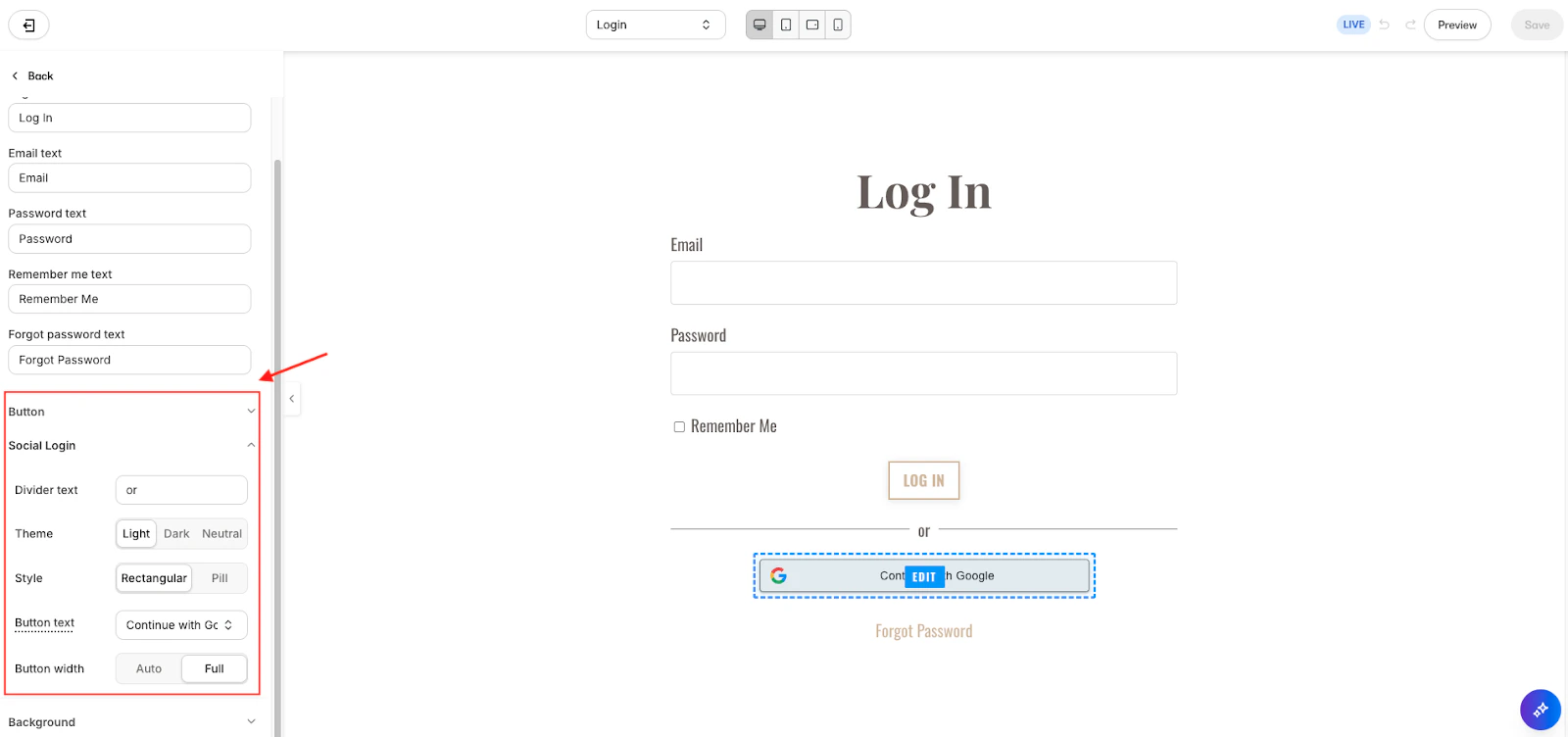 Once you've made your changes, click **Save**.
## Member Login Experience
### Members signing up
1. A member can sign up through your purchase flow or login page.
2. On the **Customer Account Setup Page**, they'll see the option to **Continue with Google**.
3. If they prefer, they can still create an account with a password.
Once you've made your changes, click **Save**.
## Member Login Experience
### Members signing up
1. A member can sign up through your purchase flow or login page.
2. On the **Customer Account Setup Page**, they'll see the option to **Continue with Google**.
3. If they prefer, they can still create an account with a password.
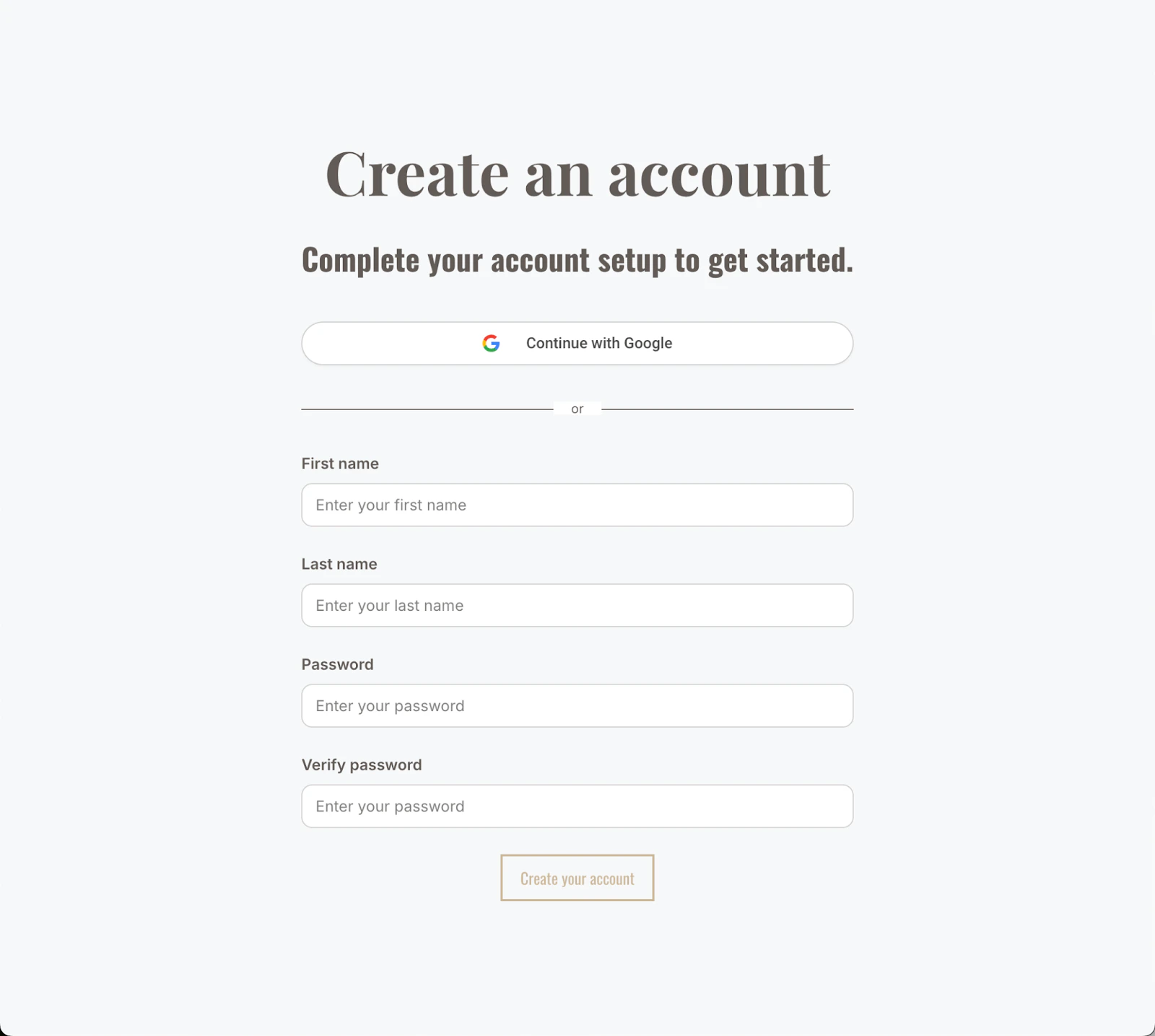 **Note:** The Customer Account Setup Page automatically inherits the following settings according to your website theme. [Learn more about how to Customize your Website Theme.](../../website/pages/customizing-your-website-pages-with-the-website-builder)
### Existing Members
If a member already has a password-based account and their email they used for account creation is different than their Google email they intend to use, they can connect it to Google by following these steps:
1. Log in with their existing **email and password**.
2. Go to their **Settings**.
3. Scroll all the way to the bottom of the Settings page and click **Connect with Google,** under **Social Accounts**.
4. For security, they will be prompted to enter their password to confirm.
They can also disconnect Google in this same section. If they originally created their account via Google, they will be asked to create a password for their account before being able to disconnect to ensure their account is still able to be logged into.
## Additional Information
* Members can connect **one Google account** per login.
* If a wrong Gmail account is connected, they can disconnect it from their account settings.
* To ensure security, disconnecting requires creating or confirming a password.
**Note:** The Customer Account Setup Page automatically inherits the following settings according to your website theme. [Learn more about how to Customize your Website Theme.](../../website/pages/customizing-your-website-pages-with-the-website-builder)
### Existing Members
If a member already has a password-based account and their email they used for account creation is different than their Google email they intend to use, they can connect it to Google by following these steps:
1. Log in with their existing **email and password**.
2. Go to their **Settings**.
3. Scroll all the way to the bottom of the Settings page and click **Connect with Google,** under **Social Accounts**.
4. For security, they will be prompted to enter their password to confirm.
They can also disconnect Google in this same section. If they originally created their account via Google, they will be asked to create a password for their account before being able to disconnect to ensure their account is still able to be logged into.
## Additional Information
* Members can connect **one Google account** per login.
* If a wrong Gmail account is connected, they can disconnect it from their account settings.
* To ensure security, disconnecting requires creating or confirming a password.