> ## Documentation Index
> Fetch the complete documentation index at: https://help.kajabi.com/llms.txt
> Use this file to discover all available pages before exploring further.
# Upload files to a Community Challenge
> Attach PDFs, audio files, images, and videos to Challenge entries and comments.
Enhance your Challenge entries and comments by attaching various **file types**, including PDFs, audio files, images, and videos.
**Note:** You can view PDFs and play audio files directly in the Community on the web app. Mobile app users will be prompted to download a PDF or audio file first.
## Add a file to a Challenge entry
To upload a PDF, audio, image, or video file to a Challenge entry:
1. Navigate to the Challenge and click **Join**.
2. Select the Challenge block, then click the **+ button**.
3. Select the desired **File type icon**:
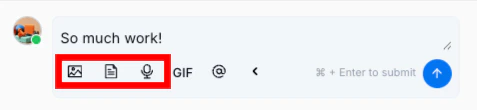 4. Choose the file, then click **Open** to upload it to your Challenge entry.
5. When you're finished creating the entry, click the **up arrow** or hit **Enter** to submit.
## Delete a file from a Challenge entry
To delete a file you've uploaded to a Challenge entry:
1. Click the ellipsis menu \[…] at the top right corner of the Challenge entry.
2. Select **Edit Entry**:
4. Choose the file, then click **Open** to upload it to your Challenge entry.
5. When you're finished creating the entry, click the **up arrow** or hit **Enter** to submit.
## Delete a file from a Challenge entry
To delete a file you've uploaded to a Challenge entry:
1. Click the ellipsis menu \[…] at the top right corner of the Challenge entry.
2. Select **Edit Entry**:
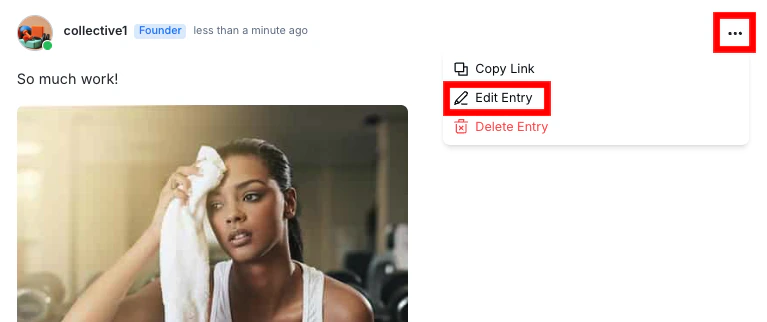 3. Click the **X** **icon** on the file to delete.
4. Then, click **Save Changes** to repost your entry without the deleted file.
## Add a file to a Challenge entry comment
To upload a PDF, audio, image, or video file to a Challenge entry comment:
1. Navigate to the Challenge entry and click **Comment**.
2. Enter your comment, and click the **+ button**.
3. Select the desired **File type icon**.
4. Choose the file, then click **Open** to upload it to your comment.
5. When you're finished, click the **up arrow** or hit **Enter** to submit.
**Note:** A maximum of 6 files can be added to a Challenge entry or comment. The maximum file size that can be uploaded is 1 GB.
## Video file recommendations
To ensure optimal playback quality for uploaded videos in Kajabi Communities, please upload videos using the following recommended settings:
**Resolution:** 1920×1080 (16:9)\
Standard Full HD, 16:9 aspect ratio
**Bitrate**: 5,000–8,000 kbps\
Ensures sufficient detail for streaming
**Codec:** H.264 (High Profile)\
Widely supported compression format
**Frame Rate**: 30 fps (constant)\
Smooth playback for most content
**Audio**: AAC 128–160 kbps\
Standard high-quality audio
**Warning:** Videos that do not meet these recommend specifications may appear blurry or scale incorrectly.
**Note:**
* Videos with non-standard aspect ratios (e.g., 1920×1074) may scale and appear less sharp
* Low-bitrate videos (under 1,000 kbps) may appear well on a desktop but will degrade noticeably after upload to a Community
* If the bitrate is less than the recommended value, the quality will degrade, even if the video has 1080 resolution
* Re-exporting videos according to these settings will significantly improve clarity
3. Click the **X** **icon** on the file to delete.
4. Then, click **Save Changes** to repost your entry without the deleted file.
## Add a file to a Challenge entry comment
To upload a PDF, audio, image, or video file to a Challenge entry comment:
1. Navigate to the Challenge entry and click **Comment**.
2. Enter your comment, and click the **+ button**.
3. Select the desired **File type icon**.
4. Choose the file, then click **Open** to upload it to your comment.
5. When you're finished, click the **up arrow** or hit **Enter** to submit.
**Note:** A maximum of 6 files can be added to a Challenge entry or comment. The maximum file size that can be uploaded is 1 GB.
## Video file recommendations
To ensure optimal playback quality for uploaded videos in Kajabi Communities, please upload videos using the following recommended settings:
**Resolution:** 1920×1080 (16:9)\
Standard Full HD, 16:9 aspect ratio
**Bitrate**: 5,000–8,000 kbps\
Ensures sufficient detail for streaming
**Codec:** H.264 (High Profile)\
Widely supported compression format
**Frame Rate**: 30 fps (constant)\
Smooth playback for most content
**Audio**: AAC 128–160 kbps\
Standard high-quality audio
**Warning:** Videos that do not meet these recommend specifications may appear blurry or scale incorrectly.
**Note:**
* Videos with non-standard aspect ratios (e.g., 1920×1074) may scale and appear less sharp
* Low-bitrate videos (under 1,000 kbps) may appear well on a desktop but will degrade noticeably after upload to a Community
* If the bitrate is less than the recommended value, the quality will degrade, even if the video has 1080 resolution
* Re-exporting videos according to these settings will significantly improve clarity