> ## Documentation Index
> Fetch the complete documentation index at: https://help.kajabi.com/llms.txt
> Use this file to discover all available pages before exploring further.
# Course completion certificates
> Create and send certificates to customers who complete a Course.
After a customer completes one of your Courses, you can automatically send them a **certificate**. This certificate of completion can be downloaded and shared with others.
**Note:** You can also send a certificates of completion with [Accredible](../../api-integrations/zapier/how-to-send-certificates-of-completion-with-accredible), [Google Slides](../../api-integrations/zapier/how-to-create-a-certificate-with-google-slides) using Zapier, or [Kajabi Automations](../../marketing/automations/how-to-send-a-certificate-of-completion-with-automations).
## Create a certificate
1. Go to [Products > Courses](https://app.kajabi.com/admin/last_site/courses) and click on your course
2. Click **Certificates**
3. Enable **Provide certificates for this course**
4. Check the following boxes to include them on your certificate:
* Logo
* Certificate title
* Recipient subtitle
* This will display above the recipient's name
* Show student's name
* Course subtitle
* This will display above your course name
* Include course title's name
* Include completion date
* Include unique certificate serial number
* Include expiration date
* You can set this certificate to expire X days, months, or years after completion
* You can't choose a specific date
* Custom field
* This will appear as fine print on the bottom of the certificate
* Certificate background
* Upload a background image
* Optionally, check **Include overlay**. This will include a semi-transparent white overlay over your background image
You will receive an error if you check the logo or certificate background options but do not select an image.
5. An automatic email containing a link to the certificate will be sent to your customer. You can customize this email by going to [Settings > Email templates > Course Completion Certificate](https://app.kajabi.com/admin/last_site/email_templates/new?handle=course_completion_certificate). Choose one of the following options:
* **Send certificate upon 100% completion**
* **Send as an automation**
* Send the certificate email when a specific assessment or lesson is completed, or when a quiz is completed, passed, or failed
6. Click **Save**
## Resend a certificate
1. Go to [Analytics](https://app.kajabi.com/admin/last_site/reports) > Product progress
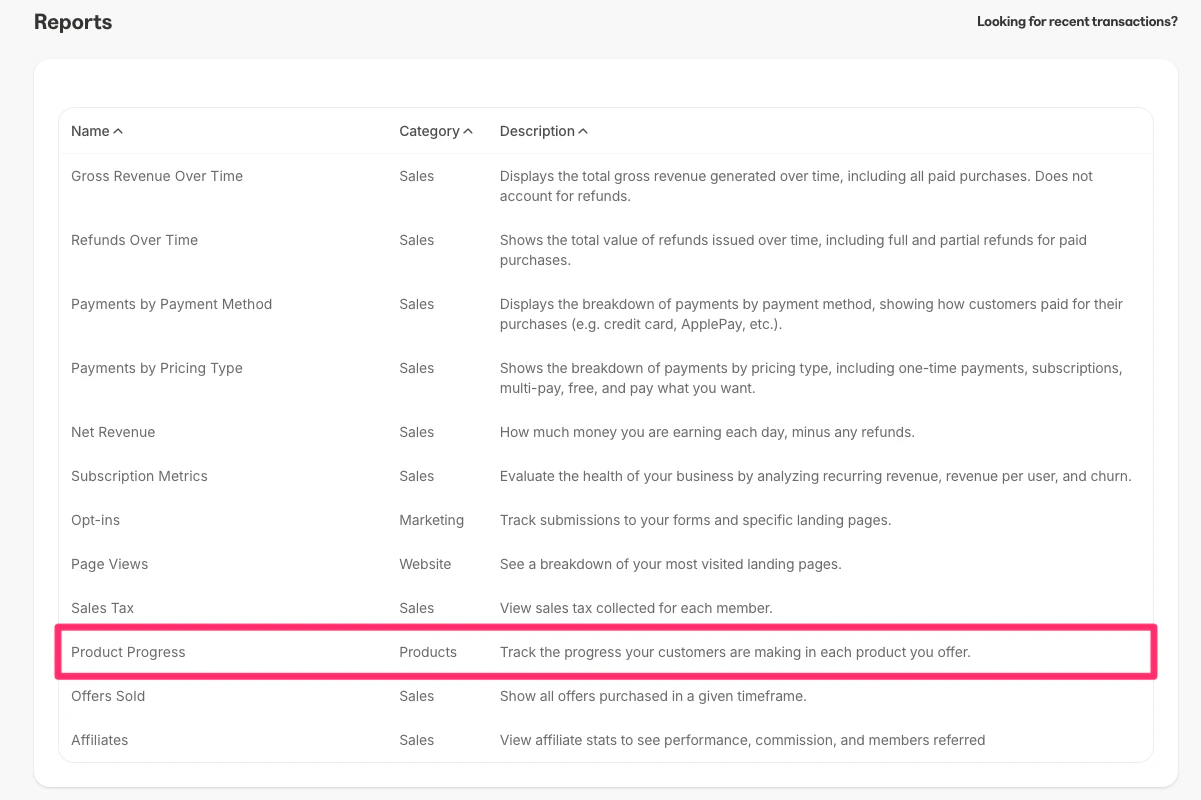 2. Select your course and click **Confirm**
3. Select the customer you want to send the certificate to
4. Click **Resend certificate**
* This will resend the email to your customer containing a link to their certificate
## How certificates look to customers
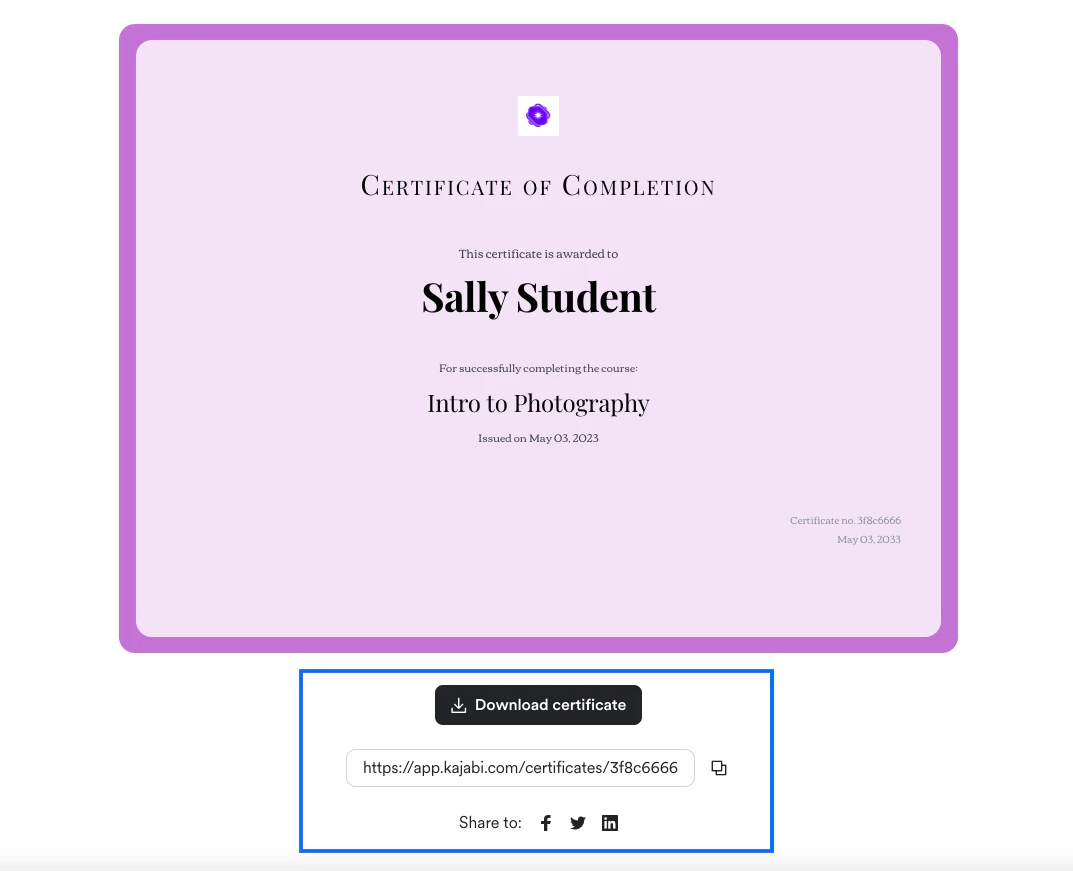
On the certificate page, your customers can click **Download certificate** to download a PDF version of the certificate.
They can also copy the certificate URL and share their certificate on social media sites.
2. Select your course and click **Confirm**
3. Select the customer you want to send the certificate to
4. Click **Resend certificate**
* This will resend the email to your customer containing a link to their certificate
## How certificates look to customers
On the certificate page, your customers can click **Download certificate** to download a PDF version of the certificate.
They can also copy the certificate URL and share their certificate on social media sites.
 ## Download a customer's certificate
1. Go to [Products > Courses](https://app.kajabi.com/admin/last_site/courses) and click on your course
2. Click **Customers**
3. Next to your customer's name, click the **Download certificate** button to download a PDF version
* Note: It may take some time for a certificate to populate here
## Download a customer's certificate
1. Go to [Products > Courses](https://app.kajabi.com/admin/last_site/courses) and click on your course
2. Click **Customers**
3. Next to your customer's name, click the **Download certificate** button to download a PDF version
* Note: It may take some time for a certificate to populate here
## Edit a certificate
1. Go to [Products > Courses](https://app.kajabi.com/admin/last_site/courses) and click on your course
2. Click **Certificates**
3. Customize your certificate or update when the certificate is sent
4. Click **Save**
## Preview a certificate
1. Go to [Products > Courses](https://app.kajabi.com/admin/last_site/courses) and click on your course
2. Click **Certificates**
3. Click **Preview**
## Disable a certificate
1. Go to [Products > Courses](https://app.kajabi.com/admin/last_site/courses) and click on your course
2. Click **Certificates**
3. Toggle off **Provide certificates for this course**
4. Click **Save**
## FAQs
### What happens if more content is added to a course that a customer previously completed and received a certificate for?
If more content is added to a course after a certificate has been sent, the certificate will be resent if:
* The optional expiration date on the certificate has passed
* It has been 3 months since they last completed the content and received the certificate