> ## Documentation Index
> Fetch the complete documentation index at: https://help.kajabi.com/llms.txt
> Use this file to discover all available pages before exploring further.
# Course modules
> Create, organize, and manage modules and submodules in Courses.
[Lessons](../../products/courses/create-a-lesson) and [quizzes](../../products/courses/course-quizzes) in your course live inside **modules** and **submodules**. Think of these like categories and subcategories to help you organize your course.
For example, your Course is for beginner drummers. You may have lessons that teach drumming techniques and information about the gear you recommend. You could create modules for "Techniques" and "Recommended gear."
Additionally, you can control when certain modules and submodules are unlocked for students.
 ## Create a module
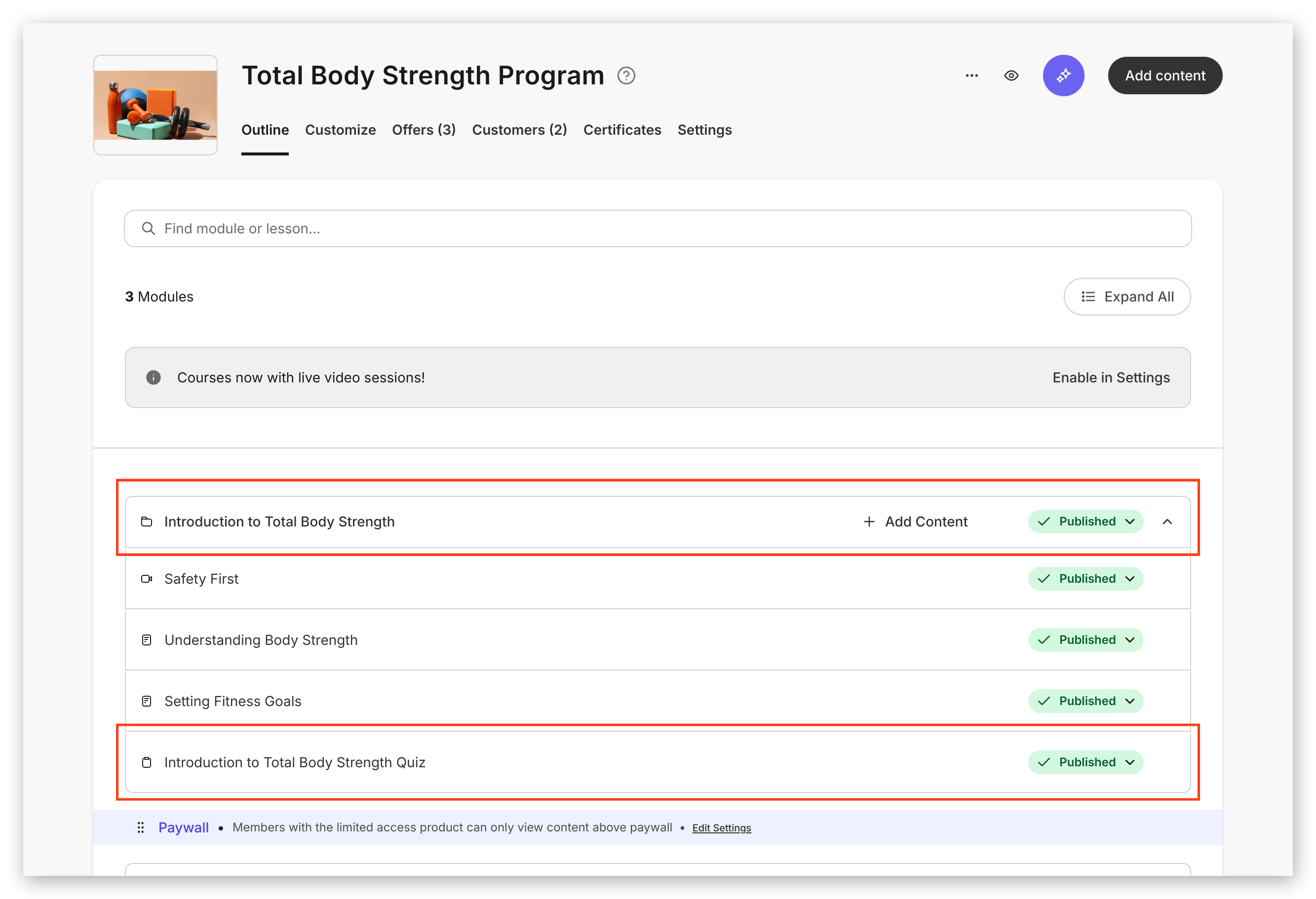
1. From the Dashboard, go to [Products > Courses](https://app.kajabi.com/admin/last_site/courses) and click a **Course Title** in the list.
2. Click the **Add content** button.
3. Select **Module** or **Submodule.**
4. Or, within a module on the **Outline,** click **+Add Content**, and select **Submodule**.
5. Add a **Title**, **Description**, and module **Image**. If applicable, set the **Top-level Module** for the new submodule. Then, click **Create Module** (**Submodule)**.
* Depending on the Course template, the description and image may be visible for each module
6. The module is added to the bottom of the Outline.
* By default, the **Status** will be set to **Draft**
**Note:** You can create up to 30 submodules inside a single module.
## Edit a module
1. From the Dashboard, go to [Products > Courses](https://app.kajabi.com/admin/last_site/courses) and click a **Course Title** in the list.
2. Move your mouse over a module, and click the **pencil icon.**
3. Edit your **Title**, **Description**, or module **Image.**
4. Click **Save Module** (**Submodule)**.
## Duplicate a module
1. From the Dashboard, go to [Products > Courses](https://app.kajabi.com/admin/last_site/courses) and click a **Course Title** in the list.
2. Move your mouse over a module, and click the **stacked paper icon**.
## Create a module
1. From the Dashboard, go to [Products > Courses](https://app.kajabi.com/admin/last_site/courses) and click a **Course Title** in the list.
2. Click the **Add content** button.
3. Select **Module** or **Submodule.**
4. Or, within a module on the **Outline,** click **+Add Content**, and select **Submodule**.
5. Add a **Title**, **Description**, and module **Image**. If applicable, set the **Top-level Module** for the new submodule. Then, click **Create Module** (**Submodule)**.
* Depending on the Course template, the description and image may be visible for each module
6. The module is added to the bottom of the Outline.
* By default, the **Status** will be set to **Draft**
**Note:** You can create up to 30 submodules inside a single module.
## Edit a module
1. From the Dashboard, go to [Products > Courses](https://app.kajabi.com/admin/last_site/courses) and click a **Course Title** in the list.
2. Move your mouse over a module, and click the **pencil icon.**
3. Edit your **Title**, **Description**, or module **Image.**
4. Click **Save Module** (**Submodule)**.
## Duplicate a module
1. From the Dashboard, go to [Products > Courses](https://app.kajabi.com/admin/last_site/courses) and click a **Course Title** in the list.
2. Move your mouse over a module, and click the **stacked paper icon**.
.png?fit=max&auto=format&n=AMwYza4gXdW6OLJe&q=85&s=b3e048e2c62e0db5fa409b6b4aeb7230) 3. Choose where to place the duplicate module, either **Duplicate in this course** or **Duplicate to another course**.
4. If needed, choose a Course for the duplicate module to appear in.
5. Click **Duplicate**.
## Reorder modules
1. From the Dashboard, go to [Products > Courses](https://app.kajabi.com/admin/last_site/courses) and click a **Course Title** in the list.
2. In the Outline, move your mouse over over the **folder icon** next to the module or submodule Title.
3. Click and drag each module to create your desired order.
## Set the module status
1. From the Dashboard, go to [Products > Courses](https://app.kajabi.com/admin/last_site/courses) and click a **Course Title** in the list.
2. In the Outline, click the **Status** dropdown next to a module or submodule:
* **Draft:** Hidden from customers
* **Publish:** Visible to customers
* **Drip:** Content is locked until a specific number of days after the customer purchases or is granted an Offer containing the Course (i.e., Access start date)\
See [Drip content in Courses](../../products/courses/schedule-and-drip-content-in-courses) for more details.
* **Lock**: Content is locked until a specific lesson, quiz, or assessment is completed
3. Choose where to place the duplicate module, either **Duplicate in this course** or **Duplicate to another course**.
4. If needed, choose a Course for the duplicate module to appear in.
5. Click **Duplicate**.
## Reorder modules
1. From the Dashboard, go to [Products > Courses](https://app.kajabi.com/admin/last_site/courses) and click a **Course Title** in the list.
2. In the Outline, move your mouse over over the **folder icon** next to the module or submodule Title.
3. Click and drag each module to create your desired order.
## Set the module status
1. From the Dashboard, go to [Products > Courses](https://app.kajabi.com/admin/last_site/courses) and click a **Course Title** in the list.
2. In the Outline, click the **Status** dropdown next to a module or submodule:
* **Draft:** Hidden from customers
* **Publish:** Visible to customers
* **Drip:** Content is locked until a specific number of days after the customer purchases or is granted an Offer containing the Course (i.e., Access start date)\
See [Drip content in Courses](../../products/courses/schedule-and-drip-content-in-courses) for more details.
* **Lock**: Content is locked until a specific lesson, quiz, or assessment is completed
 ### Locked Status
After choosing the Lock status, select the lesson or quiz that must be completed in order to unlock the module or submodule. Then, click **Lock.**
**Note:** You won't be able to select a lesson or quiz unless it is published.
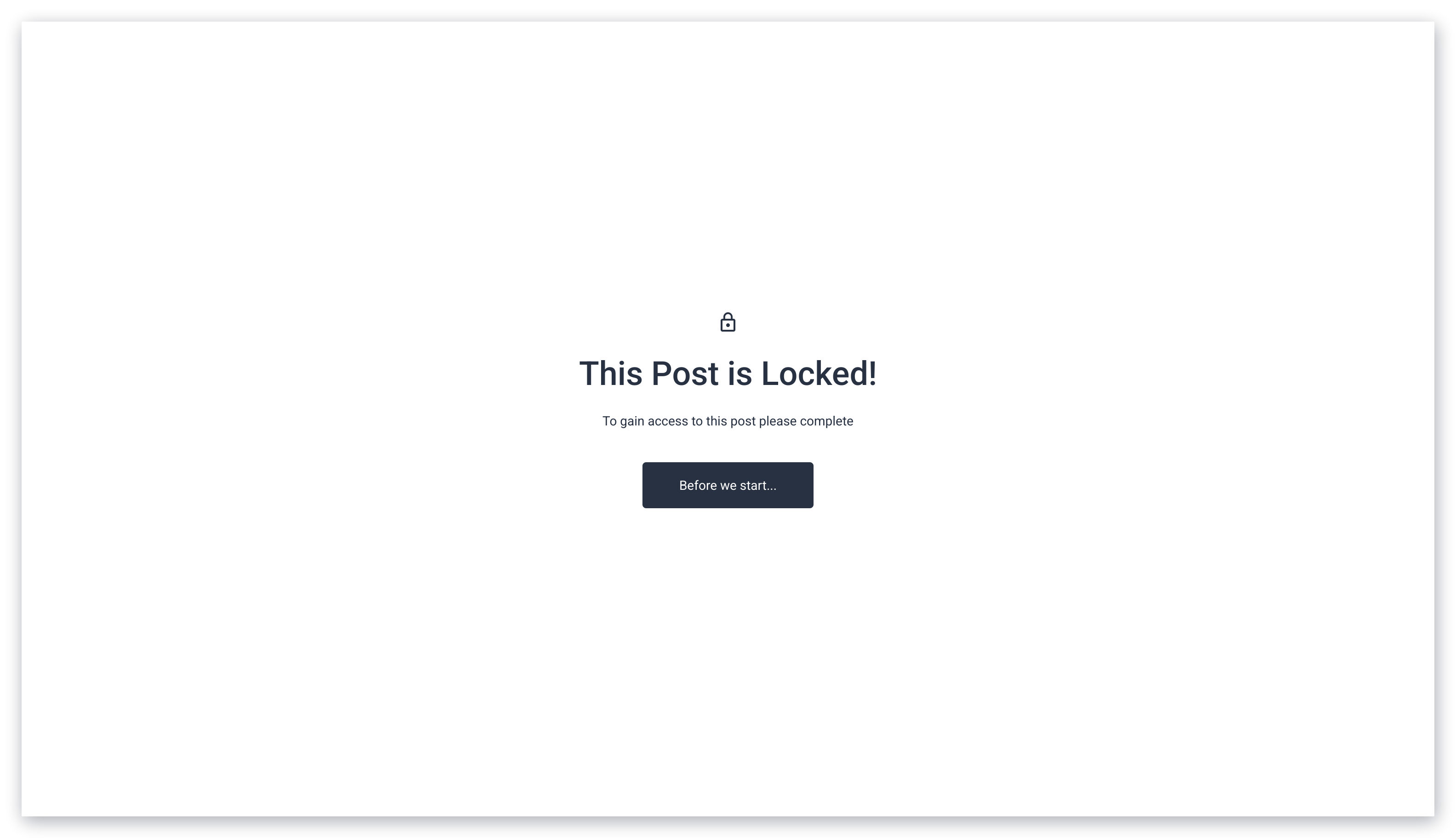
If a customer attempts to open a module, lesson, or quiz that is locked, they will see a message saying "This Category is Locked!" (for modules) or "This Post is Locked!" (for lessons and quizzes). These pages are not customizable. However, the language will change based on your site's [Language Settings](../../account-settings/my-kajabi/change-your-site-language).
#### How quizzes unlock modules
By default, after someone completes a quiz (regardless if it was passed, failed, or not graded) it will unlock a module.
If you want to require a quiz to be passed before unlocking a module, customize the quiz settings.
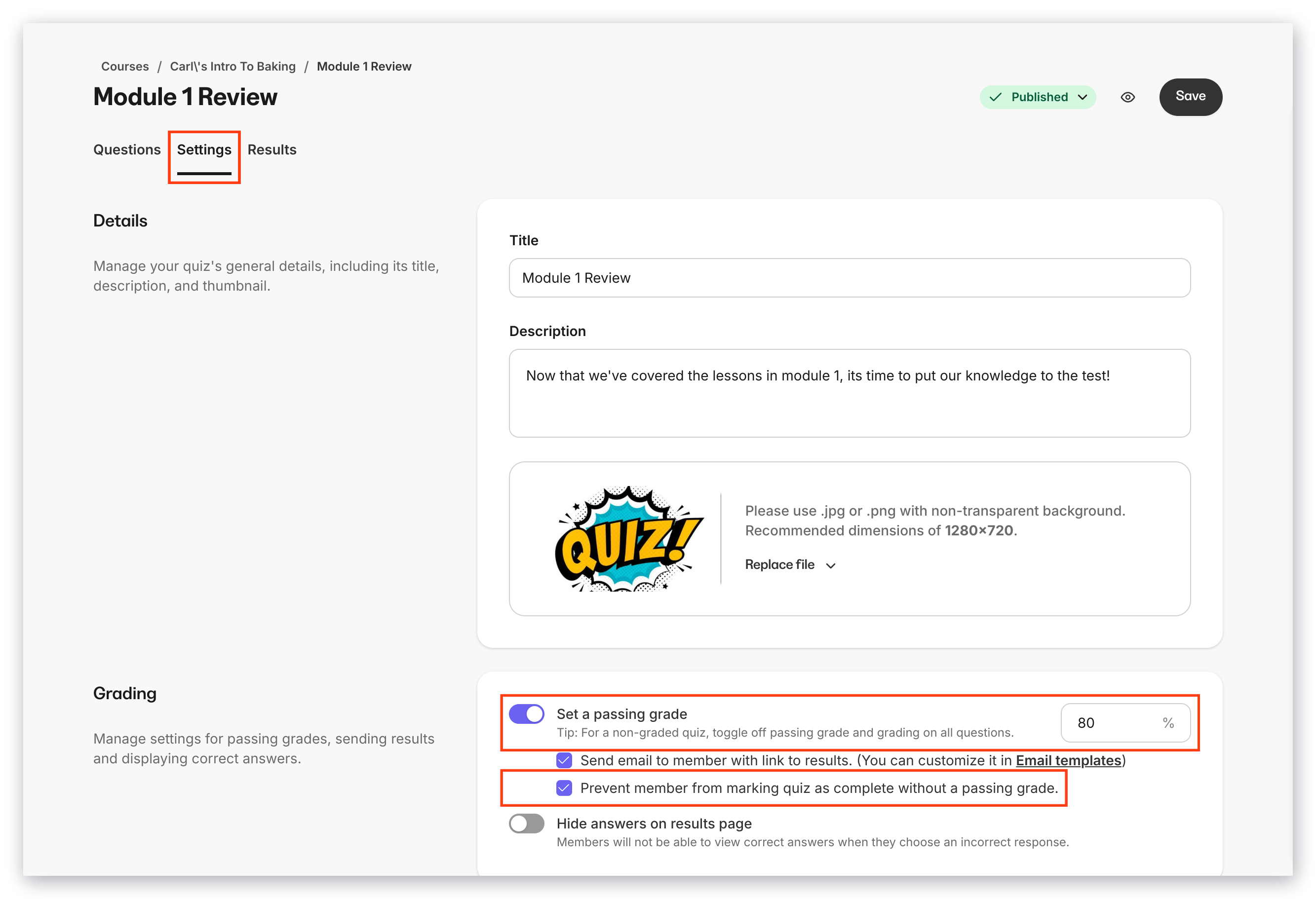
1. In the **Course Outline**, click a quiz **Title**.
2. Click the **Settings** tab.
3. In the **Grading** section, enable **Set a passing grade** and enter a percentage.
4. Check the box **Prevent member from marking quiz as complete without a passing grade.**
5. Click **Save.**
### Locked Status
After choosing the Lock status, select the lesson or quiz that must be completed in order to unlock the module or submodule. Then, click **Lock.**
**Note:** You won't be able to select a lesson or quiz unless it is published.
If a customer attempts to open a module, lesson, or quiz that is locked, they will see a message saying "This Category is Locked!" (for modules) or "This Post is Locked!" (for lessons and quizzes). These pages are not customizable. However, the language will change based on your site's [Language Settings](../../account-settings/my-kajabi/change-your-site-language).
#### How quizzes unlock modules
By default, after someone completes a quiz (regardless if it was passed, failed, or not graded) it will unlock a module.
If you want to require a quiz to be passed before unlocking a module, customize the quiz settings.
1. In the **Course Outline**, click a quiz **Title**.
2. Click the **Settings** tab.
3. In the **Grading** section, enable **Set a passing grade** and enter a percentage.
4. Check the box **Prevent member from marking quiz as complete without a passing grade.**
5. Click **Save.**
 #### How Assessments unlock modules
Unlike quizzes, **assessments** can unlock modules, regardless if they are passed.
If the Course template includes a **Mark as Complete** button on lessons, quizzes, and assessments, then this means an assessment can unlock the next module, when:
* The assessment is completed (regardless if it is passed)
* The complete button is clicked (regardless if the assessment is completed)
As a workaround, you can hide the Mark as Complete button in the Course template. This will hide the button from all lessons, and requires someone to complete the assessment before unlocking the module.
**Note:** The Assessment feature inside of Courses has been sunset. This feature may still appear in older accounts. We recommend you use [quizzes](../../products/courses/course-quizzes) inside Courses. Assessments can still be added to Pages.
## Delete a module
1. From the Dashboard, go to [Products > Courses](https://app.kajabi.com/admin/last_site/courses) and click a **Course Title** in the list.
2. Move your mouse over a module, click the **trash icon.**
3. Click **Delete Module** or **Delete Submodule**
**Note:** Before you can delete a module, you must move any submodules, lessons, or quizzes inside it to a different module, or delete them.
#### How Assessments unlock modules
Unlike quizzes, **assessments** can unlock modules, regardless if they are passed.
If the Course template includes a **Mark as Complete** button on lessons, quizzes, and assessments, then this means an assessment can unlock the next module, when:
* The assessment is completed (regardless if it is passed)
* The complete button is clicked (regardless if the assessment is completed)
As a workaround, you can hide the Mark as Complete button in the Course template. This will hide the button from all lessons, and requires someone to complete the assessment before unlocking the module.
**Note:** The Assessment feature inside of Courses has been sunset. This feature may still appear in older accounts. We recommend you use [quizzes](../../products/courses/course-quizzes) inside Courses. Assessments can still be added to Pages.
## Delete a module
1. From the Dashboard, go to [Products > Courses](https://app.kajabi.com/admin/last_site/courses) and click a **Course Title** in the list.
2. Move your mouse over a module, click the **trash icon.**
3. Click **Delete Module** or **Delete Submodule**
**Note:** Before you can delete a module, you must move any submodules, lessons, or quizzes inside it to a different module, or delete them.