> ## Documentation Index
> Fetch the complete documentation index at: https://help.kajabi.com/llms.txt
> Use this file to discover all available pages before exploring further.
# Course templates
> Install, customize, and activate templates for Courses.
**Course templates** help you create visually appealing and functional course experiences for your customers. You can install pre-built templates, customize them to match your brand, and activate them to make them visible to customers.
## Install an Evergreen Course template
1. From the Dashboard, open [Products > Courses](https://app.kajabi.com/admin/last_site/courses).
2. Click the **Title** of the **Evergreen Course** you wish to edit.
3. Click the **Customize** tab.
4. Click **Install Template.**
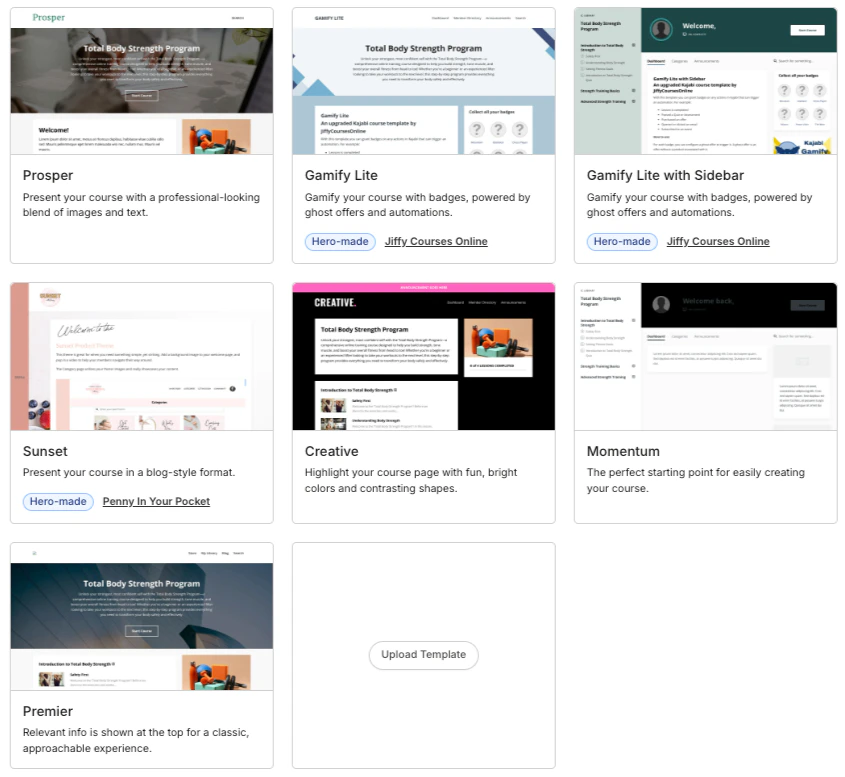
5. Select a template and click **Install Template**. You can also use **Upload Template**. You need to activate your template before it's live.
## Install a Cohort Course template
1. From the Dashboard, open [Products > Courses](https://app.kajabi.com/admin/last_site/courses).
2. Click the **Title** of the **Cohort Course** you wish to edit.
3. Click the **Title** of the cohort you wish to edit, or click the **ellipsis menu** `…` and select **Edit.**
4. Click the **Customize** tab.
5. Click **Install Template.**
6. Select a template and click **Install Template**. You can also use **Upload Template**. You need to activate your template before it's live.
**Note:** If you want to check out more templates, visit the [Kajabi Template Store](https://templates.kajabi.com/collections/product-templates).
## Customize a Course template
1. From the Dashboard, open [Products > Courses](https://app.kajabi.com/admin/last_site/courses).
2. For an Evergreen Course, click the **Title** of the Course you wish to edit. For a Cohort Course,click the **Title** of the cohort you wish to edit, or click the **ellipsis menu** `…` and select **Edit.**
3. Click the **Customize** tab.
4. Click the **ellipsis menu** `…` in the template card.
5. Click **Customize.** 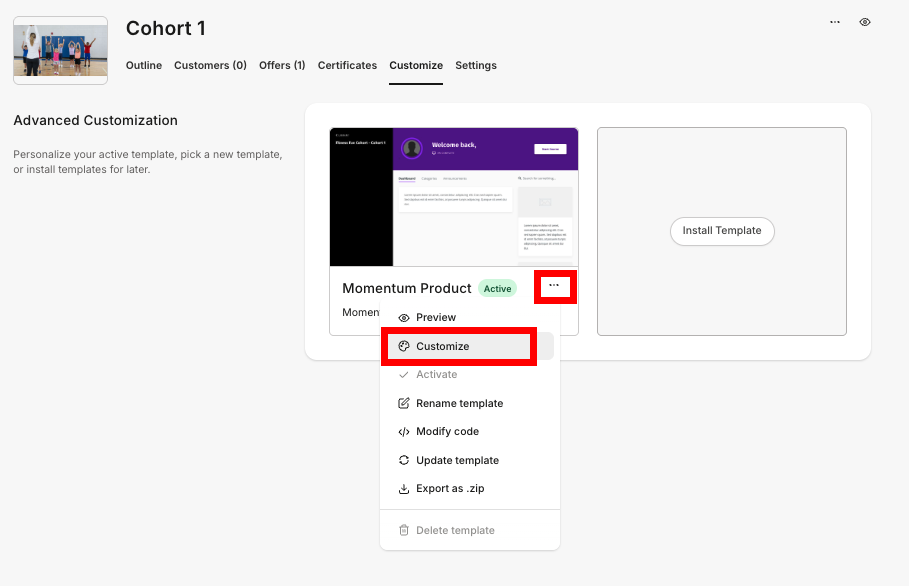 6. On the top bar, select a page to customize in the dropdown menu.
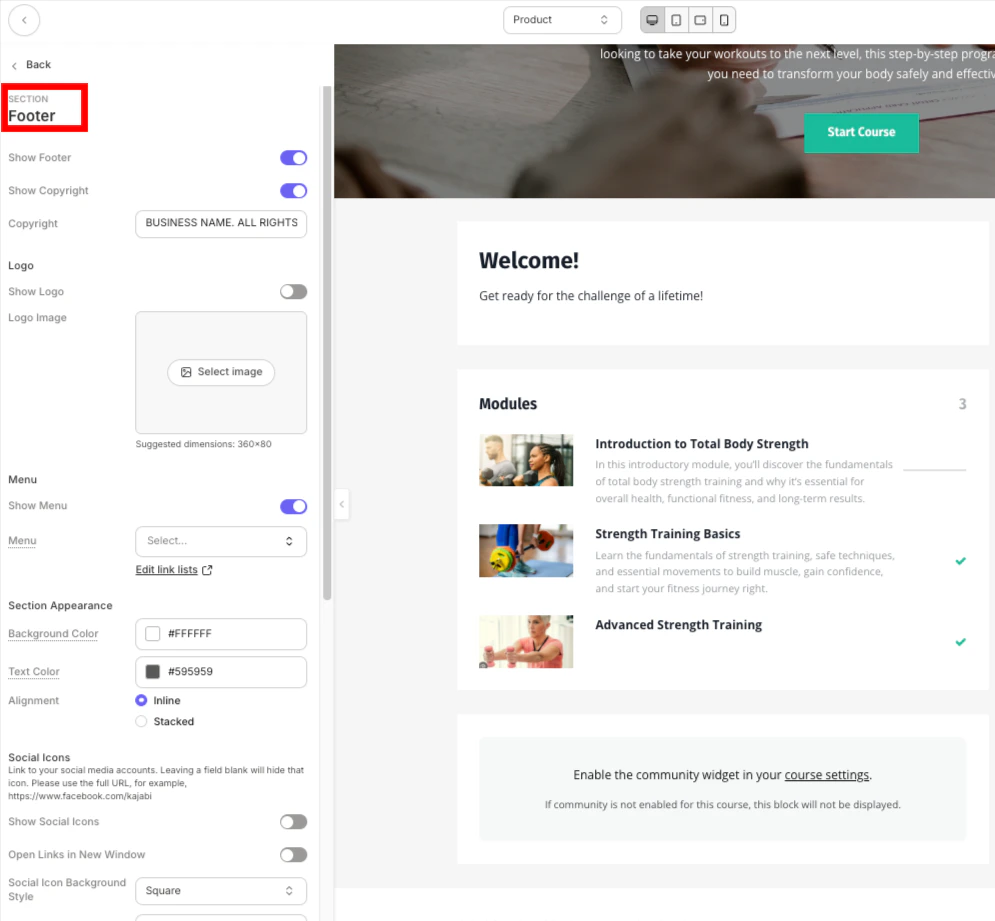
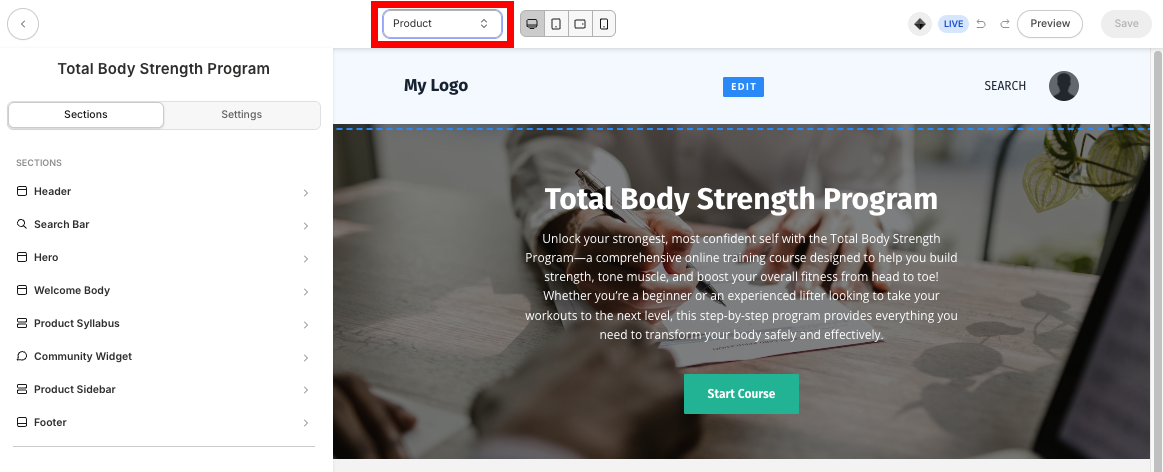 7. To customize the sections of a page, simply click on the section you would like to edit in the sidebar editor. Once you've clicked inside a section, you'll see all of the different customization options available:
 To learn how to customize individual areas of your Course page, [see this guide](/articles/products/courses/how-to-customize-your-course-product-with-premier).
## Activate a Course template
If you've picked a template for your Course and customized your Course pages, the last step is to activate the template. After you activate the template, it can viewed by customers taking the Course.
1. From the Dashboard, open [Products > Courses](https://app.kajabi.com/admin/last_site/courses).
2. For an Evergreen Course, click the **Title** of the Course you wish to edit. For a Cohort Course,click the **Title** of the cohort you wish to edit, or click the **ellipsis menu** `…` and select **Edit.**
3. Click the **Customize** tab.
4. Click the **ellipsis menu** `…` in the template card.
5. Select **Activate.**
## Available templates
### Momentum
The Momentum template displays a video or image at the forefront and is designed to be visually engaging from the start.
With Momentum, your content takes up the most real estate on the page, while still making it easy to navigate from lesson to lesson.
To learn how to customize individual areas of your Course page, [see this guide](/articles/products/courses/how-to-customize-your-course-product-with-premier).
## Activate a Course template
If you've picked a template for your Course and customized your Course pages, the last step is to activate the template. After you activate the template, it can viewed by customers taking the Course.
1. From the Dashboard, open [Products > Courses](https://app.kajabi.com/admin/last_site/courses).
2. For an Evergreen Course, click the **Title** of the Course you wish to edit. For a Cohort Course,click the **Title** of the cohort you wish to edit, or click the **ellipsis menu** `…` and select **Edit.**
3. Click the **Customize** tab.
4. Click the **ellipsis menu** `…` in the template card.
5. Select **Activate.**
## Available templates
### Momentum
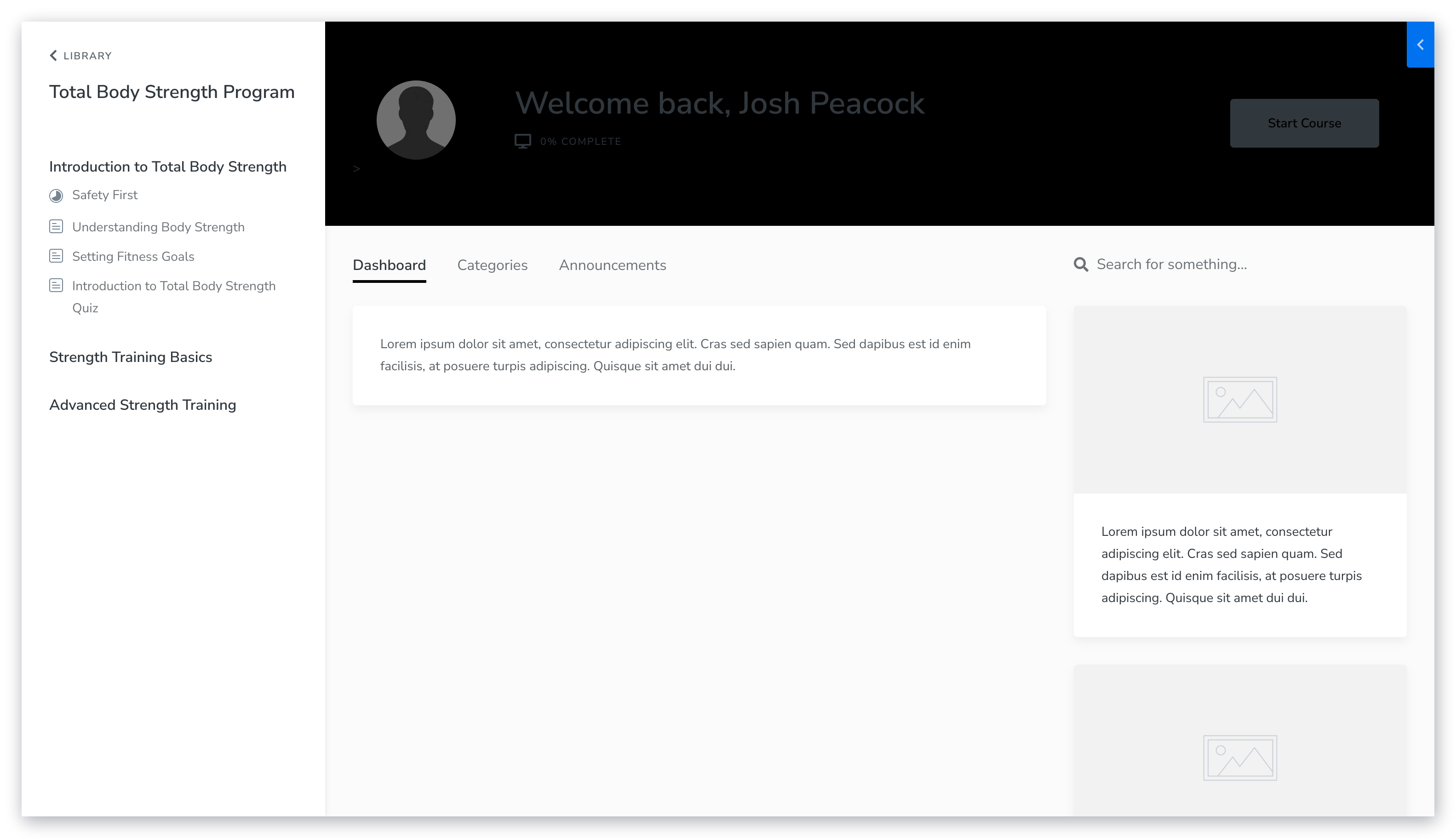
The Momentum template displays a video or image at the forefront and is designed to be visually engaging from the start.
With Momentum, your content takes up the most real estate on the page, while still making it easy to navigate from lesson to lesson.
 ### Premier
The Premier template presents your Course outline at the forefront and is great for understanding the structure and order of your Course.
With Premier, you can design a Course that is uniquely yours and encourage your customers to complete and engage with your Course.
### Creative
The Creative template is meant for the creative inside of you. Stand out with this template with colors that pop and grab the attention of your customers.
### Prosper
Design a clean, professional Course with the Prosper template. Eliminate distractions and encourage an environment of professionalism and success.
### Sunset
The Sunset template is great for creators looking for a visually striking product design:
**Sunset features include:**
* Collapsible sidebar menu with accordion-style syllabus
* Optional header with optional top navigation menu
* Customizable "welcome page" style dashboard body
* Categories page with visually appealing category cards
* No course progress widget (great for membership sites)
[Learn more from the creator of the Sunset template](https://www.pennyinyourpocket.com/slp-custom-kajabi-product-theme-dune).
### Gamify Lite & Gamify Lite with Sidebar
The Gamify Lite and Gamify Lite with Sidebar templates are great for creators interested in gamifying their course by adding badges students can earn.
#### Gamify Lite
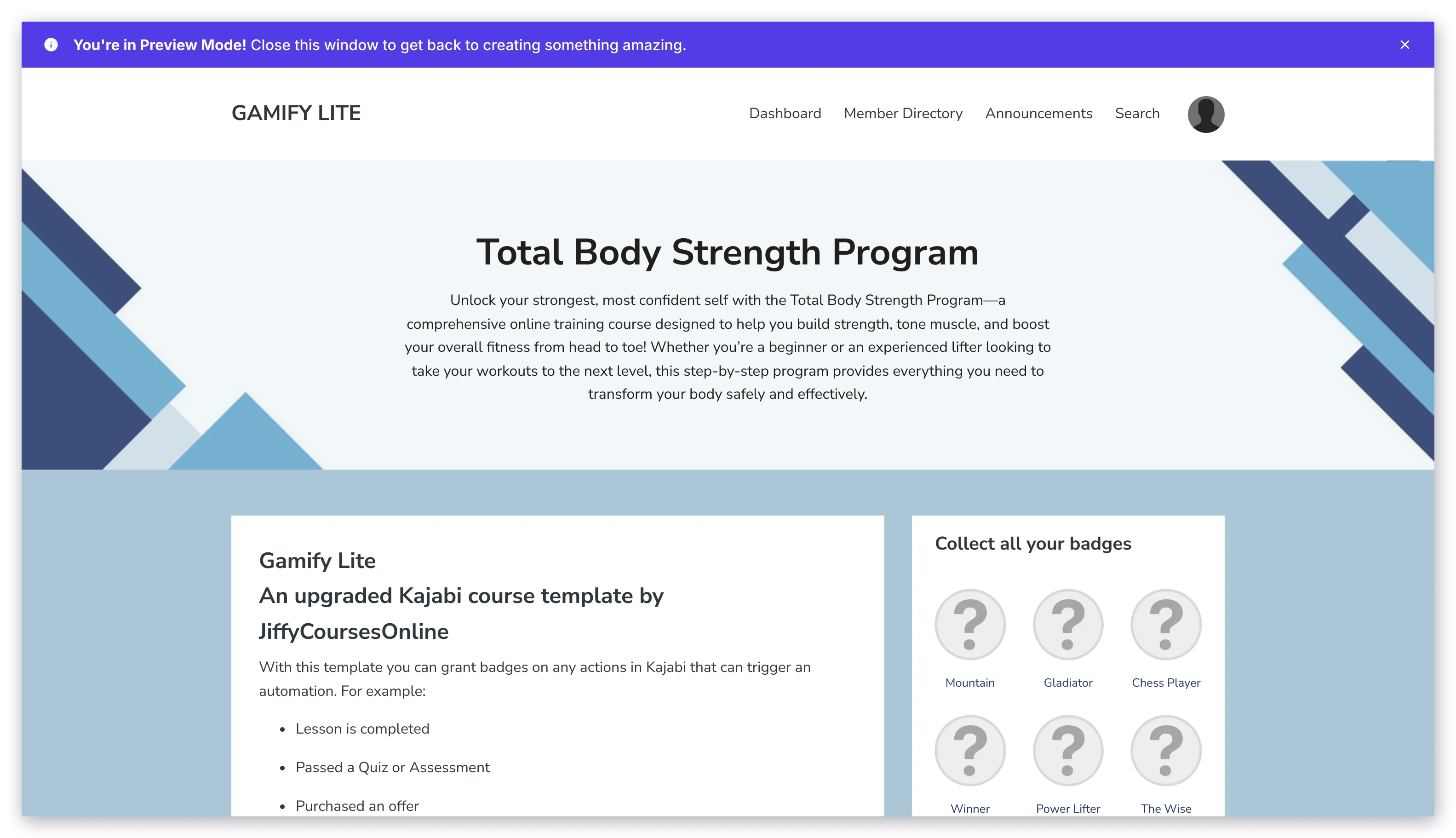
The design of Gamify Lite is similar to the Premier template:
### Premier
The Premier template presents your Course outline at the forefront and is great for understanding the structure and order of your Course.
With Premier, you can design a Course that is uniquely yours and encourage your customers to complete and engage with your Course.
### Creative
The Creative template is meant for the creative inside of you. Stand out with this template with colors that pop and grab the attention of your customers.
### Prosper
Design a clean, professional Course with the Prosper template. Eliminate distractions and encourage an environment of professionalism and success.
### Sunset
The Sunset template is great for creators looking for a visually striking product design:
**Sunset features include:**
* Collapsible sidebar menu with accordion-style syllabus
* Optional header with optional top navigation menu
* Customizable "welcome page" style dashboard body
* Categories page with visually appealing category cards
* No course progress widget (great for membership sites)
[Learn more from the creator of the Sunset template](https://www.pennyinyourpocket.com/slp-custom-kajabi-product-theme-dune).
### Gamify Lite & Gamify Lite with Sidebar
The Gamify Lite and Gamify Lite with Sidebar templates are great for creators interested in gamifying their course by adding badges students can earn.
#### Gamify Lite
The design of Gamify Lite is similar to the Premier template:
 #### Gamify Lite with Sidebar
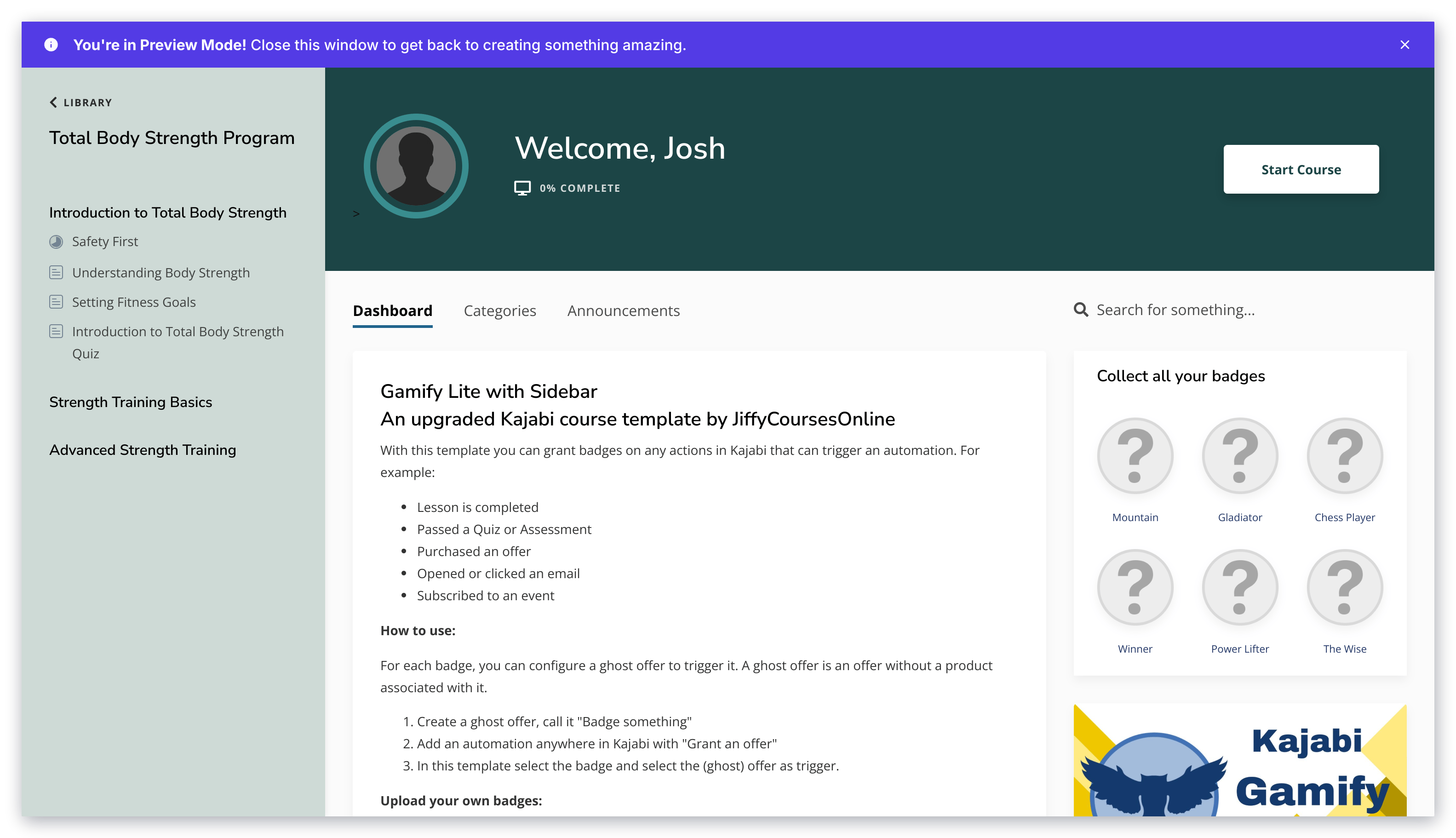
The design of Gamify Lite with Sidebar is similar to the Momentum template:
#### Gamify Lite with Sidebar
The design of Gamify Lite with Sidebar is similar to the Momentum template:
 #### Badges
Badges are granted via [ghost offers](../../sales/offers/how-to-create-a-ghost-offer) and [automations](../../marketing/automations/automations-overview) in Kajabi (For example, you can create an automation to award a badge ghost offer when a lesson is completed or a quiz is passed).
You can also upload your own custom badge images to match your brand and style.
[Learn more from the creator of the Gamify Lite and Gamify Lite with Sidebar templates](https://www.jiffycoursesonline.com/kajabi-gamification).
#### Badges
Badges are granted via [ghost offers](../../sales/offers/how-to-create-a-ghost-offer) and [automations](../../marketing/automations/automations-overview) in Kajabi (For example, you can create an automation to award a badge ghost offer when a lesson is completed or a quiz is passed).
You can also upload your own custom badge images to match your brand and style.
[Learn more from the creator of the Gamify Lite and Gamify Lite with Sidebar templates](https://www.jiffycoursesonline.com/kajabi-gamification).