> ## Documentation Index
> Fetch the complete documentation index at: https://help.kajabi.com/llms.txt
> Use this file to discover all available pages before exploring further.
# Create a submodule in a Course
> Use submodules to further organize Course content within modules.
Build submodules into your parent Modules to create bite-sized, manageable learning sessions for your customers.
## What is a submodule?
Submodules in a Course give you the ability to further organize your Modules.
Build submodules into your parent Modules to create bite-sized, manageable learning sessions for your customers.
## Create a submodule
1. From the Dashboard, go to Products tab and then select Courses
2. Select the Course you wish to edit
3. Click the **+ Add Content** button (directly from the parent Module or select from the overall Outline)
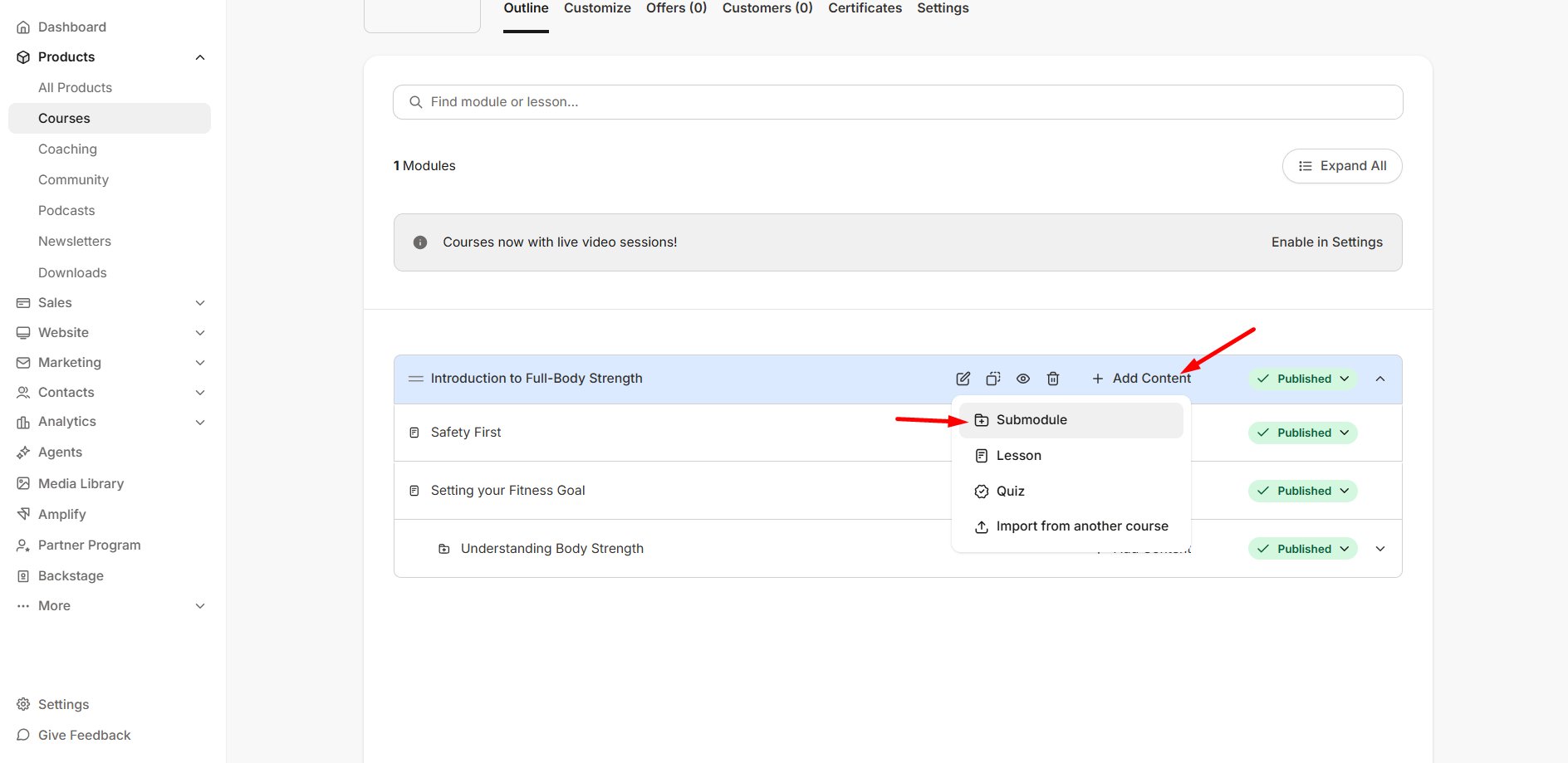 4. Select **Submodule**
5. Enter the Submodule details (title, description, thumbnail image)
4. Select **Submodule**
5. Enter the Submodule details (title, description, thumbnail image)
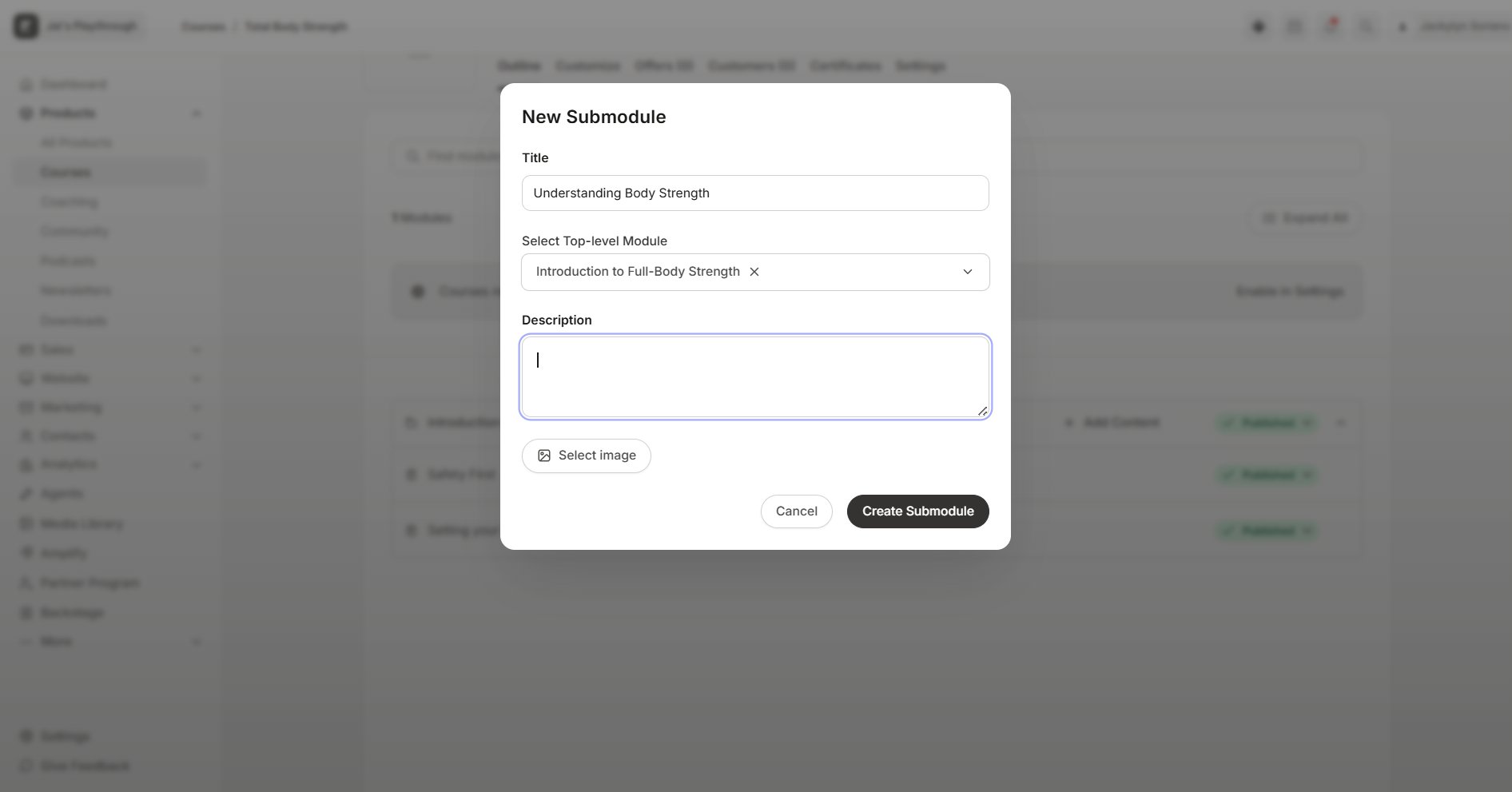 6. Click **Create Submodule**
The Submodule will be added to the bottom of the top-level Module you selected:
6. Click **Create Submodule**
The Submodule will be added to the bottom of the top-level Module you selected:
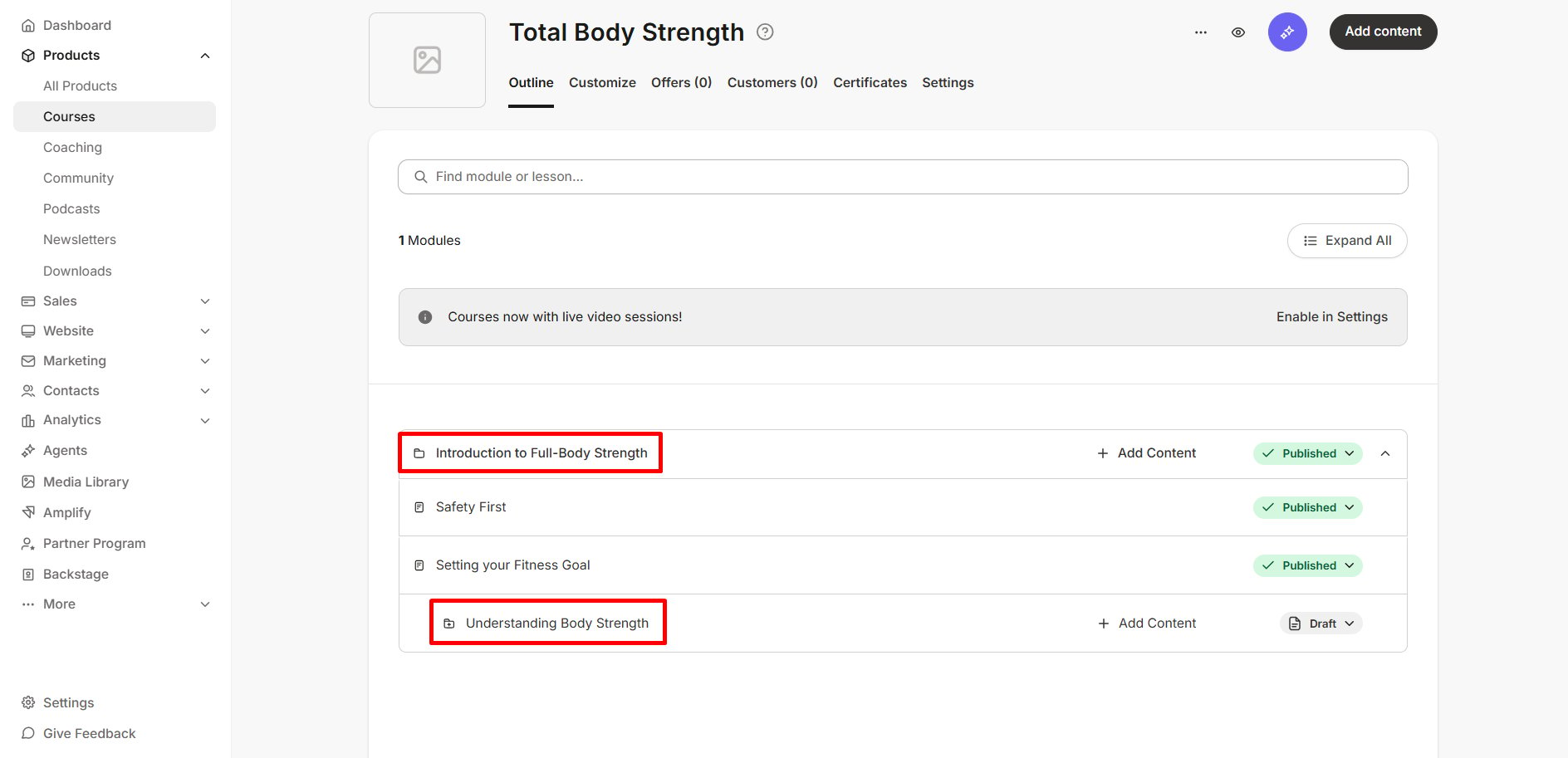
 **Note:** Create up to 30 Submodules within each Parent Module. Want to change a Submodule into a Module? Drag and drop your Submodule outside of the Parent Module to convert your Submodule into a Module.
## Why use a submodule?
Submodules are a great way to further organize your Course Outline and group specific lessons together. Another great feature of Submodules is the ability to Drip content within the Submodule. If you want to only Drip-release specific lessons within a Module, you can create a Submodule and set the Submodule status to Drip. This way only those specific lessons within the Submodule will be set to Drip, and not the whole Parent Module.
Learn more about the [Kajabi Drip feature.](https://help.kajabi.com/articles/products/courses/schedule-and-drip-content-in-courses#schedule-and-drip-content-in-courses)
Submodules can also be locked, which ensures that your customers must first complete your specified Lesson to unlock the Submodule and gain access to that section of content.
Learn how to [lock content.](https://help.kajabi.com/articles/products/courses/lock-content-in-your-course-product#lock-content-in-a-course)
## What customers see
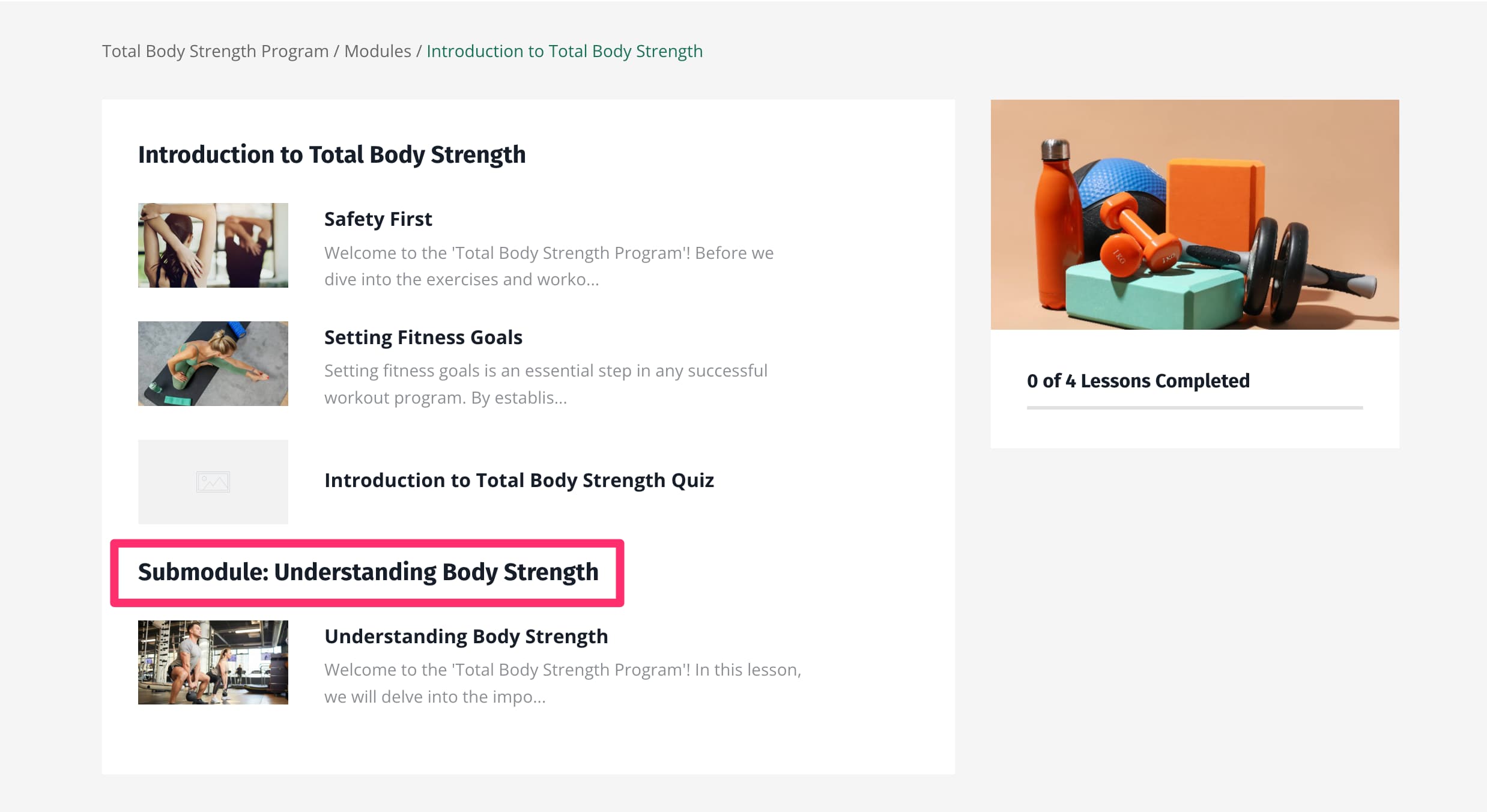
This is how your customers will see a Submodule in the Course Outline. In this example image, the parent Module is titled "Introduction to Full-Body Strength" and the Submodule is "Understanding Body Strength":
**Note:** Create up to 30 Submodules within each Parent Module. Want to change a Submodule into a Module? Drag and drop your Submodule outside of the Parent Module to convert your Submodule into a Module.
## Why use a submodule?
Submodules are a great way to further organize your Course Outline and group specific lessons together. Another great feature of Submodules is the ability to Drip content within the Submodule. If you want to only Drip-release specific lessons within a Module, you can create a Submodule and set the Submodule status to Drip. This way only those specific lessons within the Submodule will be set to Drip, and not the whole Parent Module.
Learn more about the [Kajabi Drip feature.](https://help.kajabi.com/articles/products/courses/schedule-and-drip-content-in-courses#schedule-and-drip-content-in-courses)
Submodules can also be locked, which ensures that your customers must first complete your specified Lesson to unlock the Submodule and gain access to that section of content.
Learn how to [lock content.](https://help.kajabi.com/articles/products/courses/lock-content-in-your-course-product#lock-content-in-a-course)
## What customers see
This is how your customers will see a Submodule in the Course Outline. In this example image, the parent Module is titled "Introduction to Full-Body Strength" and the Submodule is "Understanding Body Strength":