> ## Documentation Index
> Fetch the complete documentation index at: https://help.kajabi.com/llms.txt
> Use this file to discover all available pages before exploring further.
# Change the Course post player color with Momentum
> Change the color of the post player in a Course when using the Momentum theme.
The **Momentum Theme** is a next-generation product theme built for simplicity and easy content consumption. With Momentum, the focus is placed heavily on content and what is being delivered in the product, minimizing distractions that could detour the customer's experience.
## What is the Product Post Player?
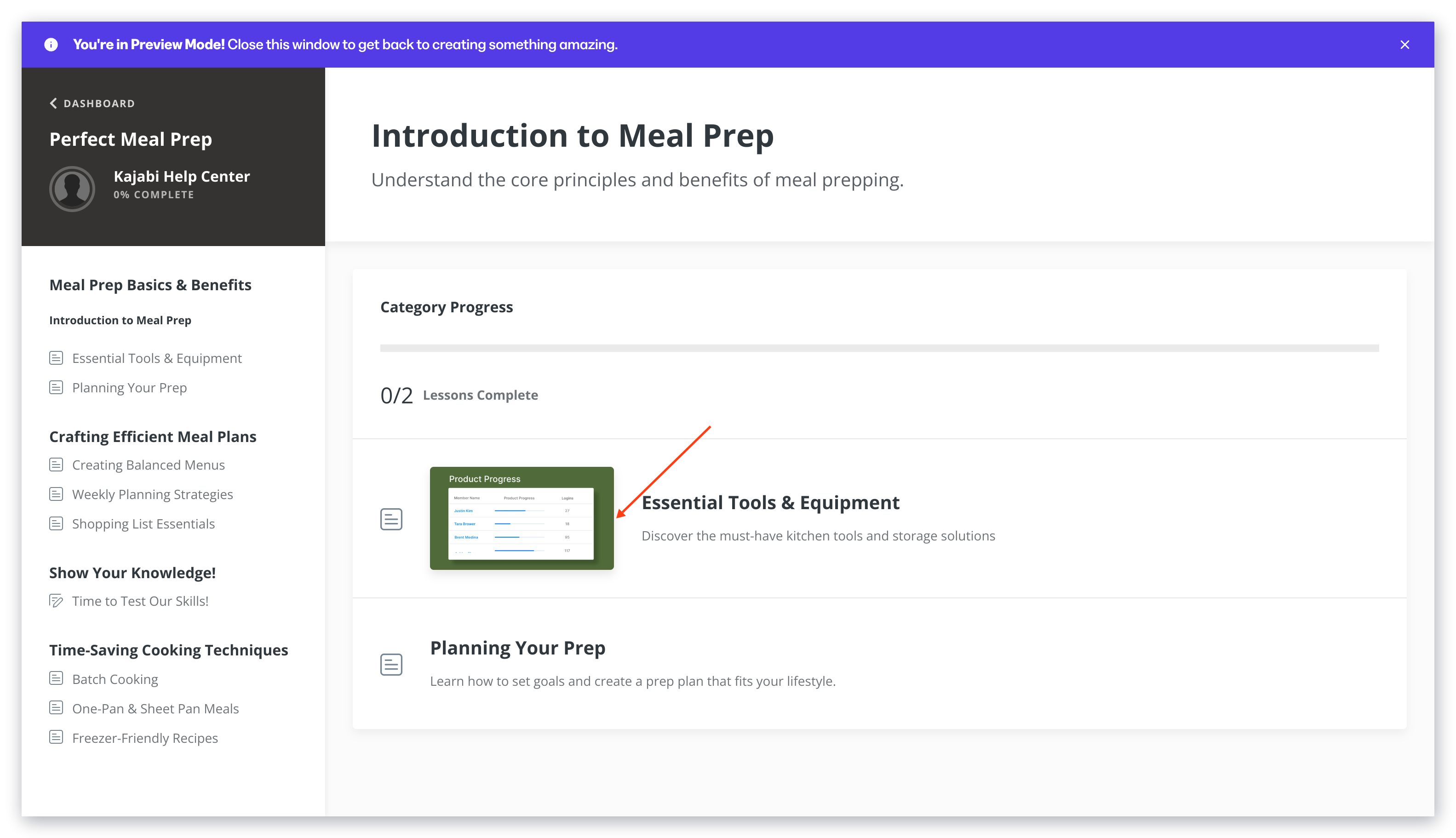
The Product Post Player contains the Product Post video and allows customers to play and pause the video, scrub through the video, adjust volume, speed, and video quality:
 ## Change the product post player color with Momentum
### Change the player color with the Momentum theme
1. Open the **Products** tab from your Dashboard.
2. Select the **Product**.
3. Click **Customize**.
4. Install the **Momentum Theme** if you haven't already.
5. Open the **Installed Themes** folder.
6. Select the **Momentum Theme**.
7. Click **Customize**.
8. Navigate to the sidebar editor.
9. Click **Settings**.
10. Open **Color Scheme**.
11. Click **Primary**.
12. Specify the custom primary color.
13. Then, click **Save** to keep and apply the changes:
## Change the product post player color with Momentum
### Change the player color with the Momentum theme
1. Open the **Products** tab from your Dashboard.
2. Select the **Product**.
3. Click **Customize**.
4. Install the **Momentum Theme** if you haven't already.
5. Open the **Installed Themes** folder.
6. Select the **Momentum Theme**.
7. Click **Customize**.
8. Navigate to the sidebar editor.
9. Click **Settings**.
10. Open **Color Scheme**.
11. Click **Primary**.
12. Specify the custom primary color.
13. Then, click **Save** to keep and apply the changes:
## Custom colors
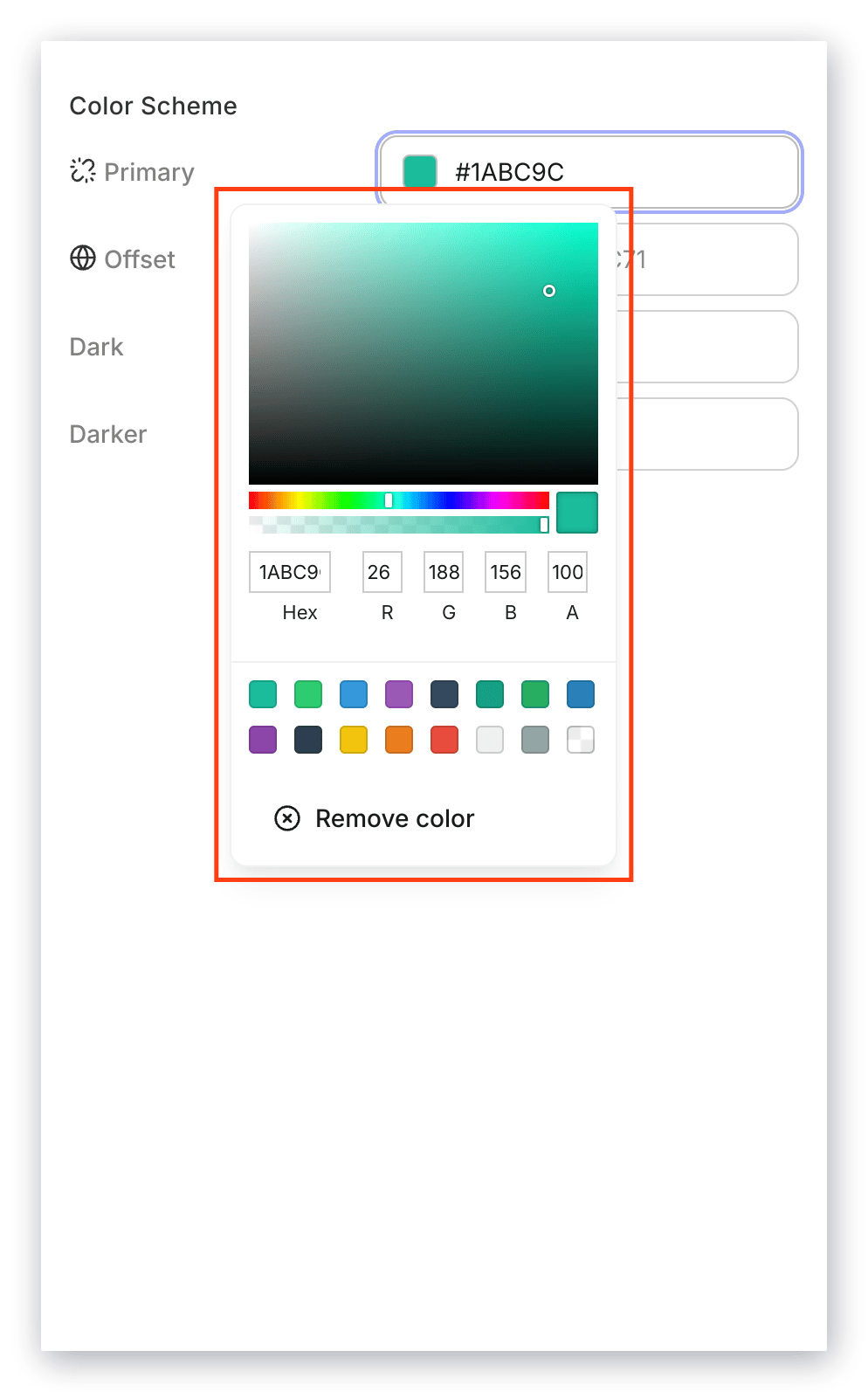
To specify a custom color, click the color you wish to change and enter the hex color code, RGB color code, or use the sliders to select a color.
To use the color picker on Kajabi:
* Use the main **square box** to adjust the saturation and brightness of your color.
* Use the first **horizontal bar** to select the hue.
* Use the second **horizontal bar** to adjust the opacity of your color.
* Use the **color code box** to insert a pre-designed custom code.