> ## Documentation Index
> Fetch the complete documentation index at: https://help.kajabi.com/llms.txt
> Use this file to discover all available pages before exploring further.
# Create a Cohort Course
> Move learners through a course together as a group to foster collaboration and a sense of community while following a predetermined schedule.
A **Cohort Course** is a powerful Course structure that enables students to progress through material together in cohort groups, following a predetermined schedule.
Schedule live video sessions so cohort members can connect in real time as they move through the Course together — building collaboration and community along the way.
When you create a Cohort Course, you can either create it from scratch or import the material from an existing Evergreen Course.
**Note:** Cohort Courses are only available with Growth and Pro Plans. Check out [kajabi.com/pricing](https://kajabi.com/pricing) for more details.
## Create a Cohort Course from scratch
1. From your Dashboard, select **Products**.
2. Click **Courses**, then **+New course**.
3. Select **Cohorts** as the **Course type** and click **Next**.
4. Choose **Start from scratch**.
5. Add a **Title** and a **Brief Description** for your Course.
6. Optionally, toggle on **Use this info to generate content and additional resources** if desired. Selecting this option will create an AI-generated course outline and lesson material, an opt-in landing page with a form that automatically tags contacts on submission, and a Course announcement email broadcast to send when ready.
7. Choose a **Start date** for the first cohort group and Course module and click **Next**.
8. Select the **Primary Color** (header), **Secondary Color** (sidebar), and **Accent Color** (buttons/links). Optionally, upload a **Thumbnail image** (recommended dimensions: 1280 x 720 px). 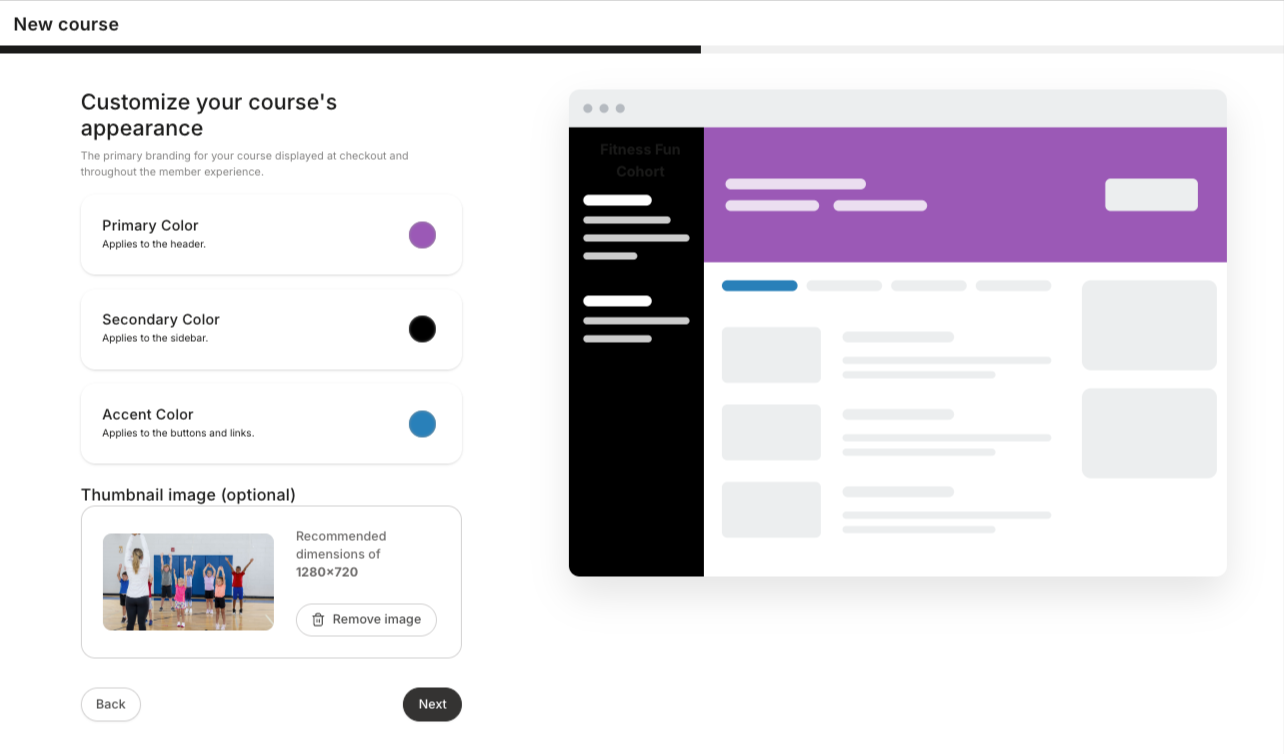 9. Click **Next**.
10. Choose to create either a **Free** or **Paid** Course. If you create a Paid Course, choose a desired **Payment frequency**, **Price**, and **Payment method**. [Learn how to connect a payment processor](../../sales/kajabi-payments/transactions).
11. Click **Next**. The Course creation content wizard will then generate your new Cohort Course outline.
## Create a Cohort Course using an existing Evergreen Course
Create a cohort version of your existing Evergreen Course by using the **Import existing course** option on the **How do you want to start?** page.
**To create a Cohort Course from an existing Course:**
1. From your Dashboard, select **Products**.
2. Click **Courses**, then **+New course**.
3. Select **Cohorts** for your **Course type** and click **Next**.
4. Choose **Import existing course**.
5. Select the Course you want to import from the dropdown menu.
6. Choose a **Cohort start date** for your first cohort group and Course module and click **Next**.
7. Select the **Primary Color** (header), **Secondary Color** (sidebar), and **Accent Color** (buttons/links). Optionally, upload a **Thumbnail image**.
8. Choose to create either a **Paid** or **Free** Course. If you create a Paid Course, choose the desired **Payment frequency**, **Price**, and **Payment method**.
9. Click **Next**.
**Note:** At this time, you are not able to duplicate a Cohort Course. You may only import an existing Evergreen Course as noted in the section above.
9. Click **Next**.
10. Choose to create either a **Free** or **Paid** Course. If you create a Paid Course, choose a desired **Payment frequency**, **Price**, and **Payment method**. [Learn how to connect a payment processor](../../sales/kajabi-payments/transactions).
11. Click **Next**. The Course creation content wizard will then generate your new Cohort Course outline.
## Create a Cohort Course using an existing Evergreen Course
Create a cohort version of your existing Evergreen Course by using the **Import existing course** option on the **How do you want to start?** page.
**To create a Cohort Course from an existing Course:**
1. From your Dashboard, select **Products**.
2. Click **Courses**, then **+New course**.
3. Select **Cohorts** for your **Course type** and click **Next**.
4. Choose **Import existing course**.
5. Select the Course you want to import from the dropdown menu.
6. Choose a **Cohort start date** for your first cohort group and Course module and click **Next**.
7. Select the **Primary Color** (header), **Secondary Color** (sidebar), and **Accent Color** (buttons/links). Optionally, upload a **Thumbnail image**.
8. Choose to create either a **Paid** or **Free** Course. If you create a Paid Course, choose the desired **Payment frequency**, **Price**, and **Payment method**.
9. Click **Next**.
**Note:** At this time, you are not able to duplicate a Cohort Course. You may only import an existing Evergreen Course as noted in the section above.