> ## Documentation Index
> Fetch the complete documentation index at: https://help.kajabi.com/llms.txt
> Use this file to discover all available pages before exploring further.
# Customize the template for a Cohort Course
> Update layout, branding, and content in a Cohort Course Momentum template
Customizing the design template for a Cohort Course determines how students experience the Course.
**Note:** Cohort Courses are only available with the Growth and Pro Plans. Check out [kajabi.com/pricing](https://kajabi.com/pricing) for more details.
## What's a Course template?
The **Course template** on Kajabi is where you can update the design of the Course. When students log into the Course, they'll see Course materials and branding elements the way you've configured them in the template.
## Customize a Cohort Course template
Cohort Courses are designed to work seamlessly with Kajabi's [Momentum template](/articles/products/courses/how-to-customize-your-course-product-with-the-momentum-template). Momentum is currently the only supported template option for creating a Cohort Course. Additional templates are available to use for traditional Evergreen Courses.
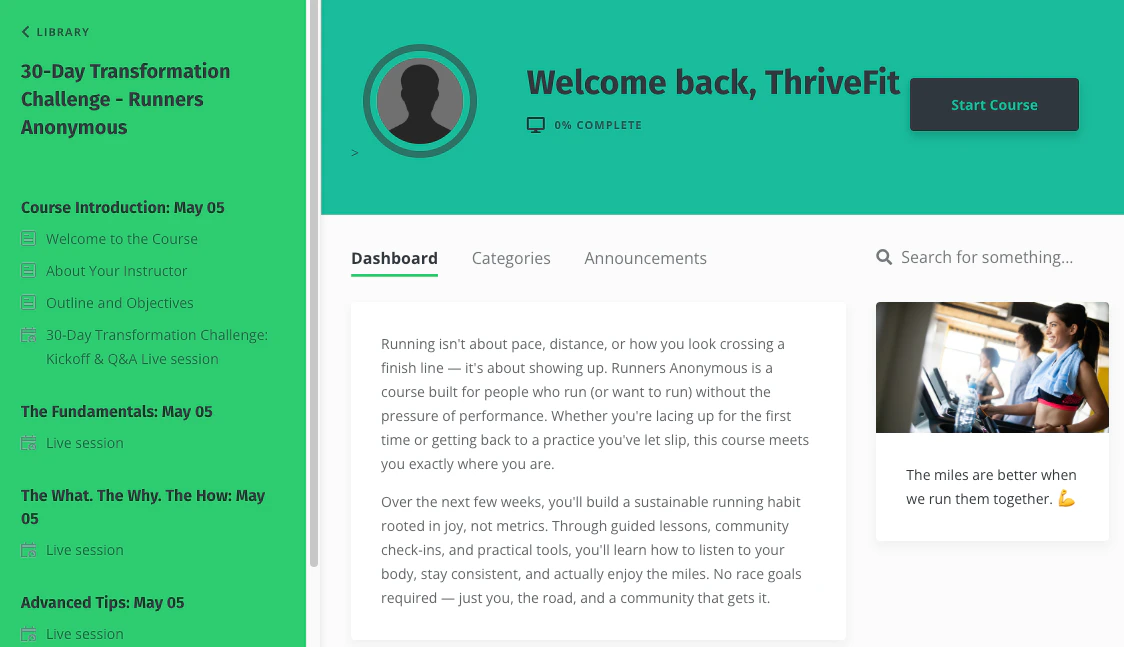
Here's an example of a Course homepage created using the Momentum template:
 ### Open Course template
1. Select **Products** from the Dashboard.
2. Then, select **Courses**.
3. Click to open your Cohort Course.
4. Click the name of the cohort you want to edit.
5. Then, click the **Customize** tab.
6. Navigate to the template image and click **Customize** again.
7. Your template will open in the **Page Builder** for editing.
**Note:** Template customizations are done at the cohort level. Each cohort template inside the Course must be customized individually.
Click on any page element in the Page Builder to open it in the left sidebar editor for editing. Customize template content under the **Sections** tab of the sidebar editor, and click the **Settings** tab to customize general page settings like fonts and colors. If you have a Kajabi Community, you can also [embed a Community Channel in the Course](/articles/products/courses/how-to-embed-a-community-channel-in-your-course).
Learn more about [how to customize a Course with the Momentum template](/articles/products/courses/how-to-customize-your-course-product-with-the-momentum-template).
## Live Session page
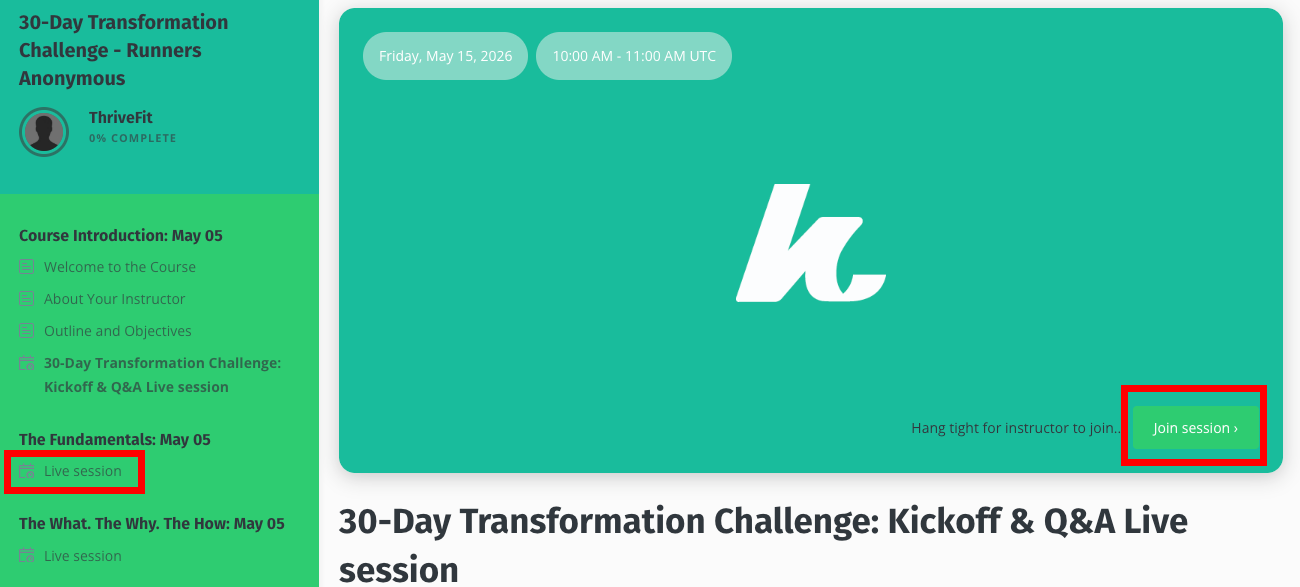
The **Live Session** page in the Momentum template is unique to Cohort Courses. This is where your students will go to join your live sessions. They can access the Live Session page by selecting it from the course outline in the left sidebar:
From the Live Session page, your students can join a live video session by clicking the **Join session** button or click **Download** to download added resources.
### Open Course template
1. Select **Products** from the Dashboard.
2. Then, select **Courses**.
3. Click to open your Cohort Course.
4. Click the name of the cohort you want to edit.
5. Then, click the **Customize** tab.
6. Navigate to the template image and click **Customize** again.
7. Your template will open in the **Page Builder** for editing.
**Note:** Template customizations are done at the cohort level. Each cohort template inside the Course must be customized individually.
Click on any page element in the Page Builder to open it in the left sidebar editor for editing. Customize template content under the **Sections** tab of the sidebar editor, and click the **Settings** tab to customize general page settings like fonts and colors. If you have a Kajabi Community, you can also [embed a Community Channel in the Course](/articles/products/courses/how-to-embed-a-community-channel-in-your-course).
Learn more about [how to customize a Course with the Momentum template](/articles/products/courses/how-to-customize-your-course-product-with-the-momentum-template).
## Live Session page
The **Live Session** page in the Momentum template is unique to Cohort Courses. This is where your students will go to join your live sessions. They can access the Live Session page by selecting it from the course outline in the left sidebar:
From the Live Session page, your students can join a live video session by clicking the **Join session** button or click **Download** to download added resources.
 **Note:** If you're using a custom session location instead of Kajabi Live Video, students will see the Location URL or Description you entered in the Live Session settings instead of a join button.
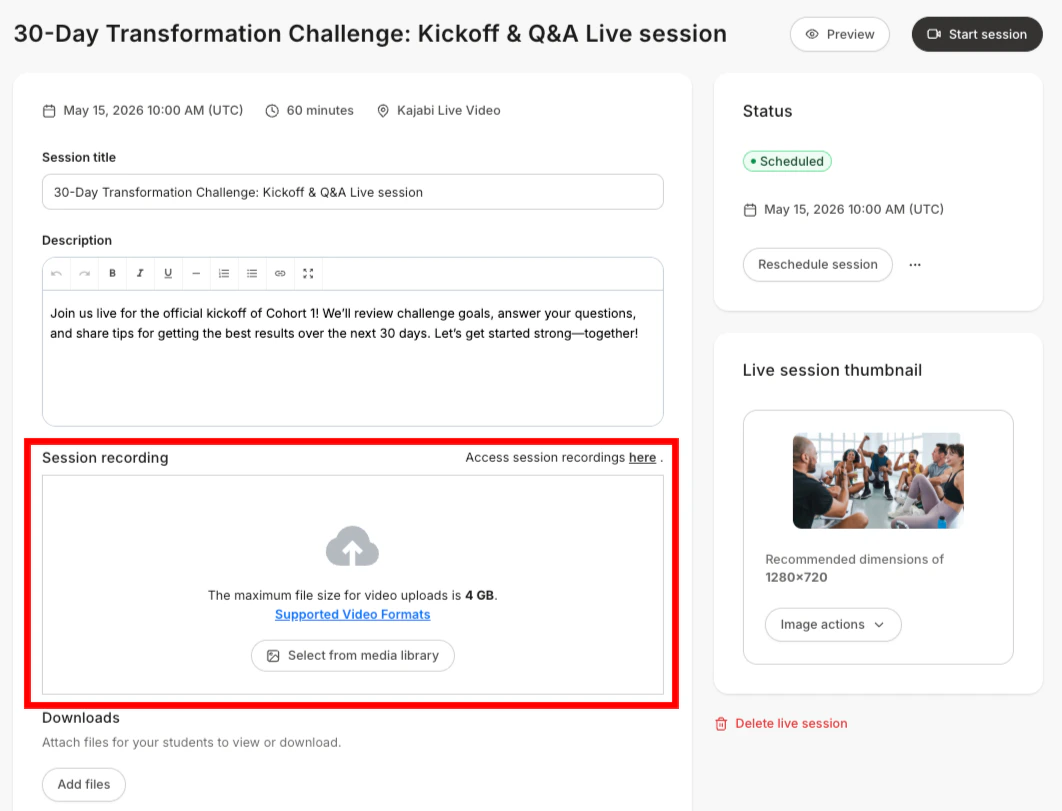
After your live session finishes, you can also [upload your session recording](../../products/courses/how-to-schedule-live-video-sessions-for-a-cohort-based-course#h_01HN3QDHYT9ZFJYPE7Z0J5P34J) to this page to make it accessible to students who wish to watch it later:
**Note:** If you're using a custom session location instead of Kajabi Live Video, students will see the Location URL or Description you entered in the Live Session settings instead of a join button.
After your live session finishes, you can also [upload your session recording](../../products/courses/how-to-schedule-live-video-sessions-for-a-cohort-based-course#h_01HN3QDHYT9ZFJYPE7Z0J5P34J) to this page to make it accessible to students who wish to watch it later:
 **Tip:** You can add video content for students to see prior to the start date of the first Live Session that students will be able to view as soon as they log into the Course. Learn more about [how to customize a Course with the Momentum template](/articles/products/courses/how-to-customize-your-course-product-with-the-momentum-template).