> ## Documentation Index
> Fetch the complete documentation index at: https://help.kajabi.com/llms.txt
> Use this file to discover all available pages before exploring further.
# Manage Course comments
> Configure and manage comments in Course lessons.
Your customers' comments in a Course Lesson can be configured to be visible, hidden, or locked per lesson when comments are enabled for a Course.
This article refers only to Courses. Looking to manage comments in a Community Product? [Learn to use Post Actions to manage comments in a Community Product](https://help.kajabi.com/hc/en-us/articles/360049178733)
Looking to manage your notifications for course comments? [Learn to update your email notifications](../../account-settings/notifications/update-email-notifications).
## Enable or disable comments
Enable or disable comments in your Courses. By enabling comments in your Courses, you can individually configure comment behavior per lesson (i.e., make it visible, hidden, or locked).
### Set comment settings
1. Navigate to your **Products** tab.
2. Select the **Course** you wish to update.
3. Open **Settings**.
4. Scroll to the bottom of the page to **Comment Settings**.
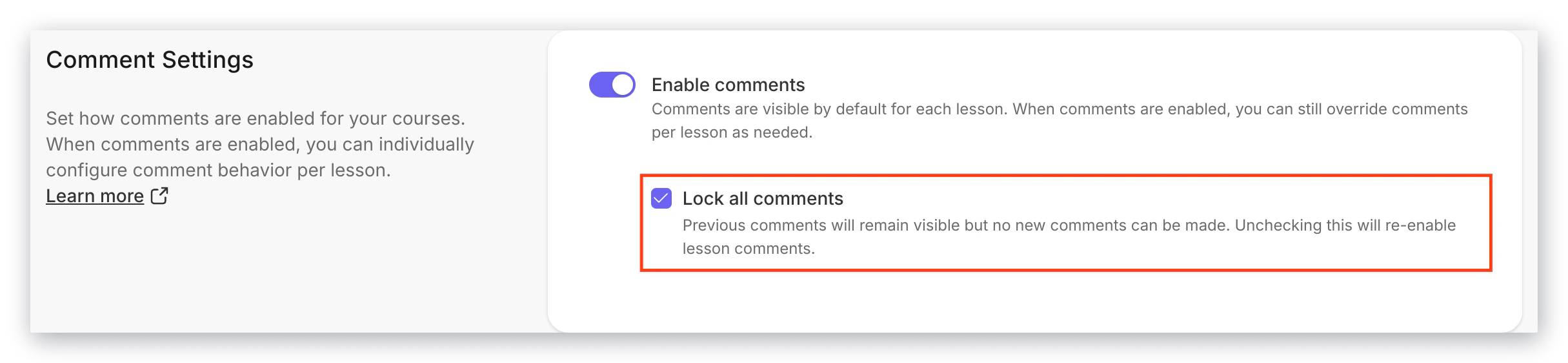
5. Select **Enable comments** to enable or disable your comments.
* Enabled: Toggle is dark black.
* Disabled: Toggle is a light grey.
6. Be sure to click **Save** to keep and apply your changes:
If you enable comments, you can change the comment visibility per lesson or lock all comments from your Course Settings:
 ## Change comment visibility
Change the visibility of the comments for each Course Lesson:
1. Open the **Products** tab in the Dashboard.
2. Select an existing **Course** or [create a new one](../../products/courses/courses-overview).
3. Click an existing **Course Lesson** or [create a new one](../../products/courses/create-a-lesson).
4. Navigate to the **Comment** section on the right side of the page.
5. Select your desired **Comment** visibility:
## Change comment visibility
Change the visibility of the comments for each Course Lesson:
1. Open the **Products** tab in the Dashboard.
2. Select an existing **Course** or [create a new one](../../products/courses/courses-overview).
3. Click an existing **Course Lesson** or [create a new one](../../products/courses/create-a-lesson).
4. Navigate to the **Comment** section on the right side of the page.
5. Select your desired **Comment** visibility:
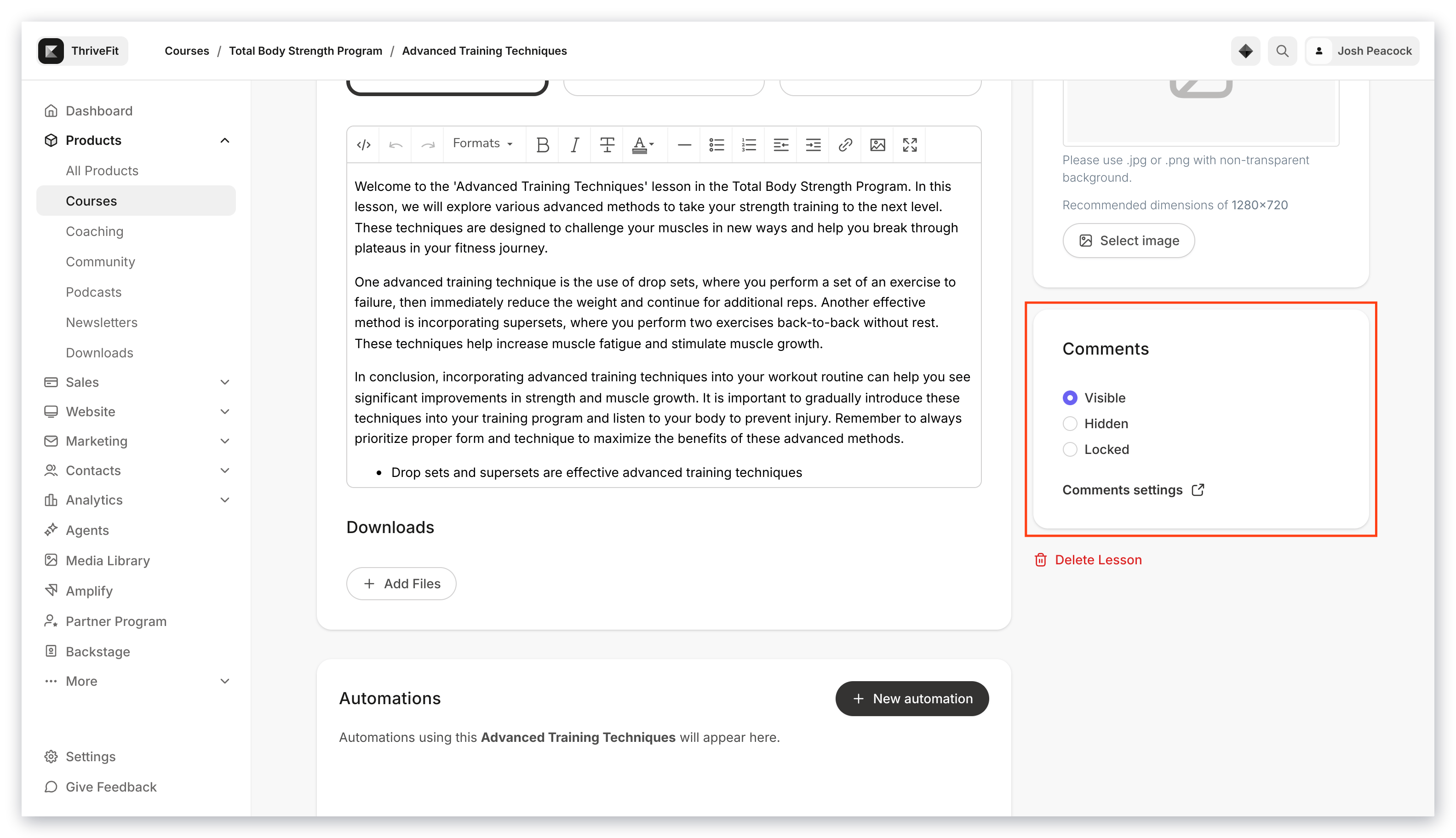 ### Visible
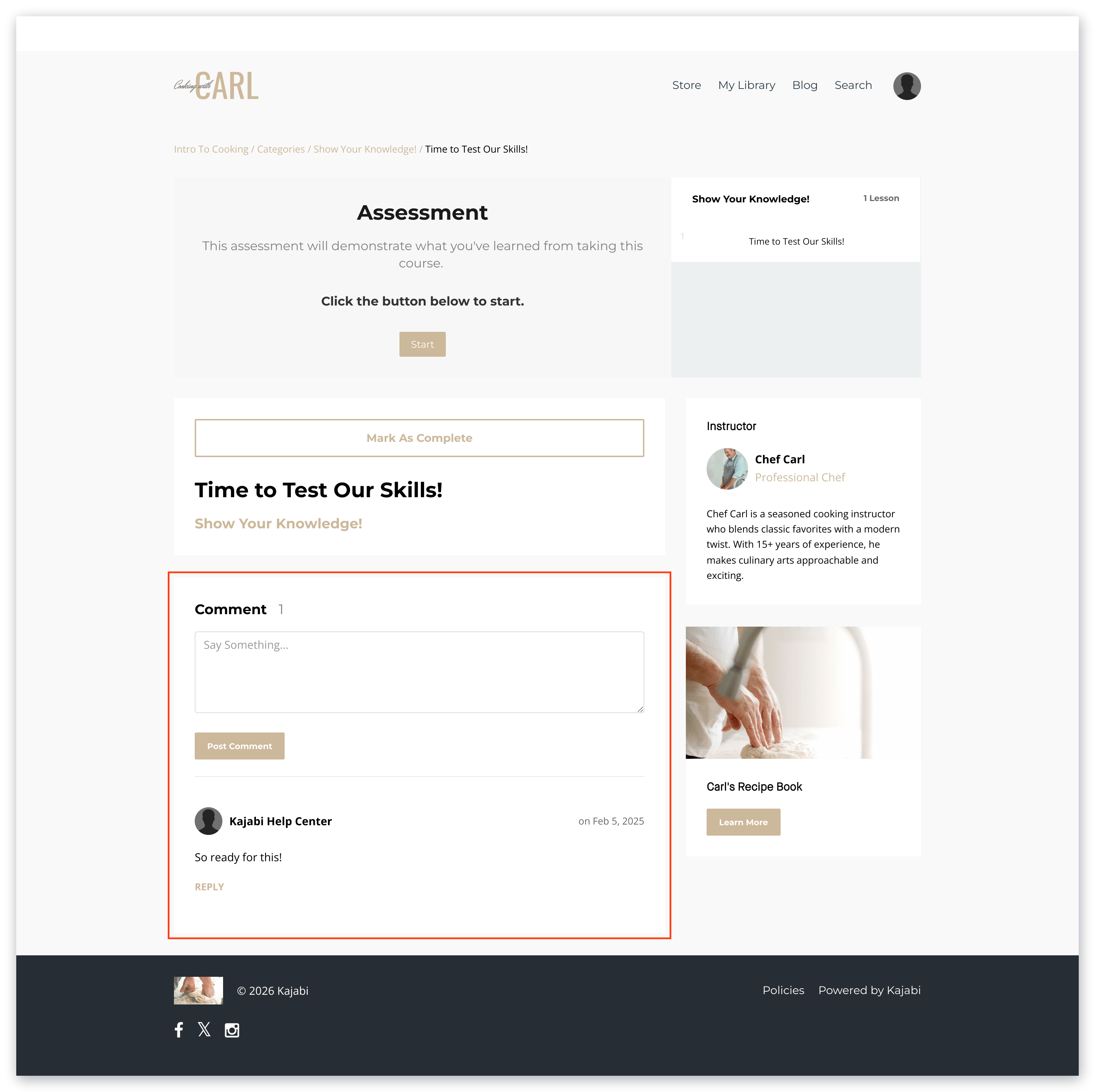
A "Visible" comment box will be visible on the page, will show existing comments in the thread, and will give your users the ability to add new comments:
### Visible
A "Visible" comment box will be visible on the page, will show existing comments in the thread, and will give your users the ability to add new comments:
 ### Hidden
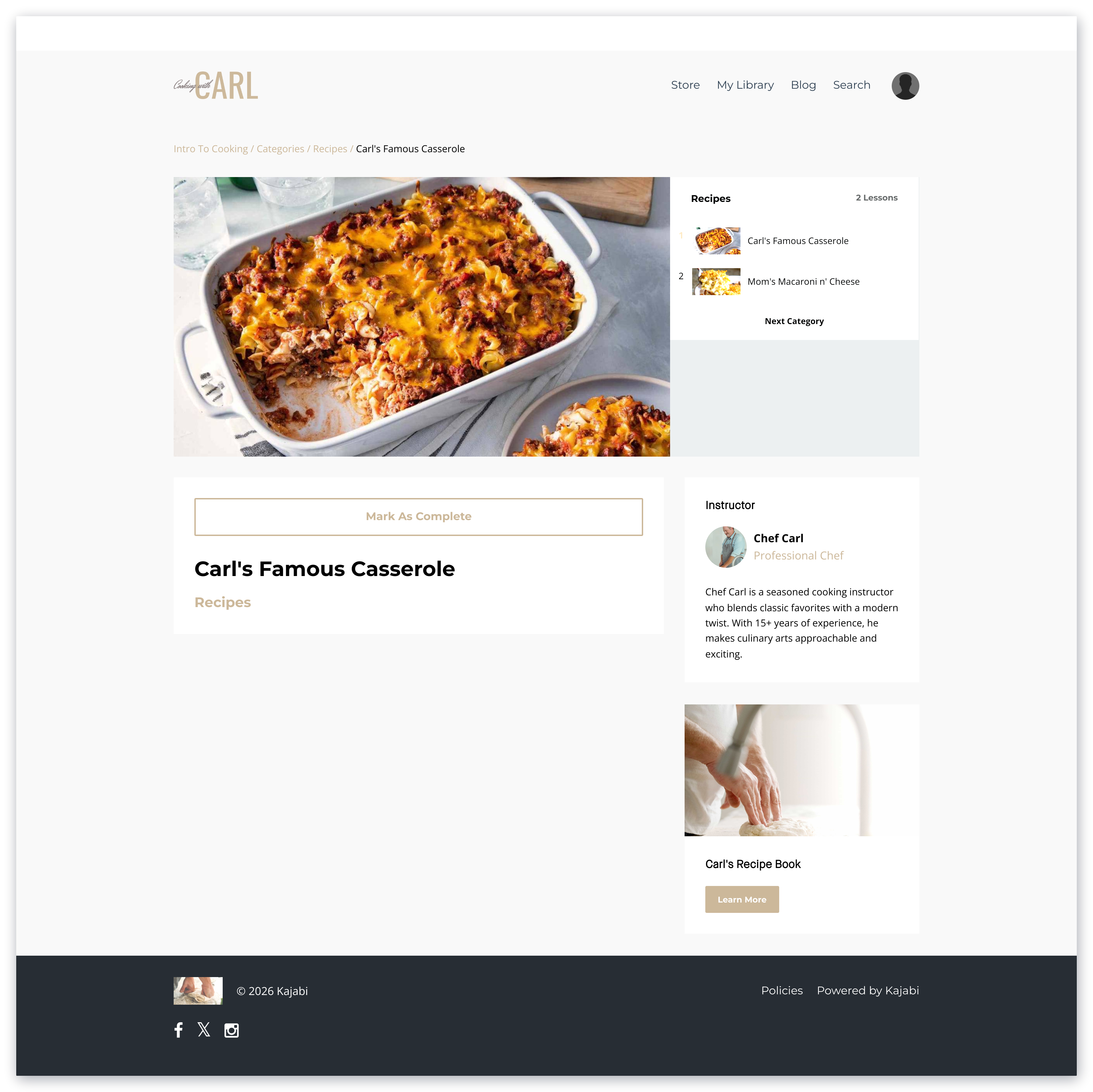
A "Hidden" comment box will not be visible on the page and will not show existing comments in the thread:
### Hidden
A "Hidden" comment box will not be visible on the page and will not show existing comments in the thread:
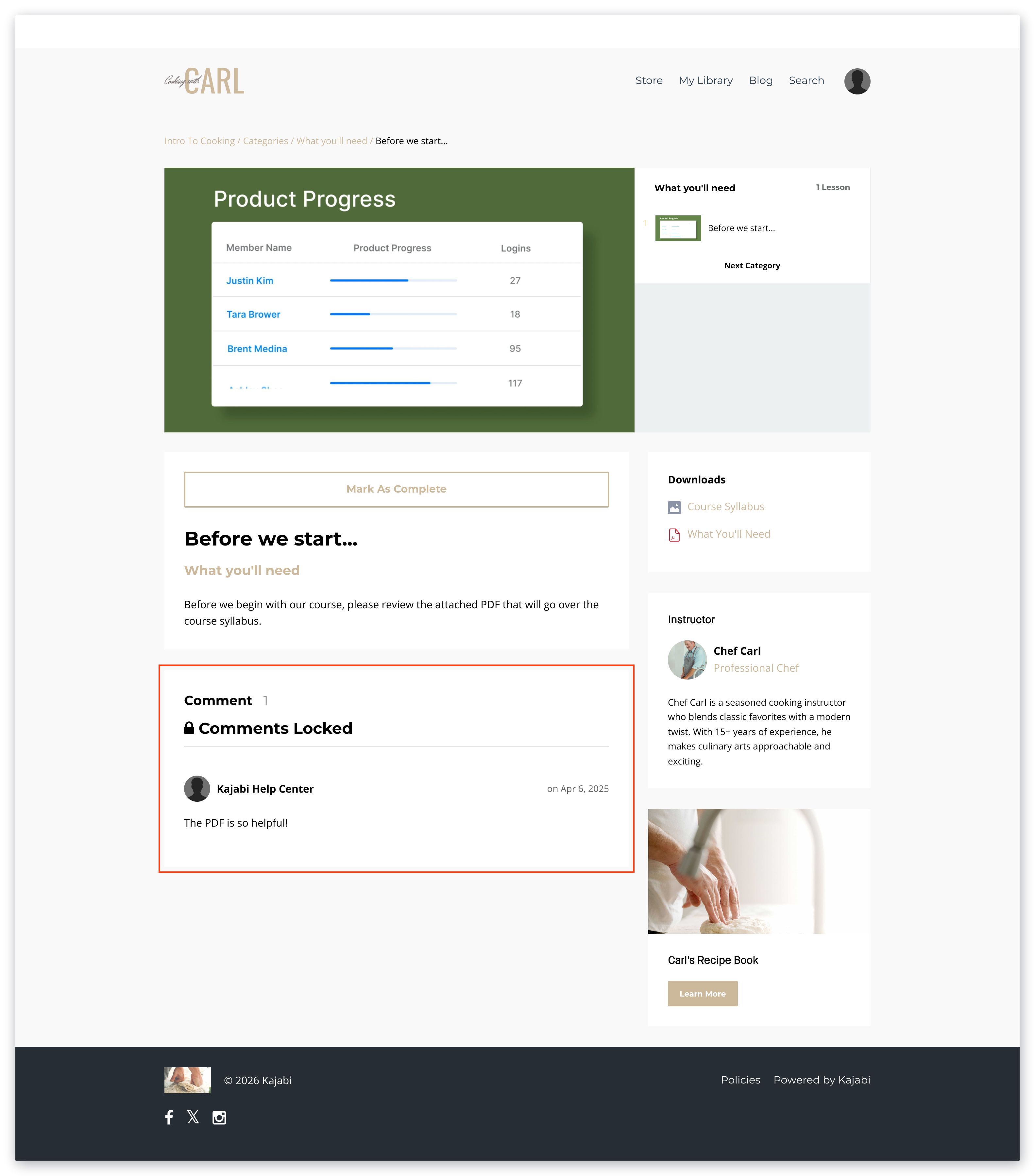
 ### Locked
A "Locked" comment box will remove your users' ability to add new comments. However, any existing comments will still be visible:
### Locked
A "Locked" comment box will remove your users' ability to add new comments. However, any existing comments will still be visible:
 **Note:**
If you wish to disable comments for individual contacts, you can mute specific contacts. [Learn about muting customers on Kajabi](https://help.kajabi.com/hc/en-us/articles/360041542213).
## Manage comments in Course lessons
Access the Comments Manager for your Courses in your Products tab:
1. Open the **Products** tab from your Dashboard.
2. Select the **Courses** tab.
3. Then, click **Manage Comments**.
4. This will take you to the Comments Manager in your Kajabi Admin:
**Note:**
If you wish to disable comments for individual contacts, you can mute specific contacts. [Learn about muting customers on Kajabi](https://help.kajabi.com/hc/en-us/articles/360041542213).
## Manage comments in Course lessons
Access the Comments Manager for your Courses in your Products tab:
1. Open the **Products** tab from your Dashboard.
2. Select the **Courses** tab.
3. Then, click **Manage Comments**.
4. This will take you to the Comments Manager in your Kajabi Admin:
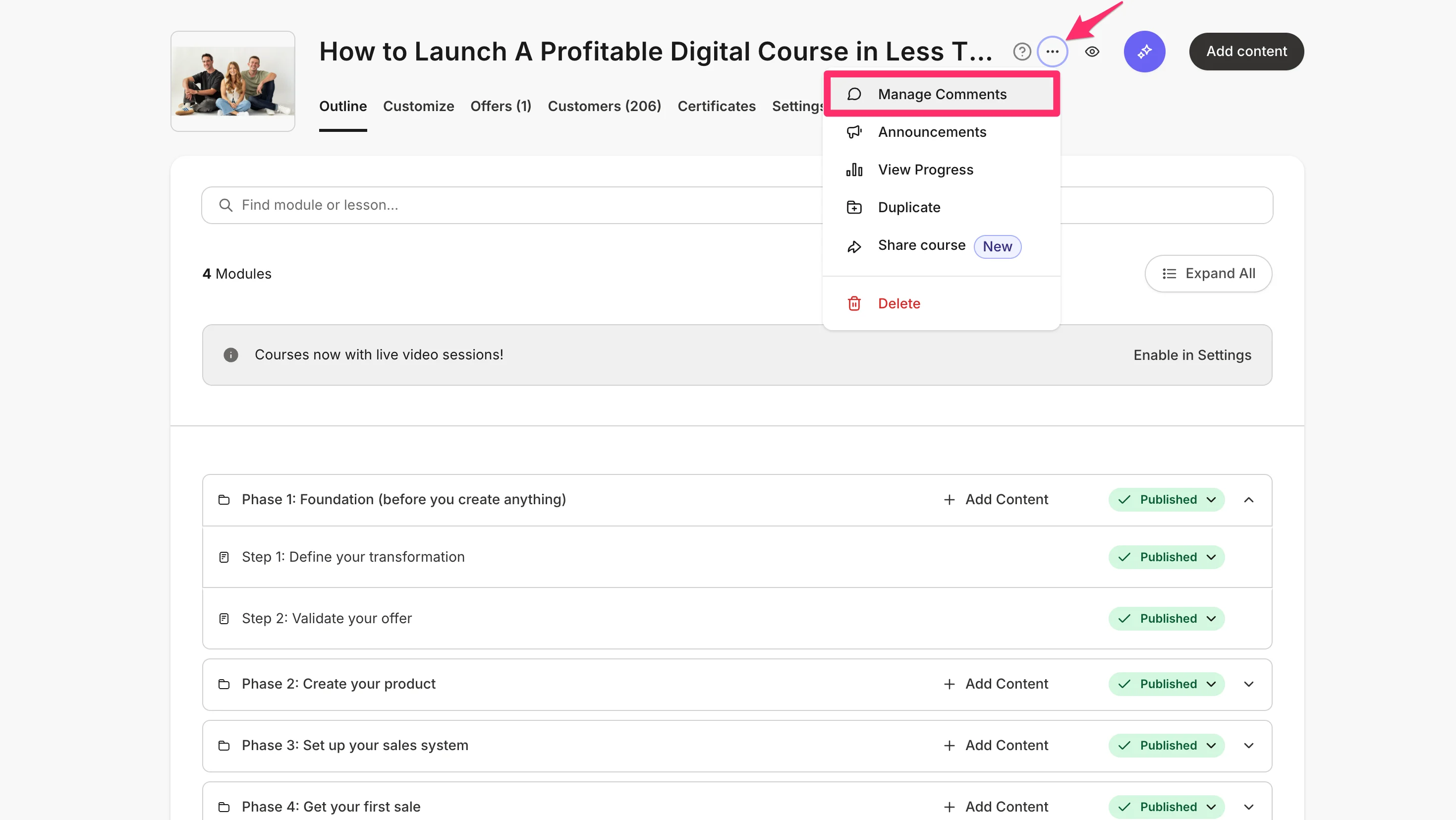
Access the comments from a specific course:
1. Select the Course from the **Courses** tab.
2. Click the **Ellipses (three dot)** icon at the top right next to the preview.
3. Then, select **Manage Comments**:
 ## Delete and restore comments
### Delete a comment
1. Open the **Products** tab from your Dashboard.
2. Select the **Courses** tab.
3. Then, click **Manage Comments**.
4. Select the checkbox to the left of the comment you want to delete.
5. Click the **Delete** button:
## Delete and restore comments
### Delete a comment
1. Open the **Products** tab from your Dashboard.
2. Select the **Courses** tab.
3. Then, click **Manage Comments**.
4. Select the checkbox to the left of the comment you want to delete.
5. Click the **Delete** button:
### Restore a deleted comment
1. Open the **Products** tab from your Dashboard.
2. Select the **Courses** tab.
3. Then, click **Manage Comments**.
4. Click the **Deleted** tab to view all deleted comments.
5. Select the checkbox to the left of the comment you want to restore.
6. Click the **Restore** button:
Locate your restored comment in the **Read** tab.