> ## Documentation Index
> Fetch the complete documentation index at: https://help.kajabi.com/llms.txt
> Use this file to discover all available pages before exploring further.
# Use YouTube Live in a Product
> Stream an event, class, or workshop directly within a Product using YouTube Live.
**YouTube Live** is a tool for creators to connect with their community in real-time. You can use YouTube Live to stream an event, class, or workshop directly within a Product on Kajabi. YouTube Live has tools to help you manage live streams and interact with viewers via webcam, mobile, or encoder streaming.
Looking to add a live video session to Courses? With Kajabi, you can add a live video session to a Course. [Learn to go live in a Course](../../products/courses/how-to-go-live-in-your-course-product).
**Note:**
**Don't see an embed option?** The YouTube interface may require you to first copy the link to the live stream and paste it into the browser to copy the embed code. [Learn to embed videos and playlists with YouTube's support guide](https://support.google.com/youtube/answer/171780?hl=en)
## Verify a YouTube account
Before you go Live with YouTube there are a few steps you will need to complete on the YouTube account.
First, make sure that the Live Stream feature is enabled in the account settings on YouTube.
1. Log into the YouTube account.
2. Go to [YouTube Studio](https://studio.youtube.com/).
3. Click **Settings** in the bottom left corner.
4. Select **Channel**.
5. Click **Feature Eligibility**.
6. Ensure that the Default Features and Features that require phone verification are Enabled:
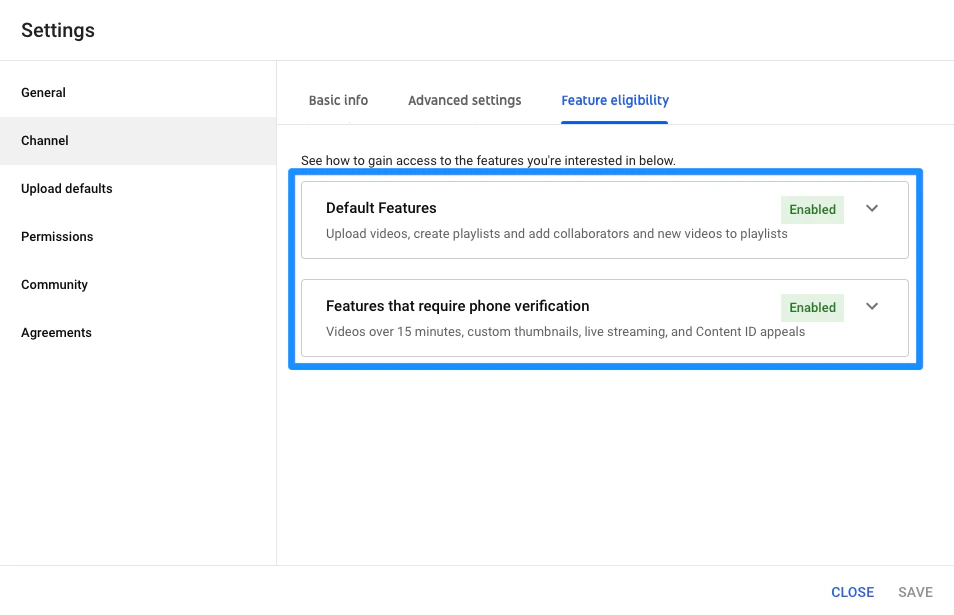 If the features are disabled, verify the YouTube account.
[Learn how to verify a YouTube account with YouTube's support guide](https://support.google.com/youtube/answer/171664?hl=en).
## Set up YouTube Live and create an embed code
If the YouTube account allows live streaming as verified above, set up YouTube Live and create an embed code to embed onto a Product lesson on Kajabi.
### Create a YouTube Live
1. In your YouTube Studio dashboard, click **Create**.
2. Then, select **Go Live**.
3. In the live dashboard, select **Stream** or **Webcam**.
4. Proceed to customize your Live stream details by creating a title, specifying your time and date, and selecting your audience type.
5. Then, click **Next**. This will prompt a streaming preview.
6. If you wish to upload a custom image for the Thumbnail or retake your Thumbnail, hover over the image and select your desired option:
If the features are disabled, verify the YouTube account.
[Learn how to verify a YouTube account with YouTube's support guide](https://support.google.com/youtube/answer/171664?hl=en).
## Set up YouTube Live and create an embed code
If the YouTube account allows live streaming as verified above, set up YouTube Live and create an embed code to embed onto a Product lesson on Kajabi.
### Create a YouTube Live
1. In your YouTube Studio dashboard, click **Create**.
2. Then, select **Go Live**.
3. In the live dashboard, select **Stream** or **Webcam**.
4. Proceed to customize your Live stream details by creating a title, specifying your time and date, and selecting your audience type.
5. Then, click **Next**. This will prompt a streaming preview.
6. If you wish to upload a custom image for the Thumbnail or retake your Thumbnail, hover over the image and select your desired option:
[Learn more about live streaming with YouTube.](https://support.google.com/youtube/answer/2474026?hl=en)
### Copy the embed code
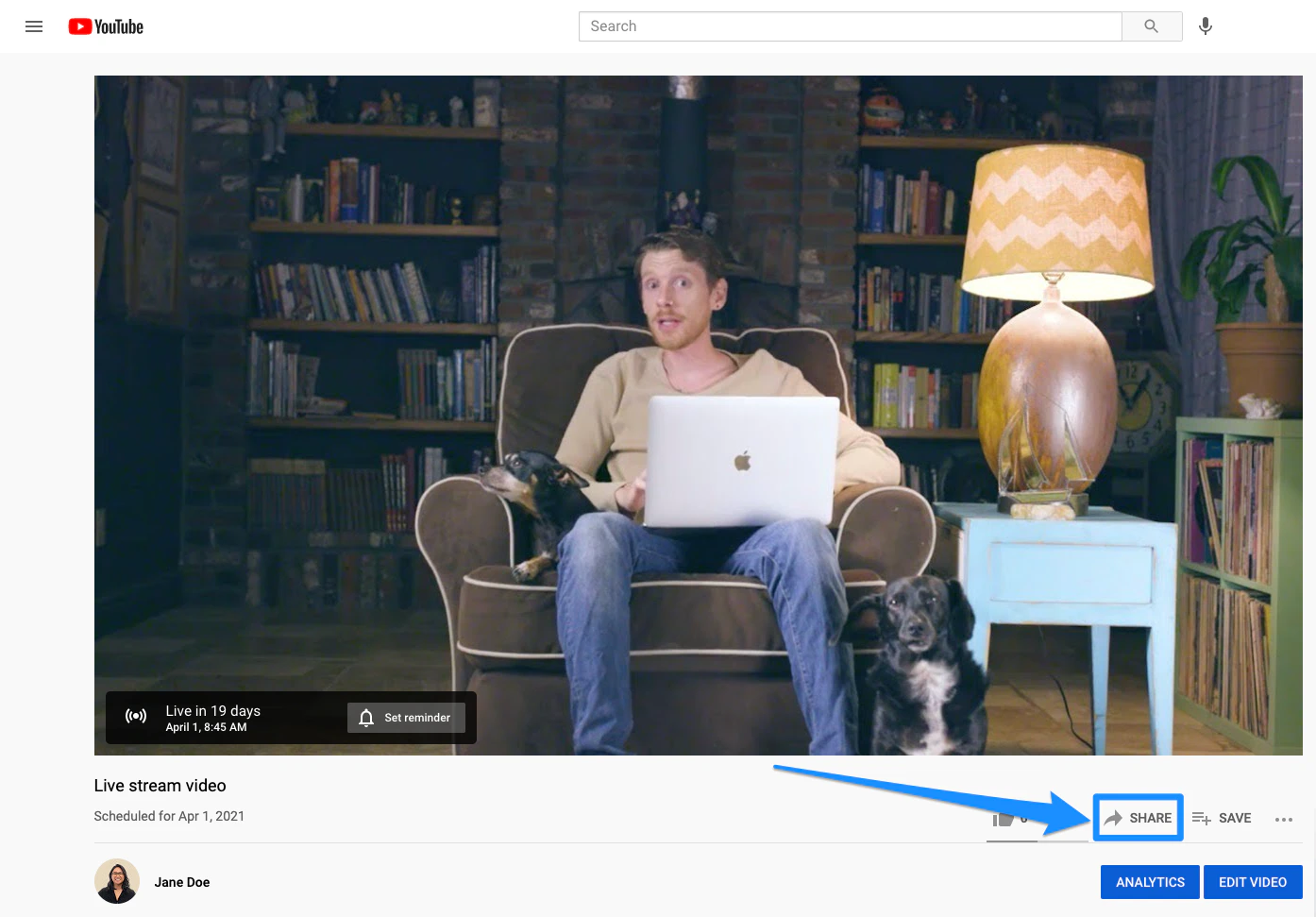
1. After customizing your Live Stream details, click the **SHARE** button.
2. Click the **copy** icon next to your Video link.
3. Paste your Video link into a different tab on your web browser.
4. Navigate to the **SHARE** button directly below the video player.
5. Click **Embed**.
6. Then, click **Copy**:
 **Don't see an embed option?** [Learn to embed videos and playlists with YouTube's support guide.](https://support.google.com/youtube/answer/171780?hl=en)
**Note:**
You must allow embedding for the video to play directly from the Page. If it is left unchecked, viewers will be prompted to open on YouTube.
## Prep the Product lesson to go live
Now that you have prepared the YouTube Live Stream, paste the live stream embed code to the body of the Product lesson to complete setup:
1. Open the **Products** tab.
2. Select the **Product** you wish to edit.
3. Open the **Product Lesson** to add your YouTube Embed code.
4. Navigate to the Body section and select the **source code** icon.
5. Paste your embed code for your YouTube Live.
6. Click **Save** to keep and apply your changes:
**Don't see an embed option?** [Learn to embed videos and playlists with YouTube's support guide.](https://support.google.com/youtube/answer/171780?hl=en)
**Note:**
You must allow embedding for the video to play directly from the Page. If it is left unchecked, viewers will be prompted to open on YouTube.
## Prep the Product lesson to go live
Now that you have prepared the YouTube Live Stream, paste the live stream embed code to the body of the Product lesson to complete setup:
1. Open the **Products** tab.
2. Select the **Product** you wish to edit.
3. Open the **Product Lesson** to add your YouTube Embed code.
4. Navigate to the Body section and select the **source code** icon.
5. Paste your embed code for your YouTube Live.
6. Click **Save** to keep and apply your changes:
### Upload a YouTube video to Kajabi
Learn how to embed a video onto a Product lesson.
**Tip:**
If you wish to hold YouTube Live in a [Community Product](https://help.kajabi.com/hc/en-us/articles/360037711053), copy the share link from the YouTube Live video and link it as a media type in a Community Lesson. [Learn more](https://help.kajabi.com/hc/en-us/articles/360037196954#h_b8f32e9b-7971-4522-b812-d217489118e7)