> ## Documentation Index
> Fetch the complete documentation index at: https://help.kajabi.com/llms.txt
> Use this file to discover all available pages before exploring further.
# Configure Lesson Player auto advance
> Set the auto advance timer and accent color in the Lesson Player.
The **Lesson Player Auto Advance** feature automatically loads the next product lesson video in the module after a specified time delay:
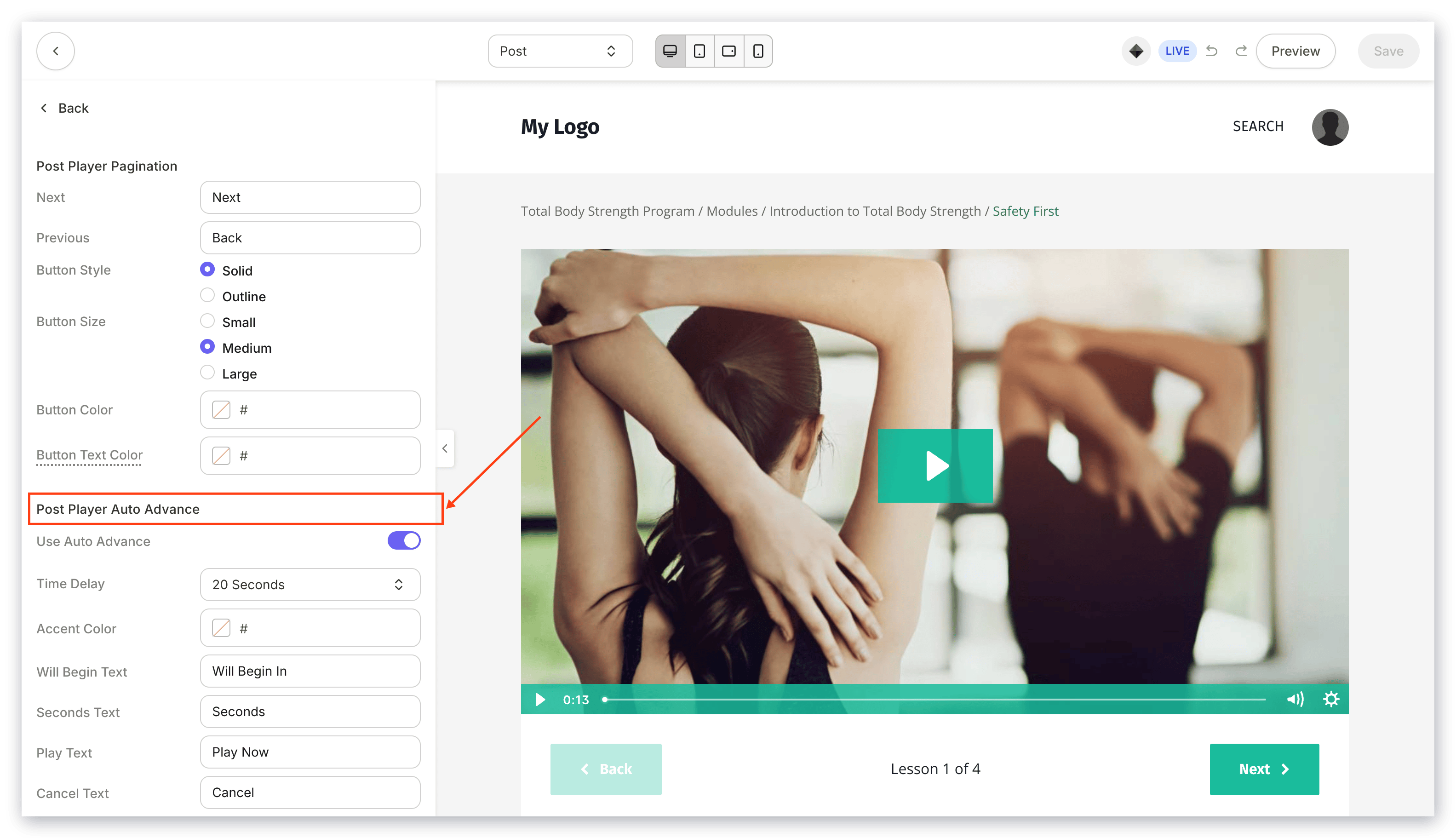 Learn to access [the Lesson Player](/articles/products/courses/how-to-customize-your-course-product-with-premier) and configure Lesson Player Auto Advance within the Lesson Player editor.
## Customize the Lesson Player auto advance
Enable your Lesson Player Auto Advance by checking **Use Auto Advance** in the Lesson Editor.
### Locate the Auto Advance setting
1. Open the **Products** tab from your Dashboard.
2. Select the **Course** that you want to edit.
3. Click **Customize**.
4. Click **Customize** again in the Builder you want to use for your Course.
Learn to access [the Lesson Player](/articles/products/courses/how-to-customize-your-course-product-with-premier) and configure Lesson Player Auto Advance within the Lesson Player editor.
## Customize the Lesson Player auto advance
Enable your Lesson Player Auto Advance by checking **Use Auto Advance** in the Lesson Editor.
### Locate the Auto Advance setting
1. Open the **Products** tab from your Dashboard.
2. Select the **Course** that you want to edit.
3. Click **Customize**.
4. Click **Customize** again in the Builder you want to use for your Course.
Refer to the instructions below for your Course template.
### Premier template
If you are using a **Premier template** to customize your Course:
1. Navigate to the top menu.
2. Open the drop-down menu for your **Product** page.
3. Click **Lesson**.
4. Select **Lesson Player** from your sidebar editor.
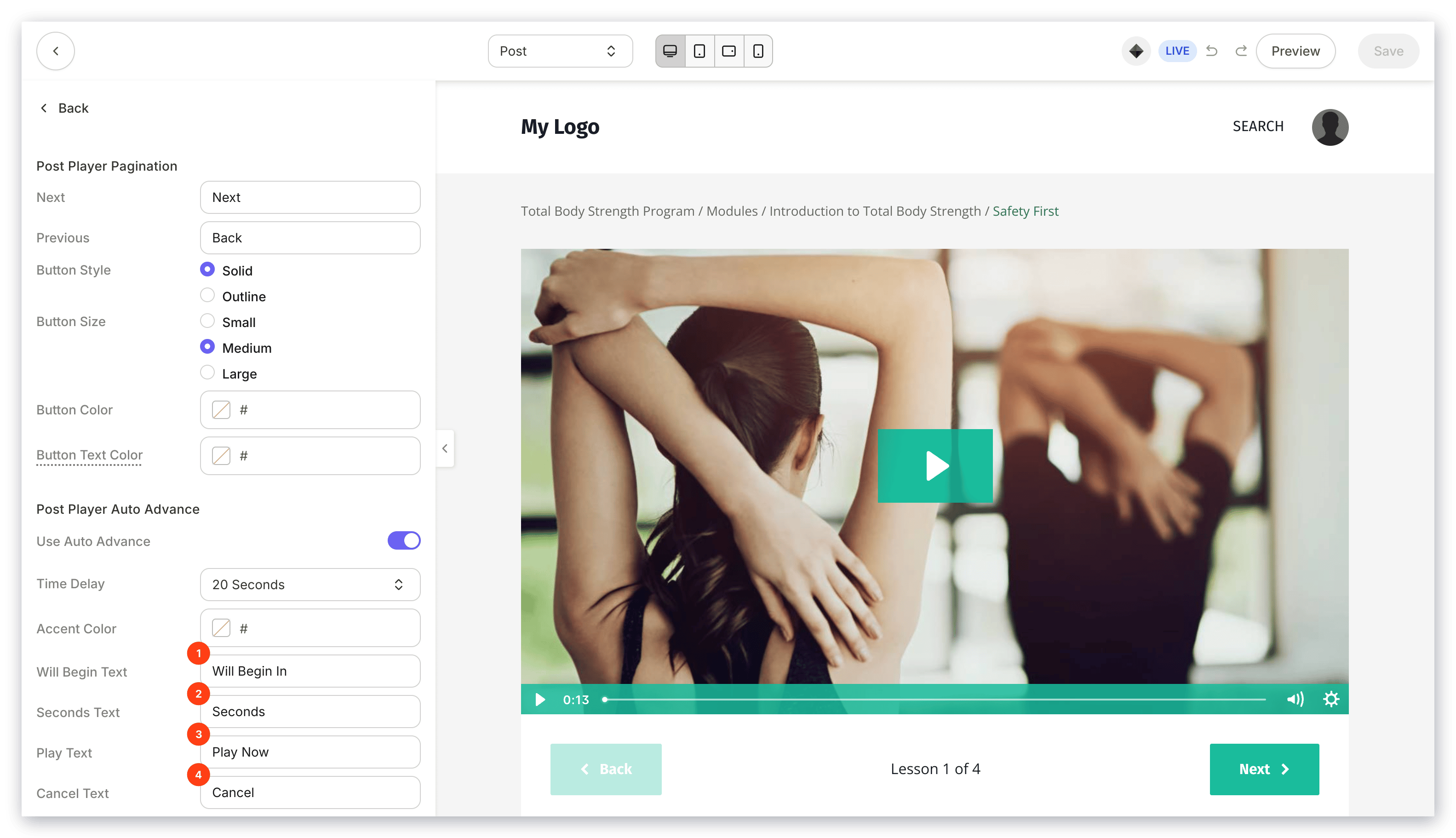
5. Select **Use Auto Advance** to enable or disable the feature.
6. Customize your Auto Advance settings.
7. Click **Save** to keep and apply your changes:
### Momentum template
If you are using a **Momentum template** to customize your Course:
1. Navigate to the top menu.
2. Open the drop-down menu for your **Product** page.
3. Click **Lesson**.
4. Select **Completion Message** from your sidebar editor.
5. Select **Auto Advance** to enable or disable the feature.
6. Customize your Auto Advance language.
7. Click **Save** to keep and apply your changes:
## Auto Advance settings
### Time delay
Select your Time Delay to specify the number of seconds before the next video in the module automatically begins to play:
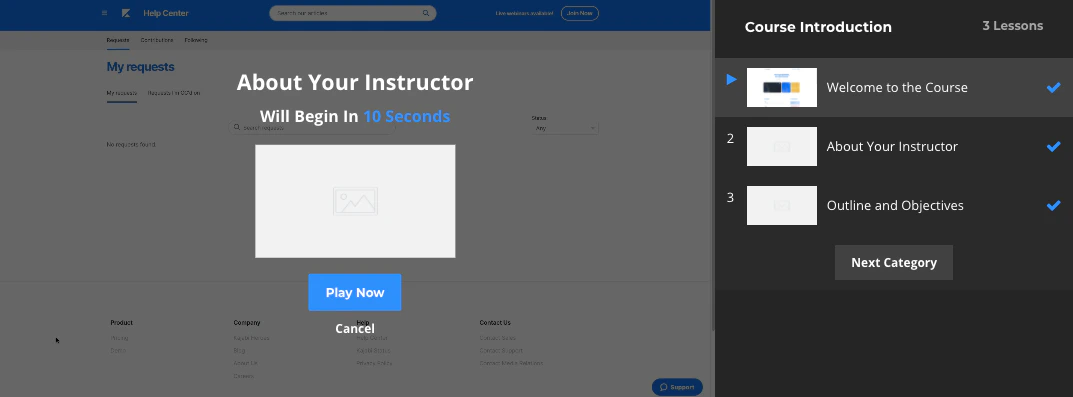 ### Accent color
Change the color of your Auto Advance messaging:
### Accent color
Change the color of your Auto Advance messaging:
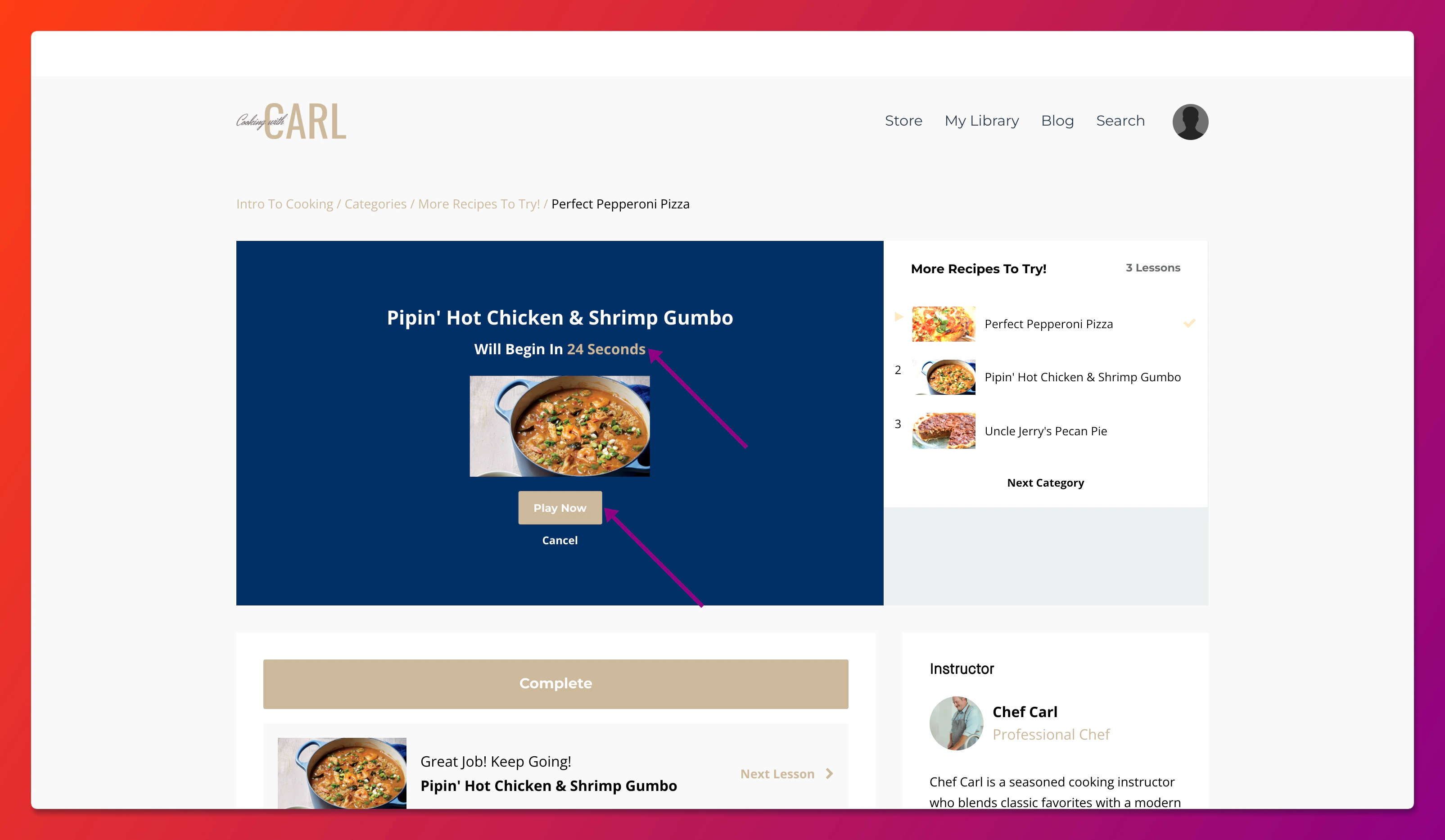 ### Language
Customize the language of your Auto Advance messaging:
### Language
Customize the language of your Auto Advance messaging: