> ## Documentation Index
> Fetch the complete documentation index at: https://help.kajabi.com/llms.txt
> Use this file to discover all available pages before exploring further.
# Lock content in a Course
> Require customers to complete lessons or pass quizzes before accessing the next module or submodule.
Encourage your customers to complete your Course with **locked content**. Locking content in a Course requires your customers to complete or pass a Lesson, Quiz, or Assessment before accessing the next Module or Submodule.
## Lock modules and submodules
Kajabi gives you the tools to design your Course to release content according to your business needs. Locking content can be accomplished by locking Modules or Submodules in a Course.
This lets you ensure that your customers must first complete or pass your specified Lesson, Quiz, or Assessment to unlock the next Module or Submodule to gain access to the next section of content.
To unlock a locked Module or Submodule, your customers must either:
* Click **Complete** in a Lesson, or
* Complete or pass a [Quiz](../../products/courses/course-quizzes) or [Assessment](../../contacts/create-manage-and-share-assessments/how-to-add-an-assessment-to-your-course-product)
### What happens if a customer attempts to move on to the locked module before completing the required content?
If a customer attempts to move on to the Lesson content inside the locked Module or Submodule before completing or passing your selected Lesson, Quiz, or Assessment, they will encounter a "This Post is Locked" message:
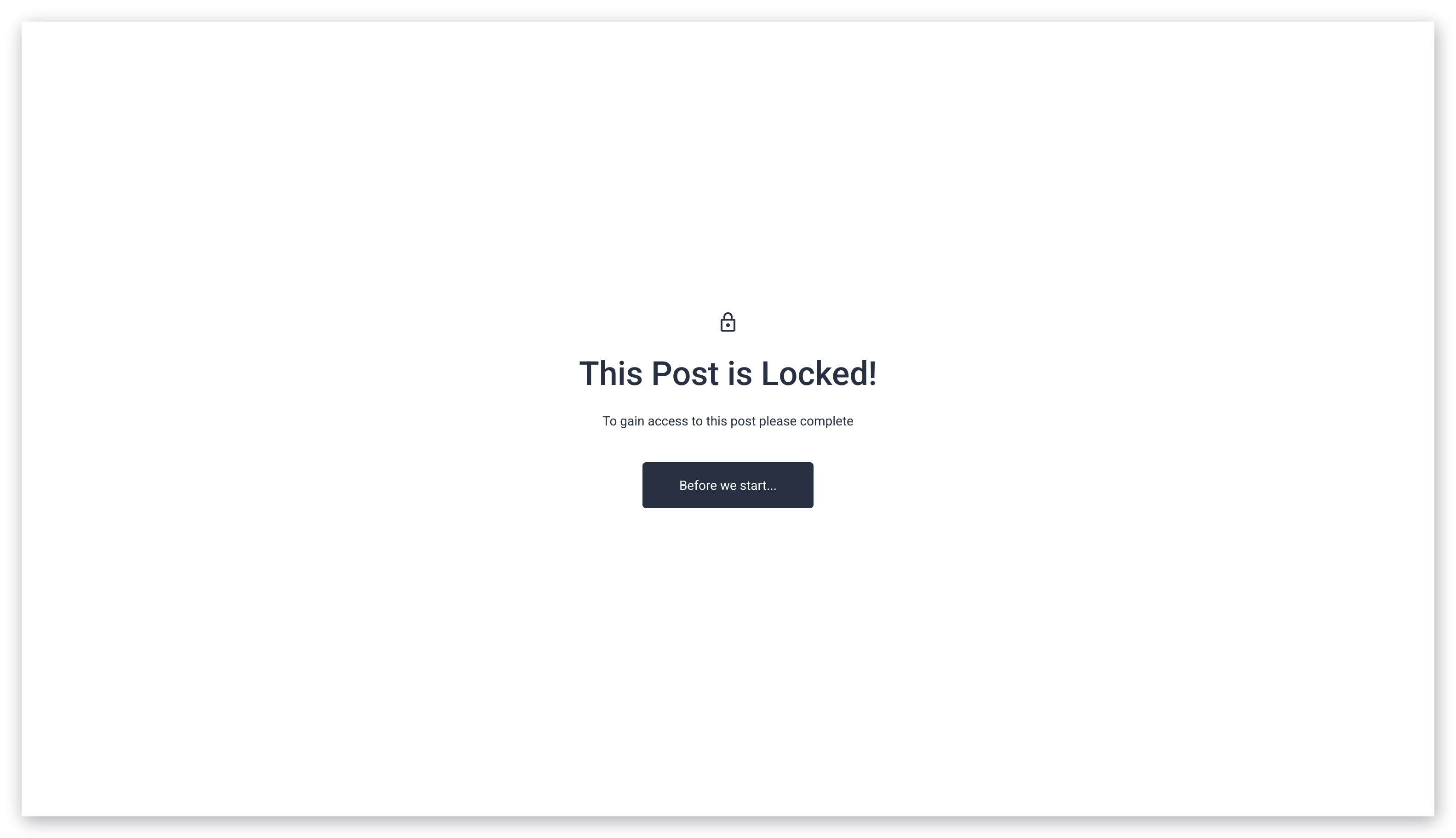 **Note:** The content of this message is not customizable. However, the language (English, Spanish, etc.) can be changed by [updating the Language](../../account-settings/my-kajabi/change-your-site-language) in your Site Details settings.
## Lock contingent on completing or passing a Quiz or Assessment
**Note:**
The Assessment feature inside of Courses has been sunset, but it may still appear in older accounts. The Quizzes feature is available inside of Courses and offers advanced functionality. Assessments can still be added to Web Pages.
**Quizzes** or **Assessments** are great tools for surveying or testing your Course customers. You can require your customers to complete or pass your Quiz or Assessment before unlocking the next Module or Submodule.
[Learn more about Quizzes in Kajabi](../../products/courses/course-quizzes)
[Learn more about Assessments in Kajabi](../../contacts/create-manage-and-share-assessments/create-and-customize-assessments)
### Quizzes
If you want to lock a Module or Submodule contingent on someone completing a Quiz (regardless of whether the Quiz was passed, failed, or non-graded), simply select the title of your Quiz from the **Locked by lesson** dropdown menu when you set up your locked content.
If you want to lock a Module or Submodule contingent on someone passing a Quiz for which you've set a passing grade:
1. Select the title of your Quiz from the **Locked by lesson** dropdown menu when you set up your locked content.
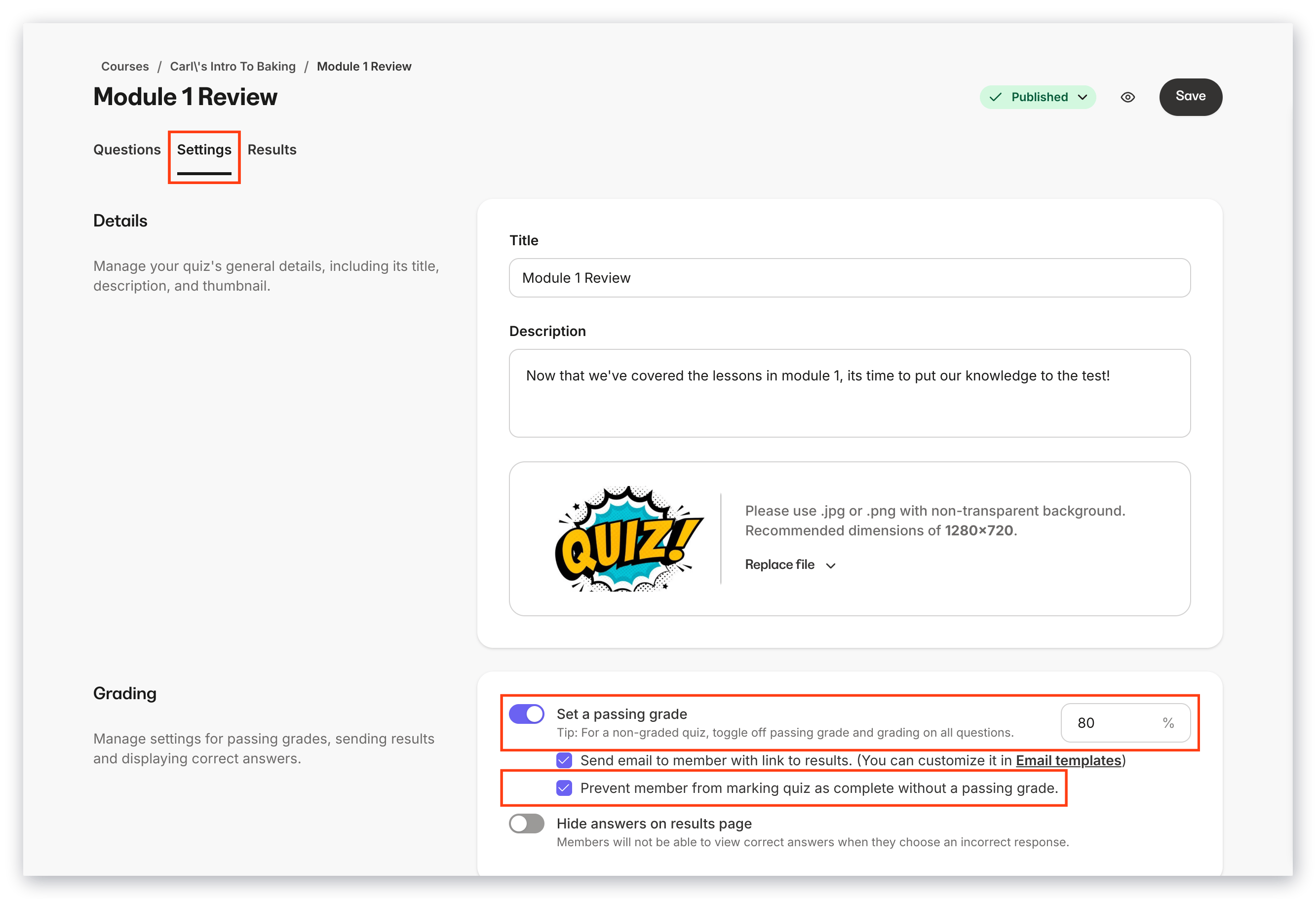
2. Make sure **Set a passing grade** is toggled on in your Quiz Settings and the **Prevent member from moving to next lesson without a passing grade** checkbox is marked.
**Note:** The content of this message is not customizable. However, the language (English, Spanish, etc.) can be changed by [updating the Language](../../account-settings/my-kajabi/change-your-site-language) in your Site Details settings.
## Lock contingent on completing or passing a Quiz or Assessment
**Note:**
The Assessment feature inside of Courses has been sunset, but it may still appear in older accounts. The Quizzes feature is available inside of Courses and offers advanced functionality. Assessments can still be added to Web Pages.
**Quizzes** or **Assessments** are great tools for surveying or testing your Course customers. You can require your customers to complete or pass your Quiz or Assessment before unlocking the next Module or Submodule.
[Learn more about Quizzes in Kajabi](../../products/courses/course-quizzes)
[Learn more about Assessments in Kajabi](../../contacts/create-manage-and-share-assessments/create-and-customize-assessments)
### Quizzes
If you want to lock a Module or Submodule contingent on someone completing a Quiz (regardless of whether the Quiz was passed, failed, or non-graded), simply select the title of your Quiz from the **Locked by lesson** dropdown menu when you set up your locked content.
If you want to lock a Module or Submodule contingent on someone passing a Quiz for which you've set a passing grade:
1. Select the title of your Quiz from the **Locked by lesson** dropdown menu when you set up your locked content.
2. Make sure **Set a passing grade** is toggled on in your Quiz Settings and the **Prevent member from moving to next lesson without a passing grade** checkbox is marked.
 **Tip:**
One advantage of creating a Quiz instead of an Assessment is the ability to use the "Prevent member from moving to next lesson without a passing grade" Quiz Setting to disable the "Mark as complete" button inside your Course Lesson until the Quiz has been passed. Assessments do not offer this option.
Learn more about [customizing your Quiz Settings](../../products/courses/course-quizzes#h_01G16CT90ZYCJFKEYEC4BTSTD4).
### Assessments
If you choose to Lock a Module or Submodule contingent on someone completing a Lesson containing an Assessment, your customers can gain access to the locked Module by:
* Clicking **Complete** in the Lesson (see important "Tip" below), or
* Completing and/or passing the Assessment
[Learn to add an Assessment to your Course.](../../contacts/create-manage-and-share-assessments/how-to-add-an-assessment-to-your-course-product)
**Tip:**
Hide the "Mark as Complete" button in your Lesson template to ensure that your customers can only access a Locked Module by completing the Assessment in your Lesson. Keep in mind, hiding the "Mark as Complete" button in your Lesson template will remove that button from all Lessons in the Course. This will require your customers to unlock all Locked Modules by completing or passing an Assessment.
## Set up locked content
1. Open the **Products** tab from the Dashboard.
2. Select an existing Course or [create a new one](../../products/courses/courses-overview).
3. Click the **Visibility** status dropdown menu (Published, Draft, etc.) next to your Module or Submodule and select **Lock**.
4. Choose the title of the Lesson or Quiz that will unlock the content when passed or marked as complete and click **Lock**:
**Tip:**
One advantage of creating a Quiz instead of an Assessment is the ability to use the "Prevent member from moving to next lesson without a passing grade" Quiz Setting to disable the "Mark as complete" button inside your Course Lesson until the Quiz has been passed. Assessments do not offer this option.
Learn more about [customizing your Quiz Settings](../../products/courses/course-quizzes#h_01G16CT90ZYCJFKEYEC4BTSTD4).
### Assessments
If you choose to Lock a Module or Submodule contingent on someone completing a Lesson containing an Assessment, your customers can gain access to the locked Module by:
* Clicking **Complete** in the Lesson (see important "Tip" below), or
* Completing and/or passing the Assessment
[Learn to add an Assessment to your Course.](../../contacts/create-manage-and-share-assessments/how-to-add-an-assessment-to-your-course-product)
**Tip:**
Hide the "Mark as Complete" button in your Lesson template to ensure that your customers can only access a Locked Module by completing the Assessment in your Lesson. Keep in mind, hiding the "Mark as Complete" button in your Lesson template will remove that button from all Lessons in the Course. This will require your customers to unlock all Locked Modules by completing or passing an Assessment.
## Set up locked content
1. Open the **Products** tab from the Dashboard.
2. Select an existing Course or [create a new one](../../products/courses/courses-overview).
3. Click the **Visibility** status dropdown menu (Published, Draft, etc.) next to your Module or Submodule and select **Lock**.
4. Choose the title of the Lesson or Quiz that will unlock the content when passed or marked as complete and click **Lock**:
**Note:**
Individual Lessons cannot be locked. Instead, lock and release entire Modules or Submodules. If you wish to unlock a single Lesson when another Lesson is completed, place it in its own separate Module or Submodule.
A Lesson's visibility must be set to **Published** to be unlockable. If a Lesson is still set to **Draft**, it will not unlock with the Module.