> ## Documentation Index
> Fetch the complete documentation index at: https://help.kajabi.com/llms.txt
> Use this file to discover all available pages before exploring further.
# Try different product types with draft mode
> Test different product types before upgrading a plan by using draft mode.
If you've reached your Product limit and are considering an upgrade, **Draft Mode** lets you create and test a Product before committing to a plan change.
**Note:** Draft mode is a legacy feature and is not available on all Kajabi plans.
## Why draft a product?
**Draft Mode** allows you to create one of each Product type (i.e., Podcast, Course, Coaching, Community, Newsletters, Downloads) over your Product limit. However, you cannot publish the drafted Product unless you upgrade your Plan Level or delete previous Product(s) to stay within your Product limit.
If you choose to upgrade your account or delete another Product, your drafted Product will automatically become a "published" product that you can then attach to an Offer.
**Note:** Once you publish a drafted Product, it isn't possible to revert it back to drafted status. Active Products cannot be changed to drafts.
## Draft a Product
If you've reached your Product limit, you'll still have the ability to create one additional Product for each Product type (i.e., Podcast, Course, Coaching, Community, Newsletters, Downloads) with Draft Mode.
### Create a Product in draft mode
1. Open the **Products** tab from your Dashboard.
2. Select a Product **Type** (Podcast, Course, Coaching, Community, Newsletters, or Downloads).
3. Complete the prompts to create your desired Product.
* [Learn to create Podcasts](../../products/podcasts/how-to-create-and-publish-podcast-products-with-kajabi)
* [Learn to create Courses](../../products/courses/courses-overview)
* [Learn to create Coaching Products](../../products/coaching/how-to-create-a-coaching-product)
* [Learn to create a Communities](../../products/community/build-kajabi-communities)
* [Learn to create Newsletters](../../products/newsletters/newsletters-overview)
* [Learn to create Downloads](../../products/downloads/create-sell-downloadable-files-as-a-product)
4. After selecting your Product type, you'll receive a notification that you've reached your Product limit but you can proceed with the Product in Draft Mode:
Keep in mind that if your Product is in Draft Mode, you can build and customize the Product but you won't be able to publish it until you upgrade or delete another product.
## Identify a draft Product
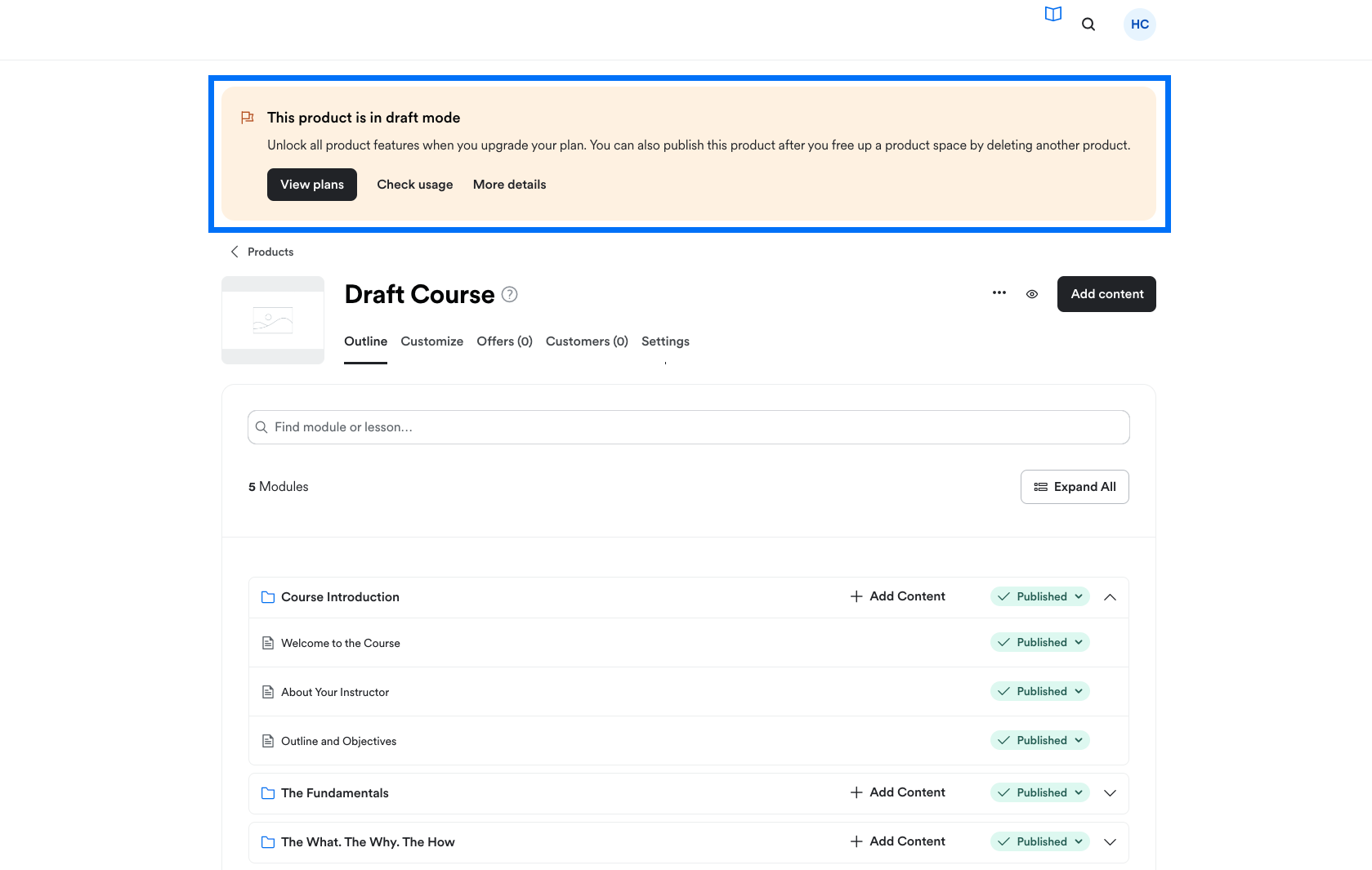
Your draft Product will display a banner at the top of the Product editor notifying you that the Product is in Draft Mode:
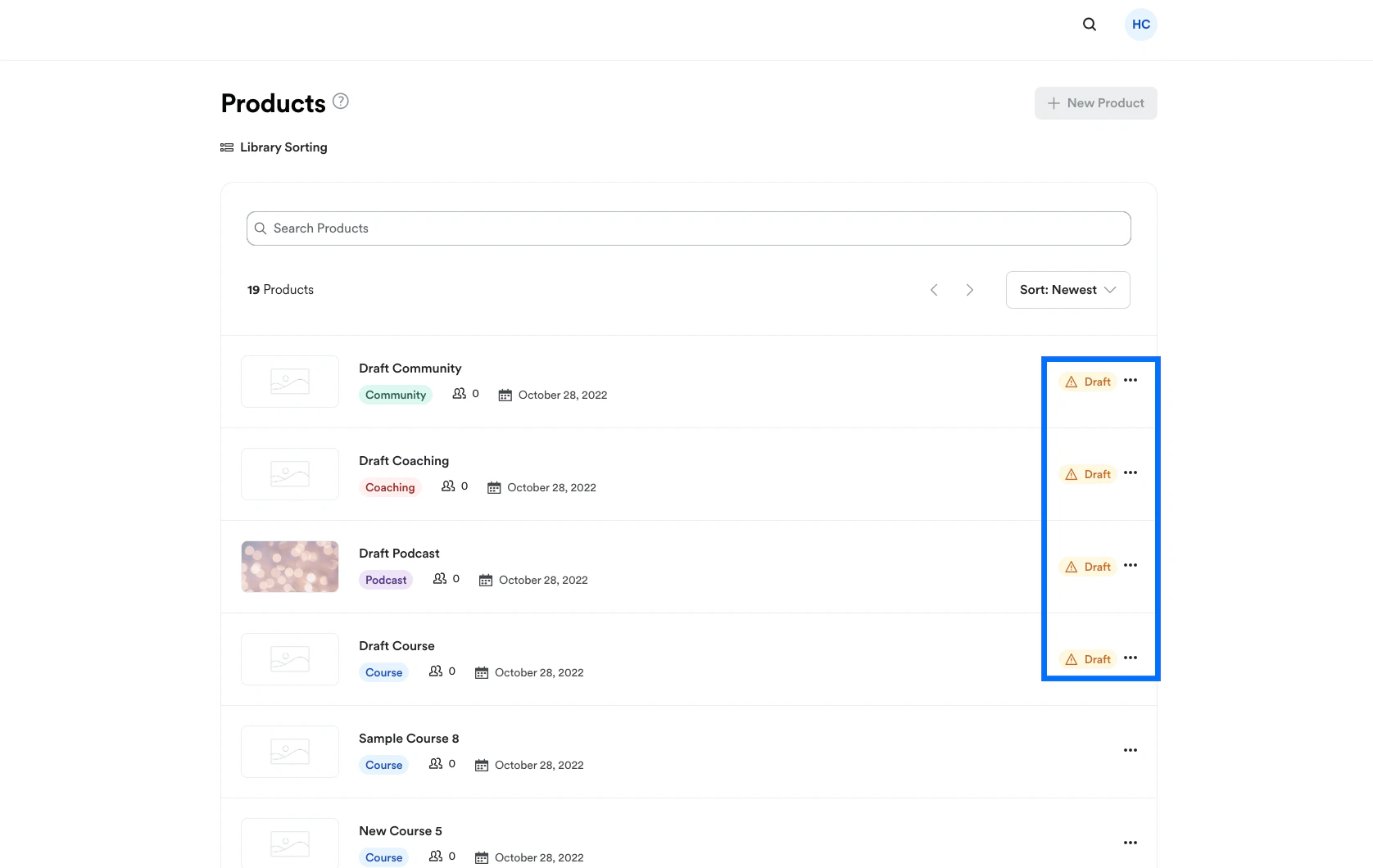
 Additionally, in your list of Products, any Draft Products will contain a "Draft" tag to help you easily identify them:
 ## Publish a draft Product
If you choose to upgrade your account to a plan with a higher Product limit or delete a previously created Product from your account, your draft Product will automatically become a "Published" product that you can attach to an Offer.
[Learn how to delete a Product](../../products/courses/delete-a-product).
## Publish a draft Product
If you choose to upgrade your account to a plan with a higher Product limit or delete a previously created Product from your account, your draft Product will automatically become a "Published" product that you can attach to an Offer.
[Learn how to delete a Product](../../products/courses/delete-a-product).