> ## Documentation Index
> Fetch the complete documentation index at: https://help.kajabi.com/llms.txt
> Use this file to discover all available pages before exploring further.
# Use the search bar inside a Course
> Customers can use the search bar to find lessons and modules in a Course.
The **search bar** inside Courses allows customers to find Lessons and Modules using search queries.
## The Course search bar
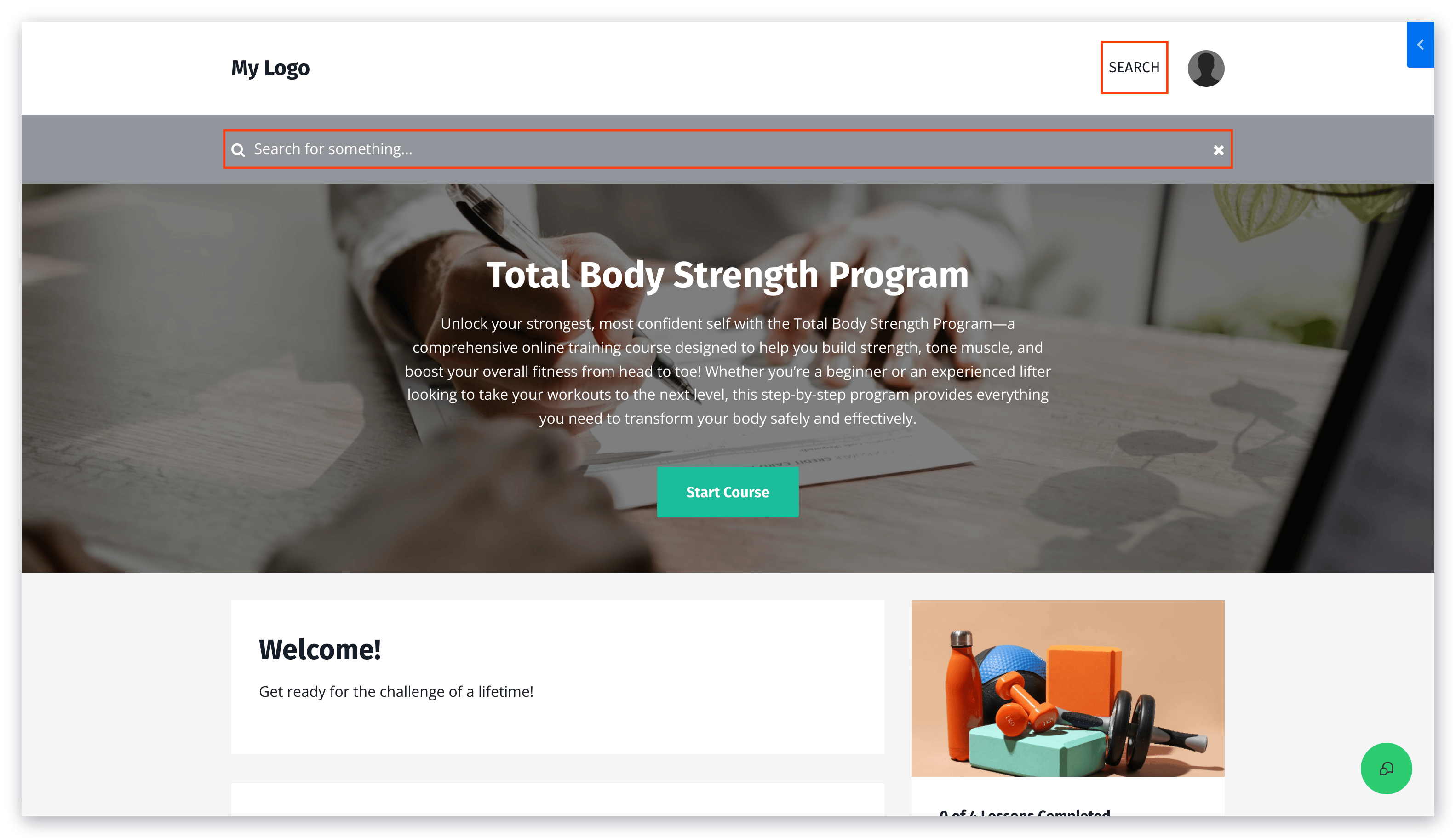
The Search Bar can be found in the header of your Courses next to your page Menu and above your Course Lessons. It allows people to locate Lessons and Modules using search queries.
Entering words or phrases into the search bar will generate results with matching terminology from inside your content (e.g. titles, text body, subject lines).
 ## Customize the text shown in the Course search bar
To customize the text shown inside the Search Bar:
1. Open the **Products** tab from the Dashboard.
2. Select the **Course** with the Search Bar you wish to customize.
3. Click **Customize**.
4. Hover over your Template and click **Customize** again to access the Course Template Builder.
5. Navigate to the left sidebar editor and click **Search Bar**.
6. From here you can edit the Search Bar placeholder **Search Text**, **Background Color**, and **Text Color**.
7. Click **Save** to apply your changes:
## Customize the text shown in the Course search bar
To customize the text shown inside the Search Bar:
1. Open the **Products** tab from the Dashboard.
2. Select the **Course** with the Search Bar you wish to customize.
3. Click **Customize**.
4. Hover over your Template and click **Customize** again to access the Course Template Builder.
5. Navigate to the left sidebar editor and click **Search Bar**.
6. From here you can edit the Search Bar placeholder **Search Text**, **Background Color**, and **Text Color**.
7. Click **Save** to apply your changes:
## FAQs
### Can I customize search attributes and parameters?
No, the attributes and parameters of the search function inside a Course cannot be customized at this time.