> ## Documentation Index
> Fetch the complete documentation index at: https://help.kajabi.com/llms.txt
> Use this file to discover all available pages before exploring further.
# Create and sell downloadable files as a Product
> Package and sell your downloadable files behind a secured paywall with Kajabi's Downloads Product.
With Kajabi's **Downloads Product**, you can package your downloadable files and sell them behind a secured paywall. Whether you offer worksheets, templates, guides, or other digital assets, Downloads let you monetize your content while keeping it protected.
[Learn more about how Kajabi protects your downloadable content](../../products/downloads/how-kajabi-protects-your-downloads).
## Unlimited Download Products
Create as many Download Products as your business needs. With Downloads, you can add 1, 20, or even more — all while counting as just a single Product.
For example, if you create 5 Download Products, each with multiple files, they will only take up one Product slot in your Kajabi Plan.
If your Growth Plan includes 50 Products and you've already used 45, adding a Download Product will only increase your total to 46, leaving you with 4 more slots for Courses, Coaching, Podcasts, or another product.
## Customer experience
When your customers purchase your Download Products, they can access them from their **Member Library**.
[Learn more about what happens after a customer purchases your Offer](../../sales/offers/what-happens-when-a-customer-purchases-my-offer).
Your customers can access all of the downloadable content that you have included within their purchased product:
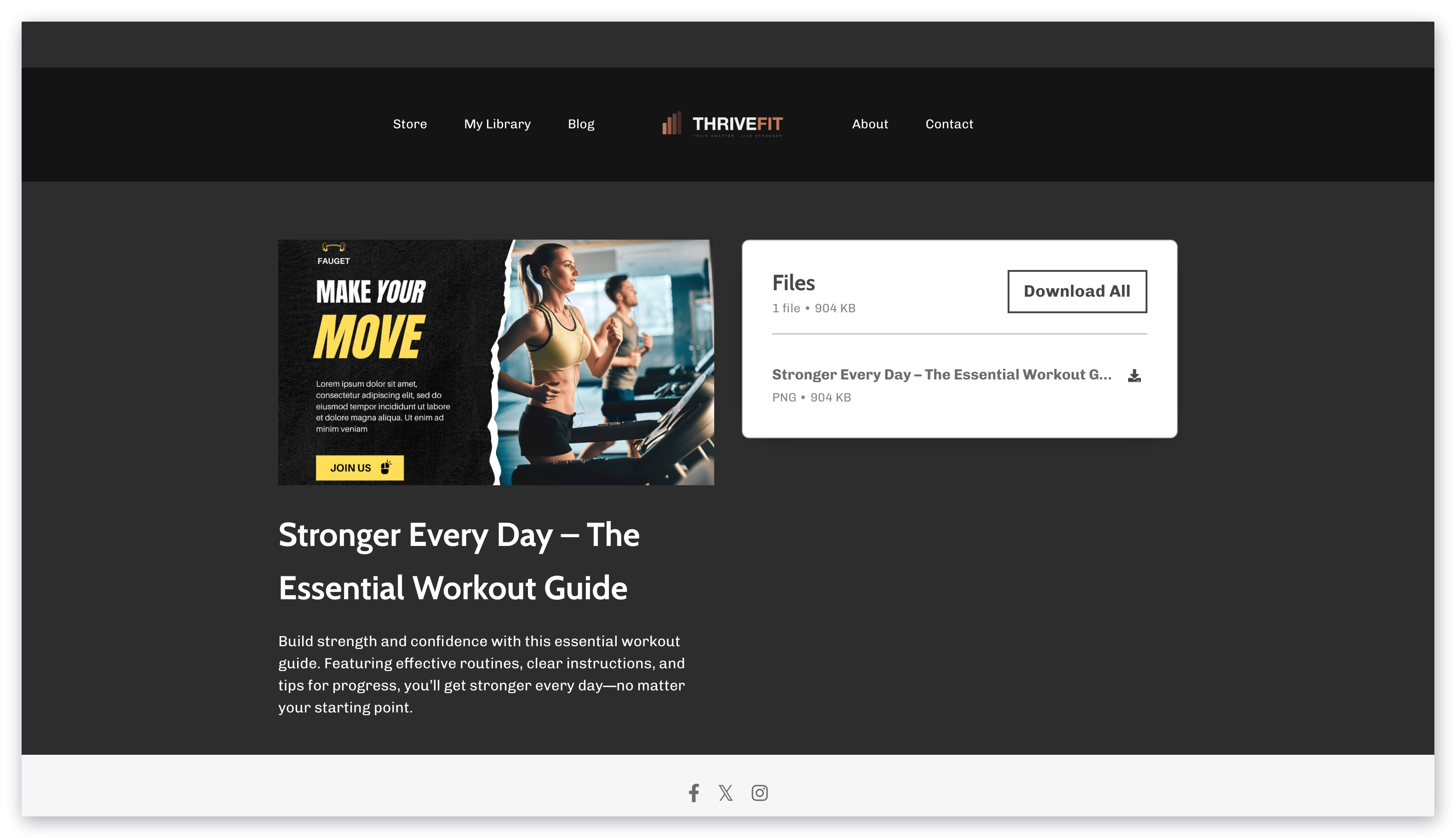 [Learn to customize the colors and fonts used in your Downloads Product](#customize-downloads-appearance).
## Create Downloads
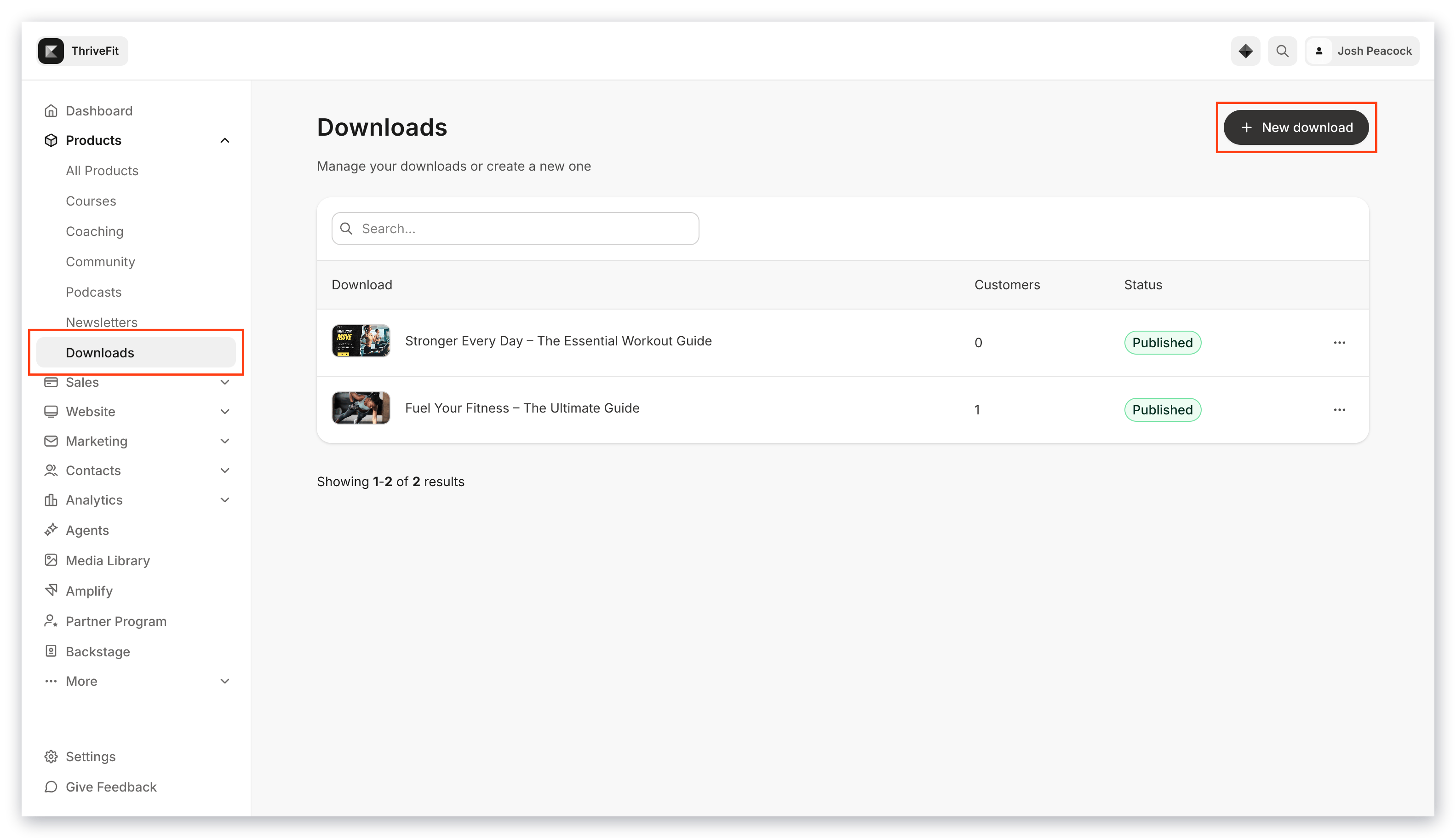
1. Open the **Products** tab from your Dashboard.
2. Click **Downloads**.
3. Select **Get started** or **+ New download**.
4. Follow the on-screen instructions to create your Download Product:
[Learn to customize the colors and fonts used in your Downloads Product](#customize-downloads-appearance).
## Create Downloads
1. Open the **Products** tab from your Dashboard.
2. Click **Downloads**.
3. Select **Get started** or **+ New download**.
4. Follow the on-screen instructions to create your Download Product:
 5. Enter your Download details:
* **Title**
* **Description**
* **Thumbnail image** (displayed in your customer's Library)
* Upload your files by clicking **Choose files**. [Learn more about compatible file types](../../website/pages/what-are-compatible-file-types-i-can-upload-in-kajabi).
* Price your download by creating a new **Offer** or click **Skip for now**. [Learn more about Offers](../../sales/offers/offers-overview).
**Note:**
You can add more files after creating your Downloads Product.
After creating your Download Product, you can [update your files](#update-files-in-Downloads), view the Offer(s) connected to your Product, view your customers, update your Downloads details in your Product Settings, preview your Product, and share the link to your Offer.
## Update files in Downloads
Add, remove, and update the title of your downloadable files by accessing the **Files** tab within your **Downloads Product** page.
### Add more files to a Downloads Product
1. Open the **Products** tab from your Dashboard.
2. Click **Downloads**.
3. Select the Downloads Product that you wish to update:
5. Enter your Download details:
* **Title**
* **Description**
* **Thumbnail image** (displayed in your customer's Library)
* Upload your files by clicking **Choose files**. [Learn more about compatible file types](../../website/pages/what-are-compatible-file-types-i-can-upload-in-kajabi).
* Price your download by creating a new **Offer** or click **Skip for now**. [Learn more about Offers](../../sales/offers/offers-overview).
**Note:**
You can add more files after creating your Downloads Product.
After creating your Download Product, you can [update your files](#update-files-in-Downloads), view the Offer(s) connected to your Product, view your customers, update your Downloads details in your Product Settings, preview your Product, and share the link to your Offer.
## Update files in Downloads
Add, remove, and update the title of your downloadable files by accessing the **Files** tab within your **Downloads Product** page.
### Add more files to a Downloads Product
1. Open the **Products** tab from your Dashboard.
2. Click **Downloads**.
3. Select the Downloads Product that you wish to update:
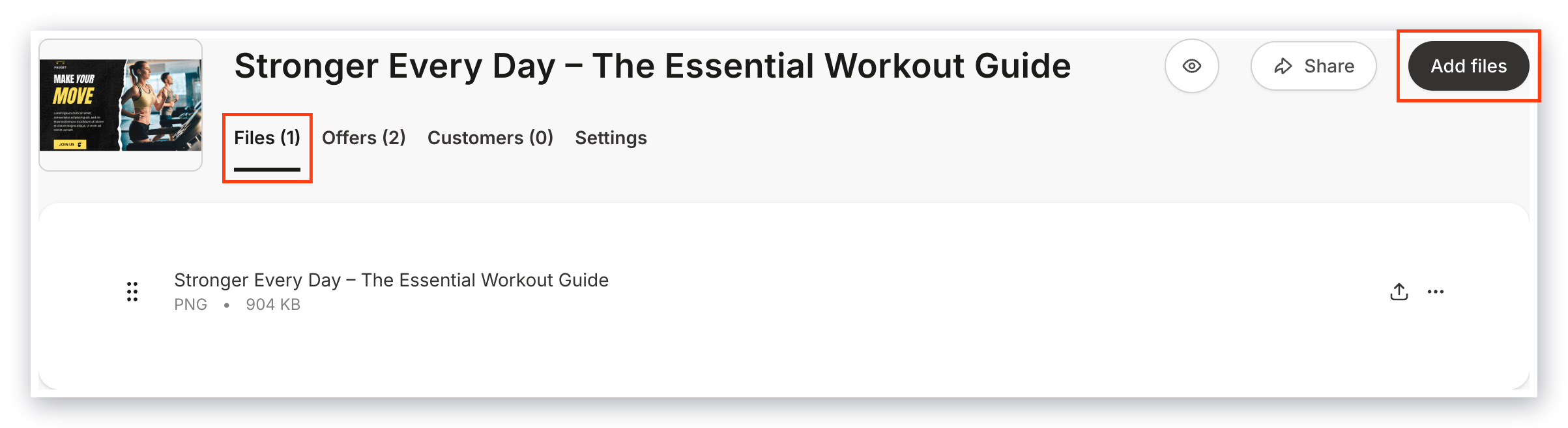
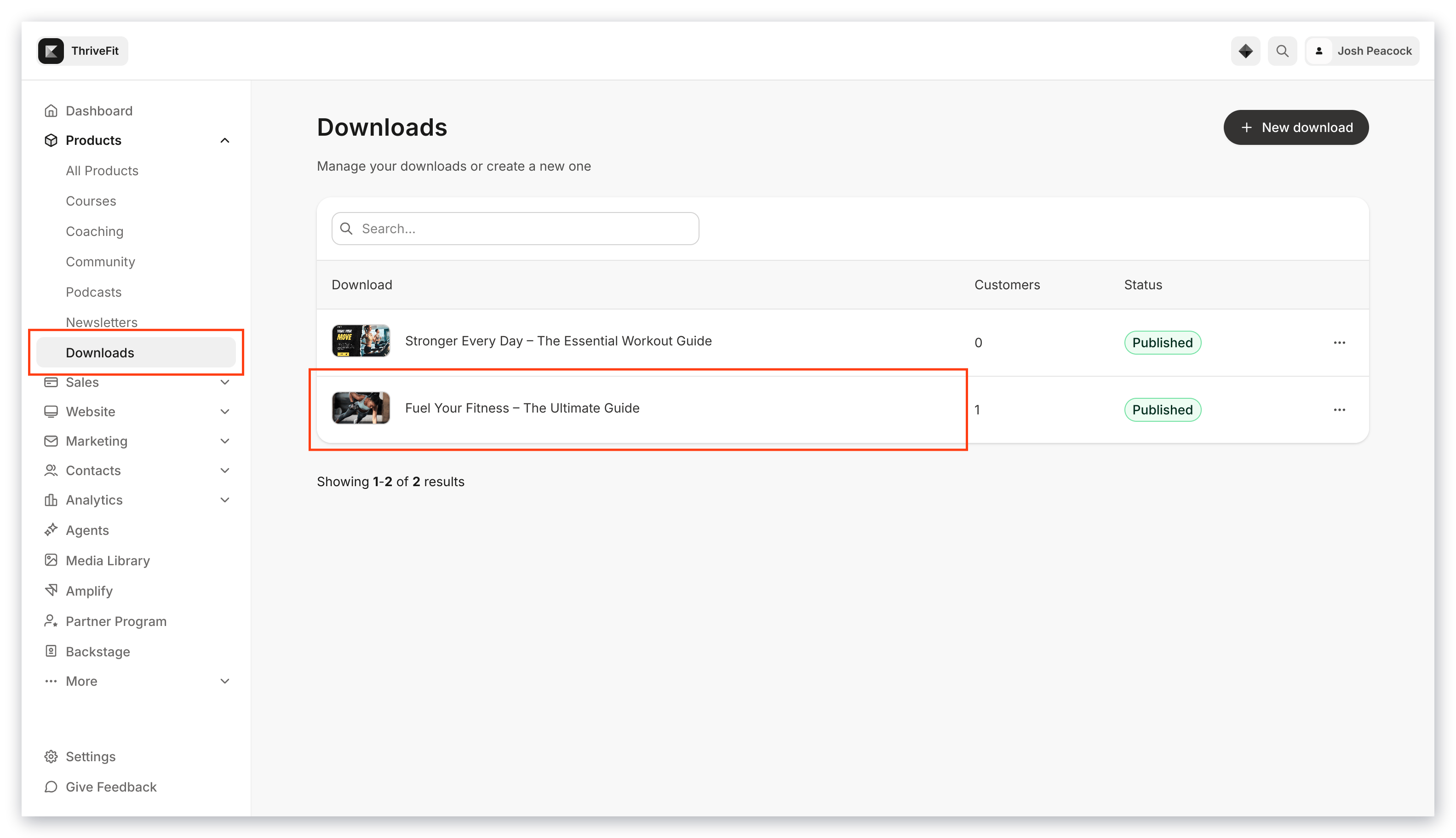 4. Open the **Files** tab.
5. Select **Add files**:
4. Open the **Files** tab.
5. Select **Add files**:
 ### Remove files from a Downloads Product
1. Open the **Products** tab from your Dashboard.
2. Click **Downloads**.
3. Select the Downloads Product that you wish to update:
### Remove files from a Downloads Product
1. Open the **Products** tab from your Dashboard.
2. Click **Downloads**.
3. Select the Downloads Product that you wish to update:
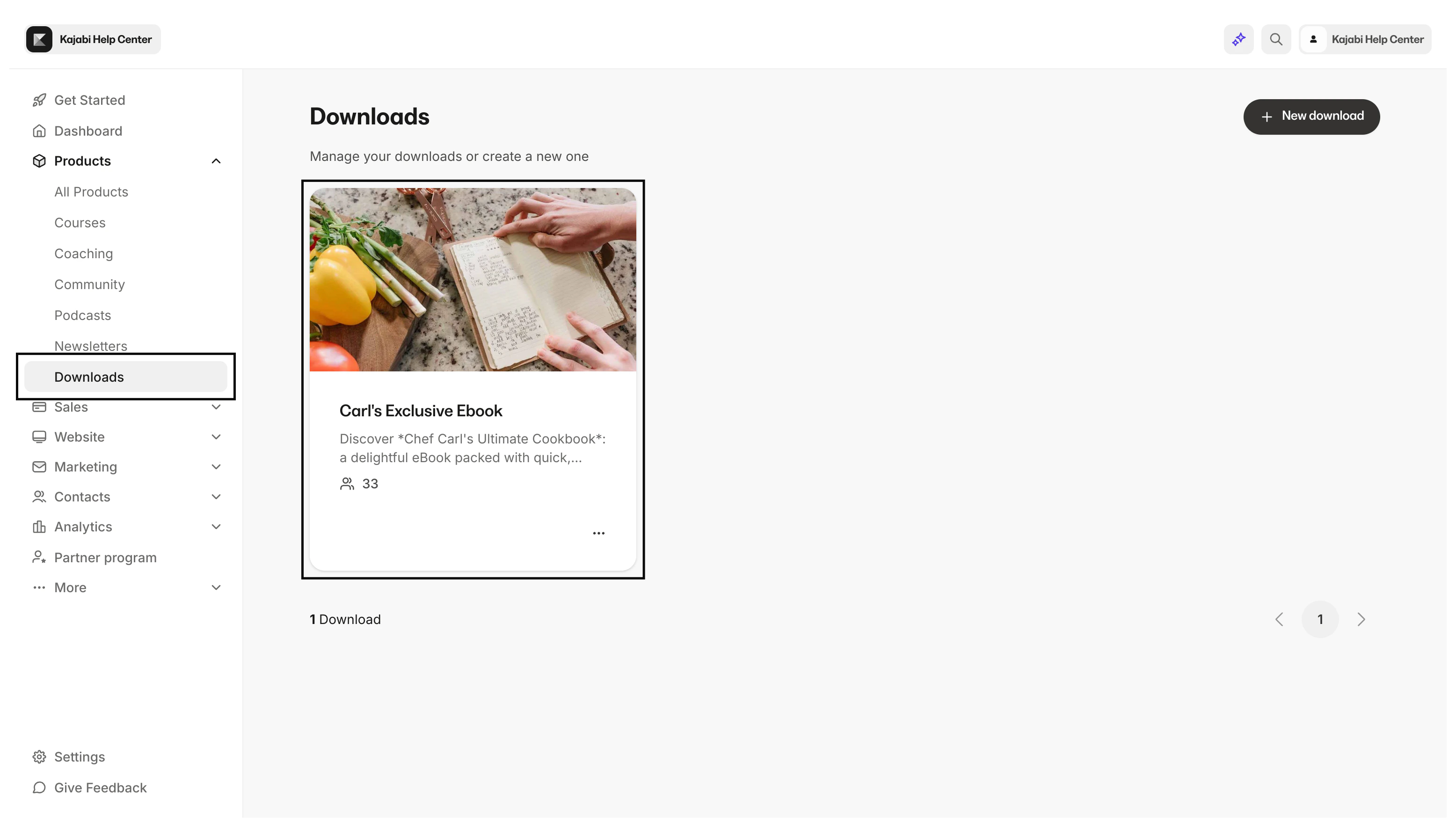 4. Open the **Files** tab.
5. Locate the file you wish to delete.
6. Open the **More actions menu** `…`.
7. Select **Delete**.
8. Confirm your desire to delete.
**Note:**
If you accidentally remove a file from your Downloads Product, you can re-upload the file by following the steps to add more files to your Product.
### Edit a file title
1. Open the **Products** tab from your Dashboard.
2. Click **Downloads**.
3. Select the Downloads Product that you wish to update:
4. Open the **Files** tab.
5. Locate the file you wish to delete.
6. Open the **More actions menu** `…`.
7. Select **Delete**.
8. Confirm your desire to delete.
**Note:**
If you accidentally remove a file from your Downloads Product, you can re-upload the file by following the steps to add more files to your Product.
### Edit a file title
1. Open the **Products** tab from your Dashboard.
2. Click **Downloads**.
3. Select the Downloads Product that you wish to update:
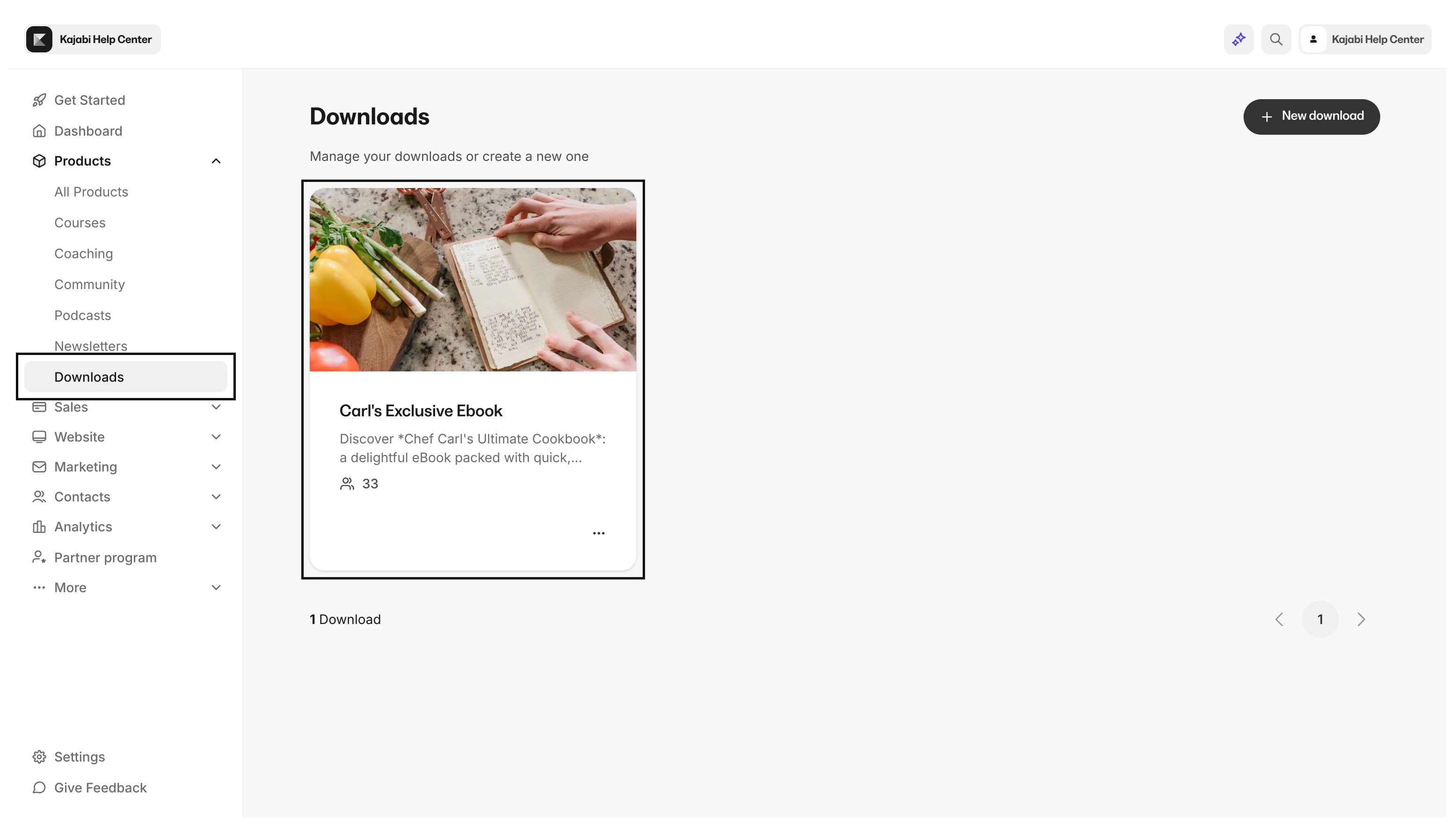 4. Open the **Files** tab.
5. Locate the file you wish to update.
6. Open the **More actions menu** `…`.
7. Select **Edit file**:
4. Open the **Files** tab.
5. Locate the file you wish to update.
6. Open the **More actions menu** `…`.
7. Select **Edit file**:
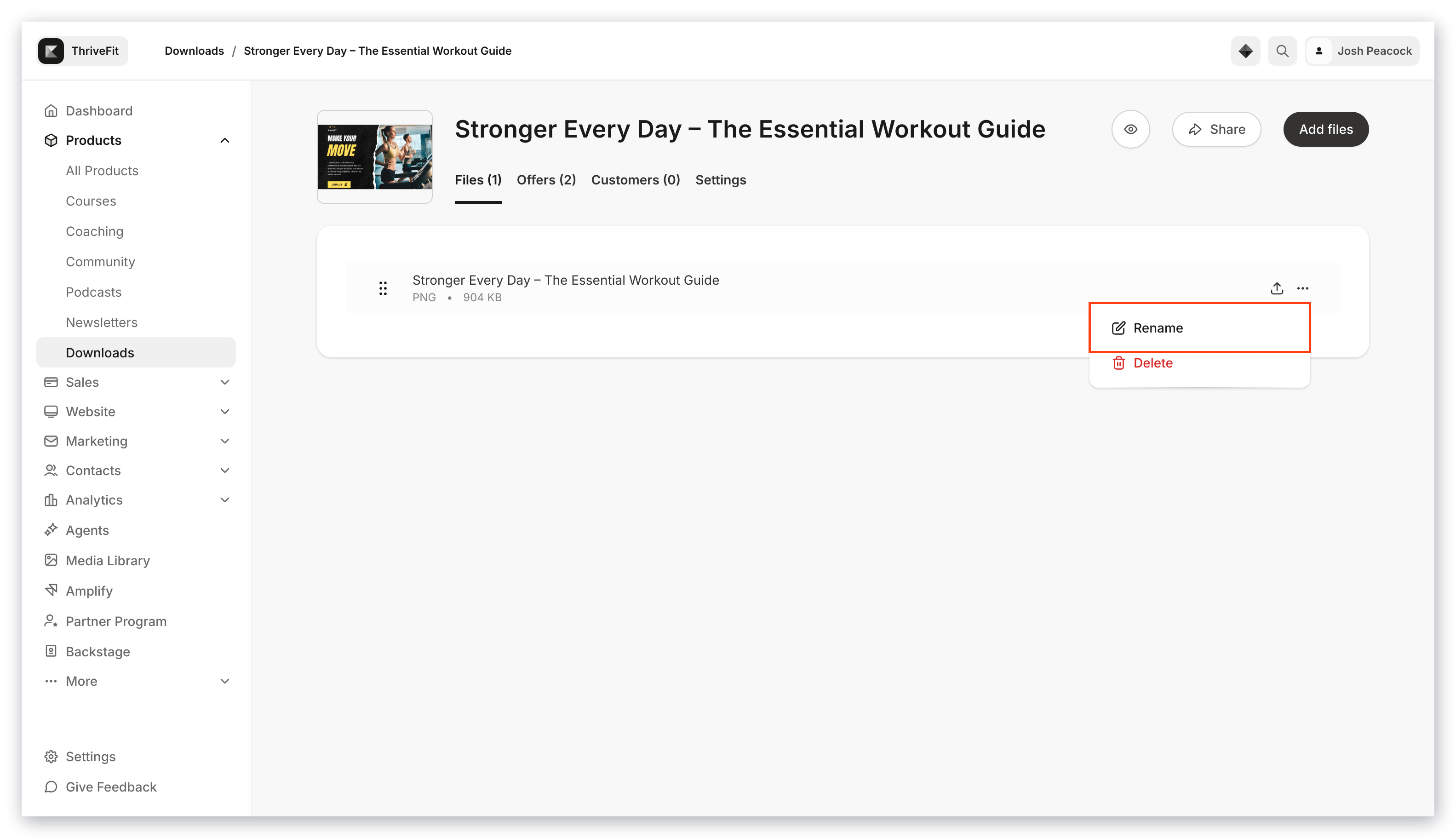 8. Enter your file name.
9. Click **Save** to keep and apply your changes:
8. Enter your file name.
9. Click **Save** to keep and apply your changes:
 ## Customize Downloads appearance
Your Download Product displays the colors and font styles set by the **Style Guide** for your **Website Template**.
### Access the Style Guide
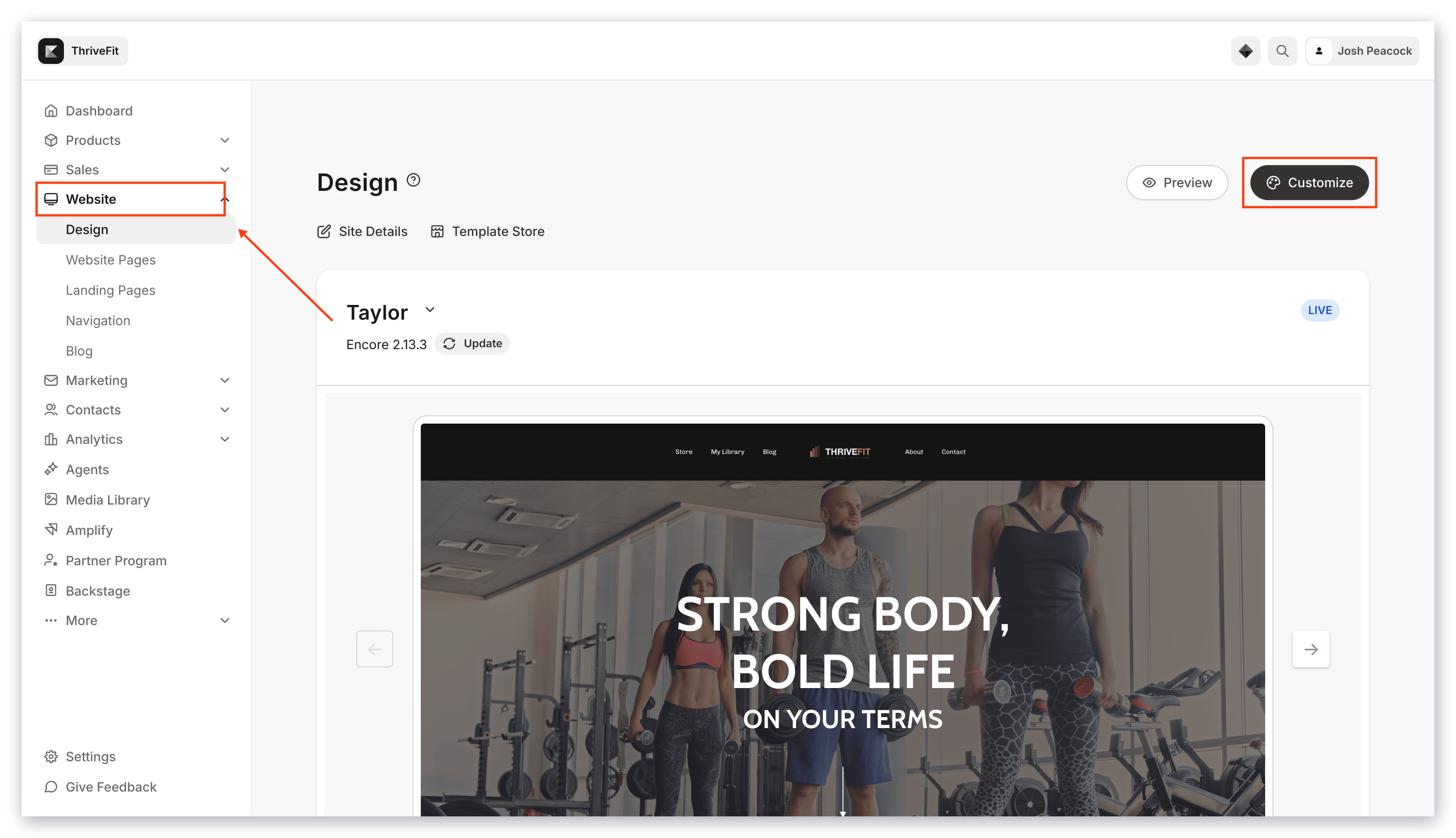
1. Open the **Website** tab from your Dashboard.
2. Click **Design**.
3. Click **Customize**:
## Customize Downloads appearance
Your Download Product displays the colors and font styles set by the **Style Guide** for your **Website Template**.
### Access the Style Guide
1. Open the **Website** tab from your Dashboard.
2. Click **Design**.
3. Click **Customize**:
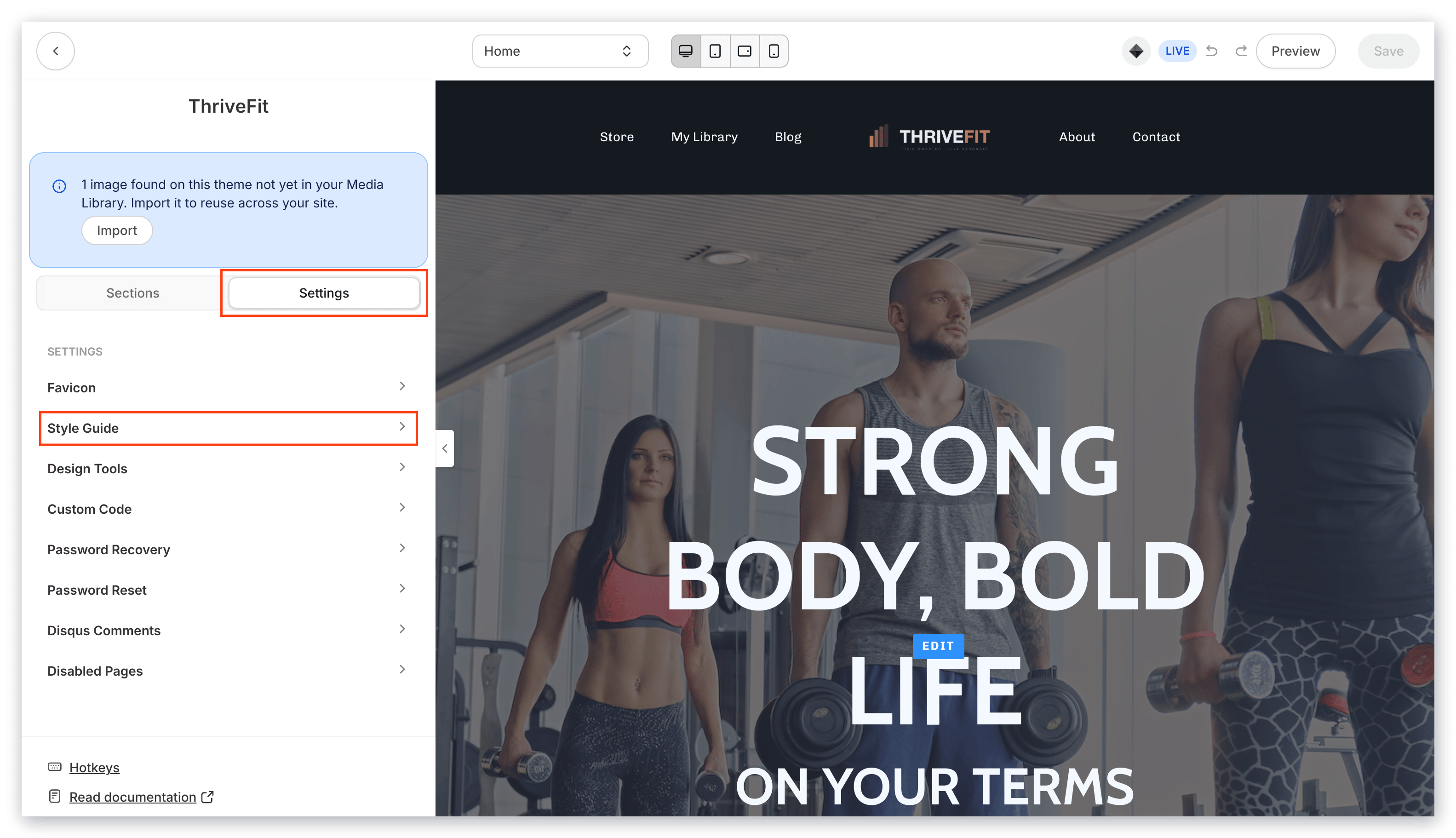
 4. In your Website Template Builder, click **Settings**.
5. Select **Style Guide**:
4. In your Website Template Builder, click **Settings**.
5. Select **Style Guide**:
 Update your Style Guide settings to customize the appearance of your Downloads Product.
[Learn more about the Style Guide settings](../../website/pages/customize-your-page-font-and-style-with-the-style-guide).
**Note:**
Updating the colors in the Style Guide settings of your Website Template will display your colors in all of your website pages and all pages that use your Website Template.
### Customize colors and fonts
With the Website Template Style Guide, you can customize the appearance of your Downloads Product page by selecting the colors and fonts that best fit your brand and style.
Adjust the following Website Style Guide settings to display in your Downloads Product and across your Website Pages:
#### Page background color
Change the color displayed in the background of your Downloads Product page. For example, the yellow background in the image below:
Update your Style Guide settings to customize the appearance of your Downloads Product.
[Learn more about the Style Guide settings](../../website/pages/customize-your-page-font-and-style-with-the-style-guide).
**Note:**
Updating the colors in the Style Guide settings of your Website Template will display your colors in all of your website pages and all pages that use your Website Template.
### Customize colors and fonts
With the Website Template Style Guide, you can customize the appearance of your Downloads Product page by selecting the colors and fonts that best fit your brand and style.
Adjust the following Website Style Guide settings to display in your Downloads Product and across your Website Pages:
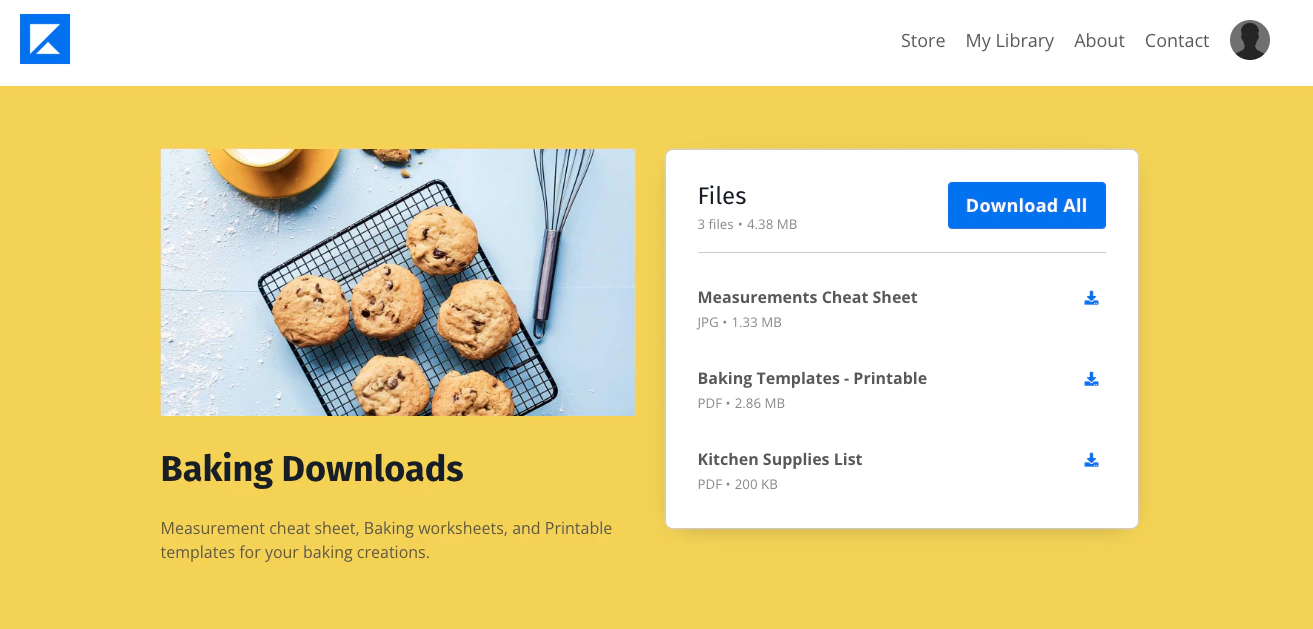
#### Page background color
Change the color displayed in the background of your Downloads Product page. For example, the yellow background in the image below:
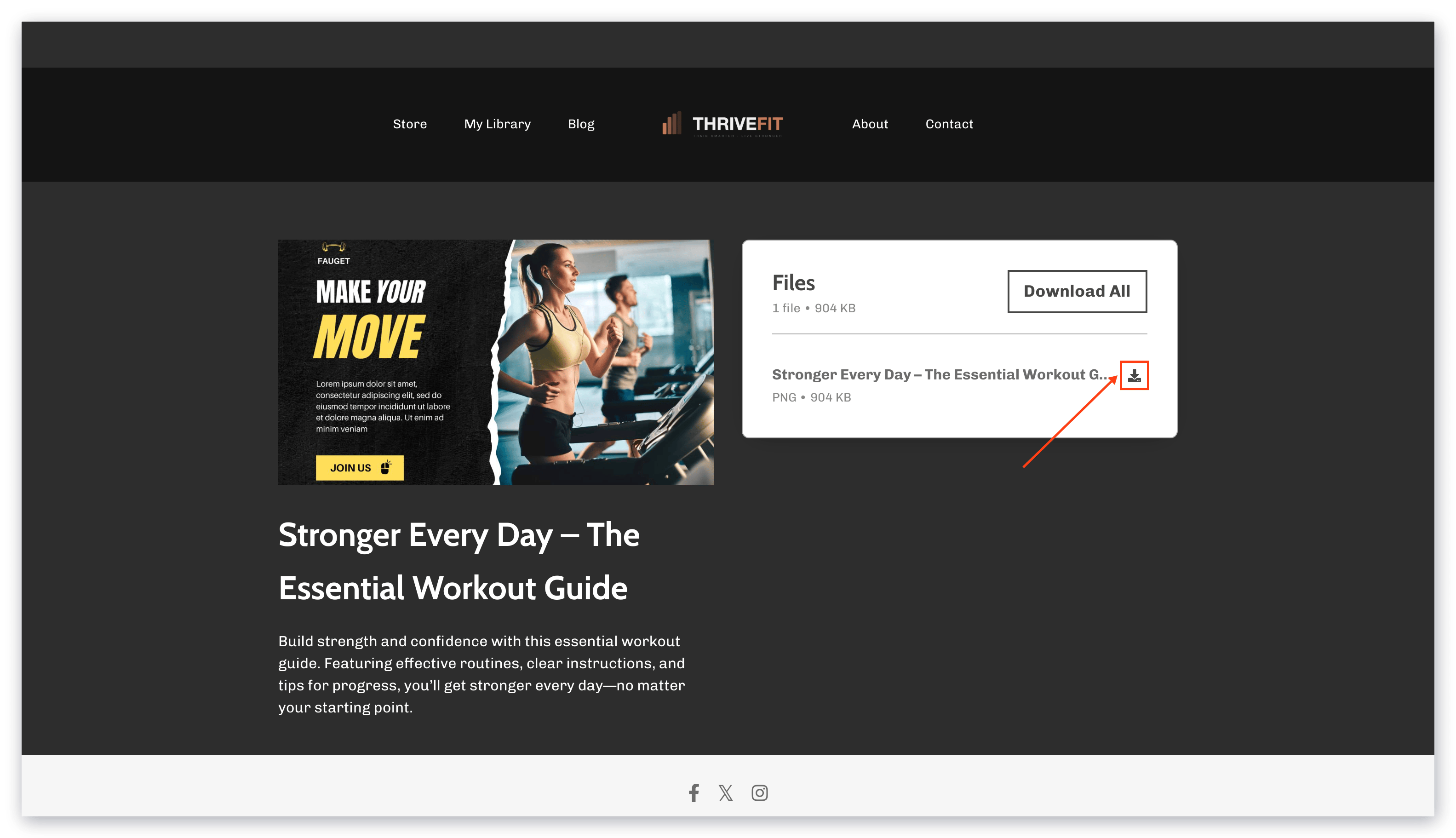
 #### Primary color
Change the color displayed for the download icons next to each file:
#### Primary color
Change the color displayed for the download icons next to each file:
 [Learn to customize the primary color for your Website pages and Downloads Product](../../website/pages/customize-your-page-font-and-style-with-the-style-guide#colors).
#### Font colors
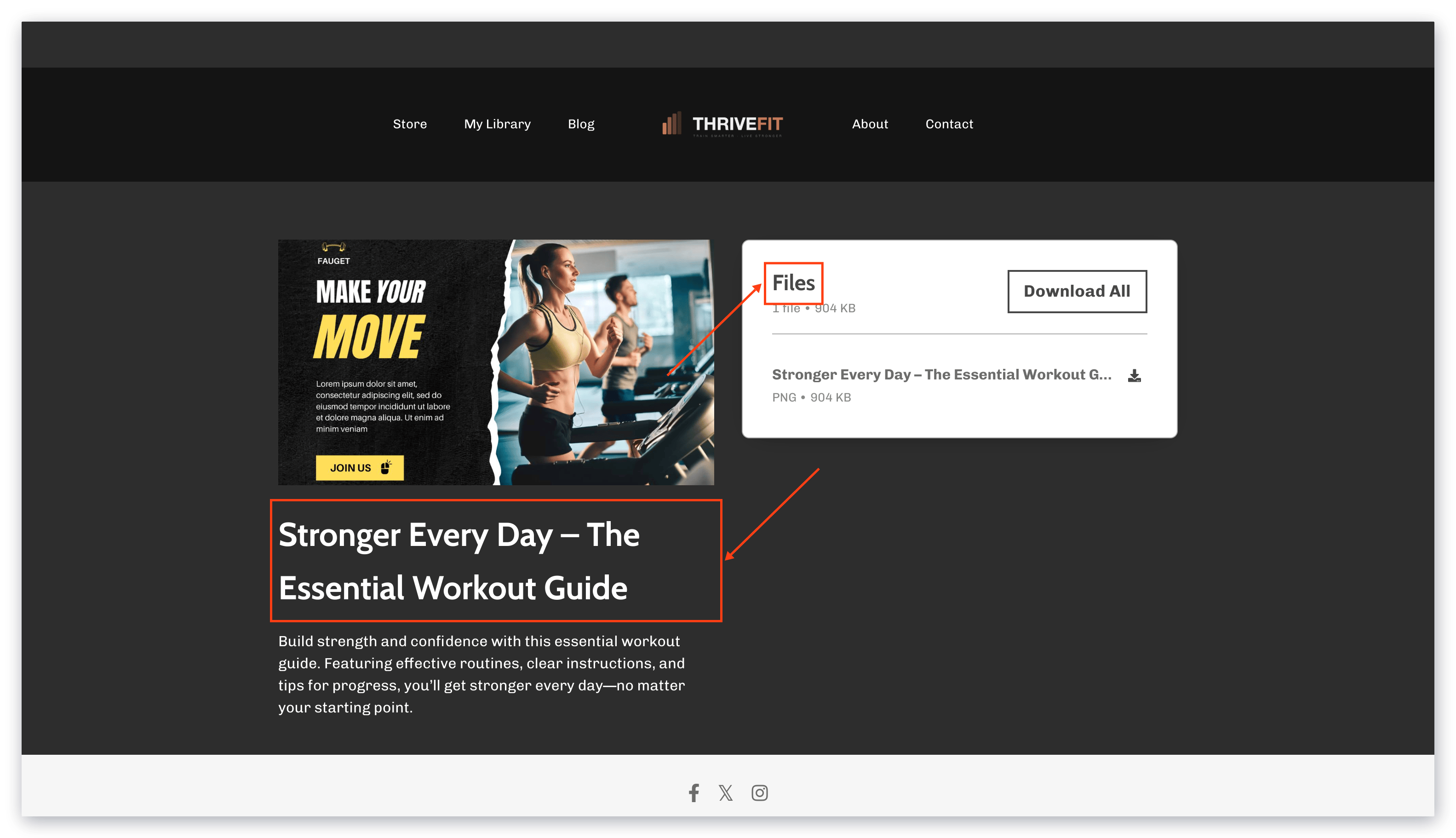
**Heading Font Color** - Change the color displayed for the title of your Downloads Product and the "Files" text:
[Learn to customize the primary color for your Website pages and Downloads Product](../../website/pages/customize-your-page-font-and-style-with-the-style-guide#colors).
#### Font colors
**Heading Font Color** - Change the color displayed for the title of your Downloads Product and the "Files" text:
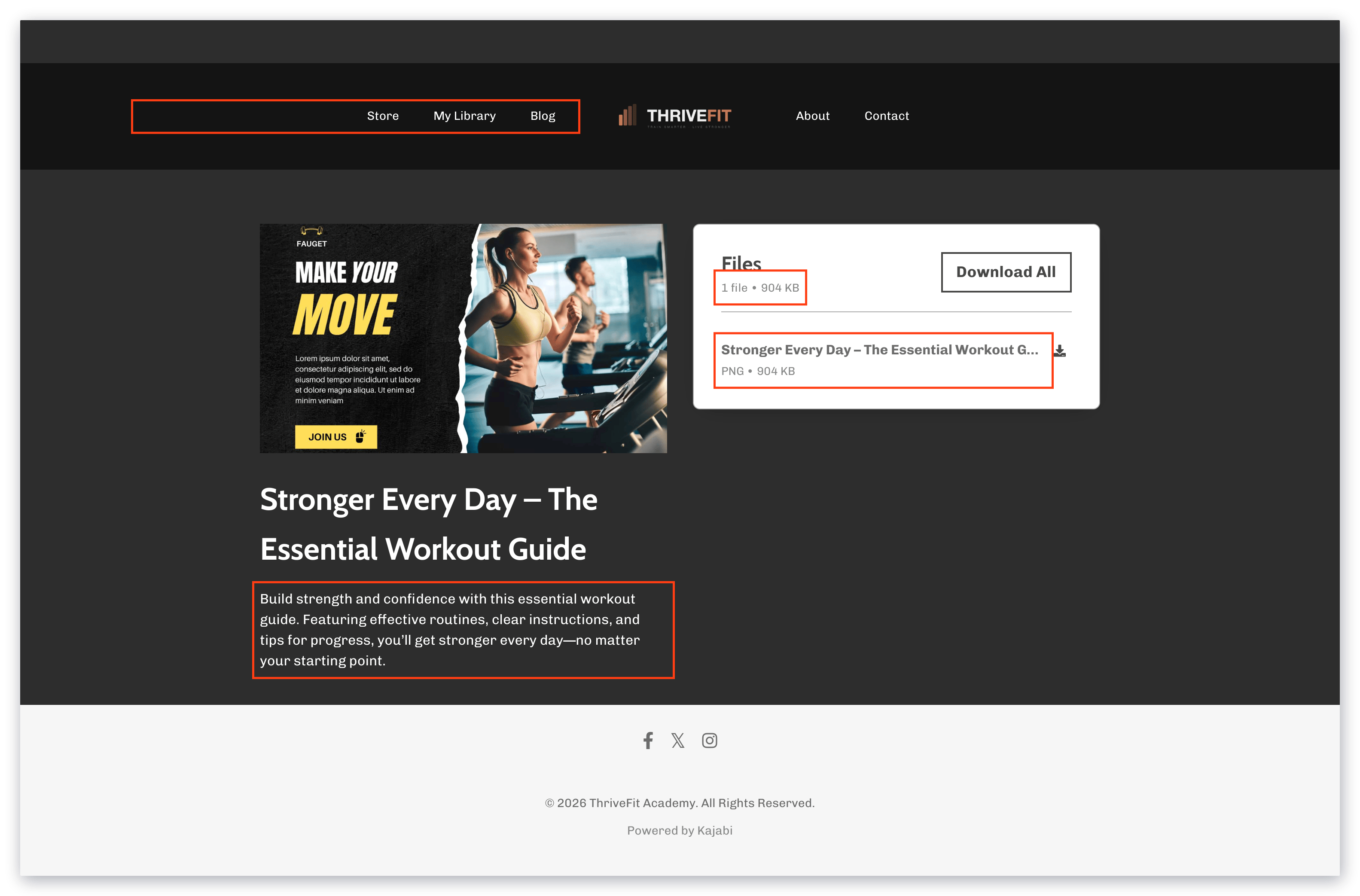
 **Body Font Color** - Change the color displayed for the description of your Downloads Product, the downloadable file names, the information about your files (e.g., File Type, File Size), and the page header menu:
 [Learn to customize the font colors for your Website pages and Downloads Product](../../website/pages/customize-your-page-font-and-style-with-the-style-guide#h_1a6d7805-996d-49dd-a63b-1f8684280b48).
#### Buttons
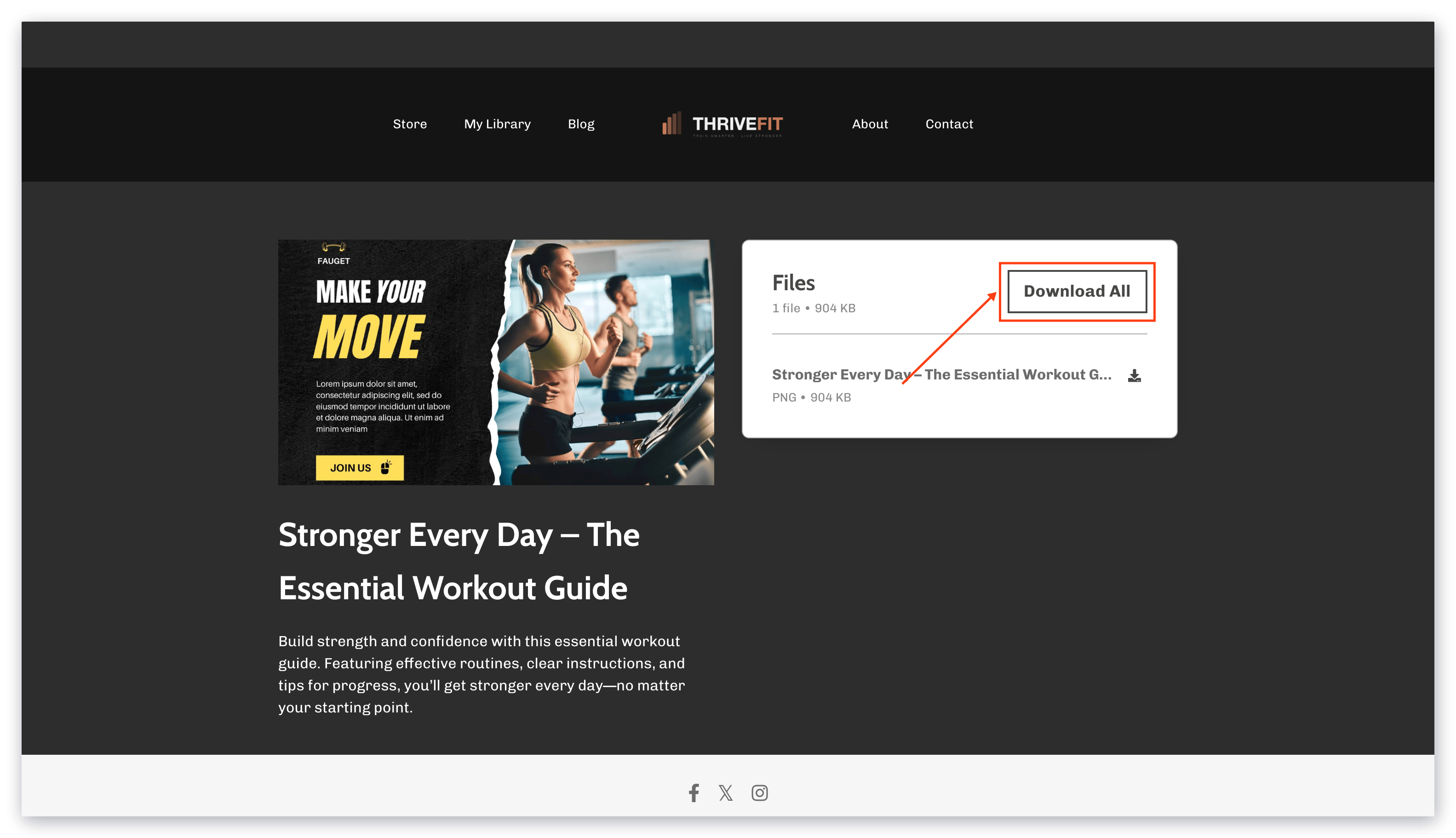
**Button Background Color** - Change the color displayed for your **Download All** button:
[Learn to customize the font colors for your Website pages and Downloads Product](../../website/pages/customize-your-page-font-and-style-with-the-style-guide#h_1a6d7805-996d-49dd-a63b-1f8684280b48).
#### Buttons
**Button Background Color** - Change the color displayed for your **Download All** button:
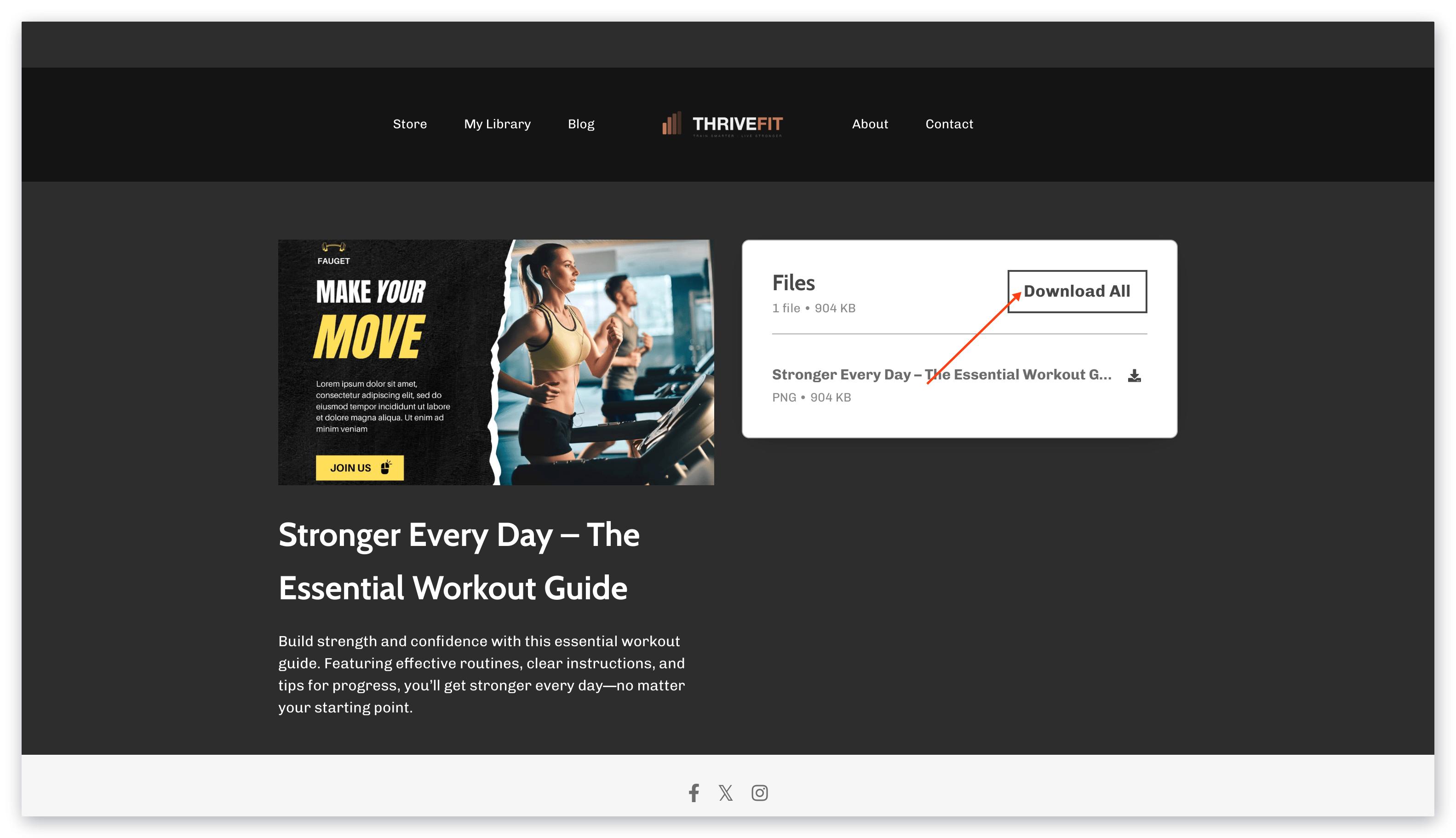
 **Button Text Color** - Change the color displayed for the **Download All** text color:
 [Learn to customize the button colors for your Website pages and Downloads Product](../../website/pages/customize-your-page-font-and-style-with-the-style-guide#h_01ENBGZ307B7C5DGMEA8XE3S58).
#### Fonts
**Body Font** - Change the font family style for all of the body text displayed:
* Downloads Product description
* Downloadable file names
* Downloadable file information (e.g., file type, file size)
* "Download All" text
* Page header menu
[Learn to customize the button colors for your Website pages and Downloads Product](../../website/pages/customize-your-page-font-and-style-with-the-style-guide#h_01ENBGZ307B7C5DGMEA8XE3S58).
#### Fonts
**Body Font** - Change the font family style for all of the body text displayed:
* Downloads Product description
* Downloadable file names
* Downloadable file information (e.g., file type, file size)
* "Download All" text
* Page header menu
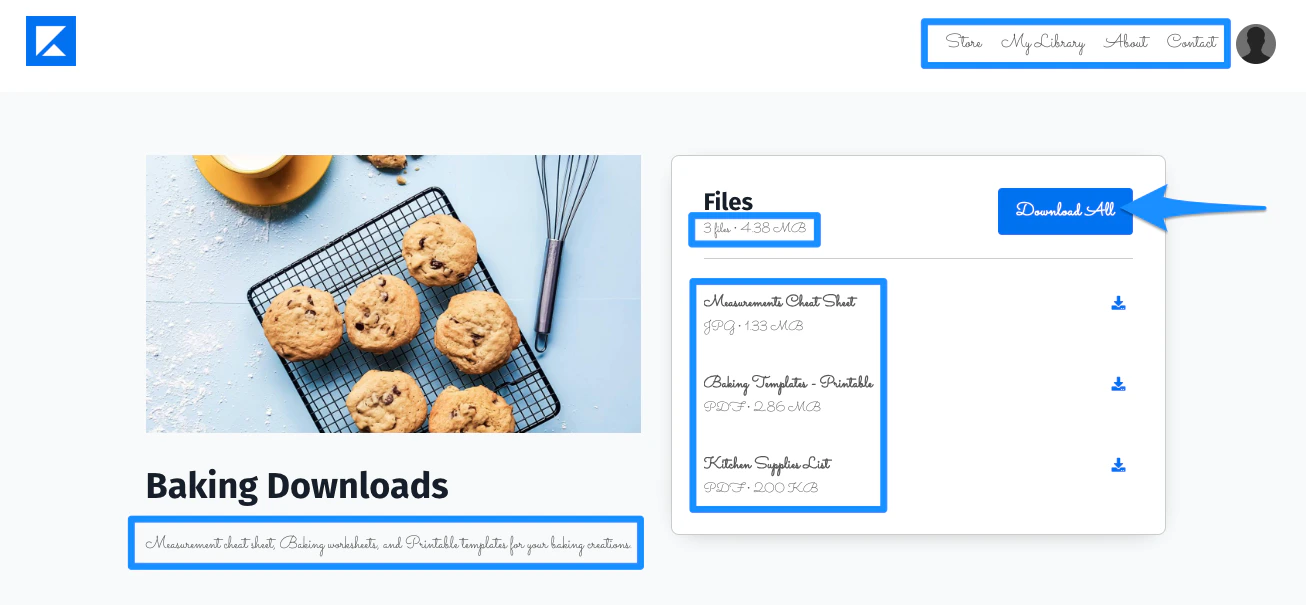 **Body Font Weight** - Change the font weight (i.e., Normal or Bold) for all of the body text displayed:
* Downloads Product description
* Downloadable file names
* Downloadable file information (e.g., file type, file size)
* "Download All" text
* Page header menu
**Body Font Weight** - Change the font weight (i.e., Normal or Bold) for all of the body text displayed:
* Downloads Product description
* Downloadable file names
* Downloadable file information (e.g., file type, file size)
* "Download All" text
* Page header menu
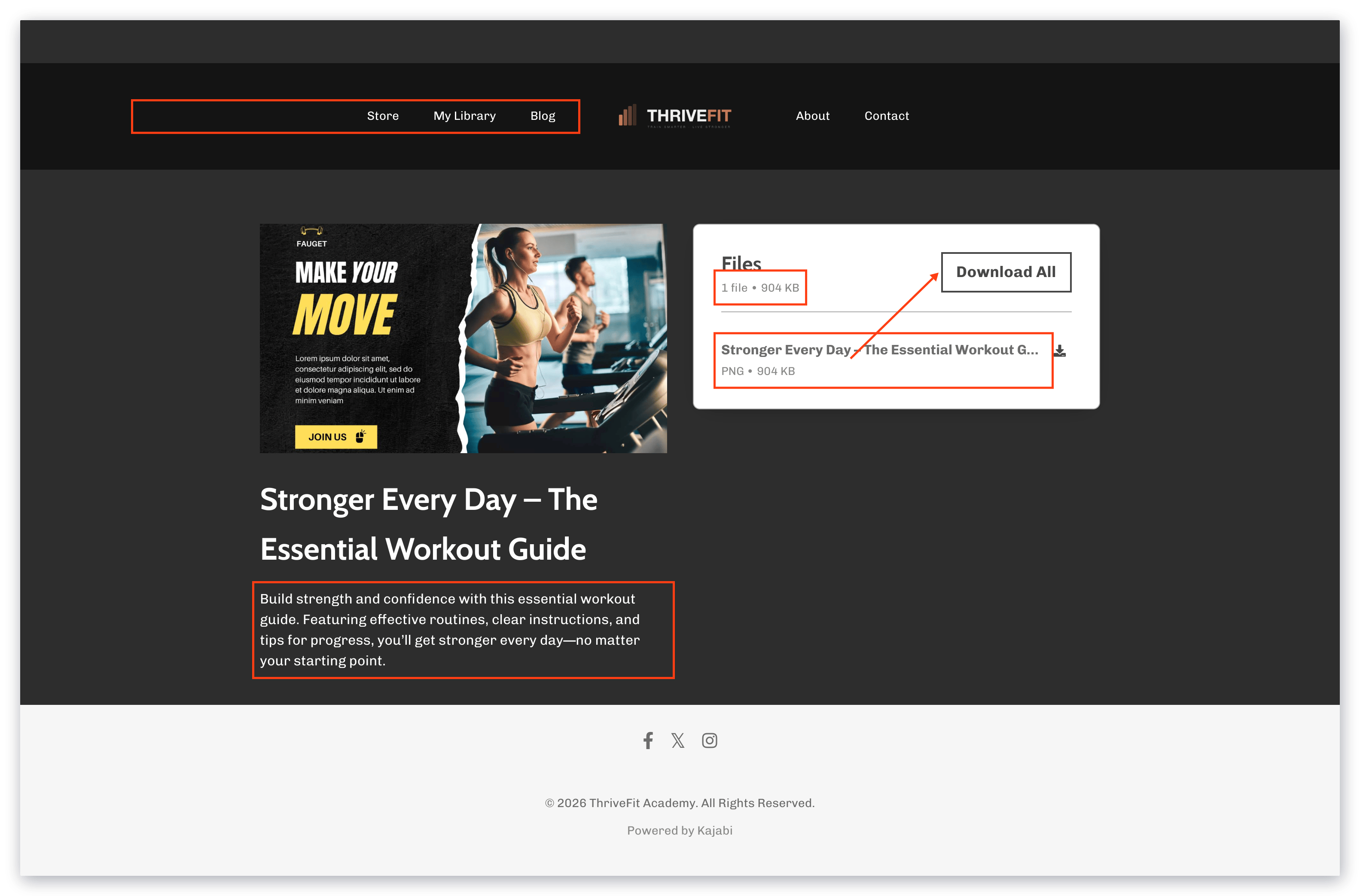 **Heading Font** - Change the color displayed for the title of your Downloads Product and the "Files" text:
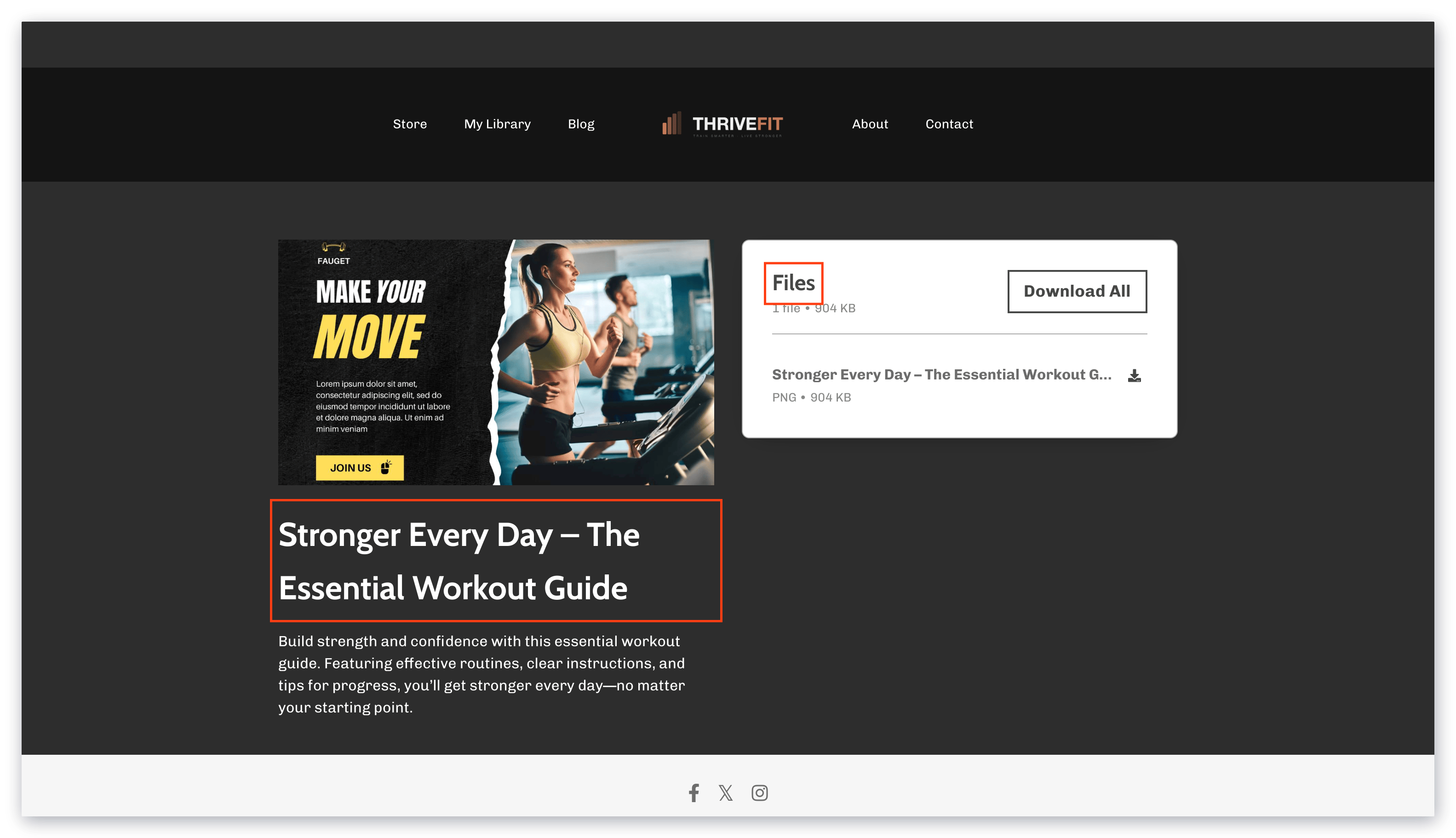 **Heading Font Weight** - Change the font weight (i.e., Normal or Bold) for the "Files" text.
**Note:**
Font sizes cannot be changed as they are optimized for viewing on desktop and mobile devices.
## FAQs
### How many Download Products can I create?
You can create as many Download Products as your business needs. All Download Products count as a single Product toward your Kajabi Plan limit.
### Can I add more files to a Downloads Product after creating it?
Yes. Access the **Files** tab within your Downloads Product page and select **Add files** to upload additional content at any time.
### Do Style Guide changes affect only my Downloads Product?
No. Changes to the Style Guide in your Website Template apply across all website pages and any pages that use your Website Template, including your Downloads Product.
**Heading Font Weight** - Change the font weight (i.e., Normal or Bold) for the "Files" text.
**Note:**
Font sizes cannot be changed as they are optimized for viewing on desktop and mobile devices.
## FAQs
### How many Download Products can I create?
You can create as many Download Products as your business needs. All Download Products count as a single Product toward your Kajabi Plan limit.
### Can I add more files to a Downloads Product after creating it?
Yes. Access the **Files** tab within your Downloads Product page and select **Add files** to upload additional content at any time.
### Do Style Guide changes affect only my Downloads Product?
No. Changes to the Style Guide in your Website Template apply across all website pages and any pages that use your Website Template, including your Downloads Product.