> ## Documentation Index
> Fetch the complete documentation index at: https://help.kajabi.com/llms.txt
> Use this file to discover all available pages before exploring further.

# Create exclusive Newsletter access

> Use Subscriber and Paywall breaks to protect and monetize Newsletter content.

Create exclusive access to your Newsletter content with the **Subscriber** and **Paywall** breaks. Encourage Newsletter visitors to engage, subscribe, and/or purchase your Newsletter to gain access to exclusive content.

## Exclusive Newsletter access

Protect your content and monetize your Newsletter by creating exclusive access to your Newsletter Product(s). With the Subscriber and Paywall breaks, you can design Newsletter Posts that encourage visitors to convert into subscribers and even paid subscribers.

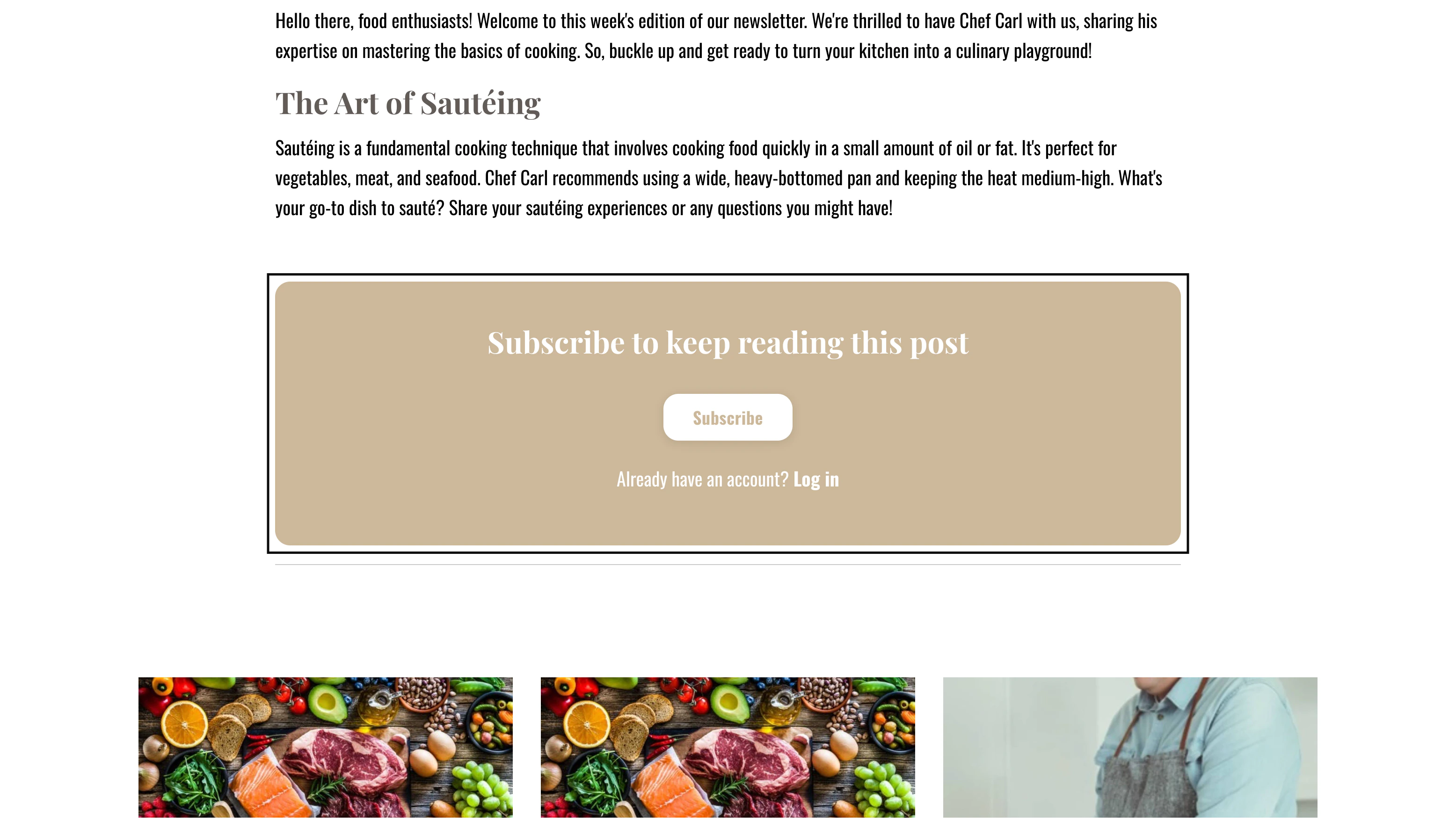
**Subscriber break:**

<img src="https://mintcdn.com/kajabi-support/0X831VxXANnxgpSu/articles/images/df7eac1c_upload_18356264611775603927.png?fit=max&auto=format&n=0X831VxXANnxgpSu&q=85&s=b1075bffe4f61dce4787fcb4bc26668e" alt="Subscriber break example" width="3112" height="1768" data-path="articles/images/df7eac1c_upload_18356264611775603927.png" />

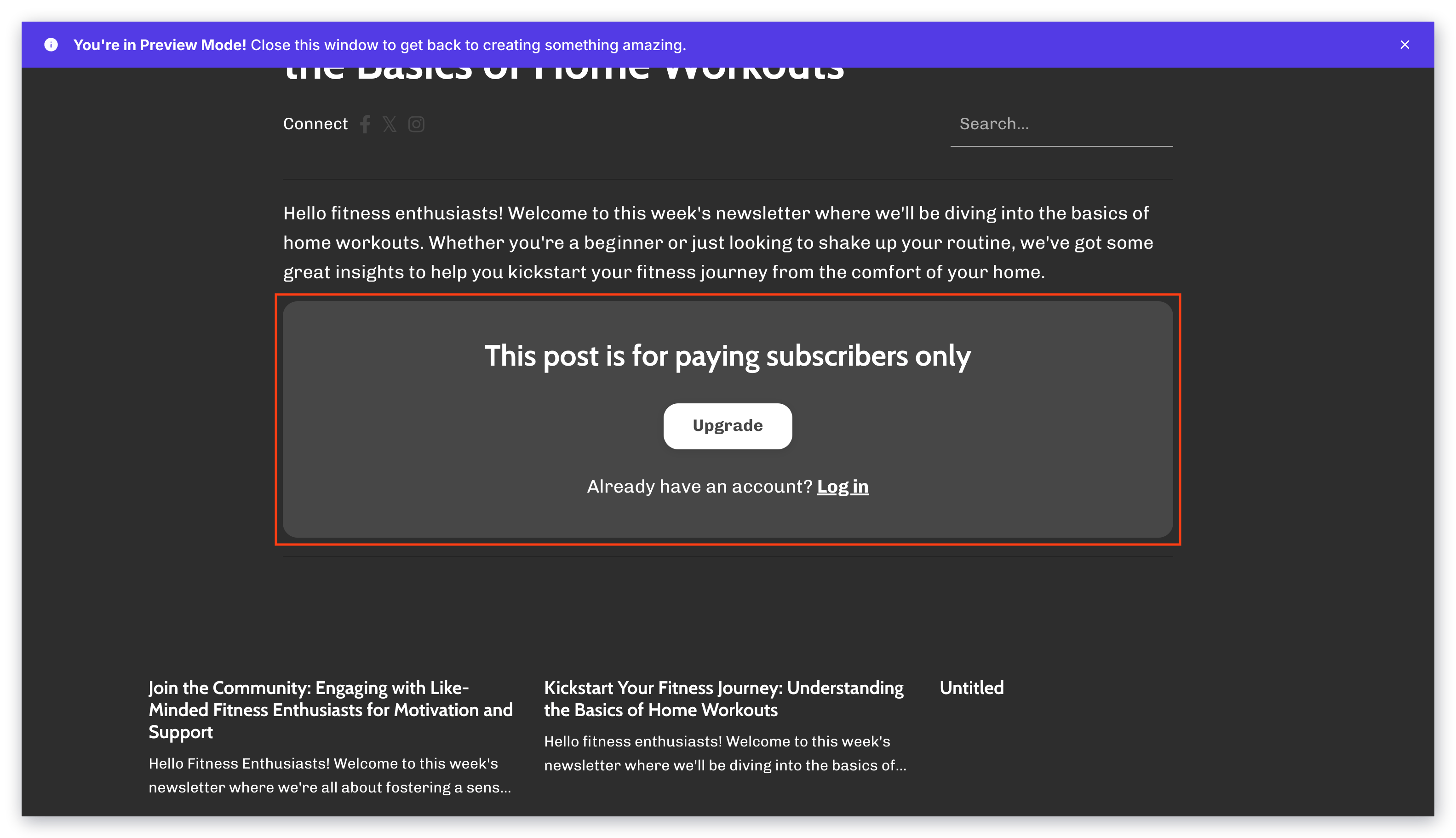
**Paywall break:**

<img src="https://mintcdn.com/kajabi-support/bZNMdsaL_lttmKcY/articles/images/7c2fd3a2_upload_16589269973154175955.png?fit=max&auto=format&n=bZNMdsaL_lttmKcY&q=85&s=0f0963c65f3dd9a4d6c4b2276ac13ecd" alt="Paywall break example" width="3112" height="1768" data-path="articles/images/7c2fd3a2_upload_16589269973154175955.png" />

<Tip>
  **Tip:**
  Leverage your Newsletter Post Settings to customize exclusive access by [hiding your post](../../products/newsletters/customizing-your-newsletter#h_01J3KYTT2CYAWFYF56X9ACS5MW) from your Newsletter page or by [segmenting the audience that receives your Newsletter email](../../products/newsletters/customizing-your-newsletter#h_01HTQH5F7P9TTC442YWCY9KD52).
</Tip>

## Subscriber break

### How Subscriber breaks work

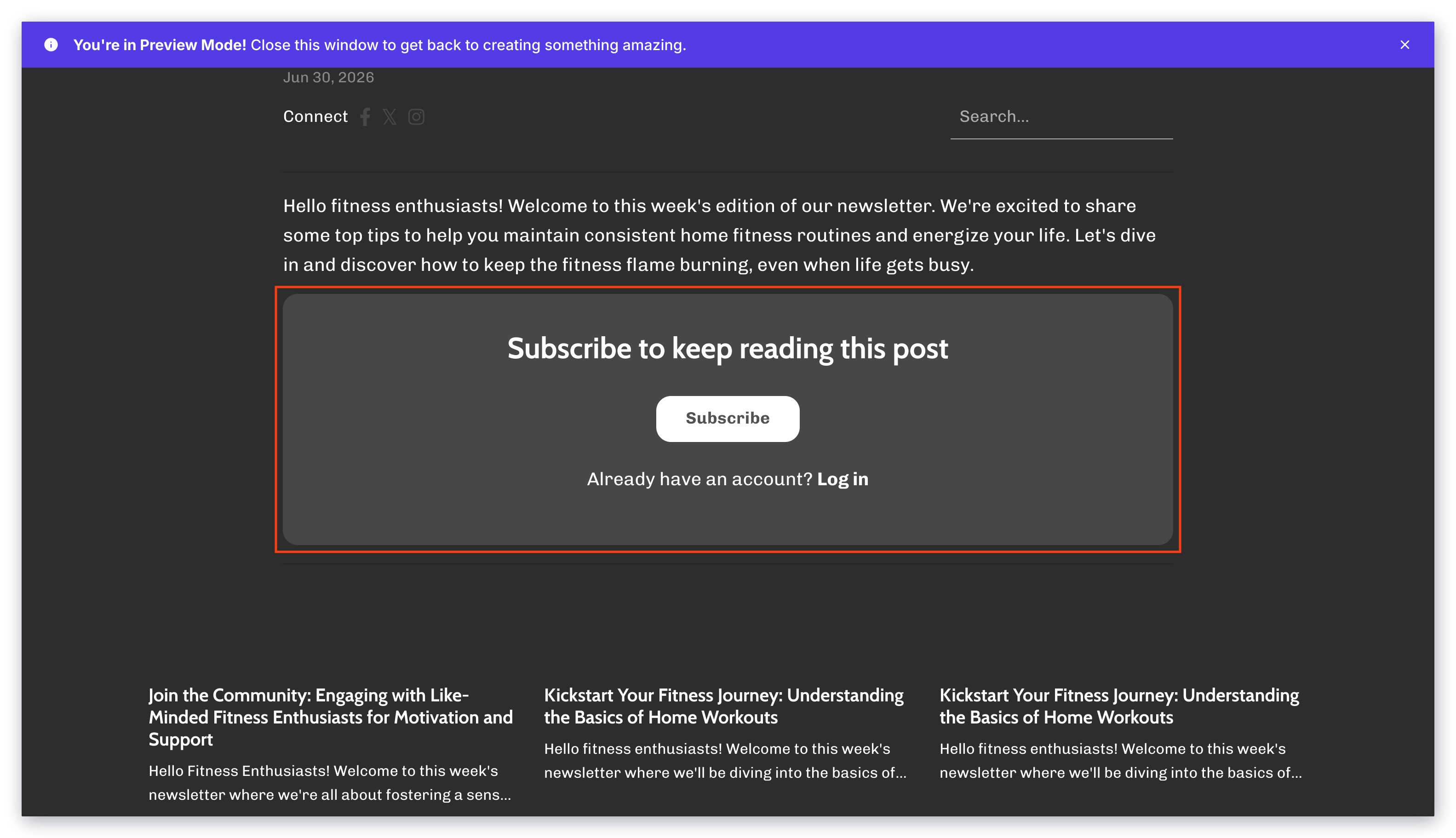
A Subscriber break hides all the content below the break from any non-subscribers:

<img src="https://mintcdn.com/kajabi-support/ulOk3PjSKir43Xg0/articles/images/111f5814_upload_18356264611775603927.png?fit=max&auto=format&n=ulOk3PjSKir43Xg0&q=85&s=23a392947dd22bbf4bf2d73312d693df" alt="Subscriber break" width="3112" height="1768" data-path="articles/images/111f5814_upload_18356264611775603927.png" />

Subscribers must be logged into your site to view the exclusive content. Kajabi makes it easy for visitors to log in by providing a clickable link/button to become a subscriber or log in:
<div className="w-full aspect-video">
  <iframe src="https://fast.wistia.net/embed/iframe/to8de2tjvf" allow="autoplay; fullscreen" allowFullScreen className="w-full h-full" />
</div>

### Add a Subscriber break

1. Navigate to your **Newsletter** tab
2. Select an existing **Newsletter** or [create one](../../products/newsletters/newsletters-overview)
3. Select the **Newsletter Post** you wish to edit or [create one](../../products/newsletters/newsletters-overview)
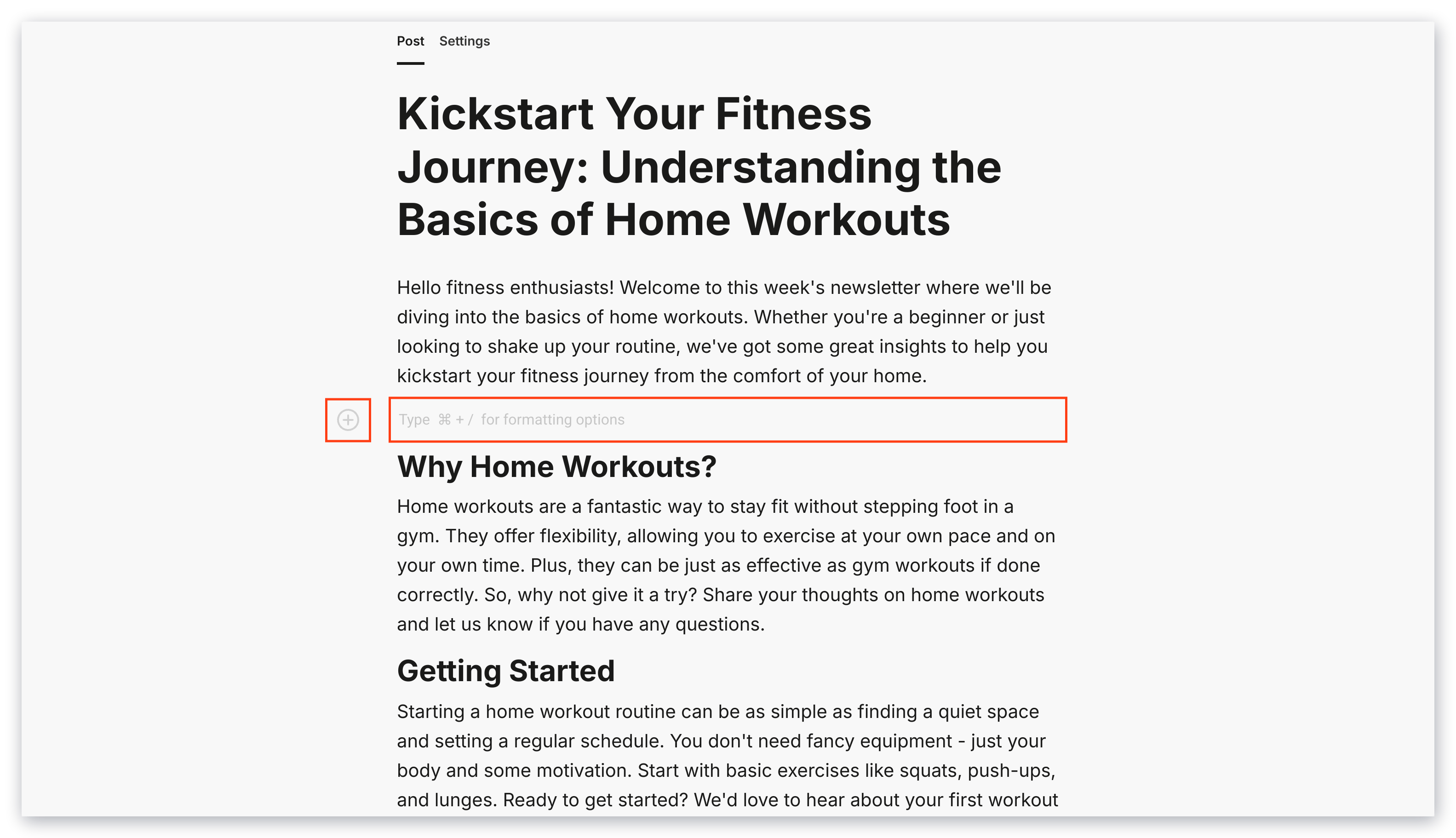
4. Press **Enter** in the location you want to place your Subscriber break. The content above the break is publicly visible and the content below the break is only accessible to your Newsletter subscribers.
5. Click the **+** icon or press **CMD** + **/** to open the text formatting options

<img src="https://mintcdn.com/kajabi-support/KcN1Ave2wqokJV1G/articles/images/69000eb3_upload_2864701512040181405.png?fit=max&auto=format&n=KcN1Ave2wqokJV1G&q=85&s=98ad98c45c8b026c15ec37a10cc8c262" alt="Text formatting options" width="3112" height="1768" data-path="articles/images/69000eb3_upload_2864701512040181405.png" />

6. Select **Subscriber break**

<img src="https://mintcdn.com/kajabi-support/bZNMdsaL_lttmKcY/articles/images/7faf2b5e_missing_image_8-20-18.png?fit=max&auto=format&n=bZNMdsaL_lttmKcY&q=85&s=e4d8d35e4a053a97a1cc54f8afe6093e" alt="Select subscriber break" width="1260" height="280" data-path="articles/images/7faf2b5e_missing_image_8-20-18.png" />

This adds your Subscriber break to your Newsletter Post:
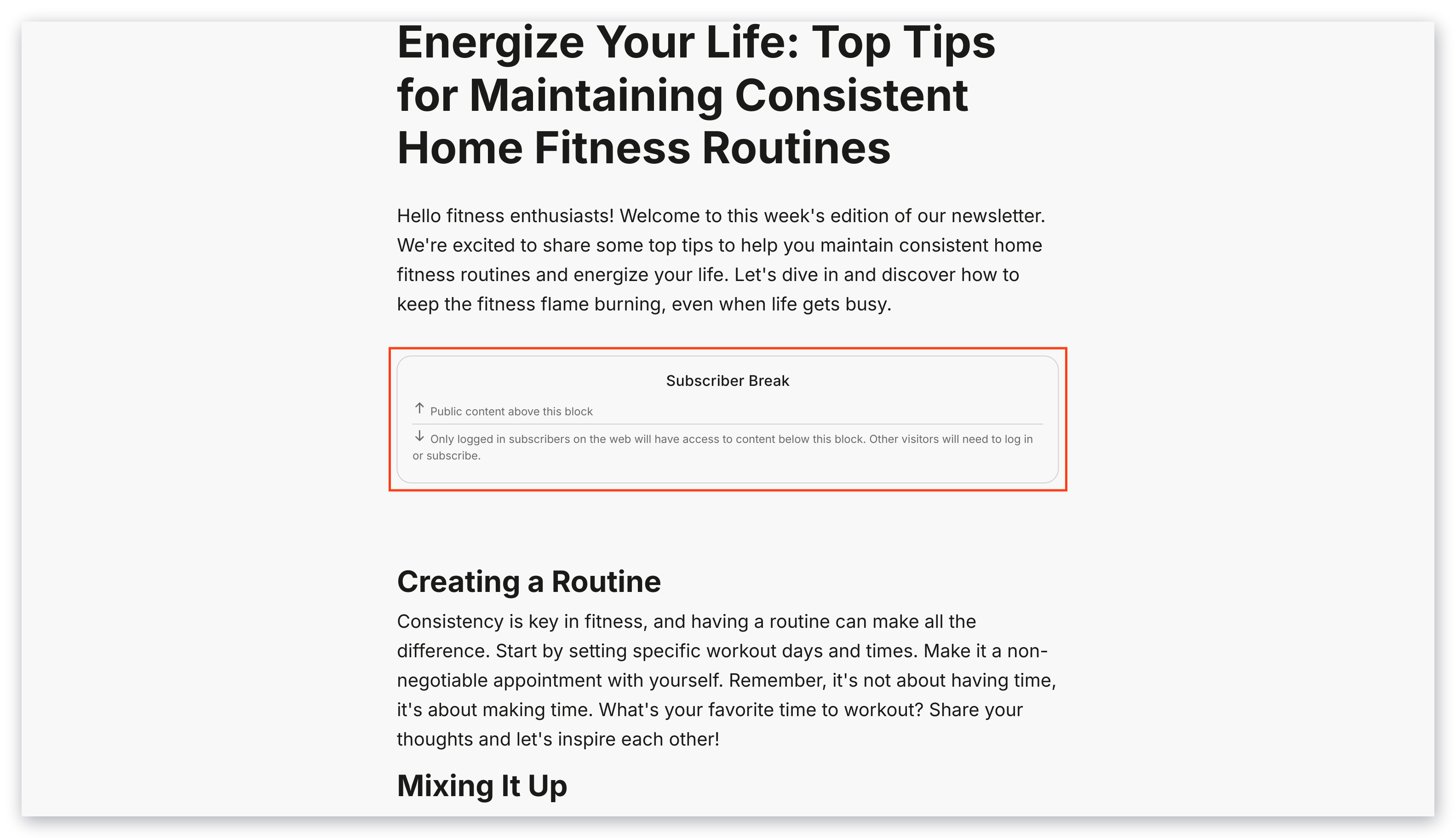
<img src="https://mintcdn.com/kajabi-support/0dktLU6n0E_nSYxP/articles/images/8774e5cb_upload_12760277148706160804.png?fit=max&auto=format&n=0dktLU6n0E_nSYxP&q=85&s=ec47d3332dcfa3074993fcd794190e41" alt="Subscriber break added" width="3112" height="1768" data-path="articles/images/8774e5cb_upload_12760277148706160804.png" />

To preview your Subscriber break, click the **eye** icon in the top-right corner of your Newsletter Post editor.

## Paywall break

1. Navigate to your **Newsletter** tab
2. Select an existing **Newsletter** or [create one](../../products/newsletters/newsletters-overview)
3. Select the **Newsletter Post** you wish to edit or [create one](../../products/newsletters/newsletters-overview)
4. Press **Enter** in the location you want to place your Paywall break. The content above the break is publicly visible and the content below the break is only accessible to your paid Newsletter subscribers.
5. Click the **+** icon or press **CMD** + **/** to open the text formatting options
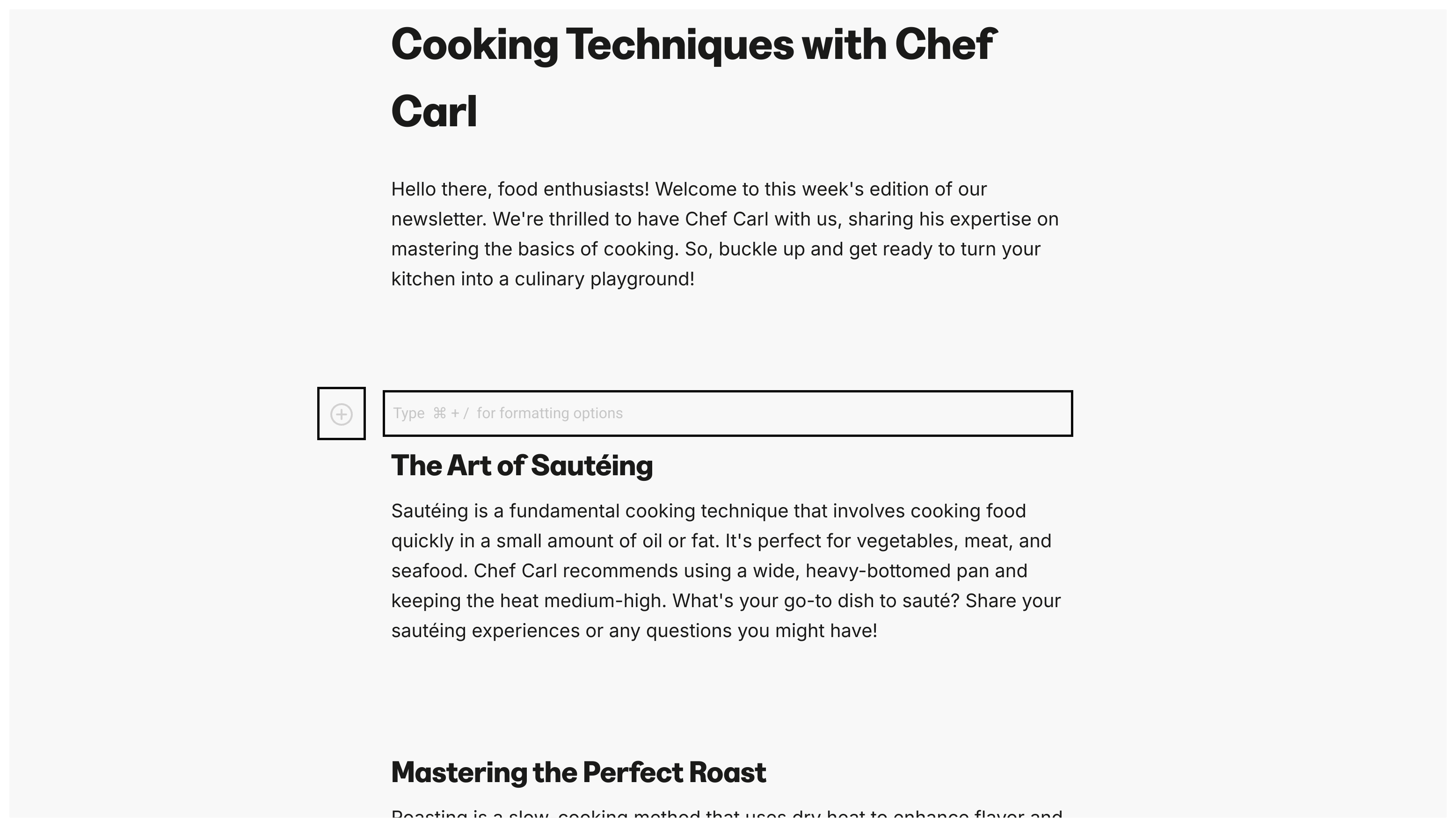
<img src="https://mintcdn.com/kajabi-support/O5ZsKXCFiDIup7FH/articles/images/b8db630b_upload_2864701512040181405.png?fit=max&auto=format&n=O5ZsKXCFiDIup7FH&q=85&s=16794e3d3077b210f4c1a39028a59b42" alt="Text formatting options" width="3112" height="1768" data-path="articles/images/b8db630b_upload_2864701512040181405.png" />

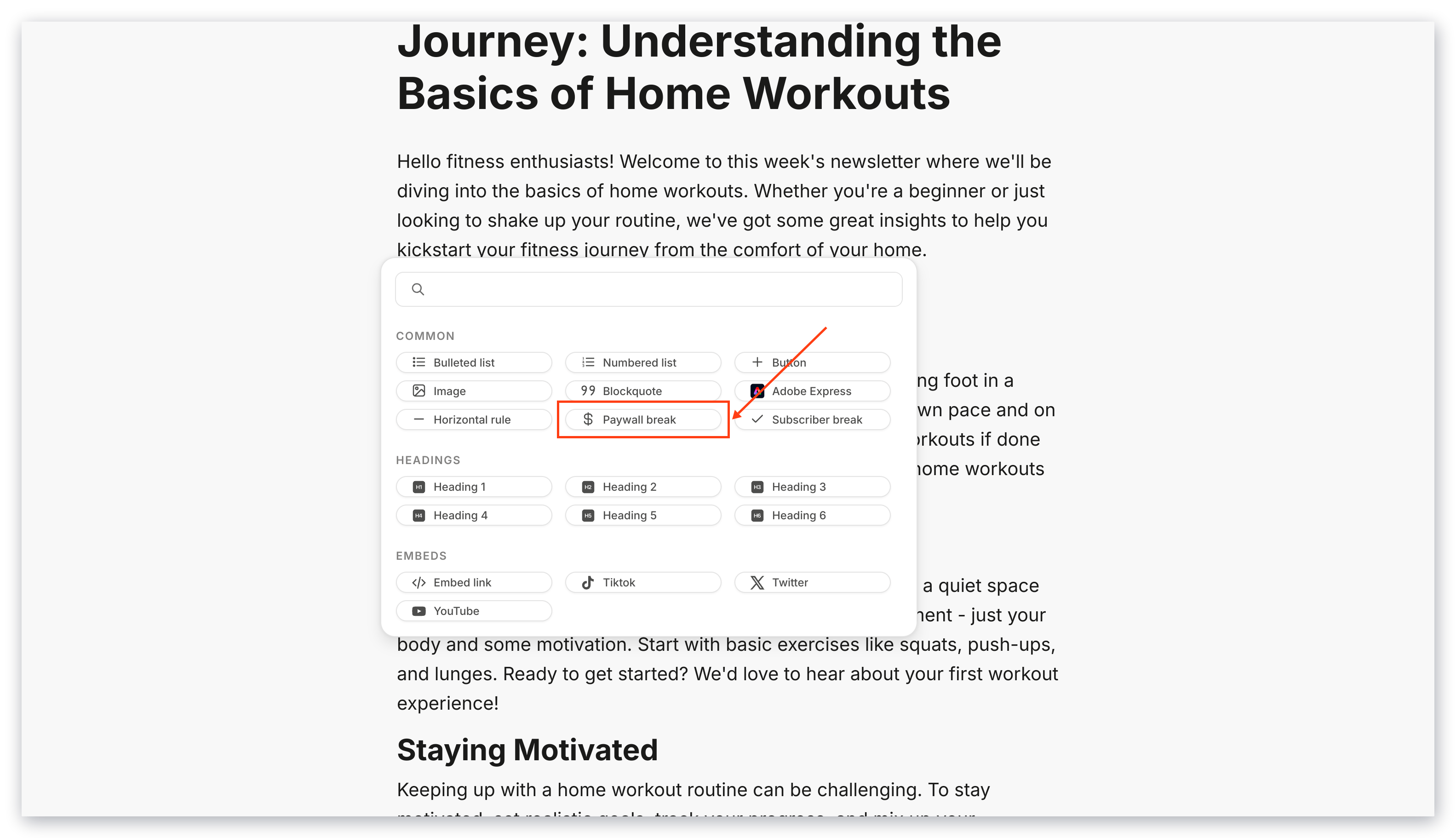
6. Select **Paywall break**

<img src="https://mintcdn.com/kajabi-support/p8xUcPoEbYtv-GgI/articles/images/b306dd36_upload_16927364032062141228.png?fit=max&auto=format&n=p8xUcPoEbYtv-GgI&q=85&s=798ce547c112162772a22b0cb4e86b91" alt="Select paywall break" width="3112" height="1768" data-path="articles/images/b306dd36_upload_16927364032062141228.png" />

This adds your Paywall break to your Newsletter Post:
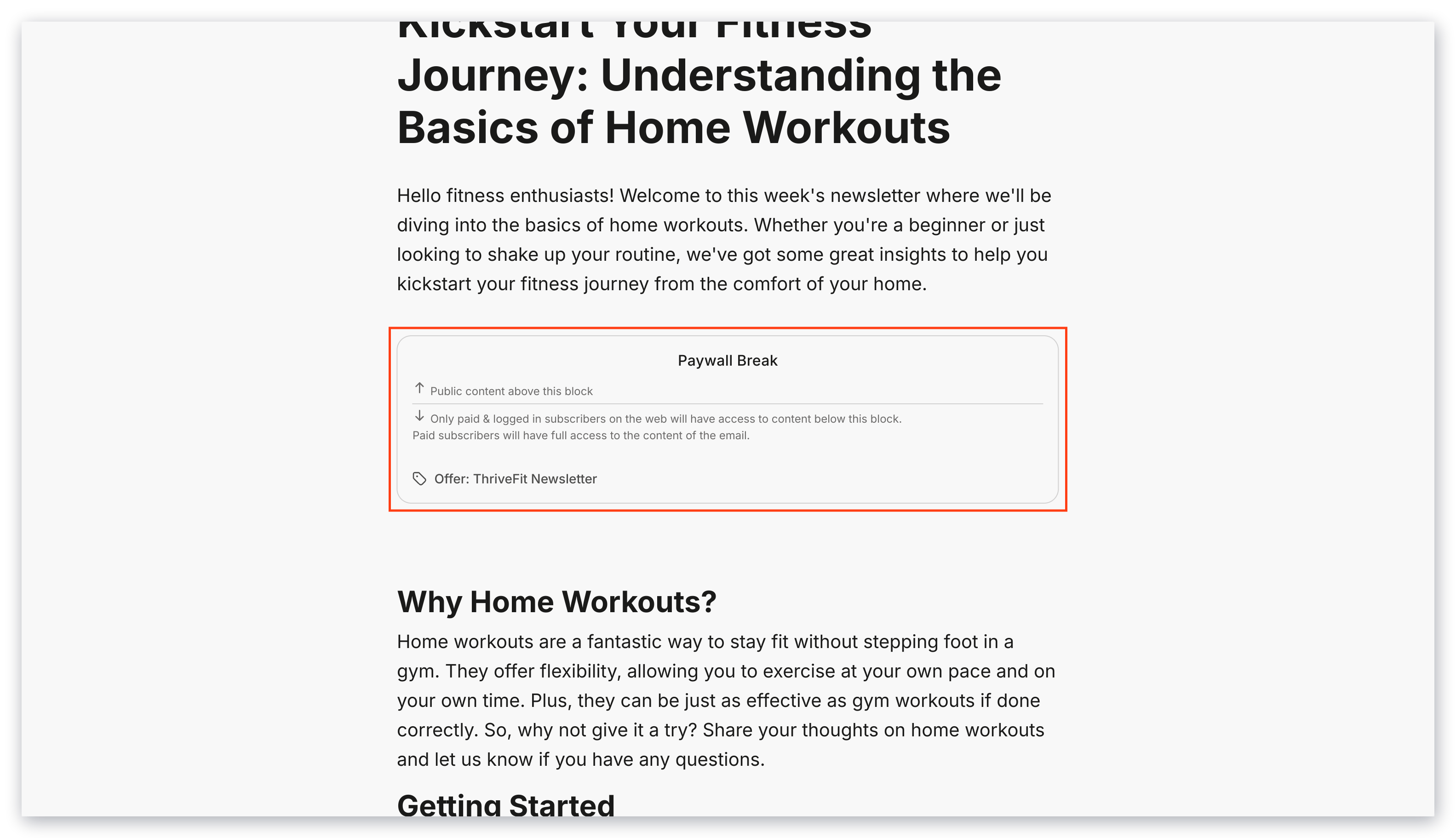
<img src="https://mintcdn.com/kajabi-support/qzToDq-sR9DK0LoF/articles/images/6b6f1c61_upload_3339779584196008305.png?fit=max&auto=format&n=qzToDq-sR9DK0LoF&q=85&s=d41dfa88a79ec0dbbc6c1bf5592ef8a8" alt="Paywall break added" width="3112" height="1768" data-path="articles/images/6b6f1c61_upload_3339779584196008305.png" />

If you do not have an Offer connected to your Newsletter, you need to select a Paywall Offer.

1. Click on your Paywall break
2. Click **Select Offer** to choose the Offer that grants access to the paywalled content