> ## Documentation Index
> Fetch the complete documentation index at: https://help.kajabi.com/llms.txt
> Use this file to discover all available pages before exploring further.
# View Newsletter analytics
> Track key metrics across overview, audience, engagement, and health to optimize your Newsletter strategy.
**Newsletter analytics** help you understand how your Newsletter is performing. Your Newsletter dashboard displays real-time data on subscriber growth, email opens, clicks, bounces, and complaints. Use these metrics to identify what resonates with your audience and refine your content strategy.
## Access Newsletter analytics
1. Open the **Products** tab from your Dashboard
2. Click **Newsletters**
3. Navigate to the top of your Newsletter Dashboard to view your Newsletter analytics
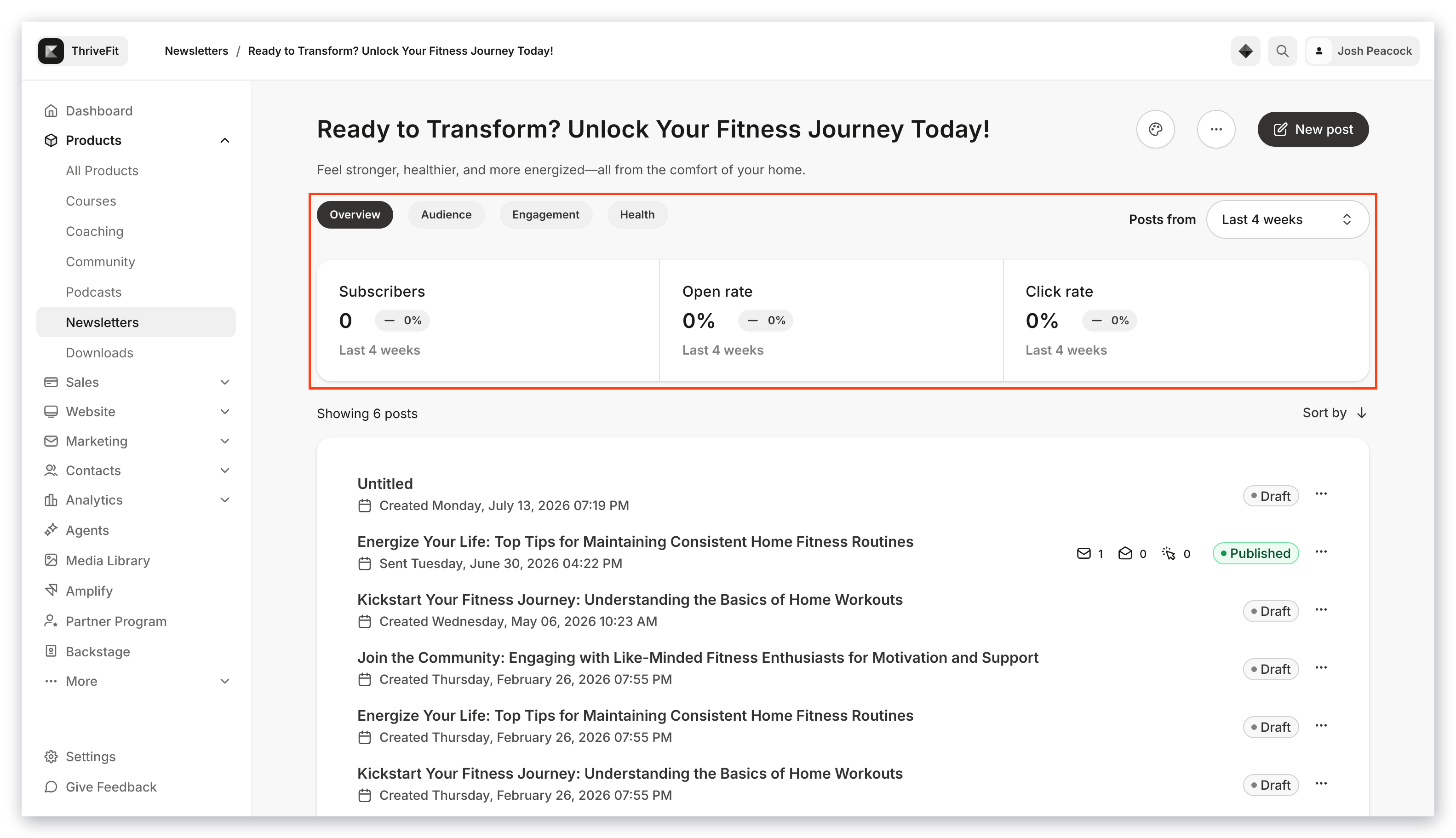 Your analytics display for the Newsletter Posts published during your selected time frame:
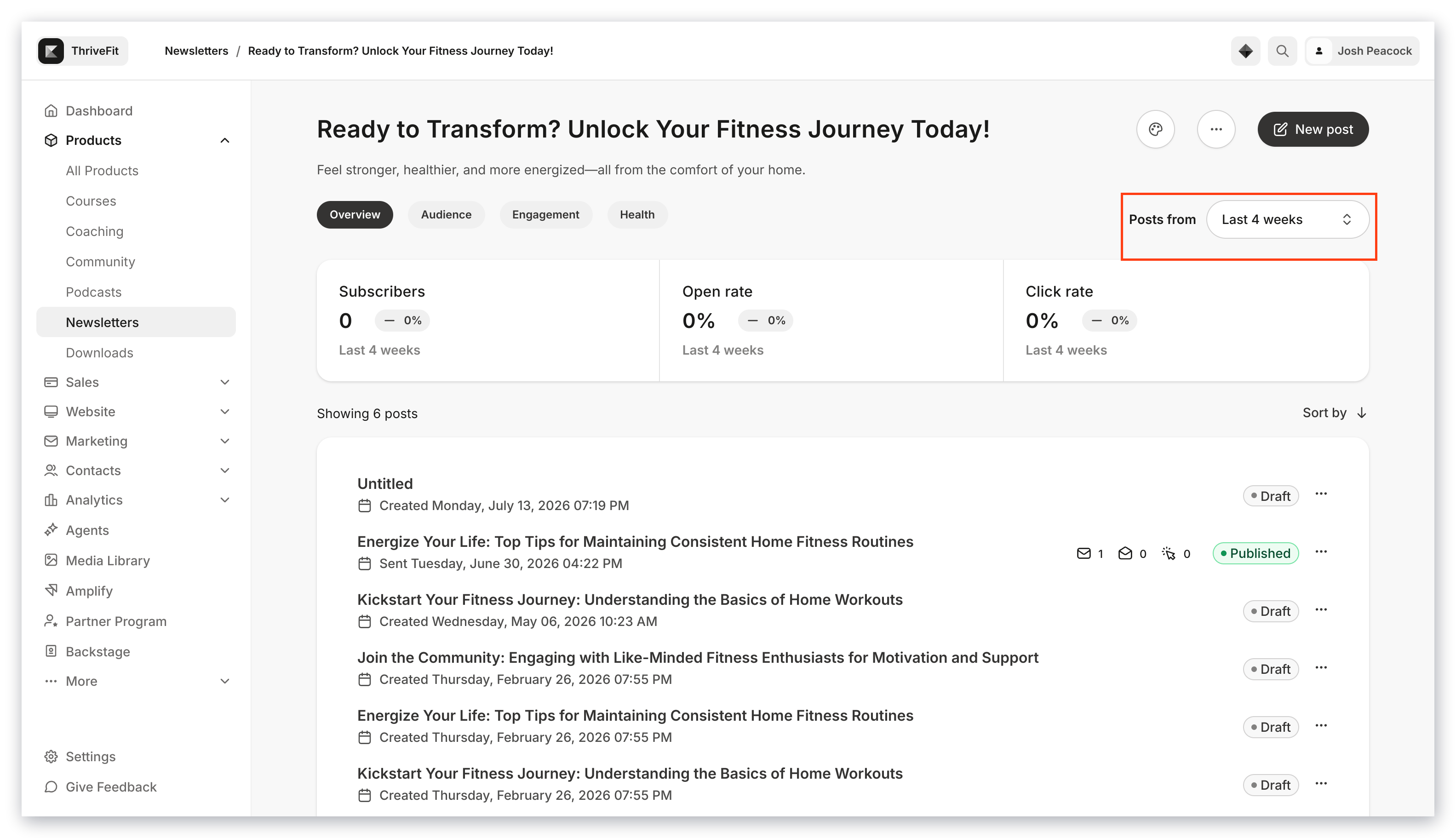 ## Overview metrics
View the overview metrics for the Newsletter Posts published within your selected time frame.
* **Subscribers** — The number of subscribers from posts published during your selected time frame
* **Open rate** — The percentage of Newsletter Posts opened during your selected time frame
* **Click rate** — The percentage of Newsletter Posts with a link that was clicked during your selected time frame
## Audience metrics
View your audience metrics for the Newsletter Posts published within your selected time frame.
* **New subscribers** — The total number of subscribers that subscribed through your published Newsletter Posts during your selected time frame
* **Unsubscribes** — The percentage of unsubscribes that occurred during your selected time frame
* **Net subscribers** — The percentage of net subscribers (subscribers minus unsubscribes) that occurred during your selected time frame
## Engagement metrics
View your engagement metrics for the Newsletter Posts published within your selected time frame.
* **Open rate** — The number of Newsletter emails opened during your selected time frame
* **Click rate** — The percentage of Newsletter Posts with a link that was clicked during your selected time frame
* **Impressions** — The number of views on the Newsletter Post from your email subscribers
## Health metrics
View your health metrics for the Newsletter Posts published within your selected time frame.
* **Bounce rate** — The number of Newsletter Posts published that did not make it to the subscribers' email inbox as a result of a [hard bounce](../../marketing/email-campaigns/email-metrics-overview)
* **Complaints** — The number of [complaints](../../marketing/email-campaigns/email-metrics-overview) that occurred from Newsletter Posts published during your selected time frame
* **Unsubscribes** — The number of unsubscribes that occurred during your selected time frame
## Overview metrics
View the overview metrics for the Newsletter Posts published within your selected time frame.
* **Subscribers** — The number of subscribers from posts published during your selected time frame
* **Open rate** — The percentage of Newsletter Posts opened during your selected time frame
* **Click rate** — The percentage of Newsletter Posts with a link that was clicked during your selected time frame
## Audience metrics
View your audience metrics for the Newsletter Posts published within your selected time frame.
* **New subscribers** — The total number of subscribers that subscribed through your published Newsletter Posts during your selected time frame
* **Unsubscribes** — The percentage of unsubscribes that occurred during your selected time frame
* **Net subscribers** — The percentage of net subscribers (subscribers minus unsubscribes) that occurred during your selected time frame
## Engagement metrics
View your engagement metrics for the Newsletter Posts published within your selected time frame.
* **Open rate** — The number of Newsletter emails opened during your selected time frame
* **Click rate** — The percentage of Newsletter Posts with a link that was clicked during your selected time frame
* **Impressions** — The number of views on the Newsletter Post from your email subscribers
## Health metrics
View your health metrics for the Newsletter Posts published within your selected time frame.
* **Bounce rate** — The number of Newsletter Posts published that did not make it to the subscribers' email inbox as a result of a [hard bounce](../../marketing/email-campaigns/email-metrics-overview)
* **Complaints** — The number of [complaints](../../marketing/email-campaigns/email-metrics-overview) that occurred from Newsletter Posts published during your selected time frame
* **Unsubscribes** — The number of unsubscribes that occurred during your selected time frame