> ## Documentation Index
> Fetch the complete documentation index at: https://help.kajabi.com/llms.txt
> Use this file to discover all available pages before exploring further.
# Newsletters overview
> Create, publish, and manage Newsletter subscribers to grow your audience and build your business.
**Newsletters** help you grow your business by reclaiming control of your content and audience. Take back ownership from social media platforms while building a direct relationship with your subscribers through consistent, valuable written content.
As your subscriber base grows, you can monetize your content — just as magazines use ads and other value-driven strategies. Maximize your existing content by promoting your Offers in your Newsletter.
**Tip:** Promote your existing Offers in your Newsletter to maximize your content.
## Newsletter vs. Newsletter posts
With Kajabi, a Newsletter is like a magazine brand, and Newsletter Posts are individual issues released on your publishing schedule (weekly, monthly, etc.).
Your Newsletter contains all of your Newsletter Posts:
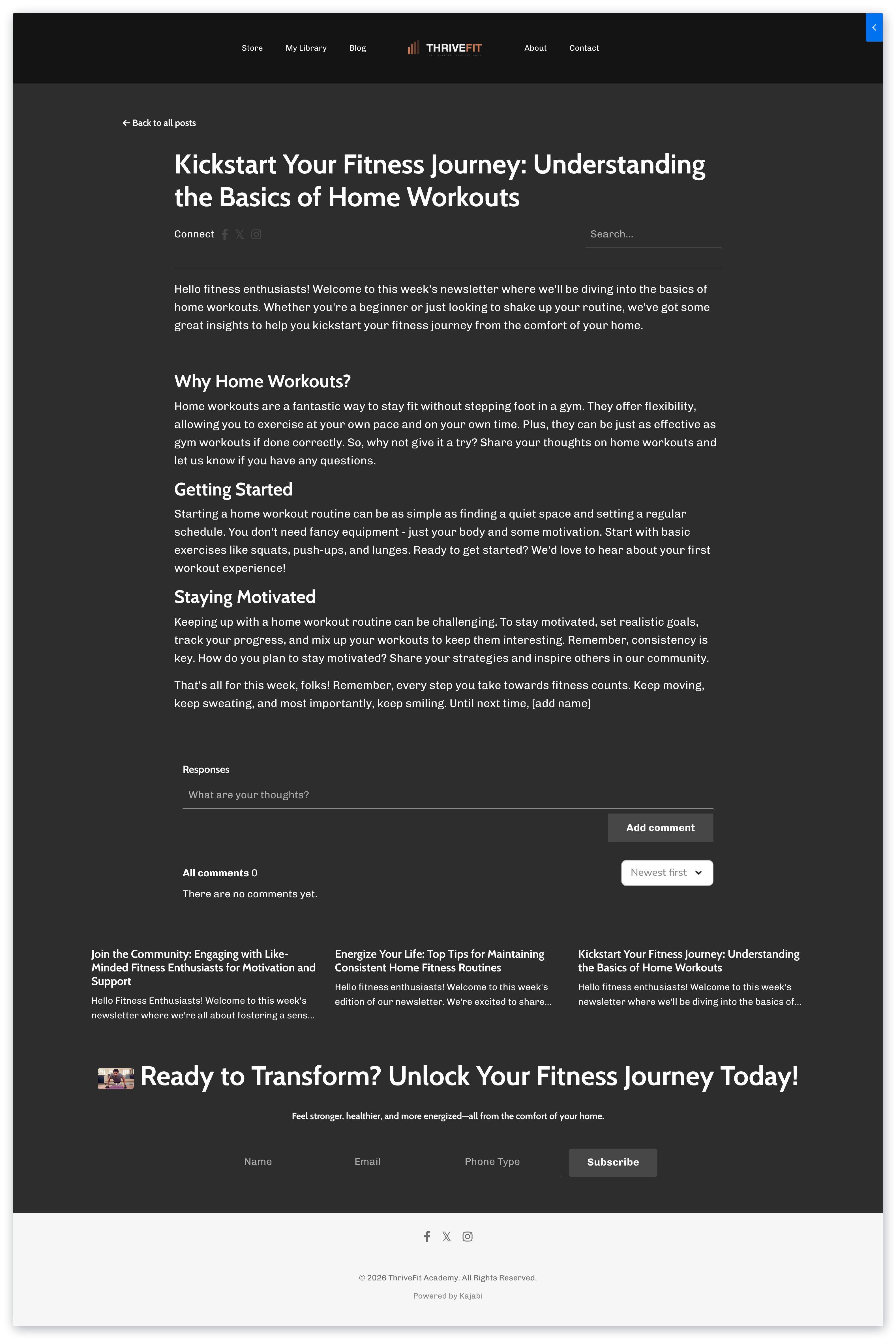 If your readers are engaged and find value in your content, they can subscribe to receive your Newsletter Posts as soon as you publish.
## What Newsletter readers see
Use your Newsletter as a tool to build your list and kickstart your business by making it your website homepage. [Learn to change your homepage](../../website/pages/change-your-homepage).
This brings visitors directly to your Newsletter for a frictionless experience. Visitors can consume your content and subscribe directly from your Newsletter page:
If your readers are engaged and find value in your content, they can subscribe to receive your Newsletter Posts as soon as you publish.
## What Newsletter readers see
Use your Newsletter as a tool to build your list and kickstart your business by making it your website homepage. [Learn to change your homepage](../../website/pages/change-your-homepage).
This brings visitors directly to your Newsletter for a frictionless experience. Visitors can consume your content and subscribe directly from your Newsletter page:
 ### Newsletter forms
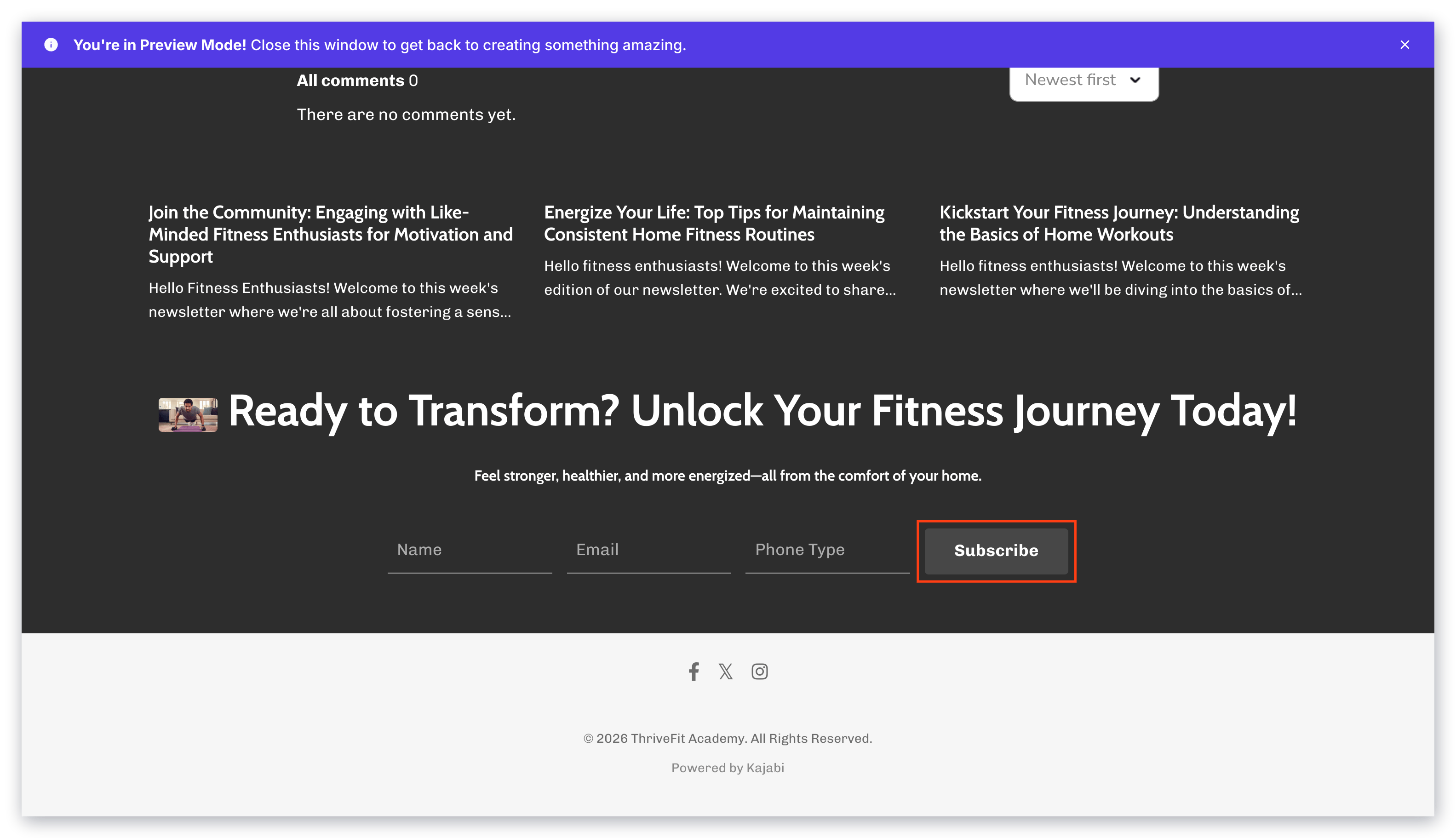
What happens when a visitor clicks **Subscribe** on your Newsletter? The subscribe button opens your Newsletter Form:
### Newsletter forms
What happens when a visitor clicks **Subscribe** on your Newsletter? The subscribe button opens your Newsletter Form:
Your Newsletter Form captures and collects the information of visitors wanting to receive and access your Newsletter on a regular basis.
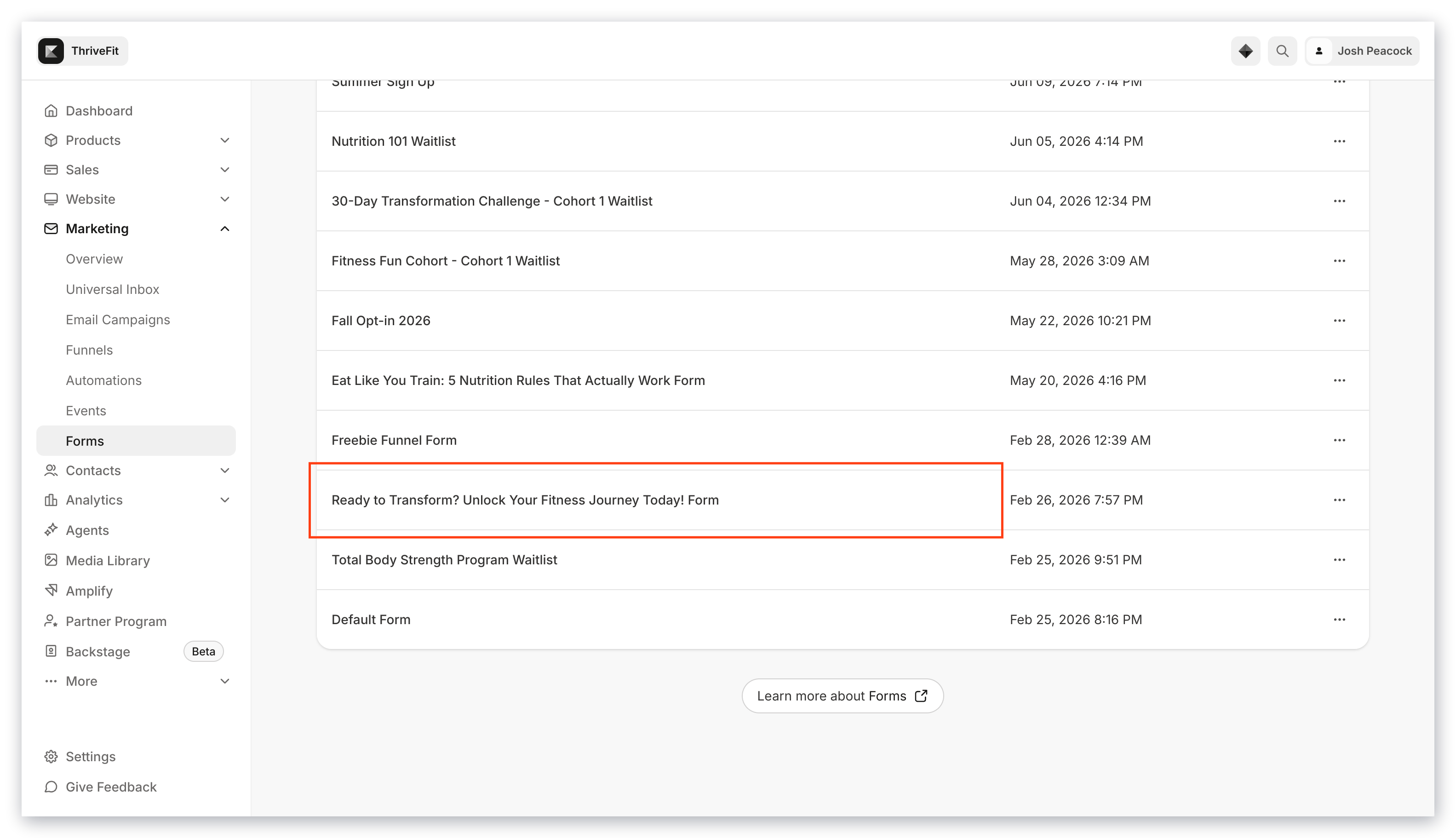
Update and edit your Newsletter Form by visiting your Form Builder in Kajabi. Your Newsletter Form shares the same name as your Newsletter to help you locate it in the **Forms** tab:
 ### Capture subscribers
After a visitor clicks **Subscribe**, they receive a verification email (Double Opt-in confirmation) to confirm their subscription. After confirming, they are redirected back to the Newsletter Post they were viewing.
After subscribers verify their email address, Kajabi captures their email and adds your subscriber to your [Contacts tab](../../contacts/manage-your-contacts/contacts-tab-overview).
**Note:** Double Opt-in is set up by default to ensure that your subscribers receive your Newsletter and strengthen your [sender reputation](../../marketing/email-campaigns/sender-reputation-guide). [Learn more about Double Opt-in](../../marketing/forms/how-to-set-up-a-form-with-double-opt-in).
## Create a Newsletter
### Create a Newsletter Product
1. Open the **Products** tab from your Dashboard
2. Select **All products** or **Newsletters**
3. Click **+ New Product** or **New newsletter**
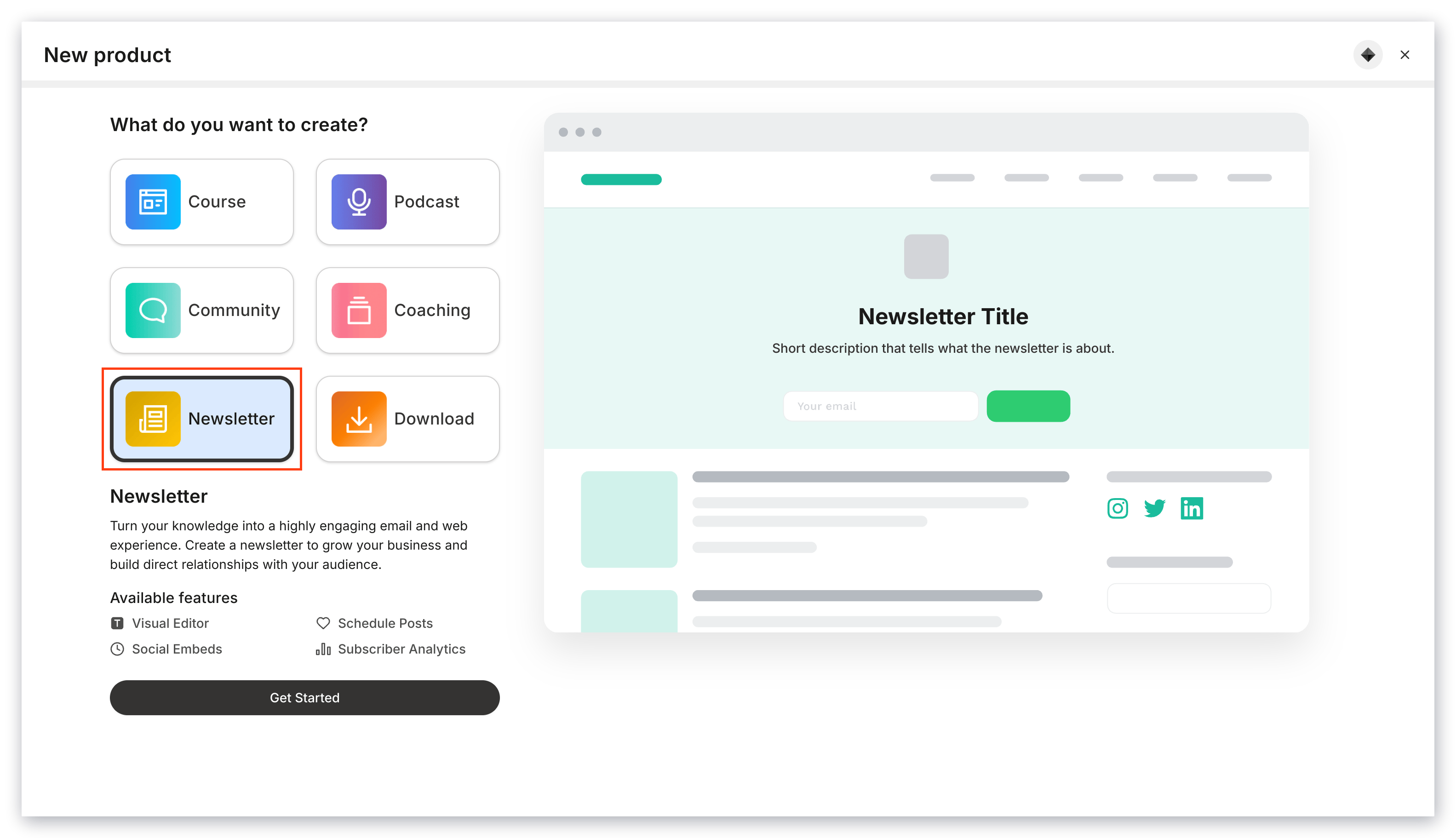
4. After clicking **+ New Product**, select the **Newsletter** product
5. Click **Get Started**
6. Complete the on-screen instructions to create your Newsletter
### Capture subscribers
After a visitor clicks **Subscribe**, they receive a verification email (Double Opt-in confirmation) to confirm their subscription. After confirming, they are redirected back to the Newsletter Post they were viewing.
After subscribers verify their email address, Kajabi captures their email and adds your subscriber to your [Contacts tab](../../contacts/manage-your-contacts/contacts-tab-overview).
**Note:** Double Opt-in is set up by default to ensure that your subscribers receive your Newsletter and strengthen your [sender reputation](../../marketing/email-campaigns/sender-reputation-guide). [Learn more about Double Opt-in](../../marketing/forms/how-to-set-up-a-form-with-double-opt-in).
## Create a Newsletter
### Create a Newsletter Product
1. Open the **Products** tab from your Dashboard
2. Select **All products** or **Newsletters**
3. Click **+ New Product** or **New newsletter**
4. After clicking **+ New Product**, select the **Newsletter** product
5. Click **Get Started**
6. Complete the on-screen instructions to create your Newsletter
 **Tip:** Create exclusive access to your Newsletter content. [Learn more about exclusive Newsletter access](../../products/newsletters/how-to-create-exclusive-access-to-your-newsletter).
If you are on a compatible Encore website theme, you need to upgrade to version 1.5.0 by clicking the link on your Newsletter product page.
If you are not on an Encore theme, your Newsletter pages inherit your site theme settings, but you are not able to add additional pages to the builder.
**Tip:** Create exclusive access to your Newsletter content. [Learn more about exclusive Newsletter access](../../products/newsletters/how-to-create-exclusive-access-to-your-newsletter).
If you are on a compatible Encore website theme, you need to upgrade to version 1.5.0 by clicking the link on your Newsletter product page.
If you are not on an Encore theme, your Newsletter pages inherit your site theme settings, but you are not able to add additional pages to the builder.
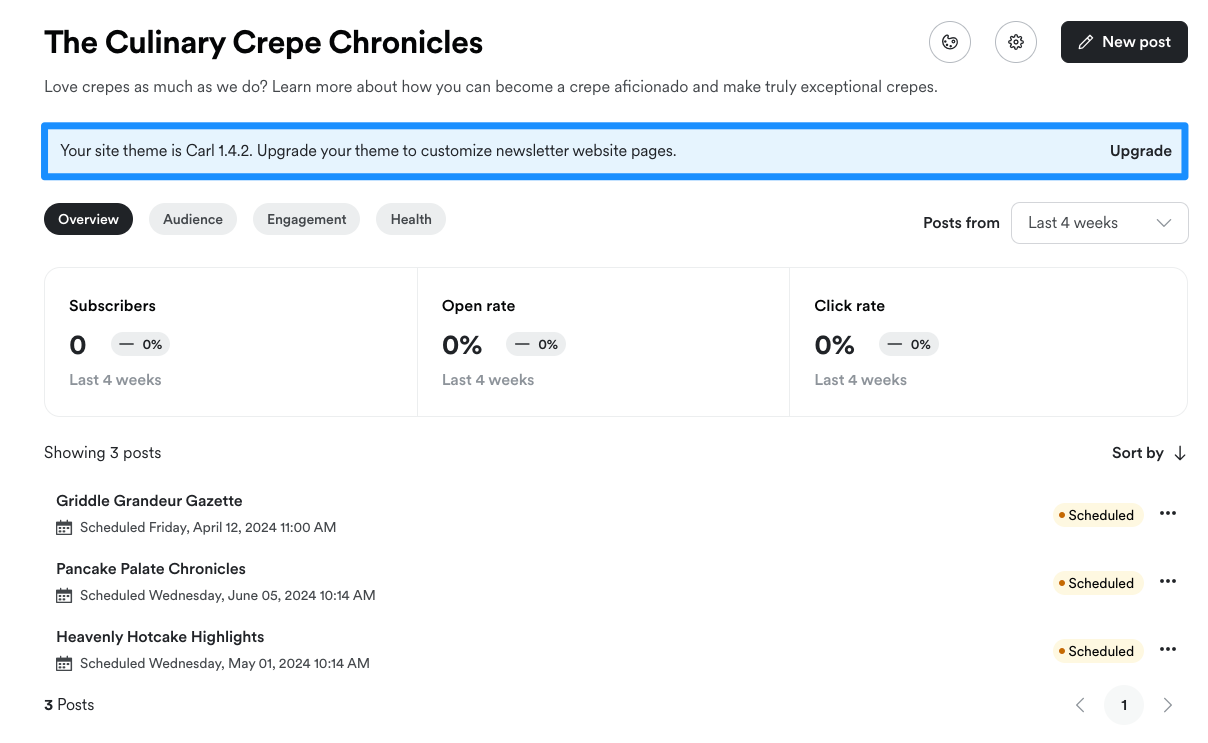 ### Create a Newsletter Post
1. Open the **Products** tab from your Dashboard
2. Open the **Newsletters** tab
3. Click **New post**
### Create a Newsletter Post
1. Open the **Products** tab from your Dashboard
2. Open the **Newsletters** tab
3. Click **New post**
## Publish a Newsletter
Share your Newsletter and make it publicly visible by publishing your Newsletter and Newsletter Post(s).
**Note:** Adjust your Newsletter Post Settings before publishing to choose which subscribers receive your Newsletter email and whether to hide your Newsletter Post from your webpage. [Learn more about customizing your Newsletter](../../products/newsletters/customizing-your-newsletter#h_01HTQH5F7P9TTC442YWCY9KD52).
### Publish a Newsletter Post
1. Open the **Products** tab from your Dashboard
2. Click **Newsletters**
3. Open the Newsletter Post you wish to publish
4. Navigate to the top corner of your Newsletter editor
5. Click **Publish**
6. Select when to publish (**Right now** or **Schedule for Later**)
7. Click **Continue and Review**
8. Review your selections and click **Publish and send, right now** or **Schedule for (date)** after confirming your publishing selections
After publishing, your subscribers receive an email notification with the published Newsletter Post and the post is published to your Newsletter on your website.
**Tip:** Test out your Newsletter by subscribing with your personal email address.
## View Newsletter subscribers
Locate your Newsletter subscribers in your **Contacts** tab.
When a visitor subscribes to your Newsletter, they are subscribed to receive any of your Marketing emails. You can filter your **Contacts** tab to view contacts specifically subscribed to your Newsletter.
### Filter Newsletter subscribers
1. Open the **Contacts** tab from your Kajabi Dashboard
2. Click **Filters**
3. Select your **Category**, **Conditional**, and **Value**:
* **Category**: Newsletter
* **Conditional**: Subscribed to
* **Value**: Newsletter title
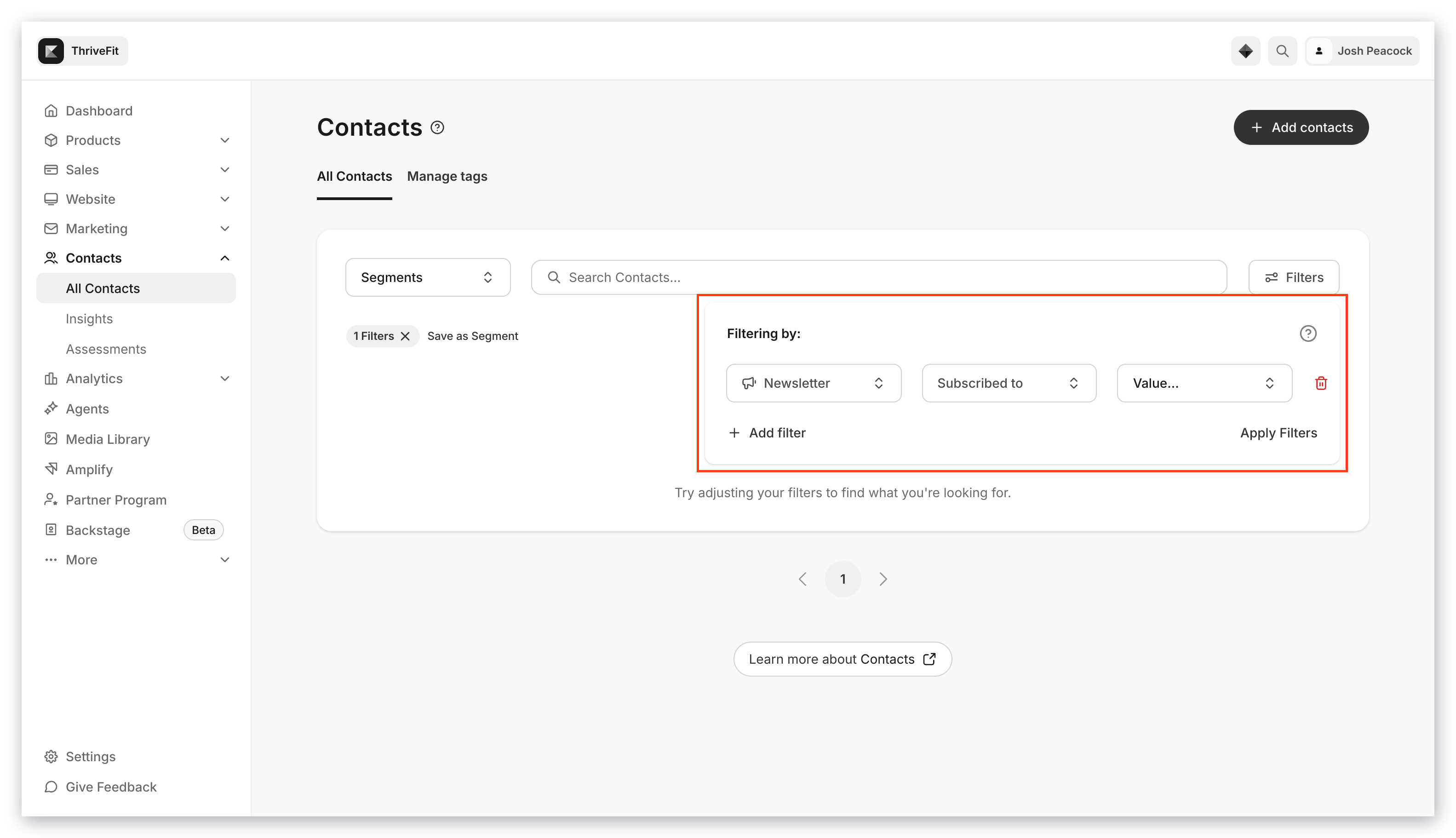 After creating a Filter, click **Apply Filters** or add another filter to narrow your list further.
**Note:** If you perform a bulk action in the **Contacts** tab to subscribe contacts to the Newsletter, you have the option to exclude contacts not subscribed to marketing emails.
## FAQs
### **What is Kajabi's Newsletter product?**
Kajabi's Newsletter product lets you publish and monetize written content delivered directly to subscribers' inboxes. It's your own subscriber list, independent of social media algorithms, that you fully own and control.
### **Can I charge subscribers for access to my newsletter?**
Yes. You can create exclusive, paid newsletter access by connecting your Newsletter product to an Offer, allowing you to monetize your writing as a premium subscription.
### **Does Kajabi help me grow my newsletter audience?**
Yes. Kajabi includes tools to grow your subscriber list, including opt-in forms, landing pages, and funnels. You can also use free newsletter access as a lead generation tool to build your audience over time.
### **Can subscribers comment on newsletter posts?**
Yes. Kajabi lets you enable comments on newsletter posts, allowing subscribers to engage with your content and each other, creating a community feel around your writing.
### **Can I schedule newsletter issues in advance?**
Yes. When publishing a newsletter post, you can choose to send it immediately or schedule it for a future date, making it easy to plan your editorial calendar ahead of time.
### **How do I track how my newsletter is performing?**
Kajabi's Newsletter analytics dashboard shows you subscriber growth, open rates, click rates, bounces, and complaints in real time. This provides everything you need to understand what's resonating and refine your strategy.
### **Will my newsletter look professional on mobile?**
Yes. Kajabi's newsletter templates are responsive and designed to render cleanly across desktop and mobile devices.
### **Can I have both a public newsletter page and a paid subscriber archive?**
Yes. You can make some newsletter content publicly available on your website while gating premium posts behind a paid offer, letting leads discover your writing while monetizing your best content.
### **Is there a double opt-in for newsletter subscribers?**
Yes. Kajabi uses double opt-in by default for newsletter subscribers, which confirms subscriber intent and helps maintain a healthy sender reputation for better deliverability.
### How do subscribers unsubscribe from a Newsletter?
Every Newsletter email sent through Kajabi includes an automatic unsubscribe link in the footer. When a subscriber clicks it, they are removed from your Newsletter mailing list and will no longer receive email posts.
Unsubscribed contacts remain in your Contacts list, but their newsletter subscription status updates to reflect their opt-out. You can view and manage subscription status from the **Contacts** tab.
**Note:** Unsubscribing only removes the contact from receiving Newsletter emails. It does not revoke access to paid Newsletter content if they have an active Offer.
After creating a Filter, click **Apply Filters** or add another filter to narrow your list further.
**Note:** If you perform a bulk action in the **Contacts** tab to subscribe contacts to the Newsletter, you have the option to exclude contacts not subscribed to marketing emails.
## FAQs
### **What is Kajabi's Newsletter product?**
Kajabi's Newsletter product lets you publish and monetize written content delivered directly to subscribers' inboxes. It's your own subscriber list, independent of social media algorithms, that you fully own and control.
### **Can I charge subscribers for access to my newsletter?**
Yes. You can create exclusive, paid newsletter access by connecting your Newsletter product to an Offer, allowing you to monetize your writing as a premium subscription.
### **Does Kajabi help me grow my newsletter audience?**
Yes. Kajabi includes tools to grow your subscriber list, including opt-in forms, landing pages, and funnels. You can also use free newsletter access as a lead generation tool to build your audience over time.
### **Can subscribers comment on newsletter posts?**
Yes. Kajabi lets you enable comments on newsletter posts, allowing subscribers to engage with your content and each other, creating a community feel around your writing.
### **Can I schedule newsletter issues in advance?**
Yes. When publishing a newsletter post, you can choose to send it immediately or schedule it for a future date, making it easy to plan your editorial calendar ahead of time.
### **How do I track how my newsletter is performing?**
Kajabi's Newsletter analytics dashboard shows you subscriber growth, open rates, click rates, bounces, and complaints in real time. This provides everything you need to understand what's resonating and refine your strategy.
### **Will my newsletter look professional on mobile?**
Yes. Kajabi's newsletter templates are responsive and designed to render cleanly across desktop and mobile devices.
### **Can I have both a public newsletter page and a paid subscriber archive?**
Yes. You can make some newsletter content publicly available on your website while gating premium posts behind a paid offer, letting leads discover your writing while monetizing your best content.
### **Is there a double opt-in for newsletter subscribers?**
Yes. Kajabi uses double opt-in by default for newsletter subscribers, which confirms subscriber intent and helps maintain a healthy sender reputation for better deliverability.
### How do subscribers unsubscribe from a Newsletter?
Every Newsletter email sent through Kajabi includes an automatic unsubscribe link in the footer. When a subscriber clicks it, they are removed from your Newsletter mailing list and will no longer receive email posts.
Unsubscribed contacts remain in your Contacts list, but their newsletter subscription status updates to reflect their opt-out. You can view and manage subscription status from the **Contacts** tab.
**Note:** Unsubscribing only removes the contact from receiving Newsletter emails. It does not revoke access to paid Newsletter content if they have an active Offer.