> ## Documentation Index
> Fetch the complete documentation index at: https://help.kajabi.com/llms.txt
> Use this file to discover all available pages before exploring further.
# Create a private Podcast
> Create, manage, and publish your private Podcast in Kajabi.
**Private Podcasts** in Kajabi restrict access to only those who have purchased or been granted an Offer connected to your Podcast. Use private Podcasts to monetize exclusive audio content or deliver members-only episodes.
## Create a private Podcast in Kajabi
1. Open the **Products** tab from the dashboard
2. Select **Podcasts**
3. Click **Get Started** or **+New podcast**
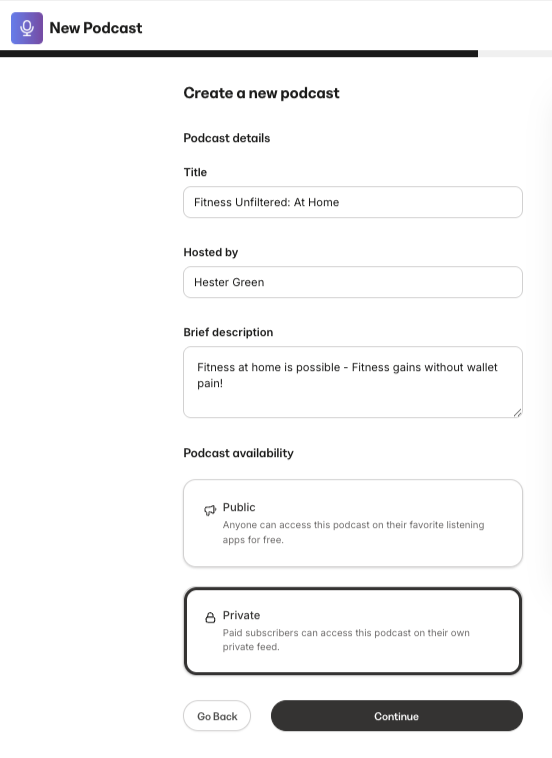
4. Select **Create a new podcast** and click **Continue**
5. Enter the following about the new Podcast:
* **Title**
* **Hosted by**
* **Brief description**
6. Select **Private** as the **Podcast availability type**. Then, click **Continue**.
 7. Select your **Podcast Language** and **Podcast category**
8. Next, choose whether you would like your Podcast to appear in episodic or serial order:
* **Episodic** will order your Podcast episodes starting with the most recent episode at the top of the list
* **Serial** will order your Podcast episodes from oldest to newest, organized by season
9. Click **Continue**
10. Finally, customize the appearance of your Podcast by selecting a **Primary** and **Accent color**, along with a thumbnail image
11. Click **Save and Finish**
### Preview the Podcast page
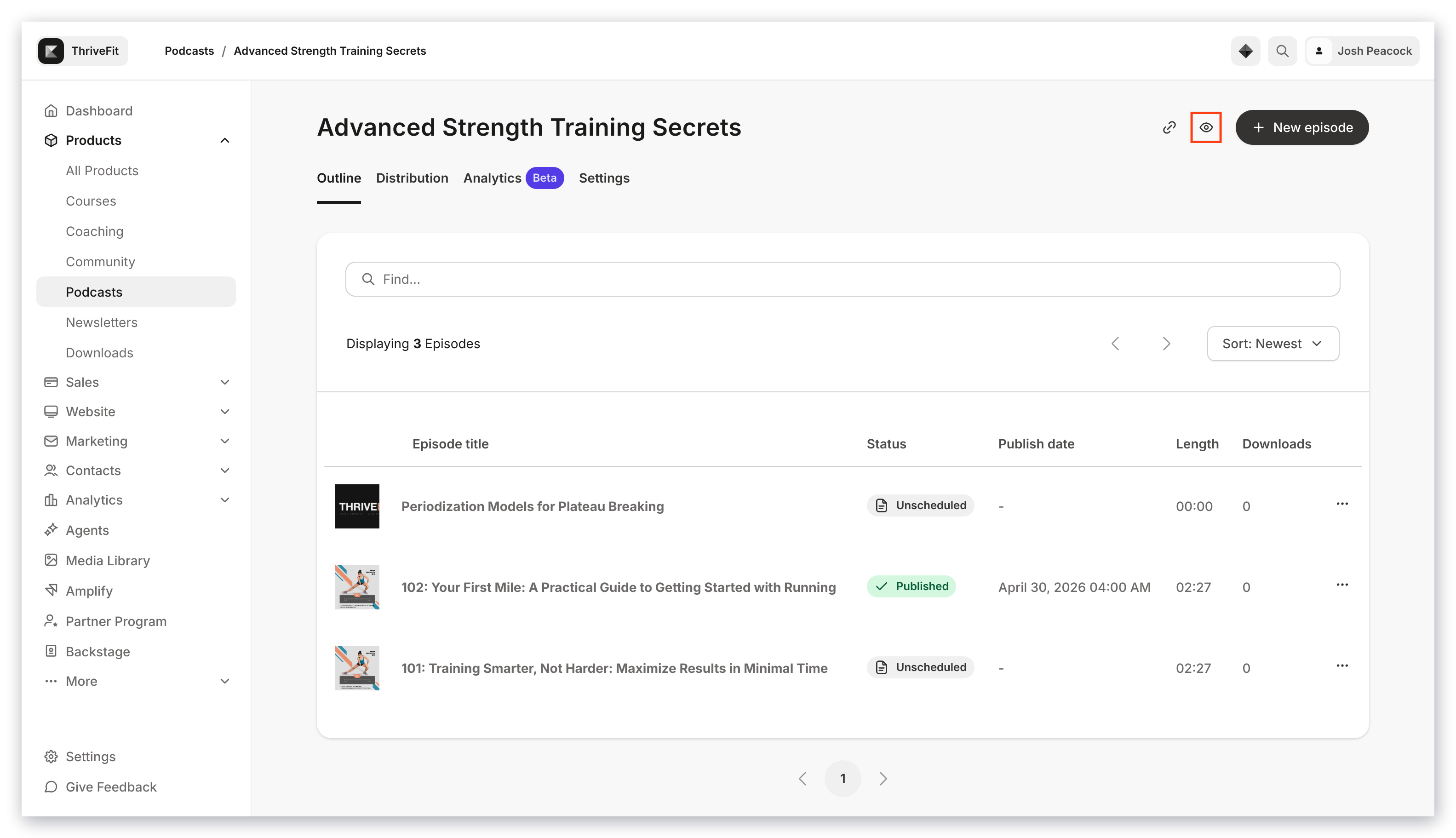
Your Podcast page will automatically generate with a URL in the format of: [https://domain.com/podcasts/your-podcast-name](https://domain.com/podcasts/your-podcast-name).
Preview your Podcast page and your page URL by clicking the **Preview** icon at the top right of the Podcast Editor:
7. Select your **Podcast Language** and **Podcast category**
8. Next, choose whether you would like your Podcast to appear in episodic or serial order:
* **Episodic** will order your Podcast episodes starting with the most recent episode at the top of the list
* **Serial** will order your Podcast episodes from oldest to newest, organized by season
9. Click **Continue**
10. Finally, customize the appearance of your Podcast by selecting a **Primary** and **Accent color**, along with a thumbnail image
11. Click **Save and Finish**
### Preview the Podcast page
Your Podcast page will automatically generate with a URL in the format of: [https://domain.com/podcasts/your-podcast-name](https://domain.com/podcasts/your-podcast-name).
Preview your Podcast page and your page URL by clicking the **Preview** icon at the top right of the Podcast Editor:
 ## Edit Podcast details
1. Click the **Settings** tab in the top menu of your Podcast page.
The following details can be edited:
* **Podcast title**
* **Hosted by**
* **Owner email**
* **Copyright**
* **Language**
* **Description**
* Thumbnail Image
* Select if the **Podcast contains explicit content**
* Select if you wish to **Disable episodes from being downloaded**
### Podcast categories
In the **Podcast categories section**, select up to three categories that best fit the description of your Podcast content to help with podcast discoverability.
### Page customization
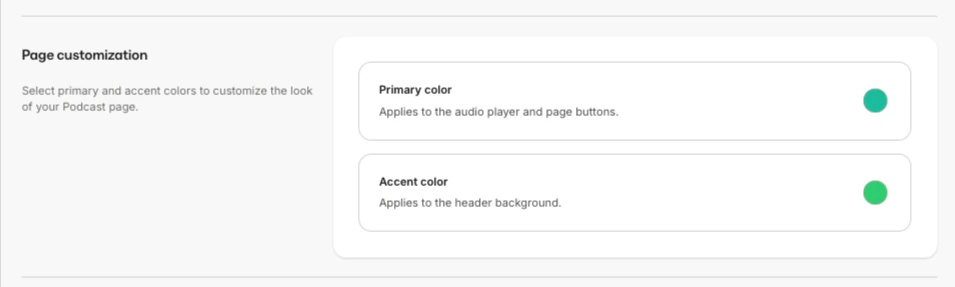
In the Page customization section, you can select **Primary** and **Accent** colors to customize the look of your Podcast page to better match your branding.
**Primary Color** applies to the audio player and page buttons.
**Accent Color** applies to the header background:
## Edit Podcast details
1. Click the **Settings** tab in the top menu of your Podcast page.
The following details can be edited:
* **Podcast title**
* **Hosted by**
* **Owner email**
* **Copyright**
* **Language**
* **Description**
* Thumbnail Image
* Select if the **Podcast contains explicit content**
* Select if you wish to **Disable episodes from being downloaded**
### Podcast categories
In the **Podcast categories section**, select up to three categories that best fit the description of your Podcast content to help with podcast discoverability.
### Page customization
In the Page customization section, you can select **Primary** and **Accent** colors to customize the look of your Podcast page to better match your branding.
**Primary Color** applies to the audio player and page buttons.
**Accent Color** applies to the header background:
 ## Connect a private Podcast to an Offer
For your private Podcasts to be purchased or granted, they must first be connected to an [**Offer**](/articles/sales/offers/offers-overview).
1. Open the **Sales** tab from the Dashboard
2. Select the **Pricing** tab
3. Click **+New Offer**
4. Enter an **Offer title** and choose one or more private Podcast(s) to include in the Offer.
5. Select **Free** as the **pricing plan**, or select another plan type and enter a **Price** and **Currency**.
6. Select **payment providers**. You may also check **Let customers pay what they want**.
7. Then, click **Next**.
8. Choose a **solid button background** color, and if desired, customize the **checkout button text**.
9. Click **Save and Finish**.
## View Podcast analytics
1. Click the **Analytics** tab from the top menu of your Podcast page.
The Podcast Analytics tab displays data for:
* **Total Downloads**
* **Apps** used to stream your Podcast episodes
* **Devices** used to stream your episodes
* **Device Operating Systems** used to stream your episodes
* **Top Countries**
* **Top Ten episodes by Downloads**
You can also preview your Podcast page from the perspective of your audience by clicking the eyeball icon at the top right of the Analytics page.
## Subscribers
**Podcast Subscribers** are the customers who have purchased or have been granted your Product. When clicking the **Subscribers** tab from the Podcast Product Page, you will be taken to a custom segment in the Contacts tab.
Follow the guide to learn more about managing your segmented contacts in the [**Contacts tab**](https://kajabi.wistia.com/medias/fgqfv9t0xq).
## Connect a private Podcast to an Offer
For your private Podcasts to be purchased or granted, they must first be connected to an [**Offer**](/articles/sales/offers/offers-overview).
1. Open the **Sales** tab from the Dashboard
2. Select the **Pricing** tab
3. Click **+New Offer**
4. Enter an **Offer title** and choose one or more private Podcast(s) to include in the Offer.
5. Select **Free** as the **pricing plan**, or select another plan type and enter a **Price** and **Currency**.
6. Select **payment providers**. You may also check **Let customers pay what they want**.
7. Then, click **Next**.
8. Choose a **solid button background** color, and if desired, customize the **checkout button text**.
9. Click **Save and Finish**.
## View Podcast analytics
1. Click the **Analytics** tab from the top menu of your Podcast page.
The Podcast Analytics tab displays data for:
* **Total Downloads**
* **Apps** used to stream your Podcast episodes
* **Devices** used to stream your episodes
* **Device Operating Systems** used to stream your episodes
* **Top Countries**
* **Top Ten episodes by Downloads**
You can also preview your Podcast page from the perspective of your audience by clicking the eyeball icon at the top right of the Analytics page.
## Subscribers
**Podcast Subscribers** are the customers who have purchased or have been granted your Product. When clicking the **Subscribers** tab from the Podcast Product Page, you will be taken to a custom segment in the Contacts tab.
Follow the guide to learn more about managing your segmented contacts in the [**Contacts tab**](https://kajabi.wistia.com/medias/fgqfv9t0xq).