> ## Documentation Index
> Fetch the complete documentation index at: https://help.kajabi.com/llms.txt
> Use this file to discover all available pages before exploring further.
# Activate Affiliate commission
> Set up affiliate commissions for your Offers to credit transactions to your Affiliate Users.
Activating **Affiliate Commission** within your Offers credits the transaction to your Affiliate Users for the Offers you specify. Once enabled, you can track commission data in your [Affiliate Dashboard](/articles/sales/affiliates/affiliates-overview#dashboard).
## Activate Affiliate commission in an Offer
1. Open the **Sales** tab from your Dashboard.
2. Click **Pricing**.
3. Select the **Offer** you wish to edit.
4. Open **Settings**.
5. Toggle on **Activate Affiliate commissions for this Offer**.
6. Enter the **Percentage** or **Fixed Amount** you are willing to offer your affiliates when an affiliate transaction occurs.
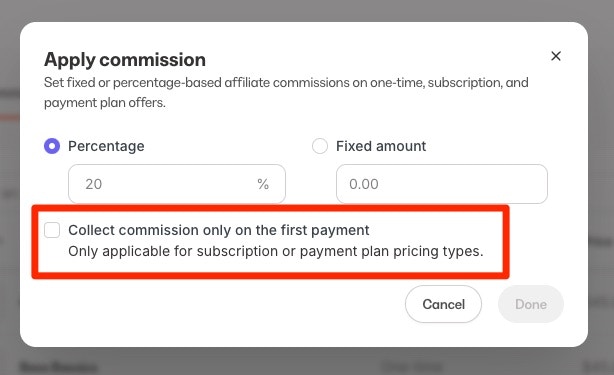
7. Use the check box if you would like to **Collect commission only on the first payment** if your offer is a Subscription or Payment Plan.
8. Click **Save** to apply your changes.
**Note:**
Selecting **Give an affiliate commission** in an Offer tracks affiliate transactions for the specific Offer. You will need to manually pay your affiliates as it is not an automatic process.
## Activate Affiliate commission from the Commission setup page
1. Open the **Sales** tab from your Dashboard.
2. Click **Affiliates**.
3. Open the **Commission setup** page.
4. Select the **Offer(s)** you wish to activate.
5. Enter the **Percentage** or **Fixed amount** you are willing to offer your affiliates when an affiliate transaction occurs. **Fixed amount** commission cannot be applied in bulk at this time.
6. Use the check box if you would like to **Collect commission only on the first payment** if your offer is a Subscription or Payment Plan.
7. Click **Save** to apply your changes.
**Note:**
Activating Affiliate Commission tracks Affiliate transactions for your specific Offer(s). You will need to manually pay your Affiliates as it is not an automatic process.
## Referral Conversion Window
The **Referral Conversion Window** is the specified length of time a customer can make a purchase after clicking an [Affiliate Share link](/articles/sales/affiliates/create-an-affiliate-share-link) for the affiliate to receive credit for the referral.
Select a specified time for the Referral Conversion Window:
* 30 days (default)
* 60 days
* 90 days
If a customer clicks an Affiliate Share link, they must purchase an Offer within your specified time frame (30 days, 60 days, or 90 days) for the affiliate to receive credit for the referral.
**Note:**
The Referral Conversion Window applies to the [Affiliate Share Link](/articles/sales/affiliates/create-an-affiliate-share-link). If the customer purchases with an [Affiliate Coupon code](/articles/sales/affiliates/create-affiliate-coupons), the affiliate associated with the code will receive credit for the referral regardless of the presence of a browser cookie.
## Select a Referral Conversion Window
1. Open the **Sales** tab from your Dashboard.
2. Click **Affiliates.**
3. Click **Settings** from your Affiliate Dashboard.
4. Locate the **Conversion Window** section and choose your window period.
5. Click **Save** to apply your changes.
## Add a cookie disclaimer
The Referral Conversion Window feature uses cookies to keep track of the purchase after an affiliate link is clicked.
Various laws require website owners, such as yourself, to inform their visitors of cookies placed on their site and require visitors' consent to use them.
We encourage you to speak to legal counsel to learn how to ensure that any applicable banners or disclaimers are implemented on your site to comply with the cookie regulations that may pertain to your business.
[Learn how to add a cookie disclaimer to your site](/articles/website/pages/cookies-and-cookie-disclaimers).
[Learn more about the cookies Kajabi uses](https://help.kajabi.com/hc/en-us/articles/1260804142350).
## Override Offer percentage for individual Affiliate Users
To give a different commission percentage to specific Affiliate Users, be sure to [activate Affiliate Commission](#activate-affiliate-commission-in-an-offer) in your Offers to track purchases made with your affiliates Share Links and Coupon Codes.
### Override percentage in the Affiliate Dashboard
1. Open the **Sales** tab from your Dashboard.
2. Select **Affiliates**.
3. Click **Users**.
4. Select or search for the **Affiliate User** you wish to edit.
5. Locate **Affiliate Percentages**.
6. Enter your desired percentage override and click **Allow affiliate's percentage to be overridden**.
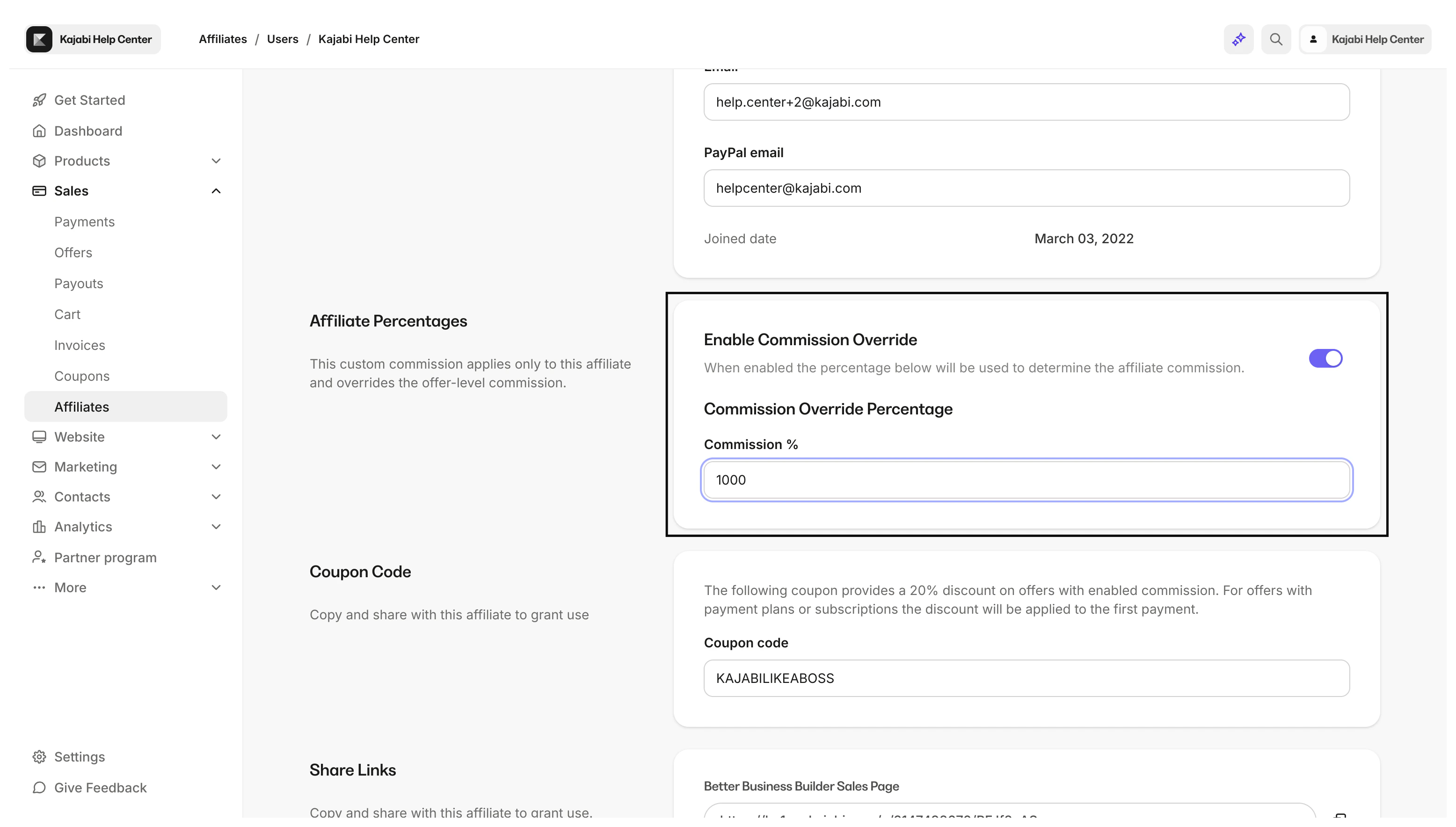 **Note:**
Checking **Allow affiliate's percentage to be overridden** will override the commission percentage specified in *all* Offers with Affiliate commission activated.
The Affiliate Percentage will not specify the commission percentage for specific individual Offers. If left unchecked, the [commission percentage specified in the Offer](#activate-affiliate-commission-in-an-offer) will determine the affiliate's commission tracked within Affiliates.
## Subscription commission tracking
When a customer makes a purchase within the conversion window after clicking an [affiliate Share Link](/articles/sales/affiliates/create-an-affiliate-share-link) or using an [Affiliate Coupon](/articles/sales/affiliates/create-affiliate-coupons), their purchase and all subsequent subscription or payment plan payments will be attributed to the referring affiliate.
By default, affiliate commissions for subscription and payment plan Offers apply for the lifetime of the customer's subscription, and affiliates will earn a commission for every recurring payment the customer makes.
Optionally, you can choose to apply commissions only to the first subscription payment. In this case, affiliates will earn a one-time commission with no future payouts.
**Note:**
Checking **Allow affiliate's percentage to be overridden** will override the commission percentage specified in *all* Offers with Affiliate commission activated.
The Affiliate Percentage will not specify the commission percentage for specific individual Offers. If left unchecked, the [commission percentage specified in the Offer](#activate-affiliate-commission-in-an-offer) will determine the affiliate's commission tracked within Affiliates.
## Subscription commission tracking
When a customer makes a purchase within the conversion window after clicking an [affiliate Share Link](/articles/sales/affiliates/create-an-affiliate-share-link) or using an [Affiliate Coupon](/articles/sales/affiliates/create-affiliate-coupons), their purchase and all subsequent subscription or payment plan payments will be attributed to the referring affiliate.
By default, affiliate commissions for subscription and payment plan Offers apply for the lifetime of the customer's subscription, and affiliates will earn a commission for every recurring payment the customer makes.
Optionally, you can choose to apply commissions only to the first subscription payment. In this case, affiliates will earn a one-time commission with no future payouts.
 [Learn more about the **Affiliate Report**](/articles/analytics/report-affiliates).
## FAQs
### When applying Fixed amount commission for an individual subscription, I am able to exceed my offer's price – is this expected?
Yes, this is expected, but keep in mind that it's only possible to make this exception while editing the commission in your individual Offer's Settings, and it cannot be done in bulk.
This may be useful if you'd like to offer extra incentives and can be paired nicely when collecting commission on the first payment only.
### Is it possible to apply fixed amount commission in bulk on the Commission Setup page?
Not at this time.
### When I have a mix of One-time, Payment Plan, and Subscription offers selected, how does applying commission in bulk work?
This depends on whether or not **Collect commission only on the first payment** is selected when you apply commission in bulk. If this setting is *not* selected, the commission update will apply to all Offers. If this setting *is* selected, the bulk update will automatically exclude any one-time Offers in your selection.
### My customers are paying for a subscription that was collecting commission only on the first payment. What happens if I deselect that setting at a later date?
If this setting becomes unchecked, subsequent payments will be attributed to the referring affiliate, even if a customer purchased the offer while this setting was enabled.
### What happens when I select to collect commission only on the first payment?
Affiliates will earn commission only on the first payment of a subscription or payment plan. All future payments for that subscription will not generate commission.
### What happens if I turn the "Collect commission only on the first payment" setting on or off after a subscription has already started?
If the setting was *on* (first payment only) and you later turn it *off*, affiliates will start earning on future payments of the subscription.
If the setting was *off* and you later turn it *on*, affiliates will stop earning on all future payments, assuming an earlier payment of this subscription was already attributed to an affiliate.
[Learn more about the **Affiliate Report**](/articles/analytics/report-affiliates).
## FAQs
### When applying Fixed amount commission for an individual subscription, I am able to exceed my offer's price – is this expected?
Yes, this is expected, but keep in mind that it's only possible to make this exception while editing the commission in your individual Offer's Settings, and it cannot be done in bulk.
This may be useful if you'd like to offer extra incentives and can be paired nicely when collecting commission on the first payment only.
### Is it possible to apply fixed amount commission in bulk on the Commission Setup page?
Not at this time.
### When I have a mix of One-time, Payment Plan, and Subscription offers selected, how does applying commission in bulk work?
This depends on whether or not **Collect commission only on the first payment** is selected when you apply commission in bulk. If this setting is *not* selected, the commission update will apply to all Offers. If this setting *is* selected, the bulk update will automatically exclude any one-time Offers in your selection.
### My customers are paying for a subscription that was collecting commission only on the first payment. What happens if I deselect that setting at a later date?
If this setting becomes unchecked, subsequent payments will be attributed to the referring affiliate, even if a customer purchased the offer while this setting was enabled.
### What happens when I select to collect commission only on the first payment?
Affiliates will earn commission only on the first payment of a subscription or payment plan. All future payments for that subscription will not generate commission.
### What happens if I turn the "Collect commission only on the first payment" setting on or off after a subscription has already started?
If the setting was *on* (first payment only) and you later turn it *off*, affiliates will start earning on future payments of the subscription.
If the setting was *off* and you later turn it *on*, affiliates will stop earning on all future payments, assuming an earlier payment of this subscription was already attributed to an affiliate.