> ## Documentation Index
> Fetch the complete documentation index at: https://help.kajabi.com/llms.txt
> Use this file to discover all available pages before exploring further.
# Understand the Affiliates commission workflow
> Affiliate commission statuses, payout management, and refund handling explained.
Kajabi's **Affiliates commission workflow** gives you transparency and control over affiliate earnings. This page covers what each commission status means, how statuses flow and can be updated, how refunds are handled, and how to execute manual payouts.
**Note:**
The Affiliates feature is only available with Growth and Pro Plans. See [kajabi.com/pricing](https://kajabi.com/pricing) for more details.
## Commission statuses
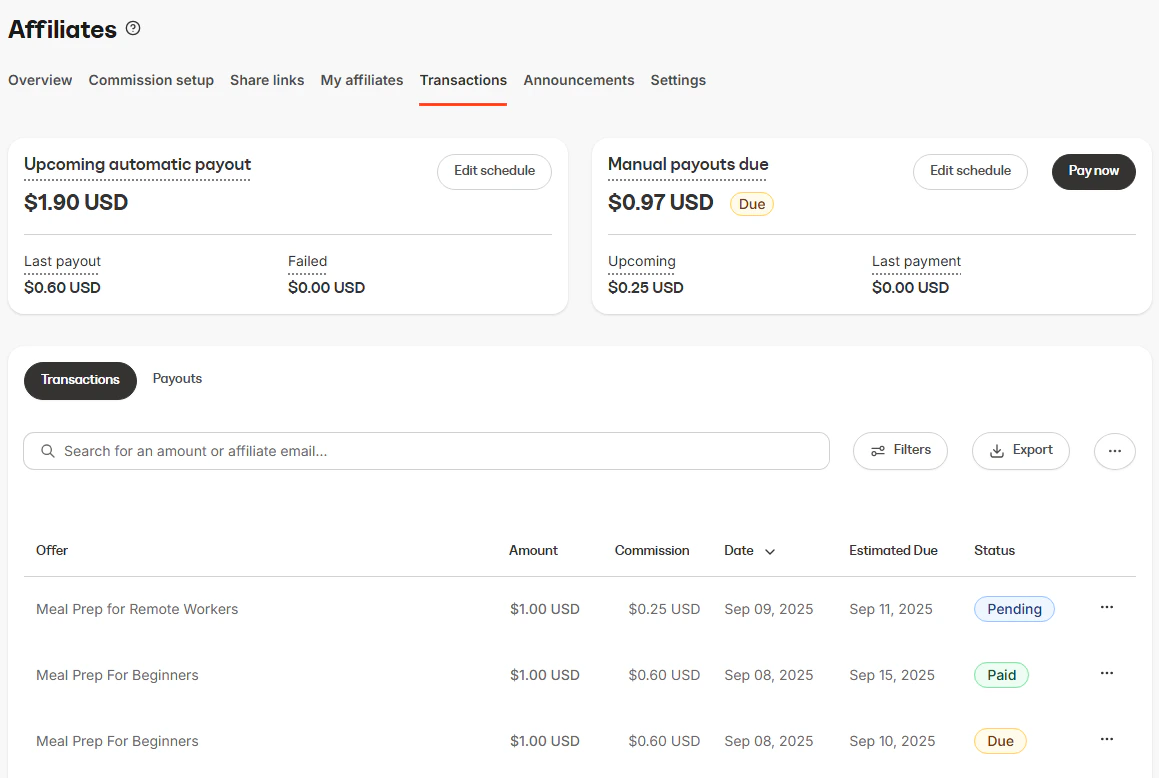
Every affiliate commission displays a clear **Status** indicator so you can instantly see where it stands in the payout process:
* **Pending** - The commission is recorded but not yet eligible for payout according to your delay schedule.
* **Due** - The commission has met the payout delay requirements and is now payable.
* **Paid** - The commission has been paid out to your affiliate.
* **Canceled** - The commission was canceled and will not be paid out.
 Before you can begin this process and onboard to the flow, you'll need to configure your payout settings.
### Finalized statuses
Once a commission is **Paid** or **Canceled**, it's finalized and cannot be changed anymore.
## Payouts
When commissions become **Due**, they are eligible to be paid either manually or automatically.
1. Navigate to the **Payouts Due** cards on your Affiliate Transaction page.
2. Determine your preferred **Payout Method**, **Manual** or **Automatic**.
3. Set up a **Payout Schedule** to keep transactions organized and set reminders to pay commissions.
4. Once your Affiliates generate sales and their associated transactions are **Due** according to your **Payout Schedule**, they're ready to be paid out. Learn more about [Managing Affiliate Payouts and Commissions](../../sales/affiliates/manage-affiliate-payouts-and-commissions).
**Tip:**
You can also manually mark individual **Pending** or **Due** commissions as **Paid** by clicking their status badge and selecting **Paid**. That action creates a corresponding Payout record. Check out [PayPal's Guide](https://www.paypal.com/us/smarthelp/article/what-is-mass-payment-and-how-do-i-send-it-faq3094) to learn more about Mass Payment.
## FAQs
### Can I change a Paid commission back to Due?
No. Once a commission is marked Paid, it's finalized and cannot be changed.
### What happens if I refund after payout?
The commission stays **Paid** and is tagged as **Refunded**, so you can see it was returned after payment.
### How do I see which commissions are flagged as Refunded?
Look for the **Refunded** badge next to the status indicator in your Affiliate Commission list, or apply the **Refunded** filter to locate them more easily.
### If I reassign the commission of a subscription to a different affiliate, will it reassign all subsequent payments?
Yes. The transaction you reassigned *and* the subsequent subscription payments will all be credited towards the newly selected affiliate user.
Before you can begin this process and onboard to the flow, you'll need to configure your payout settings.
### Finalized statuses
Once a commission is **Paid** or **Canceled**, it's finalized and cannot be changed anymore.
## Payouts
When commissions become **Due**, they are eligible to be paid either manually or automatically.
1. Navigate to the **Payouts Due** cards on your Affiliate Transaction page.
2. Determine your preferred **Payout Method**, **Manual** or **Automatic**.
3. Set up a **Payout Schedule** to keep transactions organized and set reminders to pay commissions.
4. Once your Affiliates generate sales and their associated transactions are **Due** according to your **Payout Schedule**, they're ready to be paid out. Learn more about [Managing Affiliate Payouts and Commissions](../../sales/affiliates/manage-affiliate-payouts-and-commissions).
**Tip:**
You can also manually mark individual **Pending** or **Due** commissions as **Paid** by clicking their status badge and selecting **Paid**. That action creates a corresponding Payout record. Check out [PayPal's Guide](https://www.paypal.com/us/smarthelp/article/what-is-mass-payment-and-how-do-i-send-it-faq3094) to learn more about Mass Payment.
## FAQs
### Can I change a Paid commission back to Due?
No. Once a commission is marked Paid, it's finalized and cannot be changed.
### What happens if I refund after payout?
The commission stays **Paid** and is tagged as **Refunded**, so you can see it was returned after payment.
### How do I see which commissions are flagged as Refunded?
Look for the **Refunded** badge next to the status indicator in your Affiliate Commission list, or apply the **Refunded** filter to locate them more easily.
### If I reassign the commission of a subscription to a different affiliate, will it reassign all subsequent payments?
Yes. The transaction you reassigned *and* the subsequent subscription payments will all be credited towards the newly selected affiliate user.