> ## Documentation Index
> Fetch the complete documentation index at: https://help.kajabi.com/llms.txt
> Use this file to discover all available pages before exploring further.
# Add pricing options to an Offer with Enhanced Checkout
> Add multiple pricing options like one-time payments, payment plans, and subscriptions to a single Offer.
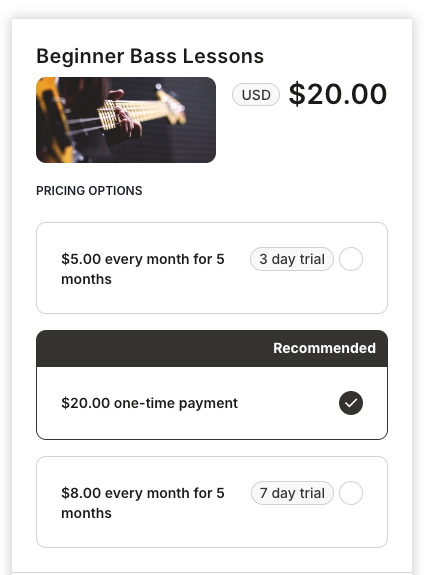
Enhanced Checkout allows you to add multiple pricing options to a single Offer.When Enhanced Checkout is selected as your checkout template, customers can choose between one-time payments, payment plans, or subscriptions directly on the checkout page, making it easier for them to select the option that fits their budget.
 ## Add pricing options to an Offer
To add multiple pricing options:
1. From the Dashboard, click **Sales.**
2. Click **Pricing** and select the Offer you want to edit.
3. Click **Edit Checkout.**
4. Under **Checkout template**, select **Enhanced Checkout.**
5. Click **Add pricing option** and select from the following:
* **One-time payment:** Full price paid upfront.
* **Payment plan:** Split the total into multiple installments.
* **Subscription:** Recurring payments for ongoing access.
6. Click **Save** to apply your changes.
**Note:** You can highlight a recommended pricing option to guide customers toward your preferred choice. In the Enhanced Checkout editor, click the pricing option you want to highlight and enable the **Recommended** toggle. This is useful for encouraging payment plans or annual subscriptions.
**Note:** Kajabi does not currently support automatic bulk or percentage discounts for multiple items purchased at once within a single Offer. As a workaround, use a Cart order coupon to apply a percentage discount to a customer's total cart value when purchasing multiple Offers. You can also set a minimum purchase amount to trigger the discount. [Learn how to create a Cart order coupon.](https://help.kajabi.com/articles/sales/coupons/how-to-create-a-coupon)
## Upsells
Upsells let you present an additional Offer to customers immediately after they complete a purchase. Unlike pricing options, which appear before payment, upsells appear on a separate page after the transaction is complete. This makes them a useful tool for increasing order value without interrupting the checkout experience.
[Learn more about setting up upsells](/articles/sales/offers/upsells-overview).
## FAQs
### Can I reorder pricing options on the checkout page?
Yes. In the Enhanced Checkout editor, you can drag and drop pricing options to reorder how they appear to customers on the checkout page.
### Can I set a default selected pricing option?
Yes. You can highlight a recommended pricing option to make it the default selection customers see when they land on the checkout page. In the Enhanced Checkout editor, click the pricing option you want to highlight and enable the **Recommended** toggle.
### Can I use pricing options with Kajabi Cart?
No. Kajabi Cart does not currently support Offers with payment plans or subscriptions. Pricing options using one-time payments are supported. [Learn more about Kajabi Cart](https://help.kajabi.com/articles/sales/checkout/kajabi-cart-overview).
## Add pricing options to an Offer
To add multiple pricing options:
1. From the Dashboard, click **Sales.**
2. Click **Pricing** and select the Offer you want to edit.
3. Click **Edit Checkout.**
4. Under **Checkout template**, select **Enhanced Checkout.**
5. Click **Add pricing option** and select from the following:
* **One-time payment:** Full price paid upfront.
* **Payment plan:** Split the total into multiple installments.
* **Subscription:** Recurring payments for ongoing access.
6. Click **Save** to apply your changes.
**Note:** You can highlight a recommended pricing option to guide customers toward your preferred choice. In the Enhanced Checkout editor, click the pricing option you want to highlight and enable the **Recommended** toggle. This is useful for encouraging payment plans or annual subscriptions.
**Note:** Kajabi does not currently support automatic bulk or percentage discounts for multiple items purchased at once within a single Offer. As a workaround, use a Cart order coupon to apply a percentage discount to a customer's total cart value when purchasing multiple Offers. You can also set a minimum purchase amount to trigger the discount. [Learn how to create a Cart order coupon.](https://help.kajabi.com/articles/sales/coupons/how-to-create-a-coupon)
## Upsells
Upsells let you present an additional Offer to customers immediately after they complete a purchase. Unlike pricing options, which appear before payment, upsells appear on a separate page after the transaction is complete. This makes them a useful tool for increasing order value without interrupting the checkout experience.
[Learn more about setting up upsells](/articles/sales/offers/upsells-overview).
## FAQs
### Can I reorder pricing options on the checkout page?
Yes. In the Enhanced Checkout editor, you can drag and drop pricing options to reorder how they appear to customers on the checkout page.
### Can I set a default selected pricing option?
Yes. You can highlight a recommended pricing option to make it the default selection customers see when they land on the checkout page. In the Enhanced Checkout editor, click the pricing option you want to highlight and enable the **Recommended** toggle.
### Can I use pricing options with Kajabi Cart?
No. Kajabi Cart does not currently support Offers with payment plans or subscriptions. Pricing options using one-time payments are supported. [Learn more about Kajabi Cart](https://help.kajabi.com/articles/sales/checkout/kajabi-cart-overview).