> ## Documentation Index
> Fetch the complete documentation index at: https://help.kajabi.com/llms.txt
> Use this file to discover all available pages before exploring further.
# Checkout page editor (previous updates)
> Review historical updates to the checkout editor including CTA text, mobile layout, login, and pricing options.
## Overview
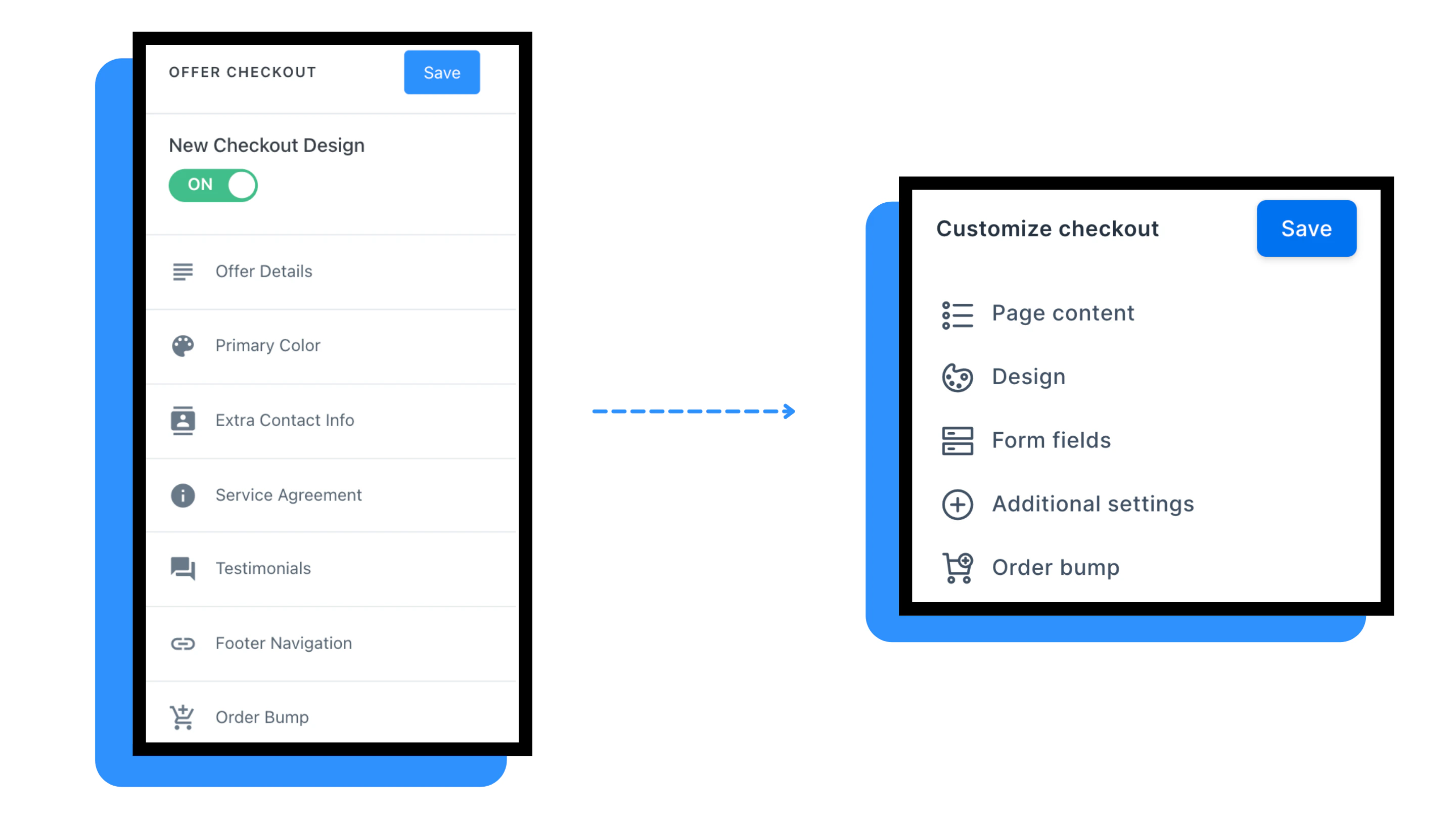
The Checkout Page Editor has evolved with several enhancements to improve customization options and customer experience. This reference covers past updates including custom CTA text, mobile layout improvements, login requirements, and pay-what-you-want pricing. These features have been released and are available in your checkout settings.
## Custom CTA text
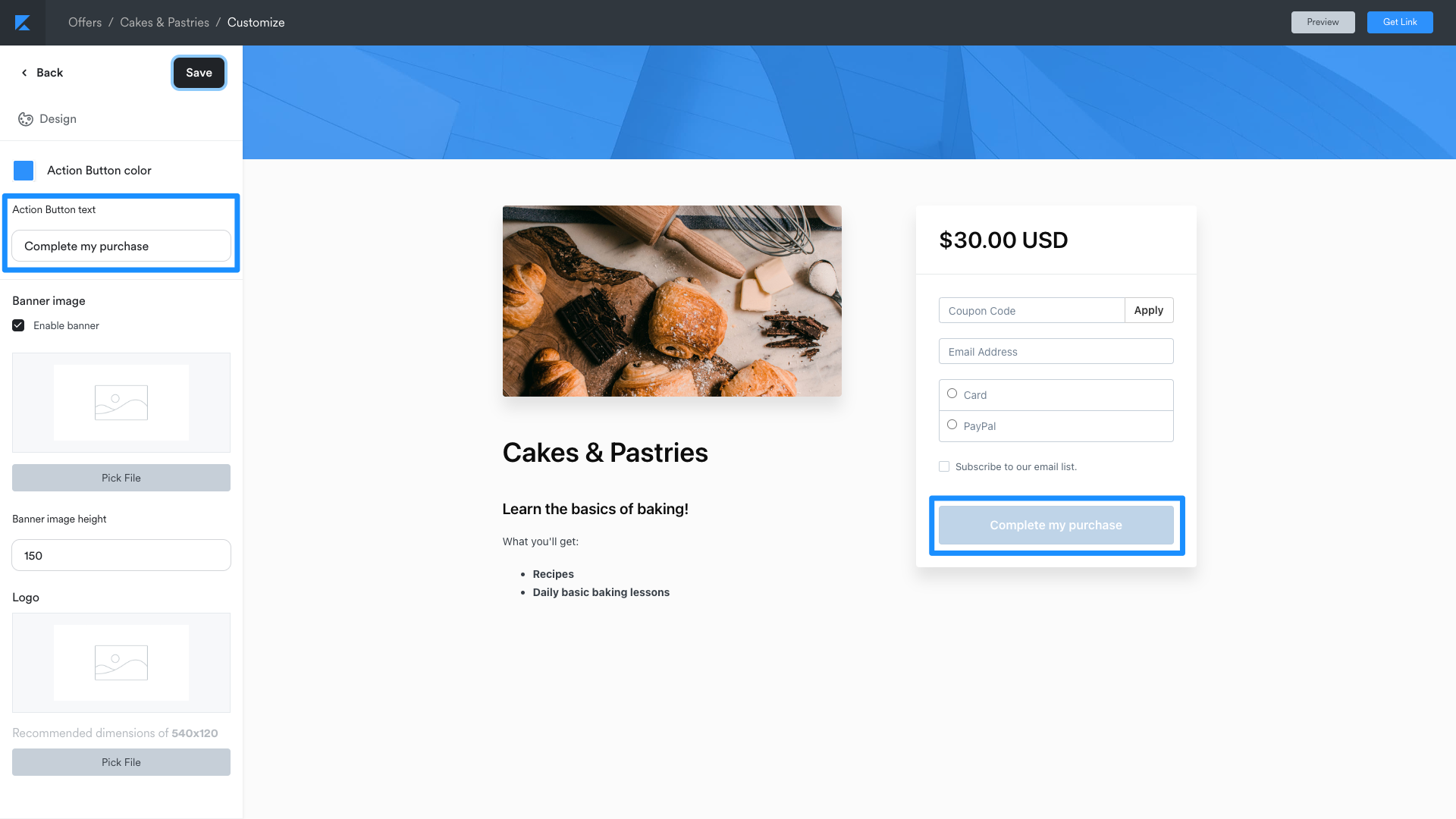
You can customize the call-to-action button text on your checkout pages to better match your offer and brand voice.
### Configure CTA text
1. Navigate to your offer's checkout settings
2. Open the **Checkout Editor**
3. Locate the **CTA Button** section
4. Enter your custom button text
5. Click **Save** to apply changes
 ### CTA text best practices
* Use action-oriented language (e.g., "Get Instant Access" or "Start Learning Today")
* Keep button text concise—aim for 2-4 words
* Test different variations to see what resonates with your audience
* Align CTA text with your offer's value proposition
## Mobile layout improvements
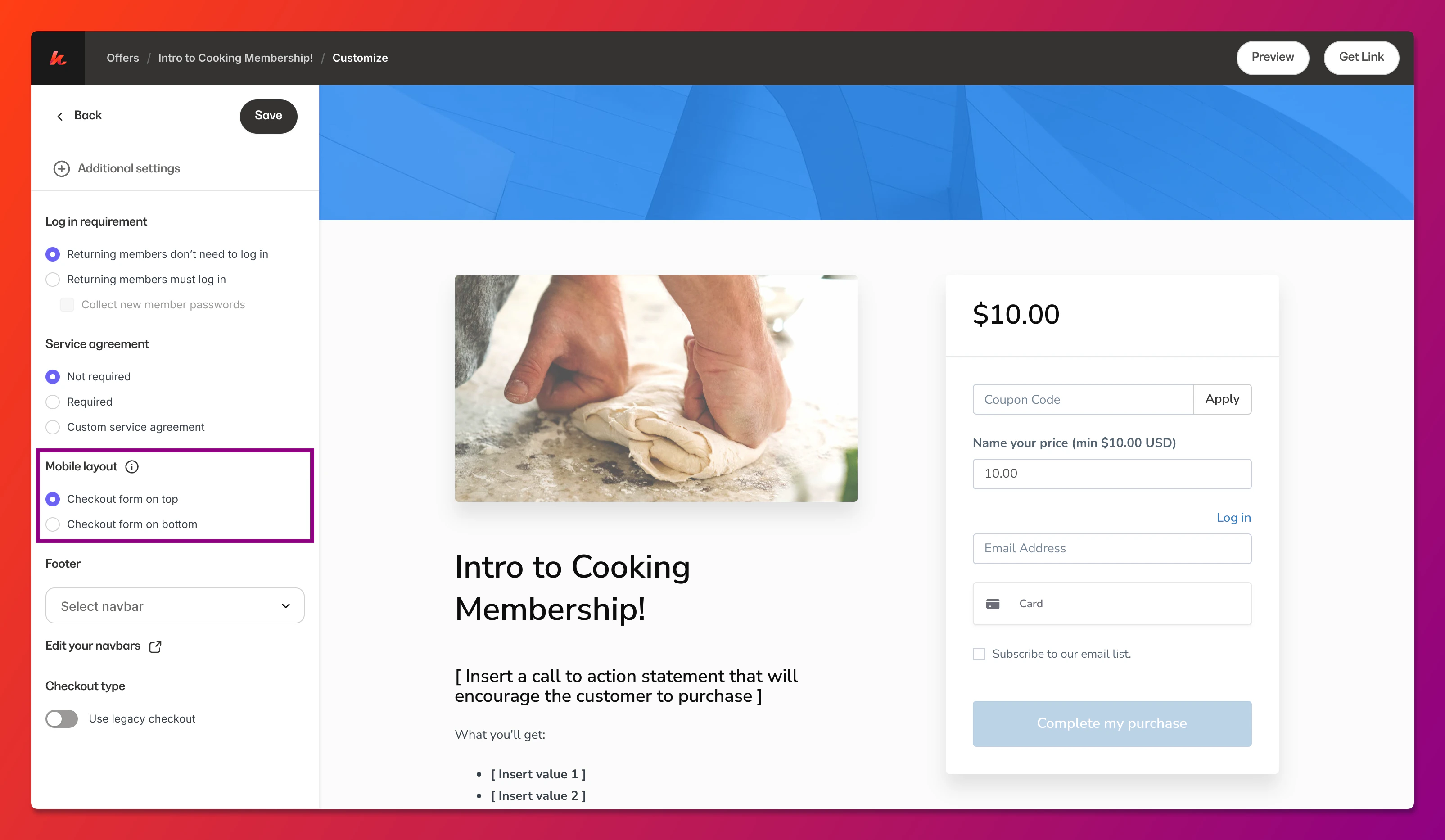
The checkout editor includes optimizations for mobile devices to ensure a seamless purchasing experience on smartphones and tablets.
### CTA text best practices
* Use action-oriented language (e.g., "Get Instant Access" or "Start Learning Today")
* Keep button text concise—aim for 2-4 words
* Test different variations to see what resonates with your audience
* Align CTA text with your offer's value proposition
## Mobile layout improvements
The checkout editor includes optimizations for mobile devices to ensure a seamless purchasing experience on smartphones and tablets.
### Mobile-specific features
* **Responsive design**: Checkout pages automatically adapt to screen size
* **Touch-friendly inputs**: Form fields are optimized for mobile interaction
* **Streamlined layout**: Content stacks vertically for easy scrolling
* **Fast loading**: Optimized assets for mobile network conditions
 **Note:** Preview your checkout page on multiple devices to ensure the experience meets your expectations across all screen sizes.
## Login requirement settings
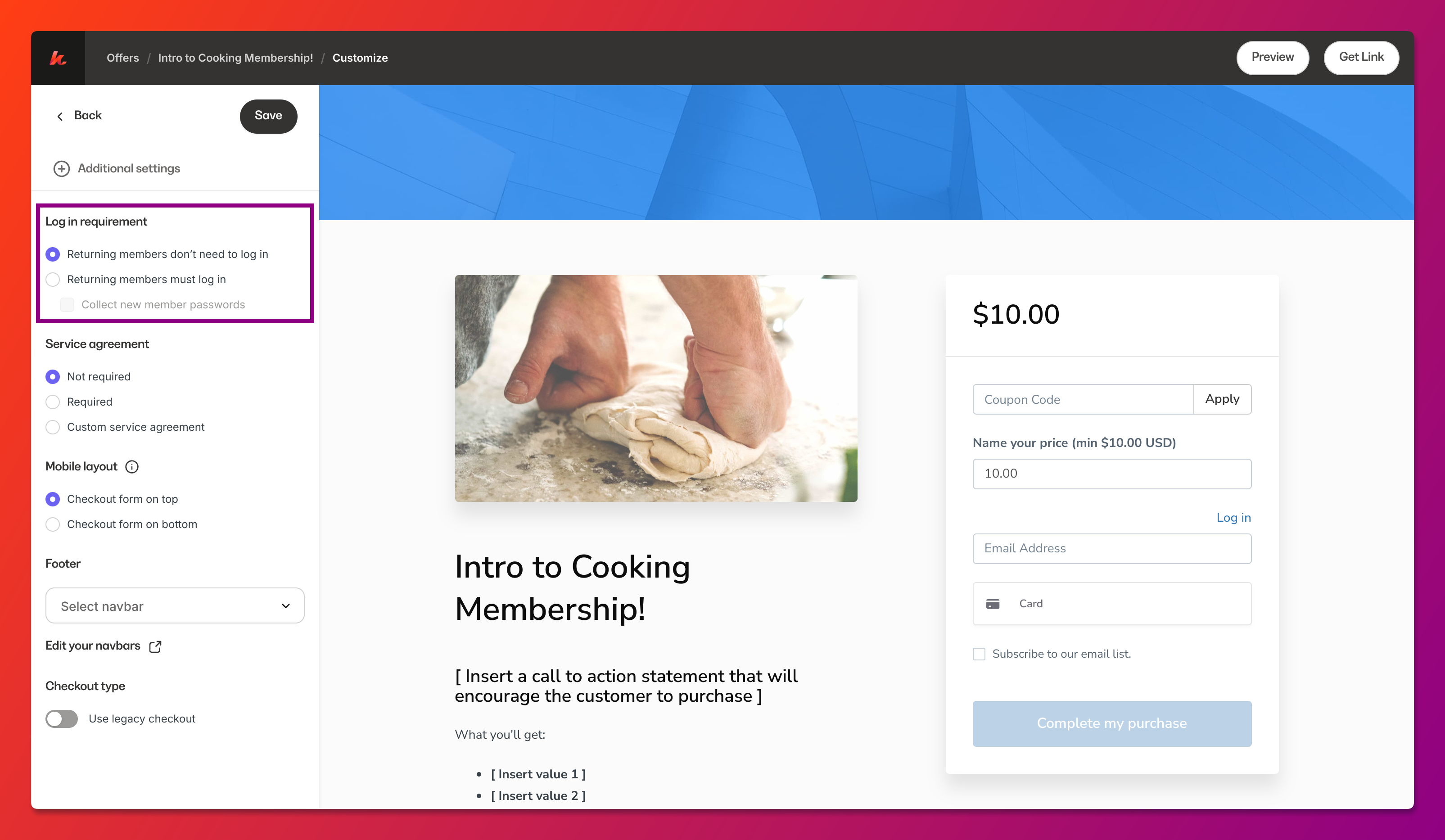
Control whether customers must log in or create an account to complete their purchase.
### Available options
* **Guest checkout**: Allow customers to purchase without creating an account
* **Required login**: Require customers to log in or register before checkout
* **Optional login**: Give customers the choice to log in or proceed as guest
**Note:** Preview your checkout page on multiple devices to ensure the experience meets your expectations across all screen sizes.
## Login requirement settings
Control whether customers must log in or create an account to complete their purchase.
### Available options
* **Guest checkout**: Allow customers to purchase without creating an account
* **Required login**: Require customers to log in or register before checkout
* **Optional login**: Give customers the choice to log in or proceed as guest
 ### Configure login settings
1. Access your offer's checkout settings
2. Navigate to the **Form Fields** section
3. Locate the login requirement option
4. Select your preferred setting
5. Save your changes
### Configure login settings
1. Access your offer's checkout settings
2. Navigate to the **Form Fields** section
3. Locate the login requirement option
4. Select your preferred setting
5. Save your changes
 ## Pay what you want pricing
The pay-what-you-want feature allows customers to choose their own price, within parameters you define.
### Enable pay what you want
1. Navigate to your offer's pricing settings
2. Select **Pay What You Want** as the pricing type
3. Set a minimum price (optional but recommended)
4. Set a suggested price to guide customers
5. Save your pricing configuration
### Best practices
* **Set a minimum price**: Ensure you cover your costs and receive fair compensation
* **Provide a suggested price**: Help customers understand the value of your offer
* **Explain the model**: Let customers know why you're offering flexible pricing
* **Show value clearly**: Customers pay more when they understand what they're getting
## Pay what you want pricing
The pay-what-you-want feature allows customers to choose their own price, within parameters you define.
### Enable pay what you want
1. Navigate to your offer's pricing settings
2. Select **Pay What You Want** as the pricing type
3. Set a minimum price (optional but recommended)
4. Set a suggested price to guide customers
5. Save your pricing configuration
### Best practices
* **Set a minimum price**: Ensure you cover your costs and receive fair compensation
* **Provide a suggested price**: Help customers understand the value of your offer
* **Explain the model**: Let customers know why you're offering flexible pricing
* **Show value clearly**: Customers pay more when they understand what they're getting
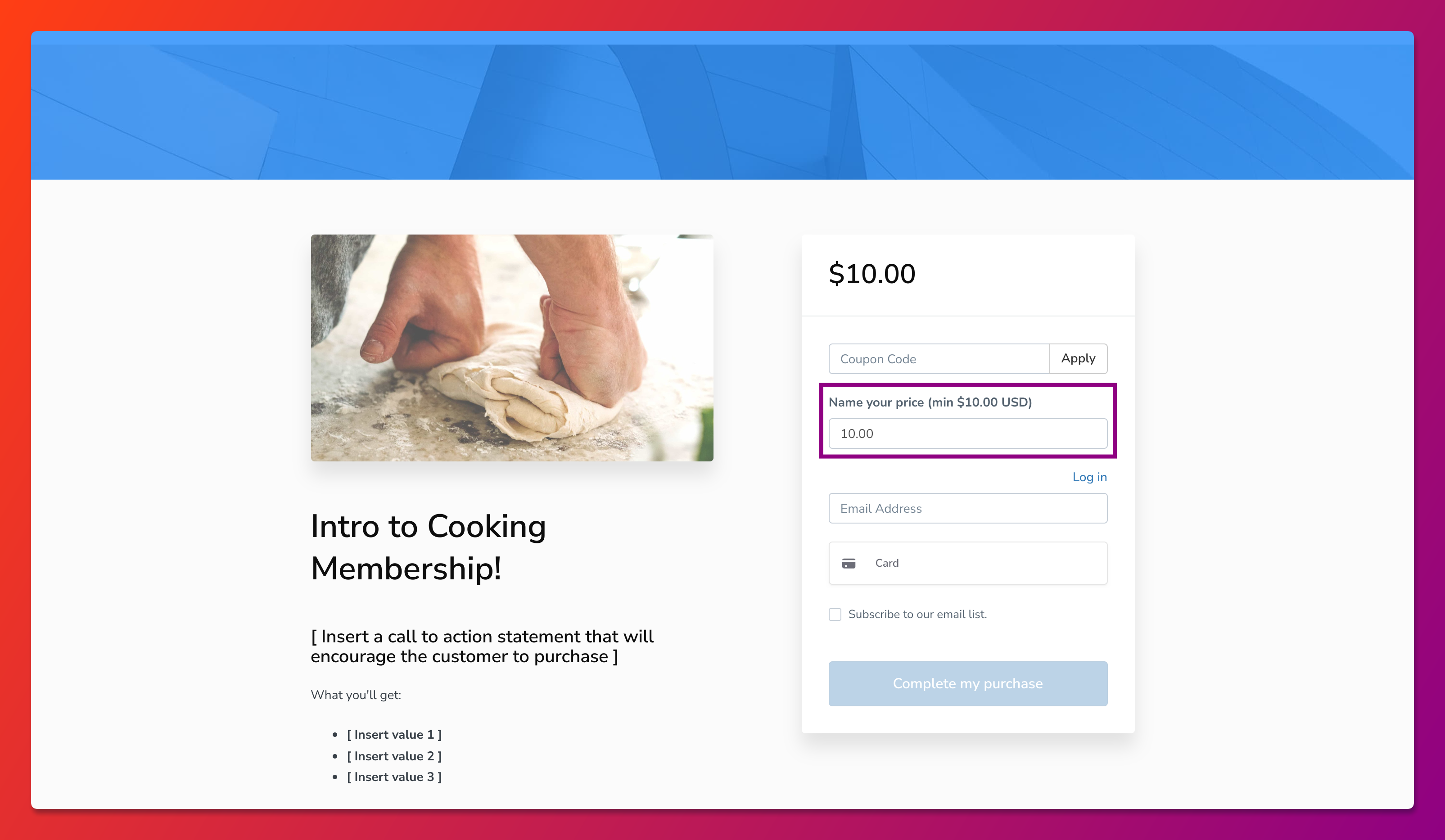 **Tip:** Pay-what-you-want pricing works well for community-focused offers, charitable causes, or when you want to make your content accessible to audiences with varying budgets.