> ## Documentation Index
> Fetch the complete documentation index at: https://help.kajabi.com/llms.txt
> Use this file to discover all available pages before exploring further.
# Sell bulk and corporate access
> Take a company's payment, grant an Offer to their whole team in bulk, and plan a corporate rollout that matches what you sold.
Bulk access is how you sell one Kajabi Offer to a company that wants it for a group of employees. The company pays you once, gives you the email addresses of the people who need access, and you grant them all access in a single action.
Kajabi treats each of those employees as an individual contact on your site rather than as a seat in a pool the company controls. You add and remove people yourself, which shapes how you price the deal and what you agree to maintain for the company.
## How bulk access sales works
Every corporate sale on Kajabi follows the same three steps:
1. The company pays you through a checkout, a set of coupon codes, or an invoice.
2. The company sends you the list of people who need access.
3. You import that list into **Contacts** and grant them the **Offer** in one bulk action.
An Offer grants access to one person, identified by their email address. That means:
* Each person who needs access is a separate contact on your site
* You add and remove those contacts yourself.
* Email addresses must be unique, so each person on the company's list needs their own.Two people can't share one.
## Before you begin
1. Decide how the company will pay: through a checkout, coupon codes, or an invoice. Each method changes how you set up the Offer, so settle this first. See [Choose a payment method](#).
2. Create the Offer you'll be granting and confirm it includes every Product the team needs to reach. [**Learn more about Offers**](/articles/sales/offers/offers-overview).
3. Ask the company for their team list as a CSV that includes, at minimum, a column of email addresses.
## Choose payment method
Three payment methods work, and they suit different deal sizes.
### Sell multiple units at checkout
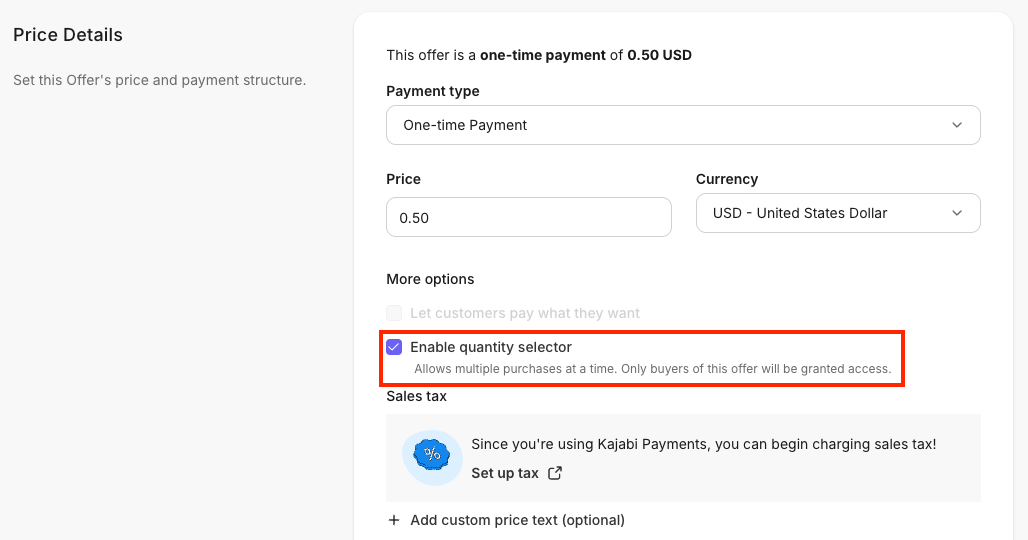
The **checkout quantity selector** lets a buyer choose a quantity and pay for all of it in one transaction.
To enable it on an Offer:
1. Open **Sales > Pricing** from your Kajabi Dashboard
2. Select the Offer you want to sell in multiples
3. Click the **Pricing** tab
4. Check the **Enable quantity selector**
5. Click **Save**
 Two things determine whether this works for your deal:
* It works only on one-time payment Offers — subscriptions, payment plans, free Offers, and pay-what-you-want Offers cannot use it
* It cannot be combined with gifting on the same Offer
If you do not see the **Enable quantity selector** checkbox, the Offer uses a payment type that does not support it, or the Offer is set up as a gift.
**Note:** Buying 25 units does not create 25 logins. Only the buyer of the Offer is granted access. The quantity is what the company pays for, and you still grant access to each person yourself.
### Sell licenses as bulk coupon codes
Generate a batch of single-use Coupon codes, send them to the company, and let each employee redeem one at checkout. This shifts the account creation work to the employees. Each person checks out for themselves and enter their own email address..
Create between 1 and 1,000 codes in a single batch. [Learn how to create Coupon Codes in bulk](/articles/sales/coupons/creating-coupon-codes-in-bulk).
**Tip:** Bulk codes are single-use and apply their discount once, so set the discount to 100% if the company has already paid you for the seats.
### Invoice the company directly
For a negotiated deal, take payment outside the checkout to an invoice or a custom Offer priced for the whole team. Then, import the contacts and grant the Offer.
## Add the team to Contacts
Import the company's list so every person exists as a contact before you grant.
1. Open the **Contacts** tab from your Dashboard
2. Upload the company's CSV with the import tool, or paste the rows directly
3. Map the columns — the email column is the only one Kajabi requires
4. Add a Tag that identifies the company, so you can find this group again later
[Learn how to import contacts into Kajabi](/articles/contacts/manage-your-contacts/how-to-import-contacts-into-kajabi) and [how to format a CSV for contact imports](/articles/contacts/manage-your-contacts/format-a-csv-for-contact-imports).
Three limits apply to imports:
* Up to 20,000 rows in a single import
* A maximum file size of 32 MB
* Up to 40,000 contacts imported per day
Tagging the group during import is what makes the rest of this page easy — the Tag becomes the filter you select on, and later the filter you revoke on. [Learn more about tags](/articles/contacts/manage-your-contacts/tags-overview)
## Grant the Offer in bulk
1. Open the **Contacts** tab from your Dashboard
2. Click **All Contacts**
3. Filter your contacts by the Tag you applied during import, or select a [custom segment](/articles/contacts/manage-your-contacts/segment-your-contacts)
Two things determine whether this works for your deal:
* It works only on one-time payment Offers — subscriptions, payment plans, free Offers, and pay-what-you-want Offers cannot use it
* It cannot be combined with gifting on the same Offer
If you do not see the **Enable quantity selector** checkbox, the Offer uses a payment type that does not support it, or the Offer is set up as a gift.
**Note:** Buying 25 units does not create 25 logins. Only the buyer of the Offer is granted access. The quantity is what the company pays for, and you still grant access to each person yourself.
### Sell licenses as bulk coupon codes
Generate a batch of single-use Coupon codes, send them to the company, and let each employee redeem one at checkout. This shifts the account creation work to the employees. Each person checks out for themselves and enter their own email address..
Create between 1 and 1,000 codes in a single batch. [Learn how to create Coupon Codes in bulk](/articles/sales/coupons/creating-coupon-codes-in-bulk).
**Tip:** Bulk codes are single-use and apply their discount once, so set the discount to 100% if the company has already paid you for the seats.
### Invoice the company directly
For a negotiated deal, take payment outside the checkout to an invoice or a custom Offer priced for the whole team. Then, import the contacts and grant the Offer.
## Add the team to Contacts
Import the company's list so every person exists as a contact before you grant.
1. Open the **Contacts** tab from your Dashboard
2. Upload the company's CSV with the import tool, or paste the rows directly
3. Map the columns — the email column is the only one Kajabi requires
4. Add a Tag that identifies the company, so you can find this group again later
[Learn how to import contacts into Kajabi](/articles/contacts/manage-your-contacts/how-to-import-contacts-into-kajabi) and [how to format a CSV for contact imports](/articles/contacts/manage-your-contacts/format-a-csv-for-contact-imports).
Three limits apply to imports:
* Up to 20,000 rows in a single import
* A maximum file size of 32 MB
* Up to 40,000 contacts imported per day
Tagging the group during import is what makes the rest of this page easy — the Tag becomes the filter you select on, and later the filter you revoke on. [Learn more about tags](/articles/contacts/manage-your-contacts/tags-overview)
## Grant the Offer in bulk
1. Open the **Contacts** tab from your Dashboard
2. Click **All Contacts**
3. Filter your contacts by the Tag you applied during import, or select a [custom segment](/articles/contacts/manage-your-contacts/segment-your-contacts)
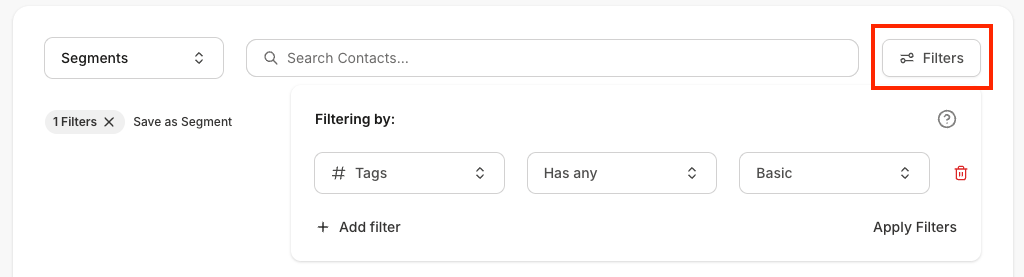 4. Click **Apply Filters**
5. Check **Select All**
6. Open the **Bulk Actions** menu
7. Under **Offers**, select **Grant offer**
4. Click **Apply Filters**
5. Check **Select All**
6. Open the **Bulk Actions** menu
7. Under **Offers**, select **Grant offer**
 8. Choose the Offer to grant
9. Click **Submit**
**Note:** Kajabi processes the grant in the background rather than all at once, so a large list takes time to finish.
Everyone who receives the Offer gets the Offer Grant Confirmation email if they're subscribed to your marketing emails, and anyone new to your site also gets the Member Welcome Email with their login details. [Learn how to edit your automated email templates](/articles/account-settings/notifications/edit-automated-email-notifications)
**Note:** A contact who already has the Offer is skipped rather than granted twice, so re-running the bulk grant after the company adds people is safe.
## Remove access when someone leaves
When someone leaves the company, revoke their access from the same **Bulk Actions** menu you used to grant it. This works for a single contact or for the whole group when a contract ends.
1. Open the **Contacts** tab from your Dashboard
2. Select the contacts to remove, or filter to the company's Tag
3. Open the **Bulk Actions** menu
4. Under **Offers**, select **Revoke offer**
5. Choose the Offer and click **Submit**
Revoking removes access to the Products in that Offer. It does not delete the contact, so their record and history stay on your site.
## Plan a corporate rollout
A corporate deal runs differently from a consumer sale in a few ways. Settle these with the company before the deal closes:
* **Each person gets their own record.** Kajabi tracks every member of the team as an individual contact, so progress, activity, and history stay attributable to the right person
* **Access changes run through you.** Adding or removing someone is a bulk action on your side, so agree with the company on how they'll send updates — a shared spreadsheet or a monthly email is usually enough
* **Members sign in with their own Kajabi credentials.** Single sign-on is available to select customers by arrangement with Kajabi, so if a company requires it, raise it with support early
* **One login per person keeps reporting clean.** Kajabi doesn't cap concurrent logins, so make individual logins part of your agreement — shared credentials merge two people's Course completion and Community activity into one record
* **Corporate contacts count toward your plan.** A large rollout uses contacts the same way any list does, so check your headroom before importing a few thousand people
## Backstage and admin seat costs
Two things in Kajabi are billed per seat. Both are charged to you, not to the company buying access.
**Backstage seats.** Each customer with access to a Backstage Offer uses one seat.
**Beta:** Backstage is in beta. All plans include 1 seat, and additional seats are \$49/month, charged automatically for seats above your included limit. Pricing and entitlements may change.
Granting a Backstage Offer in bulk therefore carries a direct cost — 20 people on a Backstage Offer is 19 additional seats. [Learn how Backstage Offer pricing works](/articles/products/backstage/backstage-offer-pricing)
**Admin user seats.** These cover your own staff who log in to your Kajabi account, not your customers. Your plan includes a set number, and the Sub-Owner and Administrator roles consume them. [Learn how to add account users](/articles/account-settings/users/account-users)
## FAQs
### Can a company buy 50 seats and distribute them itself?
No. A company can pay for 50 through the checkout quantity selector, but only the buyer is granted access. You grant access to the other 49 people yourself, from their email addresses.
### Who adds and removes people over the life of the contract?
You do. Access changes are bulk actions on your Contacts, so agree with the company on how they'll send you updates, then run a bulk grant or revoke when the list changes.
### Does Kajabi support single sign-on for a corporate client?
Single sign-on for members is available to select customers by arrangement with Kajabi rather than as a self-serve setting. If a company requires SSO as a condition of the deal, contact support before you commit to it.
### What happens if the company sends more names later?
Import the additional people, apply the same Tag, and run the bulk grant again. Contacts who already have the Offer are skipped, so nobody is granted twice.
### Can employees share one login?
Technically yes — Kajabi does not enforce a concurrent login or device limit — but each shared login is one contact and one set of progress records, so Course completion, Community activity, and Assessment results all merge into a single person. Give each employee their own email address.
### How do I bill a company that adds people every month?
Sell a subscription Offer to the company and grant access as people join. The checkout quantity selector cannot be used on subscription Offers, so the recurring charge and the access grants are managed separately.
### Can I provision access from another system?
Yes. The Kajabi public API grants and revokes Offers for a contact, so an HR or LMS system can drive access. See `POST` and `DELETE` on `/v1/contacts/{contact_id}/relationships/offers` in the [API reference](/api-reference/introduction).
8. Choose the Offer to grant
9. Click **Submit**
**Note:** Kajabi processes the grant in the background rather than all at once, so a large list takes time to finish.
Everyone who receives the Offer gets the Offer Grant Confirmation email if they're subscribed to your marketing emails, and anyone new to your site also gets the Member Welcome Email with their login details. [Learn how to edit your automated email templates](/articles/account-settings/notifications/edit-automated-email-notifications)
**Note:** A contact who already has the Offer is skipped rather than granted twice, so re-running the bulk grant after the company adds people is safe.
## Remove access when someone leaves
When someone leaves the company, revoke their access from the same **Bulk Actions** menu you used to grant it. This works for a single contact or for the whole group when a contract ends.
1. Open the **Contacts** tab from your Dashboard
2. Select the contacts to remove, or filter to the company's Tag
3. Open the **Bulk Actions** menu
4. Under **Offers**, select **Revoke offer**
5. Choose the Offer and click **Submit**
Revoking removes access to the Products in that Offer. It does not delete the contact, so their record and history stay on your site.
## Plan a corporate rollout
A corporate deal runs differently from a consumer sale in a few ways. Settle these with the company before the deal closes:
* **Each person gets their own record.** Kajabi tracks every member of the team as an individual contact, so progress, activity, and history stay attributable to the right person
* **Access changes run through you.** Adding or removing someone is a bulk action on your side, so agree with the company on how they'll send updates — a shared spreadsheet or a monthly email is usually enough
* **Members sign in with their own Kajabi credentials.** Single sign-on is available to select customers by arrangement with Kajabi, so if a company requires it, raise it with support early
* **One login per person keeps reporting clean.** Kajabi doesn't cap concurrent logins, so make individual logins part of your agreement — shared credentials merge two people's Course completion and Community activity into one record
* **Corporate contacts count toward your plan.** A large rollout uses contacts the same way any list does, so check your headroom before importing a few thousand people
## Backstage and admin seat costs
Two things in Kajabi are billed per seat. Both are charged to you, not to the company buying access.
**Backstage seats.** Each customer with access to a Backstage Offer uses one seat.
**Beta:** Backstage is in beta. All plans include 1 seat, and additional seats are \$49/month, charged automatically for seats above your included limit. Pricing and entitlements may change.
Granting a Backstage Offer in bulk therefore carries a direct cost — 20 people on a Backstage Offer is 19 additional seats. [Learn how Backstage Offer pricing works](/articles/products/backstage/backstage-offer-pricing)
**Admin user seats.** These cover your own staff who log in to your Kajabi account, not your customers. Your plan includes a set number, and the Sub-Owner and Administrator roles consume them. [Learn how to add account users](/articles/account-settings/users/account-users)
## FAQs
### Can a company buy 50 seats and distribute them itself?
No. A company can pay for 50 through the checkout quantity selector, but only the buyer is granted access. You grant access to the other 49 people yourself, from their email addresses.
### Who adds and removes people over the life of the contract?
You do. Access changes are bulk actions on your Contacts, so agree with the company on how they'll send you updates, then run a bulk grant or revoke when the list changes.
### Does Kajabi support single sign-on for a corporate client?
Single sign-on for members is available to select customers by arrangement with Kajabi rather than as a self-serve setting. If a company requires SSO as a condition of the deal, contact support before you commit to it.
### What happens if the company sends more names later?
Import the additional people, apply the same Tag, and run the bulk grant again. Contacts who already have the Offer are skipped, so nobody is granted twice.
### Can employees share one login?
Technically yes — Kajabi does not enforce a concurrent login or device limit — but each shared login is one contact and one set of progress records, so Course completion, Community activity, and Assessment results all merge into a single person. Give each employee their own email address.
### How do I bill a company that adds people every month?
Sell a subscription Offer to the company and grant access as people join. The checkout quantity selector cannot be used on subscription Offers, so the recurring charge and the access grants are managed separately.
### Can I provision access from another system?
Yes. The Kajabi public API grants and revokes Offers for a contact, so an HR or LMS system can drive access. See `POST` and `DELETE` on `/v1/contacts/{contact_id}/relationships/offers` in the [API reference](/api-reference/introduction).