> ## Documentation Index
> Fetch the complete documentation index at: https://help.kajabi.com/llms.txt
> Use this file to discover all available pages before exploring further.
# Coupons Overview
> Understand how Coupons work in Kajabi and choose the right type for your next promotion.
***This feature is currently in Beta.***\_ This feature is being rolled out gradually. Some things are still being refined, and more detailed how-to articles are on the way. If you are currently in the beta and run into anything unexpected, please reach out to\_ [support@kajabi.com ](support@kajabi.com)*and the team will be able to assist.*
Use **Coupons** to boost a launch, reward your most loyal customers, or win back someone who almost bought. Every Coupon has a type that determines what it discounts, a status that controls when it can be redeemed, and built-in analytics to show you how it performs.
## Coupon types
Kajabi has three Coupon types:
| Type | What it discounts | Best for |
| :-------- | :------------------------------------------------------------------ | :--------------------------------------------------------------------------- |
| **Offer** | Specific Offers you attach to the coupon | Promotions on a course, community, coaching program, or any individual Offer |
| **Cart** | The customer's cart total, with an optional minimum purchase amount | Storewide sales and encouraging multi-product purchases |
| **Bulk** | Specific Offers, using a batch of unique one-time-use codes | Selling licenses to organizations, or giving each customer their own code |
See [Create Coupons](/articles/sales/coupons/how-to-create-a-coupon) for step-by-step instructions for each type.
## Coupon statuses
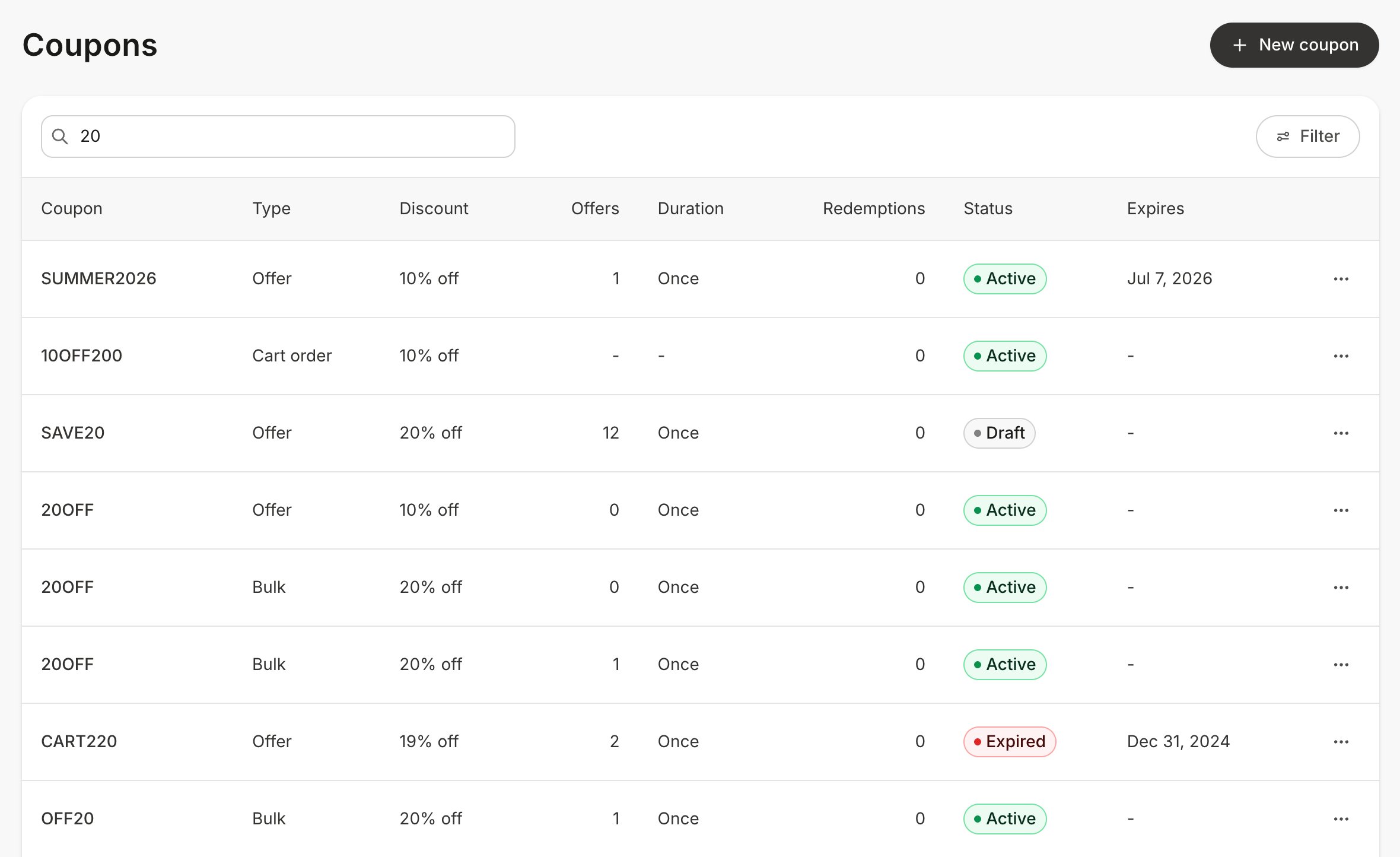
Every Coupon has a status, so you can tell what's live at a glance:
* **Draft**: Saved but not redeemable yet. Use Draft to set up a promotion before it goes live.
* **Active**: Live. Customers can redeem the Coupon at checkout.
* **Expired**: The expiration date has passed, and the Coupon can no longer be redeemed.
You can change a Coupon's status at any time. See **[Manage and Edit Coupons](/articles/sales/coupons/how-to-remove-an-offer-from-your-coupon).**
## The Coupons page
Open the **Sales** tab and select **Coupons** to see all coupons on your site. Search by coupon code or filter by status, type, or offer.
 ## The Coupon detail page
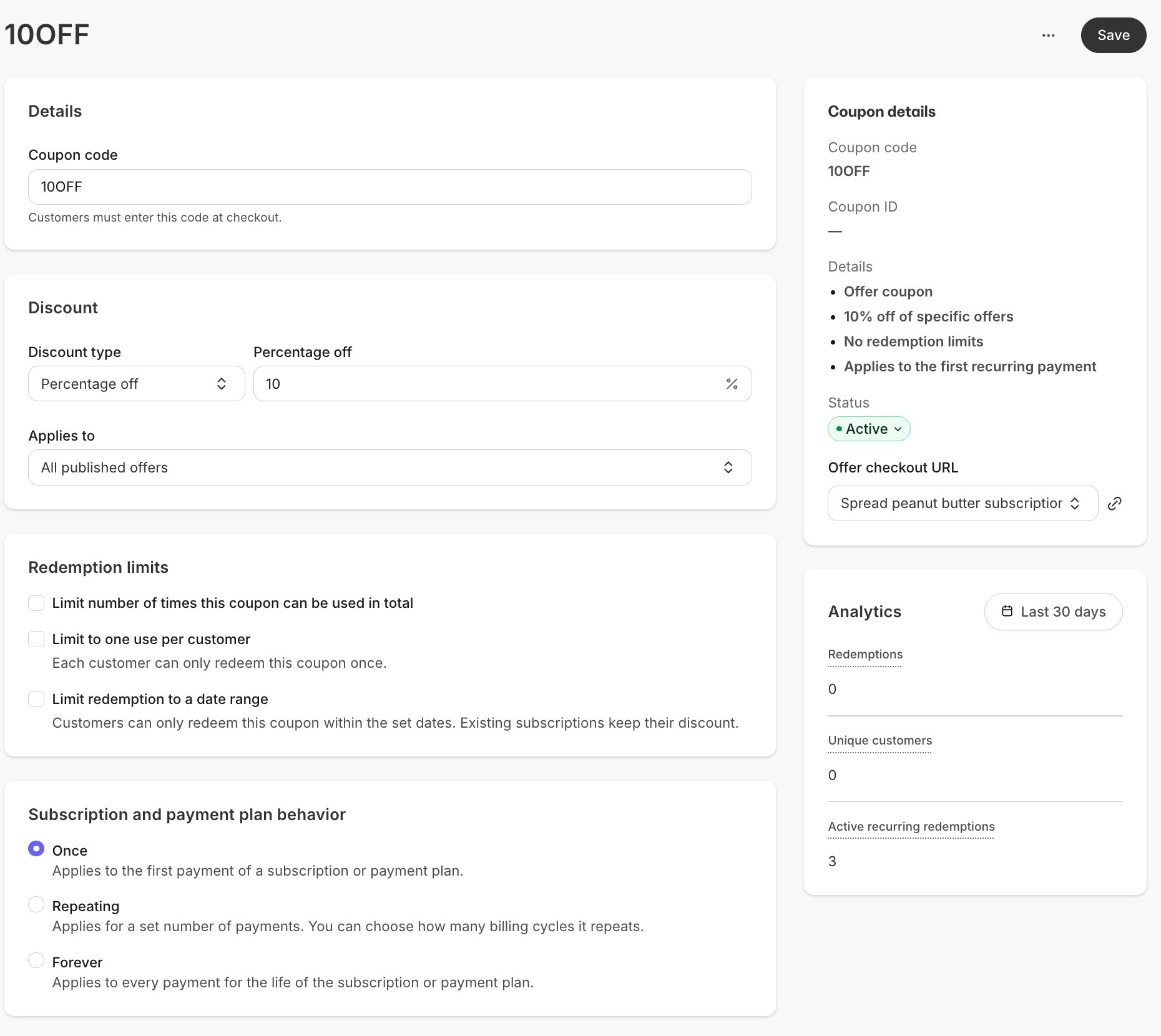
Select any Coupon to open its detail page. Here you'll find its settings, a **Coupon details** panel with its status and Offer checkout URLs, and an **Analytics** panel showing redemptions, unique customers, and active recurring redemptions, so you can see how each promotion is performing.
## The Coupon detail page
Select any Coupon to open its detail page. Here you'll find its settings, a **Coupon details** panel with its status and Offer checkout URLs, and an **Analytics** panel showing redemptions, unique customers, and active recurring redemptions, so you can see how each promotion is performing.
 Coupons can be edited after creation, and changes apply to new redemptions only. Anyone who already redeemed keeps the terms they signed up with, including subscriptions and payment plans.
## Redemption limits
Redemption limits control how often a Coupon can be used. Cap the total number of redemptions, limit the Coupon to one use per customer, or limit redemption to a date range. Once a Coupon reaches its limit, it can no longer be redeemed at checkout.
Add limits when you create a Coupon, or anytime after by editing it. See[ Create Coupons](/articles/sales/coupons/how-to-create-a-coupon).
## Subscriptions and payment plans
When a Coupon is applied to a subscription or payment plan Offer, its **Subscription and payment plan behavior** setting determines how many payments the discount covers. **Once** applies to the first payment only, **Repeating** applies for a set number of billing cycles, and **Forever** applies to every payment for the life of the subscription or payment plan.
## Troubleshooting
If a Coupon won't apply at checkout, the cause is usually one of these settings.
### Wrong currency
An Amount off Coupon must match the currency of the Offer it's attached to. If the two are set to different currencies, the Coupon won't apply.
**Fix:** Check the Offer's currency under **Sales > Pricing** and the Coupon's currency on its detail page, then align the two.
### 100% off set as an amount
Only **Percentage off** Coupons can make an Offer completely free. An **Amount off** Coupon can't bring the price all the way to zero.
**Fix:** Edit the Coupon's discount type to **Percent** and set the value to 100.
Customers still need to provide their credit card information when using a free Coupon on recurring subscription Offers.
### Expired Coupon
The Coupon's expiration date has passed, so it's marked Expired and can't be redeemed.
**Fix:** Edit the Coupon's redemption date range to extend the promotion. No need to rebuild the Coupon from scratch.
### Wrong Offer attached
Coupons only apply to the Offers attached to them. If a customer enters the code on a different Offer's checkout, it won't apply.
**Fix:** Open the Coupon and add the Offer, or share the correct Offer checkout URL with your customer.
### Deleted Coupon
A deleted Coupon code is gone for good and can't be restored.
**Fix:** Create a new Coupon.
Coupons can be edited after creation, and changes apply to new redemptions only. Anyone who already redeemed keeps the terms they signed up with, including subscriptions and payment plans.
## Redemption limits
Redemption limits control how often a Coupon can be used. Cap the total number of redemptions, limit the Coupon to one use per customer, or limit redemption to a date range. Once a Coupon reaches its limit, it can no longer be redeemed at checkout.
Add limits when you create a Coupon, or anytime after by editing it. See[ Create Coupons](/articles/sales/coupons/how-to-create-a-coupon).
## Subscriptions and payment plans
When a Coupon is applied to a subscription or payment plan Offer, its **Subscription and payment plan behavior** setting determines how many payments the discount covers. **Once** applies to the first payment only, **Repeating** applies for a set number of billing cycles, and **Forever** applies to every payment for the life of the subscription or payment plan.
## Troubleshooting
If a Coupon won't apply at checkout, the cause is usually one of these settings.
### Wrong currency
An Amount off Coupon must match the currency of the Offer it's attached to. If the two are set to different currencies, the Coupon won't apply.
**Fix:** Check the Offer's currency under **Sales > Pricing** and the Coupon's currency on its detail page, then align the two.
### 100% off set as an amount
Only **Percentage off** Coupons can make an Offer completely free. An **Amount off** Coupon can't bring the price all the way to zero.
**Fix:** Edit the Coupon's discount type to **Percent** and set the value to 100.
Customers still need to provide their credit card information when using a free Coupon on recurring subscription Offers.
### Expired Coupon
The Coupon's expiration date has passed, so it's marked Expired and can't be redeemed.
**Fix:** Edit the Coupon's redemption date range to extend the promotion. No need to rebuild the Coupon from scratch.
### Wrong Offer attached
Coupons only apply to the Offers attached to them. If a customer enters the code on a different Offer's checkout, it won't apply.
**Fix:** Open the Coupon and add the Offer, or share the correct Offer checkout URL with your customer.
### Deleted Coupon
A deleted Coupon code is gone for good and can't be restored.
**Fix:** Create a new Coupon.