> ## Documentation Index
> Fetch the complete documentation index at: https://help.kajabi.com/llms.txt
> Use this file to discover all available pages before exploring further.
# Create Coupons
> Create special promotions or deals that are attached to Offers or an entire cart purchase.
***This feature is currently in Beta.***\_ This feature is being rolled out gradually. Some things are still being refined, and more detailed how-to articles are on the way. If you are currently in the beta and run into anything unexpected, please reach out to\_ [support@kajabi.com ](support@kajabi.com)*and the team will be able to assist.*
Create **Coupons** to give a dollar amount or a percentage off your Offers or cart purchases. Choose from three Coupon types: **Offer** for specific Offers, **Cart** for a customer's cart total, and **Bulk** for a batch of unique one-time-use codes. If you're not sure which type fits your promotion, see [Coupons Overview.](/articles/sales/coupons/coupons-overview)
Coupons can be edited after creation, including the code, discount, and expiration date. Changes apply to new redemptions only.
## Create an Offer Coupon
1. Open the **Sales** tab from your Dashboard.
2. Choose **Coupons**.
3. Click **+ New coupon**.
4. Select **Offer Coupon**.
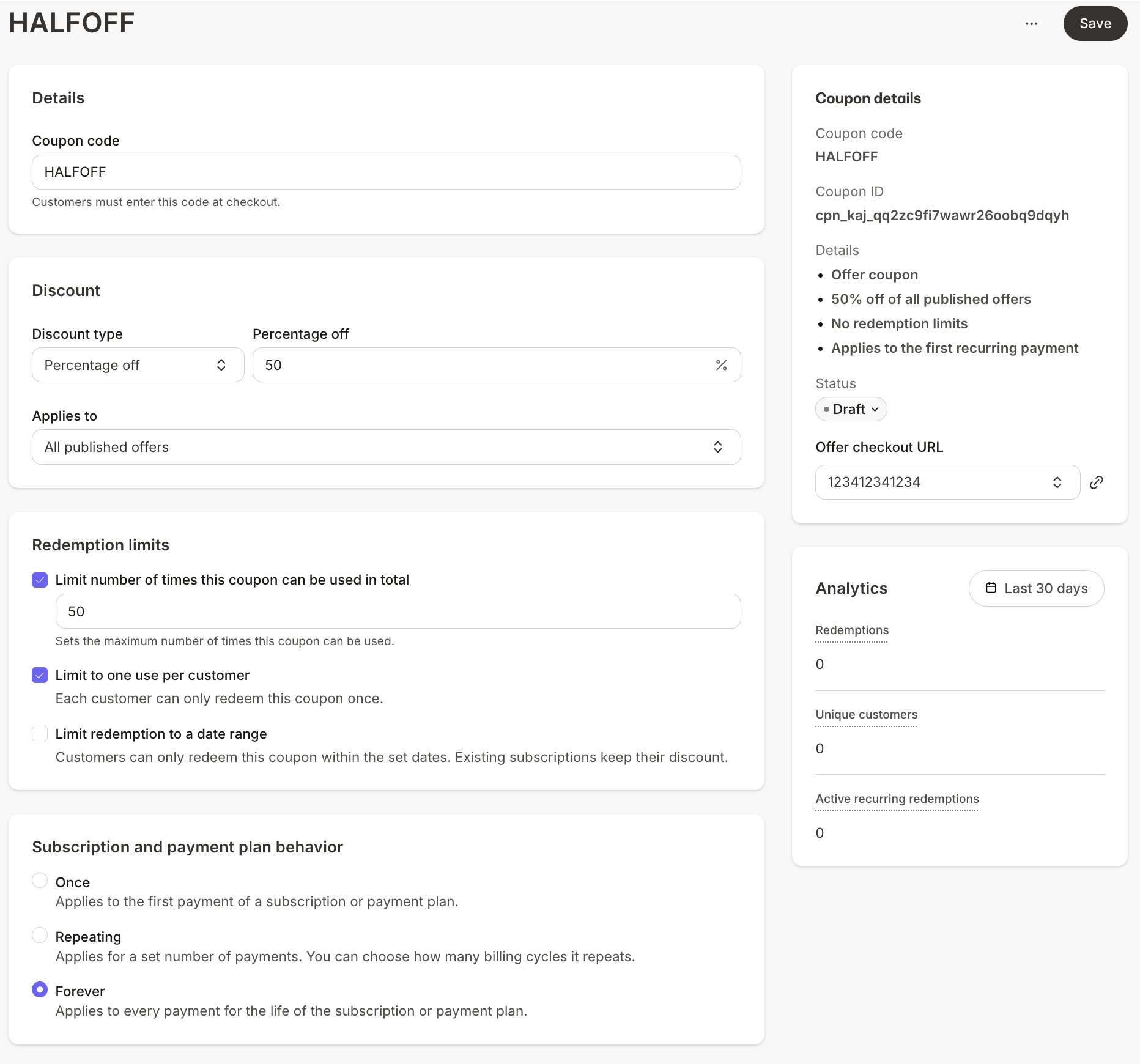
5. Under **Coupon details**, enter a custom **Coupon code** (i.e., HALFOFF)
6. Select a **Discount type** of **Percentage off** or **Fixed amount off**.
Select the corresponding **currency** if you apply an **Amount off**. Your Coupon must be in the same currency as the Offer it is attached to.
7. Enter the value of the discount (i.e., enter 10 for 10% off).
To create a free Coupon, set the Discount type to Percentage off and the value to 100. It must be applied as a percentage rather than an Amount off. Keep in mind that a customer still needs to provide their credit card information when using a free Coupon on recurring subscription Offers.
8. For payment plan or subscription Offers, choose how the discount applies over time under **Subscription and payment plan behavior**:
* **Once** applies to the first payment of a subscription or payment plan
* **Repeating** applies for a set number of payments, and you can choose how many billing cycles it repeats
* **Forever** applies to every payment for the life of the subscription or payment plan
9. Under **Applies to**, choose the Offers this Coupon covers, or select **All published offers**.
10. Set **Redemption limits** (optional). See [Set redemption limits](#set-redemption-limits) below.
11. Click **Save**.
New Coupons save as a **Draft**. When you're ready to launch the promotion, set the status to **Active** from the Coupon's detail page.
 ## Create a Cart Coupon
Cart Coupons discount the customer's cart total, so they're a natural fit for storewide sales.
1. Open the **Sales** tab from your Dashboard.
2. Choose **Coupons**.
3. Click **+ New coupon**, then select **Cart Order**.
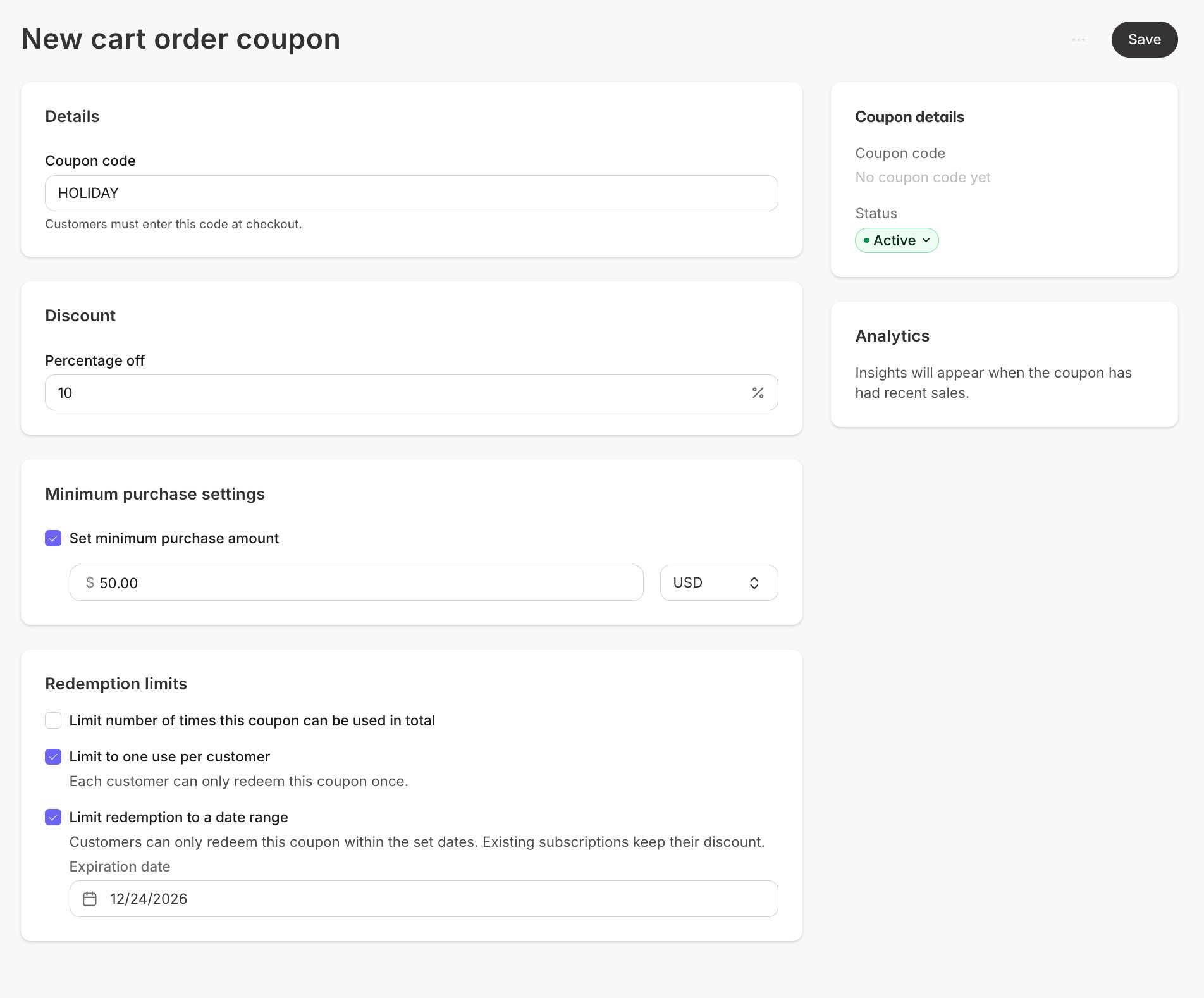
4. Enter a **Coupon code** and the discount value.
Cart order discounts can only be percentage-based coupons.
5. To require a minimum cart value, turn on **Minimum purchase amount**, then enter the **Amount** and select the **Currency**. The Coupon will only apply once the cart reaches that amount.
6. Set **Redemption limits** (optional).
7. Click **Save**
## Create a Cart Coupon
Cart Coupons discount the customer's cart total, so they're a natural fit for storewide sales.
1. Open the **Sales** tab from your Dashboard.
2. Choose **Coupons**.
3. Click **+ New coupon**, then select **Cart Order**.
4. Enter a **Coupon code** and the discount value.
Cart order discounts can only be percentage-based coupons.
5. To require a minimum cart value, turn on **Minimum purchase amount**, then enter the **Amount** and select the **Currency**. The Coupon will only apply once the cart reaches that amount.
6. Set **Redemption limits** (optional).
7. Click **Save**
 **Tip:** Pair a Cart Coupon with a minimum purchase amount to encourage customers to add one more product before checkout.
## Create Bulk Coupon codes
Bulk Coupons generate a batch of unique codes for the Offers you attach, and each code can only be used once. Use them to sell licenses to organizations or give every customer their own code.
1. Open the **Sales** tab from your Dashboard.
2. Choose **Coupons**.
3. Click **+ New coupon**, then select **Bulk coupon codes**.
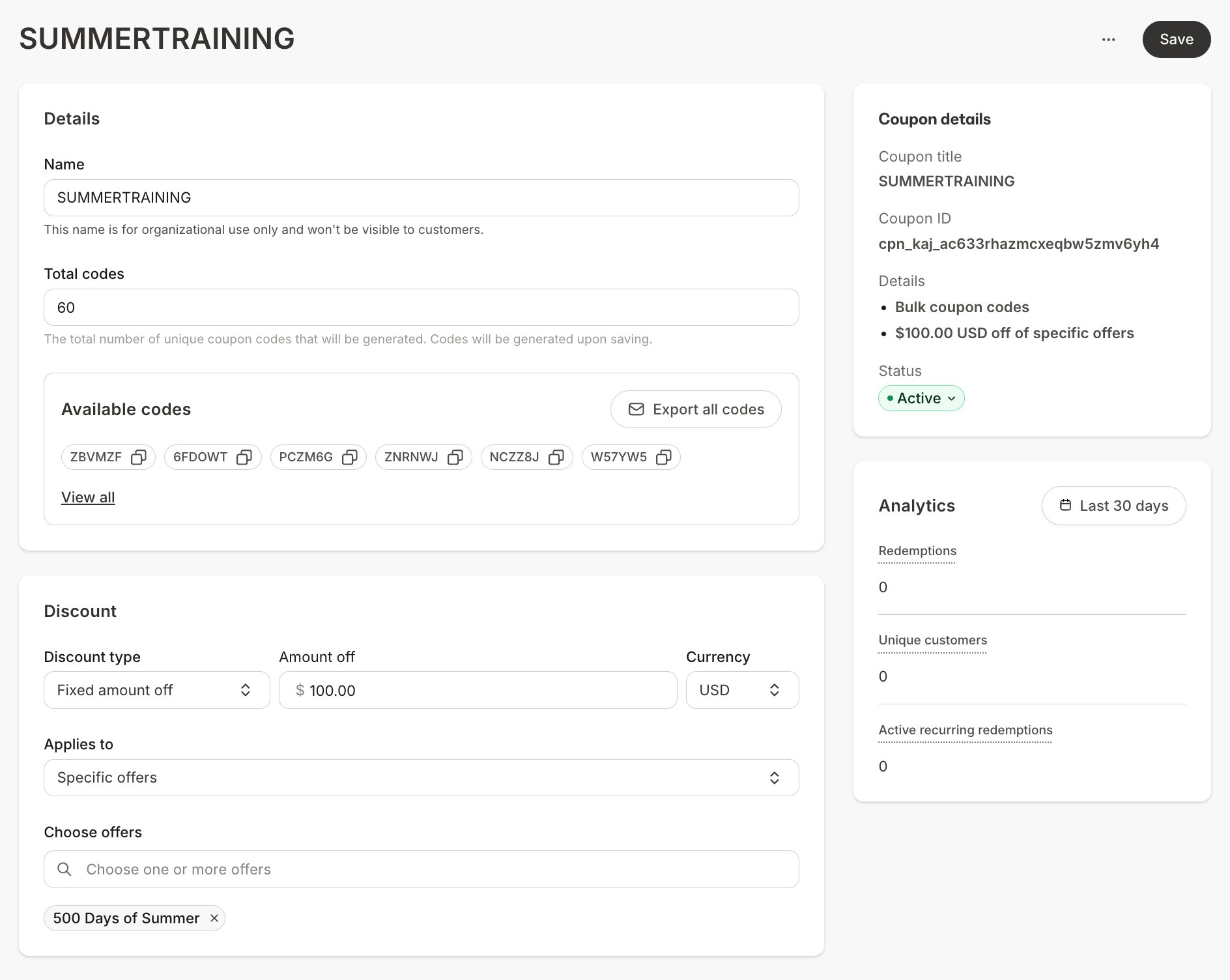
4. Name the Coupon.
5. Enter the **Amount of coupons** to generate.
6. Select **Percent** or **Amount**, and enter the value of the discount.
7. Under **Offers**, select the Offers the codes apply to.
8. Click **Save**.
Kajabi generates the codes as random 6-character codes, listed under **Available codes**. When a code has been used, it moves to **Redeemed codes**. `[VERIFY: list labels in new UI]`
* Click any individual **Available code** to copy it and share in individual emails or messages.
* Click **Export all codes** to receive a .CSV file of all Bulk codes.
**Tip:** Pair a Cart Coupon with a minimum purchase amount to encourage customers to add one more product before checkout.
## Create Bulk Coupon codes
Bulk Coupons generate a batch of unique codes for the Offers you attach, and each code can only be used once. Use them to sell licenses to organizations or give every customer their own code.
1. Open the **Sales** tab from your Dashboard.
2. Choose **Coupons**.
3. Click **+ New coupon**, then select **Bulk coupon codes**.
4. Name the Coupon.
5. Enter the **Amount of coupons** to generate.
6. Select **Percent** or **Amount**, and enter the value of the discount.
7. Under **Offers**, select the Offers the codes apply to.
8. Click **Save**.
Kajabi generates the codes as random 6-character codes, listed under **Available codes**. When a code has been used, it moves to **Redeemed codes**. `[VERIFY: list labels in new UI]`
* Click any individual **Available code** to copy it and share in individual emails or messages.
* Click **Export all codes** to receive a .CSV file of all Bulk codes.
 ## Set redemption limits
Redemption limits control how often a Coupon can be used. Set them when you create a Coupon, or add them later by editing it.
* **Limit number of times this coupon can be used in total**: Cap total redemptions across all customers. Once the cap is reached, the Coupon stops working at checkout.
* **Limit to one use per customer**: Each customer can only redeem the Coupon once.
* **Limit redemption to a date range**: Customers can only redeem the Coupon within the set dates. Existing subscriptions keep their discount.
## Set redemption limits
Redemption limits control how often a Coupon can be used. Set them when you create a Coupon, or add them later by editing it.
* **Limit number of times this coupon can be used in total**: Cap total redemptions across all customers. Once the cap is reached, the Coupon stops working at checkout.
* **Limit to one use per customer**: Each customer can only redeem the Coupon once.
* **Limit redemption to a date range**: Customers can only redeem the Coupon within the set dates. Existing subscriptions keep their discount.
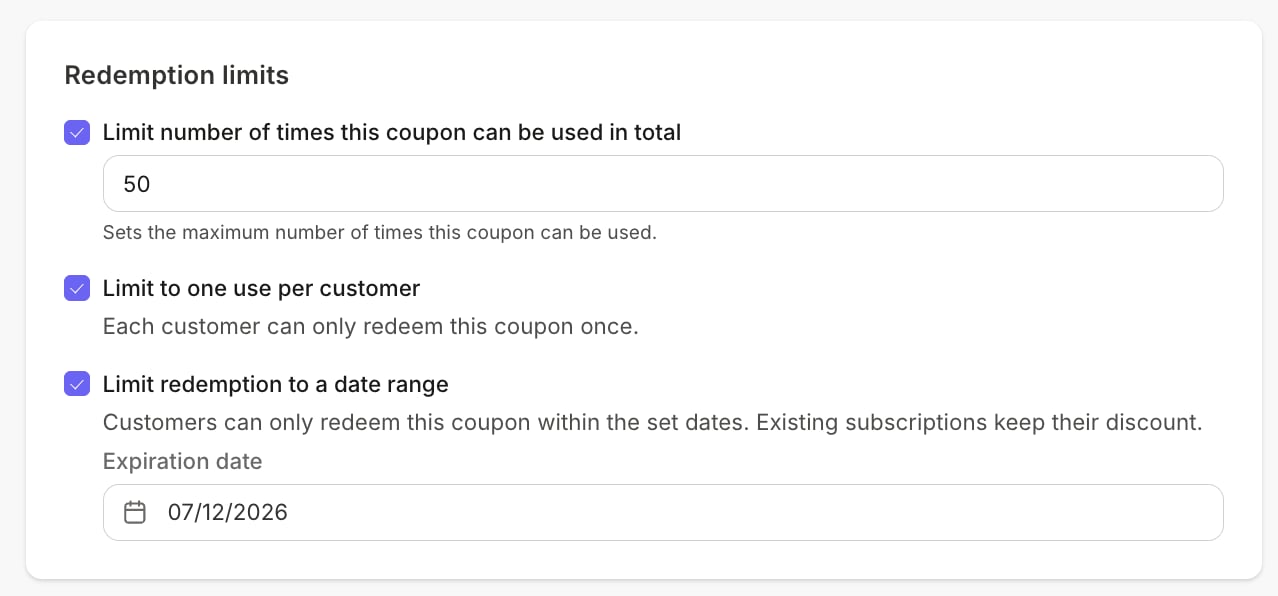 The maximum expiration date must be less than 5 years from the current day. If you apply a multi-month Coupon to a weekly subscription Offer, the Coupon will discount all payments within the specified period. For example, a Coupon with a four-month duration applied to a weekly subscription discounts 16 weekly payments within the 4 month period.
## Copy Offer Coupon URLs
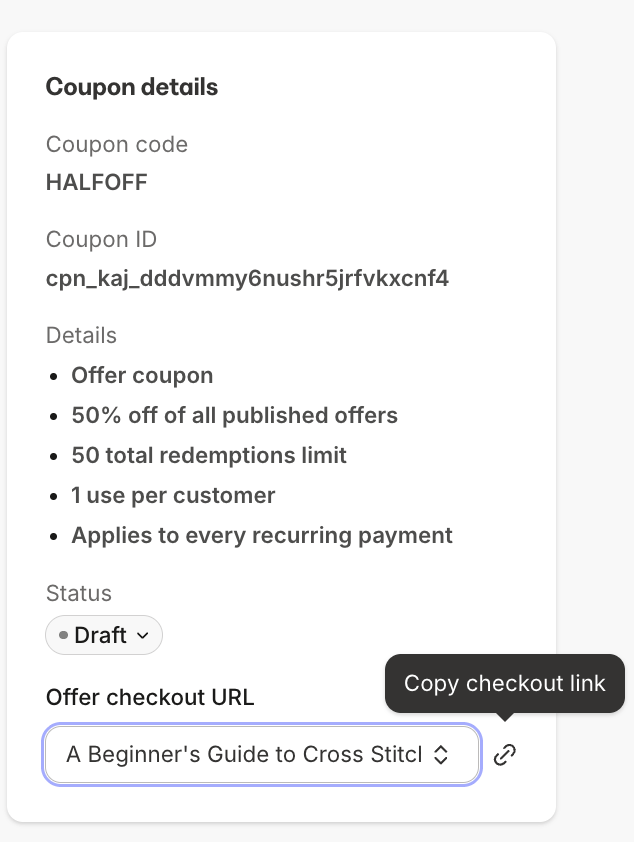
Each Offer attached to a Coupon has a checkout URL with the Coupon already applied.
1. Open the **Sales** tab from the Dashboard.
2. Select **Coupons**, then click a Coupon.
3. In the **Coupon details** panel, choose an Offer from the dropdown under **Offer checkout URL**.
4. Click the **copy icon**. Share this direct link on social media or in email campaigns to encourage customers to purchase the discounted Offer.
Once a Coupon is attached to an Offer, customers can also apply the code themselves at checkout.
The maximum expiration date must be less than 5 years from the current day. If you apply a multi-month Coupon to a weekly subscription Offer, the Coupon will discount all payments within the specified period. For example, a Coupon with a four-month duration applied to a weekly subscription discounts 16 weekly payments within the 4 month period.
## Copy Offer Coupon URLs
Each Offer attached to a Coupon has a checkout URL with the Coupon already applied.
1. Open the **Sales** tab from the Dashboard.
2. Select **Coupons**, then click a Coupon.
3. In the **Coupon details** panel, choose an Offer from the dropdown under **Offer checkout URL**.
4. Click the **copy icon**. Share this direct link on social media or in email campaigns to encourage customers to purchase the discounted Offer.
Once a Coupon is attached to an Offer, customers can also apply the code themselves at checkout.
 ## Share a Coupon for popup checkout
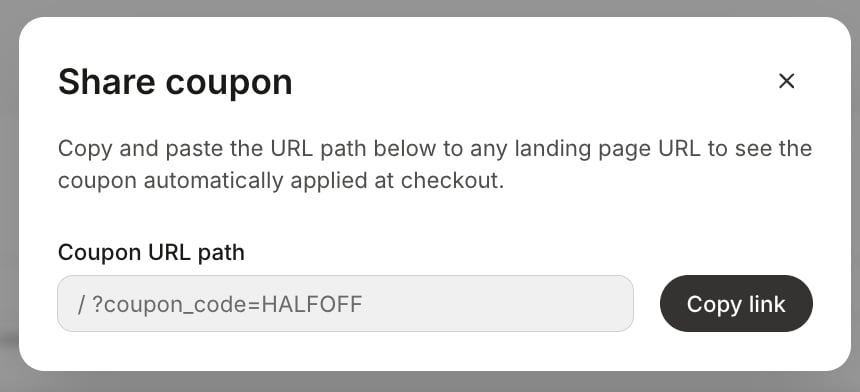
Use the Coupon URL to apply a discount automatically at popup checkout on any Landing Page. This is a favorite for promotions where the customer never needs to type a code.
1. Open the Coupon from **Sales > Coupons**.
2. Click the "..." **overflow menu** in the upper right, then select **Share Coupon**.
3. Copy the **Coupon URL** from the modal.
4. Add the slug to the end of any **Landing Page URL**, and the Coupon applies automatically when customers reach popup checkout.
## Share a Coupon for popup checkout
Use the Coupon URL to apply a discount automatically at popup checkout on any Landing Page. This is a favorite for promotions where the customer never needs to type a code.
1. Open the Coupon from **Sales > Coupons**.
2. Click the "..." **overflow menu** in the upper right, then select **Share Coupon**.
3. Copy the **Coupon URL** from the modal.
4. Add the slug to the end of any **Landing Page URL**, and the Coupon applies automatically when customers reach popup checkout.
 **Coupon URL path example:**
* Landing page: `https://hello.mykajabi.com/landingpage`
* Coupon URL path: `/?coupon_code=HALFOFF`
* Combined: `https://hello.mykajabi.com/landingpage/?coupon_code=HALFOFF`
Once a Coupon is attached to an Offer, customers can also apply the code themselves at checkout.
Offer Coupons only apply to the Offers attached. If the Offer includes an Upsell, the Coupon will not apply to the Upsell.
**Coupon URL path example:**
* Landing page: `https://hello.mykajabi.com/landingpage`
* Coupon URL path: `/?coupon_code=HALFOFF`
* Combined: `https://hello.mykajabi.com/landingpage/?coupon_code=HALFOFF`
Once a Coupon is attached to an Offer, customers can also apply the code themselves at checkout.
Offer Coupons only apply to the Offers attached. If the Offer includes an Upsell, the Coupon will not apply to the Upsell.