> ## Documentation Index
> Fetch the complete documentation index at: https://help.kajabi.com/llms.txt
> Use this file to discover all available pages before exploring further.
# ACH Direct Debit for invoicing
> Accept bank account payments on Invoices through ACH Direct Debit with Kajabi Payments.
**ACH Direct Debit** lets your customers pay invoices directly from their U.S. bank account. The processing fees are significantly lower than standard card payments, which makes it particularly valuable on larger invoices. It is worth knowing that ACH payments take a few business days to settle, so it is best suited for situations where timing is flexible. Your invoices and transactions will update automatically as the payment moves through each stage.
**Note:** At this time, ACH payments are supported only for invoices.
## Eligibility and requirements
To use ACH Direct Debit for invoicing, your account and invoices will need to meet a couple of requirements:
* You must be a **U.S.-based Hero** using **Kajabi Payments**.
* Your **invoice** must be **\$2 USD** or more.
For full information regarding applicable fees, visit [Kajabi Payments fees: United States](/articles/sales/kajabi-payments/kajabi-payments-fees-united-states).
## How ACH Direct Debit works
When a customer pays an invoice using ACH Direct Debit, checkout completes and the payment begins processing. Unlike card payments, ACH payments take time to settle. You can track the progress through your invoice and transaction statuses. ACH payments typically settle in **approximately 4 business days**.
At checkout, the customer selects **ACH Direct Debit**:
* If the customer doesn't have a previously stored bank account, verification will be required. The customer will be prompted to choose their bank, login and other authorization specific to their bank to complete verification.
* If the bank account is successfully verified, checkout completes. If the customer selects "Save payment method for future purchases," future purchases with this bank account will not require re-verification.
* If the bank account cannot be verified or an error occurs, checkout does not complete. The customer will be prompted to try again or use another payment method.
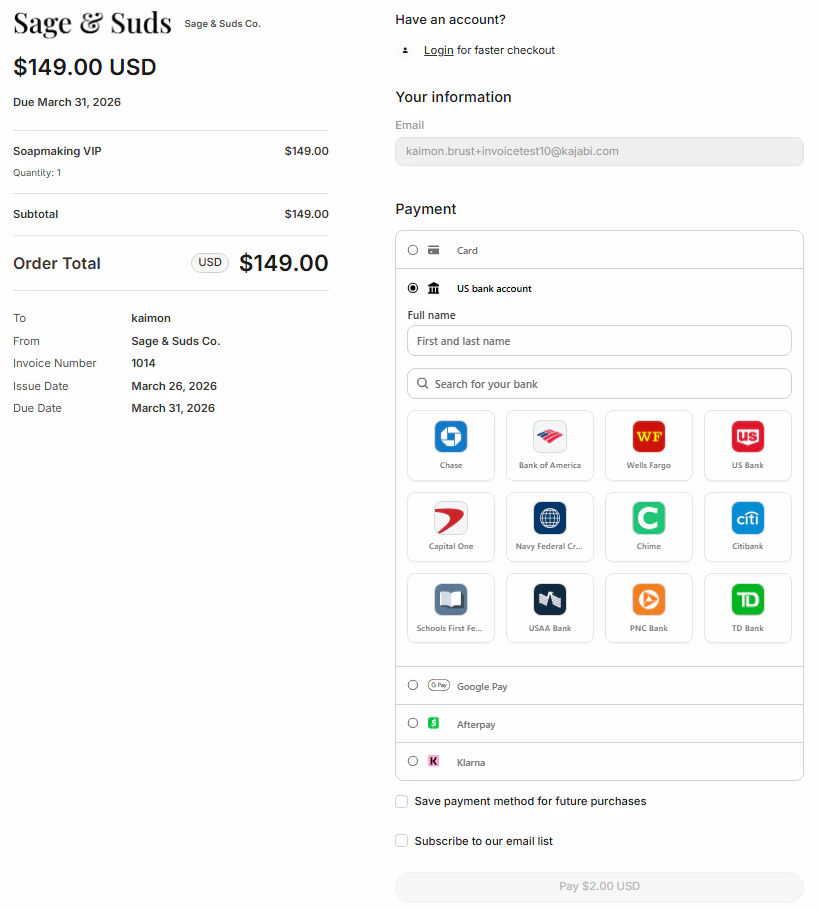 At checkout, the customer selects **ACH Direct Debit** and verifies their bank account.
## ACH Direct Debit settings
### Enable ACH Direct Debit
To enable ACH Direct Debit for invoices:
1. Go to **Sales** > **Invoices**.
2. Select **Settings**.
3. Scroll to the **Payment providers** section.
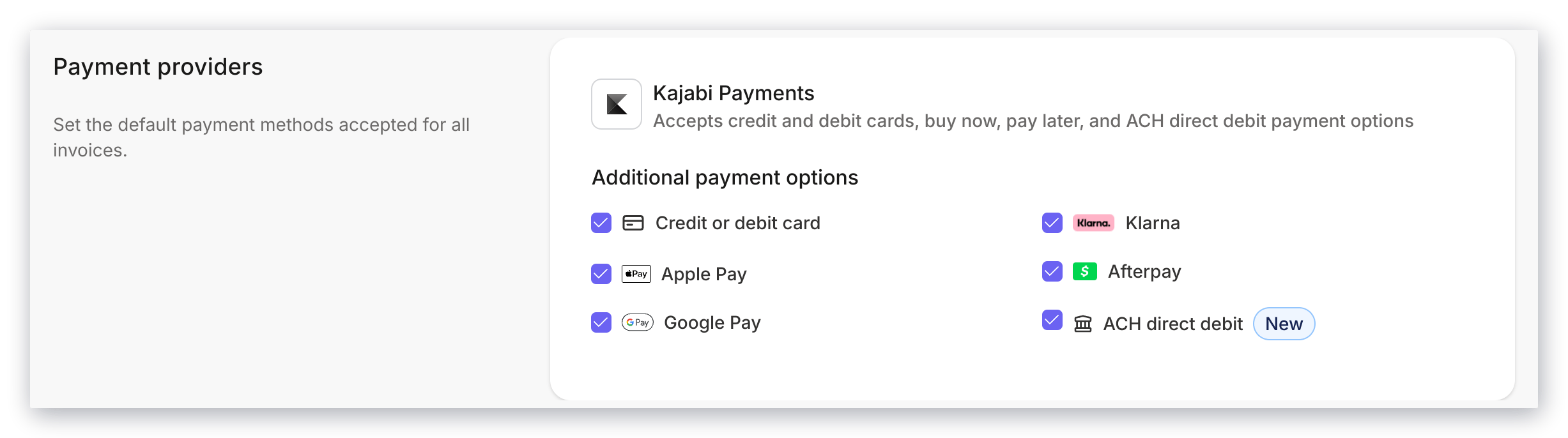
4. Under **Additional payment options**, enable **ACH direct debit**.
5. Click **Save**.
Once enabled, customers will see **ACH Direct Debit** as a payment option when paying invoices at checkout.
 ## Offer access for ACH payments
ACH payments remain **Pending** while the bank transfer processes. You can choose whether access is granted immediately after checkout or after the payment settles successfully using the \*\*offer access **setting** \*\*in invoice settings.
## Offer access for ACH payments
ACH payments remain **Pending** while the bank transfer processes. You can choose whether access is granted immediately after checkout or after the payment settles successfully using the \*\*offer access **setting** \*\*in invoice settings.
 If enabled:
* Customers receive offer access \*\*immediately after checkout \*\*while the ACH transaction is **Pending**
* If the payment **fails**, Offer access will be automatically **revoked**
If disabled:
* Offer access is granted **only after the transaction settles successfully**
If enabled:
* Customers receive offer access \*\*immediately after checkout \*\*while the ACH transaction is **Pending**
* If the payment **fails**, Offer access will be automatically **revoked**
If disabled:
* Offer access is granted **only after the transaction settles successfully**
## Understanding your transaction details
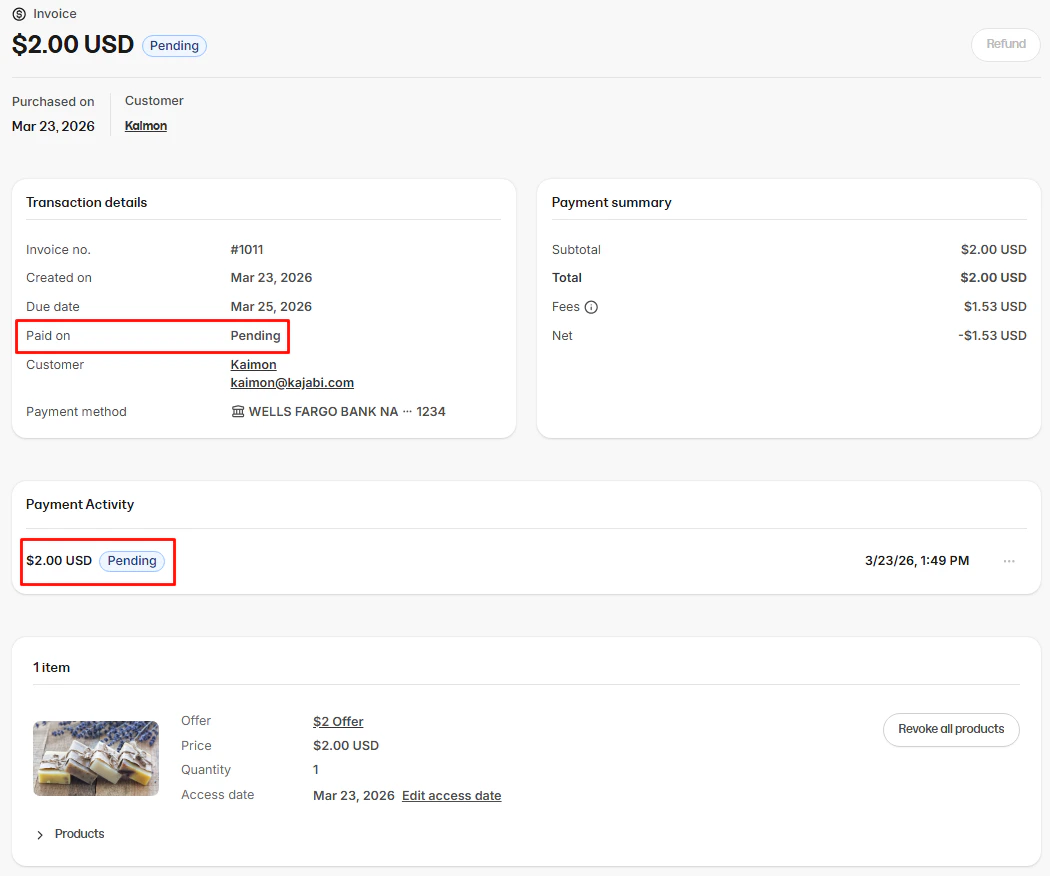
When a customer pays an invoice using ACH Direct Debit, the transaction details page reflects the current state of the payment as it moves through processing. Here's what to expect at each stage:
### While the payment is Pending
* **Purchased on date**: Displays the original date and time the customer completed checkout
* **Paid on**: Displays as Pending while the payment is still processing
* **Payment activity**: Displays the pending transaction with the date checkout was completed
* **Invoice Status**: Set to pending.
 ### If the payment settles successfully
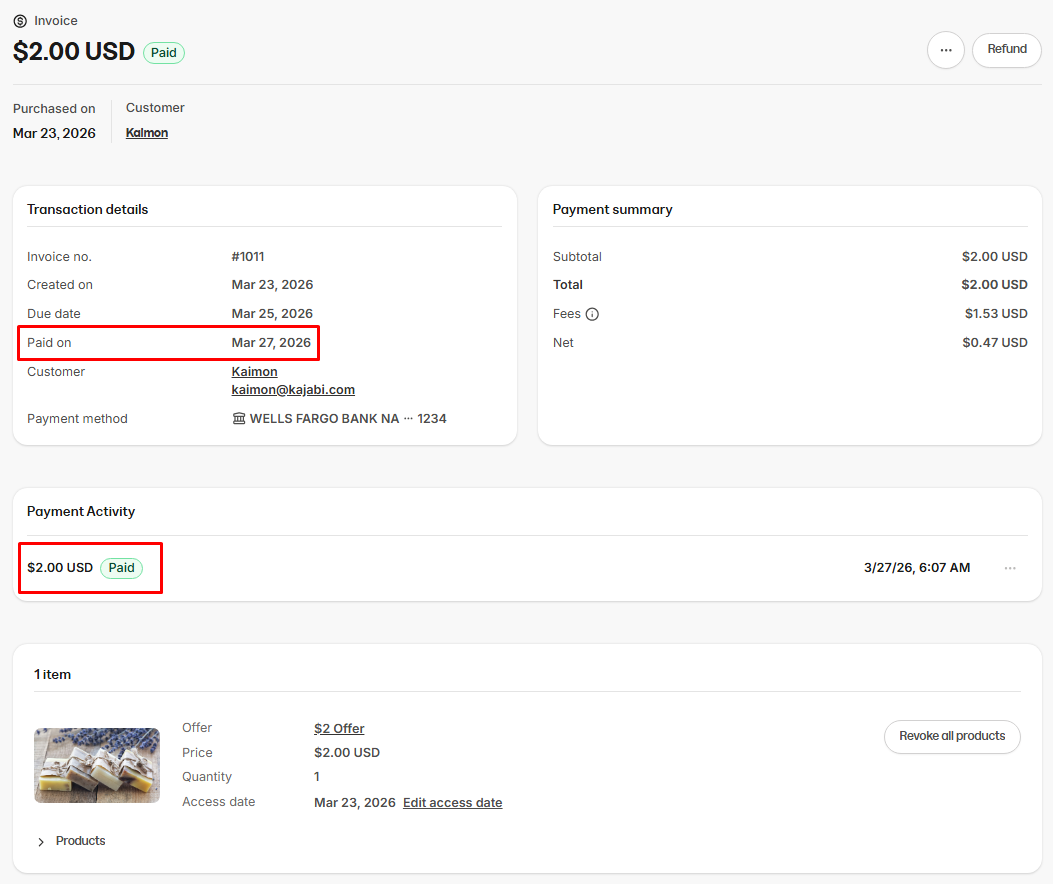
If the ACH payment settles successfully, the transaction details page will update to reflect the completed payment:
* **Purchased on date**: Displays the original date and time the customer completed checkout
* **Paid on**: Displays the date the payment settled
* **Payment activity**: Displays the transaction with the date the payment settled and a paid status
* **Invoice Status:** Updates to Paid
### If the payment settles successfully
If the ACH payment settles successfully, the transaction details page will update to reflect the completed payment:
* **Purchased on date**: Displays the original date and time the customer completed checkout
* **Paid on**: Displays the date the payment settled
* **Payment activity**: Displays the transaction with the date the payment settled and a paid status
* **Invoice Status:** Updates to Paid
 ### If the payment fails
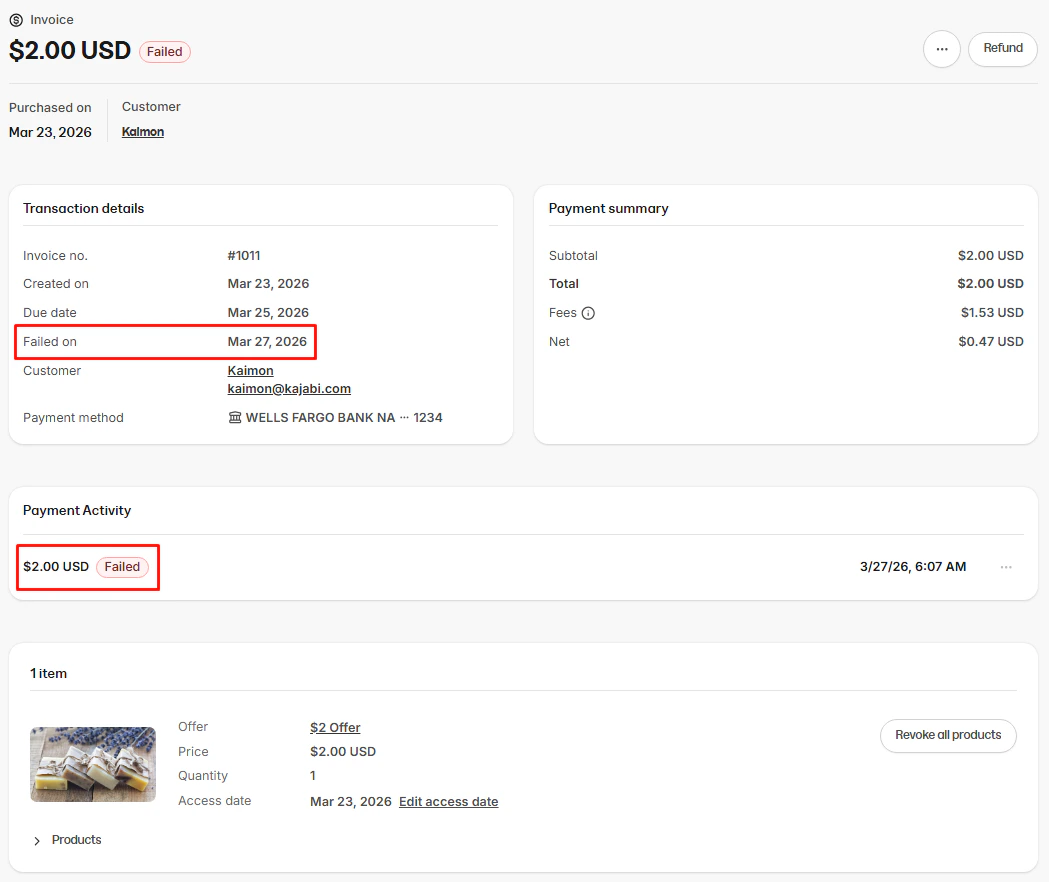
If the ACH payment fails, the transaction details page will update to reflect the failed payment:
* **Purchased on date**: Displays the original date and time the customer completed checkout
* **Payment activity:** Displays the transaction with the date the payment failed and a failed status
* **Paid on**: Will updated to “Failed on” with date it failed
* \*\*Invoice Status: \*\*Will move back to Open. Your customer will be able to visit the same invoice link to try again, or use a different payment method.
### If the payment fails
If the ACH payment fails, the transaction details page will update to reflect the failed payment:
* **Purchased on date**: Displays the original date and time the customer completed checkout
* **Payment activity:** Displays the transaction with the date the payment failed and a failed status
* **Paid on**: Will updated to “Failed on” with date it failed
* \*\*Invoice Status: \*\*Will move back to Open. Your customer will be able to visit the same invoice link to try again, or use a different payment method.
 ## ACH email notifications
Throughout the ACH payment process, Kajabi automatically sends emails to both you and your customer at key stages. These are separate from the standard Invoicing, Receipt, and Payment notifications – for those see [Invoicing with Kajabi Payments.](https://help.kajabi.com/en/articles/12695449-invoicing-with-kajabi-payments)
### Bank account authorization - Customer notification
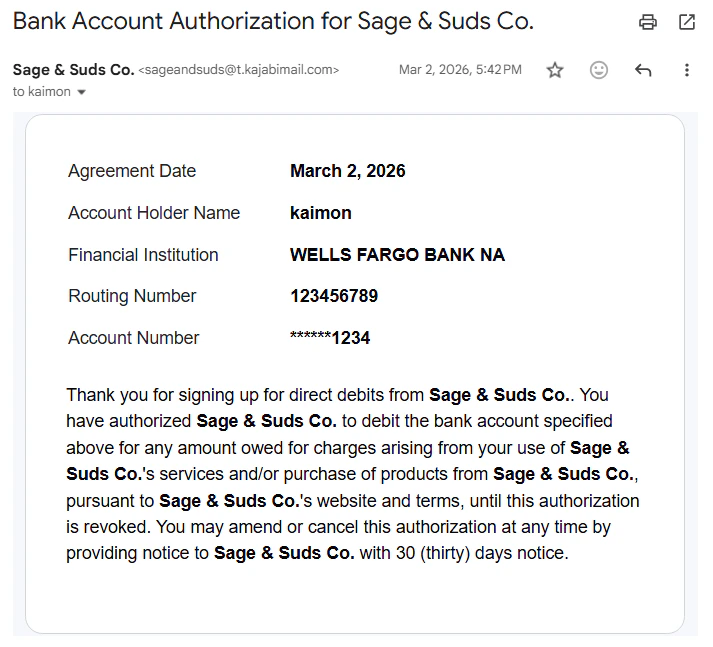
After a customer successfully completes checkout using ACH Direct Debit with a bank account that isn't already saved to their account, they will receive an email confirming their bank account authorization for future debits.
If a customer requests to revoke that authorization:
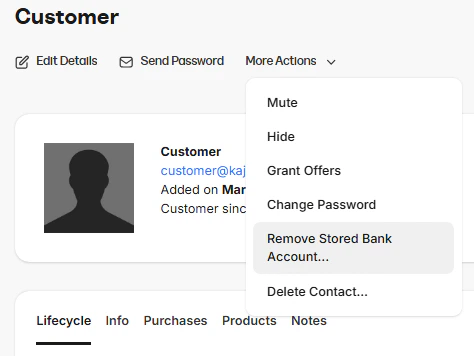
1. Remove the stored bank account on your customer's behalf. For more information, see [How to manage your Contacts profiles](https://help.kajabi.com/en/articles/12695407-how-to-manage-your-contacts-profiles#h_2e5554b2b2).
## ACH email notifications
Throughout the ACH payment process, Kajabi automatically sends emails to both you and your customer at key stages. These are separate from the standard Invoicing, Receipt, and Payment notifications – for those see [Invoicing with Kajabi Payments.](https://help.kajabi.com/en/articles/12695449-invoicing-with-kajabi-payments)
### Bank account authorization - Customer notification
After a customer successfully completes checkout using ACH Direct Debit with a bank account that isn't already saved to their account, they will receive an email confirming their bank account authorization for future debits.
If a customer requests to revoke that authorization:
1. Remove the stored bank account on your customer's behalf. For more information, see [How to manage your Contacts profiles](https://help.kajabi.com/en/articles/12695407-how-to-manage-your-contacts-profiles#h_2e5554b2b2).
 2. Alternatively, advise the customer to remove their saved bank account from their profile as soon as possible. For more information, see [How your customers can manage their billing and payment methods](https://help.kajabi.com/en/articles/13553181-how-your-customers-can-manage-their-billing-and-payment-methods).
 ### ACH payment failed - Customer notification
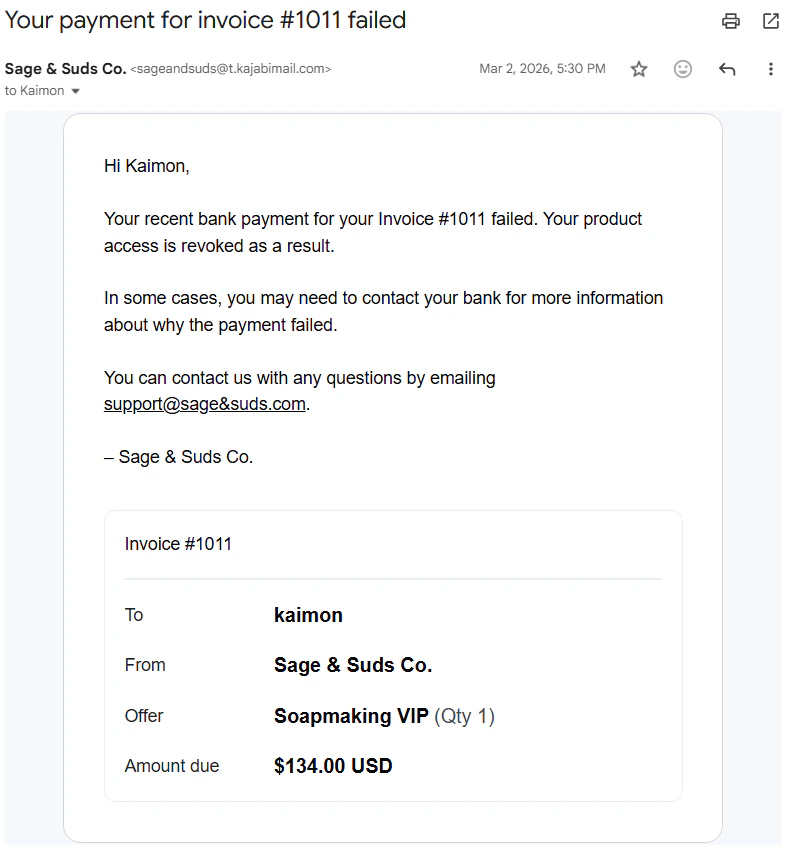
Your customer receives a notification if their ACH payment fails. This email informs them that their bank payment was unsuccessful, that their product access has been revoked (if applicable), and that they may need to contact their bank for more information. The email includes the invoice details including the invoice number, offer name(s), and amount due, along with instructions to reach out to your support email with any questions.
### ACH payment failed - Customer notification
Your customer receives a notification if their ACH payment fails. This email informs them that their bank payment was unsuccessful, that their product access has been revoked (if applicable), and that they may need to contact their bank for more information. The email includes the invoice details including the invoice number, offer name(s), and amount due, along with instructions to reach out to your support email with any questions.
 ### ACH payment failed - Hero email notification
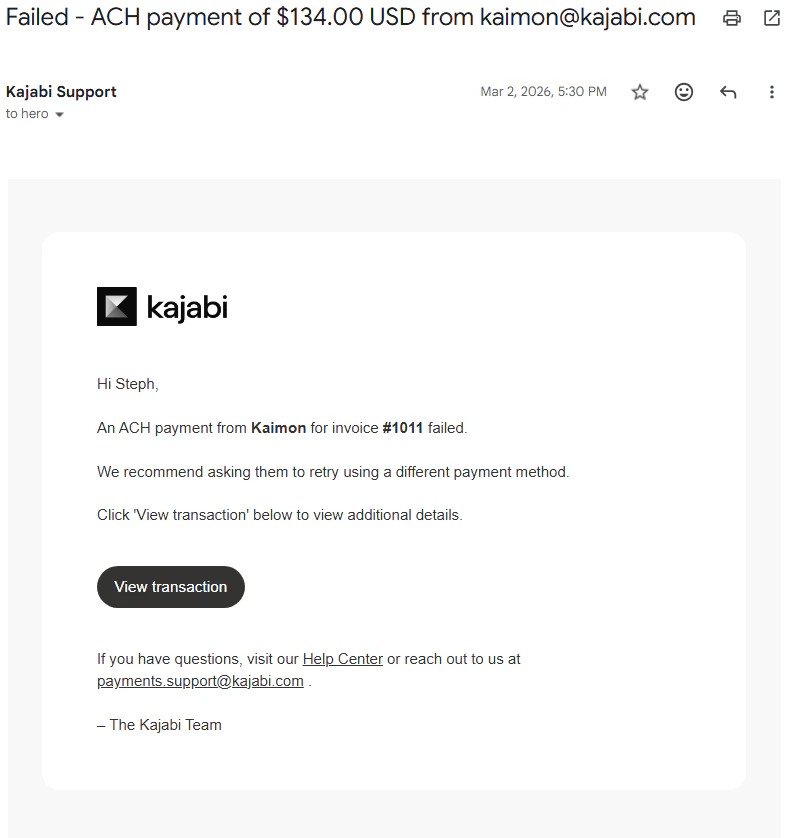
If an ACH payment fails, Kajabi will notify you via email. This notification includes the customer's name, the offer(s) associated with the failed payment, and a link to view the transaction directly in your Kajabi dashboard.
### ACH payment failed - Hero email notification
If an ACH payment fails, Kajabi will notify you via email. This notification includes the customer's name, the offer(s) associated with the failed payment, and a link to view the transaction directly in your Kajabi dashboard.
 ## ACH disputes
ACH disputes work differently from card disputes. When a dispute occurs, the transaction immediately moves to a "Dispute Lost" status. There's no evidence submission process and the outcome is final. To learn more about disputes, [learn more here](https://help.kajabi.com/en/articles/12695491).
## ACH disputes
ACH disputes work differently from card disputes. When a dispute occurs, the transaction immediately moves to a "Dispute Lost" status. There's no evidence submission process and the outcome is final. To learn more about disputes, [learn more here](https://help.kajabi.com/en/articles/12695491).
## FAQs
### What happens if my customer cannot find their bank when trying to verify at checkout?
ACH Direct Debit supports all major U.S. financial institutions, so most customers will be able to choose their bank account from the available list. In rare cases, a customer's bank may not be supported, in which case they will not be able to complete checkout with ACH Direct Debit and should use an alternative payment method.
### Can my customer remove a saved ACH payment method?
Yes. Customers can remove a saved bank account at any time by logging into their account, navigating to the Billing tab. For more information, see [How Your Customers Can Manage Their Billing and Payment Methods](https://help.kajabi.com/en/articles/13553181-how-your-customers-can-manage-their-billing-and-payment-methods).