> ## Documentation Index
> Fetch the complete documentation index at: https://help.kajabi.com/llms.txt
> Use this file to discover all available pages before exploring further.
# Transactions
> View and export detailed payment information about purchases made on a site.
## Overview
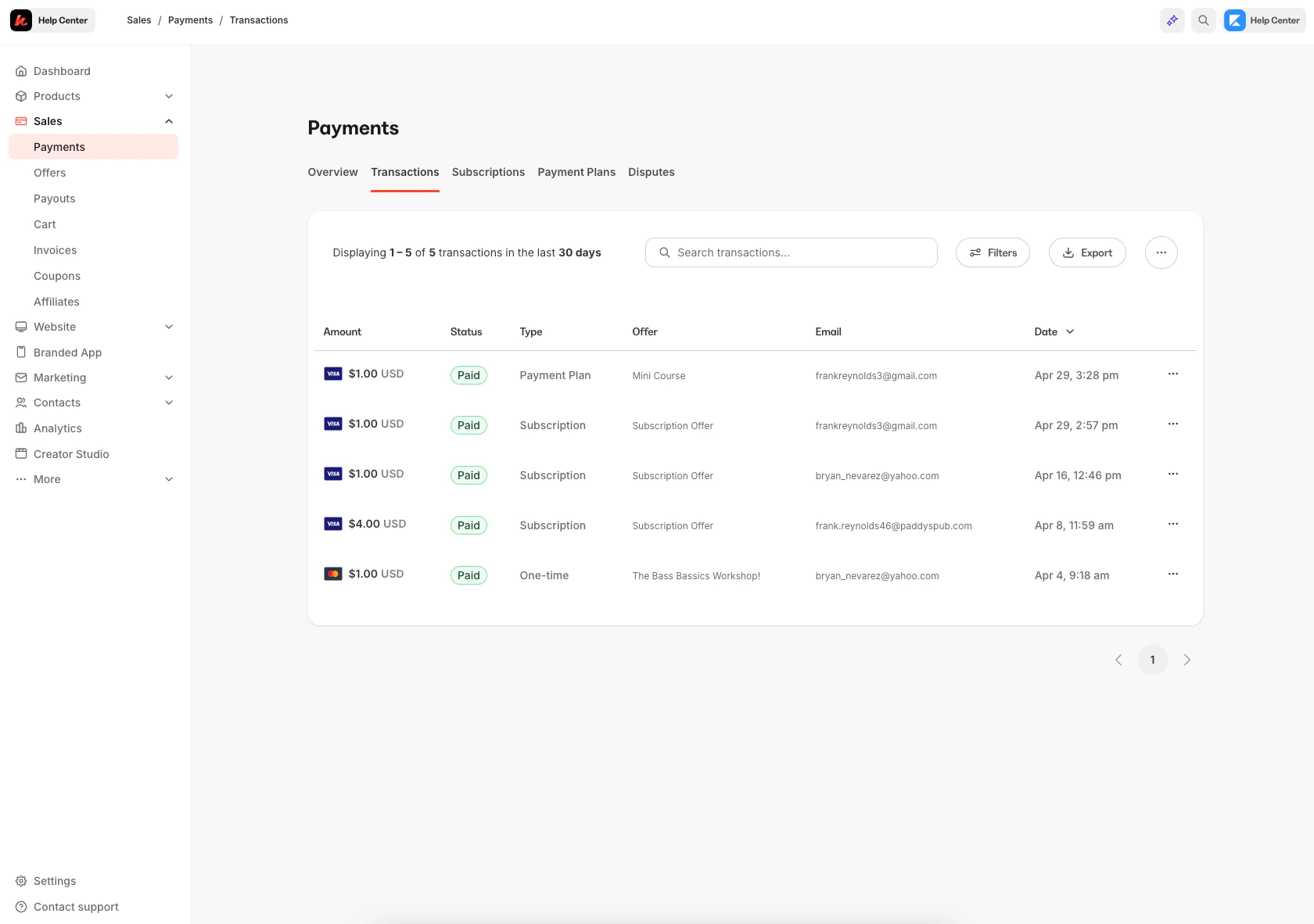
The Transactions page provides a line-by-line report of every transaction associated with the site, excluding free purchases. Use the search bar to quickly identify transactions by searching a customer's name or email address.
On the table, you can click directly on the amount, customer name, or offer title to view more information about the purchase. You can also issue refunds, send receipts, or view more details from the overflow menu on the table:
 ## Customize columns
With Kajabi you have the option to customize the layout of the Transactions page in a way that best fits the needs of you and your business.
To customize the Transactions page columns:
1. Select the **…** button for **More Actions**.
2. Click **Customize Columns**.
3. Reorder or toggle relevant data you want to see.
4. Press **Apply** to finish:
## Customize columns
With Kajabi you have the option to customize the layout of the Transactions page in a way that best fits the needs of you and your business.
To customize the Transactions page columns:
1. Select the **…** button for **More Actions**.
2. Click **Customize Columns**.
3. Reorder or toggle relevant data you want to see.
4. Press **Apply** to finish:
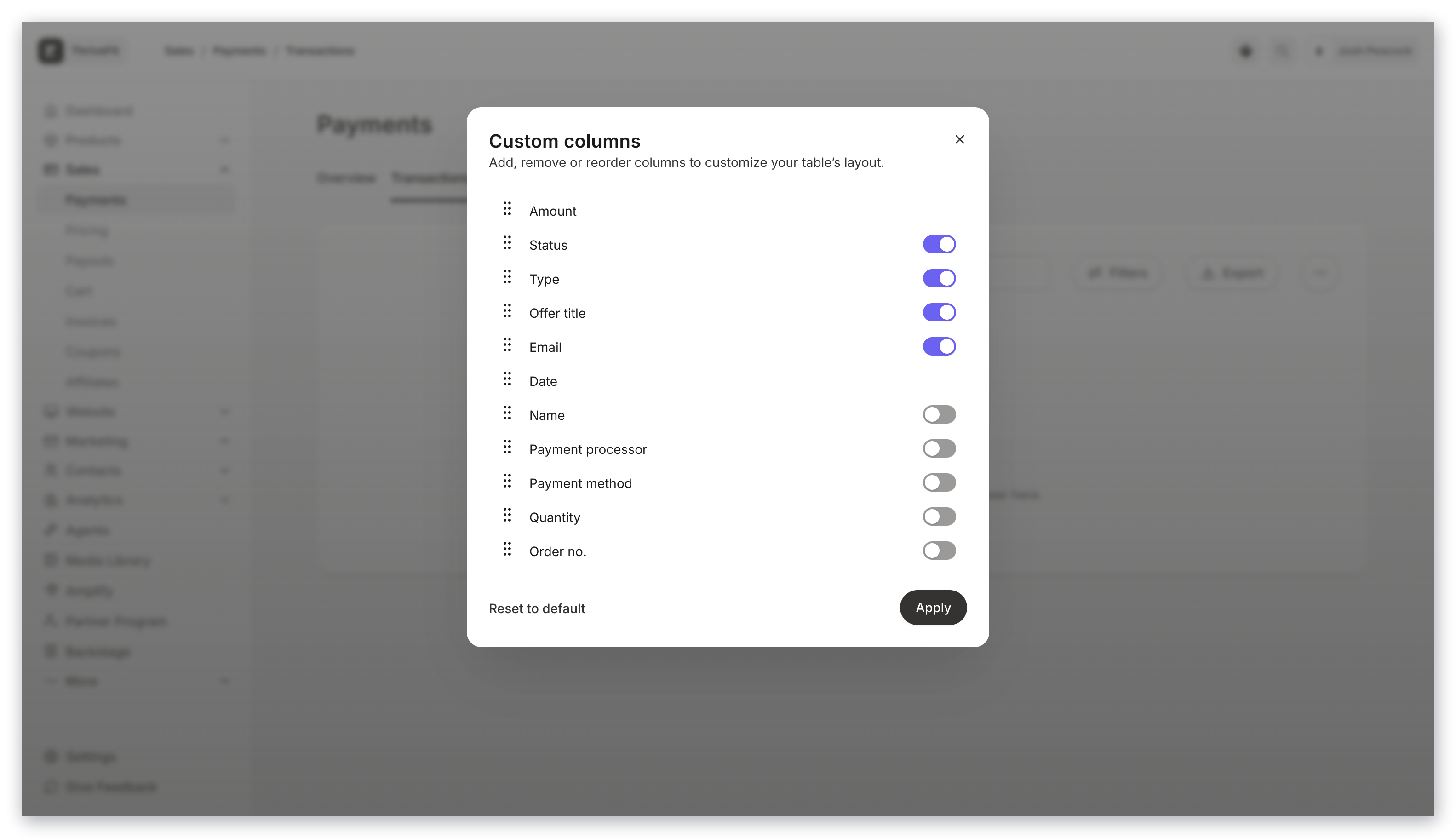 **Note:** Selections will be saved when column customizations have been made so you do not need to change settings every time you come back.
## Filter search results
Looking to filter the search further? Use the **Filters** button to narrow the search down by specifics.
You can filter by offer title, coupon used, payment type, status, date, and more:
**Note:** Selections will be saved when column customizations have been made so you do not need to change settings every time you come back.
## Filter search results
Looking to filter the search further? Use the **Filters** button to narrow the search down by specifics.
You can filter by offer title, coupon used, payment type, status, date, and more:
## Export data
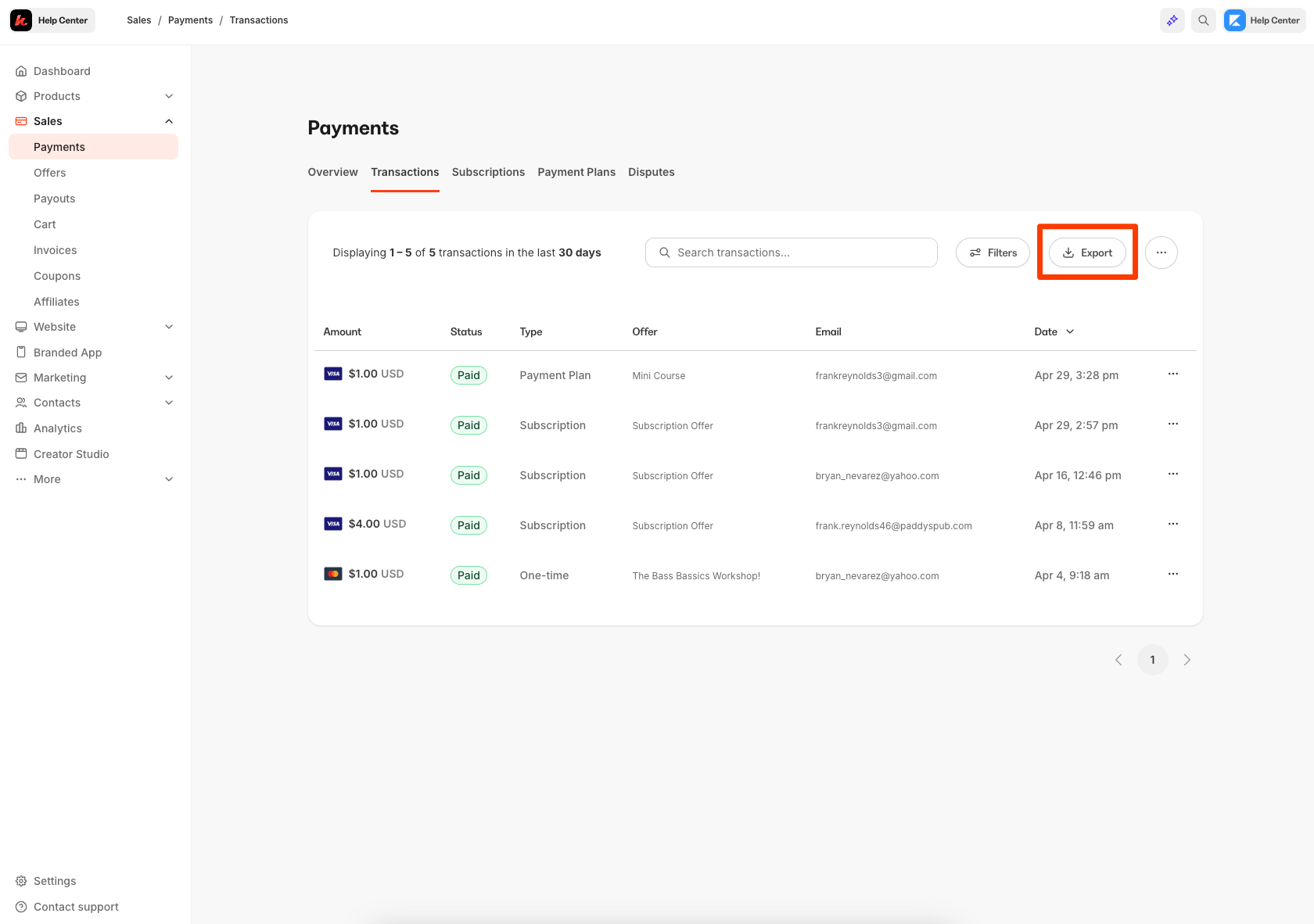
Click the **Export** button to export transaction data.
1. Navigate to **Sales**.
2. Click **Transactions**.
3. Select the **Export** button.
4. Click **Export Transactions**.
5. Select the exported date range.
6. Press **Export** to finish.
The exported list will be emailed to the email address associated with the Kajabi account from our support team:
 ## Download transaction data
Any previous filters you have applied to transactions, such as failed payments, payment type, etc, will be applied to the Transaction Export.
Download the CSV from the email inbox:
1. Log into the email associated with the Kajabi account.
2. The exported list will be attached to an email from **our support team** with the Subject Line (e.g., Transactions export process completed).
3. Open the email to access and download the CSV file.
The CSV file containing Transactions data will include the following information:
* Purchase Amount and ID
* Status
* Currency
* Type (refund, charge, multi, subscription)
* Customer ID
* Customer Name
* Customer Email
* Offer ID
* Offer Title
* Provider
* Created At Date
* Coupon Used
* Failure Reason
* Charge Attempt
**Kajabi Payments Only:**
* Card's Zip Code
* Card's Country
* Tax Name
* Tax Rate
* Tax Amount
* Additional Tax Name (such as HST or VAT)
* Additional Tax Rate
* Additional Tax Amount
Any previous filters that you have applied to transactions, such as failed payments, etc, will be applied to the Transaction Export.
**Note:** Exporting this report will notify the owner of the Kajabi account if the owner has selected to receive notifications data is exported from their account. [Learn to update email notification settings](../../account-settings/notifications/update-email-notifications).
## Download transaction data
Any previous filters you have applied to transactions, such as failed payments, payment type, etc, will be applied to the Transaction Export.
Download the CSV from the email inbox:
1. Log into the email associated with the Kajabi account.
2. The exported list will be attached to an email from **our support team** with the Subject Line (e.g., Transactions export process completed).
3. Open the email to access and download the CSV file.
The CSV file containing Transactions data will include the following information:
* Purchase Amount and ID
* Status
* Currency
* Type (refund, charge, multi, subscription)
* Customer ID
* Customer Name
* Customer Email
* Offer ID
* Offer Title
* Provider
* Created At Date
* Coupon Used
* Failure Reason
* Charge Attempt
**Kajabi Payments Only:**
* Card's Zip Code
* Card's Country
* Tax Name
* Tax Rate
* Tax Amount
* Additional Tax Name (such as HST or VAT)
* Additional Tax Rate
* Additional Tax Amount
Any previous filters that you have applied to transactions, such as failed payments, etc, will be applied to the Transaction Export.
**Note:** Exporting this report will notify the owner of the Kajabi account if the owner has selected to receive notifications data is exported from their account. [Learn to update email notification settings](../../account-settings/notifications/update-email-notifications).