> ## Documentation Index
> Fetch the complete documentation index at: https://help.kajabi.com/llms.txt
> Use this file to discover all available pages before exploring further.
# Create a payment plan Offer
> Set up a payment plan so customers can pay a specified fee over time to access content.
Create a **payment plan** for customers to pay a specified fee for a specified number of weeks, months, or years to access your content, services, events, and more.
**Note:** Be sure to connect your site to Kajabi Payments, Stripe, or PayPal to edit your Offer price.
**Note:** This guide refers to the Price Editor in the Offer Builder to create a payment plan for your customers. If you wish to create multiple Offers on a single Sales Page to provide different pricing options for your customers, then [learn how to create multiple pricing options](/articles/sales/offers/create-multiple-pricing-options-for-legacy-checkout).
## Edit the price: Payment plan
1. Open the **Sales** tab from the Dashboard
2. Click **Pricing**
3. Select the Offer you wish to edit or [create a new one](/articles/sales/offers/create-an-offer)
4. Then, click **Pricing**
5. Navigate to the Price Details section
6. Click the **Payment Type** field
7. Then, select **Payment Plan**
8. Fill out the price details
9. Click **Save** to keep and apply your changes
## Customize the payment plan Offer
Selecting Payment Plan for your Offer will charge your customers according to your set billing interval until the number of payments is reached.
The first payment will be processed immediately after checkout and the following payments will be billed according to the billing interval you previously set on the same date following the initial purchase.
Customers will maintain Product access until their [subscription is canceled](/articles/contacts/manage-your-contacts/enable-and-disable-customer-subscription-self-cancelations), the [Offer is revoked manually](/articles/contacts/manage-your-contacts/revoke-product-access-from-a-customer), or [access has been restricted to a specific amount of days](/articles/sales/offers/how-to-restrict-product-access-to-a-specific-amount-of-days).
### Customize the payment plan
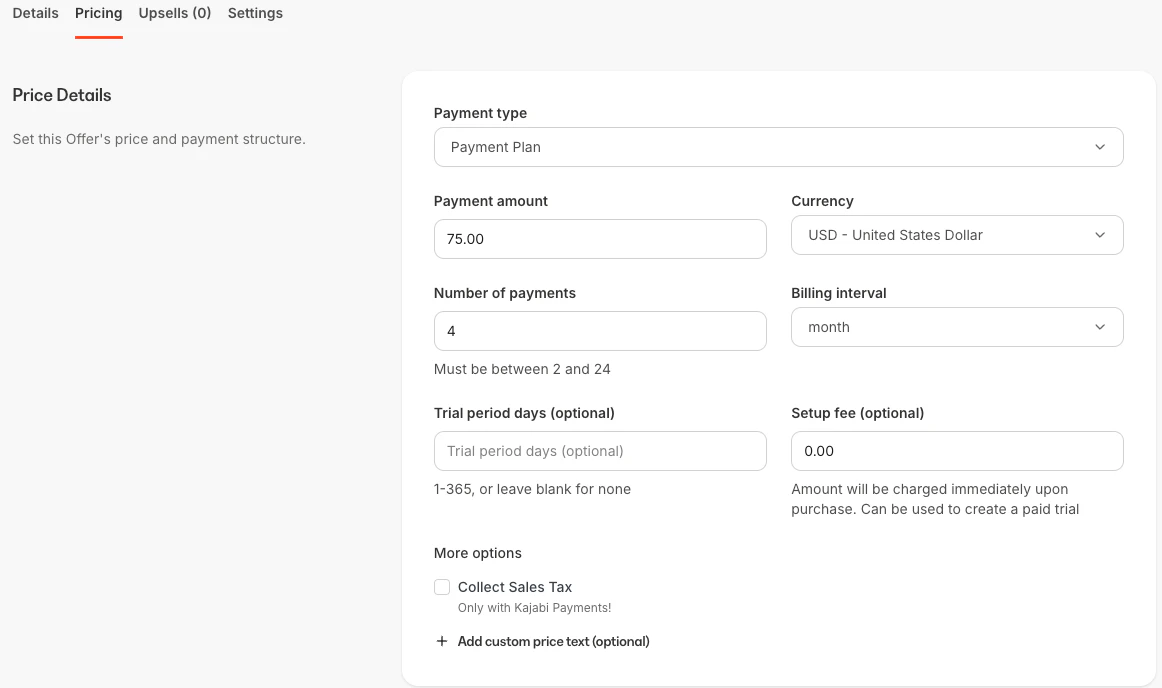 * **Payment amount** - Specify the price for each payment (e.g., 6 monthly payments of \*\*$19.99**; $19.99 is your specified payment amount)
* **Currency** - Select the currency for the Offer
* **Number of payments** - How often your customers will be charged
* **Billing Interval** - You can select weekly (2-104 weeks), monthly (2-24 months), or annual (2-5 years) intervals
* **Trial period days** - Add between 1-365 trial days. This is a free period for your customers to try your product. Once the trial expires, they will be charged
* **Setup fee** - An added fee for payment plan setups. Can be used to offer a paid trial, as the amount will be charged immediately upon purchase
* **Payment providers** - Specify the payment processors your customers can use to purchase the Offer: [Kajabi Payments](/articles/sales/kajabi-payments/how-to-set-up-and-manage-subscriptions-and-payment-plans-with-kajabi-payments) or [Stripe, and/or PayPal](/articles/sales/offers/how-to-turn-on-a-payment-provider-for-your-offers)
* **Price text override** - Use a custom phrase to describe the price of the Offer (Optional)
* Click **Save** when you are finished customizing
After completing your Offer, edit and preview your Checkout Page. [Learn more](/articles/sales/checkout/customize-your-checkout-page)
**Note:** View your Payments Overview to analyze and manage all the payment plan transactions made to your site. [Learn more](/articles/sales/offers/the-payments-page-overview)
* **Payment amount** - Specify the price for each payment (e.g., 6 monthly payments of \*\*$19.99**; $19.99 is your specified payment amount)
* **Currency** - Select the currency for the Offer
* **Number of payments** - How often your customers will be charged
* **Billing Interval** - You can select weekly (2-104 weeks), monthly (2-24 months), or annual (2-5 years) intervals
* **Trial period days** - Add between 1-365 trial days. This is a free period for your customers to try your product. Once the trial expires, they will be charged
* **Setup fee** - An added fee for payment plan setups. Can be used to offer a paid trial, as the amount will be charged immediately upon purchase
* **Payment providers** - Specify the payment processors your customers can use to purchase the Offer: [Kajabi Payments](/articles/sales/kajabi-payments/how-to-set-up-and-manage-subscriptions-and-payment-plans-with-kajabi-payments) or [Stripe, and/or PayPal](/articles/sales/offers/how-to-turn-on-a-payment-provider-for-your-offers)
* **Price text override** - Use a custom phrase to describe the price of the Offer (Optional)
* Click **Save** when you are finished customizing
After completing your Offer, edit and preview your Checkout Page. [Learn more](/articles/sales/checkout/customize-your-checkout-page)
**Note:** View your Payments Overview to analyze and manage all the payment plan transactions made to your site. [Learn more](/articles/sales/offers/the-payments-page-overview)