> ## Documentation Index
> Fetch the complete documentation index at: https://help.kajabi.com/llms.txt
> Use this file to discover all available pages before exploring further.
# Create an Offer
> Build, customize, and share an Offer to begin selling Products on Kajabi.
An **Offer** is the vehicle for packaging, pricing, and delivering Products to customers, and what they actually buy. Each Offer combines one or more Products with a price, checkout page, and post-purchase experience so you can start selling right away.
## Create an Offer
First, create an Offer to begin packaging and selling your Product(s) to your customers.
1. From the **Dashboard**, select the **Sales** tab.
2. Click **Pricing**.
3. Click **+New Offer**.
4. Enter an **Offer title** and choose the Product(s) you’d like to sell in this Offer.
5. Choose a **pricing plan:**  * **One-time payment** - Customer pays once for access to the product
* **Payment plan** - Require weekly, monthly or yearly payments
* **Subscription** - Bill customers on weekly or monthly intervals
* **Free -** Allow access to your content free of charge
6. For paid pricing plans, enter a **Price** and **Currency**, and then if required, the **Number of payments** and **Billing interval**. You must also select your **connected payment provider**.
7. Click **Next**.
8. Customize the checkout by matching your brand and deciding what information to collect:
* **Solid button background** color
* **Custom checkout button text** (optional)
* Toggle on **Checkout fields** - **Address**, **Name**, **Phone Number**, or **Tax ID**
* **Service agreement** - Require customers to consent to a Terms and Conditions policy for your business
9. Select **Save and Finish** to finish creating your Offer.
## Edit an Offer
After creating an Offer, you can edit it further to best fit your needs. Add or swap Products, limit access, customize the post-purchase experience, add Automations, and further customize its Checkout.
### Details
Under the **Details** tab, change the Offer’s public-facing **Title** and **Description**, and add an internal one to help your team easily identify it.
### Products in this Offer
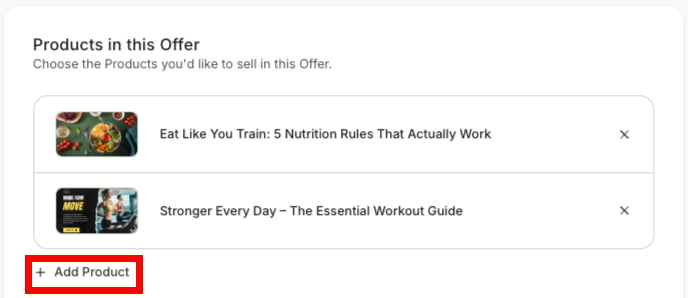
During the creation of an Offer, you will be prompted to select one or more **Products** to attach to it. You can sell individual Product(s) or create bundled Offers to encourage your customers to get the most value.
Add new Products at any time by clicking **+Add Product**, or click **X** to remove one.
* **One-time payment** - Customer pays once for access to the product
* **Payment plan** - Require weekly, monthly or yearly payments
* **Subscription** - Bill customers on weekly or monthly intervals
* **Free -** Allow access to your content free of charge
6. For paid pricing plans, enter a **Price** and **Currency**, and then if required, the **Number of payments** and **Billing interval**. You must also select your **connected payment provider**.
7. Click **Next**.
8. Customize the checkout by matching your brand and deciding what information to collect:
* **Solid button background** color
* **Custom checkout button text** (optional)
* Toggle on **Checkout fields** - **Address**, **Name**, **Phone Number**, or **Tax ID**
* **Service agreement** - Require customers to consent to a Terms and Conditions policy for your business
9. Select **Save and Finish** to finish creating your Offer.
## Edit an Offer
After creating an Offer, you can edit it further to best fit your needs. Add or swap Products, limit access, customize the post-purchase experience, add Automations, and further customize its Checkout.
### Details
Under the **Details** tab, change the Offer’s public-facing **Title** and **Description**, and add an internal one to help your team easily identify it.
### Products in this Offer
During the creation of an Offer, you will be prompted to select one or more **Products** to attach to it. You can sell individual Product(s) or create bundled Offers to encourage your customers to get the most value.
Add new Products at any time by clicking **+Add Product**, or click **X** to remove one.
 ### Product Access
Adjust the dates customers can access an Offer, by beginning availability on a certain date and/or restricting it to a specific amount of days it is available.
### Product Access
Adjust the dates customers can access an Offer, by beginning availability on a certain date and/or restricting it to a specific amount of days it is available.
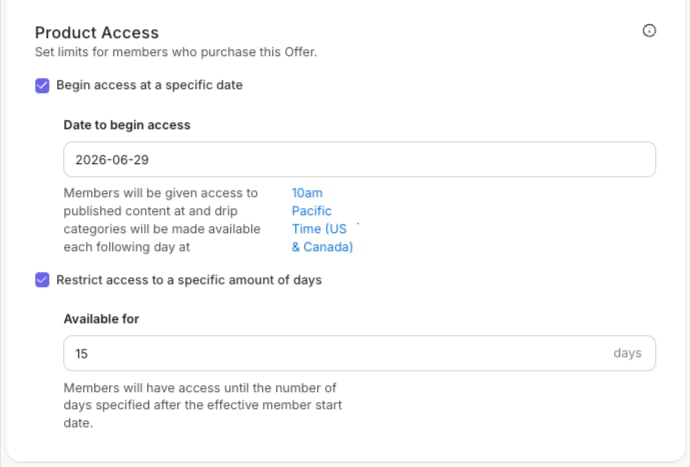 If you wish, you can combine them. For example, you can set `June 29th` as the date members first gain access to the products in the Offer, and members will only have access for `15 days` from that start date.
### Offer Status
When an Offer is created it is automatically published. However, you must share the Offer link in order for it to be accessible - just click **Get Link**.
If you wish, you can combine them. For example, you can set `June 29th` as the date members first gain access to the products in the Offer, and members will only have access for `15 days` from that start date.
### Offer Status
When an Offer is created it is automatically published. However, you must share the Offer link in order for it to be accessible - just click **Get Link**.
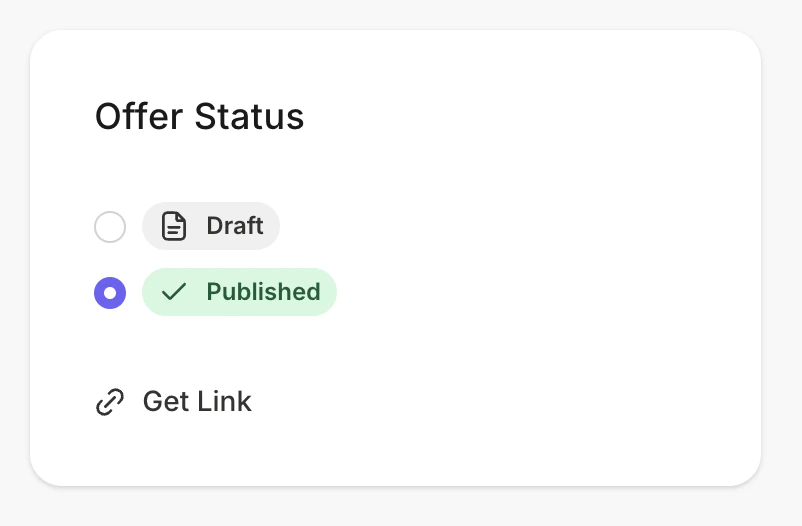 If you wish, you can ensure that your Offer is inaccessible by putting it in a Draft **Status**. When you are ready to share and display it, update the Offer Status to Published.
Be sure to share the Offer link on a page, in an email, or in social media to encourage members to purchase it.
### Offer Pricing
In this section, upload an image to display as the Offer thumbnail by clicking **Select image**.
The thumbnail appears on the **Offer Checkout Page**. If you add an Offers block to a page, the block will display the thumbnail.
[Add an Offers block to a page](https://help.kajabi.com/articles/website/pages/add-an-offer-to-a-page).
**Note:** Once you add an Offer thumbnail, it can't be removed. However, you can replace it.
## Pricing
On the **Pricing** tab, add the Offer’s pricing options and payment details.
### Price Details
Under **Price Details**, adjust the Offer's **Payment type**, **Price**, and **Currency**, and any billing interval. You can also elect to **allow customers to pay what they want**.
If you wish, you can ensure that your Offer is inaccessible by putting it in a Draft **Status**. When you are ready to share and display it, update the Offer Status to Published.
Be sure to share the Offer link on a page, in an email, or in social media to encourage members to purchase it.
### Offer Pricing
In this section, upload an image to display as the Offer thumbnail by clicking **Select image**.
The thumbnail appears on the **Offer Checkout Page**. If you add an Offers block to a page, the block will display the thumbnail.
[Add an Offers block to a page](https://help.kajabi.com/articles/website/pages/add-an-offer-to-a-page).
**Note:** Once you add an Offer thumbnail, it can't be removed. However, you can replace it.
## Pricing
On the **Pricing** tab, add the Offer’s pricing options and payment details.
### Price Details
Under **Price Details**, adjust the Offer's **Payment type**, **Price**, and **Currency**, and any billing interval. You can also elect to **allow customers to pay what they want**.
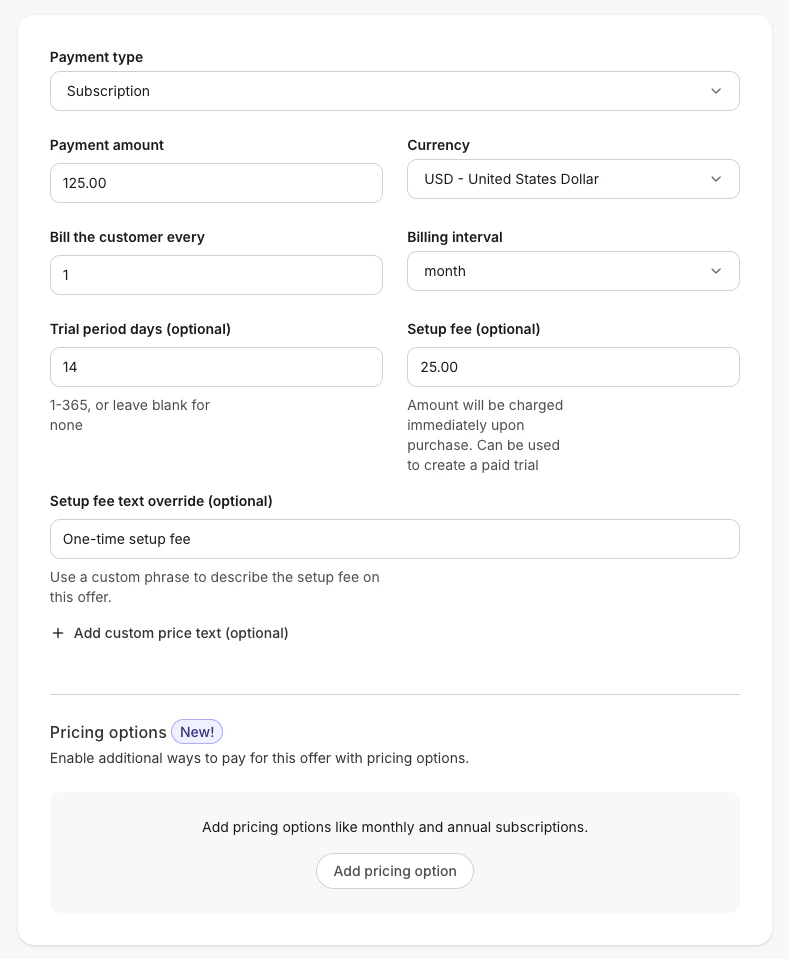 For a one-time payment plan, you can enable the **quantity selector** to allow multiple purchases at a time. Only buyers of the Offer will be granted access. For a regular payment plan or subscription, pricing options include the ability to optionally set up a **Trial period** and add a **Setup fee**.
For paid Offers, you can enable additional ways to pay for it under **Pricing options,** like monthly and annual subscriptions, and/or add a **Trial period** or **Setup fee**.
The **Price Text Override** and **Setup fee text override** fields let you replace the default label value. Change the **Price** to read "Contact us for pricing", for example, or edit "Setup fee" to read "Enrollment fee."
For a one-time payment plan, you can enable the **quantity selector** to allow multiple purchases at a time. Only buyers of the Offer will be granted access. For a regular payment plan or subscription, pricing options include the ability to optionally set up a **Trial period** and add a **Setup fee**.
For paid Offers, you can enable additional ways to pay for it under **Pricing options,** like monthly and annual subscriptions, and/or add a **Trial period** or **Setup fee**.
The **Price Text Override** and **Setup fee text override** fields let you replace the default label value. Change the **Price** to read "Contact us for pricing", for example, or edit "Setup fee" to read "Enrollment fee."
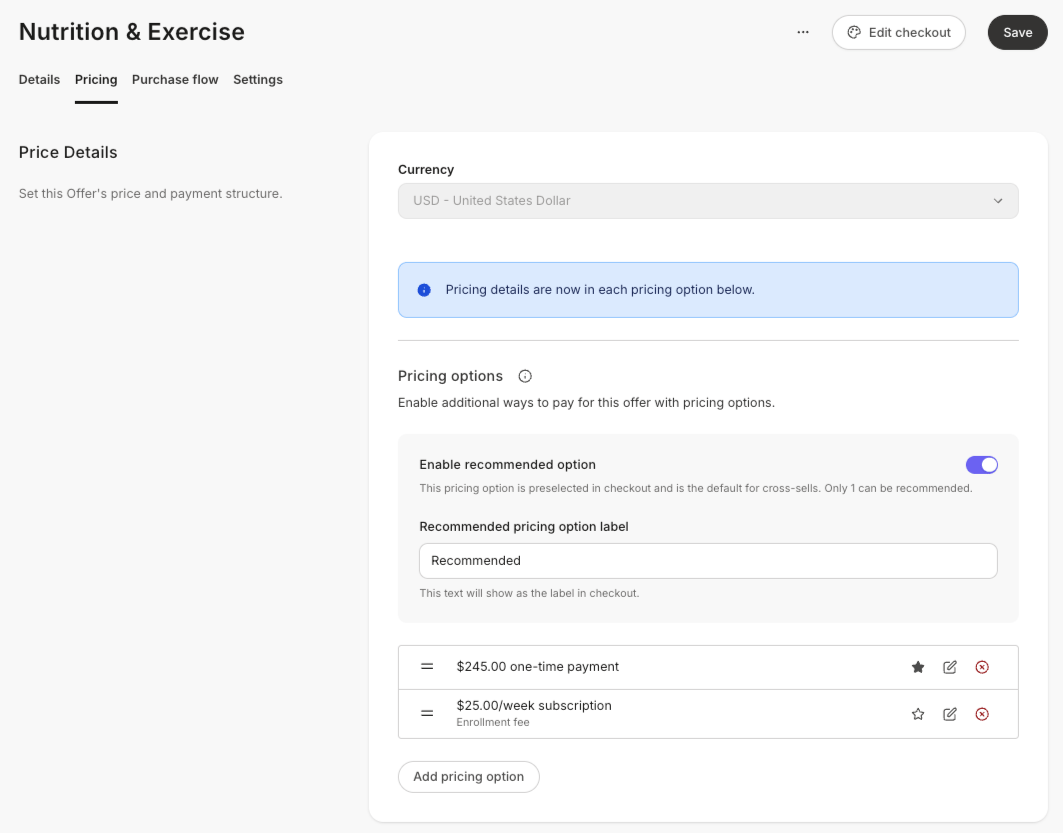 **Tip:** Give your customers different payment options to access your Product(s) by combining Offers and Landing Pages. [Learn how to create different pricing options](/articles/sales/offers/create-multiple-pricing-options-for-legacy-checkout).
### Payment Providers
Adjust the **payment providers** you accept for this Offer. If you selected [Kajabi Payments](/articles/sales/kajabi-payments/kajabi-payments-overview), you can add additional payment options like Apple or Google Pay, Klarna, and Afterpay.
### Offer Availability
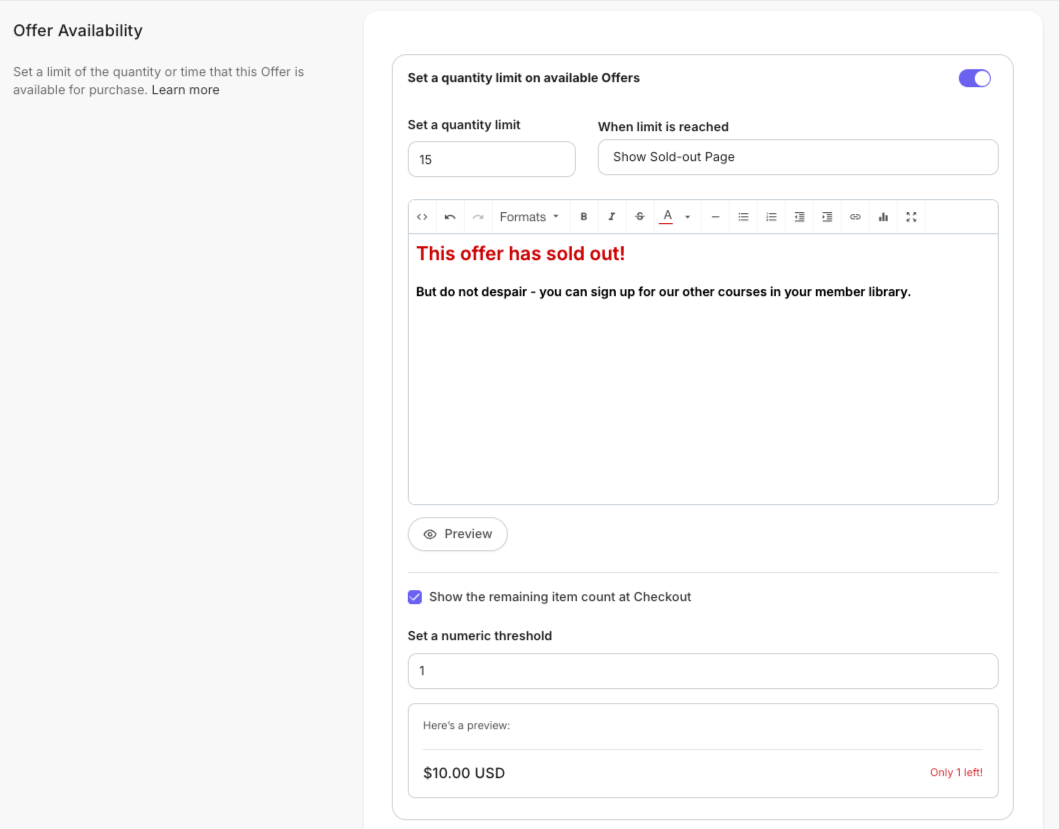
**Set a quantity limit** for the Offer and select an action to occur once that limit is reached. You can show a customized Sold-out Page or redirect to a specific Landing Page. Optionally, show the remaining item count at checkout.
**Tip:** Give your customers different payment options to access your Product(s) by combining Offers and Landing Pages. [Learn how to create different pricing options](/articles/sales/offers/create-multiple-pricing-options-for-legacy-checkout).
### Payment Providers
Adjust the **payment providers** you accept for this Offer. If you selected [Kajabi Payments](/articles/sales/kajabi-payments/kajabi-payments-overview), you can add additional payment options like Apple or Google Pay, Klarna, and Afterpay.
### Offer Availability
**Set a quantity limit** for the Offer and select an action to occur once that limit is reached. You can show a customized Sold-out Page or redirect to a specific Landing Page. Optionally, show the remaining item count at checkout.
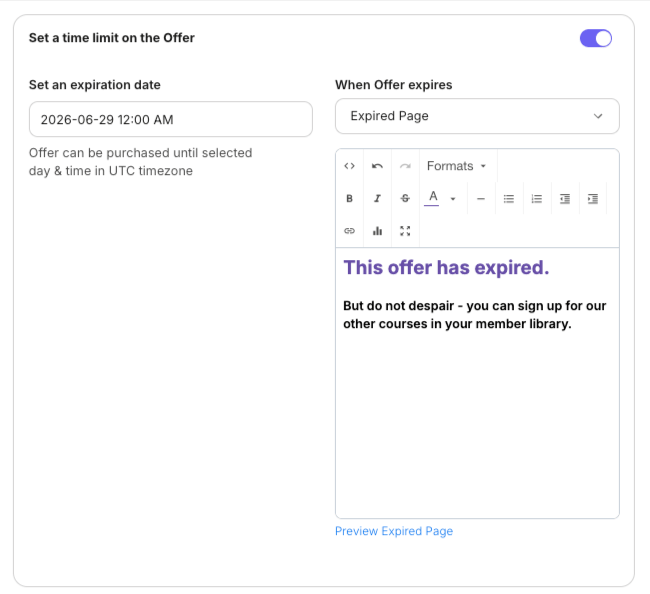
 You can also set a **time limit**. When an Offer expires at a certain date and time, show an Expired Page or a Landing Page you choose.
 ## Purchase flow
The **Purchase flow** tab is where you determine how your Product(s) should be sold and delivered.
#### Post-purchase
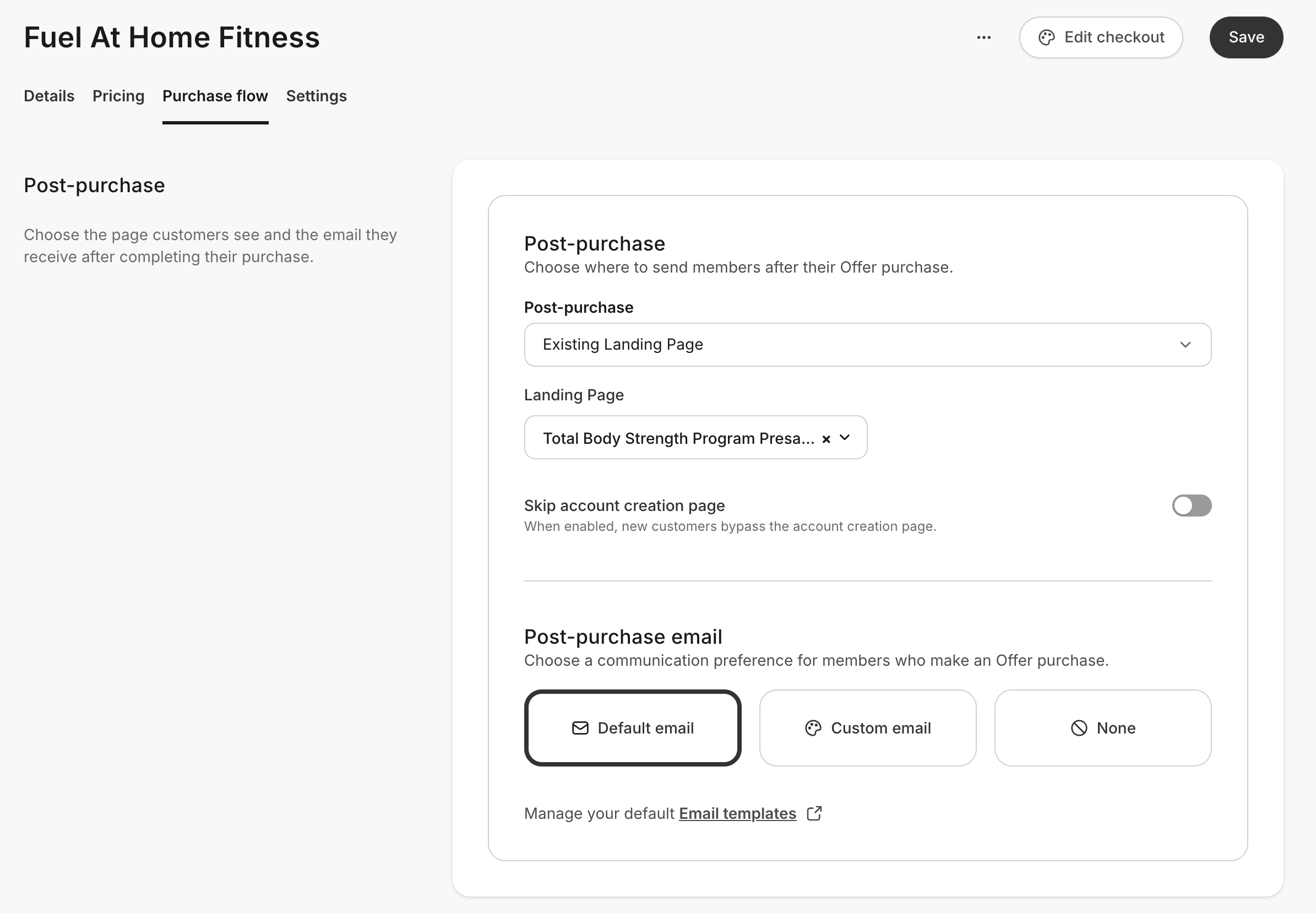
Customize the settings and user experience after the Offer has been purchased under the **Post-Purchase** section.
After a purchase, you can:
* Send the member to a custom Thank You page, Landing Page, or the Member's Product Library
* Allow new customers to bypass the account creation page
* Send the customer a default or custom post-purchase email, or do not send one
## Purchase flow
The **Purchase flow** tab is where you determine how your Product(s) should be sold and delivered.
#### Post-purchase
Customize the settings and user experience after the Offer has been purchased under the **Post-Purchase** section.
After a purchase, you can:
* Send the member to a custom Thank You page, Landing Page, or the Member's Product Library
* Allow new customers to bypass the account creation page
* Send the customer a default or custom post-purchase email, or do not send one
 [Learn how to customize a checkout page](/articles/sales/checkout/customize-your-checkout-page).
#### Upsells
**Upsells** let you present additional Offers to customers immediately after they complete a purchase. Add them to any Offer’s purchase flow to increase average order value without interrupting the checkout experience.
[Learn how to customize a checkout page](/articles/sales/checkout/customize-your-checkout-page).
#### Upsells
**Upsells** let you present additional Offers to customers immediately after they complete a purchase. Add them to any Offer’s purchase flow to increase average order value without interrupting the checkout experience.
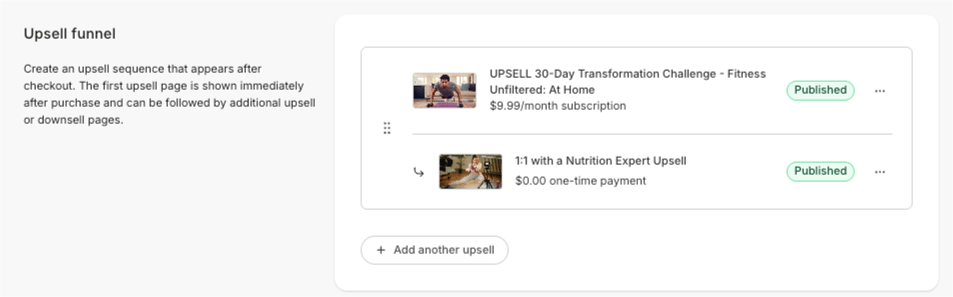 Under **Upsell funnel**, create an Upsell sequence that appears after checkout. The first Upsell page is shown immediately after purchase and can be followed by additional Upsell pages.\
\
[Learn more about Upsells](https://help.kajabi.com/articles/sales/offers/upsells-overview).
#### Automations
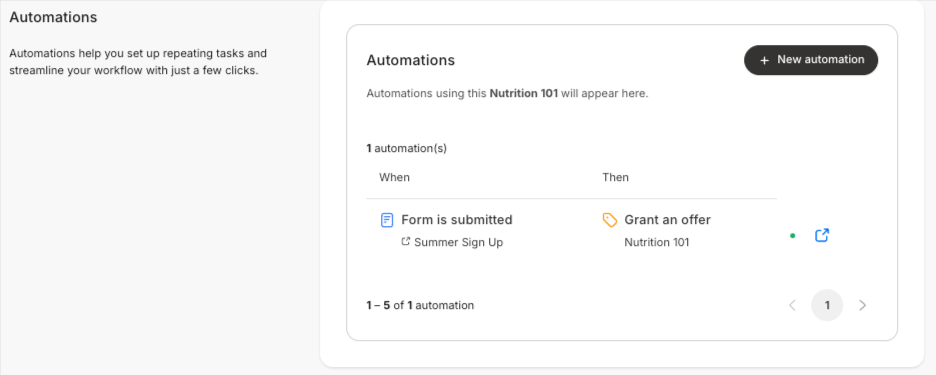
**Automations** help you set up repeating tasks and streamline your workflow with just a few clicks. Click **+New automation** to start the creation process.
Under **Upsell funnel**, create an Upsell sequence that appears after checkout. The first Upsell page is shown immediately after purchase and can be followed by additional Upsell pages.\
\
[Learn more about Upsells](https://help.kajabi.com/articles/sales/offers/upsells-overview).
#### Automations
**Automations** help you set up repeating tasks and streamline your workflow with just a few clicks. Click **+New automation** to start the creation process.
 [Learn more about Automations](/articles/marketing/automations/automations-overview).
### Settings
#### Customize your checkout
[Learn more about Automations](/articles/marketing/automations/automations-overview).
### Settings
#### Customize your checkout
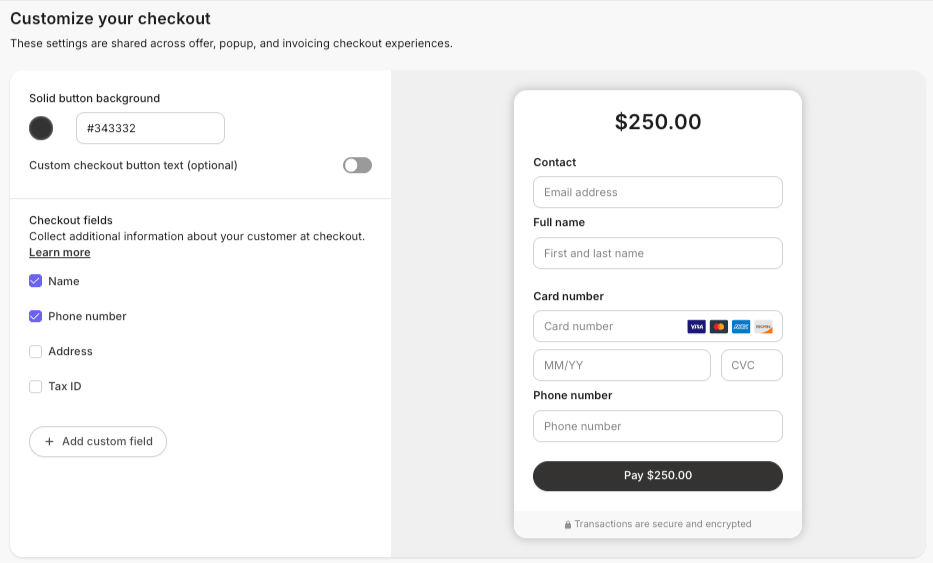 Adjust settings shared across offer, popup, and invoicing checkout experiences.
* Choose button color and text
* Add additional checkout fields
#### Order bump
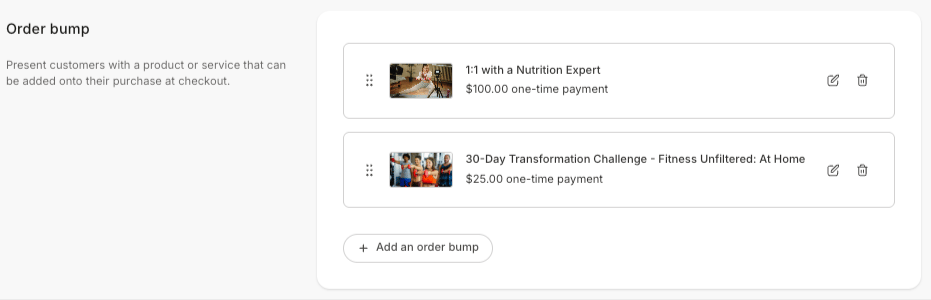
Present your customers with a product or service that can be added onto their purchase at checkout.
Adjust settings shared across offer, popup, and invoicing checkout experiences.
* Choose button color and text
* Add additional checkout fields
#### Order bump
Present your customers with a product or service that can be added onto their purchase at checkout.
 #### Notifications
Manage communication options for you and your team and customers that have purchased your Offer:
* Send customers to third-party email provider
* Get notified when a purchase has been made
* Send cart abandonment emails if a customer abandons the Offer Checkout page
[Learn more about Offer notifications](/articles/sales/offers/how-to-include-additional-settings-for-your-offer).
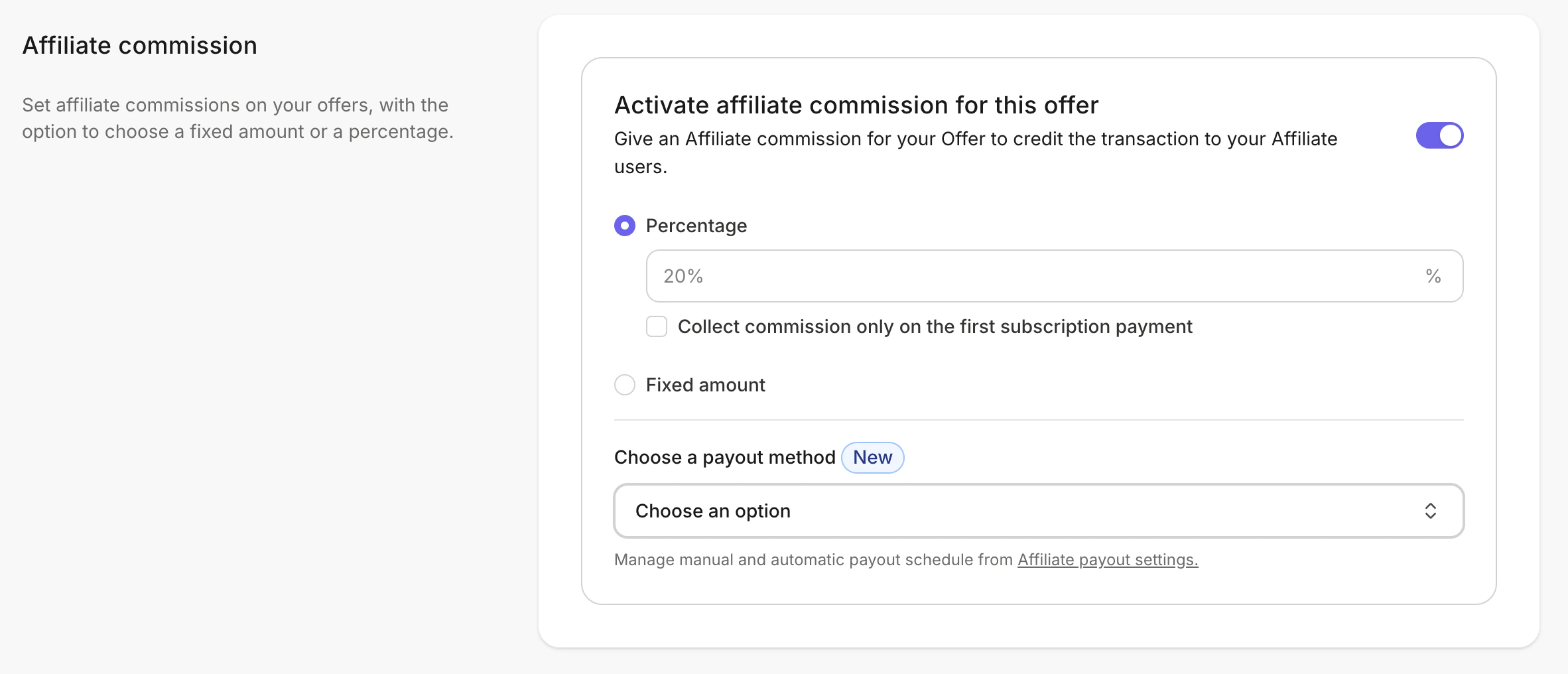
#### Affiliate Commission
Activate **Affiliate Commission** to credit your Affiliates for transactions made with their Share Links.
#### Notifications
Manage communication options for you and your team and customers that have purchased your Offer:
* Send customers to third-party email provider
* Get notified when a purchase has been made
* Send cart abandonment emails if a customer abandons the Offer Checkout page
[Learn more about Offer notifications](/articles/sales/offers/how-to-include-additional-settings-for-your-offer).
#### Affiliate Commission
Activate **Affiliate Commission** to credit your Affiliates for transactions made with their Share Links.
 \
[Learn more about activating Affiliate commissions](/articles/sales/affiliates/activate-affiliate-commission).
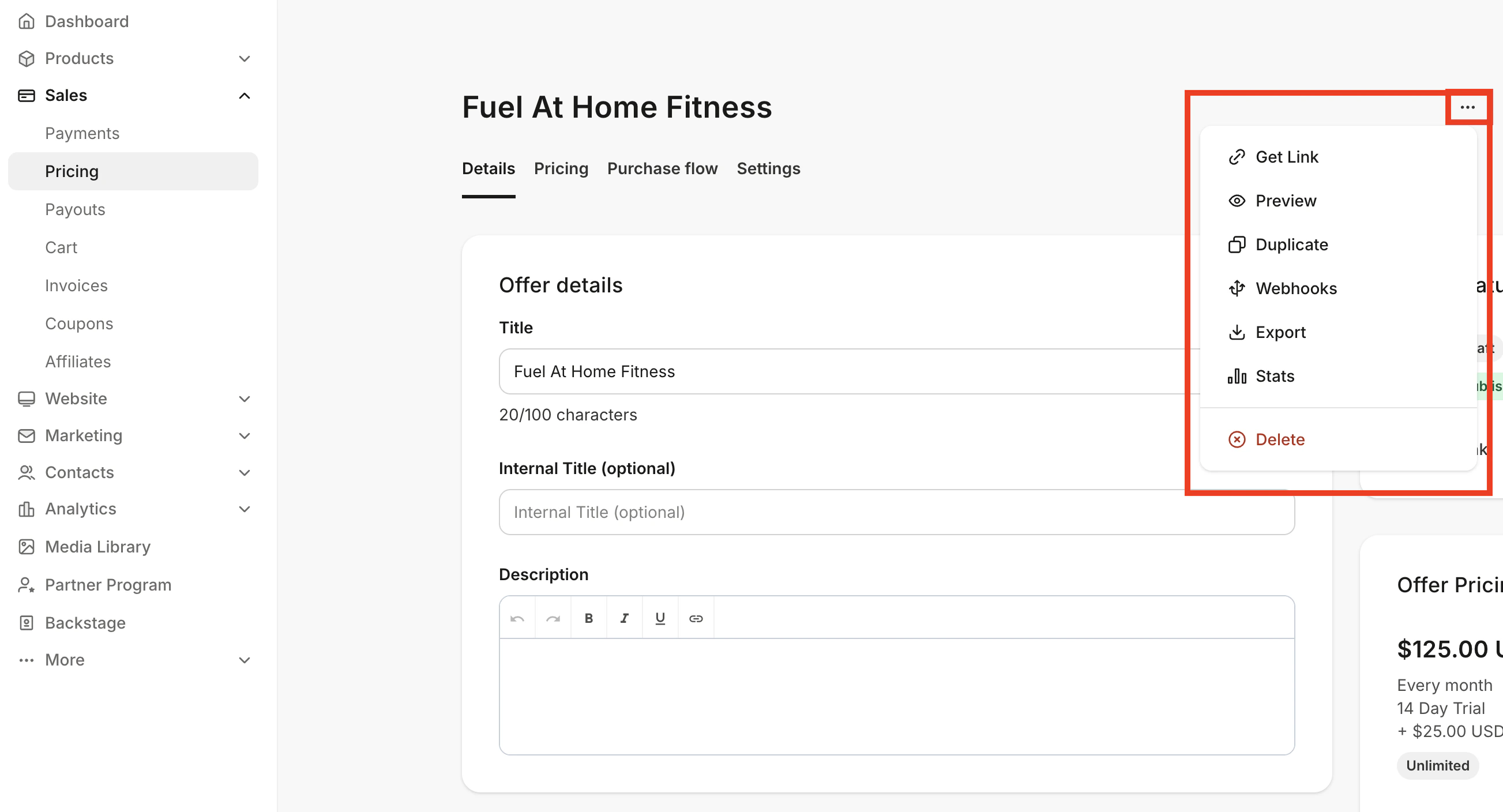
### More actions
Under the Offer **more actions (...) menu**, copy the link to or preview the Offer Checkout Page, [duplicate the Offer](/articles/sales/offers/how-to-duplicate-an-offer), [communicate with other applications using webhooks](/articles/api-integrations/webhooks/webhooks-explained), view [Offer stats](/articles/sales/offers/how-to-view-offer-stats), or [delete the Offer](/articles/sales/offers/how-to-delete-an-offer).
\
[Learn more about activating Affiliate commissions](/articles/sales/affiliates/activate-affiliate-commission).
### More actions
Under the Offer **more actions (...) menu**, copy the link to or preview the Offer Checkout Page, [duplicate the Offer](/articles/sales/offers/how-to-duplicate-an-offer), [communicate with other applications using webhooks](/articles/api-integrations/webhooks/webhooks-explained), view [Offer stats](/articles/sales/offers/how-to-view-offer-stats), or [delete the Offer](/articles/sales/offers/how-to-delete-an-offer).
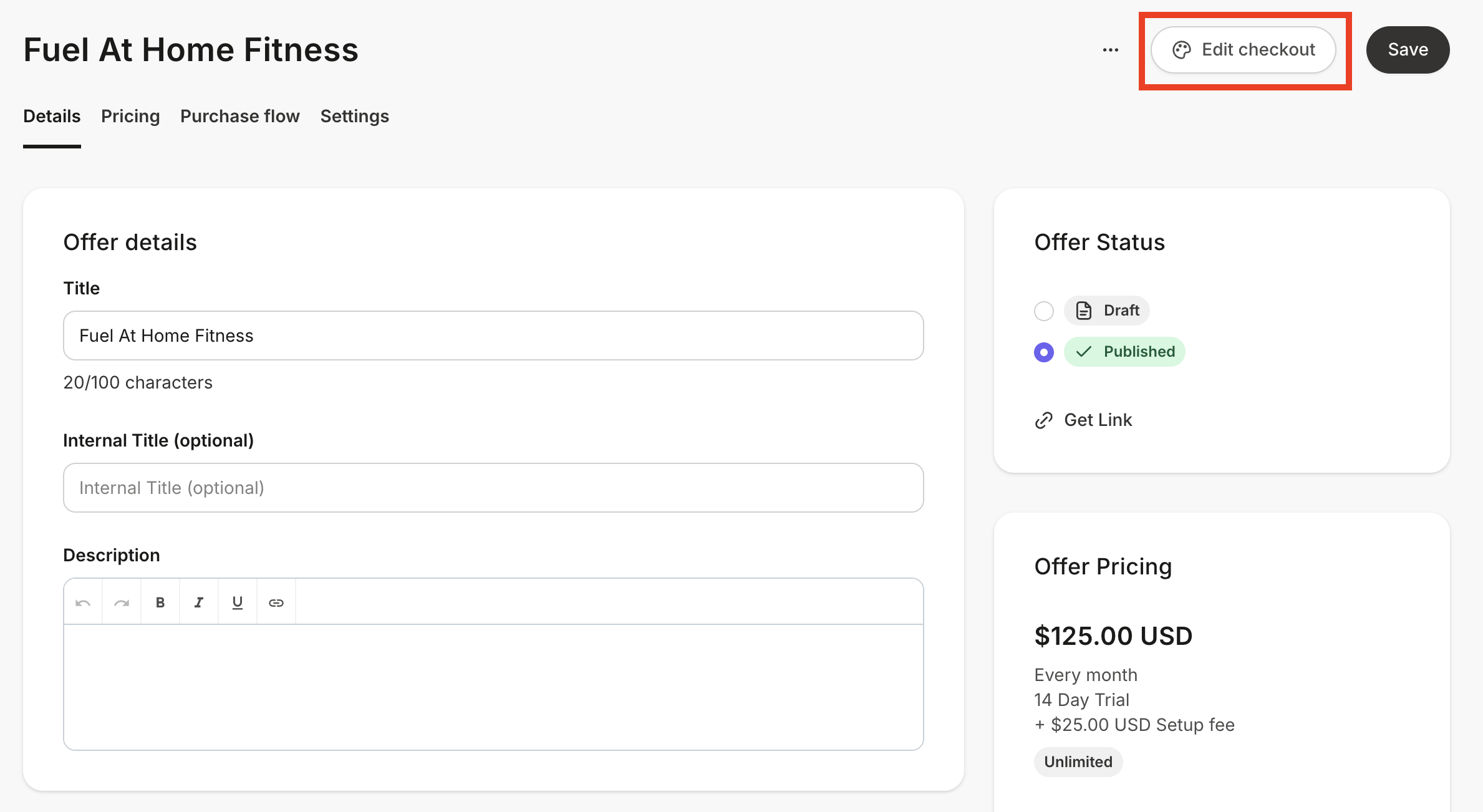
 ## Customize the Offer Checkout Page
Design your users experience by customizing the Offer Checkout Page after customizing the details of your Offer:
1. From the Dashboard, open the **Sales** tab.
2. Click **Pricing.**
3. Select the Offer you wish to edit.
4. At the top, click **Edit Checkout:**
## Customize the Offer Checkout Page
Design your users experience by customizing the Offer Checkout Page after customizing the details of your Offer:
1. From the Dashboard, open the **Sales** tab.
2. Click **Pricing.**
3. Select the Offer you wish to edit.
4. At the top, click **Edit Checkout:**
 [Learn more about editing an Offer Checkout Page](https://help.kajabi.com/articles/sales/checkout/customize-your-checkout-page).
## Add the Offer to a Page
Last but not least, it is time to share your Offer by adding it to your website.
**First, add an Offer Section to your Page:**
1. From the Dashboard, open the **Website** tab.
2. Click **Website Pages** or **Landing Pages** and select the page you wish to edit.
3. Click the **Customize** **icon** to open the editor.
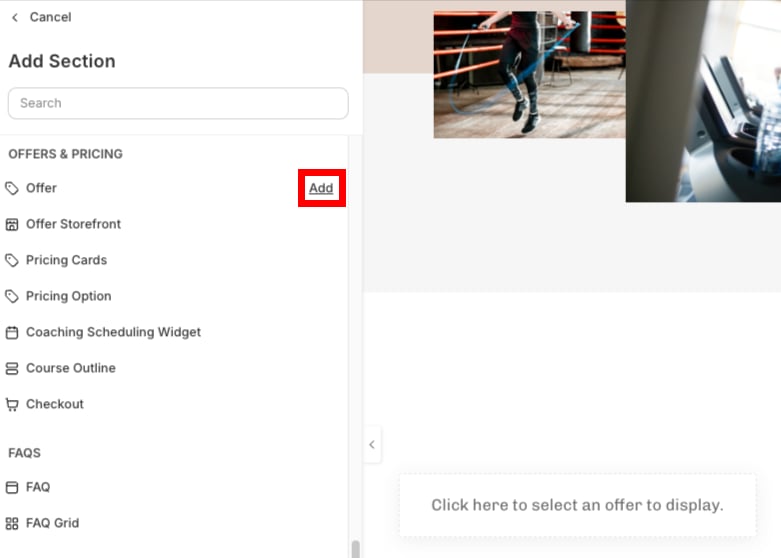
4. In the sidebar, select **Add section.**
5. From the list, select **Offer**, and click **Add**:
[Learn more about editing an Offer Checkout Page](https://help.kajabi.com/articles/sales/checkout/customize-your-checkout-page).
## Add the Offer to a Page
Last but not least, it is time to share your Offer by adding it to your website.
**First, add an Offer Section to your Page:**
1. From the Dashboard, open the **Website** tab.
2. Click **Website Pages** or **Landing Pages** and select the page you wish to edit.
3. Click the **Customize** **icon** to open the editor.
4. In the sidebar, select **Add section.**
5. From the list, select **Offer**, and click **Add**:
 6. An **Offer Block** will generate at the bottom of the page.
7. Click **Save**.
**Then, select the Offer you would like to display:**
1. In the page, hover over the **Offer Block** and click **Edit.**
6. An **Offer Block** will generate at the bottom of the page.
7. Click **Save**.
**Then, select the Offer you would like to display:**
1. In the page, hover over the **Offer Block** and click **Edit.**
.png?fit=max&auto=format&n=5moYAujtRgmBrOIl&q=85&s=2dbda1a25eeca7457a7325480e415292 "Screenshot 2026 06 29 At 6 49 46 PM (3)") 2. In the sidebar, select an **Offer** using the dropdown menu:
2. In the sidebar, select an **Offer** using the dropdown menu:
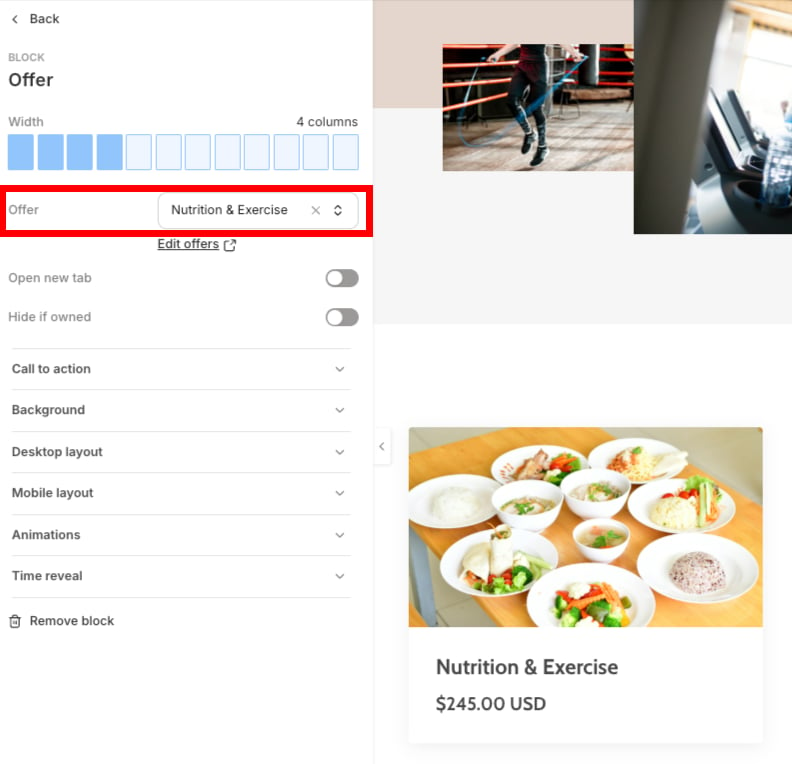 3. Click **Save**.
## Delete an Offer
To permanently remove an Offer from your account:
1. From the Dashboard, open the **Sales** tab.
2. Click **Pricing**.
3. Select the **Title** of the Offer you wish to permanently remove.
4. Click the **more actions (...)** menu in the top right corner of the Offer Editor.
5. In the dropdown menu, select **Delete**, and then confirm that you would like to delete the Offer:
3. Click **Save**.
## Delete an Offer
To permanently remove an Offer from your account:
1. From the Dashboard, open the **Sales** tab.
2. Click **Pricing**.
3. Select the **Title** of the Offer you wish to permanently remove.
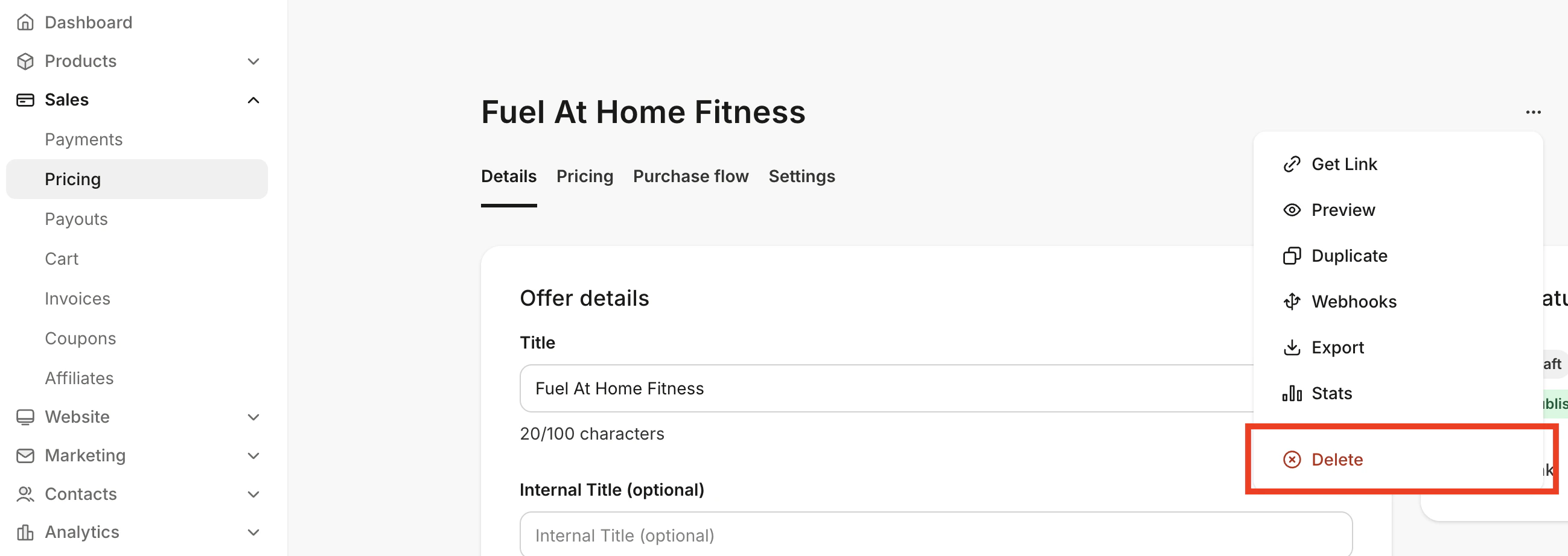
4. Click the **more actions (...)** menu in the top right corner of the Offer Editor.
5. In the dropdown menu, select **Delete**, and then confirm that you would like to delete the Offer:
 **Important:** Deleting an Offer in use may cause problems in the future. Instead, if you wish to remove an Offer in use, we recommend [**drafting an Offer**](https://help.kajabi.com/articles/sales/offers/how-to-publish-or-unpublish-an-offer). Additionally, deleting a recurring subscription Offer will not cancel your customer’s subscription. Please refer to [**Cancel a customer’s subscription**](https://help.kajabi.com/articles/contacts/manage-your-contacts/how-to-cancel-your-customers-subscription) if you wish to cancel a subscription.
**Tip:** Before deleting your Offer, revoke access to the Offer with [**Bulk Actions**](https://help.kajabi.com/articles/contacts/manage-your-contacts/perform-bulk-actions-in-the-contacts-tab) to avoid manually revoking access for each customer with the Offer. Deleting the Offer before using Bulk Action to revoke access will remove the Offer from your Bulk Actions menu, and you will be unable to use Bulk Actions to revoke access to all customers with the Offer.
**Important:** Deleting an Offer in use may cause problems in the future. Instead, if you wish to remove an Offer in use, we recommend [**drafting an Offer**](https://help.kajabi.com/articles/sales/offers/how-to-publish-or-unpublish-an-offer). Additionally, deleting a recurring subscription Offer will not cancel your customer’s subscription. Please refer to [**Cancel a customer’s subscription**](https://help.kajabi.com/articles/contacts/manage-your-contacts/how-to-cancel-your-customers-subscription) if you wish to cancel a subscription.
**Tip:** Before deleting your Offer, revoke access to the Offer with [**Bulk Actions**](https://help.kajabi.com/articles/contacts/manage-your-contacts/perform-bulk-actions-in-the-contacts-tab) to avoid manually revoking access for each customer with the Offer. Deleting the Offer before using Bulk Action to revoke access will remove the Offer from your Bulk Actions menu, and you will be unable to use Bulk Actions to revoke access to all customers with the Offer.