> ## Documentation Index
> Fetch the complete documentation index at: https://help.kajabi.com/llms.txt
> Use this file to discover all available pages before exploring further.
# Add Offers to a Store
> Add Offers to a store page to showcase available Products for purchase.
A **store** can be used to showcase the offers you have available for purchase.
**Note:** This guide refers to the Website Builder. [Learn to customize your website pages with the website builder](/articles/website/pages/customizing-your-website-pages-with-the-website-builder).
## Add Offers to a store page
With Kajabi, your standard website pages include a Store Page to house all the Offers you wish to sell:
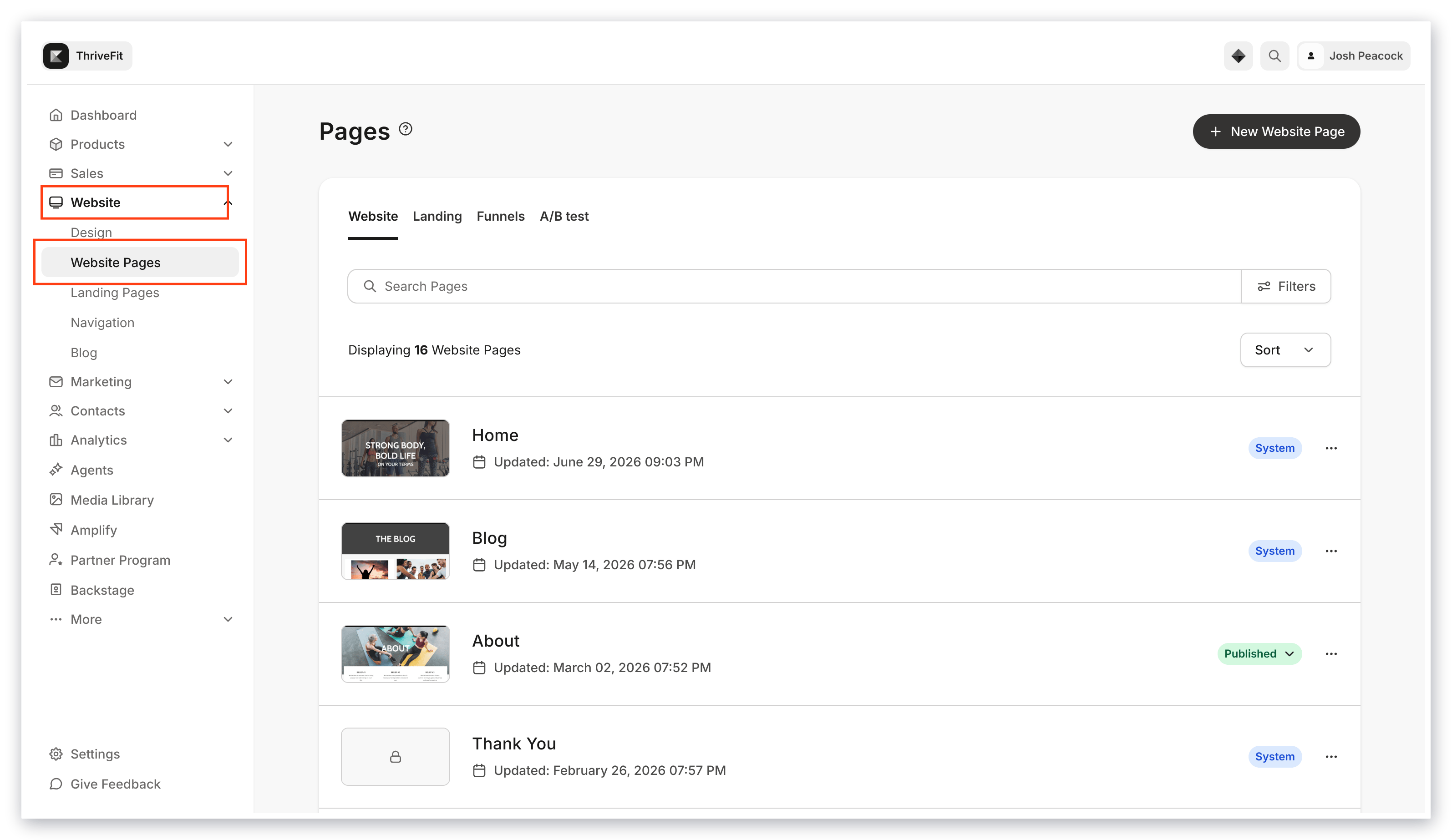
1. Open the **Website** tab from your Dashboard.
2. Click **Website Pages**.
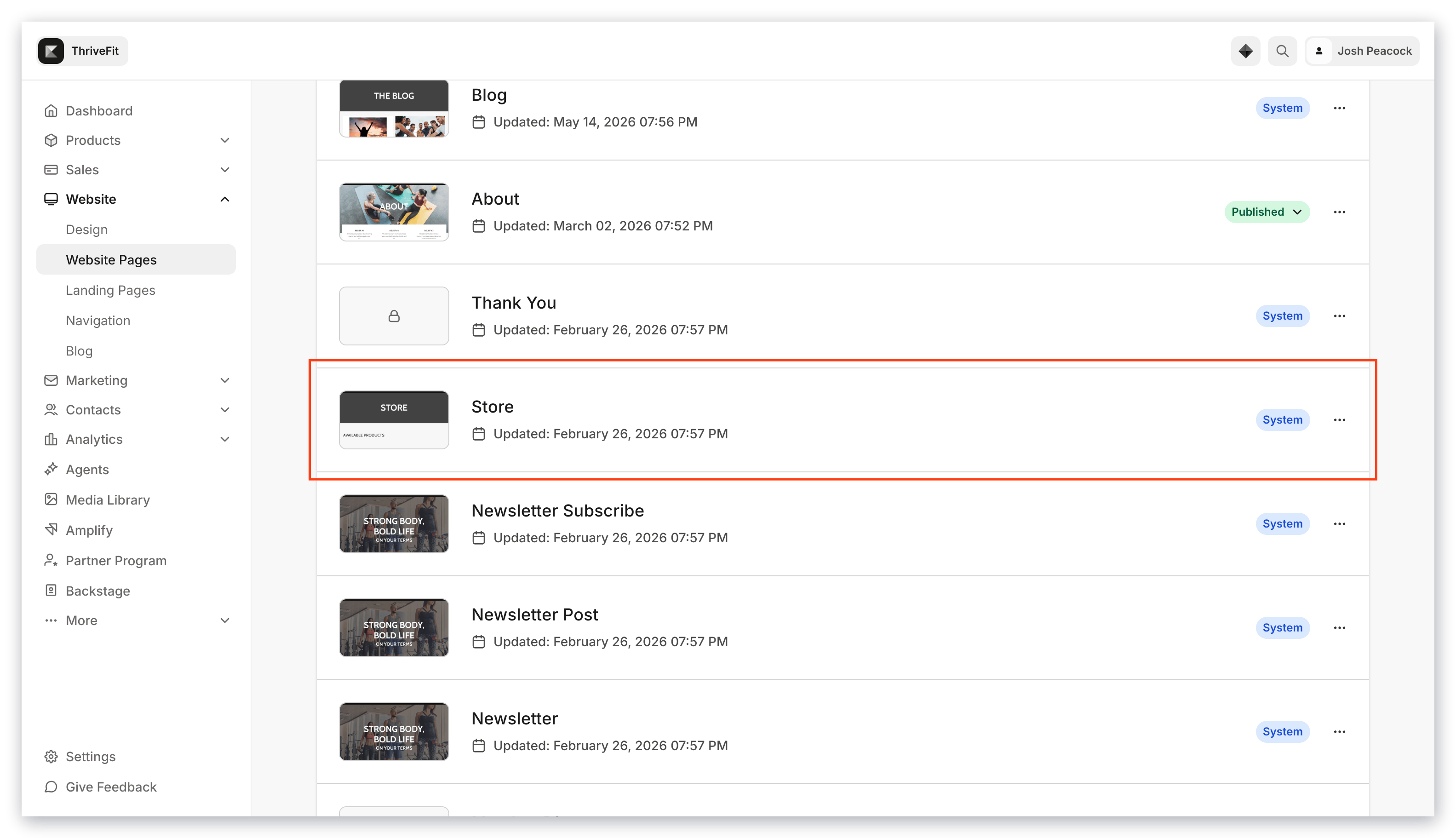
 3. Select your **Store** page.
 4. Navigate to the Offer Storefront section you wish to add your Offer card to or [create a new section](/articles/website/pages/add-sections-to-your-pages).
5. Select an existing **Offer** card or click Add Content to create a new Offer card.
6. Select the Offer you'd like to add to your Store from the Offer dropdown menu in the left sidebar.
7. Click **Save** and start selling.
4. Navigate to the Offer Storefront section you wish to add your Offer card to or [create a new section](/articles/website/pages/add-sections-to-your-pages).
5. Select an existing **Offer** card or click Add Content to create a new Offer card.
6. Select the Offer you'd like to add to your Store from the Offer dropdown menu in the left sidebar.
7. Click **Save** and start selling.