> ## Documentation Index
> Fetch the complete documentation index at: https://help.kajabi.com/llms.txt
> Use this file to discover all available pages before exploring further.
# Create a free Offer
> Provide free resources, content, and services to customers with a free Offer.
Create a **free Offer** to provide free resources, content, services, and more to your customers.
## Edit the price: Free
1. Go to **Sales** > **Pricing** > **Offers**.
2. Select the Offer you wish to edit or [create a new one](/articles/sales/offers/create-an-offer)
3. In the Offer Editor, click **Pricing**
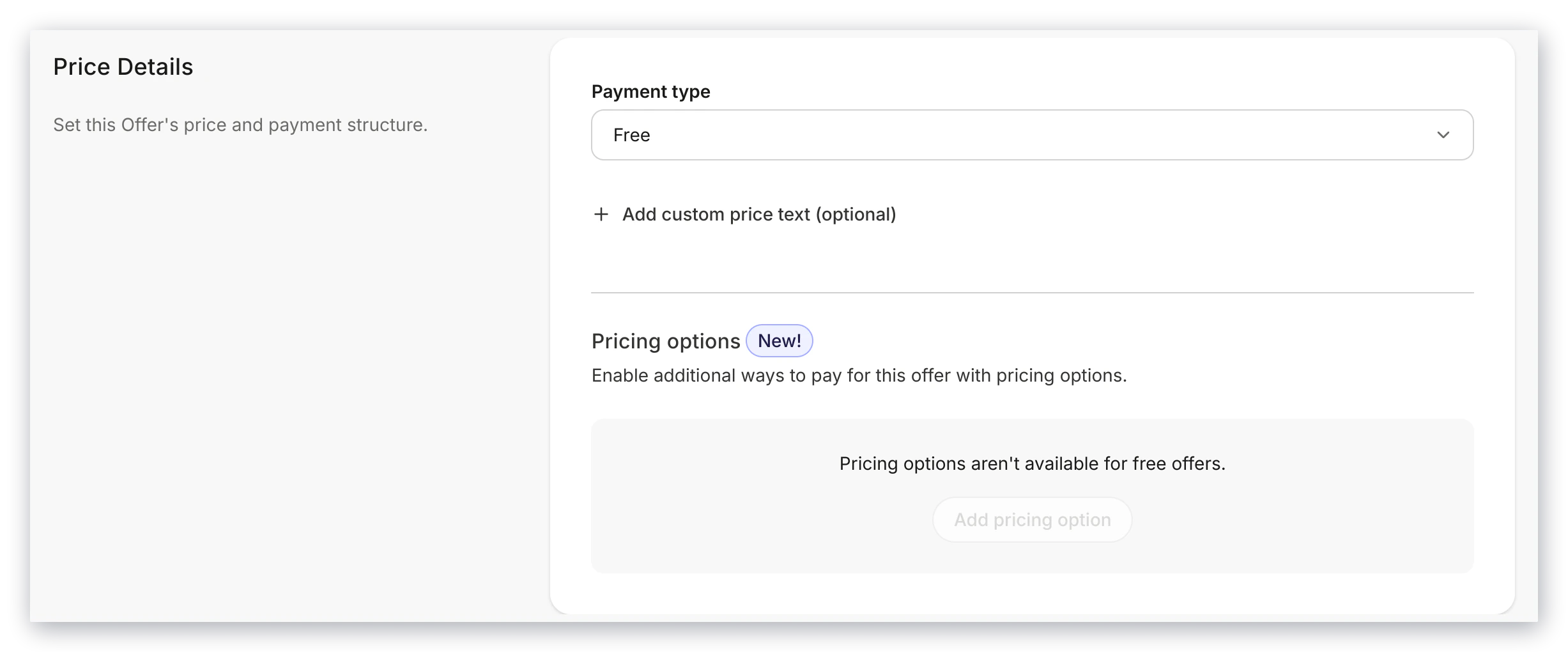
4. Navigate to the Price Details card
5. Then, under **Payment type**, select **Free**
6. Be sure to click **Save** to keep and apply your changes
**Tip:** Give access to your Product(s) and services for free by creating a free Offer or by [Granting an Offer](/articles/sales/offers/how-to-grant-an-offer). Free Offers and Granted Offers ultimately give access to your content for free, but free Offer purchases will go through the [Offer Checkout process](/articles/sales/offers/what-happens-when-a-customer-purchases-my-offer) whereas a Granted Offer will simply send the [Offer Confirmation Email and the Member Welcome Email](/articles/account-settings/notifications/edit-automated-email-notifications) if the customer is subscribed to receive your marketing emails. Be sure to set up the Offer that best fits your business.
## Customize the free Offer
If the Offer Pricing Option selected is Free, there are no additional fields to be edited. Instead, you have the option to override the default Price text.
If you wish to edit the text describing the Price for the Offer, enter a custom phrase to describe the price in the **Price text override** field:
 After completing your Offer, edit and preview your Checkout Page. [Learn more](/articles/sales/checkout/customize-your-checkout-page)
**Note:**
Free Offers cannot include an Upsell Offer. Add an Upsell to [Offers with a price](/articles/sales/offers/how-to-create-a-pricing-plan-for-your-offer) to encourage your customers to purchase additional Offers. [Learn how Upsells work](/articles/sales/offers/upsells-overview)
After completing your Offer, edit and preview your Checkout Page. [Learn more](/articles/sales/checkout/customize-your-checkout-page)
**Note:**
Free Offers cannot include an Upsell Offer. Add an Upsell to [Offers with a price](/articles/sales/offers/how-to-create-a-pricing-plan-for-your-offer) to encourage your customers to purchase additional Offers. [Learn how Upsells work](/articles/sales/offers/upsells-overview)