> ## Documentation Index
> Fetch the complete documentation index at: https://help.kajabi.com/llms.txt
> Use this file to discover all available pages before exploring further.
# Create a Ghost Offer
> Sell resources and services not connected to a digital product on Kajabi by creating Ghost Offers.
On Kajabi, a **Ghost Offer** is an Offer without a Product attached.
It's ideal for businesses selling anything from coaching hours or paid consultations to physical classes or events. With Ghost Offers, you can accept payments for all of your services in a single, comprehensive platform.
## Create a Ghost Offer
1. Open the **Sales** tab from your Dashboard.
2. Select **Pricing**.
3. Click **+ New Offer**.
4. Enter an Offer Title for your Ghost Offer.
5. Leave the Product field empty. Be sure your Offer is **not** connected to a Product.
6. Enter your Payment details and click **Save** (you can edit your price further within the Offer builder).
**Tip:** Use [Automations](/articles/marketing/automations/automations-overview) to set up easy and clear steps for those who've purchased your Ghost Offer.
## Customize the Ghost Offer
Design your Ghost Offer to create a seamless purchasing experience for your customers by:
* Editing the Checkout Page to prevent the account creation page from appearing
* Sending your customers to a custom Thank You Page to avoid an empty Library page
### Edit the Checkout Page
A key step in creating a Ghost Offer is not sending your customers to the account creation screen naturally built into the checkout process:
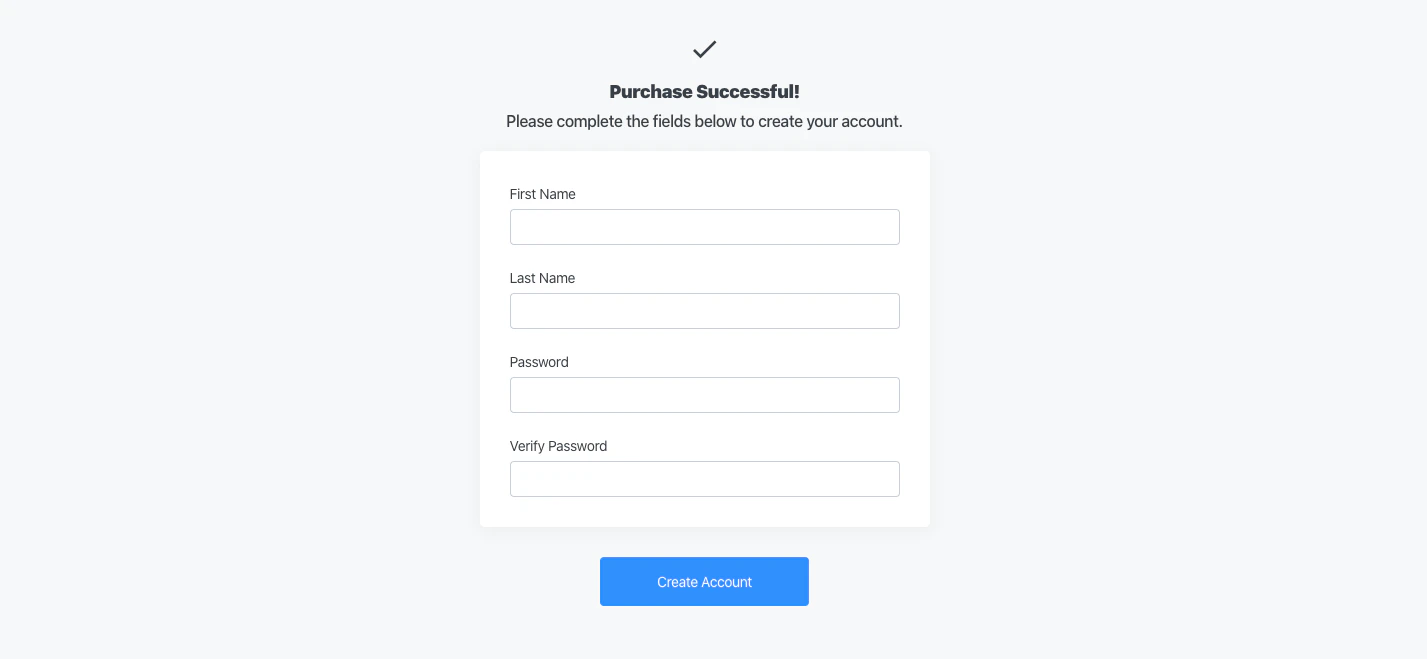 Although Kajabi can help you sell both physical and digital services with Offers, the checkout process was originally designed for digital products that require login credentials.
To avoid the account creation screen, edit your Checkout Page to include the login fields in the checkout form:
Although Kajabi can help you sell both physical and digital services with Offers, the checkout process was originally designed for digital products that require login credentials.
To avoid the account creation screen, edit your Checkout Page to include the login fields in the checkout form:
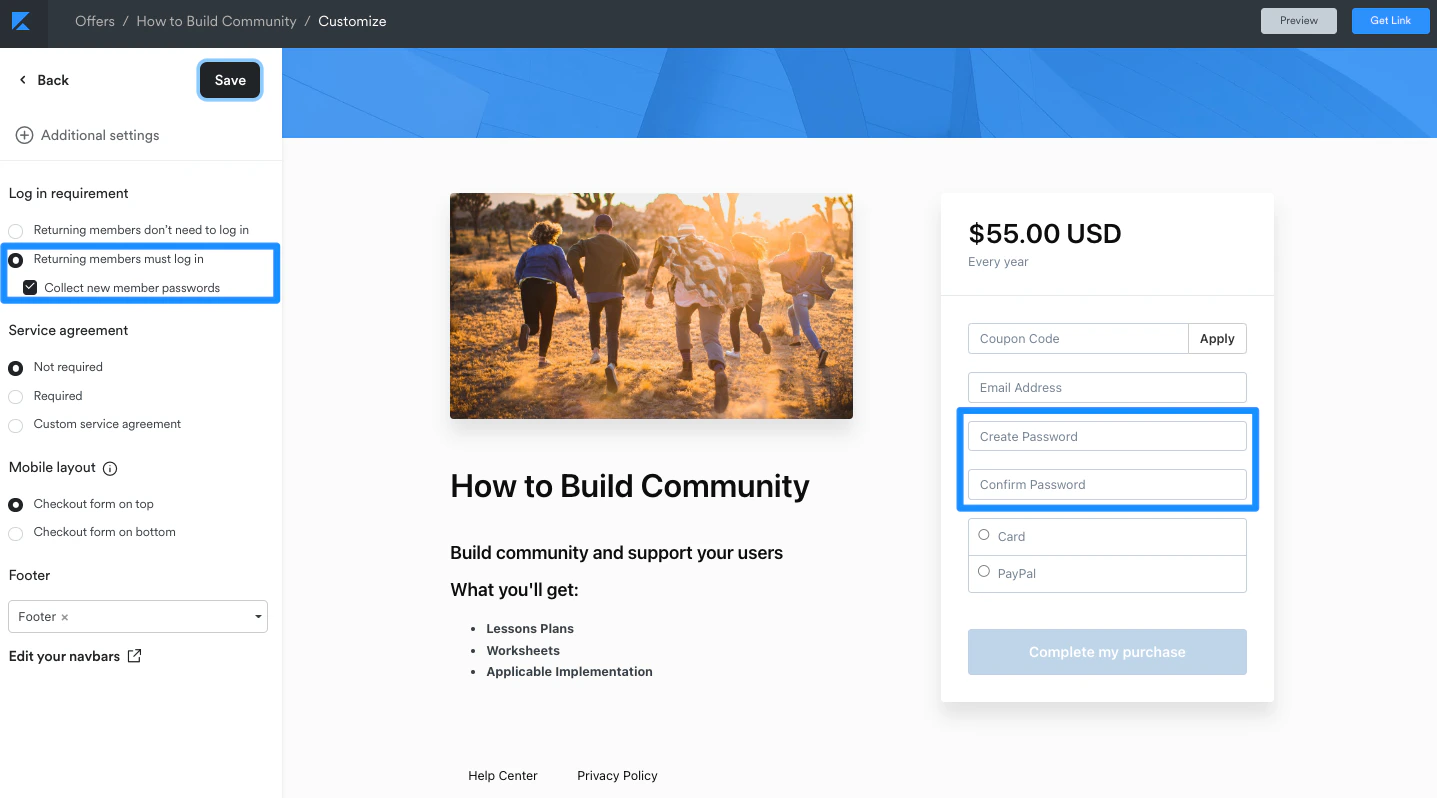 [Learn to edit your Checkout Page](/articles/sales/checkout/customize-your-checkout-page).
This will allow your customers to enter their password directly from the Checkout Page and will prevent them from seeing the account creation page.
### Send customers to a custom Thank You page
Another necessary step in creating your Ghost Offer is changing the default Thank You page:
[Learn to edit your Checkout Page](/articles/sales/checkout/customize-your-checkout-page).
This will allow your customers to enter their password directly from the Checkout Page and will prevent them from seeing the account creation page.
### Send customers to a custom Thank You page
Another necessary step in creating your Ghost Offer is changing the default Thank You page:
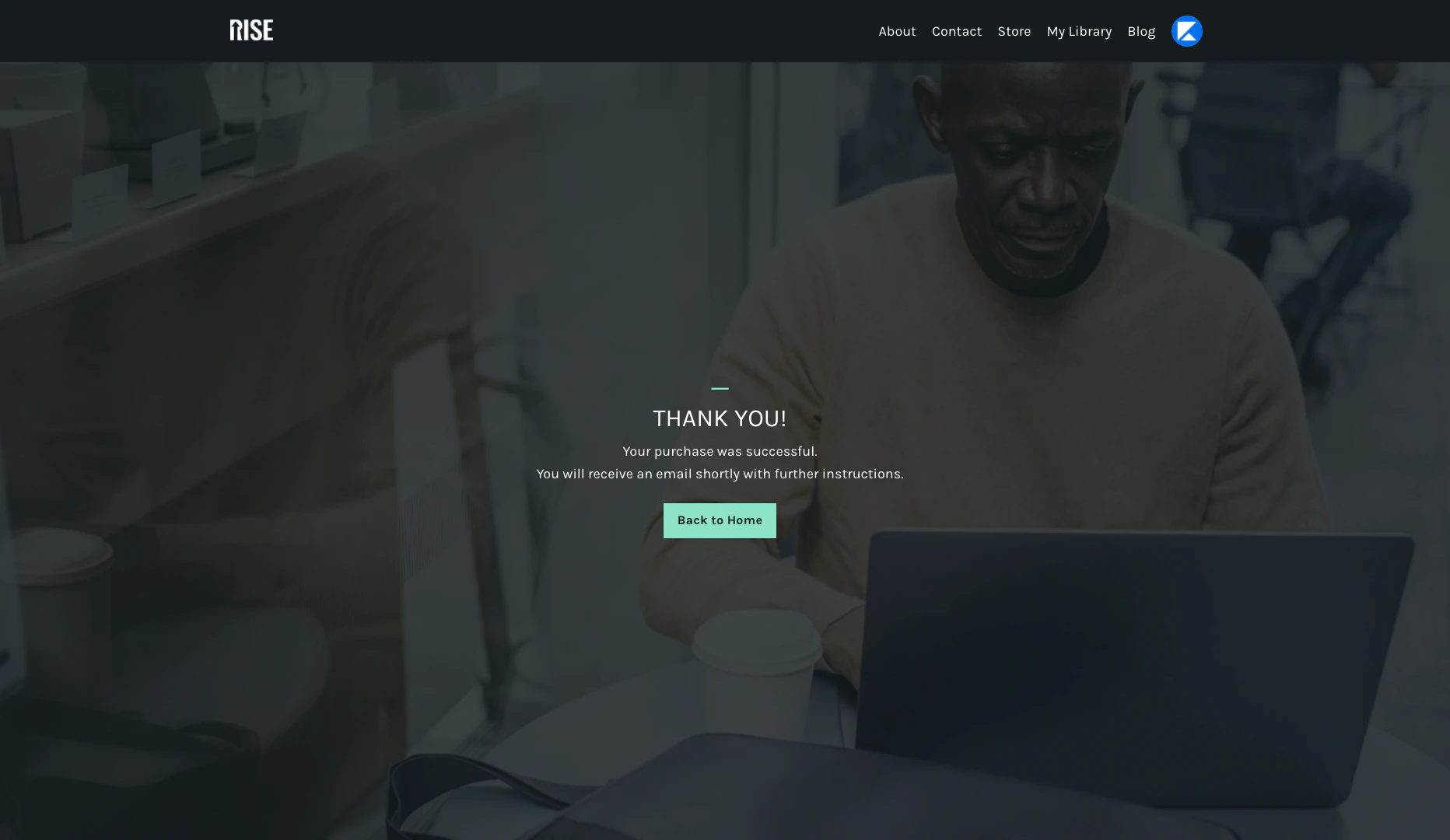 By default, your customers are redirected to their Library Page after purchasing an Offer. In this case, we want to avoid customers arriving at an empty Library page (because new customers purchasing a Ghost Offer will not have a digital product to access there).
[Learn to send your customers to a custom Thank You page](/articles/sales/offers/how-to-send-customers-to-a-landing-page-after-checkout) built with Kajabi Pages by editing the After Purchase settings for your Ghost Offer.
Curious about the typical checkout process? [Learn what happens when a customer purchases an Offer](/articles/sales/offers/what-happens-when-a-customer-purchases-my-offer).
By default, your customers are redirected to their Library Page after purchasing an Offer. In this case, we want to avoid customers arriving at an empty Library page (because new customers purchasing a Ghost Offer will not have a digital product to access there).
[Learn to send your customers to a custom Thank You page](/articles/sales/offers/how-to-send-customers-to-a-landing-page-after-checkout) built with Kajabi Pages by editing the After Purchase settings for your Ghost Offer.
Curious about the typical checkout process? [Learn what happens when a customer purchases an Offer](/articles/sales/offers/what-happens-when-a-customer-purchases-my-offer).