> ## Documentation Index
> Fetch the complete documentation index at: https://help.kajabi.com/llms.txt
> Use this file to discover all available pages before exploring further.
# Create a waitlist for an Offer
> Set up a waitlist for an Offer when restricting access based on time or number of customers.
Whether you are restricting access to your course based on time or by the number of customers who can join, creating a **waitlist** is an excellent method for allowing those who are interested in your Offer to opt in and potentially purchase your Offer when it becomes available again.
## What is my customers' experience if an Offer sells out?
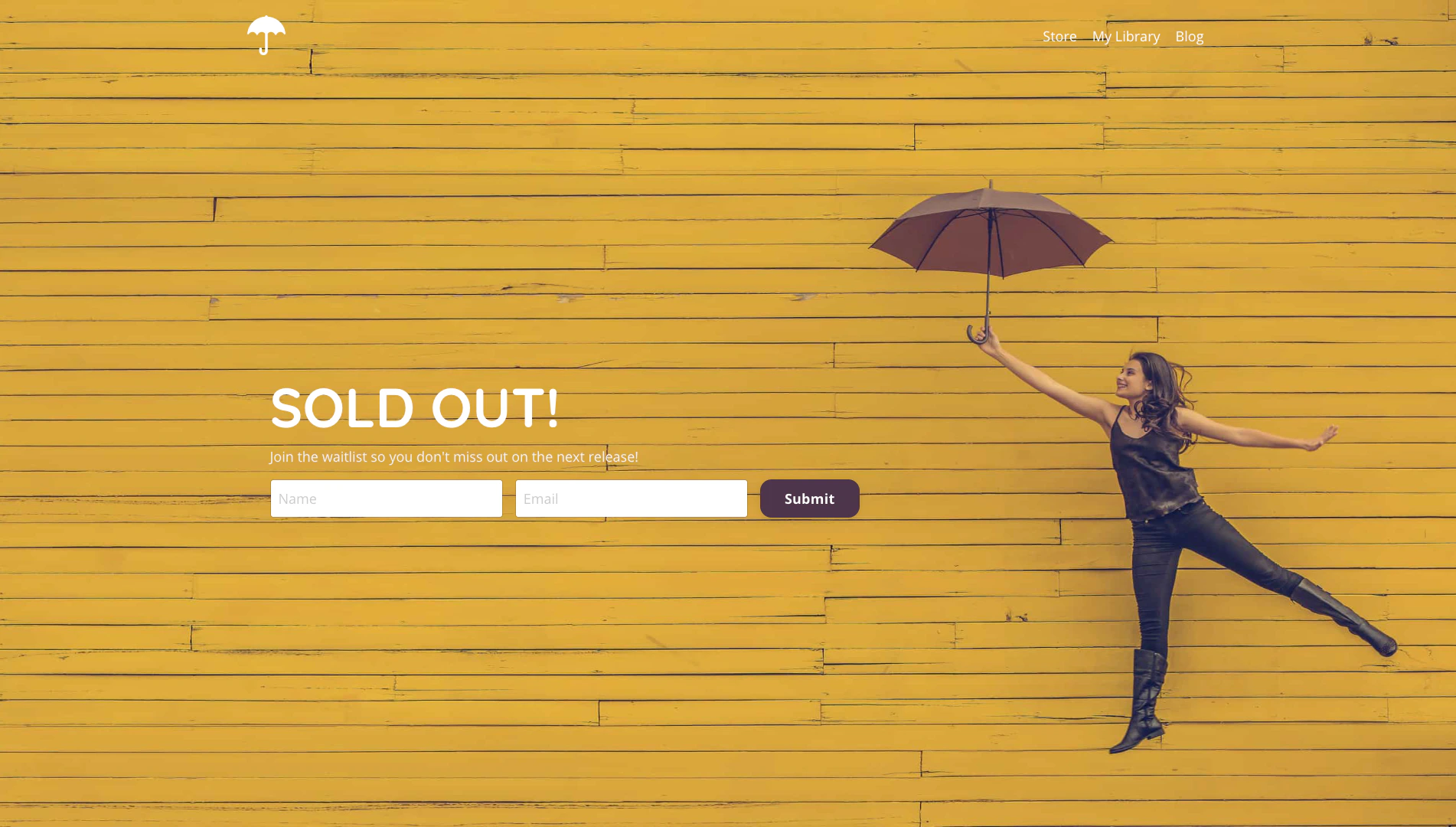
If purchases of your Offer reach your set quantity limit, attempts to purchase your Offer after it has sold out will be redirected to your custom Landing Page:
[Learn to view and manage Form submissions](/articles/marketing/forms/how-to-view-form-submissions).
## Create the waitlist form
First, create a Form on Kajabi to collect contact information from prospective customers who wish to join your Offer waitlist.
1. Open the **Marketing** tab from the Dashboard.
2. Select **Forms**.
3. Navigate to the top right corner of the page and click **+ New Form**.
4. Enter the **Title** for your Form.
5. Click **Save**.
6. Customize your Form as desired ([Learn more](/articles/marketing/forms/create-and-build-your-form)).
## Build the waitlist landing page
After creating your Form, build and customize the Landing Page that will contain your Form and communicate to your page visitors that the Offer has already reached capacity.
[Learn to add a Form to your page](/articles/website/pages/how-to-add-a-form-to-your-page).
 ## Set up the limited quantity Offer
Now that you've prepared your Form and Landing Page, update your Offer to limit the quantity of purchases and redirect people to your waitlist Landing Page.
1. Open the **Sales** tab from your Dashboard.
2. Select the **Offer** you wish to limit or [create a new Offer](/articles/sales/offers/create-an-offer).
3. Click the **Pricing** tab.
4. Scroll down to the **Limit Offer** card.
5. Check the checkbox next to **Quantity limit**.
6. Input your desired **Quantity Limit**.
7. Select the page you wish to display when the quantity limit has been reached.
8. Click **Save** to keep and apply your changes.
## Set up the limited quantity Offer
Now that you've prepared your Form and Landing Page, update your Offer to limit the quantity of purchases and redirect people to your waitlist Landing Page.
1. Open the **Sales** tab from your Dashboard.
2. Select the **Offer** you wish to limit or [create a new Offer](/articles/sales/offers/create-an-offer).
3. Click the **Pricing** tab.
4. Scroll down to the **Limit Offer** card.
5. Check the checkbox next to **Quantity limit**.
6. Input your desired **Quantity Limit**.
7. Select the page you wish to display when the quantity limit has been reached.
8. Click **Save** to keep and apply your changes.