> ## Documentation Index
> Fetch the complete documentation index at: https://help.kajabi.com/llms.txt
> Use this file to discover all available pages before exploring further.
# Create and manage Gift Offers
> Enable Gift Offers for purchase with Kajabi so customers can gift products to others.
A **Gift Offer** allows offers to be purchased as a gift for others. Best of all, you do not need to create a new offer to sell a gift offer—any of your current offers can be converted with the flip of a button.
 ## Enable Gift Offers
1. Go to **Sales** > **Pricing** > **Offers**.
2. In Offers, either create a new offer or select the existing offer that you wish to use.
3. Once in the Offer page, select **Settings**.
4. Toggle on **Enable "Send as gift" at checkout**.
5. Click **Save** to save your changes.
6. Once the gift offer has been enabled, you can preview it. The chosen offer image and your site logo will be displayed.
7. The offer description and offer image are used in the gift acceptance page.
## Enable Gift Offers
1. Go to **Sales** > **Pricing** > **Offers**.
2. In Offers, either create a new offer or select the existing offer that you wish to use.
3. Once in the Offer page, select **Settings**.
4. Toggle on **Enable "Send as gift" at checkout**.
5. Click **Save** to save your changes.
6. Once the gift offer has been enabled, you can preview it. The chosen offer image and your site logo will be displayed.
7. The offer description and offer image are used in the gift acceptance page.
**Note:**
Gift offers can only be enabled for one-time offers with products attached.
## Opt-in gift recipients
When sending a gift offer, consider providing recipients with the option to subscribe to your marketing emails, allowing them to stay informed about future updates and promotions.
### Enable gift offer opt-ins
1. From your Kajabi Dashboard, go to **Settings**.
2. In Settings, select **Checkout Settings**.
3. In Checkout Settings, toggle on **Enable gift recipients to opt-in**.
4. (Optional) Set a custom message.
5. **Save** your changes.
## Gift Offer Automations
To complete your Gift Offer setup, you can configure automations to trigger specific actions when a gift offer is **purchased** or **redeemed**.
Both automations can be set up individually by following these steps for each one.
### Set up gift offer automations
1. From the **Kajabi Dashboard**, navigate to the **Marketing** tab and select **Automations**.
2. Click **+ New Automation** to begin creating a new automation.
3. Under the **When** category, select one of the following triggers:
* An offer is purchased as a gift
* Gift offer redeemed
4. Choose which **Offer** you want the automation attached to.
5. Under the **Then** category, choose the action you want to be triggered by the selected **When** condition.
6. (Optional) Add a **condition** if needed.
7. Click **Save** to finalize and activate the automation.
Learn more about [automation triggers here](/articles/marketing/automations/understanding-automation-components).
## What will my customer see?
Upon checkout, your customer will select the "send as a gift option". This will open up a gift menu, where they will enter the email address to whom they wish to send the gift. They can also add a gift message if they would like, as well as schedule the gift delivery up to 6 months in advance.
They will then fill out the checkout form with their information and payment details, and then complete the purchase. Kajabi will take it from there!
**Note:**
Access to the Offer is granted to the recipient on the delivery date.
**Note:**
The gift offer will override any custom purchase confirmation you have set on the offer.
## What will the gift recipient see?
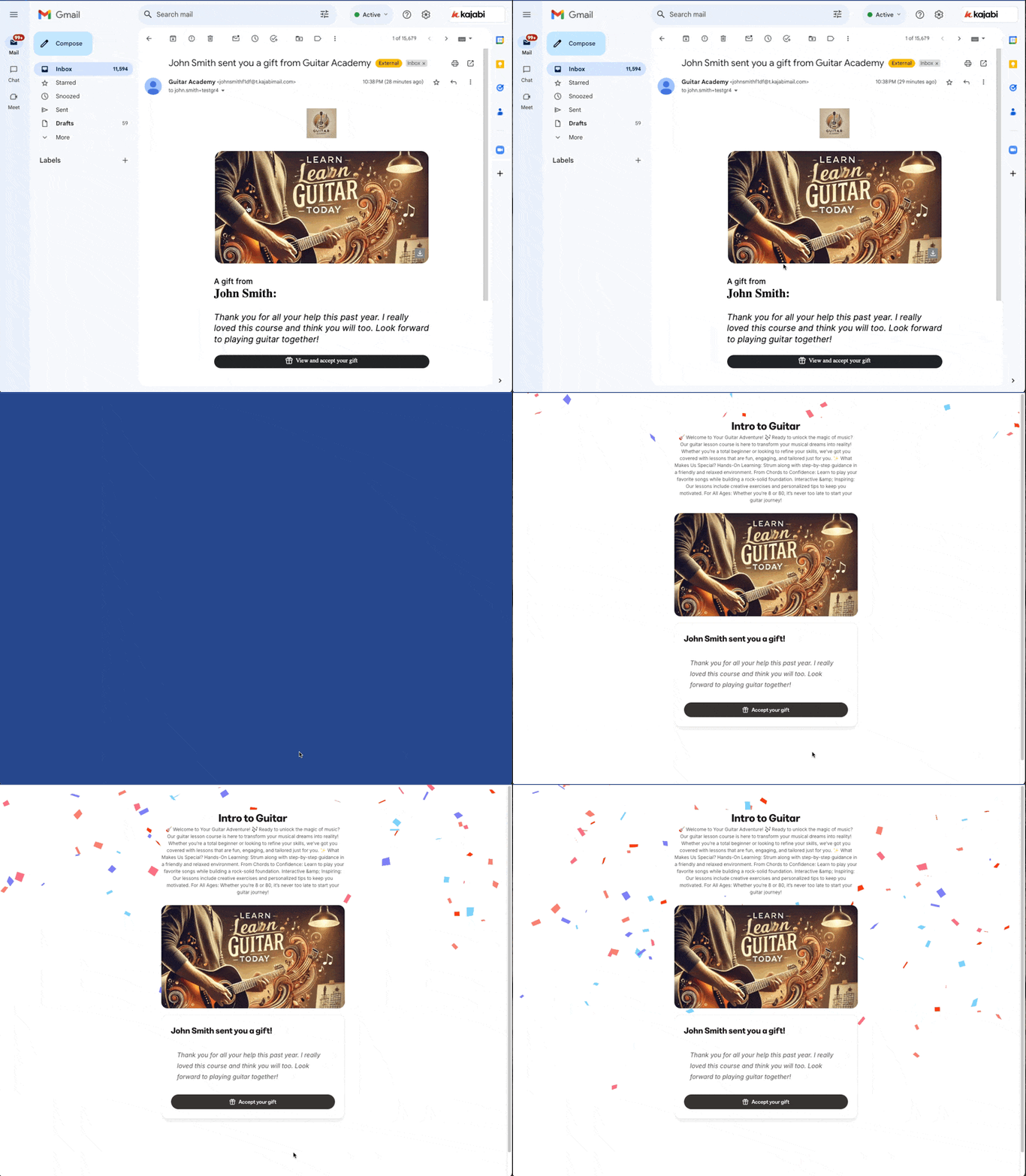
Once the gift has been delivered to the recipient's inbox, they are automatically granted access to the Offer's Products, but they must still click into the email and redeem the gift. Once the gift has been redeemed, they will be prompted to create a login and password to start their membership with your site and access their gift:
## Gift Offer Delivery Management
Gift Offer Delivery Management gives you more control over how and when gift offers are delivered to recipients.
With this feature, you can manage pending gift deliveries in the following ways:
* **Cancel a pending gift delivery when refunding a gift purchase**: This prevents the gift from being delivered after a refund has been processed.
* **Reschedule a pending gift delivery without issuing a refund**: This is helpful if a gift needs to be sent on a different date.
* **Cancel a pending gift delivery without issuing a refund**: Use this option if the gift should no longer be delivered, but the purchase should remain intact.
These options help reduce delivery issues and give you greater flexibility when managing gift offers.
### Manage Gift Offer Delivery
1. From the Kajabi Dashboard, click **Sales** > **Payments**.
2. From the Payments page, click the **Transactions** tab.
3. Find and select the gift offer **transaction**.
4. Within the gift offer transaction click the **pencil icon** next to delivery date.
5. Set a **new delivery date** or **cancel** the delivery.
6. On the gift offer transaction page, if you wish to refund the transaction, click the **refund button** in the top right corner.
7. Choose to cancel the transaction from the refund modal if you wish.
**Note:**
Only gift deliveries that are still pending can be canceled or rescheduled. Once a gift has been delivered, it cannot be modified.
## FAQs
### Which offer type can I use for Gift Offers?
Only a one-time purchase offer may be used for a gift offer.
### Can I use a ghost offer as a gift offer?
No, to use a gift offer, the offer must have a product attached.
### Can I use an Upsell or downsell step with my gift offer?
Upsells and downsell steps are disabled when a gift offer is enabled.
### How far in advance can I send a gift?
A gift offer can be scheduled up to 6 months in advance. They will be delivered around 9 am PST on the scheduled day.
### When is the recipient granted access to the gift offer?
The recipient gets access to the Offer's Products on the delivery date. If the Offer has a fixed effective start date, that date will take precedent over the delivery date.