> ## Documentation Index
> Fetch the complete documentation index at: https://help.kajabi.com/llms.txt
> Use this file to discover all available pages before exploring further.
# Export purchase reports for individual Offers
> View and export detailed payment information about every purchase made for individual Offers.
Export your **Offer Purchase report** to view every purchase made for an individual Offer.
 View the purchase information for an individual Offer to gain insight into the purchasing behavior for specific Offers.
Within your exported offer purchase report you can:
* View the date and time purchases are made
* View the [Upsells and Offer Bumps](/articles/sales/offers/what-is-the-difference-between-an-upsell-and-order-bump) successfully encouraging customers to purchase the Offer
* Investigate potential causes for deactivation based on the deactivation date
* If your Offer Checkout requires the completion of additional fields (e.g., address and phone number), gain insight into the common locations your Offer services
## Export the Offer purchase report
Easily export your Offer purchase report from your Offers page or the Offer editor.
### Export from the Offers page
1. Open the **Sales** tab from your Dashboard.
2. Locate the Offer you wish to export.
3. Open the **More Actions** menu (i.e., `…` icon).
4. Select your desired date range.
5. Click **Export** to begin exporting.
View the purchase information for an individual Offer to gain insight into the purchasing behavior for specific Offers.
Within your exported offer purchase report you can:
* View the date and time purchases are made
* View the [Upsells and Offer Bumps](/articles/sales/offers/what-is-the-difference-between-an-upsell-and-order-bump) successfully encouraging customers to purchase the Offer
* Investigate potential causes for deactivation based on the deactivation date
* If your Offer Checkout requires the completion of additional fields (e.g., address and phone number), gain insight into the common locations your Offer services
## Export the Offer purchase report
Easily export your Offer purchase report from your Offers page or the Offer editor.
### Export from the Offers page
1. Open the **Sales** tab from your Dashboard.
2. Locate the Offer you wish to export.
3. Open the **More Actions** menu (i.e., `…` icon).
4. Select your desired date range.
5. Click **Export** to begin exporting.
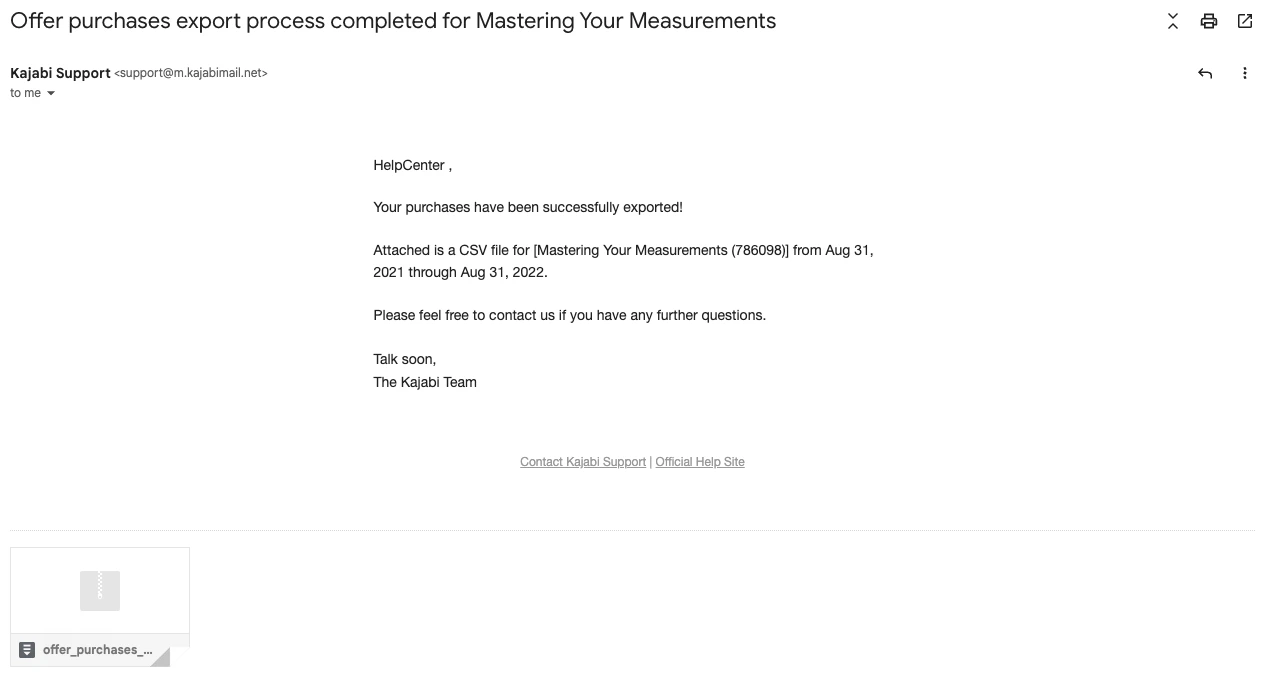
After exporting, download your exported CSV file from the email address associated with your Kajabi Account.
Your exported report will arrive from Kajabi Support with the subject line: **Offer purchases export process completed for \[Offer title]**:
 ### Export from the Offer editor
1. Open the **Pricing** tab from your Dashboard.
2. Select the Offer you wish to export.
3. Navigate to the **More Actions** menu (i.e., `…` icon).
4. Click **Export** to begin exporting.
### Export from the Offer editor
1. Open the **Pricing** tab from your Dashboard.
2. Select the Offer you wish to export.
3. Navigate to the **More Actions** menu (i.e., `…` icon).
4. Click **Export** to begin exporting.
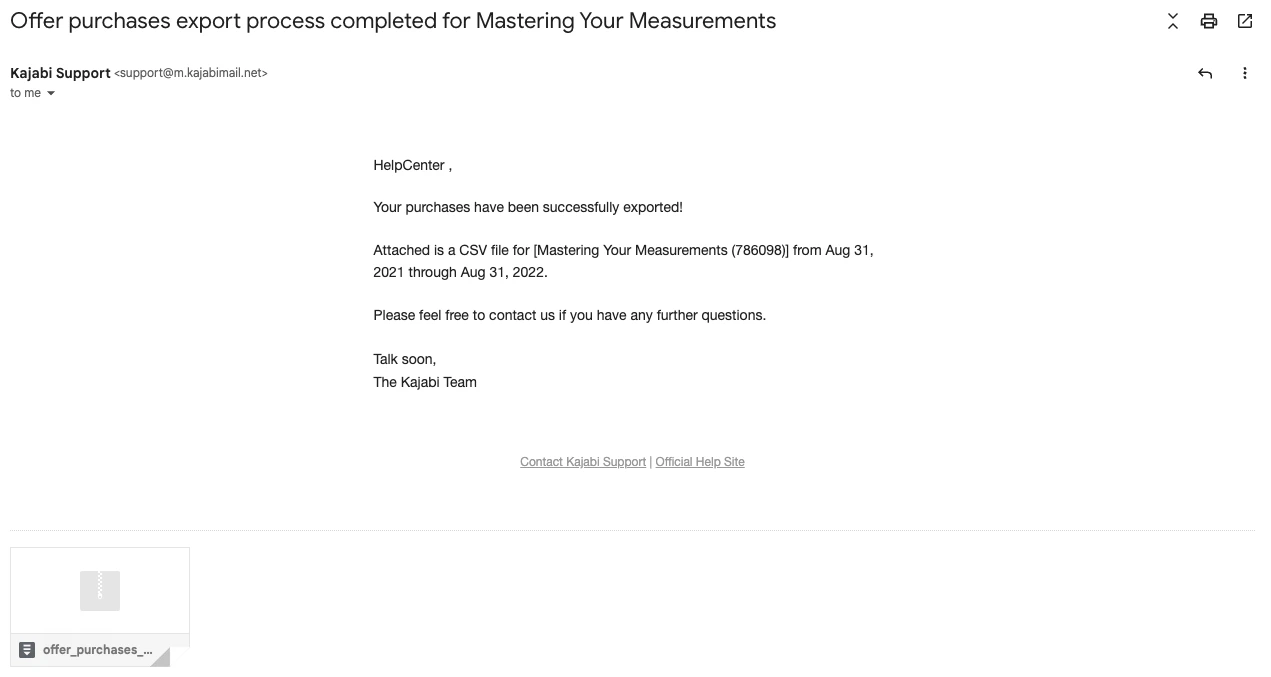
After exporting, download your exported CSV file from the email address associated with your Kajabi Account.
Your exported report will arrive from Kajabi Support with the subject line: **Offer purchases export process completed for \[Offer title]**:
 **Note:** Exporting this report will notify the owner of the Kajabi account if the owner has selected to receive notifications data is exported from their account. [Learn to update email notification settings](/articles/account-settings/notifications/update-email-notifications).