> ## Documentation Index
> Fetch the complete documentation index at: https://help.kajabi.com/llms.txt
> Use this file to discover all available pages before exploring further.
# Set an Offer quantity limit
> Create limited quantity Offers on Kajabi to drive urgency and scarcity.
Have an Offer for which you want to limit the quantity available for purchase, such as webinar seats or coaching session attendees?
Limit the number of people who can purchase your Offer with the **Offer quantity limit** feature.
 **Note:** This article refers to the number of customers that can purchase your Offer. If you are looking to set an expiration date on your Offer, [learn how to add an expiration date](/articles/sales/offers/how-to-add-an-expiration-date-to-your-offer).
Quantity limits and expiration dates can be used together. If both are enabled, the Offer will close as soon as *either* limit is reached. For example, you might allow up to 15 registrations *or* automatically close the Offer after December 15th, whichever happens first.
**Note:** Granted Offers will not be counted toward the quantity limit. [Learn about granting an Offer](/articles/sales/offers/how-to-grant-an-offer).
## Set a quantity limit
Build a limited quantity Offer by setting your Offer quantity limit.
With Kajabi you can also choose to show the quantity remaining for a limited offer on the checkout page. This will help drive demand and urgency of sales. This can be achieved by adding a numeric threshold. The numeric threshold can be any number you wish to display and is not bound by the set quantity limit.
1. Open the **Sales** tab from your Dashboard.
2. Select the **Offer** you wish to limit or [create a new Offer](/articles/sales/offers/create-an-offer).
3. Navigate to **Pricing**.
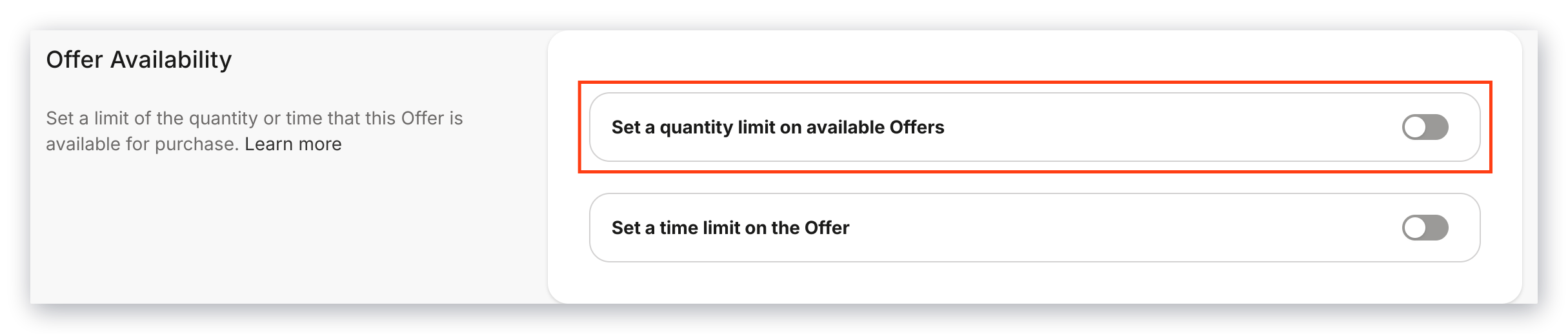
4. Scroll down to the **Offer Availability** section.
5. Toggle **ON** the "**Set a quantity limit on available offers**" button.
6. Enter your desired quantity limit. (Must be a number between 1 and 999999.)
7. Select the page you wish to display when the quantity limit has been reached:
* **Sold-out Page**: Default sold-out page with your custom copy.
* **Landing Page**: Your custom-designed landing page built specifically for this purpose.
8. Toggle ON "**Show the remaining item count at checkout**" if you wish to add a numeric threshold.
9. Set a **numeric threshold**.
10. Click Save to keep and apply your changes.
**Note:** This article refers to the number of customers that can purchase your Offer. If you are looking to set an expiration date on your Offer, [learn how to add an expiration date](/articles/sales/offers/how-to-add-an-expiration-date-to-your-offer).
Quantity limits and expiration dates can be used together. If both are enabled, the Offer will close as soon as *either* limit is reached. For example, you might allow up to 15 registrations *or* automatically close the Offer after December 15th, whichever happens first.
**Note:** Granted Offers will not be counted toward the quantity limit. [Learn about granting an Offer](/articles/sales/offers/how-to-grant-an-offer).
## Set a quantity limit
Build a limited quantity Offer by setting your Offer quantity limit.
With Kajabi you can also choose to show the quantity remaining for a limited offer on the checkout page. This will help drive demand and urgency of sales. This can be achieved by adding a numeric threshold. The numeric threshold can be any number you wish to display and is not bound by the set quantity limit.
1. Open the **Sales** tab from your Dashboard.
2. Select the **Offer** you wish to limit or [create a new Offer](/articles/sales/offers/create-an-offer).
3. Navigate to **Pricing**.
4. Scroll down to the **Offer Availability** section.
5. Toggle **ON** the "**Set a quantity limit on available offers**" button.
6. Enter your desired quantity limit. (Must be a number between 1 and 999999.)
7. Select the page you wish to display when the quantity limit has been reached:
* **Sold-out Page**: Default sold-out page with your custom copy.
* **Landing Page**: Your custom-designed landing page built specifically for this purpose.
8. Toggle ON "**Show the remaining item count at checkout**" if you wish to add a numeric threshold.
9. Set a **numeric threshold**.
10. Click Save to keep and apply your changes.
Want to change your limit? Repeat the steps above to update your quantity limit.