> ## Documentation Index
> Fetch the complete documentation index at: https://help.kajabi.com/llms.txt
> Use this file to discover all available pages before exploring further.

<AgentInstructions>

## Submitting Feedback

If you encounter incorrect, outdated, or confusing documentation on this page, submit feedback:

POST https://help.kajabi.com/feedback

```json
{
  "path": "/articles/sales/offers/offer-a-syllabus",
  "feedback": "Description of the issue"
}
```

Only submit feedback when you have something specific and actionable to report.

</AgentInstructions>

# Offer a syllabus

> Showcase course content with a Syllabus so potential customers can view what's included before purchasing.

Offering a **syllabus** to potential customers is a great way to showcase your course content and value.

If a prospect can view exactly what they will receive for the price, they will better understand what to expect in the course and what to look forward to in each module.

## Offer a free trial period

A simple way to showcase what your course will contain is by offering a free trial period through the Offer. This will allow the customer to join the course for a set period of time without paying.

They will be automatically charged the subscription price at the end of the trial if they do not reach out to you to cancel their membership before that date.

### Set up a free trial period

1. Open the **Sales** tab from your Dashboard.
2. Select **Pricing**.
3. Select the **Offer** you want to set up a trial period for.
4. In the Offer editor, select the **Pricing** tab.
5. Navigate to **Price Details**.
6. Select **Subscription** for the Payment type.
7. Enter your desired **Payment amount** for each recurring payment.
8. In the **Trial period days** field, enter the number of days your trial period will last after purchase.
9. Click **Save** to save your changes.

<div className="w-full aspect-video">
  <iframe src="https://fast.wistia.net/embed/iframe/04daaxwh95" allow="autoplay; fullscreen" allowFullScreen className="w-full h-full" />
</div>

## Create a syllabus preview page

Creating a Sales Page that details your course content is another option to show off your course content.

Read [How to Add Pages to your Website](/articles/website/pages/how-to-add-pages-to-your-website) for details on selecting a Template and generating a new page.

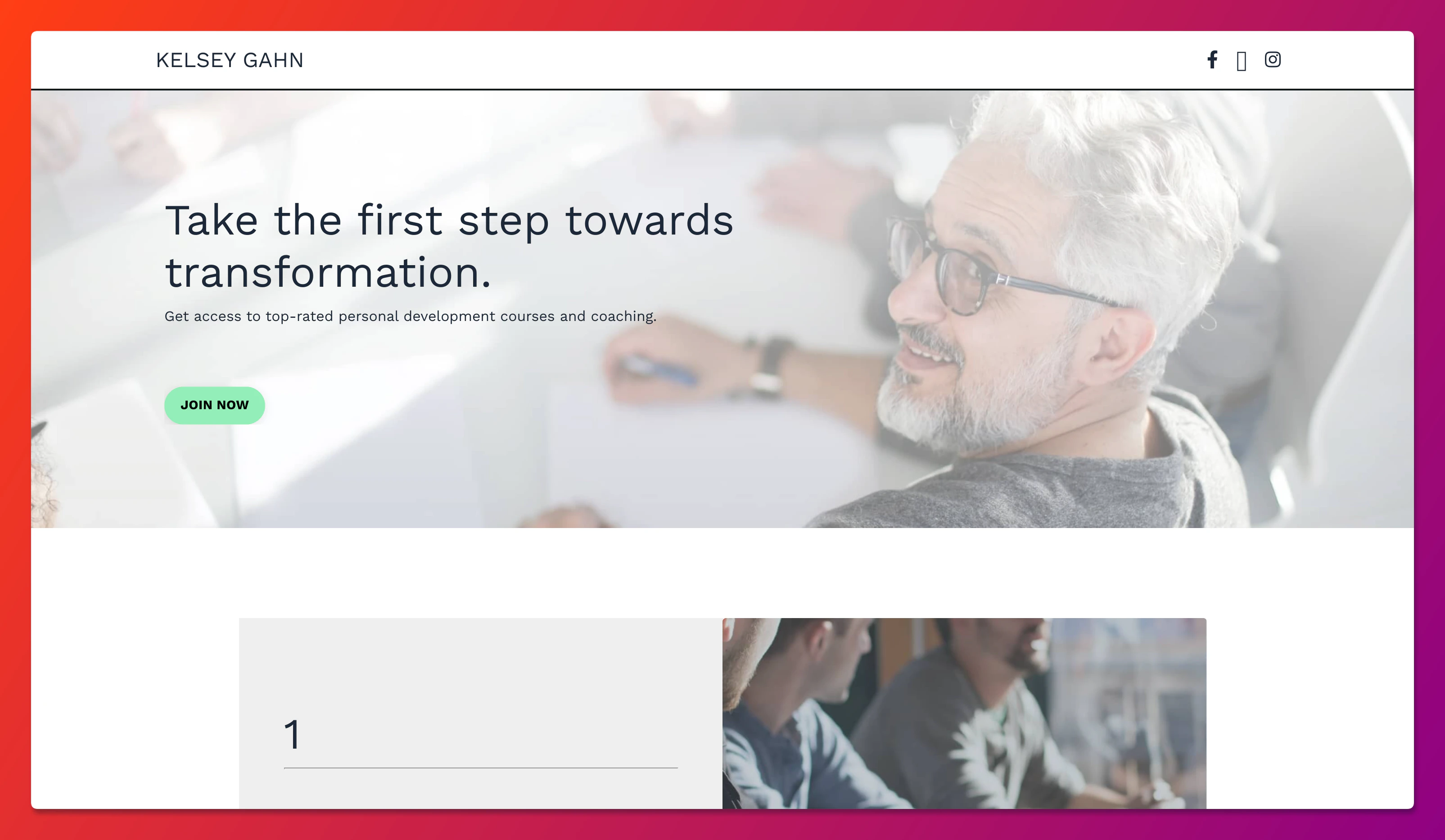
After you have selected your Template, design your Page. For this example, we used the Evolve template:

<img src="https://mintcdn.com/kajabi-support/9ECEoegjfIZyqUXg/articles/images/8e513808_35934544241819.png?fit=max&auto=format&n=9ECEoegjfIZyqUXg&q=85&s=47dfee342a150c0aadd256cdf6b7418e" alt="Syllabus preview page" width="3210" height="1866" data-path="articles/images/8e513808_35934544241819.png" />

## Send an automated email after Form submission

Sending an Automated Email after a Form Submission is an excellent way to provide more information to a prospect through email. This will first require the creation of a Form, then an Automation to send an Email after the Form is submitted.

[Learn how to set up Form Automations](/articles/marketing/forms/how-to-use-automations-in-forms)

In the Email that will be sent after Form submission, you will want to include a copy of your Syllabus. This can either be text:
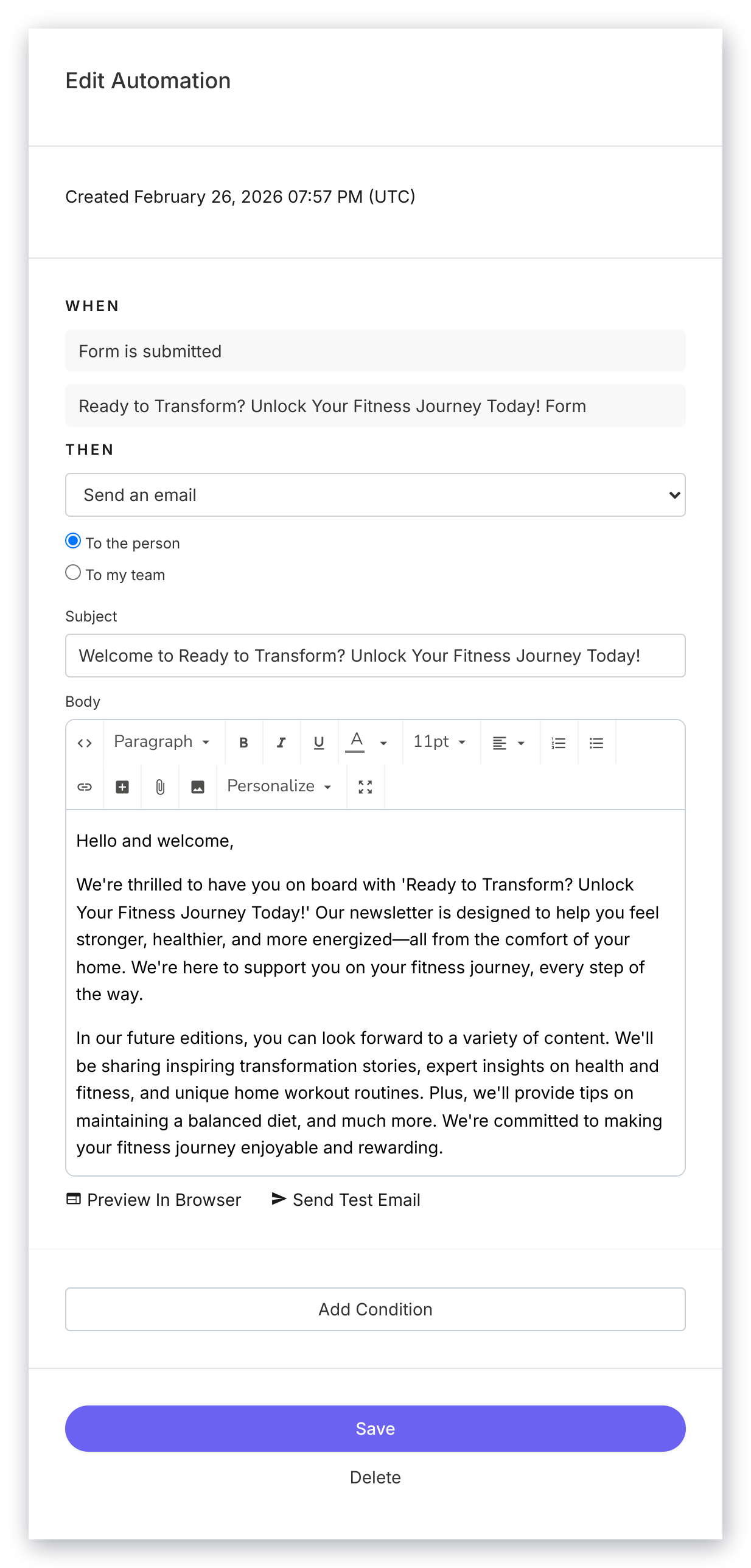
<img src="https://mintcdn.com/kajabi-support/4xb7Z9X_ecGbjk3p/articles/images/5aad8ba0_upload_18098752350552158918.png?fit=max&auto=format&n=4xb7Z9X_ecGbjk3p&q=85&s=b6c618e64e7e6231d87771c742f333b9" alt="Syllabus text" width="1180" height="2522" data-path="articles/images/5aad8ba0_upload_18098752350552158918.png" />

or you can upload a graphic image of your syllabus to the email:
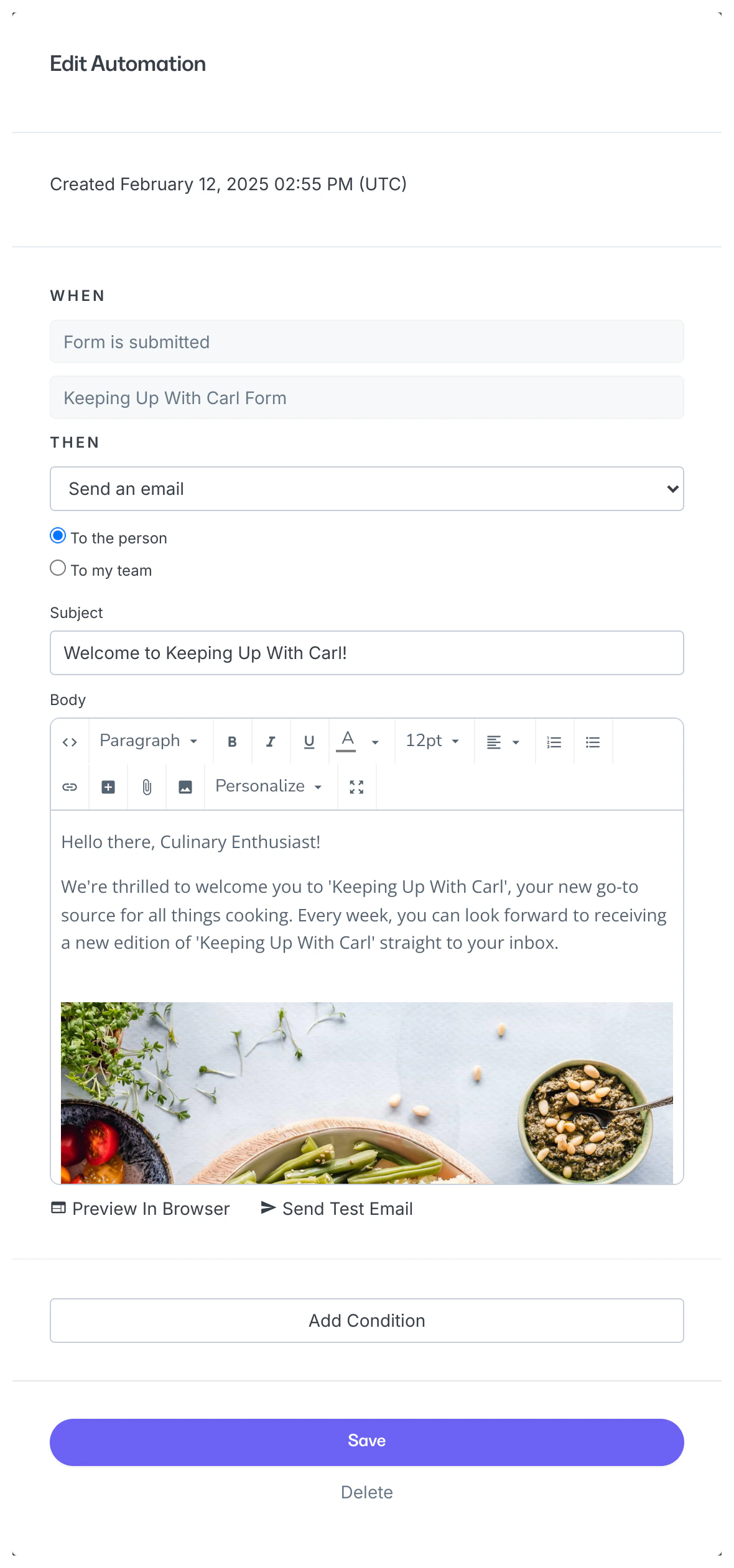
<img src="https://mintcdn.com/kajabi-support/0X831VxXANnxgpSu/articles/images/e1cea828_upload_18098752350552158918.png?fit=max&auto=format&n=0X831VxXANnxgpSu&q=85&s=91df6742a771be1211bfc751669a3edd" alt="Syllabus image" width="1180" height="2522" data-path="articles/images/e1cea828_upload_18098752350552158918.png" />
