> ## Documentation Index
> Fetch the complete documentation index at: https://help.kajabi.com/llms.txt
> Use this file to discover all available pages before exploring further.
# Pay off Payment Plans early
> Collect the remaining balance on an active payment plan in a single charge, with the option to apply a discount.
**Early payoff** lets you complete an active payment plan by charging the full remaining balance at once, instead of waiting for the rest of the scheduled installments to bill. You can apply a discount before you charge, which is a common way to give customers a reason to settle up early.
Once the charge goes through, the remaining installments are cancelled, and the plan moves to Completed.
## When to use early payoff
* **A customer asks to settle their balance:** They want to finish paying rather than wait out the remaining months.
* **You want to incentivize early payment:** Many payment plans are priced above the one-time price of the same offer, so a discount at payoff is a natural trade. You collect sooner, and the customer pays closer to the one-time rate.
* **You are closing out a plan before a change:** You are retiring an offer, migrating a customer, or cleaning up your books at the end of a period, and you want the plan finished rather than lingering.
* **You want the remaining balance in one transaction:** A single charge is simpler to reconcile than several months of installments.
## Before you begin
* Your site must have an active Kajabi Payments integration. Early payoff is not available for payment plans processed through Stripe or PayPal.
* You need Admin access or higher to pay off a payment plan.
* The payment plan must be **Active** or **Trialing**. Completed, cancelled, and paused plans are not eligible.
* Plans with failed payments cannot be paid off early. See [Why is the payoff option greyed out?](#why-is-the-payoff-option-greyed-out) below.
## Pay off a payment plan
### Open the payoff window
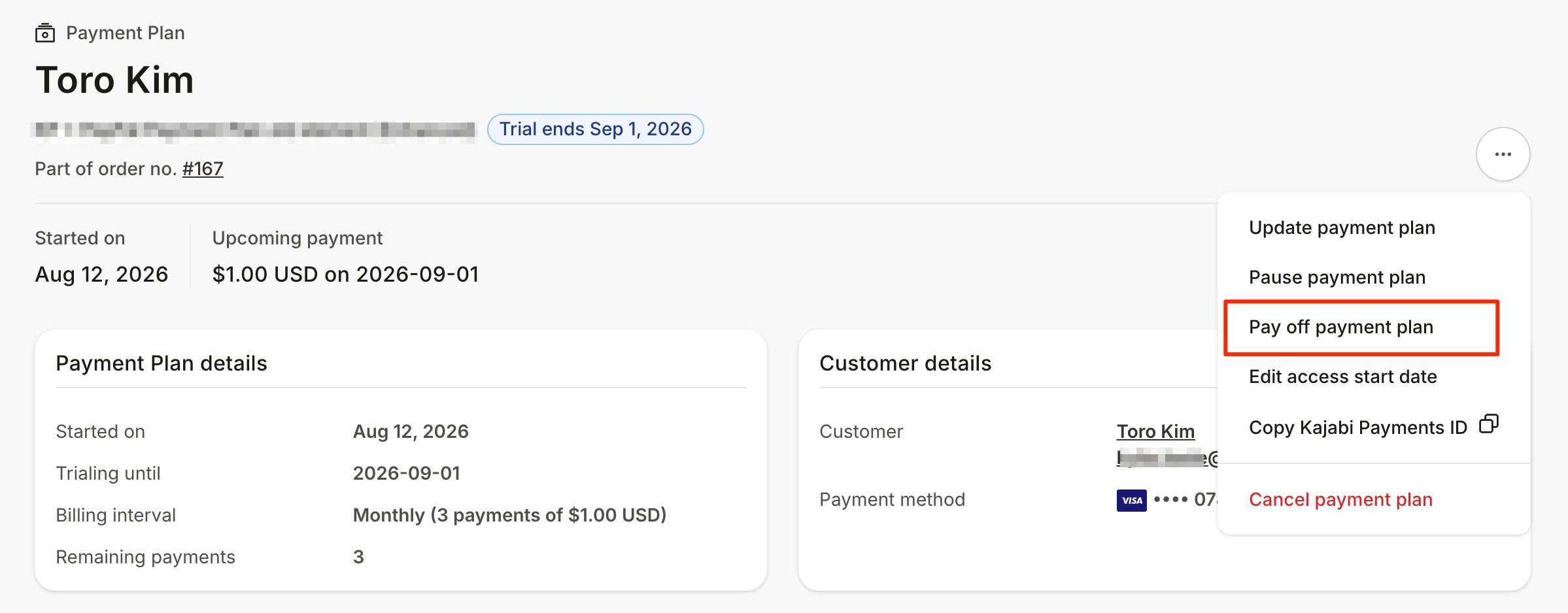
1. Open **Contacts** from your Dashboard
2. Search for and select the customer, then open their **Purchases** tab
3. Select the payment plan you want to close out
4. Click **More Actions** (…) on the payment plan detail page
5. Select **Pay off payment plan**
You can also reach the payment plan detail page from **Sales** > **Payment Plans**.
 ### Review the payoff amount
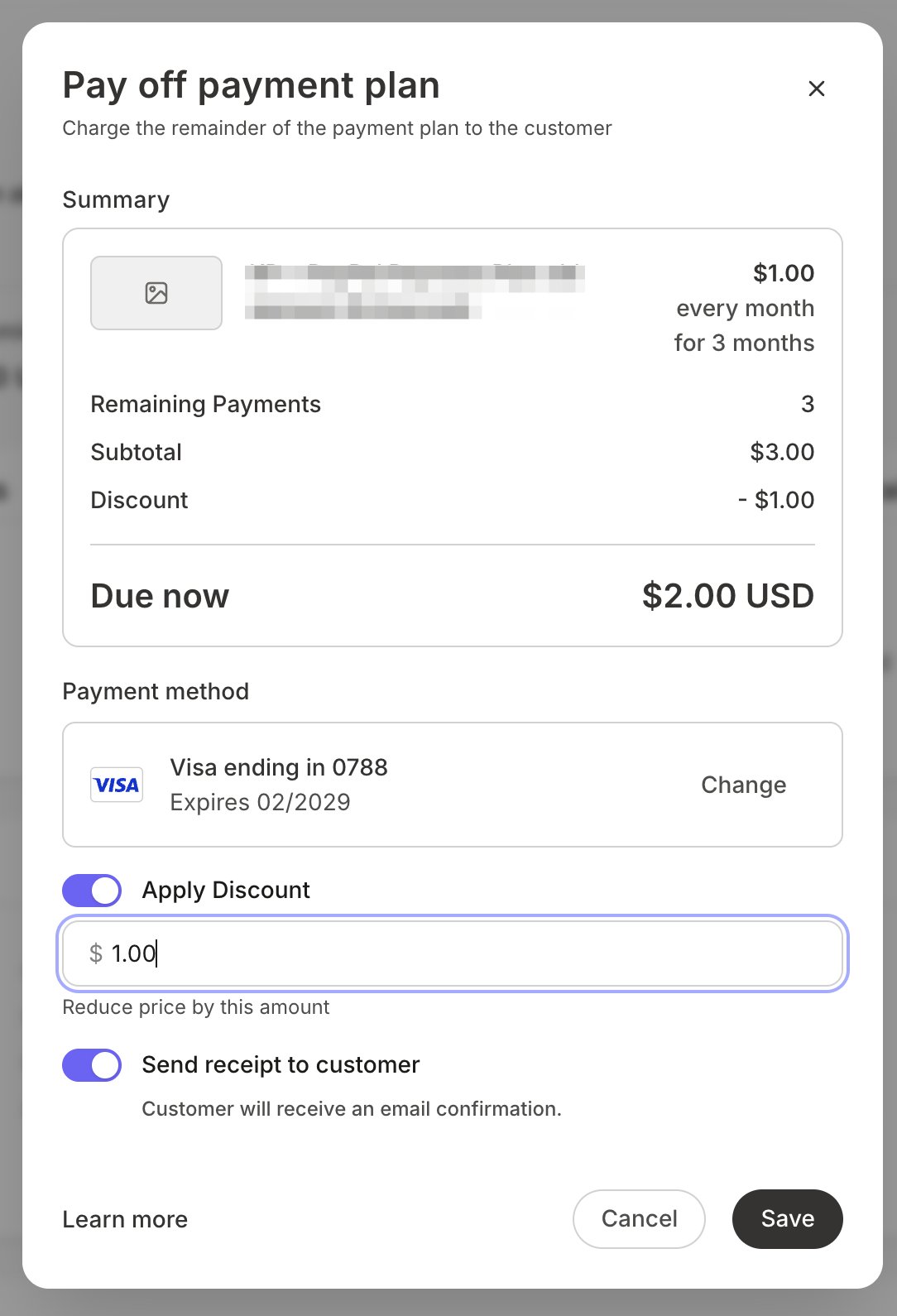
The payoff window shows a summary of the plan: what the customer has paid so far, how many payments remain, and the total amount due to close the plan today.
Check this total before you go any further. It is the amount you will charge, unless you apply a discount in the next step.
### Apply a discount (optional)
1. Turn on the **Apply a discount** toggle
2. Enter the discount amount
3. The total updates to reflect the discounted payoff amount
The discount applies to this payoff charge only. It does not change your offer, and it does not affect any other customer on the same plan.
If the discount brings the total to zero, no payment method is required. The plan is marked Completed without a charge.
### Review the payoff amount
The payoff window shows a summary of the plan: what the customer has paid so far, how many payments remain, and the total amount due to close the plan today.
Check this total before you go any further. It is the amount you will charge, unless you apply a discount in the next step.
### Apply a discount (optional)
1. Turn on the **Apply a discount** toggle
2. Enter the discount amount
3. The total updates to reflect the discounted payoff amount
The discount applies to this payoff charge only. It does not change your offer, and it does not affect any other customer on the same plan.
If the discount brings the total to zero, no payment method is required. The plan is marked Completed without a charge.
 ### Choose a payment method
1. The payoff defaults to the customer's card on file. Click **Change** to select a different saved card or enter a new one.
2. Leave **Send receipt to customer** checked to email the customer a receipt for the payoff. Uncheck it if you do not want one sent.
A small fee applies the first time a manually entered card is used. The fee does not apply when you charge the card already on file. The fee rate is shown before you confirm. [Learn more](https://help.kajabi.com/articles/sales/kajabi-payments/kajabi-payments-processing-fees).
### Review and confirm
1. Click **Review**
2. Check the customer, the payoff total, any discount applied, and the payment method
3. Click **Confirm** to charge the card
You will see a confirmation message once the payoff is complete.
## After the payoff
The payment plan moves to **Completed** and shows zero remaining payments. Every installment that had not yet billed is cancelled, so the customer will not be charged again for this plan.
Your customer receives a receipt, unless you unchecked that option. The receipt shows the discount, if you applied one, along with the number of payments the charge covered.
## Track early payoffs
Payoff charges appear in your Transactions table alongside your other sales.
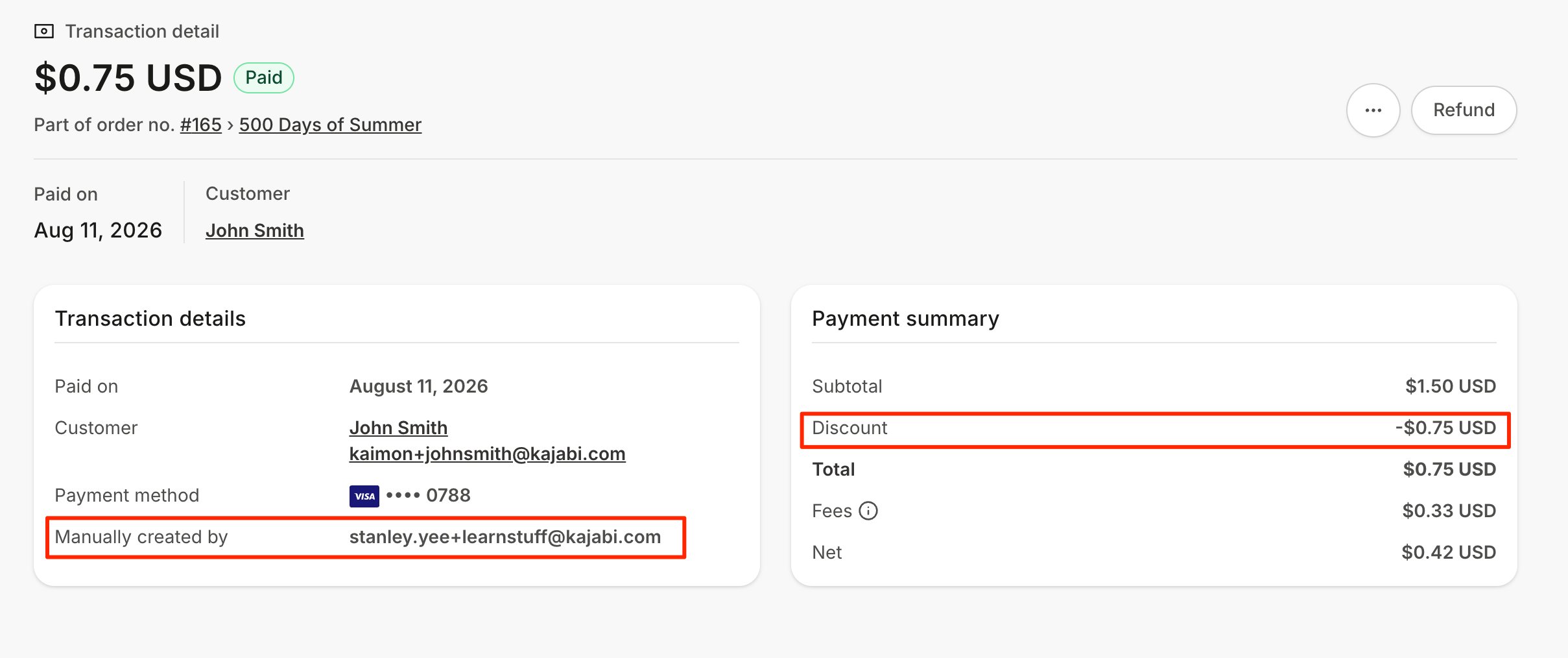
On the Transaction detail page, the **Manually created by** field shows the email address of the team member who processed the payoff. If you applied a discount, it appears as a line in the Payment summary on the right.
Your transaction export includes three columns that help you review payoff activity:
* **Manually created by:** the email of the team member who processed the payoff
* **Discount Applied:** the discount amount, if any
* **Discount Type:** populated with *Payoff Payment Plan Discount*
In your payment plan export, a plan closed early keeps its original number of payments and shows the number actually collected. A four-payment plan paid off after two charges shows four payments and two completed.
### Choose a payment method
1. The payoff defaults to the customer's card on file. Click **Change** to select a different saved card or enter a new one.
2. Leave **Send receipt to customer** checked to email the customer a receipt for the payoff. Uncheck it if you do not want one sent.
A small fee applies the first time a manually entered card is used. The fee does not apply when you charge the card already on file. The fee rate is shown before you confirm. [Learn more](https://help.kajabi.com/articles/sales/kajabi-payments/kajabi-payments-processing-fees).
### Review and confirm
1. Click **Review**
2. Check the customer, the payoff total, any discount applied, and the payment method
3. Click **Confirm** to charge the card
You will see a confirmation message once the payoff is complete.
## After the payoff
The payment plan moves to **Completed** and shows zero remaining payments. Every installment that had not yet billed is cancelled, so the customer will not be charged again for this plan.
Your customer receives a receipt, unless you unchecked that option. The receipt shows the discount, if you applied one, along with the number of payments the charge covered.
## Track early payoffs
Payoff charges appear in your Transactions table alongside your other sales.
On the Transaction detail page, the **Manually created by** field shows the email address of the team member who processed the payoff. If you applied a discount, it appears as a line in the Payment summary on the right.
Your transaction export includes three columns that help you review payoff activity:
* **Manually created by:** the email of the team member who processed the payoff
* **Discount Applied:** the discount amount, if any
* **Discount Type:** populated with *Payoff Payment Plan Discount*
In your payment plan export, a plan closed early keeps its original number of payments and shows the number actually collected. A four-payment plan paid off after two charges shows four payments and two completed.
 ## Frequently asked questions
### Can my customer pay off their own plan?
Early payoff is something you initiate from your Dashboard. Customers cannot pay off a plan from their account.
### Can I pay off part of a plan?
Early payoff collects the full remaining balance. If you want to cover only some of the remaining installments, that is not supported at this time.
### Does this work with Stripe or PayPal?
Early payoff is available only for payment plans processed through Kajabi Payments.
### Why is the payoff option greyed out?
The option is disabled when the plan is not eligible. The most common reasons are a plan with failed payments, a plan that is not Active or Trialing, or a plan that is not processed through Kajabi Payments. If you do not have permission to charge payments on your site, the option is disabled with a tooltip explaining that.
### Will the discount change my offer?
No. A payoff discount applies to that one charge. Your offer keeps its published price and payment structure.
### Is there a fee?
There is no additional fee when you charge the card already on file. A small fee applies the first time a manually entered card is used. [Learn more](https://help.kajabi.com/articles/sales/kajabi-payments/kajabi-payments-processing-fees).
## Related articles
* [Create a manual purchase](https://help.kajabi.com/articles/sales/kajabi-payments/manual-purchases)
* [Payment Plans](https://help.kajabi.com/articles/sales/kajabi-payments/payment-plans)
* [Transaction Details Page Overview](https://help.kajabi.com/articles/contacts/manage-your-contacts/transaction-details-page-overview)
* [Manage failed payments with Kajabi Payments](https://help.kajabi.com/articles/sales/kajabi-payments/how-to-manage-failed-payments-with-kajabi-payments)
## Frequently asked questions
### Can my customer pay off their own plan?
Early payoff is something you initiate from your Dashboard. Customers cannot pay off a plan from their account.
### Can I pay off part of a plan?
Early payoff collects the full remaining balance. If you want to cover only some of the remaining installments, that is not supported at this time.
### Does this work with Stripe or PayPal?
Early payoff is available only for payment plans processed through Kajabi Payments.
### Why is the payoff option greyed out?
The option is disabled when the plan is not eligible. The most common reasons are a plan with failed payments, a plan that is not Active or Trialing, or a plan that is not processed through Kajabi Payments. If you do not have permission to charge payments on your site, the option is disabled with a tooltip explaining that.
### Will the discount change my offer?
No. A payoff discount applies to that one charge. Your offer keeps its published price and payment structure.
### Is there a fee?
There is no additional fee when you charge the card already on file. A small fee applies the first time a manually entered card is used. [Learn more](https://help.kajabi.com/articles/sales/kajabi-payments/kajabi-payments-processing-fees).
## Related articles
* [Create a manual purchase](https://help.kajabi.com/articles/sales/kajabi-payments/manual-purchases)
* [Payment Plans](https://help.kajabi.com/articles/sales/kajabi-payments/payment-plans)
* [Transaction Details Page Overview](https://help.kajabi.com/articles/contacts/manage-your-contacts/transaction-details-page-overview)
* [Manage failed payments with Kajabi Payments](https://help.kajabi.com/articles/sales/kajabi-payments/how-to-manage-failed-payments-with-kajabi-payments)